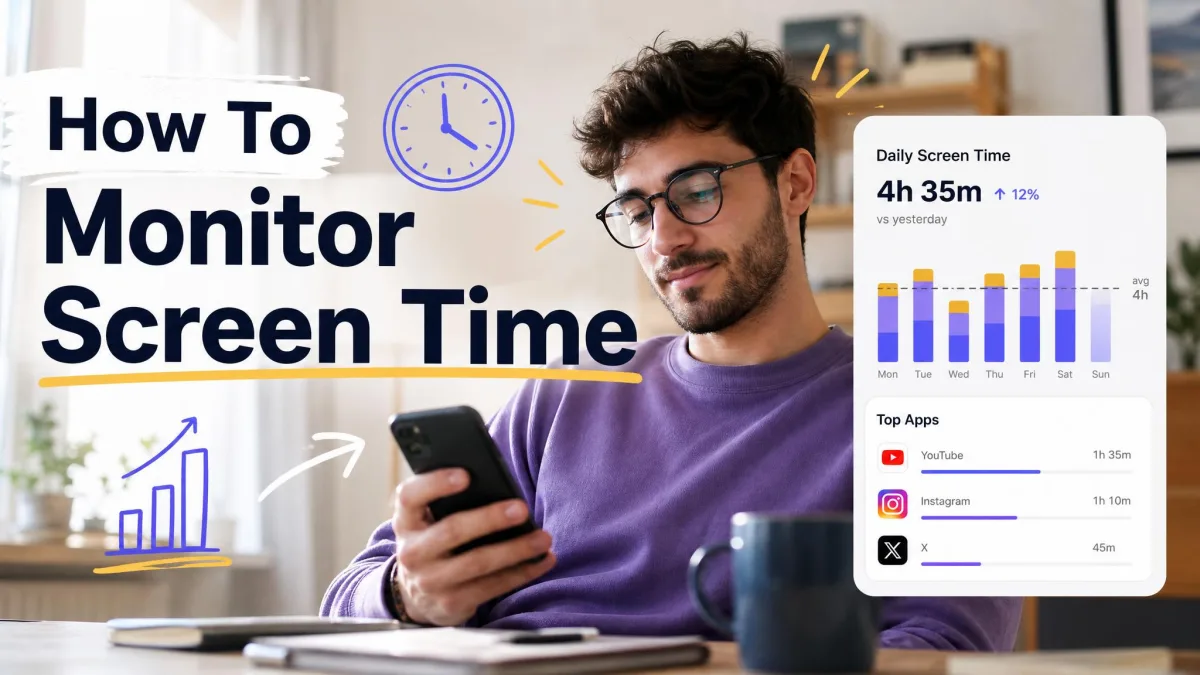
Screens are part of nearly every kid's day, and setting limits that actually stick is harder than it sounds. You don't need a perfect system. A few clear family rules, some screen-free times, and the free controls built into your child's devices do most of the work.
Below are 10 tips, from making a family media plan to setting a bedtime on an iPhone or Android phone. Pick two or three that fit your home and build from there.
How much screen time is right for each age?
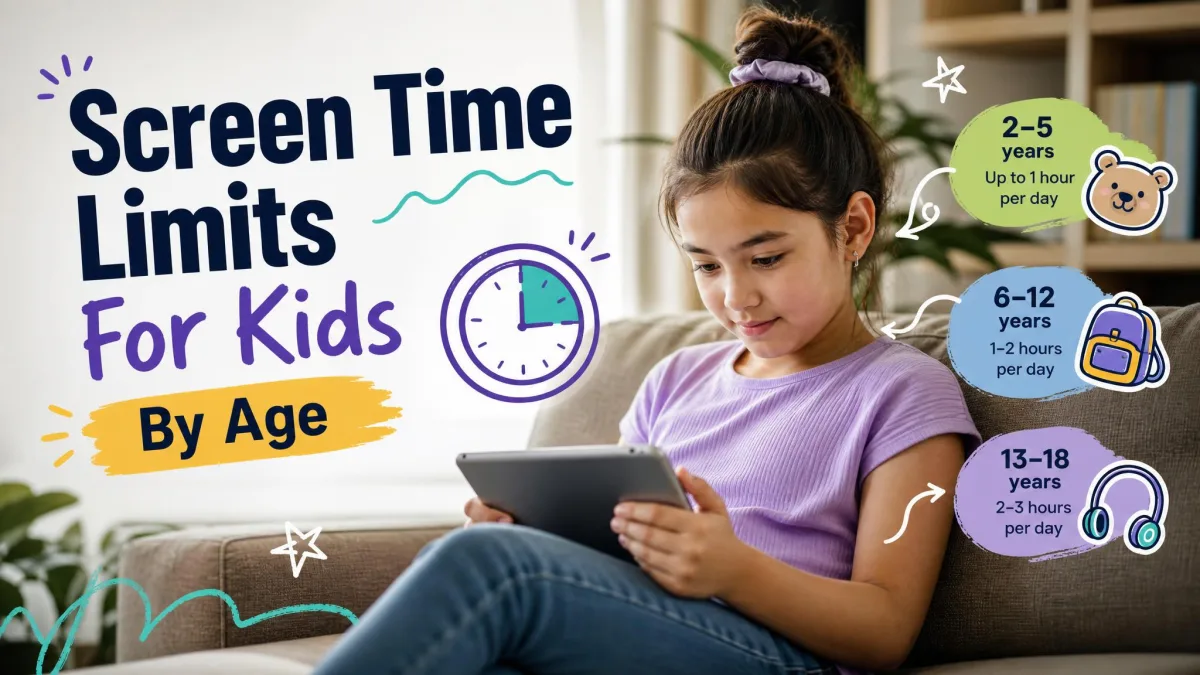
Age guidance is a starting point, not a stopwatch. The American Academy of Pediatrics set these long-standing bands in 2016:
- Under 18 months: avoid screen media other than video chatting.
- 18 to 24 months: if you introduce screens, choose high-quality programming and watch together.
- Ages 2 to 5: about one hour a day of high-quality programming.
- Older children: no single number fits, so aim for a healthy balance with sleep, school and play.
The AAP's 2026 update moves away from one daily number and toward how media is used and what it crowds out. Treat the hour figures as guidance, not hard limits. Our chart of screen time limits for kids by age goes deeper.
1. Set clear screen time rules and routines
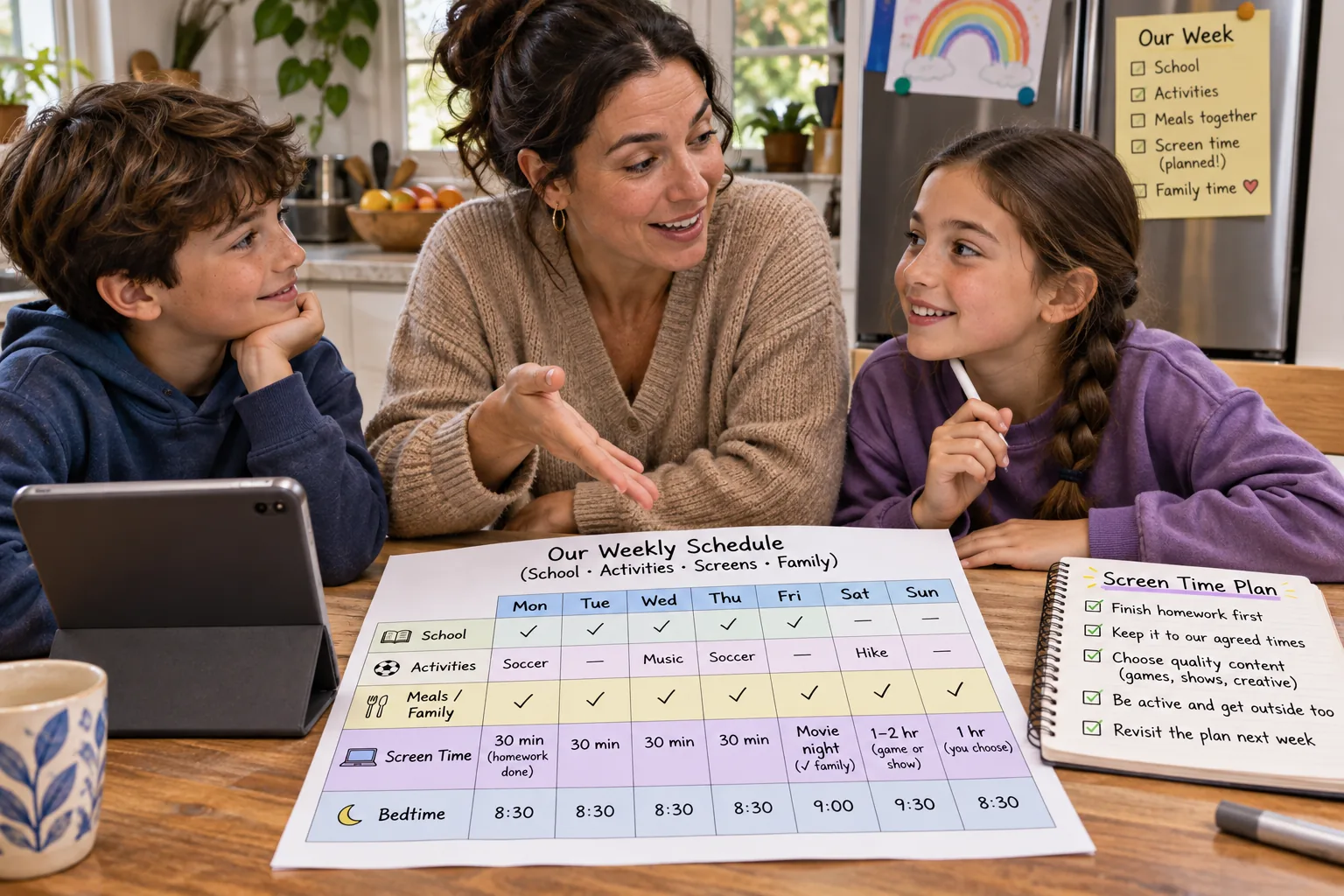
Kids handle limits better when screens are part of a routine instead of a surprise. Decide when screens fit into the day, such as after homework, and say the plan out loud. Keep the rules few and simple enough for a young child to repeat.
A visual timer helps younger kids see time running out. If you want a ready-made starting set, see our 7 rules for limiting kids' screen time.
2. Make a family media plan together
A family media plan turns those rules into something everyone agrees to. The American Academy of Pediatrics' Family Media Plan is a free tool where you set media rules, screen-free zones and device curfews together.
Kids follow rules they helped write, and a written plan settles arguments without a power struggle. Revisit it as your kids get older.
3. Create screen-free zones and times
Some places and times work better with no screens at all. Meals are the easiest place to start, and the AAP's 2026 guidance specifically suggests keeping them device-free. Short car rides and family game night are other good candidates.
Keep the rule the same for adults, so it feels like a family habit rather than a punishment.
4. Keep devices out of bedrooms at night
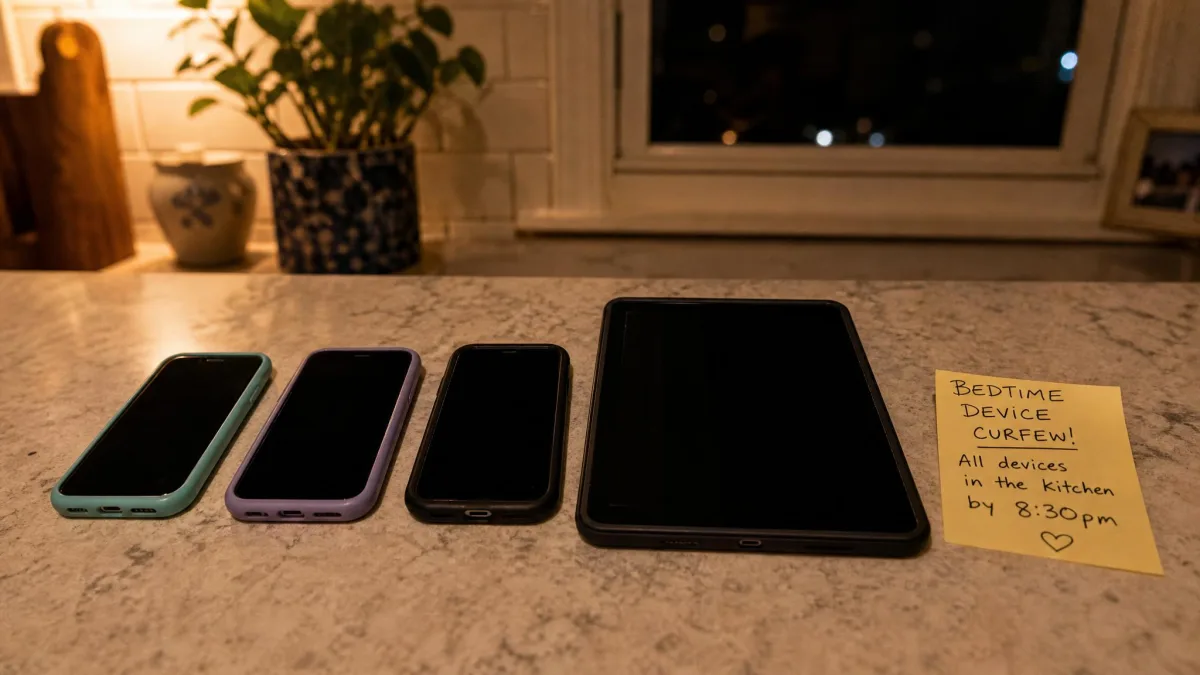
Bedrooms are where screens most often crowd out sleep. Set a device curfew, such as an hour before bed, and charge phones overnight in the kitchen. A cheap alarm clock removes the "I need my phone to wake up" excuse.
Once you turn on a bedtime schedule in your parental controls (tip 7), the device enforces the cutoff for you.
5. Model the screen habits you want to see
Kids copy what they see. If you're scrolling at dinner, a no-phones-at-the-table rule won't last. Put your own phone away during family time, and say why out loud: "I'm putting my phone down so we can play."
Doing this shows kids that technology is something you choose to pick up and put down.
6. Choose quality content over quantity
Not all screen time is equal. A video call with grandparents and an hour of autoplay videos both count, but they don't affect your child the same way.
There's no magic number that's just right for every child. It sorts screen use into passive viewing, interactive play, communication and content creation. Steer toward the active kinds that support learning, and check age ratings before downloading new games.
7. Use built-in parental controls and device timers
Built-in controls do the enforcing so you don't have to be the timer, and they're free. As the FTC's guide to parental controls points out, they reinforce habits you set at home and are no substitute for talking with your kid. Set them up on every device your child uses.
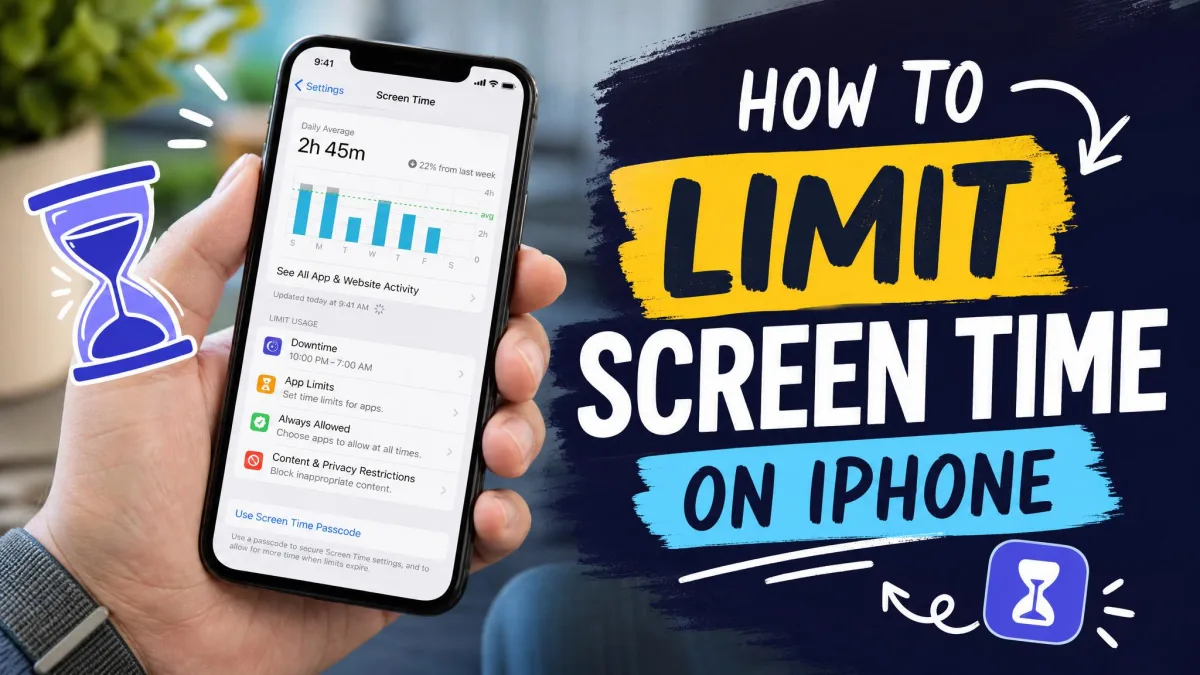
Apple Screen Time on iPhone and iPad
You manage Screen Time from your own device through Family Sharing. Apple explains how to set up Screen Time on your child's iPhone:
- Open Settings, tap Family, then tap your child's name.
- Tap Screen Time and follow the onscreen steps.
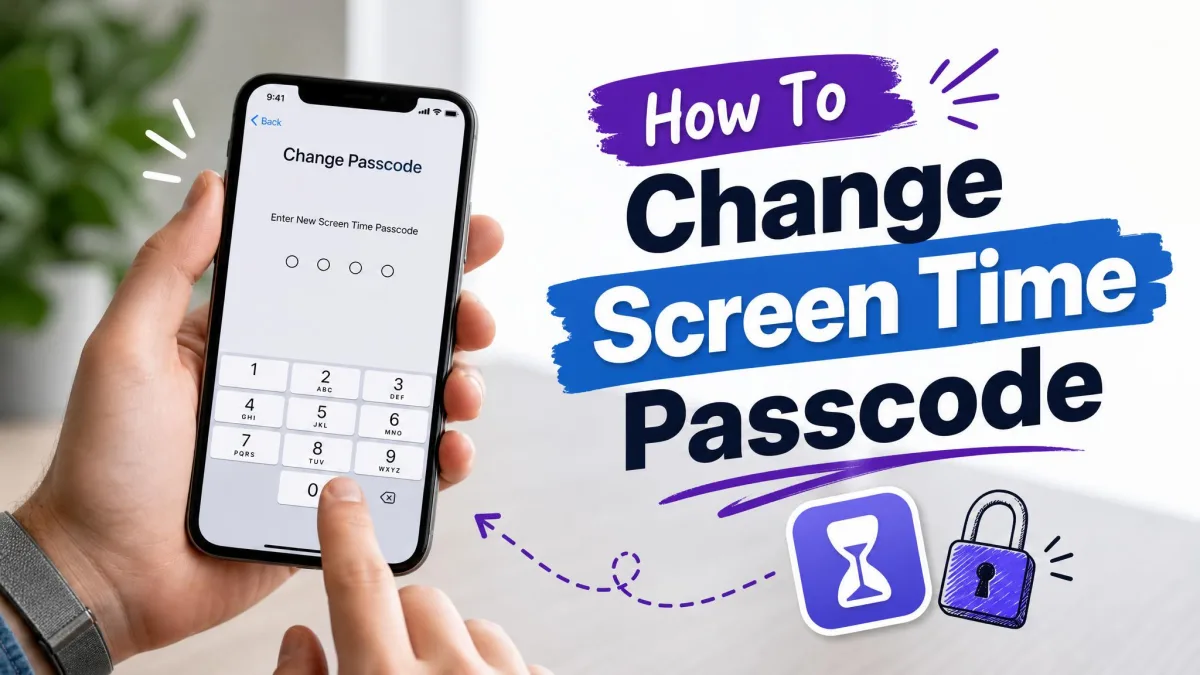
- Set the Screen Time passcode on your own device when prompted.
On iOS 27, the bedtime and daily-cap features are called Screen Time Schedules and Time Allowances. Families on iOS 26 or earlier see Downtime and App Limits. Ask to Browse in Safari is on by default for Child Accounts under 13.
There's one important catch to know before you update. The redesigned Screen Time that arrived with iOS 27 in September 2026 won't switch on until every device in the Family Sharing group is updated. Your existing limits also don't carry over, so plan to rebuild your schedules. Our guide to set App Limits and Downtime on iPhone covers both versions.
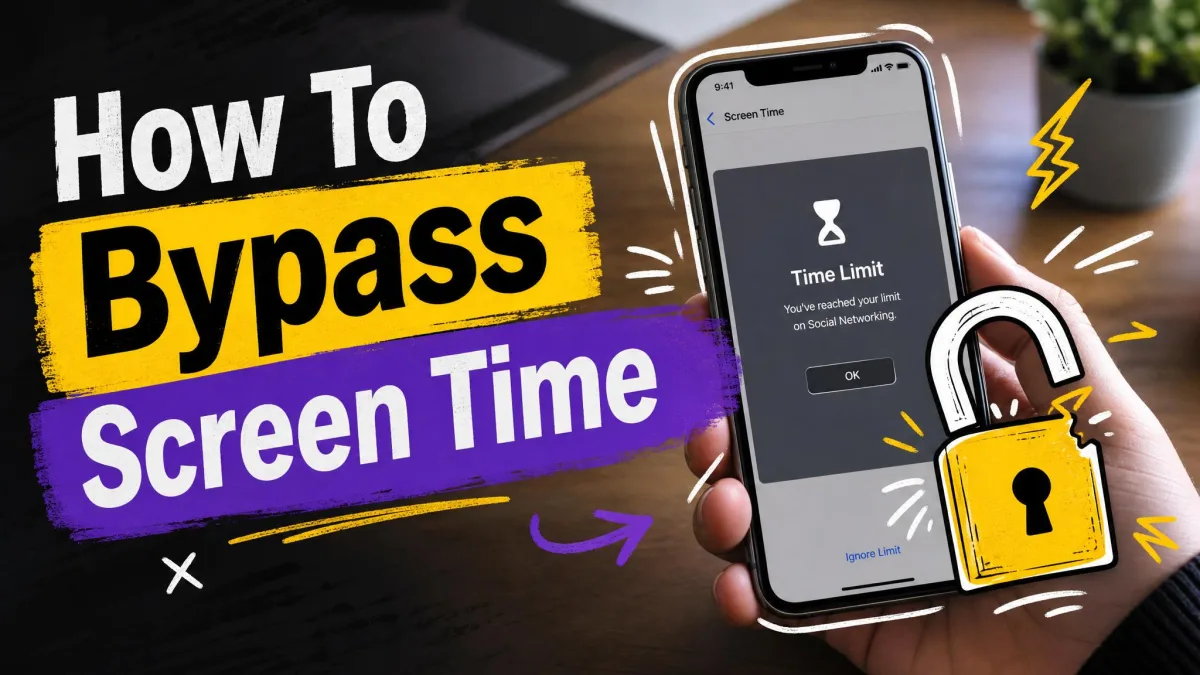
Keep the Screen Time passcode different from the device passcode. Kids also try workarounds like asking Siri or opening YouTube links shared in iMessage. We explain how kids bypass Screen Time and how to stop it.
Google Family Link on Android
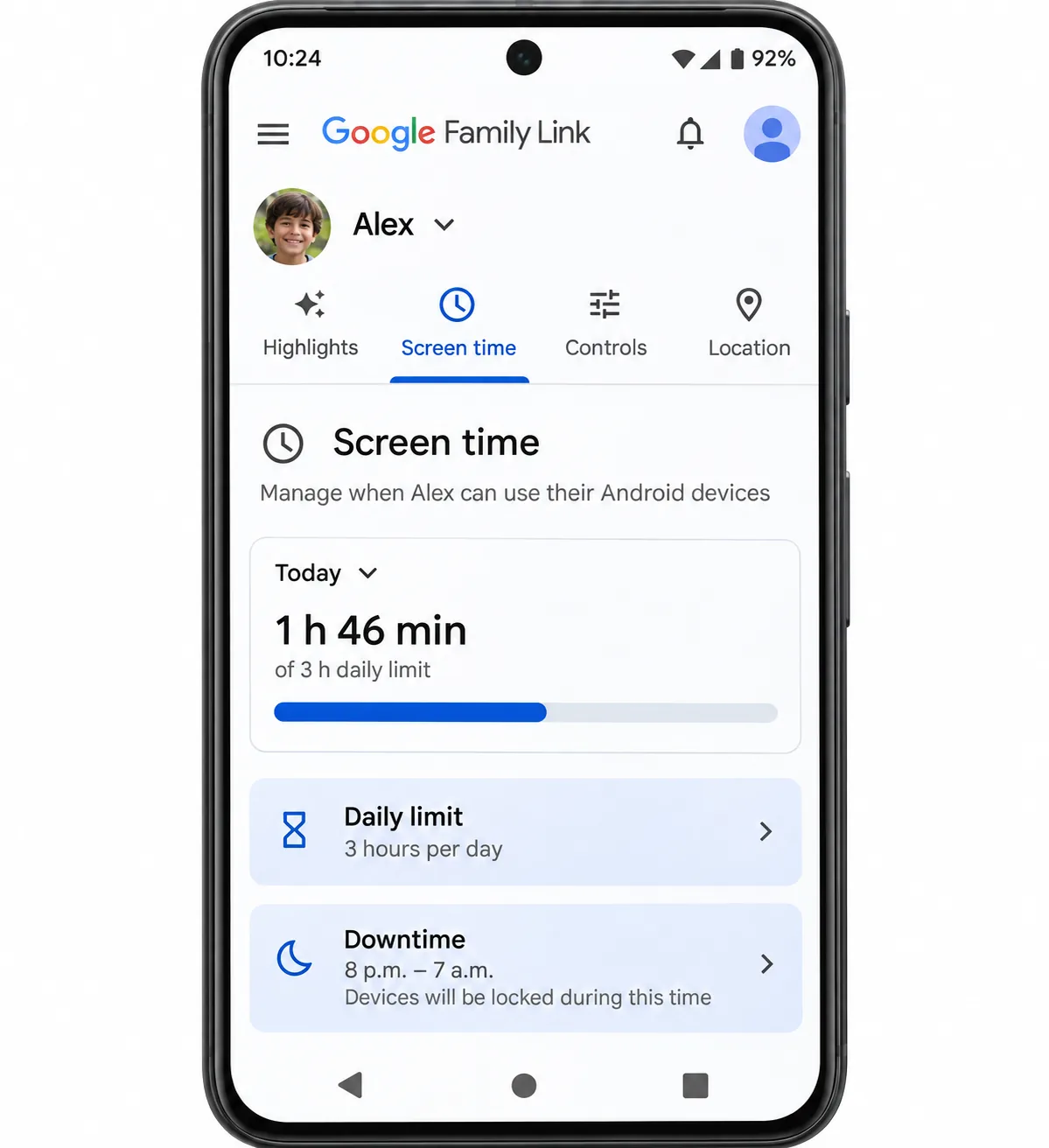
Google Family Link's daily limits and bedtime settings live in the parent app:
- Open Family Link, select your child, and tap Screen time.
- Tap Time limits, turn on the daily limit, and set the minutes per day.
- Tap Schedules, turn on Downtime or School time, and set start and end times.
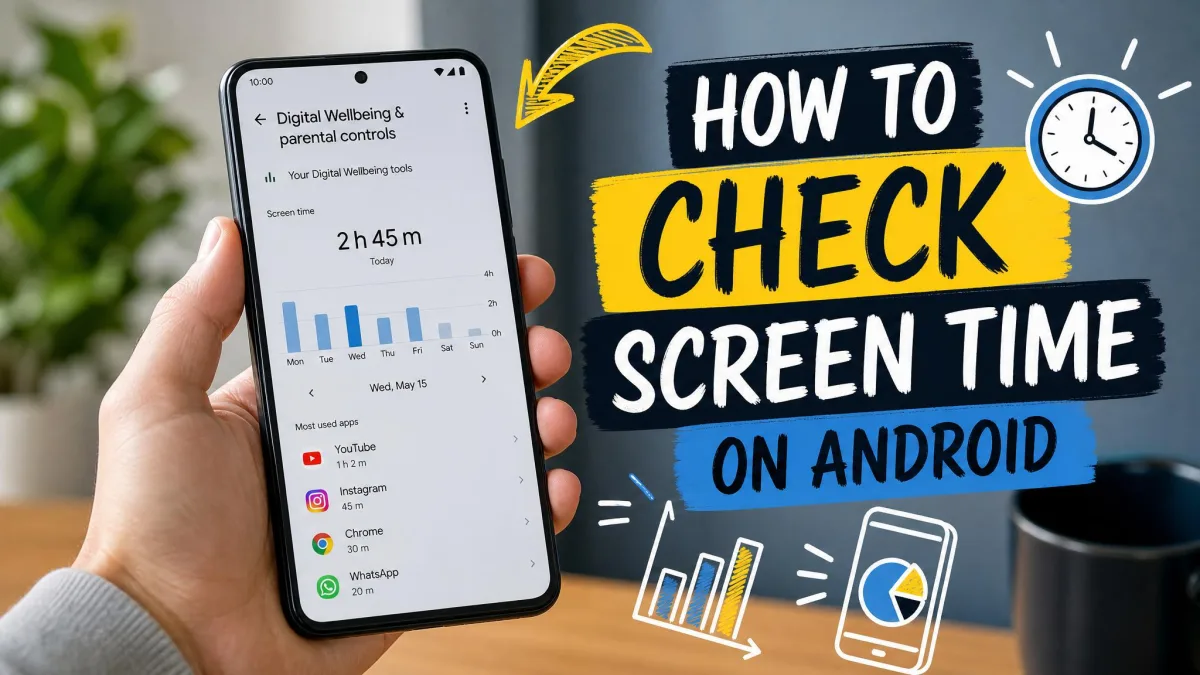
When we set Downtime, the child's phone locked within seconds of the scheduled time. If limits don't seem to work, look for apps marked Unlimited, because they're exempt from both daily limits and Downtime. To confirm everything works, set a one-minute app limit and watch it lock. You can also check screen time on Android.
Windows, Xbox and game consoles
To set screen time limits in Microsoft Family Safety, open the app, tap your child's tile, choose Windows or Xbox, and set time ranges and total hours for each day.
Two details matter. Windows limits don't hold if your child's account is an administrator, so switch it to a standard user. On Xbox, the timer keeps running whenever your child is signed in, even with a game paused, so have your child sign out to save time.
8. Offer fun off-screen alternatives
Limits work better when there's something great to do instead. The AAP's 2026 guidance suggests offering replacement activities rather than only taking screens away. Keep books, art supplies or a puzzle within easy reach.
A little boredom is fine too. It's often where kids learn to entertain themselves.

9. Talk with your kids about what they do online
Rules alone won't teach kids how to handle what they find online. Ask what they're watching or playing, and let them show you. Watching together opens the door to natural conversations about ads, social media pressure and strangers.
Stay curious rather than interrogating, so your child comes to you when something goes wrong.
10. Stay consistent, and go easy on yourself
Rules only work if you stick to them most of the time. Give a five-minute warning before screens go off, then follow through calmly. Do that daily, and screen time ends without a fight.
You'll still have off days. In a 2025 Pew Research Center survey of parents, 42% said they could be doing better at managing their child's screen time. Heavy weeks happen around holidays and sick days, so get back to the routine and skip the guilt.
Frequently asked questions
How do I know if my child is spending too much time on screens?
Does schoolwork count as screen time?
What age should my child get a smartphone?
Do Family Link limits carry over between my child's phone and Chromebook?
Bottom line
Start small this week with one routine, one screen-free zone and one device control, then add more once those stick. As your kids grow, loosen the limits in step with the trust they earn. The best long-term outcome is a child who can manage screens well on their own.
Related reading