Cookies are small text files a website saves in your browser to remember things like your login, your language, and what is in your shopping cart. Enabling cookies simply tells your browser to accept and store those files, so sites work the way they are meant to. If a page keeps signing you out or refuses to load, a blocked cookie setting is often the reason. This guide shows the exact steps for every major browser, on both desktop and mobile.
What Are Cookies and Why Enable Them?
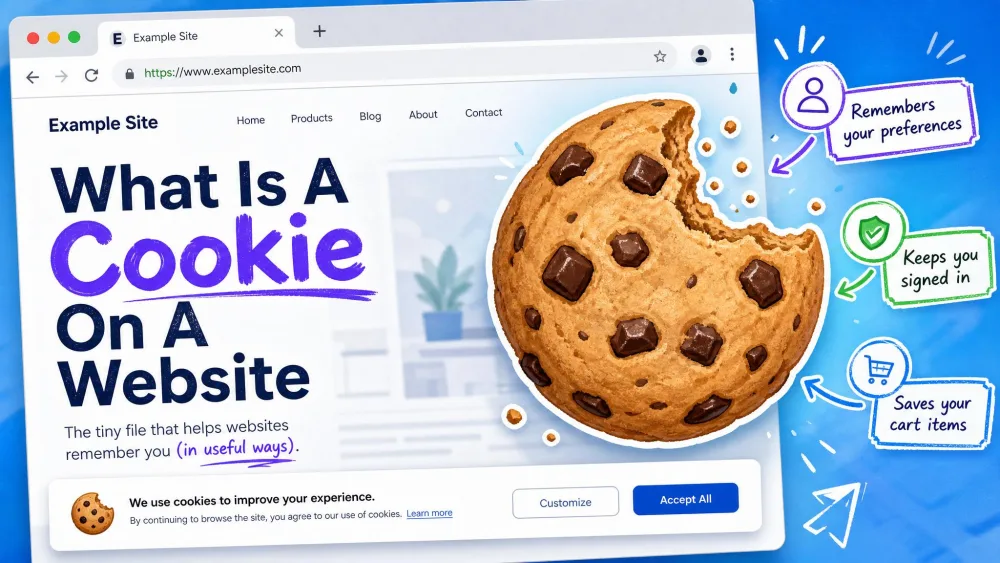
A cookie is a tiny file that a website places in your browser. It holds a small piece of data, such as a session ID or a saved preference. The next time you visit, the site reads that file and picks up where you left off.
Most everyday browsing depends on them. Cookies keep you signed in, remember items in your cart, and hold settings like dark mode or your region. Turn them off completely and many sites simply stop working.
In our testing, blocking all cookies is the fastest way to break a site. Logins fail, some pages refuse to show content until you accept cookies, and online stores lose your cart the moment you navigate away. Enabling cookies restores that normal behavior.
Before You Start: First-Party vs Third-Party Cookies
Not all cookies do the same job, and the difference decides which setting you actually want.
First-party cookies come from the site you are visiting. They handle logins, carts, and preferences. These are the ones you almost always want on.
Third-party cookies come from a different domain than the page you are on, usually an advertiser or an analytics service. They follow you across sites to build an ad profile. Blocking only third-party cookies is the practical middle ground: first-party cookies keep working so sites function normally, while cross-site trackers get rejected.
Worried about the "cookie apocalypse" headlines? Google reversed its plan to remove third-party cookies from Chrome in April 2025, and its Privacy Sandbox project shut down in October 2025. Third-party cookies remain enabled by default in Chrome today.
How to Enable Cookies in Google Chrome
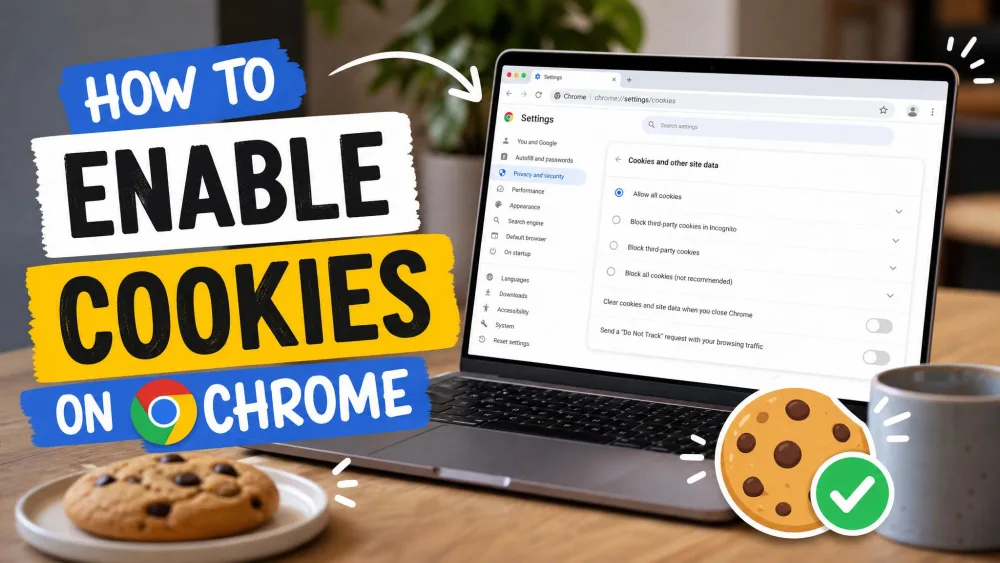
To enable cookies on Chrome, you get a global cookie setting plus a separate toggle for third-party cookies.
On Desktop (Windows & Mac)
- Click the three-dot More menu at the top right, then choose Settings.
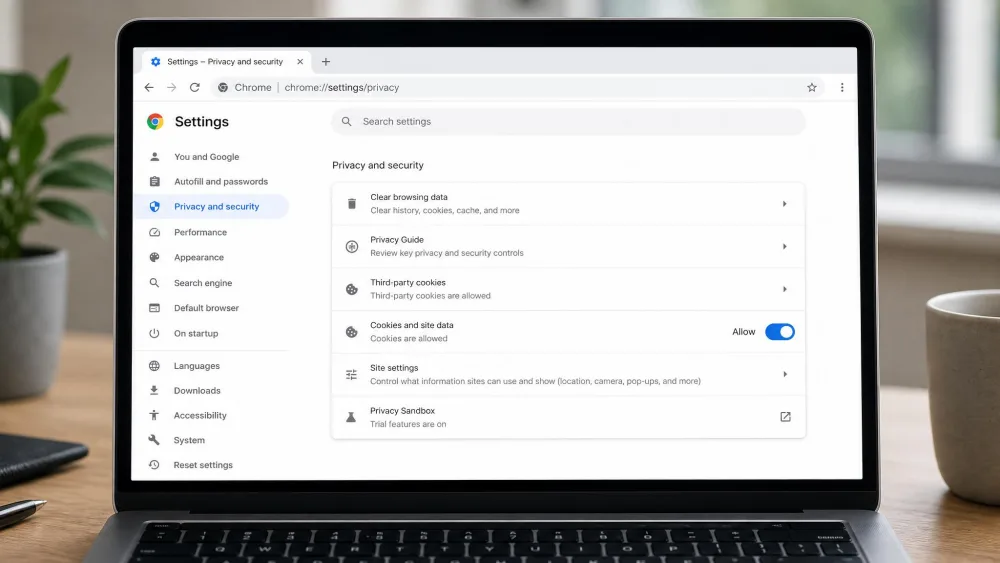
- Select Privacy and security in the left sidebar.
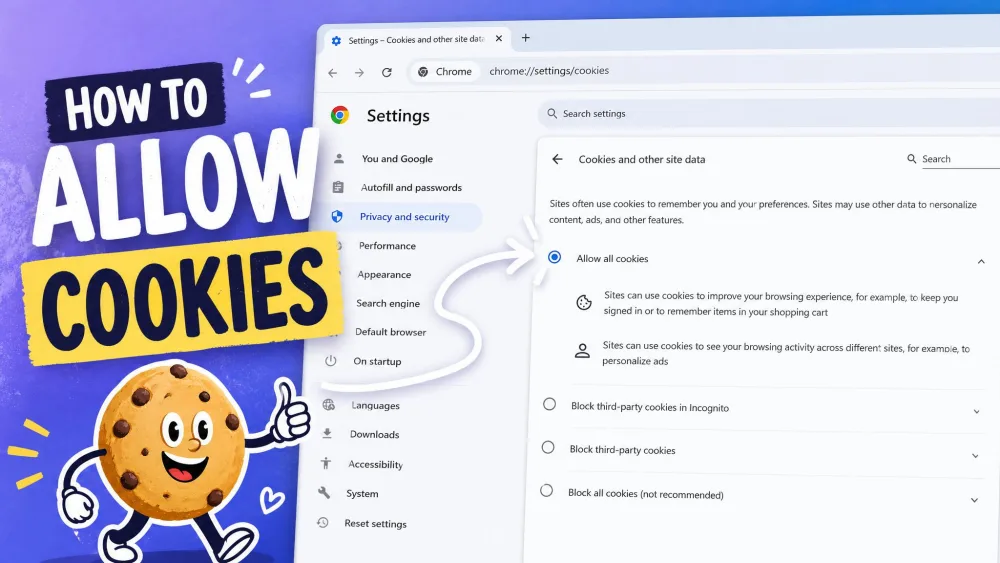
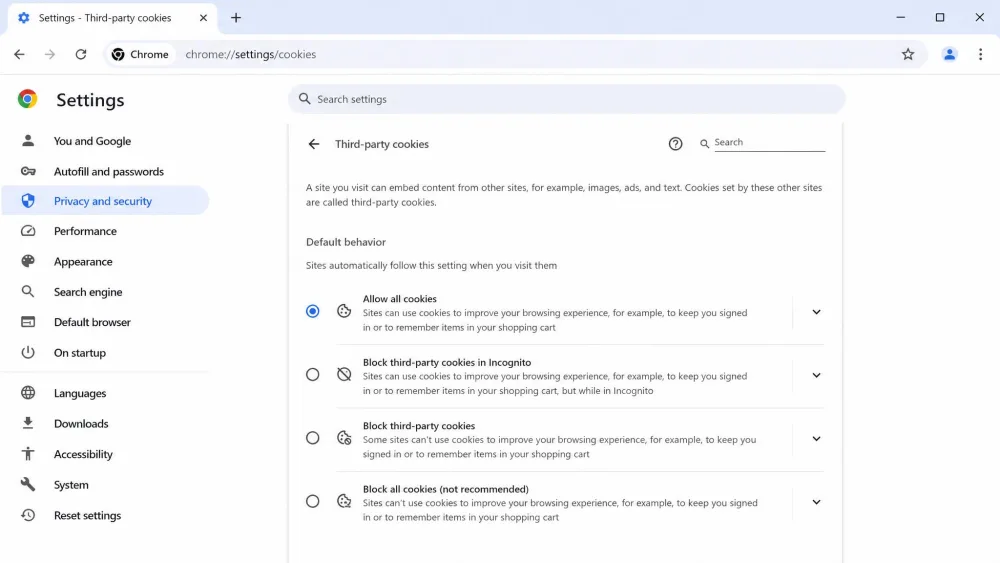
- Open the cookies page. Depending on your Chrome version, it reads Third-party cookies or you reach it through Site Settings > Cookies and site data.
- Choose Allow all cookies, or select Allow third-party cookies if you only need to unblock cross-site cookies.
- Close the tab. Your choice saves automatically.
You can jump straight to the page details by reviewing Chrome's cookie settings if a menu label has moved.
Chrome blocks third-party cookies in Incognito by default but allows them in regular windows. If a site only misbehaves in Incognito, that setting is usually why.
On Android
- Open Chrome and tap the three-dot menu.
- Tap Settings, then Site settings.
- Tap Cookies.
- Choose Allow cookies, or Block third-party cookies if you want first-party cookies only.
On iPhone & iPad
Chrome on iPhone and iPad has no cookie toggle at all. Cookies always remain turned on and cannot be disabled there, which surprises people who go looking for the switch. Real cookie control on iOS lives at the system level through Safari, or on a per-site basis. If cookies are your goal on an iPhone, you have nothing to change in Chrome.
How to Enable Cookies in Microsoft Edge
Edge keeps its cookie controls under site permissions and offers a handy address-bar shortcut.
On Desktop
- Click the three-dot Settings and more menu at the upper right, then choose Settings.
- Select Cookies and site permissions.
- Click Manage and delete cookies and site data.
- Turn on Allow sites to save and read cookie data (recommended).
- Leave the Block third-party cookies toggle off if you want all cookies, or turn it on to keep only first-party cookies.
To skip the menus, type edge://settings/content/cookies into the address bar. You can also open Microsoft's own guide to manage cookies in Microsoft Edge for reference.
In our testing, Edge sometimes needs a full restart before a site recognizes that cookies are re-enabled. If a page still complains right after you flip the setting, close Edge and reopen it.
On Mobile
On Android, open the More menu, tap Settings, then go to Privacy and security > Site permissions > Cookies and set it to Allow. On iPhone and iPad, tap the three-dot menu, then go to Settings > Privacy and security > Cookies and choose Don't block cookies to keep them enabled.
How to Enable Cookies in Mozilla Firefox
Firefox handles cookies through Enhanced Tracking Protection rather than a single on/off switch.
On Desktop
- Click the hamburger menu at the top right, then choose Settings.
- Select Privacy & Security.
- Under Enhanced Tracking Protection, pick Standard. Standard is the default, blocks cross-site tracking cookies, and allows normal cookies so sites keep working.
- To fine-tune which cookies get blocked, choose Custom and adjust the Cookies dropdown.
- To unblock one stubborn site, click the shield icon in the address bar and turn protection off for that site.
Firefox has three protection levels: Standard, Strict, and Custom. Strict blocks the most and can break sites. Its Total Cookie Protection isolates tracking cookies to the site that created them, so non-tracking cookies still work normally. Mozilla's page on Firefox cookie settings covers the per-site steps in detail.
Standard protection rarely breaks anything. Switching to Strict is a frequent cause of unexpected login and embed failures, so if a site stopped working after you tightened Firefox, the shield icon is the quick per-site off switch.
On Mobile
On Android, open the Menu, tap Settings, then Site permissions > Cross-site cookies to allow or block them. Set your protection level under Settings > Enhanced Tracking Protection (Standard, Strict, or Custom). On iPhone and iPad, first-party cookies are always on and cannot be disabled. Control cross-site cookies from inside the app under Settings > Tracking Protection, or through the iOS Settings app under Firefox > Allow Cross-Website Tracking.
How to Enable Cookies in Safari
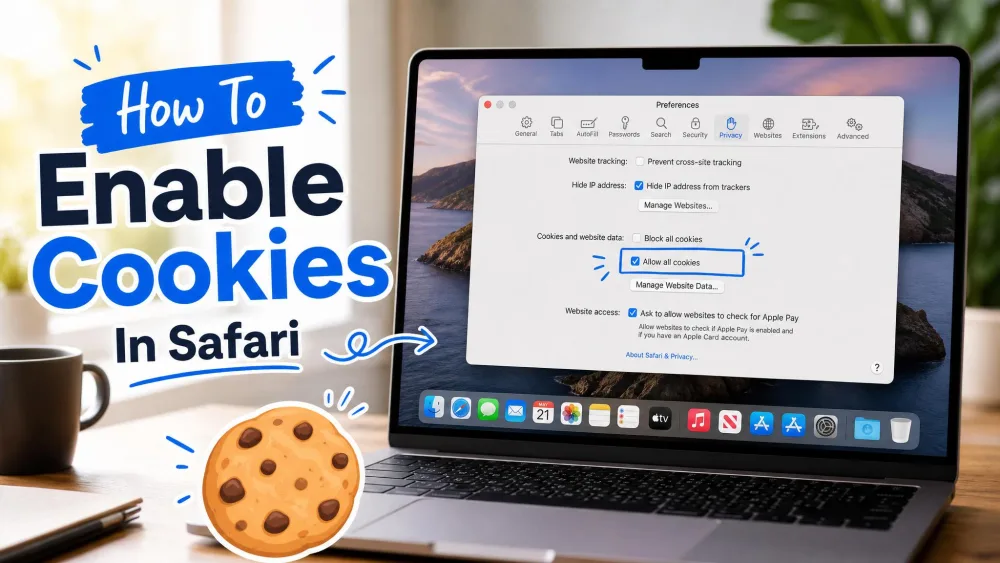
Safari uses a "block" checkbox, so enabling cookies in Safari means making sure that box is unticked.
On Mac
- Open Safari, then choose Settings from the Safari menu.
- Click the Advanced tab.
- Uncheck Block all cookies. When it is unchecked, cookies are enabled.
- To adjust cross-site tracking, open the Privacy tab, where Prevent cross-site tracking is on by default.
Apple's support page on how to enable cookies in Safari mirrors these steps if a menu label differs on your macOS version.
On iPhone & iPad
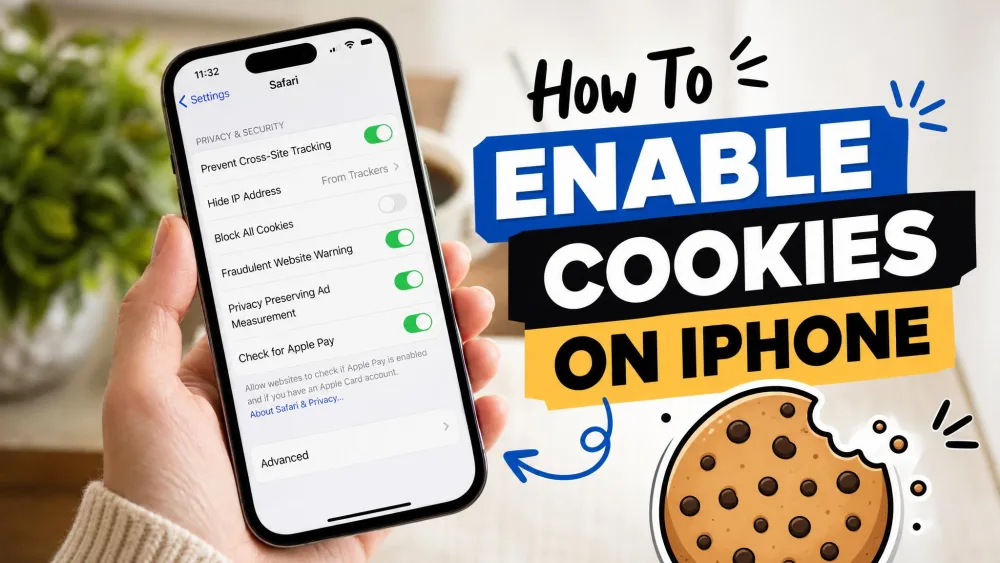
- Open the Settings app.
- Tap Apps, then Safari (on older iOS, tap Settings > Safari directly).
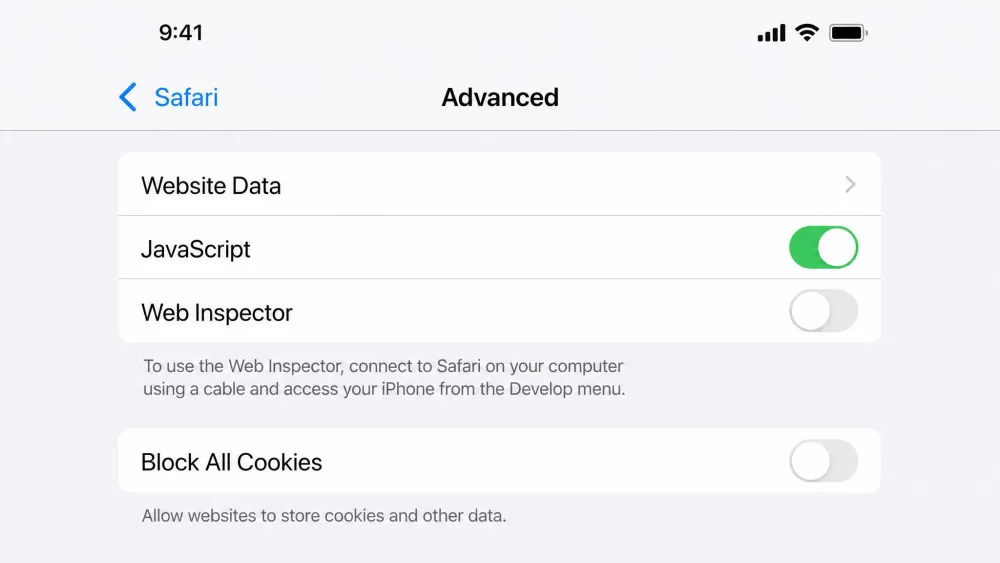
- Tap Advanced.
- Find Block All Cookies. Turn it off. Gray or off means cookies are allowed; green means they are blocked.
The color logic on iOS trips people up. A green toggle looks "on" but actually means cookies are blocked. For cookies to work, the Block All Cookies switch must be gray.
How to Allow or Block Third-Party Cookies
For most people the best balance is to allow first-party cookies and block third-party ones. That keeps logins and carts working while shutting out cross-site trackers. Each browser above has a dedicated third-party control: Chrome's Third-party cookies page, Edge's Block third-party cookies toggle, Firefox's Enhanced Tracking Protection, and Safari's Prevent cross-site tracking.
One caveat worth knowing: private or incognito windows change the rules. Chrome blocks third-party cookies in Incognito by default even when your normal windows allow them, so test in a regular window before assuming a setting failed.
Do not block all cookies to boost privacy. It breaks logins, empties shopping carts, and stops some sites from loading content at all. Block third-party cookies instead, which stops most tracking without wrecking everyday sites.
Troubleshooting: Cookies Still Not Working
Turned cookies on and a site still complains? The global toggle is rarely the real problem. The usual culprit is a stale or corrupt cookie saved for that one specific site.
The fix is to delete that site's saved data and let it write a fresh cookie:
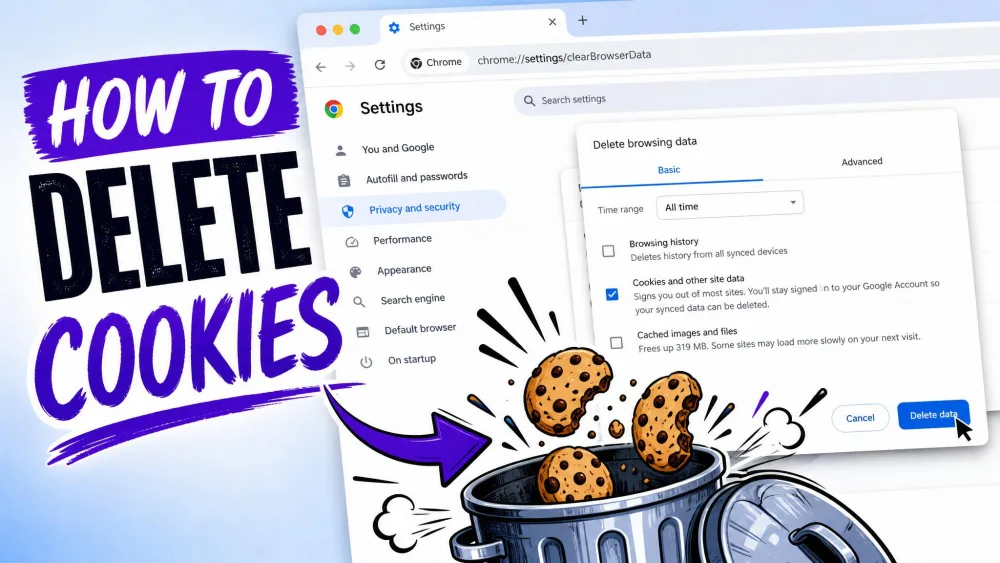
- On a desktop browser, open your cookie or site-data settings, search for the site, and remove its stored cookies.
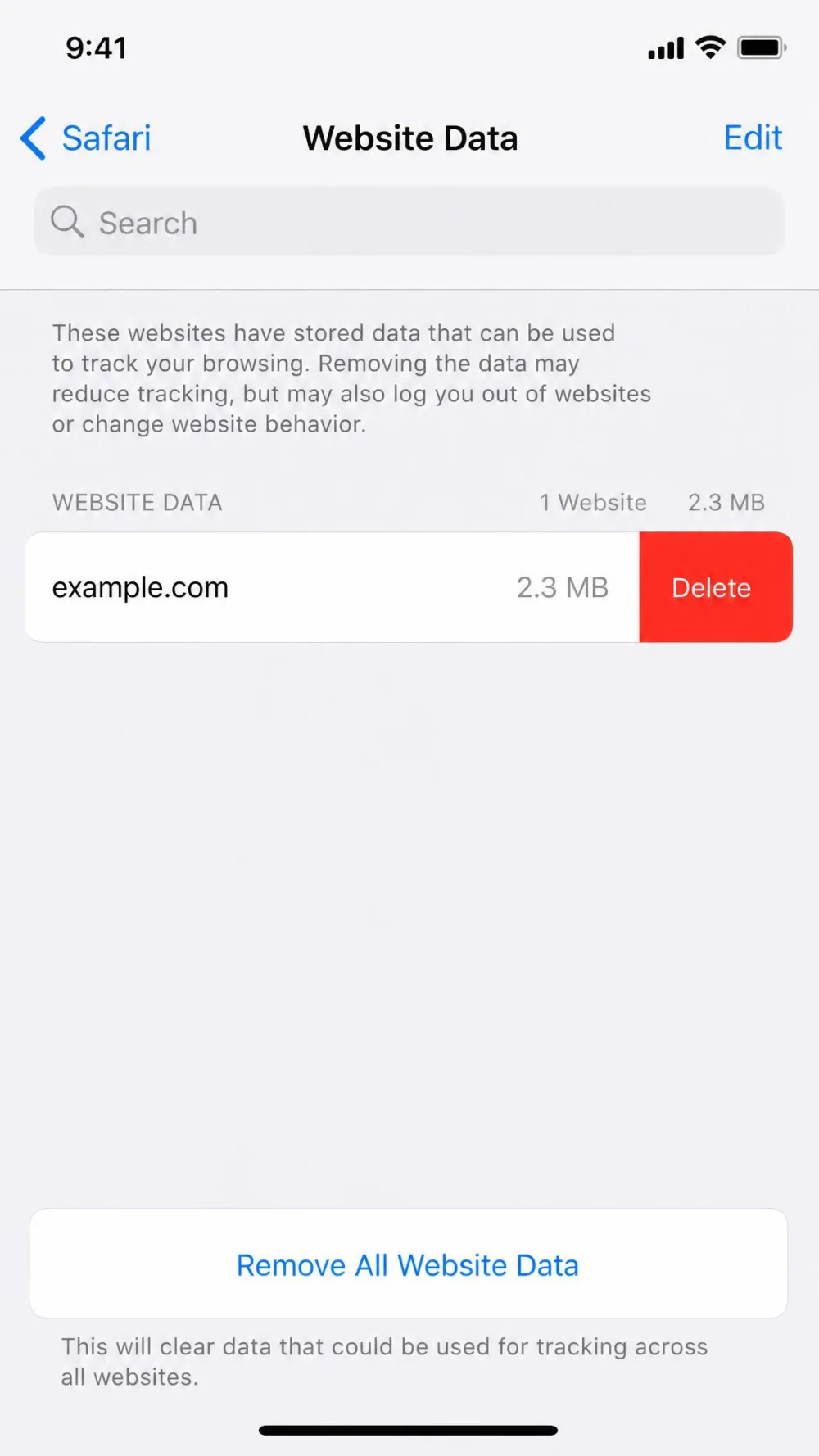
- On iPhone, go to Settings > Safari > Advanced > Website Data, search for the site, swipe left on it, and delete it.
- Reload the page and sign in again so a clean cookie is created.
A few more things to check: confirm you are not in a private window, make sure a privacy extension or your antivirus is not blocking cookies, and update your browser if it is several versions behind. If cookies work in one browser but not another, the setting is browser-specific, not a problem with your device.