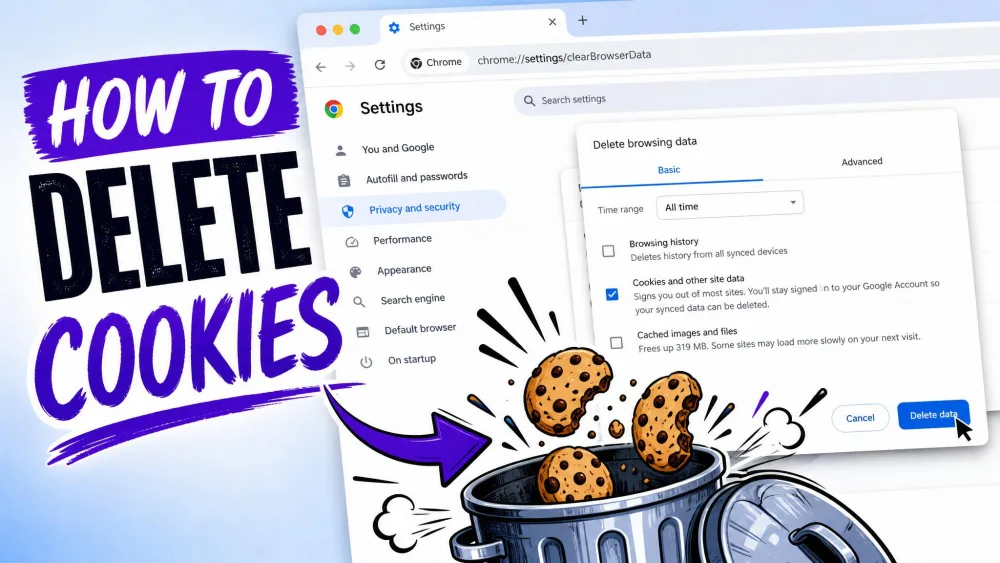
Cookies are small text files that websites leave in your browser to remember you. They are not the same as the cache, which stores copies of images and page files. Over time cookies pile up, keep you tracked across sites, and sometimes leave a page misbehaving. Clearing them is quick on any Android phone. We'll walk you through it in Chrome, Samsung Internet and Firefox, plus how to clear one app's data.
What Cookies Are, and How They Differ From Cache and Site Data
A cookie is a small record a site stores in your browser so it can recognize you next visit. Our explainer covers what a cookie on a website actually is in more depth.
A server sends a cookie with the page. Your browser hands it back on every later request, a swap set out in MDN's technical reference on how cookies are set and sent.
Cache is different: copies of images and page files, kept so a page loads faster next time. Site data covers bigger storage such as databases, and one checkbox usually clears it alongside your cookies.
Cookies vs Cache vs Site Data
| Attribute | Cookies | Cache | Site data |
|---|---|---|---|
| What it stores | Sign-in state, preferences, tracking IDs | Images and page files | Local storage and databases |
| Why it exists | Keeps you signed in between visits | Speeds up return visits | Holds larger saved state |
| Privacy impact | High: follows you across sites | Low: storage and speed | Medium: tied to one site |
| What breaks when cleared | Signed out, preferences reset | Pages load slower once | Saved state resets, carts empty |
| How often to clear | Every few months | When a page misbehaves | With cookies |
Cache is a job of its own, and our guide to How to clear cache on Android covers it properly.
Why You Should Clear Cookies on Android
Knowing the difference matters because most people clear cookies for one of four reasons:
- Privacy. Third-party cookies follow you between sites and build an ad profile.
- A stale session. A site remembers a login or setting you no longer want.
- Broken pages. A checkout that will not behave often comes right once its cookies go.
- Storage. Cookies and site data take up room, and clearing them frees up storage.
Every so often is plenty, and the FTC's guidance on protecting your privacy online covers the habits that matter more.
How to Clear Cookies in Chrome on Android
Chrome has the shortest route of the three. Delete browsing data sits in the three-dot menu itself, just below History. It moved there in Chrome 121, which is why older guides send you hunting for a step that is not there.
Important: clearing cookies signs you out of sites that remember you, so have your passwords to hand before you start.
- Open Chrome and tap the three-dot More icon by the address bar.
- Tap Delete browsing data.
- Pick a time range. It opens on Last 15 minutes, and the list runs up to Last 4 weeks and All time.
- Tap More options for the 6 data types, then check Cookies and site data.
- Tap Delete data.
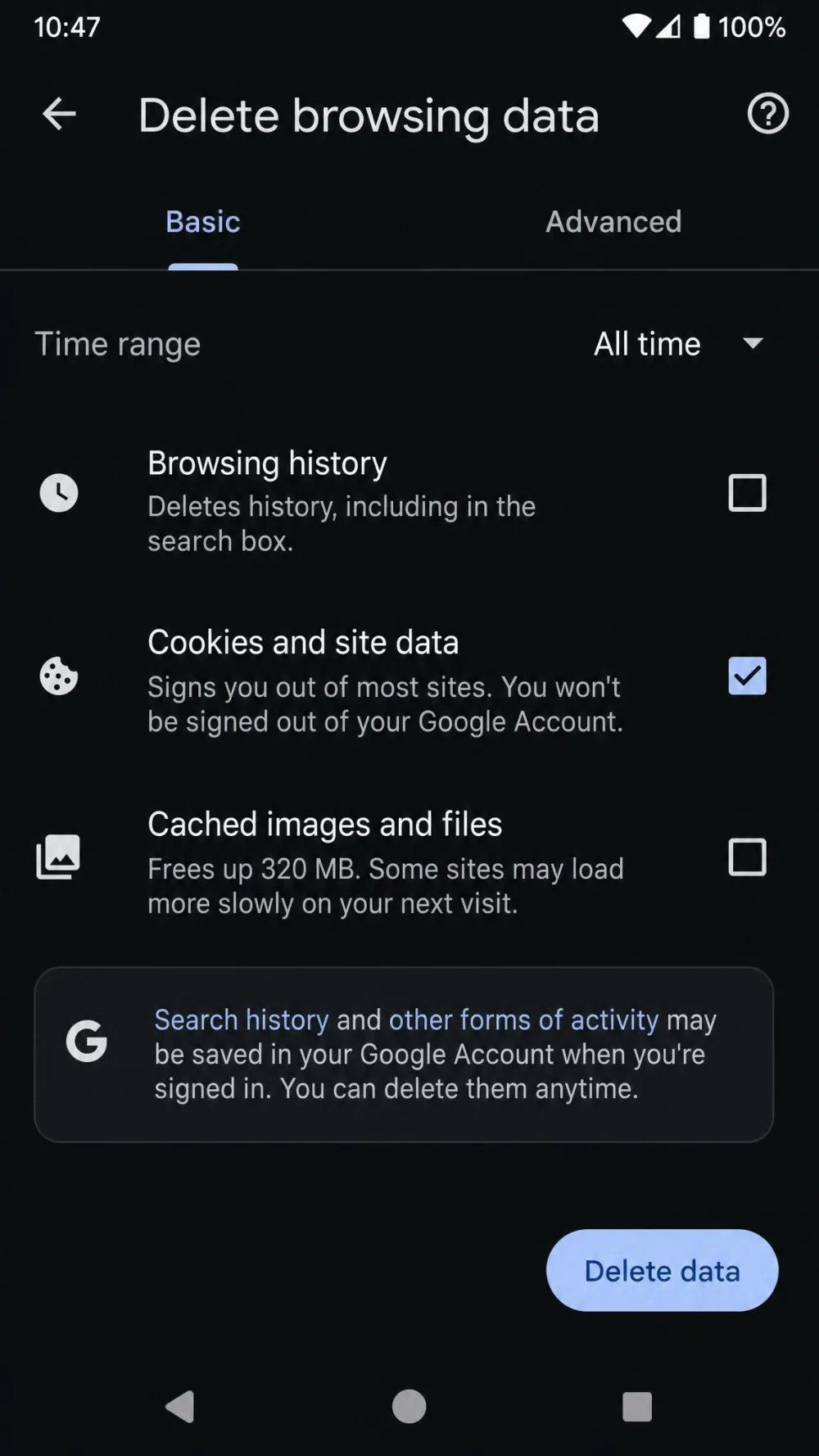
That is 4 taps when Cookies and site data is already ticked. If you have to tick it yourself, step 4 adds two more. The older Settings route still works and reaches the same screen.
Our guide to How to clear cookies on Chrome covers the desktop side. Edge, Opera and Brave run on Chromium, so the same menu works there.
How to Clear Cookies for a Single Site in Chrome
- Open the site in Chrome.
- Tap the page info icon by the address bar.
- Tap Cookies and site data.
- Tap the delete icon beside the stored data.
There is no remove-all button, so several sites means repeating the steps for each one.
How to Block Third-Party Cookies in Chrome
Chrome still allows third-party cookies by default. Google dropped its plan to phase them out, so blocking them is a setting you turn on yourself. Firefox, Safari and Brave block them out of the box.
- Tap the three dots, then tap Settings.
- Tap Site settings.
- Tap Third-party cookies.
- Choose Block third-party cookies.
Some sites break when you block everything. The Add site exception control lets those through, and our guide to enabling cookies in Chrome covers it on Android. Chrome's cookie settings documentation spells out each choice.
How to Clear Cookies in Samsung Internet
Samsung Internet is the default on Galaxy phones, and its menu button sits at the bottom right rather than the top. On the newest handsets it is called Samsung Browser instead, a rename arriving with One UI 8.5. Check both names in your app drawer.
Samsung hides the cookie controls behind a Personal browsing data step that has no equivalent in Chrome. If you tap Settings and look for a Privacy heading, that is the item you want.
- Open Samsung Internet and tap the menu icon at the bottom right.
- Tap Settings.
- Tap Personal browsing data.
- Tap Delete browsing data.
- Check Cookies and site data.
- Tap Delete data, then tap Delete to confirm.
That is 6 taps, two more than Chrome. That count includes the confirmation tap. It again assumes Cookies and site data is already ticked. There is no time range picker, so the clear covers everything at once. Samsung's own guide to browser data on Galaxy phones matches the current layout.
How to Clear Cookies in Firefox on Android
Firefox works much the same way as Chrome, with one difference. The menu button follows your address bar, so it may sit at the top or the bottom.
- Open Firefox and tap the three-dot menu.
- Tap Settings.
- Under Privacy and security, tap Delete browsing data.
- Check Cookies and site data.
- Tap the Delete browsing data button.
- Tap Delete to confirm.
Older guides describe a Clear private data screen with a Cookies and active logins checkbox. Current versions say Delete browsing data instead, and that mismatch is where people stall. Firefox's official instructions for clearing site data track the current wording.
Firefox also has a Delete browsing data on quit setting in the same menu. It clears your chosen items each time you close the app. For one site, tap the shield or lock icon in the address bar, then tap Clear cookies and site data.
We checked these browser steps on Android 17, with Chrome 150, Firefox 152 and Samsung Internet 29.
How to Clear Cookies and Site Data for a Single App
Apps that are not browsers keep their own cookies and site data, and Android clears those from Settings. Menu wording varies by manufacturer and Android version, so your labels may differ.
- Open Settings and tap Apps.
- Tap See all apps, then your app.
- Tap Storage and cache.
- Tap Clear storage, called Clear data on Samsung. That clears the app's cookies and site data, and resets the app to a fresh install, taking your logins and settings with it.
A few common variations:
- On a Galaxy, tap Apps, tap the app, then tap Storage.
- On a OnePlus, look under App management.
- On a Xiaomi, look under Manage apps.
Clear cache sits one tap away and is the gentler neighbor: it removes temporary files only and leaves cookies and logins alone.
What Happens After You Clear Your Cookies
The aftermath is mundane and short-lived:
- You get signed out of sites that remembered you, from forums to shopping accounts.
- Saved preferences reset, so language and layout choices go back to default.
- Pages load a little slower once while images download again.
- Half-filled shopping carts empty, which catches people mid-purchase.
Important: a cookie clear does not sign you out of your Google Account. You stay signed in to Google services such as Search and YouTube, which is why a clear can look as though nothing happened.
Saved passwords and autofill sit on separate checkboxes, so leaving those unticked keeps them.
Final Thoughts
Cookies are routine maintenance, not an emergency. Clear them every few months, and pick All time so the clear covers what you meant. We cover clearing cookies on iPhone separately. The Mac version is in our guide to clearing cookies on Mac.