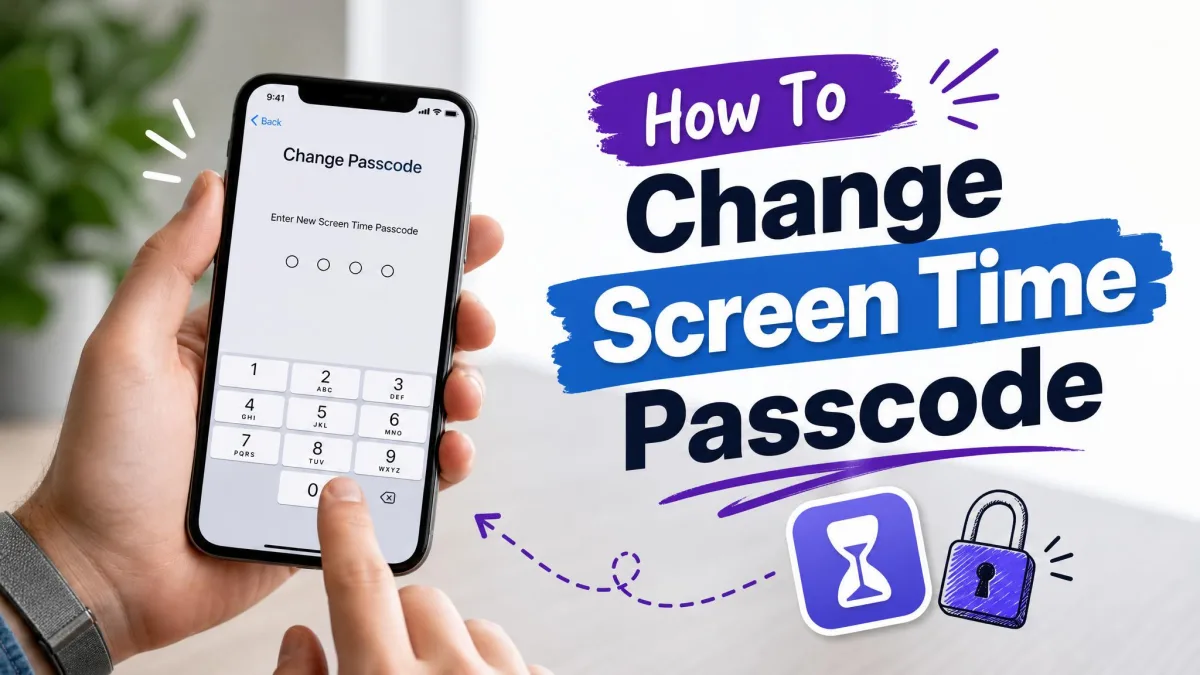
The Screen Time passcode is the four-digit code that locks your Screen Time settings, and it is separate from the passcode you use to unlock your device. To change it, open Settings > Screen Time and tap Change Screen Time Passcode; on iOS 27 and iPadOS 27, that option now sits one level down under Passcode & Management.
Below, we walk through the new iOS 27 path, the older one for iOS 26 and earlier, a child's device in Family Sharing, and the Mac. We also cover what to do when you have forgotten the code, because that is where most people get stuck.
What the Screen Time passcode is (and why it is not your iPhone passcode)
Your unlock passcode protects the whole phone, while the Screen Time passcode guards only the settings that shape how the phone gets used. Anyone who wants to change Downtime, App Limits, Communication Limits, Always Allowed apps, or Content & Privacy Restrictions has to enter it first.
It also approves requests for more time when a limit runs out. That is why parents use a different code from the unlock PIN, so a child who knows how to open the phone still cannot loosen the rules.
What you need before you change it
A few things decide whether the change goes smoothly:
- The current Screen Time passcode, or Face ID or your device passcode on iOS 27.
- The Apple Account email and password that were used when the Screen Time passcode was set up.
- The family organizer's or parent's device, if the code belongs to a child.
- Up-to-date software on every device in your Family Sharing group.
The Apple Account point matters most. It must be the same account that created the passcode, and that is not always the account signed in on the device.
How to change your Screen Time passcode on iPhone or iPad
The steps depend on your software version, so check Settings > General > About first if you are unsure.
On iOS 27 and iPadOS 27 (Passcode & Management)
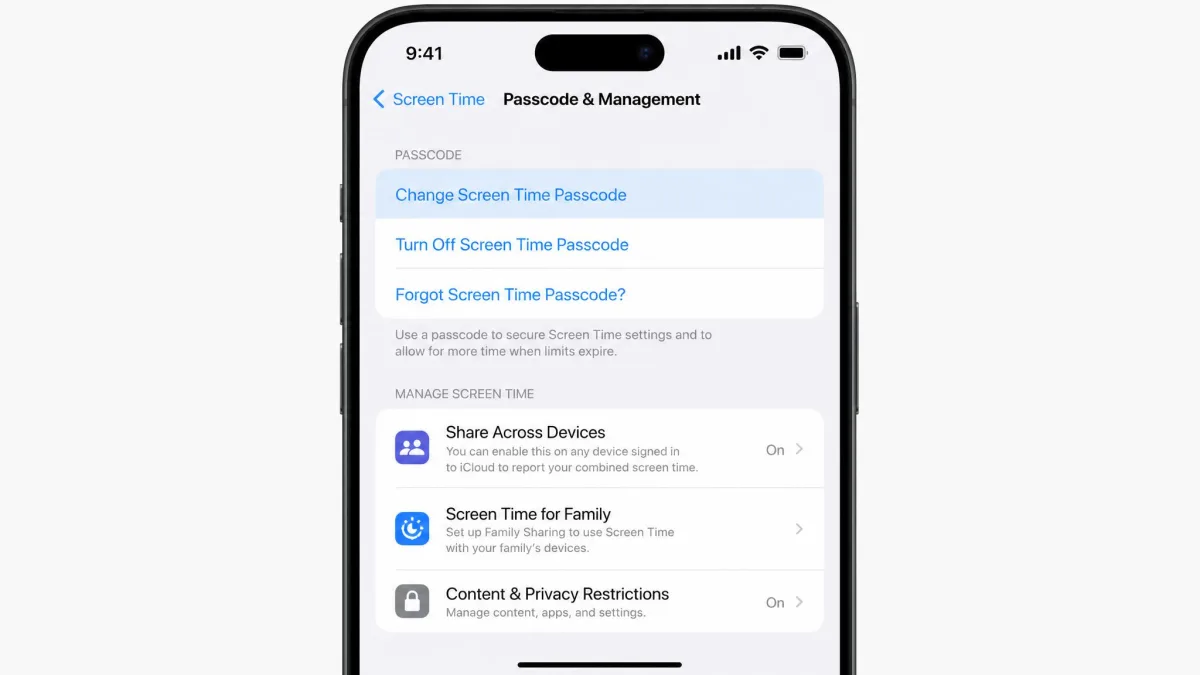
On iOS 27, the change option no longer sits on the main Screen Time screen. That move is exactly where people who learned the old path lose their way. Apple's guide to changing your Screen Time passcode documents the new route:
- Open Settings and tap Screen Time.
- Tap Passcode & Management, then tap Change Screen Time Passcode.
- Tap Change Screen Time Passcode again to confirm.
- Authenticate with Face ID or your device passcode.
- Enter the Apple Account email and password used to set up the passcode, if asked.
- Enter your new passcode, then enter it again to confirm.
The confirmation in step 3 asks you to tap the same option a second time before any code entry appears. It is easy to mistake that pause for a frozen screen, so just tap again.
With Share Across Devices turned on, the new passcode updates automatically on your other Apple devices.
On iOS 26 and earlier
The older path is shorter. Apple's current page documents only iOS 27, though, and the exact labels have shifted between releases:
- Open Settings and tap Screen Time.
- Tap Change Screen Time Passcode, then tap it again.
- Enter your current passcode, or tap Forgot Passcode? if you don't know it.
- Enter the Apple Account details if you are asked for them.
- Enter the new passcode twice.
On some versions the forgotten-code link reads "Don't Remember" instead of "Forgot Passcode?".
Set up Screen Time Passcode Recovery when you create the code. On iOS 27 it is the final setup step, where you enter your Apple Account email or phone number and password. Skipping it removes your easiest way back in later.
How to change your child's Screen Time passcode with Family Sharing
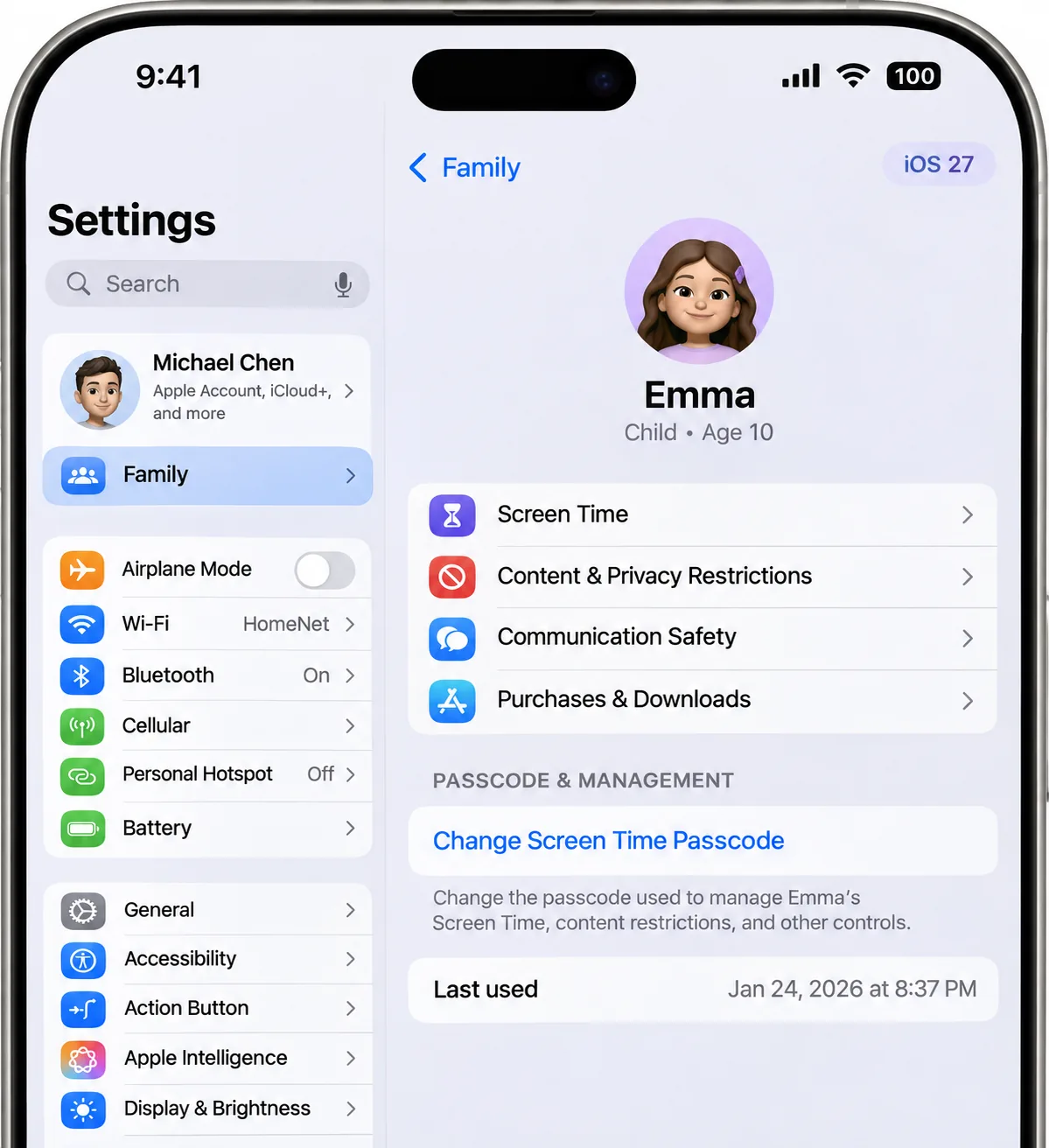
You change a child's code from the family organizer's or parent's own device, not from the child's phone. Changing your own Screen Time passcode does not change your child's. Until you change theirs separately, their device can keep accepting the old code for time-extension requests.
On iOS 27 and iPadOS 27:
- Open Settings > Family and tap your child's name.
- Tap Passcode & Management, then tap Change Screen Time Passcode and confirm.
- Enter the old passcode.
- Enter the new passcode, then enter it again.
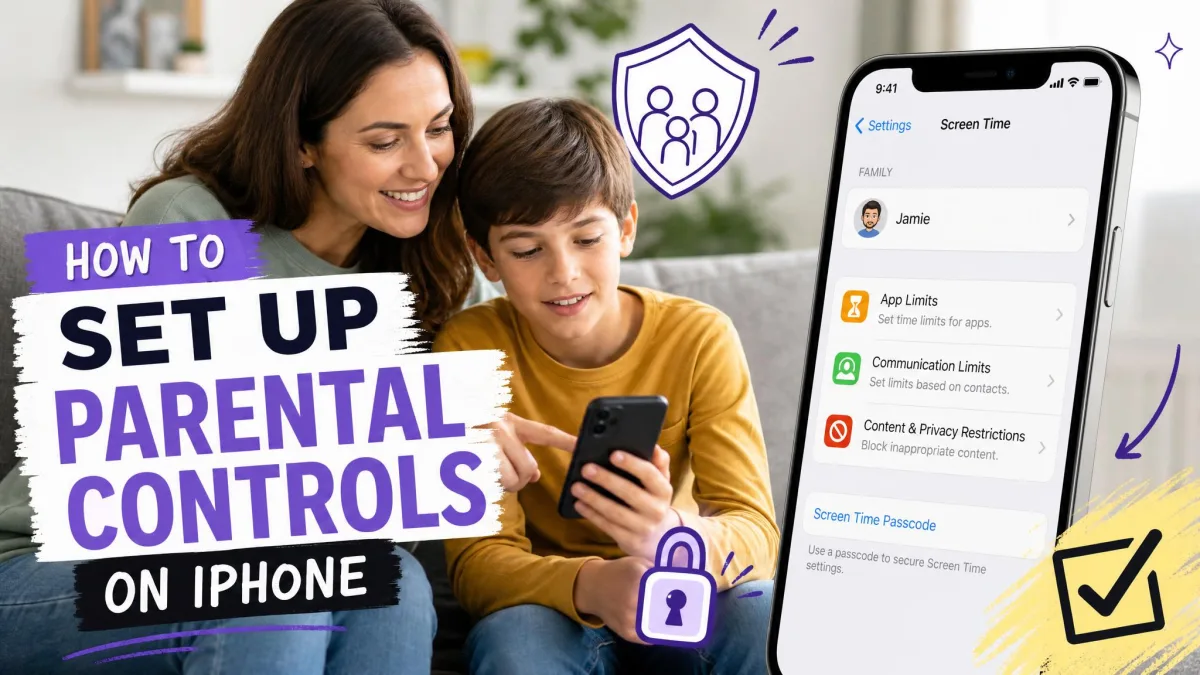
If Passcode & Management doesn't appear for your child, Screen Time hasn't been set up for them yet. Our guide on how to set up parental controls on iPhone covers that first-time setup.
On iOS 26 and earlier, the child path usually runs through Settings > Screen Time > Family > your child's name > Change Screen Time Passcode. That menu moved between iOS releases, so the order can differ from device to device.
Restarting both phones won't push the new code across. With Share Across Devices on, the change syncs, but only when you make it on the child's profile under Family.
How to change the Screen Time passcode on a Mac
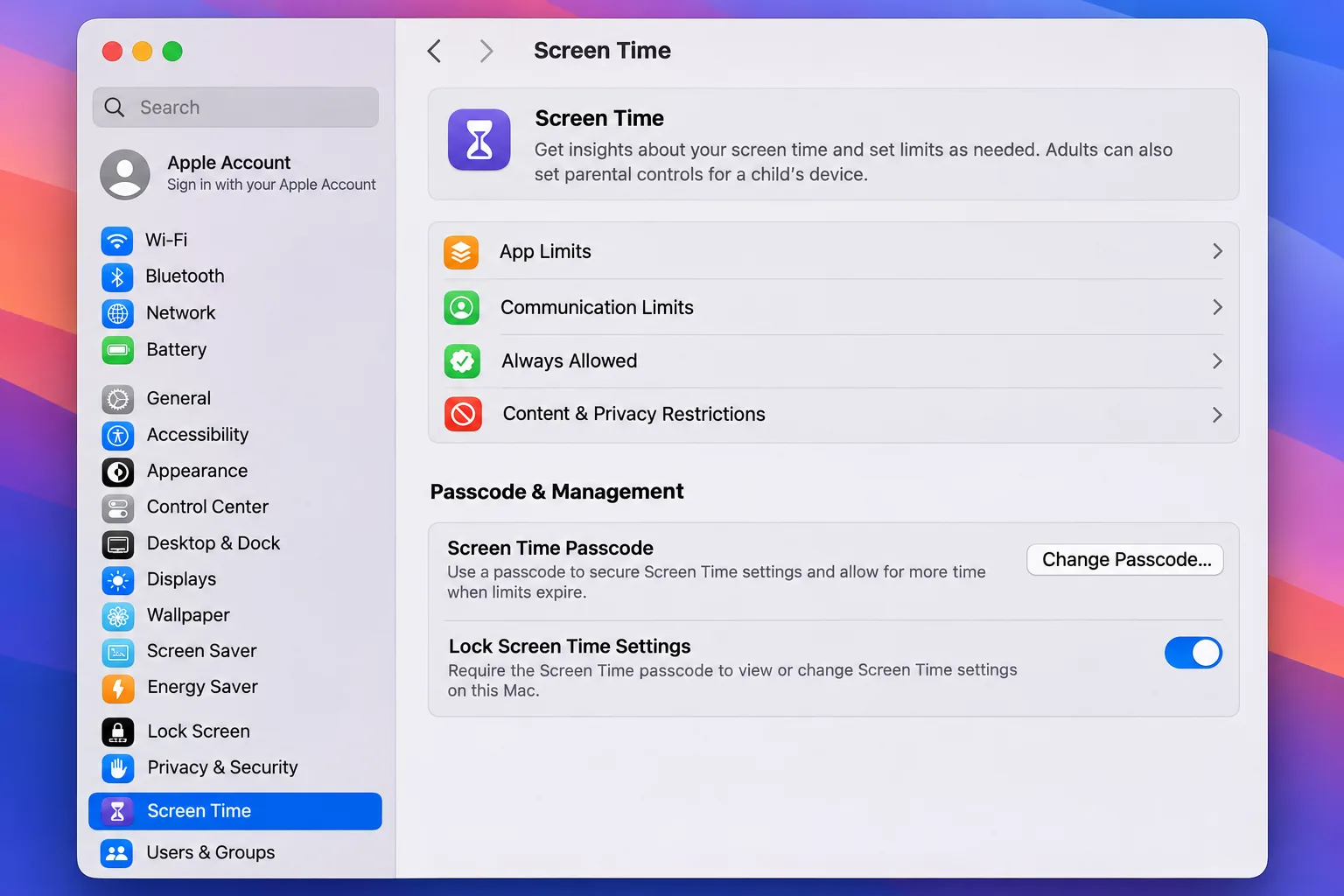
On macOS 27, the Mac follows the same Passcode & Management layout:
- Open System Settings and click Screen Time in the sidebar.
- Click Passcode & Management, then click Change Passcode.
- Enter the current four-digit passcode, or verify with your Mac password or Touch ID.
- Enter the new passcode twice.
On earlier macOS versions, scroll down in Screen Time and click Change Passcode. For a child, choose them from the Family Member pop-up menu first. On macOS 27 you can instead open System Settings > Family > child's name > Passcode & Management.
How to change a forgotten Screen Time passcode
If you have forgotten the code, the reset runs through your Apple Account. That option arrived in iOS 13.4, so any device on iOS 13.4 or later can use it:
- Open Settings > Screen Time (and Passcode & Management on iOS 27).
- Tap Change Screen Time Passcode.
- Tap Forgot Passcode? when it appears.
- Enter the Apple Account email and password used to set up the passcode.
- Enter a new passcode twice.
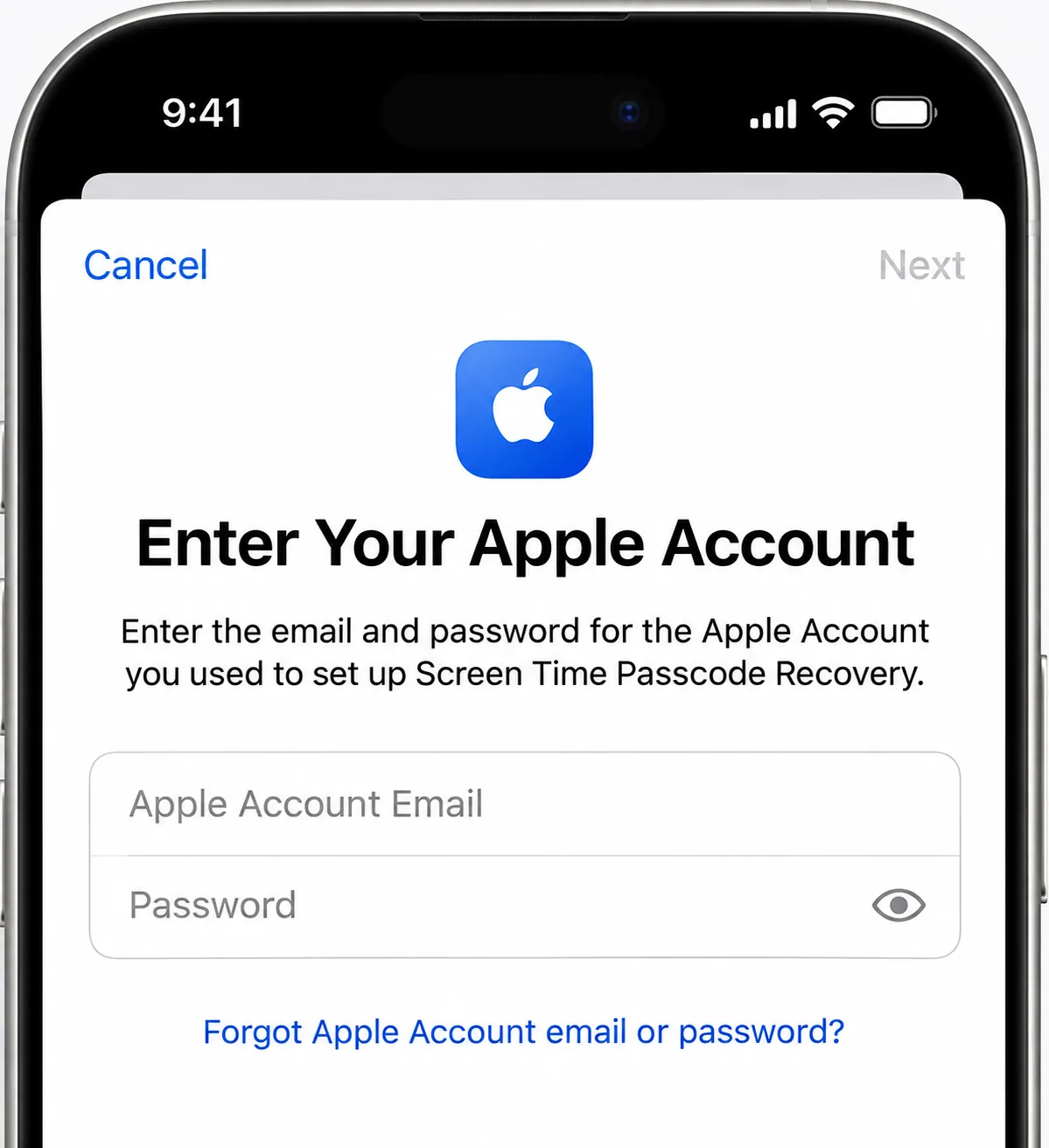
Apple's iOS 27 page describes the Apple Account prompt inside the change flow but never names a separate "Forgot Passcode?" link. As a result, the on-screen label can differ.
If you have also forgotten your Apple Account password, the Screen Time reset stalls until you reset that password first at iforgot.apple.com from another device or a browser.
Why "Change Screen Time Passcode" is missing or the reset fails
When the reset option is missing or rejects you, the cause is usually one of these:
- Wrong Apple Account. The reset only works with the account that created the passcode, often a parent's or an old account. Signing out and back in with the original account brings the option back.
- Recovery was skipped. Without Screen Time Passcode Recovery, the Forgot Passcode? link can vanish entirely.
- Child account. In Family Sharing, only the organizer or a parent can change it.
- Managed device. A work or school profile under Settings > General > VPN & Device Management can hide the option, and only IT can lift it.
- Outdated software. Devices on iOS 13.3 or earlier have no Forgot Passcode? option, and mismatched versions across a family group can stop changes from syncing.
If none of these fit, contact Apple Support. What Apple Support can do varies by case, and Apple warns it may not be able to provide the information.
Last resort: erase or restore the device
If you cannot reach the Apple Account that set the code, erasing the device is the remaining built-in route. Go to Settings > General > Transfer or Reset iPhone > Erase All Content and Settings, then set the device up as new.
Erasing removes anything that is not backed up or synced. Data in iCloud, such as Contacts, Notes, and iCloud Photos, returns after setup. Restoring a backup you made while the passcode was set brings the old Screen Time passcode back.
To make the reset stick, set up as new or use a backup made before the passcode existed. The safest order is to let the phone finish syncing to iCloud, reset, then let iCloud resync.
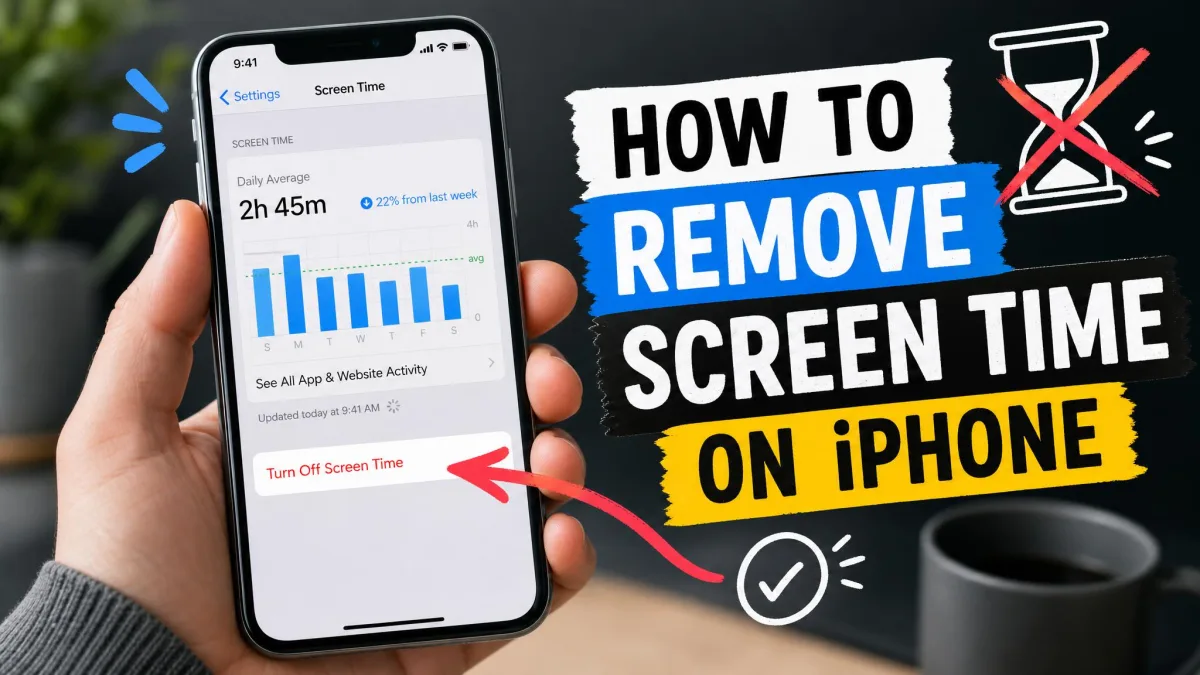
If your goal is to drop the code rather than replace it, our guide on how to remove Screen Time on iPhone explains how to turn it off entirely.
How to avoid getting locked out again
A little setup now saves a reset later. Turn on Screen Time Passcode Recovery with an Apple Account you control and will keep.
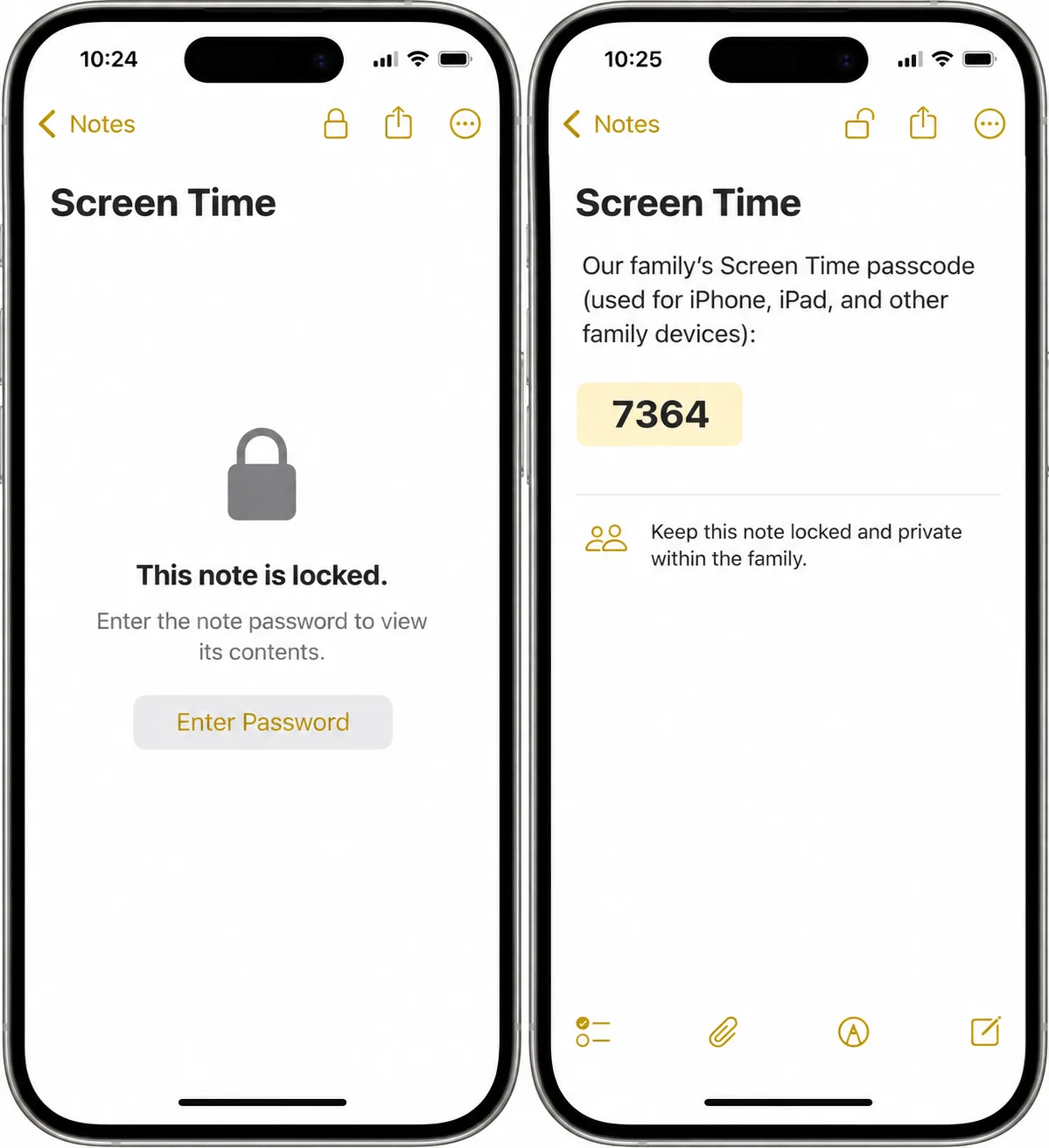
Apple suggests storing the code somewhere safe, such as a locked note. Don't reuse your unlock passcode or a child's birthday, because a code your child can guess defeats the point.
FAQ
Does changing my iPhone passcode also change my Screen Time passcode?
Can I see my current or old Screen Time passcode?
What happens after too many wrong Screen Time passcode attempts?
Will an old iPhone or iPad ever get the Apple Account reset?
Can I change my Screen Time passcode without the old one on a Mac?
Related reading