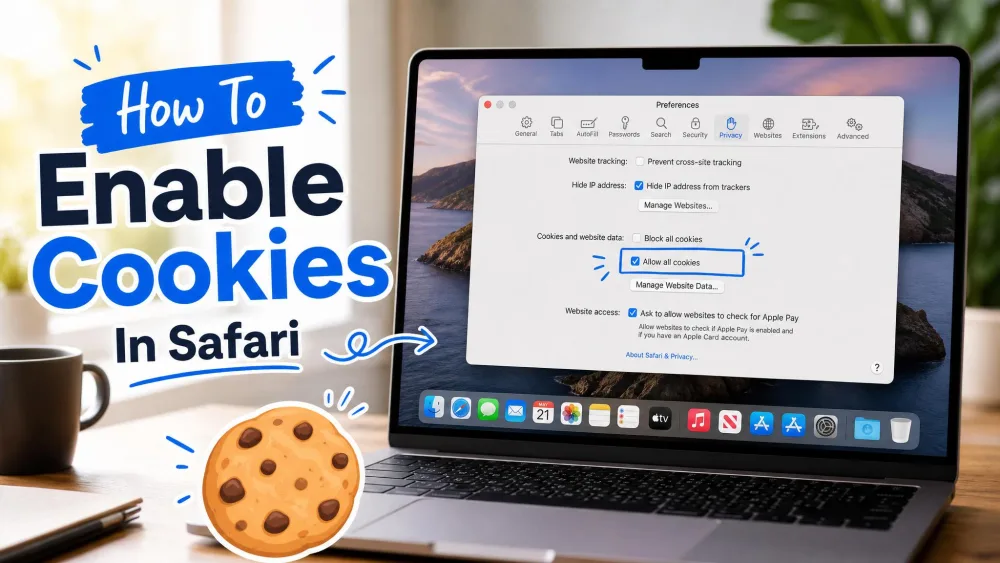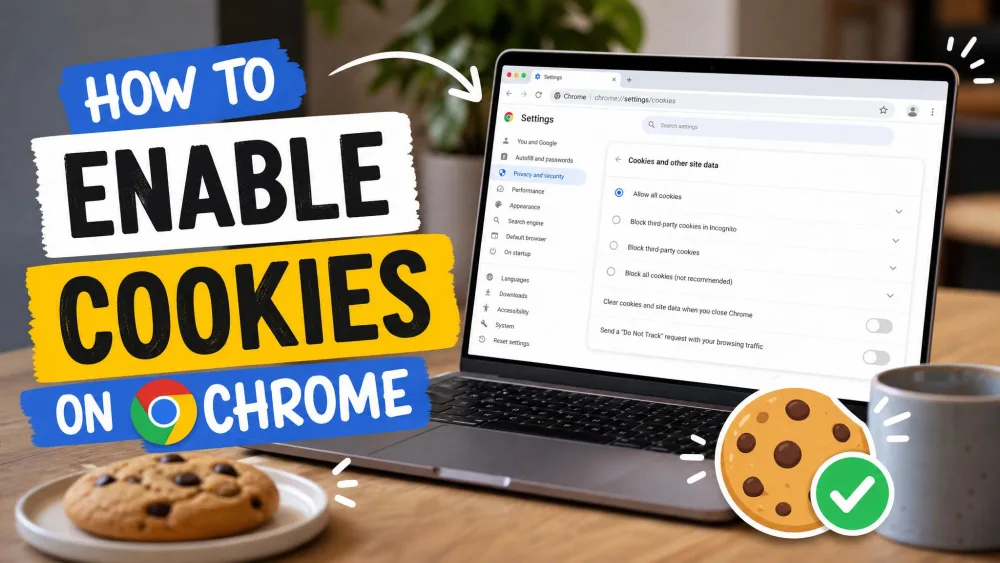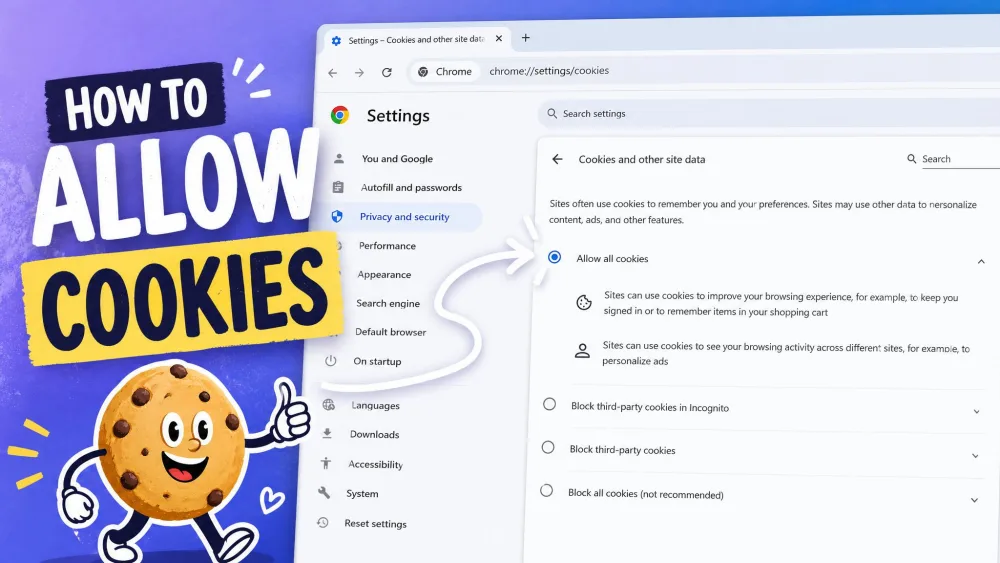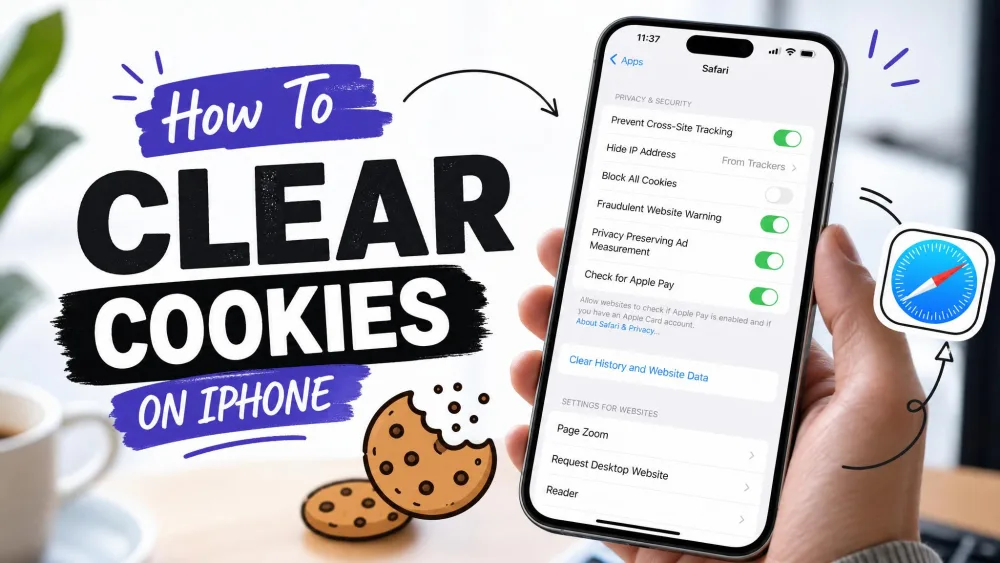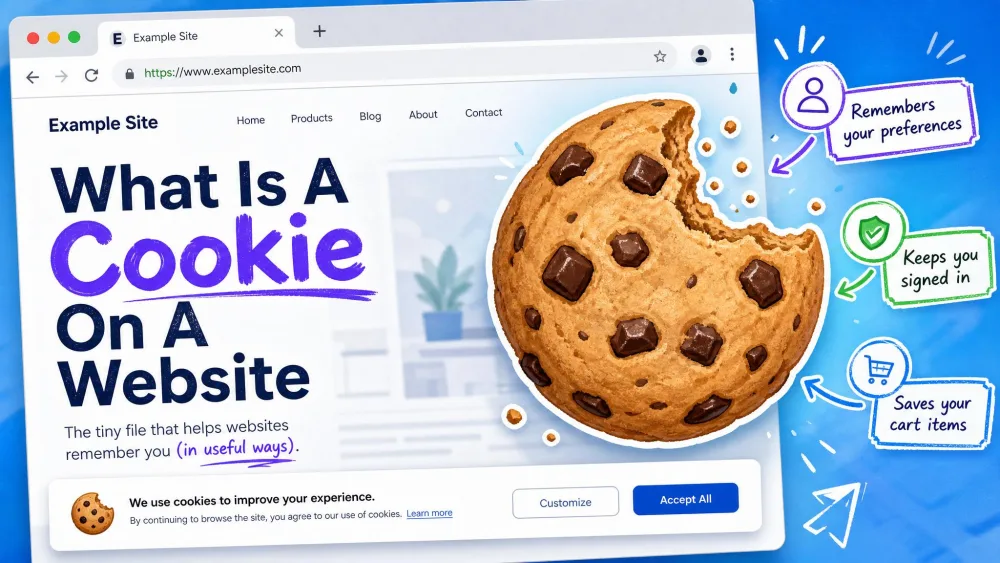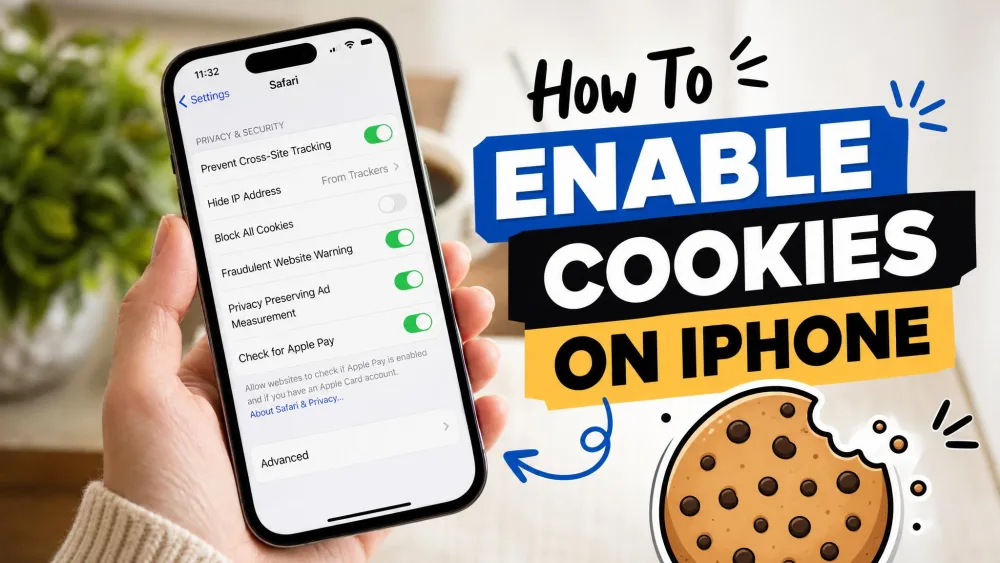
Cookies are small files a website saves on your iPhone so it can remember your visit. They keep you signed in, hold your cart between taps, and store preferences like your language. In Safari they are turned on by default, and turning them on again means switching off a setting called Block All Cookies. Open Settings, tap Apps, then tap Safari, and the steps below take it from there.
The Quick Version: Turn On Cookies in Safari
Here's the short route, with the detail on each step below.
- Open the Settings app.
- Tap Apps, then tap Safari.
- Tap Advanced.
- Turn off Block All Cookies.
- Reload the website that wasn't working correctly.
Once Settings is open, that is 4 taps: Apps, Safari, Advanced, then the switch itself.
How to Enable Cookies on iPhone in Safari
The path has shifted twice across recent releases, which is why so many guides no longer match what is on screen.
Three routes have shipped, so pick the one that matches your iPhone. On iOS 18.2 and later, including all of iOS 26, open Settings > Apps > Safari > Advanced. On iOS 17 through iOS 18.1, open Settings > Safari > Advanced, three taps rather than four. On iOS 16 and earlier, open Settings > Safari > Privacy & Security, where the switch sits on that screen.
Step 1: Open the Settings App
Open the Settings app and scroll down to Apps, near the bottom of a long list.
Typing "Safari" into the search bar at the top is quicker than scrolling.
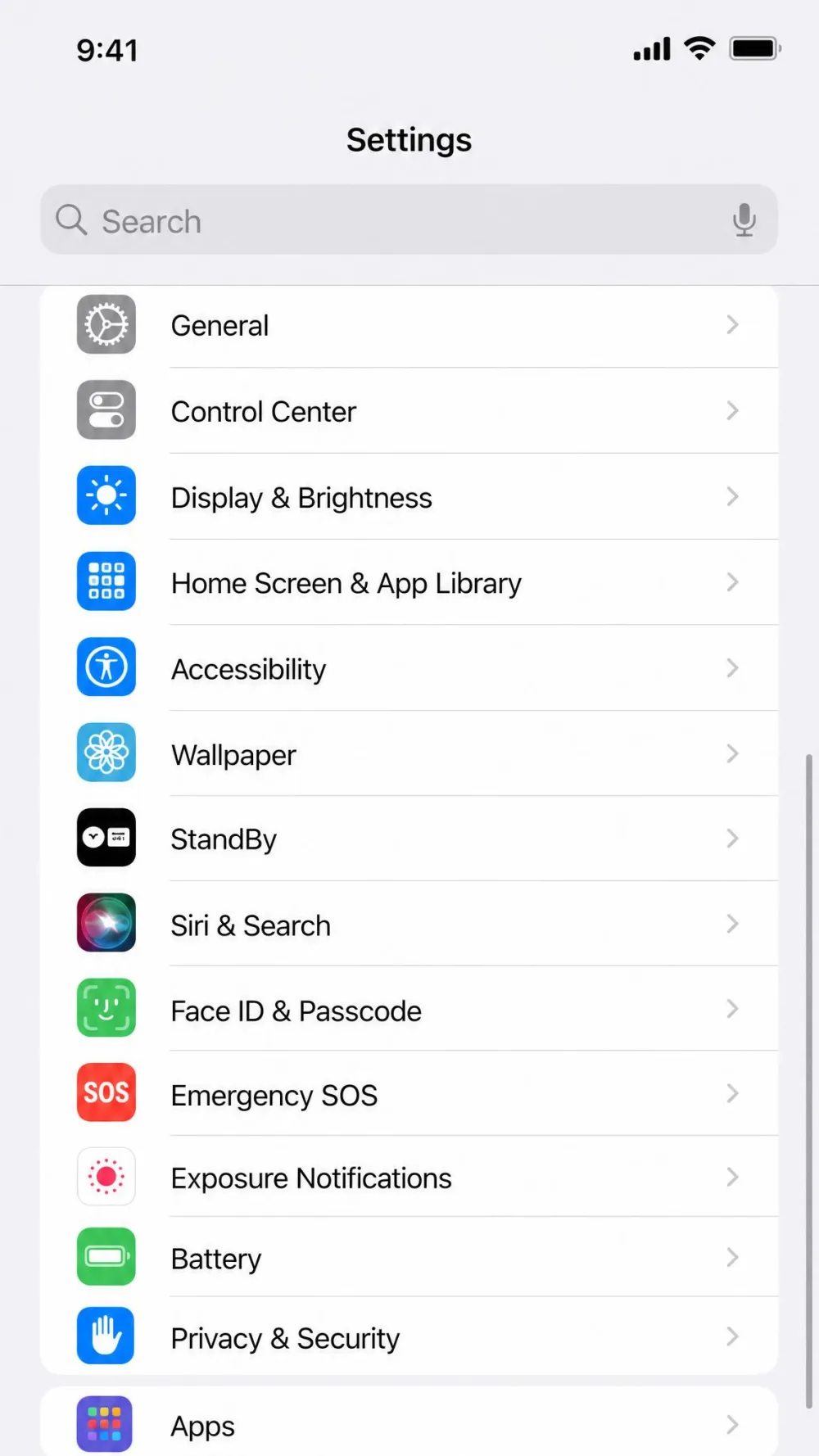
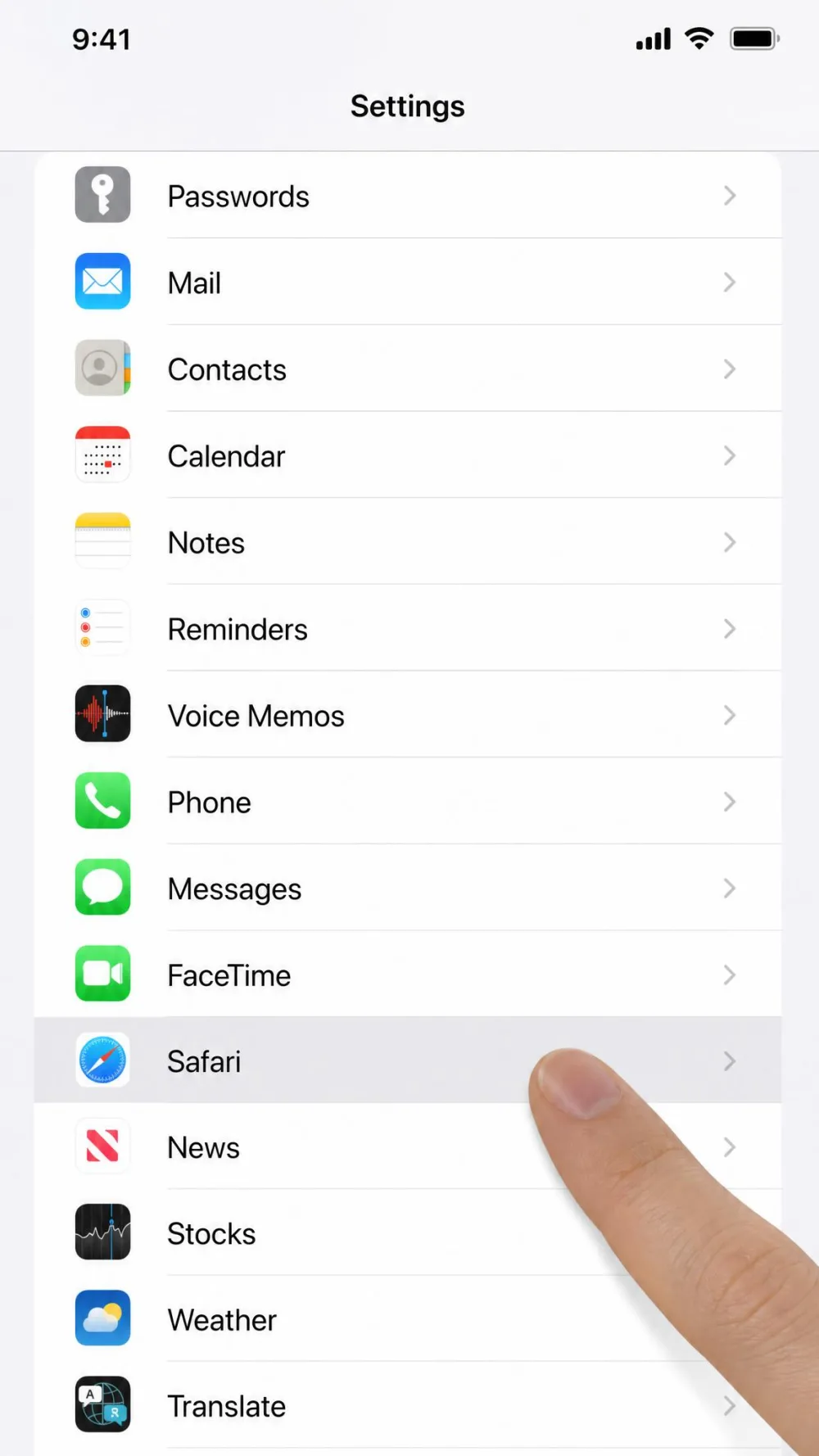
Step 2: Tap Apps, Then Tap Safari
Tap Apps, then find Safari in the alphabetical list and tap it.
Nothing on that screen says "enable cookies", which is where most people stall. The switch you want sits one level deeper, and you turn it off.
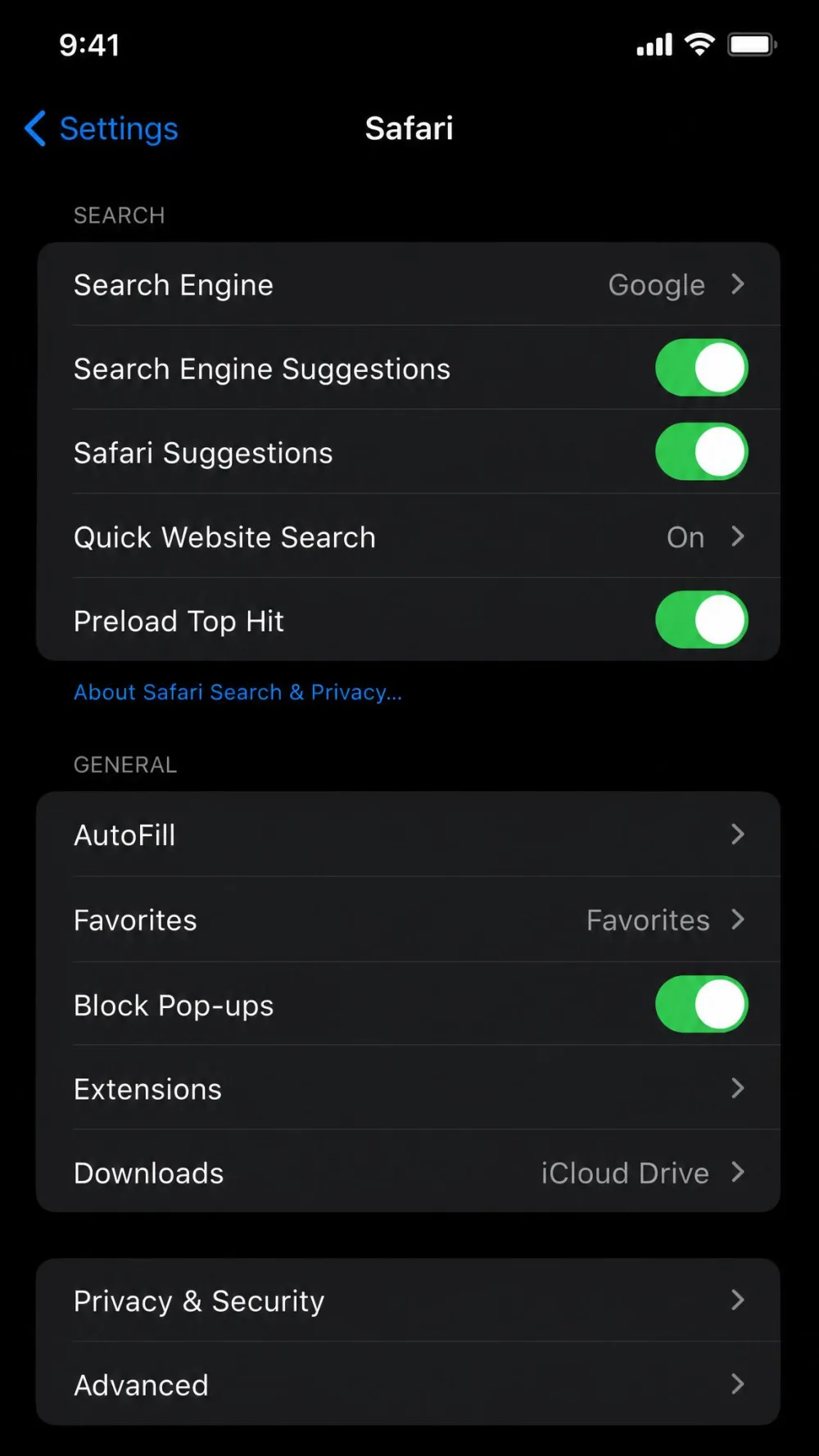
Step 3: Tap Advanced
Scroll to the bottom of the Safari screen and tap Advanced.
You will pass the Privacy & Security heading on the way, which is where this setting used to live.
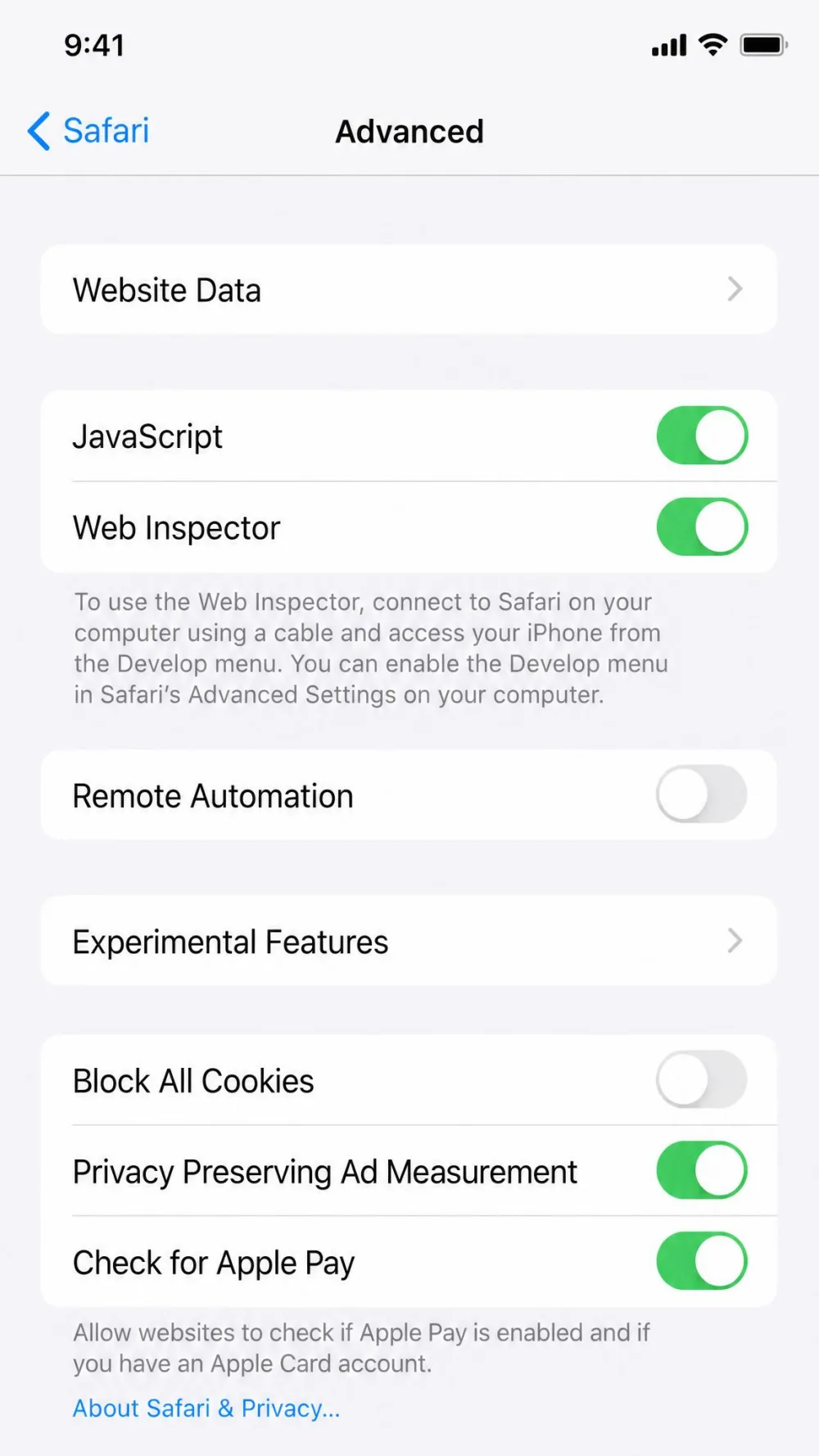
Step 4: Turn Off Block All Cookies
Tap the Block All Cookies switch so it turns grey.
Grey means cookies are allowed and green means they are blocked, so the control reads backwards from what you want.
That matches Apple's current instructions for turning cookies on in Safari, which lists the whole thing as three steps.
Leaving cookies on lets sites follow you from one site to the next. If that bothers you, keep Prevent Cross-Site Tracking switched on: it limits the third-party cookies behind that tracking while leaving your normal logins alone.
Step 5: Reload the Website That Was Failing
Reload the site that wasn't working correctly.
If you were signed in before the change, sign out and sign in again so the site can write a fresh cookie.
We checked this path on iOS 26, where Safari's settings sit inside the Apps section. On iOS 17 through iOS 18.1 the same Advanced submenu sits directly under Safari, and before that Block All Cookies sat under Privacy & Security.
How to Enable Cookies in Chrome, Firefox, and Edge on iPhone
Chrome on iPhone
There is nothing to turn on. Chrome on iPhone has no cookie control at all, and Google's instructions for turning cookies on in the Chrome app say that on iPhone and iPad cookies are automatically turned on and stay on.
When cookies cause trouble in Chrome, Google's advice is to fix the setting in Safari, wait 5 minutes, then reopen Safari and try again.
Every browser on iPhone runs on Apple's WebKit engine, so iOS sets cookie policy rather than the app.
Installing Chrome to escape a cookie problem is a dead end.
Firefox and Edge on iPhone
Firefox has no block-all-cookies switch either. Its nearest equivalent is Enhanced Tracking Protection, reached from the menu button, then Settings, then Tracking Protection.
Standard blocks social media trackers, cross-site trackers and fingerprinters, and Strict adds all cross-site cookies. Neither level touches first-party cookies, so your logins keep working.
Edge appears to keep a cookie control of its own, under More, then Settings, then Privacy & Security. Its menu layout and option wording shift between app releases, so the labels on your build may differ.
What Cookies Do, and Whether Leaving Them On Is Safe
A first-party cookie comes from the site you are on, and it keeps you signed in and remembers your basket. A third-party cookie comes from a domain embedded in the page, usually an advertiser, and it is the one that follows you around.
Block All Cookies stops both kinds, which is why switching it on breaks logins that worked fine an hour earlier. Apple says plainly that you will likely be unable to sign in even with the correct password.
The privacy tradeoff is worth taking seriously, though it is overstated on iPhone more often than not. Cookies ship allowed, which is Apple's own recommended configuration, and Safari limits third-party cookies regardless of the switch.
Prevent Cross-Site Tracking: The Setting That Still Blocks Some Cookies
Prevent Cross-Site Tracking is a separate control, one level above Advanced, on the main Safari screen under the Privacy & Security heading.
Apple's wording in Apple's privacy settings guide for iPhone is direct: Safari limits third-party cookies and data by default, and turning the option off allows cross-site tracking.
Leaving it on is what we would suggest for most people, since it restricts tracking cookies without touching the ones that keep you signed in. Even then, Intelligent Tracking Prevention keeps limiting third-party cookies whatever you do, so single sign-on flows and embedded checkouts can still misbehave.
If Prevent Cross-Site Tracking looks greyed out, either Block All Cookies is switched on or Screen Time is restricting web content.
Cookies Still Not Working? How to Fix It
If a site still doesn't work once the switch is off, the setting is rarely the thing at fault.
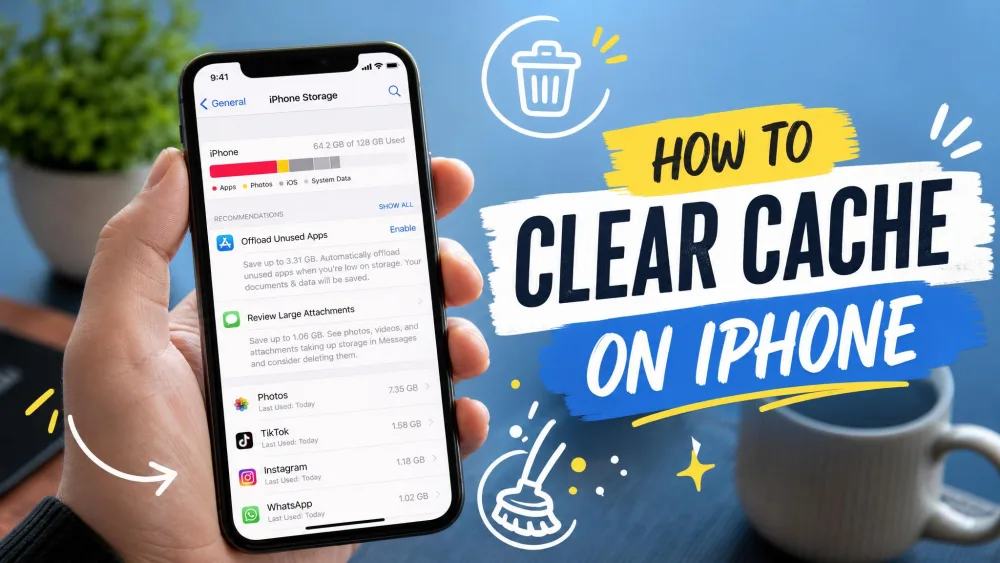
Clear Safari's Cache and Website Data
A stale cookie saved for one site survives a settings change and keeps producing the same prompt. Clearing that site's stored data resolves it, rather than toggling the switch again.
Open Settings > Apps > Safari > Advanced > Website Data and tap Remove All Website Data, or use Clear History and Website Data to clear everything at once. The first removes site data only; the second takes your history with it.
Order matters: change the setting first, clear the data second, then sign in.
Check Whether You Are in Private Browsing Mode
Private Browsing is the most common false alarm here. Private tabs limit how sites store cookies, so a correctly changed setting still looks broken until you move back to a normal tab.
Check Screen Time and Content Restrictions
Screen Time's web content restrictions can quietly grey out Safari's cookie and website-data controls, which reads as a glitch rather than a restriction. Content blockers, a VPN and managed device profiles from an employer or school can also block cookies independently of Safari.
Update iOS and Restart Your iPhone
Restart the iPhone before concluding that something is broken, since that clears sessions stuck from before the change. Installing a pending update is worth doing too, because Safari's privacy behaviour ships with the operating system.
How to Turn Cookies Back Off or Clear Them
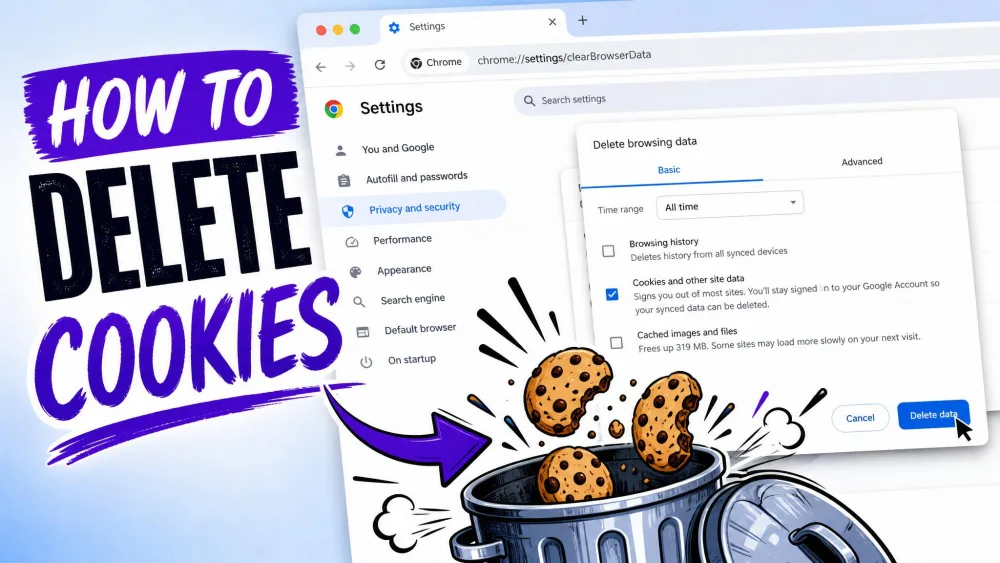
Turning cookies back off is the same route in reverse: open Settings > Apps > Safari > Advanced and switch Block All Cookies on. Be ready for what that does, because switching it on removes your existing cookies and website data, quits Safari and reloads your open tabs. If you only want to clear what is stored rather than block anything new, our guide to clearing cookies on iPhone walks through every option.
Frequently Asked Questions
Why does a site still say cookies are disabled after I enabled them?
My Settings screen does not match these steps, so where is the cookie setting?
Can I enable cookies for just one website?
Will enabling cookies make my iPhone less secure?
What is the difference between cookies and website data?
Will enabling cookies use more data or slow down my iPhone?
Conclusion
Turning cookies on in Safari comes down to one switch in one submenu, and the hard part is finding it rather than flipping it. If the site is still stuck afterwards, work down the troubleshooting list before you assume your iPhone is at fault, because Private Browsing and one stale cookie account for most of these cases.