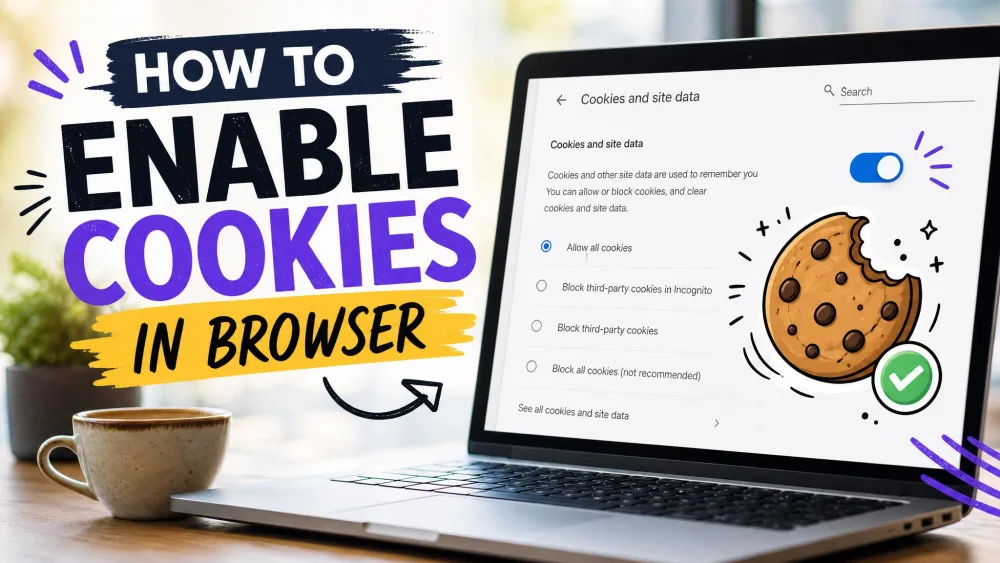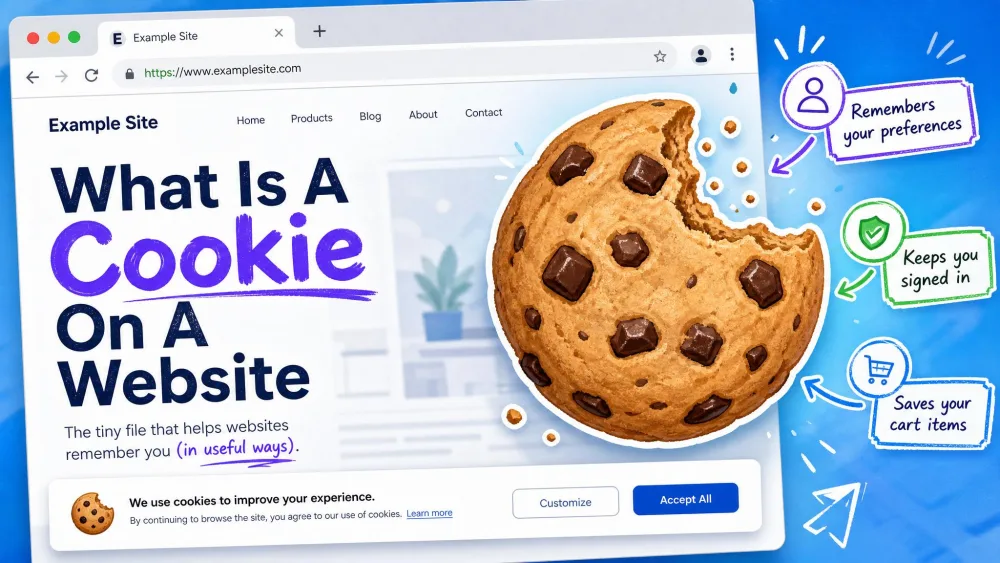
A cookie is a small file a website saves in your browser to remember you. It holds things like your login session, your language choice, and the items in your cart. When a site asks you to allow cookies, it wants permission to store and read that file on your next visit. Without it, the site cannot recognize you from one page to the next.
We checked the cookie settings on current versions of all four major browsers in July 2026, so every path below reflects the menus as they ship today. Good news first: all major browsers allow first-party cookies by default. Most people only land here after blocking cookies once, or after a strict privacy setting quietly switched them off. This guide walks you through enabling cookies in Chrome, Edge, Firefox, and Safari, then covers third-party settings, per-site rules, and the "please enable cookies" error.
What Are Cookies (and Why Sites Ask You to Allow Them)
Cookies do the quiet work that makes the web feel personal. They keep you signed in, remember your preferences, and hold your shopping cart together between clicks. When cookies are blocked, that memory disappears. A blocked cart empties itself as you move between pages, and you get bounced back to the login screen on every visit. That is why so many sites throw up a consent banner or a hard "please enable cookies" wall. Allowing cookies is usually the fastest fix for a site that keeps forgetting who you are.
First-Party vs. Third-Party Cookies
The difference decides which setting you actually want to change. A first-party cookie is set by the site you are visiting. It handles logins, carts, and preferences, and it is the one you almost always want on. A third-party cookie is set by a different domain, usually an advertiser or analytics service embedded in the page. Those are the cookies that follow you around the web to build an ad profile.
You can keep first-party cookies on while blocking third-party cookies. That combination keeps your logins and carts working while cutting most cross-site tracking, and it is the setup we recommend for most readers.
Worried cookies are going away? They are not. In April 2025, Google confirmed it will not deprecate third-party cookies in Chrome, and it wound down its Privacy Sandbox project in October 2025. You keep managing cookies in the same browser settings you always have.
Browser-by-Browser Cookie Settings at a Glance
If you just want the quick map, here is where each browser hides its cookie controls and what to toggle. The full steps follow below.
| Browser | Settings path | Allow all | Allow per-site | Third-party toggle |
|---|---|---|---|---|
| Chrome | Settings > Privacy and security > Third-party cookies | On by default; choose "Allow third-party cookies" for all | Add the site to the exceptions allowlist | "Block third-party cookies" (plus an Incognito-only option) |
| Edge | Settings > Privacy, search, and services > Cookies | Turn on "Allow sites to save and read cookie data" | Add it to the "Allowed to save cookies" list | Separate "Block third-party cookies" toggle |
| Firefox | Settings > Privacy & Security > Enhanced Tracking Protection | Set protection to Standard (or Custom with cookies allowed) | Shield icon in the address bar, or Manage Exceptions | Custom mode blocks cross-site tracking cookies |
| Safari | Mac: Safari > Settings > Advanced; iOS: Settings > Safari > Advanced | Turn off "Block all cookies" | Per-site website settings | "Prevent Cross-Site Tracking" |
How to Allow Cookies in Google Chrome
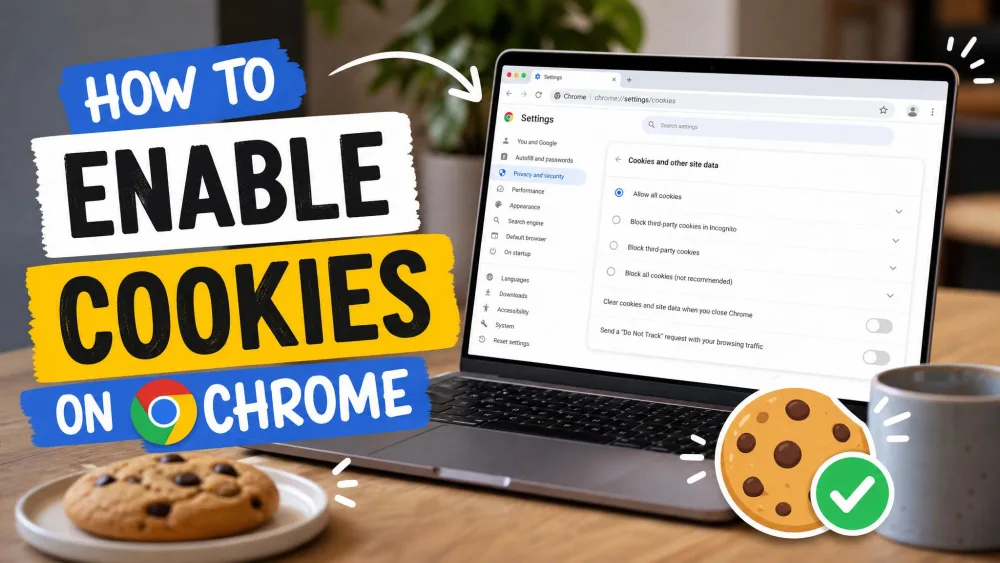
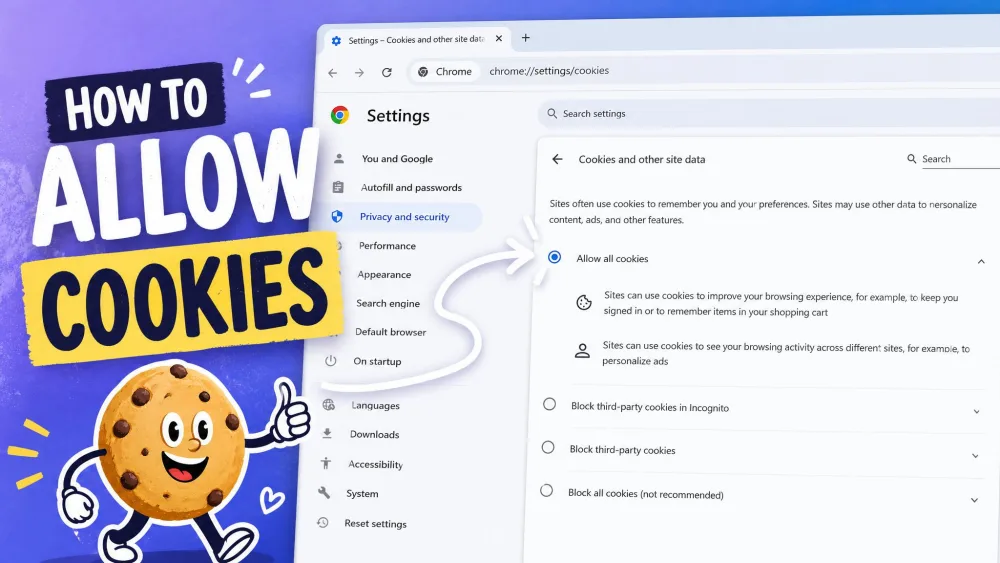
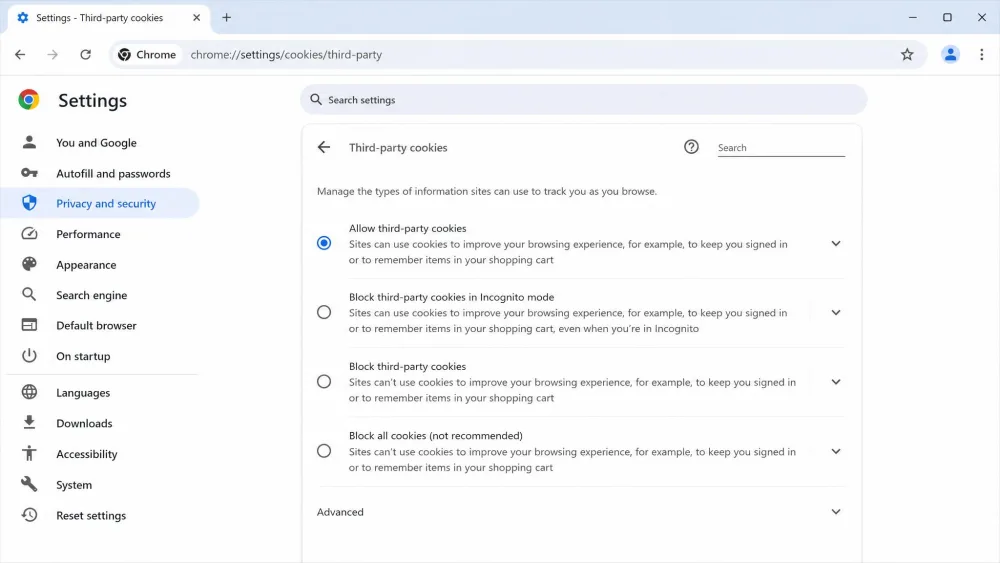
Chrome keeps first-party cookies on by default, so the setting you usually adjust is the third-party one. If you have been hunting for the old page, note that Chrome moved these controls under a dedicated "Third-party cookies" section, separate from the older cookies-and-site-data screen. For the official steps, see Google's guide to allow cookies in Chrome.
On a Computer
- Click the three-dot menu in the top-right corner, then choose Settings.
- Select Privacy and security, then click Third-party cookies.
- Choose Allow third-party cookies to enable everything, or leave first-party cookies on and pick Block third-party cookies in Incognito mode for a balanced setup.
Chrome applies the change immediately, so you can reload the site right away.
You rarely need to allow all cookies globally. If only one site is misbehaving, add it as a per-site exception instead and leave your default protection in place.
On Android
- Open Chrome and tap the three-dot menu, then tap Settings.
- Tap Site settings, then tap the Cookies entry.
- Turn cookies on, and choose whether to allow third-party cookies from the same screen.
The exact label varies by build, so you may see Cookies on one phone and Third-party cookies on another. Both open the same control.
On iPhone or iPad
On iOS, Chrome keeps first-party cookies on automatically, so there is far less to change than on desktop. Tap the three-dot menu, open Settings, then look under Privacy and security for the third-party cookies option. If a site still fails, the fix is usually a Safari-level setting rather than anything inside the Chrome app.
How to Allow Cookies in Microsoft Edge
Edge uses a clear on-off switch, which makes it one of the simpler browsers to fix. Microsoft's support page shows how to manage cookies in Microsoft Edge if you want the vendor version.
On a Computer
- Click the three-dot Settings and more menu, then choose Settings.
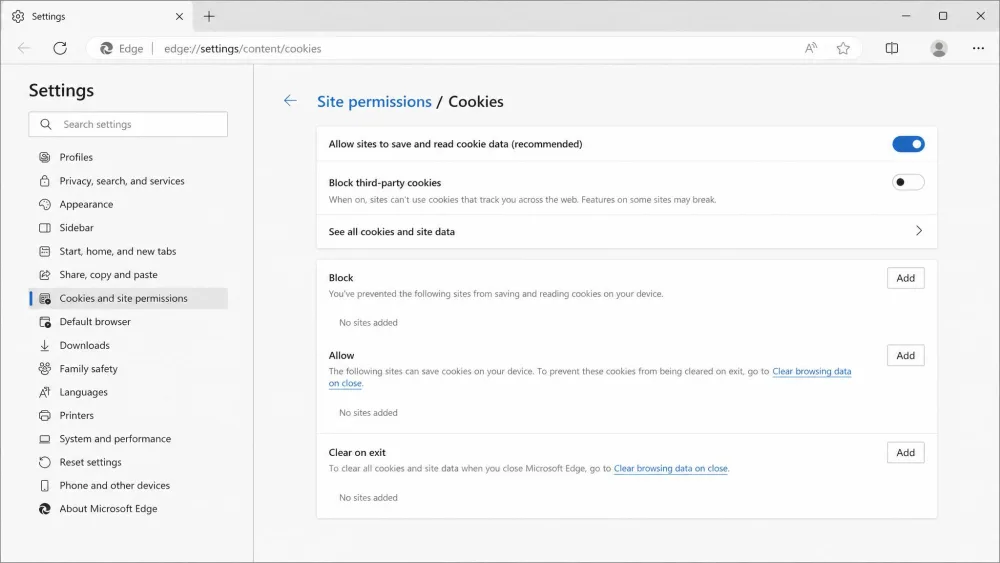
- Go to Privacy, search, and services, then open Cookies.
- Turn on Allow sites to save and read cookie data (recommended).
- To keep trackers out while cookies stay on, enable the separate Block third-party cookies toggle.
Edge lets you build an allowlist and a blocklist by hand. Use "Allowed to save cookies" for sites you trust and "Not allowed to save and read cookies" for the ones you do not.
On Mobile
The mobile Edge app mirrors the desktop layout. Tap the three-dot menu, open Settings, then look under the privacy section for the cookies controls. Turn cookies on there, and set third-party cookies to match your preference. The wording shifts between app versions, so follow the privacy grouping rather than an exact label.
How to Allow Cookies in Mozilla Firefox
Firefox does not use a plain cookie on-off switch. Instead it manages cookies through Enhanced Tracking Protection, which blocks cross-site trackers while leaving normal cookies alone. Mozilla explains the cookie settings in Firefox if a site reports them as blocked.
On a Computer
- Click the three-line menu, then choose Settings.
- Select Privacy & Security.
- Under Enhanced Tracking Protection, choose your level. Standard allows normal cookies and blocks known trackers. Strict tightens cross-site limits and can break some sign-ins. Custom lets you set cookie rules yourself.
If one site refuses to work, the quickest fix is the shield icon in the address bar. Click it and turn protection off for that site only, rather than loosening your global setting.
Standard is the right choice for most people. It keeps logins and carts working while still blocking the trackers that follow you between sites.
On Mobile
Firefox on phones follows the same idea. Open the menu, go to Settings, then find the Enhanced Tracking Protection section. Set it to Standard to allow everyday cookies, or use the shield toggle on a page to grant an exception for a single stubborn site.
How to Allow Cookies in Safari
Safari splits its cookie controls in a way that trips people up. The on-off switch sits under Advanced, while cross-site tracking lives under Privacy, so it is easy to flip the wrong one. Apple's guide covers how to allow cookies in Safari across recent macOS versions, including Tahoe 26, Sequoia 15, Sonoma 14, and Ventura 13.
On a Mac
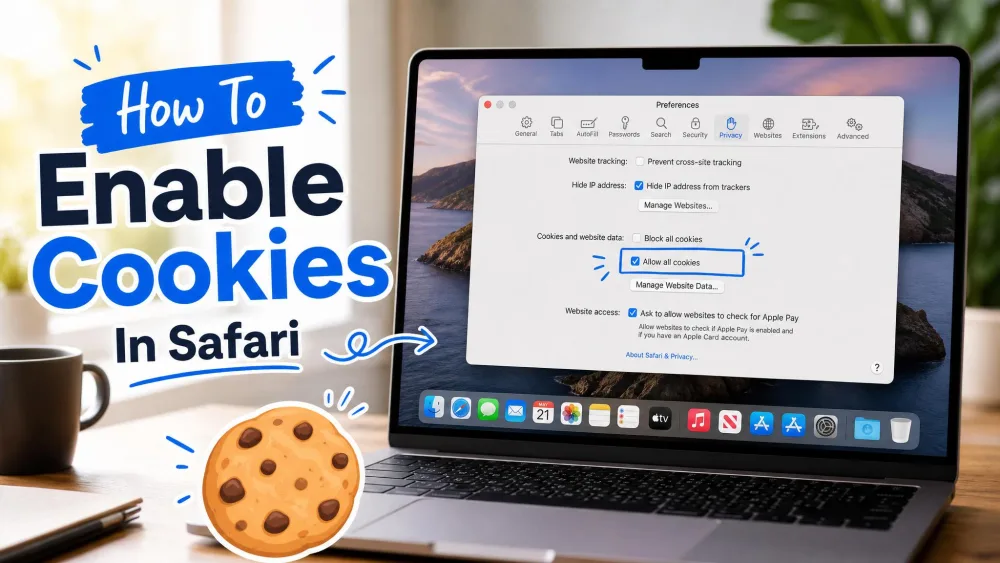
- Open Safari, then choose Settings from the menu bar.
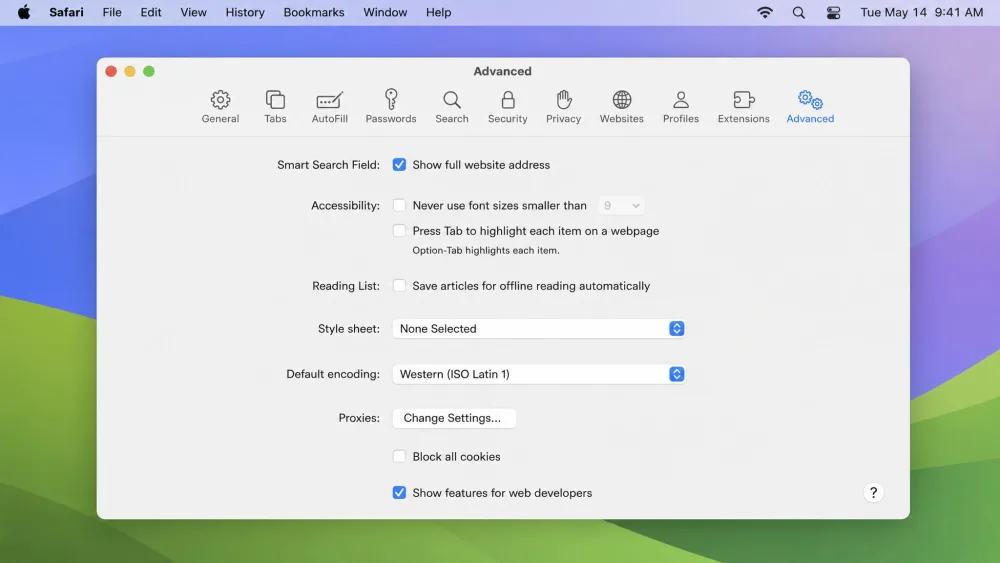
- Click the Advanced tab.
- Make sure Block all cookies is unchecked. When it is unchecked, cookies are allowed.
- For tracker control, visit the Privacy tab and adjust Prevent Cross-Site Tracking, which is on by default.
On an iPhone or iPad
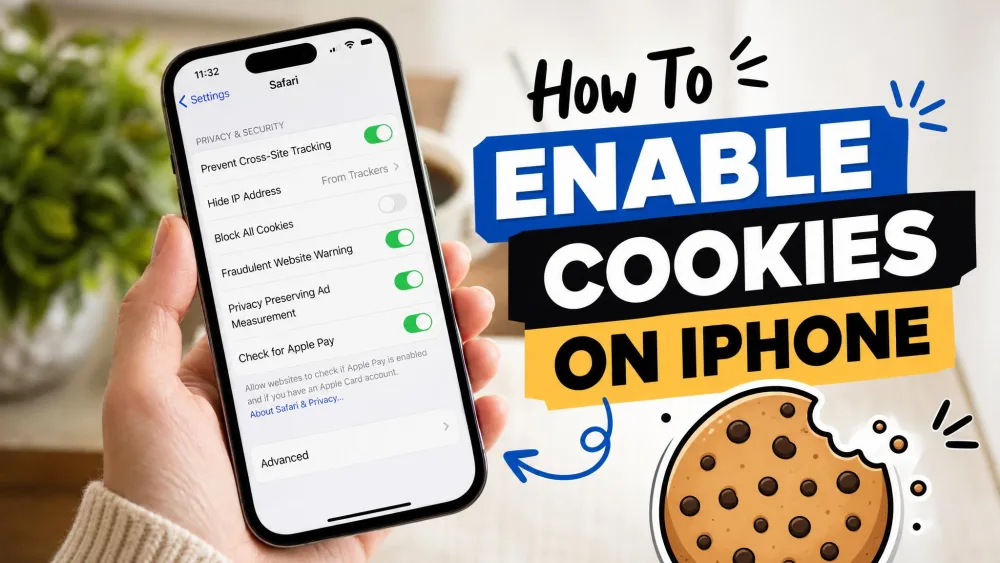
- Open the Settings app, not Safari itself.
- Scroll down and tap Safari.
- Tap Advanced, then turn off Block All Cookies.
With that toggle off, Safari allows cookies again and sites can remember your session. Cross-site tracking has its own switch on the main Safari settings screen, so leave that on if you want to limit ad tracking.
How to Allow Third-Party Cookies (When a Site Requires Them)
Most sites work fine with third-party cookies blocked, but a few embedded tools do not. Payment widgets, single sign-on logins, and some support chat windows load from another domain, so they rely on a third-party cookies exception to work. If one of those breaks, allowing third-party cookies is the fix.
In Chrome, open Privacy and security > Third-party cookies and choose Allow third-party cookies. In Edge, turn off Block third-party cookies. In Firefox, set Enhanced Tracking Protection to Standard or add a Custom exception. In Safari, turn off Prevent Cross-Site Tracking for the moment you need it.
Allowing third-party cookies opens the door to cross-site tracking. Turn them on only for the site that needs them, then switch the setting back once your payment or login goes through.
How to Allow Cookies for a Specific Site Only
Per-site exceptions are the smart middle ground. You keep tight defaults everywhere and grant access to the one site that needs it, which is almost always better than allowing all cookies across your whole browser. In Chrome and Edge, find the allowlist inside the cookie settings and add the site's address. In Firefox, click the shield icon in the address bar and turn protection off for that page, or use Manage Exceptions. In Safari, adjust the per-site website settings while you have the page open.
Troubleshooting: Site Still Says "Please Enable Cookies"
Sometimes cookies are on and the error refuses to clear. When a site still shows a "please enable cookies" message, work through these checks in order.
- Confirm the right toggle. In Safari especially, make sure you changed Block all cookies under Advanced, not the tracking switch.
- Turn off strict tracking protection. Firefox Strict mode and Safari's cross-site tracking can block the cookie the site needs.
- Allow third-party cookies for that site. Embedded logins often fail without them, so add a per-site exception.
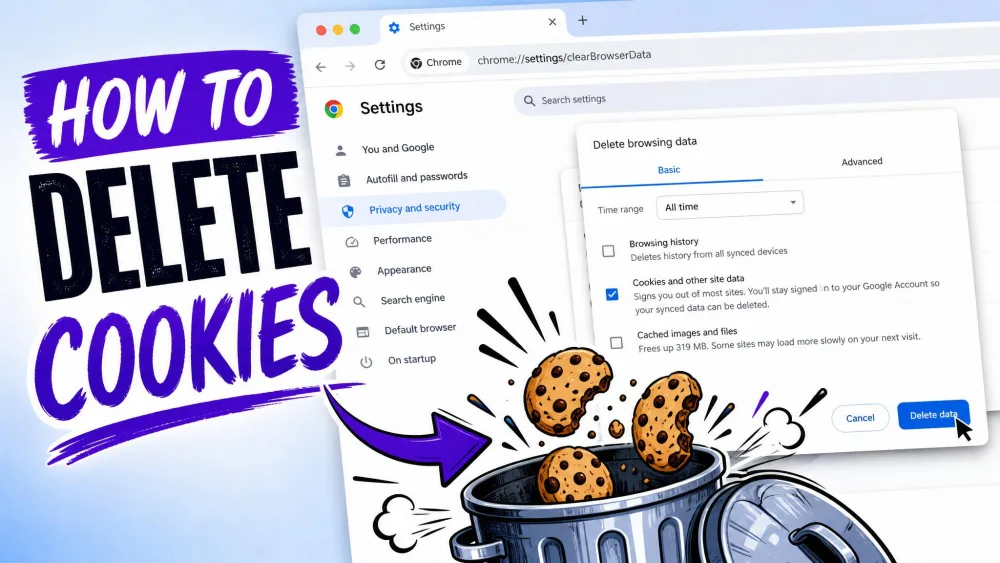
- Clear old cookies and reload. A stale or corrupted cookie can jam the handshake. Delete the site's cookies, then refresh.
- Check extensions and private mode. Ad blockers and Incognito or Private windows often block cookies by default.
One of those five almost always clears the message. If none do, the problem may be on the site's end rather than your browser's.
Are Cookies Safe to Enable? Privacy Tips
Cookies themselves are not malicious. A first-party cookie is just a text file that remembers your session, and enabling it carries very little risk. The privacy question is really about third-party cookies and the tracking they enable. Our standing advice is simple: leave first-party cookies on and decline third-party cookies. That keeps logins, carts, and preferences working while cutting most cross-site tracking. It is worth clearing out old cookies now and then, since a large pile of accumulated cookies can slow browsing over time.
Review your cookies every few months. Deleting the ones you no longer need is a quick privacy win and keeps your browser tidy without breaking the sites you use daily.
Frequently Asked Questions
Should I allow all cookies?
What are third-party cookies, and should I allow them?
Is it safe to allow cookies?
How do I allow cookies for one specific website?
Why does a site say I need to enable cookies?
Conclusion
Allowing cookies is almost always a one-toggle job. Chrome and Edge keep first-party cookies on by default and give you a clear third-party switch. Firefox handles it through Enhanced Tracking Protection, and Safari hides its on-off control under Advanced. For most people, the ideal setup is the same across all four: keep first-party cookies on, block third-party cookies, and add a per-site exception only when a site truly needs one. That balance keeps your logins and carts working while sparing you most of the tracking you did not sign up for.