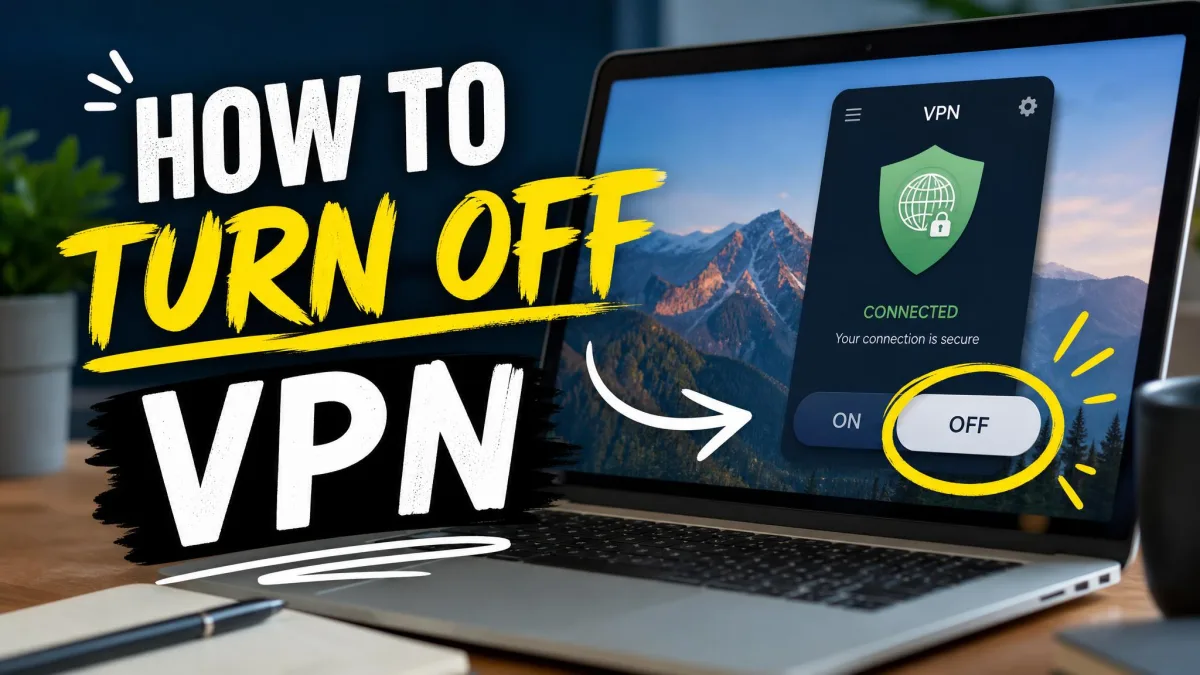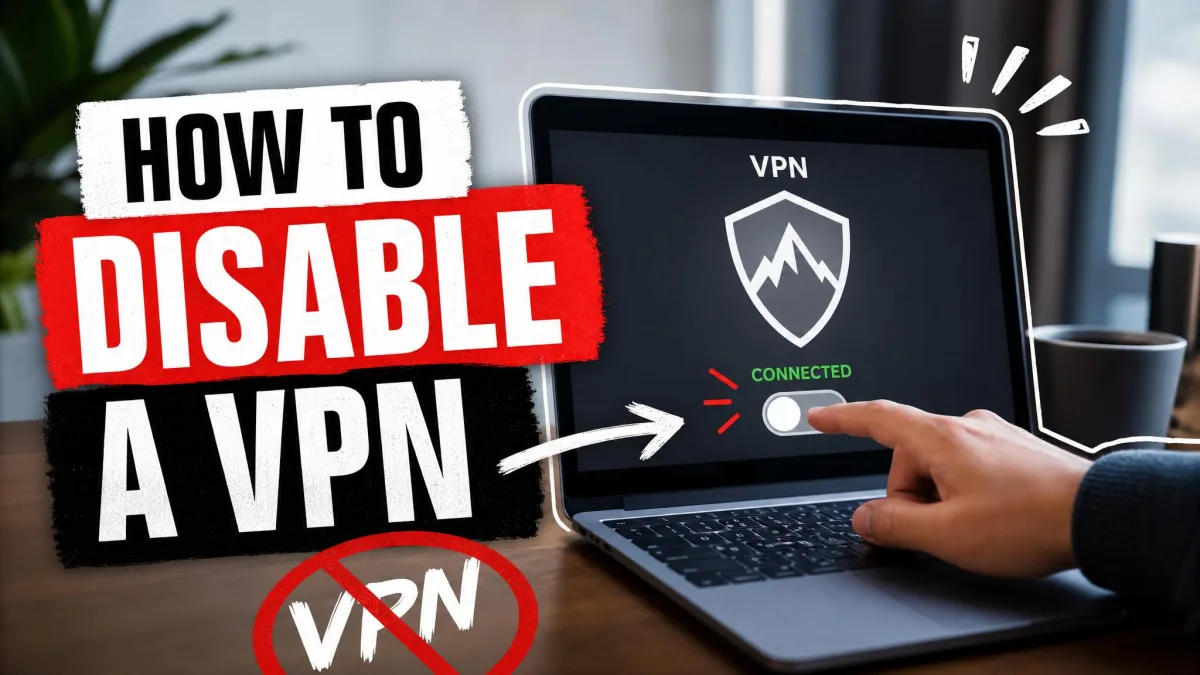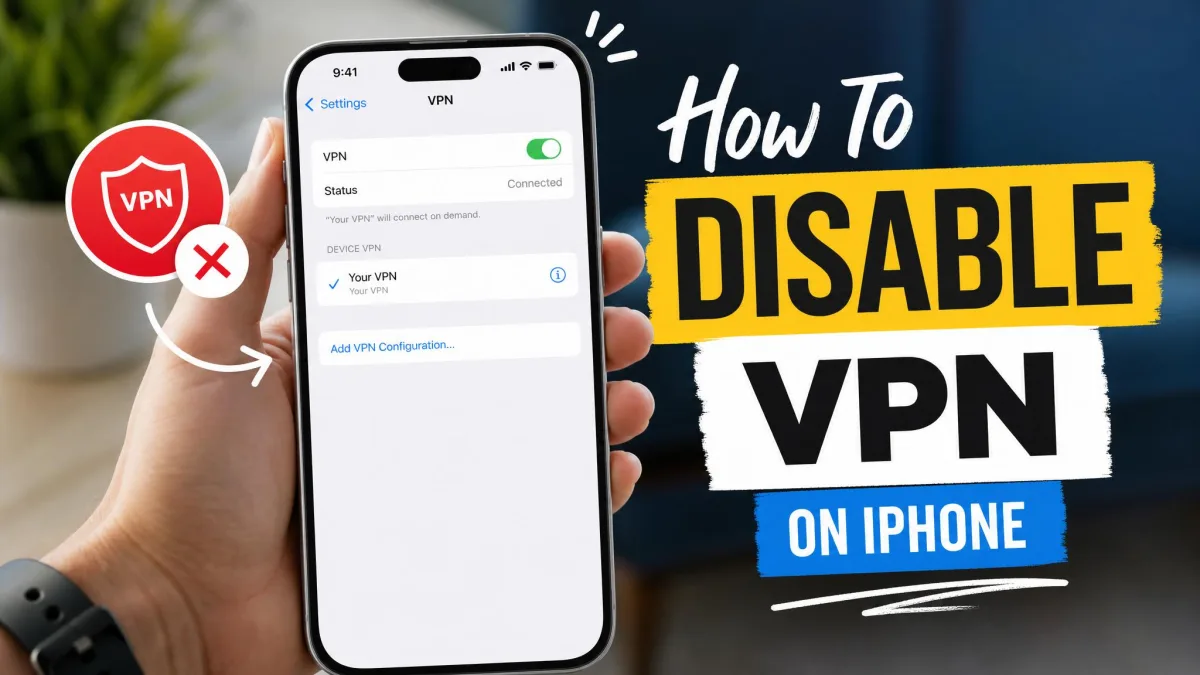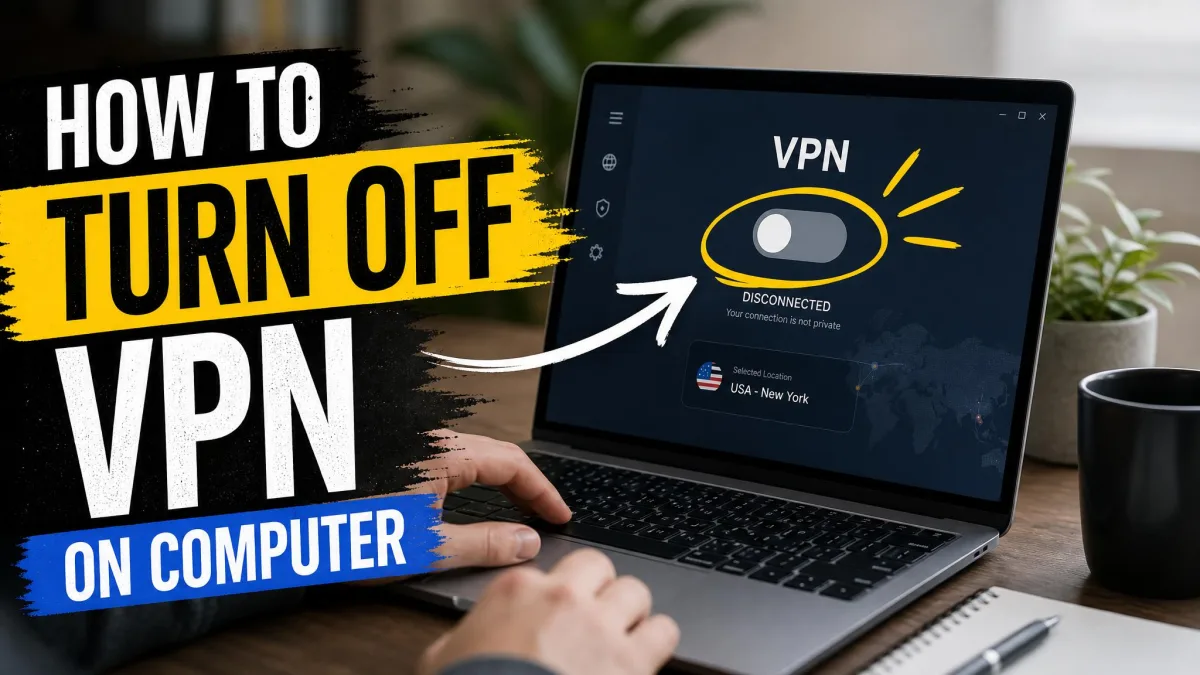
Turning a VPN off should take two taps, yet it often turns into a small mystery. The toggle hides in a different menu on every device, and sometimes the connection snaps back on before you have even put your phone down. If your internet feels slow, a local site refuses to load, or you simply want your real network back for a minute, disconnecting is the fix.
We test VPNs for a living, which means we turn them off almost as often as we turn them on. Across Windows, macOS, iPhone, Android, Linux, routers, and browser extensions, the steps are short once you know where each toggle lives. This guide walks through every device, then covers the two problems that trip people up most: a VPN that reconnects by itself, and an internet connection that goes dead the moment you disconnect.
We ran each of these steps on our own test machines and phones while writing this, so the paths below match what you will actually see on screen.
Quick answer: how to disconnect a VPN fast
If you only need the short version, here it is. On most devices the fastest route is the same app or system toggle you used to connect:
- Windows: click the network icon in the taskbar, select your VPN, and choose Disconnect.
- macOS: click the VPN app icon in the menu bar and choose Disconnect.
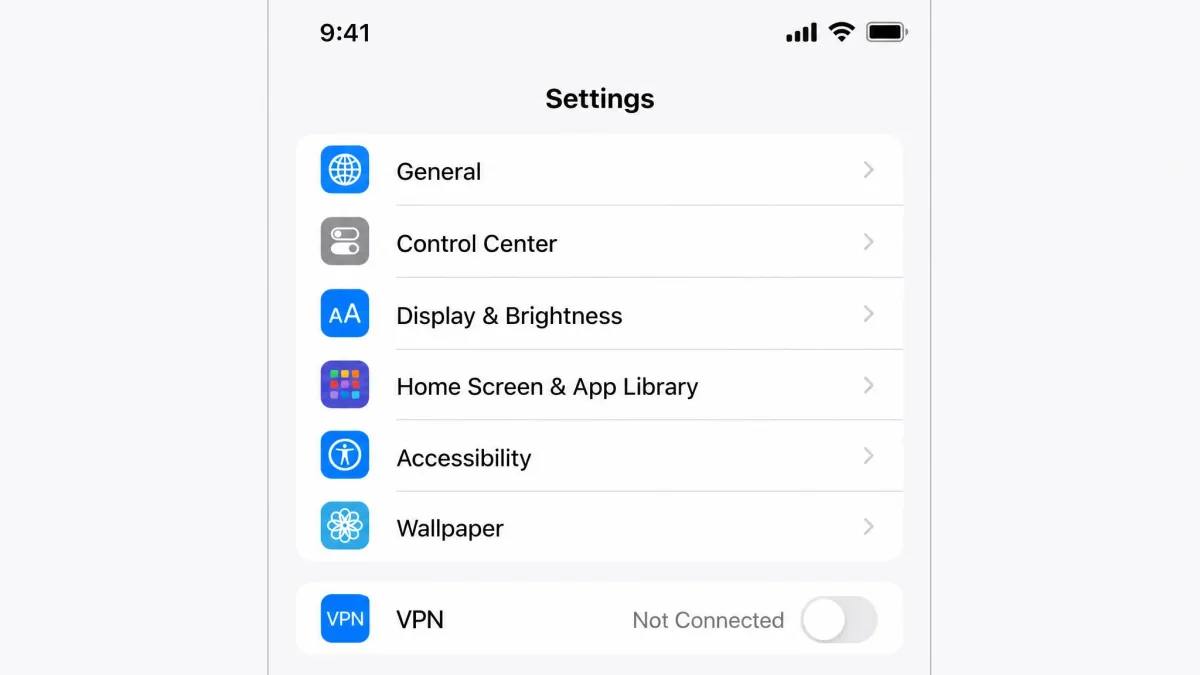
- iPhone or iPad: open Settings, tap VPN, and switch the toggle off.
- Android: open Settings, go to Network & internet, tap VPN, and disconnect.
- Router, smart TV, or console: disable the VPN client in your router's admin panel.
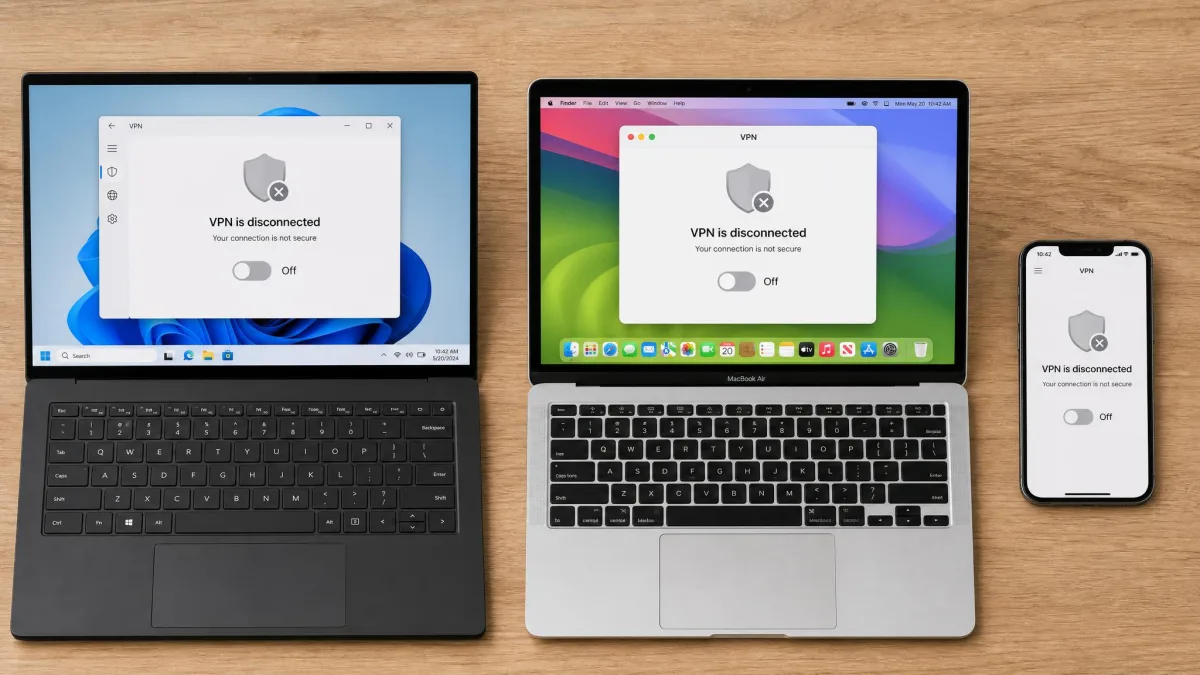
The quickest method on a laptop is almost always the app's own menu-bar or system-tray icon. On Windows you can right-click the VPN in the system tray and choose Disconnect, and on a Mac the menu-bar icon does the same thing without opening any settings window.
When should you disconnect (or keep) your VPN on?
Before you turn it off, it helps to know when disconnecting is a good idea and when it is not. There are sensible reasons to switch a VPN off for a while. The common ones are troubleshooting a connection that will not load, chasing faster speeds, reaching a local service or a site that blocks VPN traffic, and getting to other devices on your own home network. In each case the VPN is standing between you and something local, so a short disconnect clears the path.
The other side matters just as much. We keep a VPN on for public Wi-Fi, banking and shopping, sensitive account logins, travel, and any private browsing. Turning it off in those moments exposes your real IP address and hands your unencrypted traffic to whoever runs the network, including your ISP.
If you are on public Wi-Fi in a cafe, airport, or hotel, do not disconnect while you log into anything sensitive. The moment the VPN drops, your traffic on that shared network is no longer encrypted, and that is exactly the situation a VPN is built to protect.
The good news is that disconnecting is reversible in seconds, so treat it as a temporary step rather than a permanent switch. If you only need a VPN off for one task, reconnect as soon as you are done.
How to disconnect a VPN on Windows
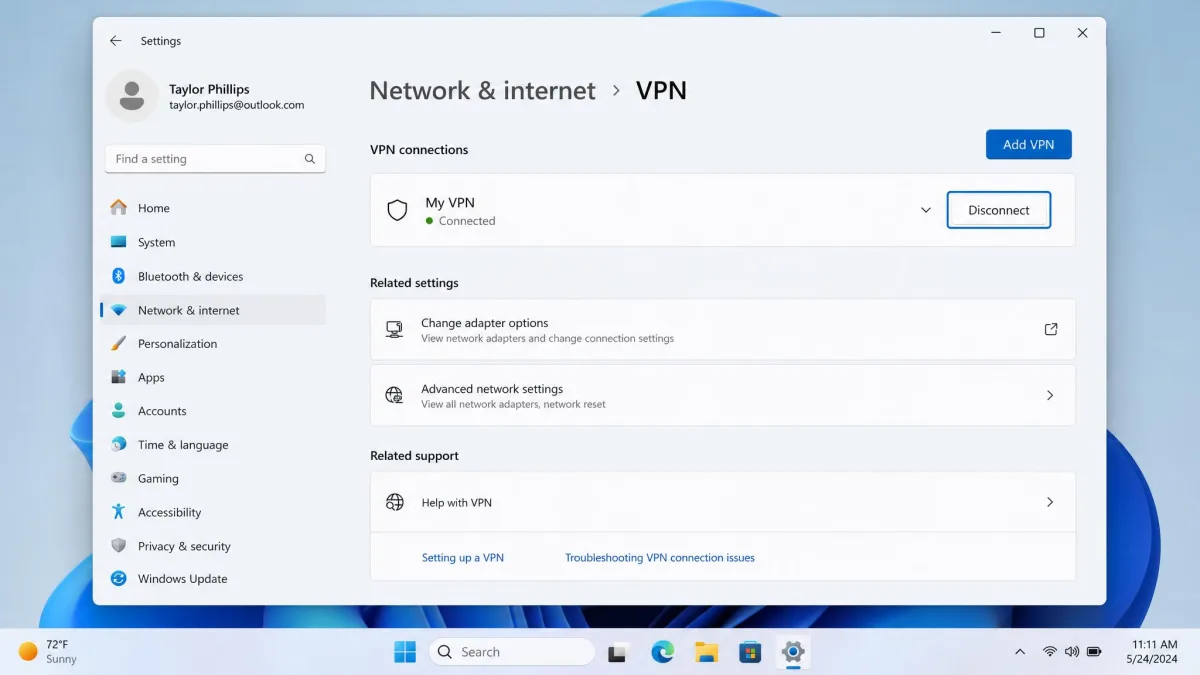
Windows gives you three ways to disconnect, and any of them works on both Windows 10 and Windows 11. The full path is Settings, then Network & internet, then VPN. Select your connection from the list and click Disconnect.
If you would rather skip the settings app, use the taskbar instead. Click the network icon in the system tray to open the network flyout, then toggle the VPN quick setting off. You can also right-click the VPN in the system tray and choose Disconnect directly. For the official reference, Microsoft documents the same menu in its guide to Windows VPN settings.
If you connected through a standalone VPN app rather than the built-in Windows client, disconnect from inside that app instead. The app and the Windows setting can each hold their own connection, so check both if the tray still shows a VPN as active.
How to disconnect a VPN on macOS
On a Mac the fastest option lives in the menu bar. Click your VPN app's icon at the top of the screen and choose Disconnect. That single click handles most disconnections without opening anything else.
For a built-in or system-level VPN, open the Apple menu, go to System Settings, and select VPN in the sidebar. Toggle the connection off, or select it and choose Disconnect. Apple keeps the setup steps for these connections in its VPN settings on macOS documentation, and the disconnect toggle sits in the same panel.
As on Windows, the app and the system setting are separate. If a menu-bar app still shows green after you flip the system toggle, disconnect inside the app too.
How to disconnect a VPN on iPhone & iPad
To turn off a VPN on an iPhone or iPad, open the Settings app. Near the top you will usually see a VPN row once a VPN has been configured. Tap it and switch the toggle off next to the connected profile. The built-in VPN controls also live under Settings, then General, then VPN & Device Management, which is useful if the top-level VPN row is not showing.
If you installed a VPN app, it will have its own on-off button too, and using it disconnects the same connection. On our test iPhones the Settings toggle and the app button stayed in sync, but if one still reads connected, flip the other to be safe.
Exact wording and menu order can shift between iOS versions and between individual VPN apps, so treat the paths here as a reliable map rather than a pixel-perfect match. If a label looks slightly different on your device, the VPN toggle is still within Settings.
How to disconnect a VPN on Android
When you turn off a VPN on Android, the controls sit a little deeper. Open Settings, go to Network & internet, and tap VPN. Tap the gear or settings icon next to your VPN, then toggle it off or choose Disconnect. While a VPN is active, Android shows a small key icon in the status bar, so that key disappearing is your first sign the connection has dropped.
If you connected through a VPN app from the Play Store, its own disconnect button does the same job. Some phones from different manufacturers rename these menus, but the Network & internet section is the reliable starting point on stock Android.
On Android, watch for Always-on VPN paired with Block connections without VPN. With both switched on, the phone refuses to load any data after you disconnect until the VPN comes back. If your mobile data looks alive but nothing loads, that pair of settings is the usual cause. Turn Always-on VPN off under Settings, Network & internet, VPN before you disconnect.
How to disconnect a VPN on Linux
On a Linux desktop running Ubuntu or GNOME, open Settings and go to Network. Find the VPN connection and toggle it off. The switch behaves like any other network toggle, so one click ends the session.
If you manage your VPN from the command line, stop the service directly instead. For OpenVPN, run sudo systemctl stop openvpn@<config>, and for WireGuard, run sudo wg-quick down <config>. Swap in your own config name. After the command returns, the tunnel is down and traffic goes back to your normal route.
How to disconnect a VPN in a browser extension (Chrome, Firefox, Edge)
A browser VPN extension only protects traffic inside that browser, and turning it off is quick. Click the extension icon in the toolbar and toggle it off. That leaves the extension installed and ready for next time while ending the current connection.
If you want it gone entirely, open the browser's extensions manager and disable or remove it there. This works the same way in Chrome, Firefox, and Edge, since each keeps extensions in its own manager page.
A browser extension does not cover apps outside the browser, and a full system VPN does not always route your browser through a separate extension. If you are running both, check both, because one can stay connected after you switch off the other.
How to disconnect a VPN on a router
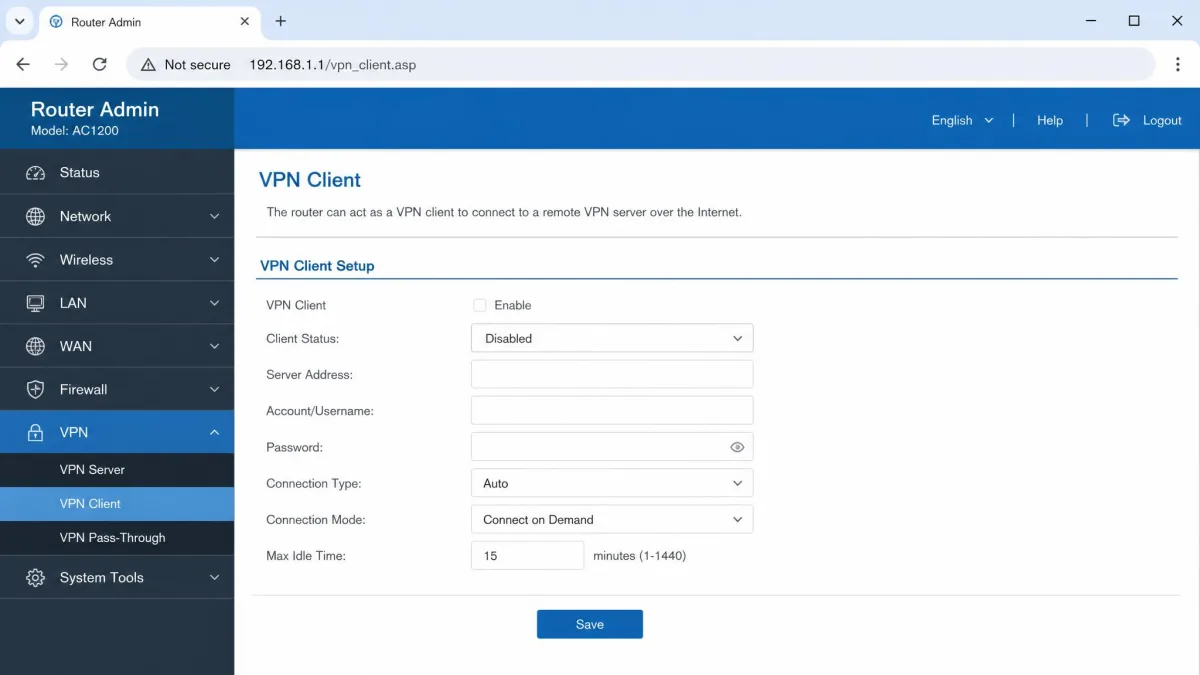
When a VPN runs on your router, every device in the house connects through it, so you disconnect once at the router rather than on each device. Log into the router's admin panel by typing its IP address into a browser. On many home routers that address is 192.168.1.1, though yours may differ, and your login details are usually printed on the router or in its manual.
Inside the admin panel, find the VPN client section. It often sits under an Advanced or Security menu, depending on the brand. Disable the VPN client and save your changes. The connection drops for the whole network once the router applies the new setting.
How to disconnect a VPN on a smart TV or streaming device
Smart TVs, streaming sticks, and game consoles rarely run a native VPN app. In most homes the VPN reaches them through the router instead. That has a practical consequence we see often: poking around the TV's own settings does nothing, because there is no VPN switch on the device to find.
To actually turn it off for a TV or console, disable the VPN client in your router's admin panel using the router steps above. If your streaming device does happen to run its own VPN app, open that app and disconnect there, the same way you would on a phone.
How to stop a VPN from reconnecting automatically (Always-On / kill switch)
A VPN that reconnects on its own within minutes is one of the most common complaints we hear, and the cause is almost always an auto-connect or Always-On setting that is enabled in two places at once: the VPN app itself and your device's system settings. Turning it off in only one place leaves the other free to reconnect.
To stop it for good, disable auto-connect inside the VPN app first, then check the system side. On Android that is the Always-on VPN switch under Network & internet. On Windows and macOS, look for a "connect on launch" or "auto-connect" option in the app's own settings. Clear both, and the connection stays down until you choose to start it again.
The kill switch is a separate setting from auto-connect, and it causes a scare of its own. Many apps call it Network Lock. If it stays active after you disconnect, it blocks all traffic on purpose, so your internet appears completely dead. The connection is not broken: the kill switch is doing its job. Turn the kill switch off in the VPN app settings, or reconnect the VPN, and your traffic flows again.
How to verify your VPN is actually off
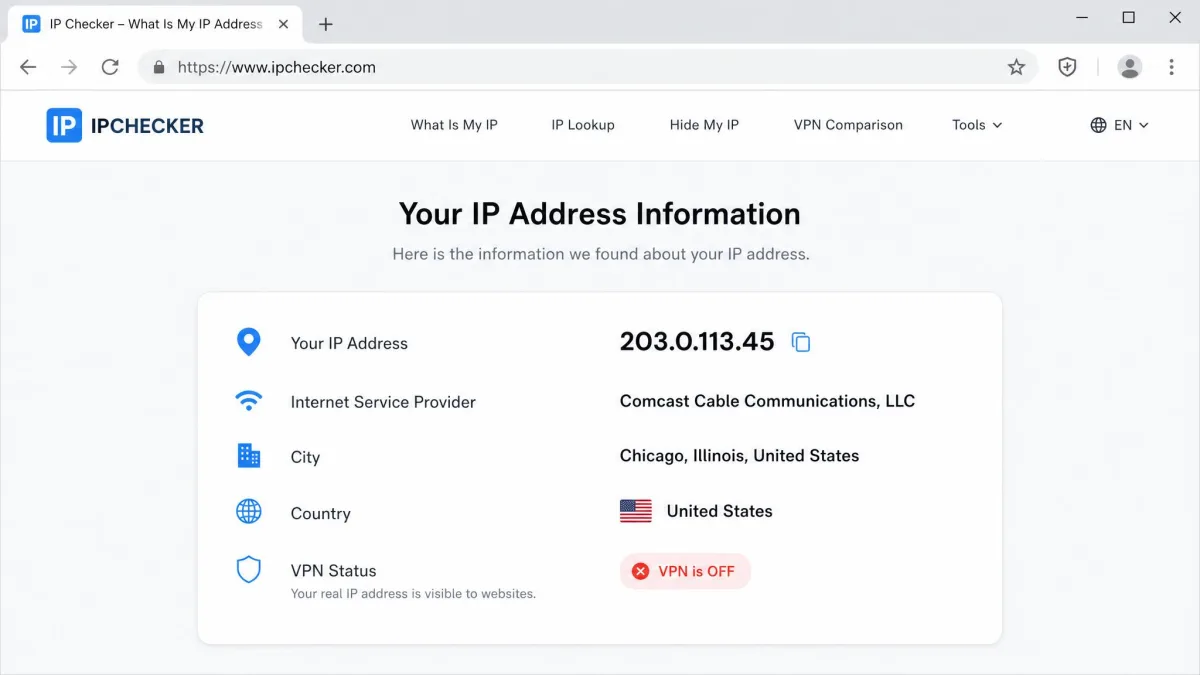
Visual indicators alone are not enough. We have seen a VPN app read "disconnected" while the device was still routing through the tunnel, so the icons can lie. The reliable check is an IP test.
Open an IP-checker site in your browser and look at the results. With the VPN off, your public IP address, your ISP name, and your location should all revert to your real values. If they still show the VPN server's country or provider, the connection is not fully down.
When that happens, a leftover VPN profile is often the culprit. Remove the old profile manually in your network settings, then run the IP check again to confirm your real address and location are back.
On a work or school device, the VPN toggle can look grayed out and refuse to respond. That usually means an MDM management profile is enforcing the VPN and blocking you from disabling it. This is set by the device's administrator, so the fix is a request to your IT team rather than a setting you can change yourself.
Alternatives to disconnecting: split tunneling & server switching
Often the thing you actually want is not "no VPN" but "the VPN out of the way for one task." Two features handle that without leaving you exposed everywhere else.
Split tunneling lets you route only chosen apps outside the tunnel while everything else stays protected. It is ideal when a single app needs your real connection, such as a banking app that flags VPN traffic, and you would rather not drop protection for the whole device.
Server switching solves the speed side. If a VPN feels slow, connect to a closer server or one optimized for streaming or gaming before you give up on it. A VPN typically adds only a modest speed overhead of around 5-15%, though that varies with protocol, server distance, and your connection, so a nearer server often recovers most of the difference. Both options keep you covered while fixing the specific problem that made you reach for the off switch.
At a glance: where each disconnect toggle lives
| Device | Fastest method | Where the toggle lives | Best for |
|---|---|---|---|
| Windows | Taskbar network flyout toggle | Settings > Network & internet > VPN | Quick temporary off |
| macOS | Menu-bar app icon > Disconnect | System Settings > VPN | Quick temporary off |
| iPhone/iPad | Settings > VPN toggle | Settings > General > VPN & Device Management | Built-in and app VPNs |
| Android | Status-bar / VPN app disconnect | Settings > Network & internet > VPN | Persistent key-icon VPNs |
| Linux | GNOME network toggle | Settings > Network (or CLI) | Desktop and CLI VPNs |
| Router | Router admin panel | VPN client section (Advanced/Security) | Smart TVs, consoles, whole-home |
The two settings that cause almost every "why won't my VPN turn off" question are the kill switch and Always-On. Before you assume something is broken, check those two first. Nine times out of ten in our testing, one of them was quietly holding the line.