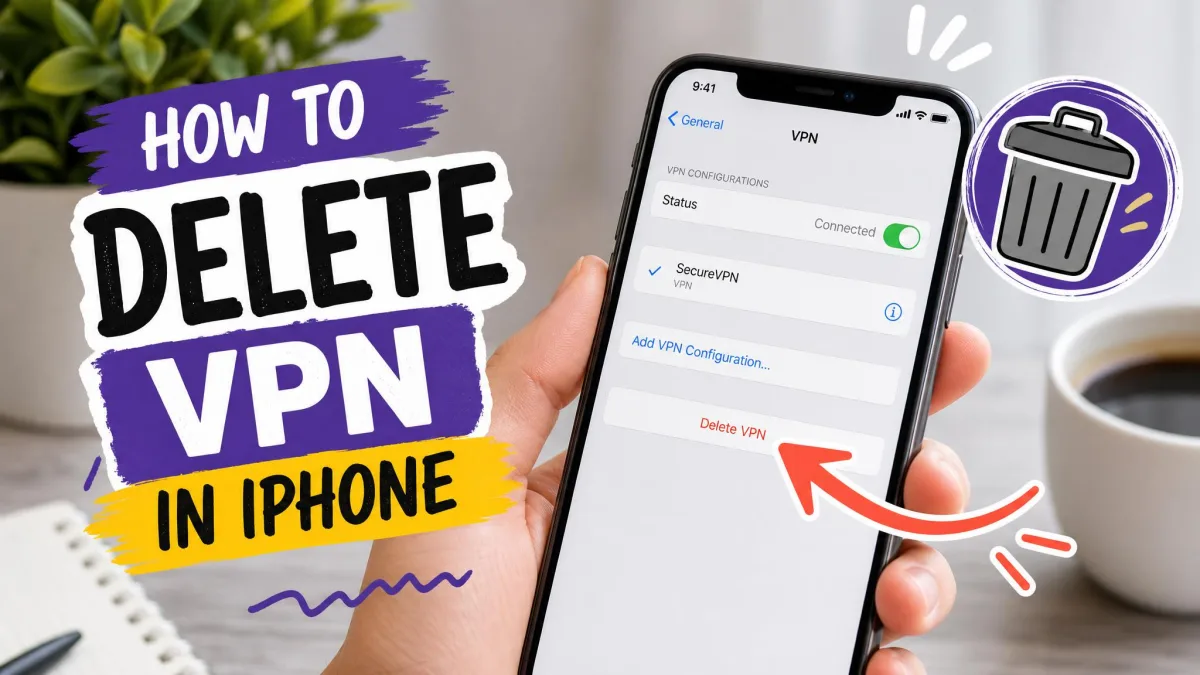
Removing a VPN from your iPhone sounds simple, but if you only delete the app you can leave a configuration profile behind that keeps interfering with your connection. Do it in the wrong order and you can even knock your phone off the internet for a minute. This guide walks you through the whole job the right way, from a quick pause to a complete removal, so nothing gets left behind.
We'll show you how to turn a VPN off temporarily, how to delete the app, how to remove the profile buried in Settings, and how to confirm it is really gone. Each step is a short tap-through you can follow on any recent iPhone.
Quick answer: how to remove a VPN from your iPhone
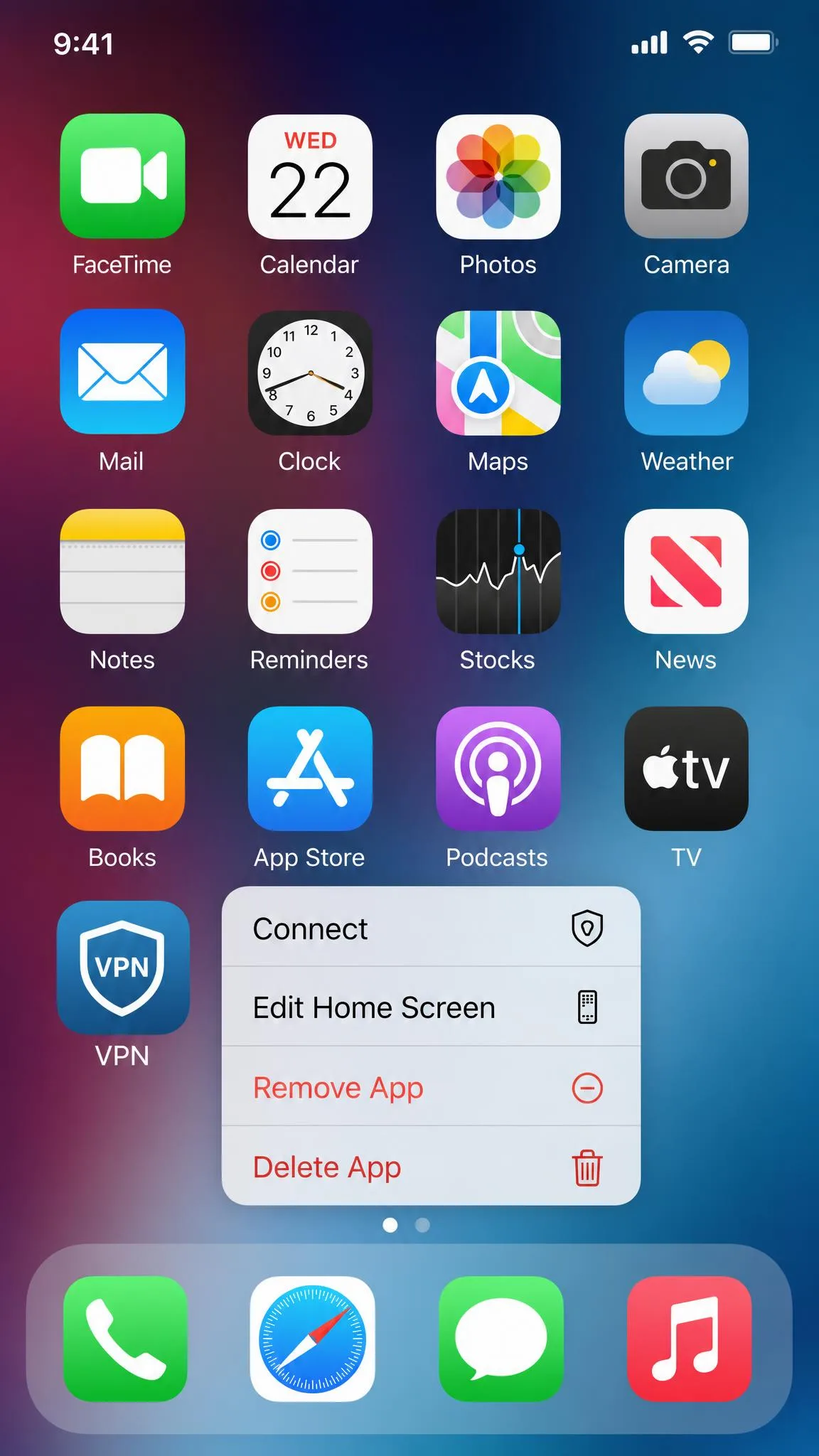
To remove a VPN completely, do two things in this order. First, touch and hold the VPN app icon, tap Remove App, then tap Delete App. Second, open Settings > General > VPN & Device Management, tap the VPN profile, and tap Delete VPN. Deleting the app first keeps your connection stable while the profile is cleared.
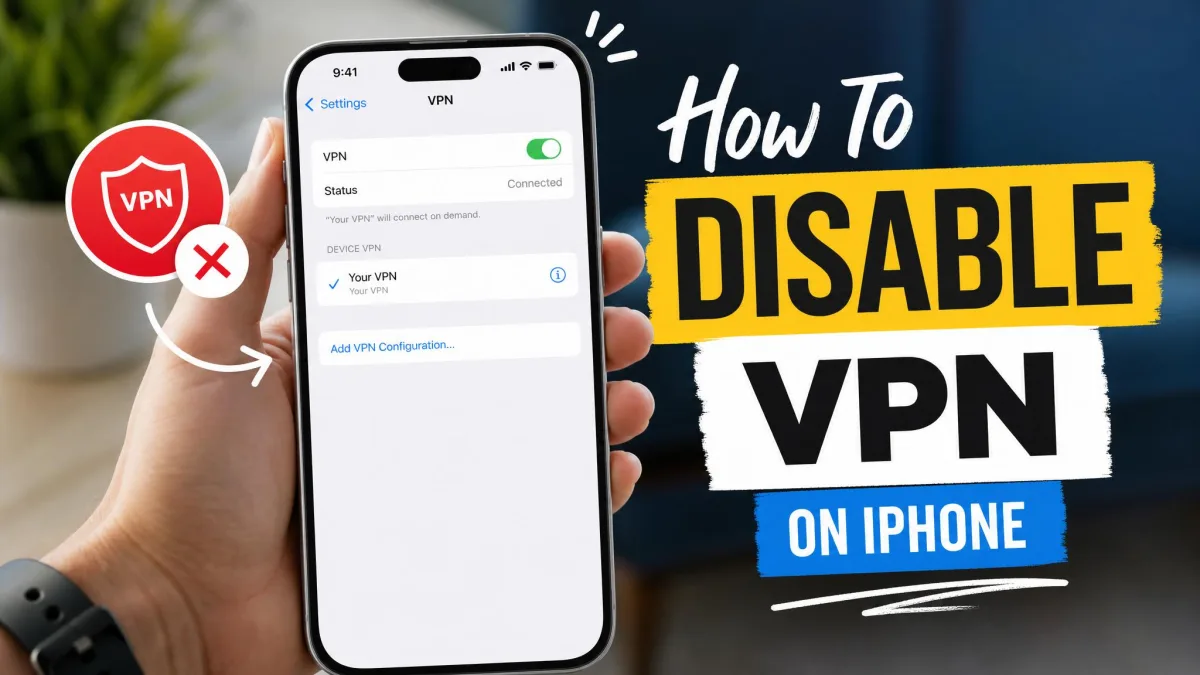
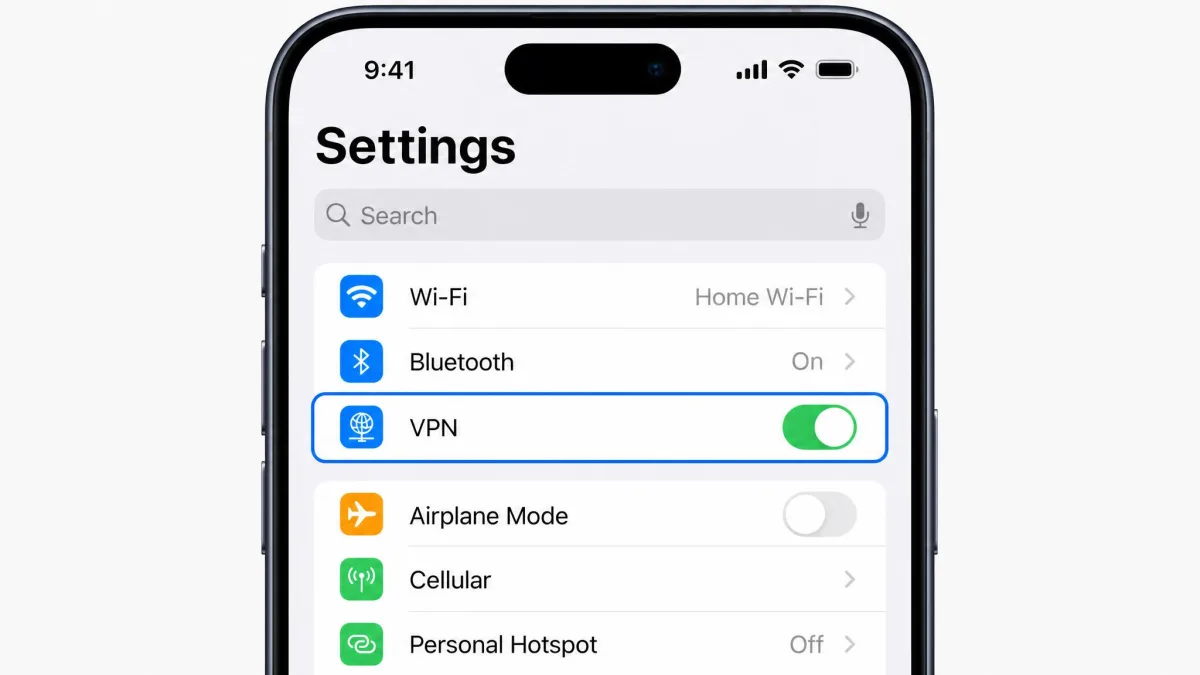
If you only want to pause protection, you don't need to delete anything. Open Settings, tap the VPN toggle at the top, and switch it off. We'll walk you through both paths below so you can pick the one that matches what you actually need.
Disable vs. delete: which do you actually need?
People often reach for "delete" when they only mean "pause." The two are different, and choosing the wrong one either leaves a VPN half-installed or removes a tool you still want. Disabling flips the connection off while keeping the app and profile in place. Deleting strips both off the device for good.
Disable a VPN when you need to reach a local service that blocks VPN traffic, or when you want your normal connection back for a few minutes. Delete a VPN when you are switching providers, clearing out a free app you no longer trust, or handing the phone to someone else.
| Choice | Disable (temporary) | Delete (permanent) |
|---|---|---|
| What it does | Toggles the VPN off, keeps app and profile | Removes the app and configuration profile entirely |
| Where | Settings > VPN toggle, or the app's Disconnect button | Delete the app, then Settings > General > VPN & Device Management > Delete VPN |
| Reconnects on its own? | Yes, if Connect On Demand is on | No, once the profile is removed |
| Use it when | Pausing briefly | Switching providers or removing for good |
How to turn off a VPN temporarily on iPhone
A temporary switch-off is the fastest option, and it leaves everything ready to use again later. You have two easy ways to do it.
Turn it off in Settings
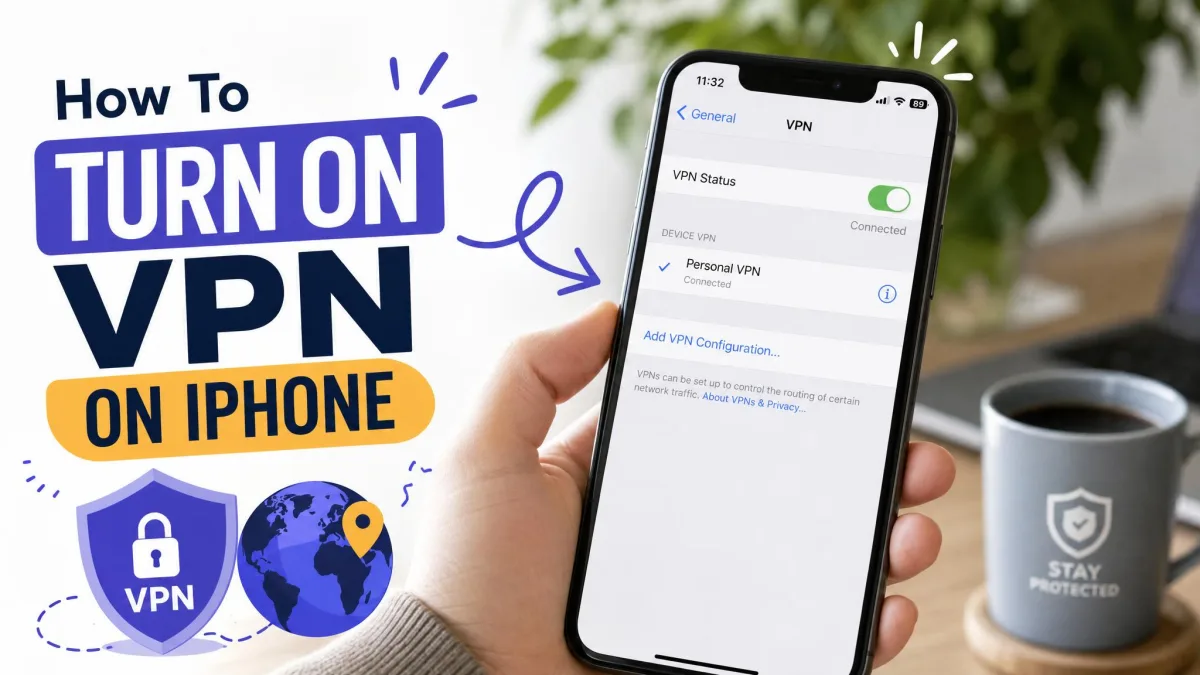
Open Settings, then look for the VPN row near the top of the main list. Tap the toggle beside it so it moves to the off position. The status indicator in the corner of your screen will drop the VPN badge within a second or two, which confirms the tunnel is down.
This method works no matter which provider you use, because it controls the system-level connection rather than the app. It is the one to reach for when a VPN app is slow to load or has frozen.
Turn it off inside the VPN app
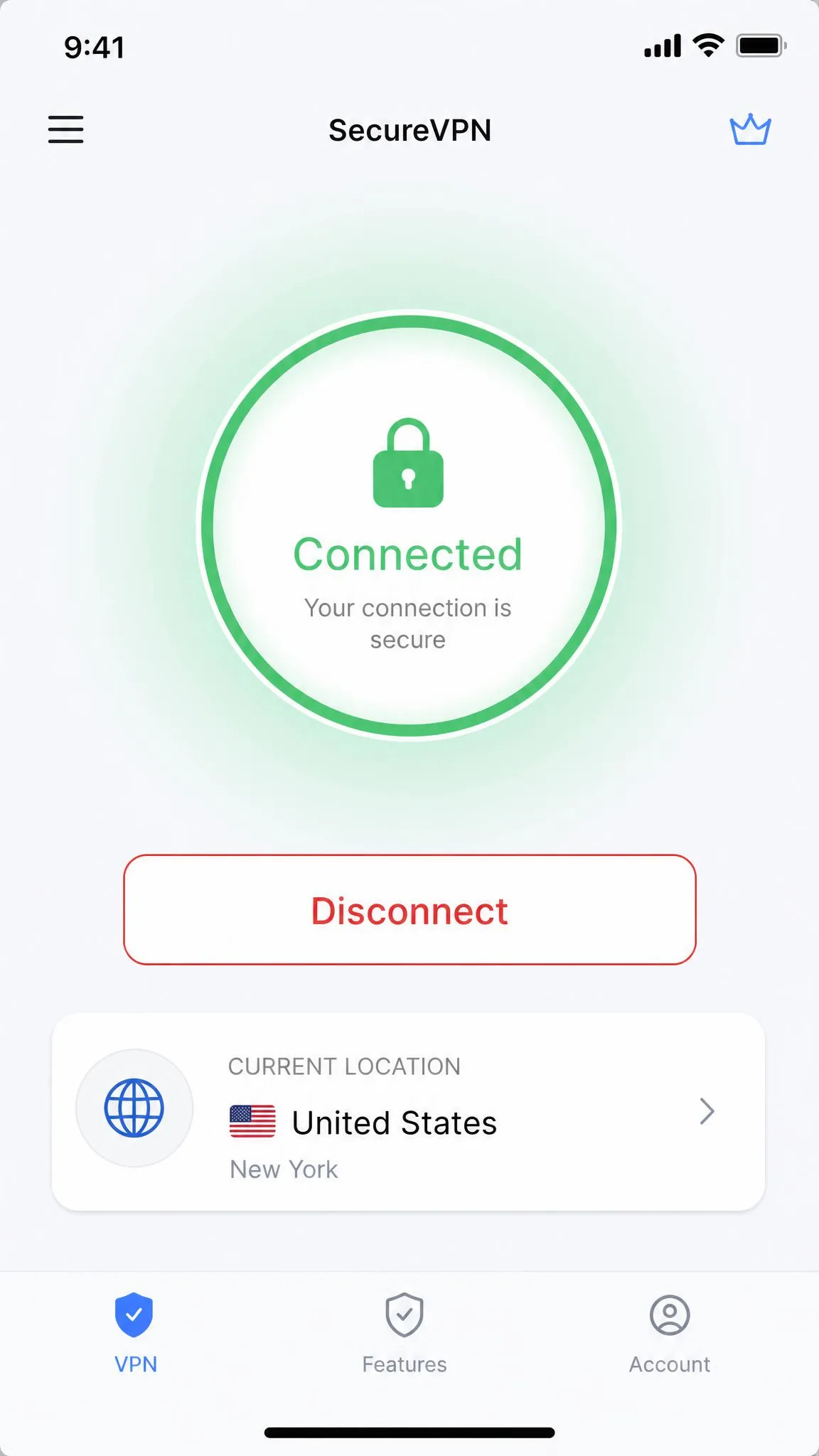
Most VPN apps put a large connect button on their home screen. Open the app, then tap Disconnect (or the same button you used to connect). The app usually shows a clear "Not connected" state once it finishes.
Turning it off inside the app is handy when you want to keep other app settings, such as a preferred server, ready for next time. Both routes reach the same result, so use whichever is closer to hand.
The moment a VPN is off, your traffic runs over your normal connection again, so anything you do is visible to your network and internet provider. If you paused it only to reach one site, turn it back on afterward rather than leaving it off by accident.
How to delete the VPN app from your iPhone
Deleting the app is the first half of a full removal. It clears the software, though on its own it does not always remove the configuration profile that a VPN installs, which is why the next section matters too.
Step-by-step: remove and delete the app
Touch and hold the VPN app's icon on the Home Screen or in the App Library until a menu appears. Tap Remove App, then tap Delete App to confirm. The icon disappears and the app's own data is cleared from the device.
Delete the app before you touch the profile. If you remove the profile first, a half-configured VPN can briefly leave your iPhone without internet until the leftover settings clear. Doing the app first keeps that from happening.
If you plan to reinstall the same VPN later, you can skip deletion and just disable it instead. For a clean break, though, deleting the app is the right move before you head into Settings for the profile.
How to delete the VPN profile (Settings > General > VPN & Device Management)
Here is the step most people miss. A VPN installs a configuration profile that tells iOS how to build the tunnel, and that profile survives an app deletion. Left behind, it can cause connection problems and even block a different VPN you install later.
Step-by-step: remove the configuration profile
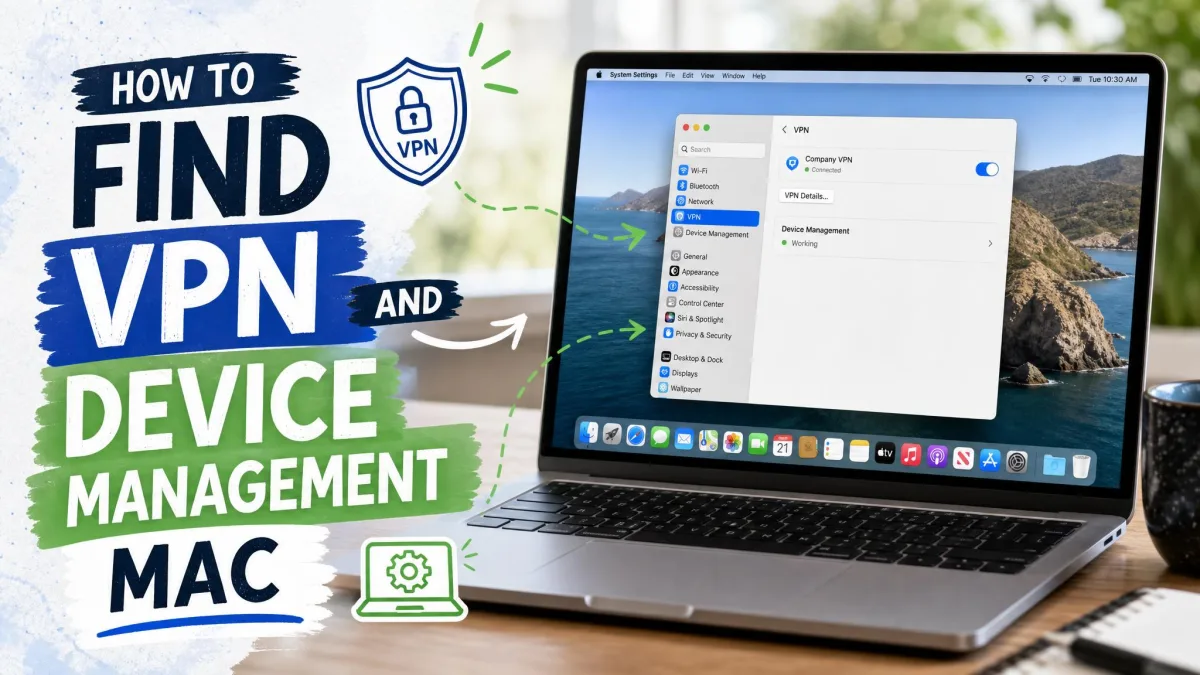
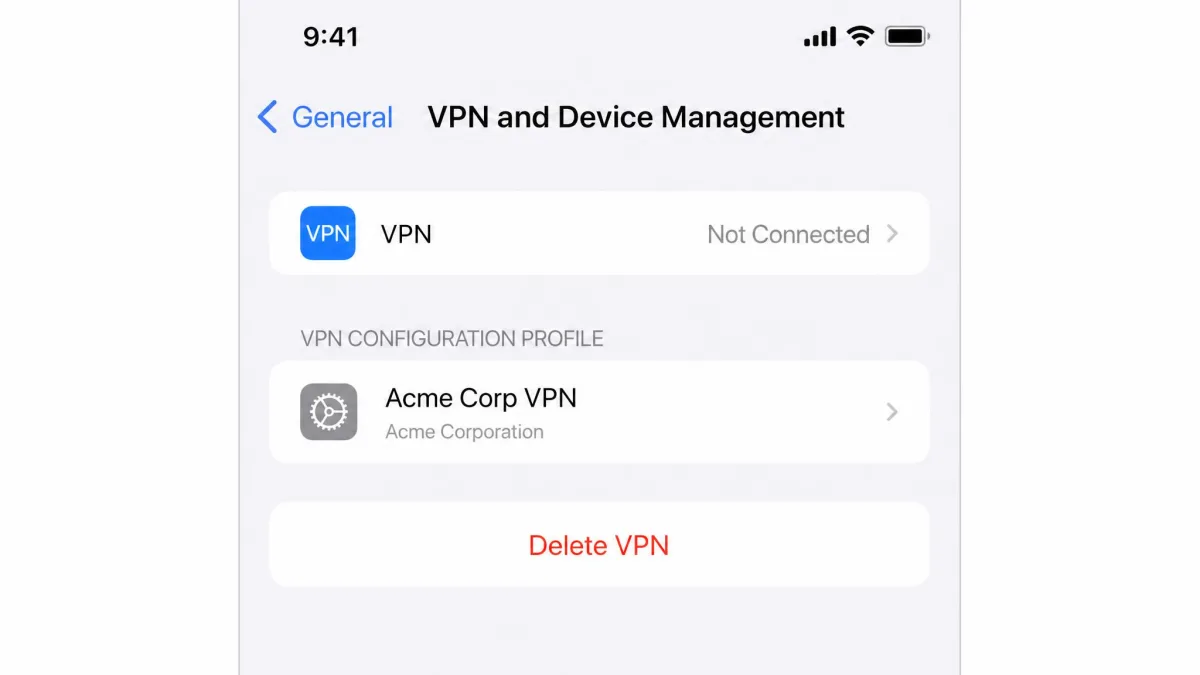
Open Settings > General > VPN & Device Management. On older versions of iOS this entry may read simply "VPN" under General, so if you don't see the longer name, look for the shorter one in the same spot. Tap the VPN profile, or the small info icon beside it, then tap Delete VPN and confirm.
If your VPN came from an employer or school, it may show up as a separate configuration profile rather than a personal VPN entry. These enterprise or mobile-device-management profiles are not touched by a normal app delete, so remove them from this same screen. Apple's own iPhone VPN settings guide is a useful reference if your menu layout looks unfamiliar.
How to clear leftover VPN data and reset network settings
Once the app and profile are gone, most people are done. If your connection still acts strange, though, leftover configuration and logs can be the cause, and clearing them fixes lingering glitches.
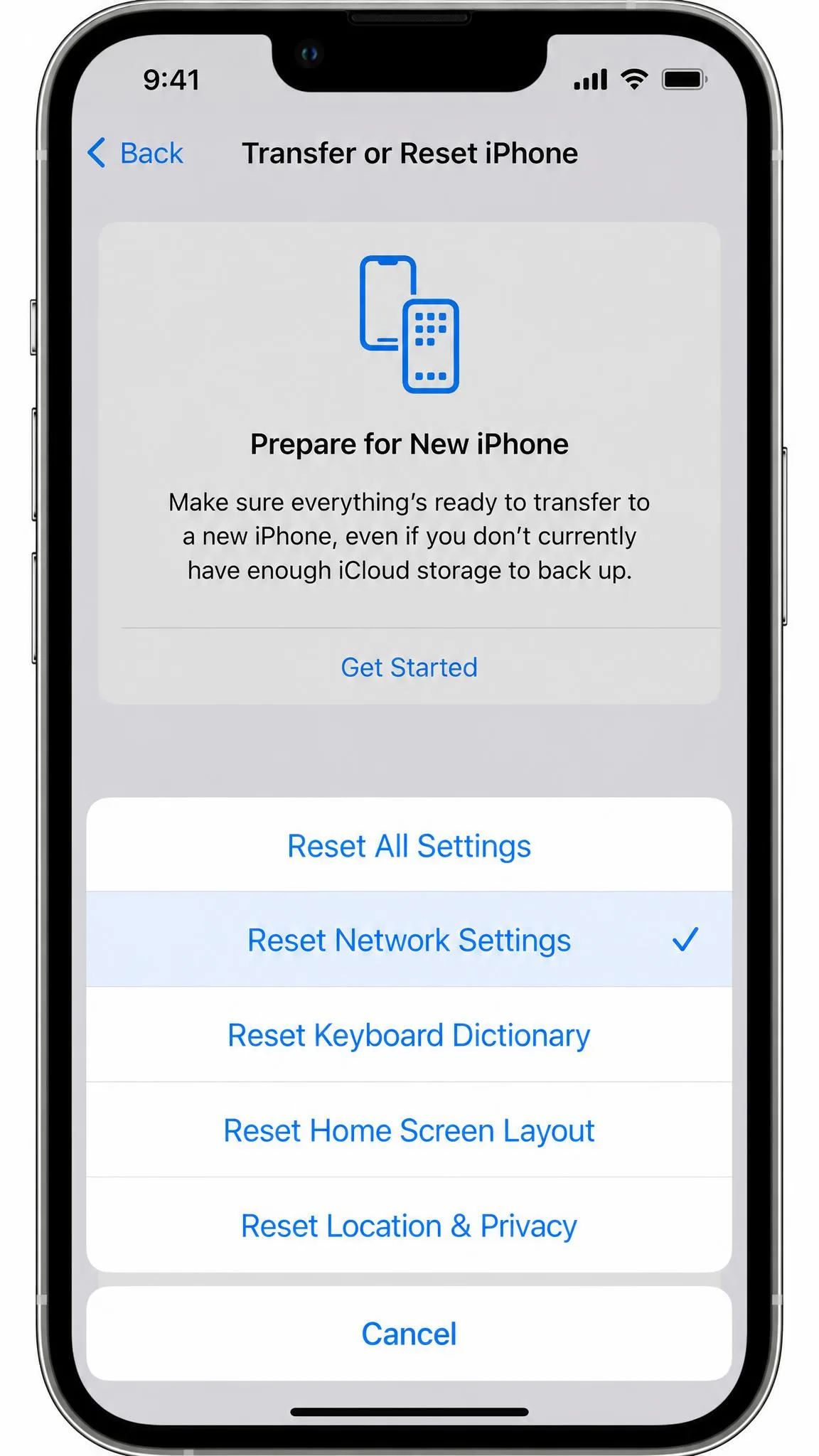
Start by restarting the iPhone, which we cover in troubleshooting below. If problems continue, reset the network stack. Open Settings > General > Transfer or Reset iPhone > Reset > Reset Network Settings. On older iOS the path is shorter, at Settings > General > Reset > Reset Network Settings, but the final action keeps the same name.
A reset clears saved Wi-Fi passwords along with any stubborn VPN remnants, so have those passwords handy before you run it. It is a heavier step than deleting a profile, so save it for when a simple removal has not settled things.
Worth knowing: a few individual apps hold onto their own VPN-related data. Netflix, for example, may keep some region data until it clears in the app's own settings or over time, separate from anything in your system settings.
How to verify the VPN is completely removed
Confirming the removal takes under a minute and saves you from assuming you are unprotected when you are not, or the reverse. Two quick checks do the job.
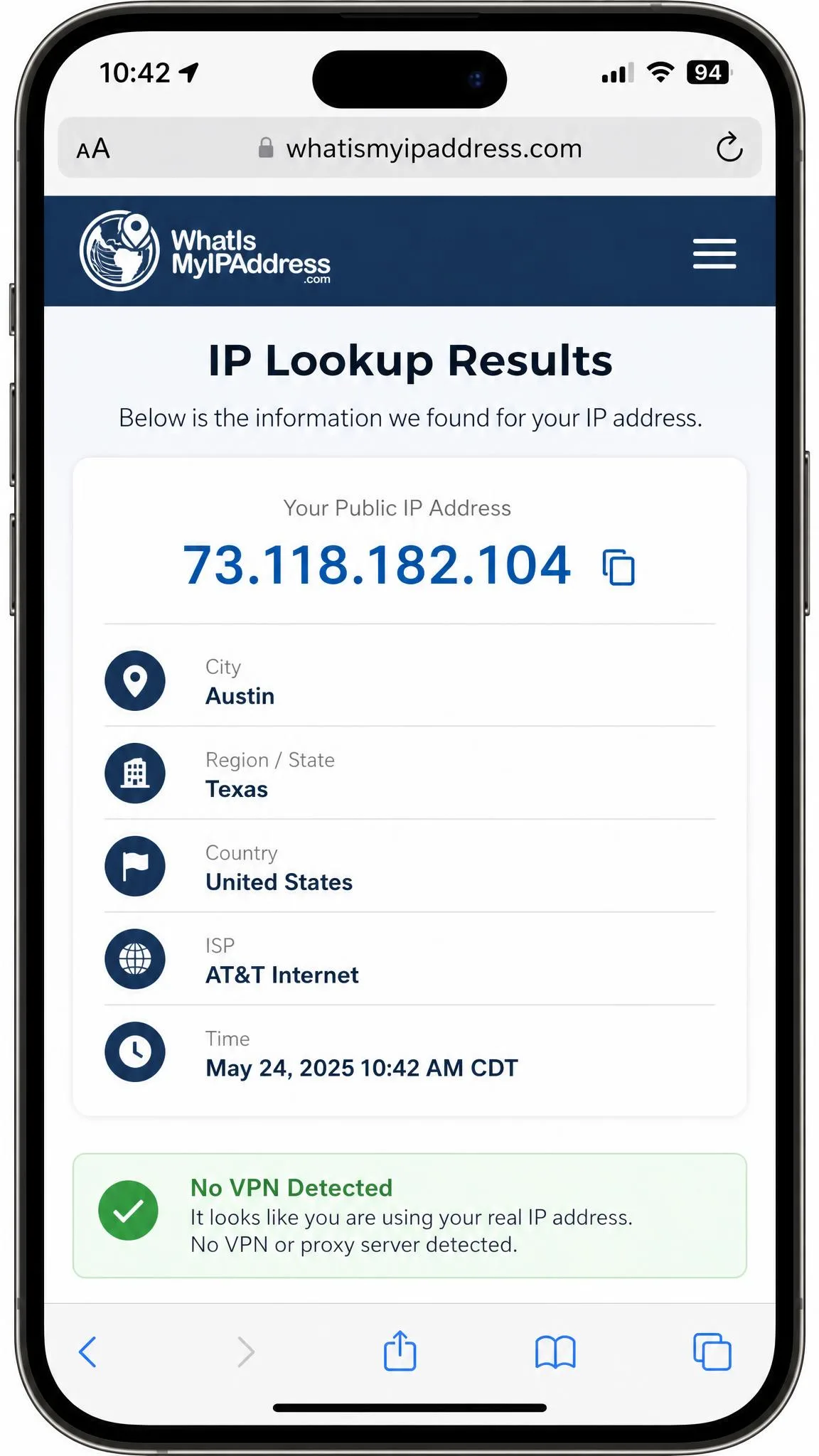
First, look at the status area of your screen and open Settings; there should be no VPN badge and no VPN toggle at the top of the list. Second, open a browser and load an IP-lookup site to check your public IP address. If it shows your real location and provider rather than a VPN server, the tunnel is gone.
If the VPN entry still lingers in Settings after you deleted the profile, it usually means a second profile is still installed, often an enterprise one. Head back to VPN & Device Management and remove any remaining entry.
Troubleshooting: VPN won't turn off or profile won't delete
Sometimes a VPN clings on. It flips back on after a reboot, or the profile refuses to delete. These are common and usually quick to fix.
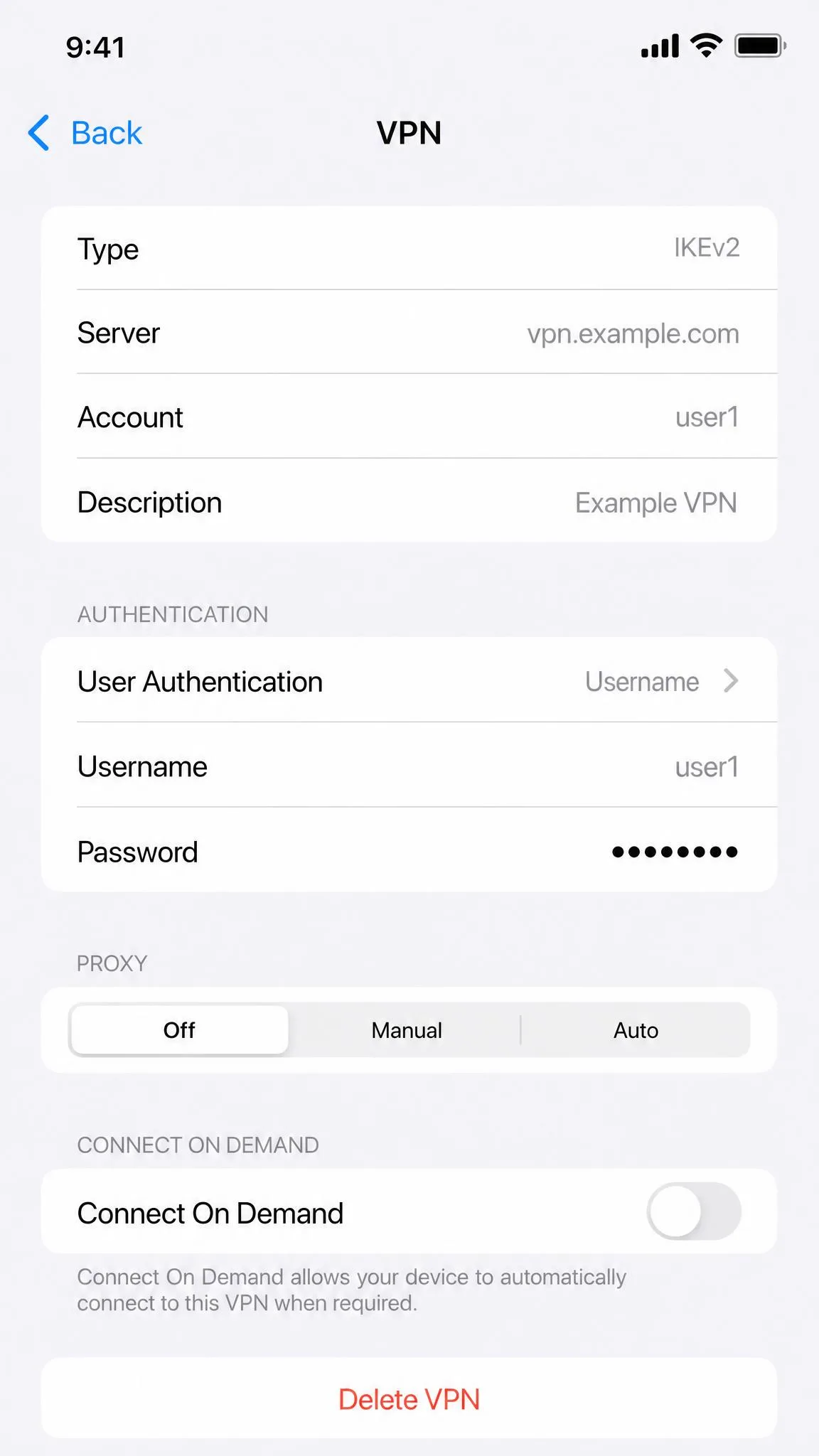
The most frequent cause of a VPN that keeps returning is the profile's Connect On Demand setting. When it is enabled, iOS rebuilds the tunnel automatically after a restart or when you join a new Wi-Fi network. Open the VPN profile, turn Connect On Demand off, and then delete the profile.
Restart your iPhone
A restart clears temporary state that can stop a deletion from finishing. Power the iPhone off, wait a few seconds, then turn it back on. Restarting after you remove the app and profile helps the whole change take effect, and it often resolves a toggle that refuses to stay off.
Reset network settings
If a restart does not do it, reset the network settings using the path in the section above, at Settings > General > Transfer or Reset iPhone > Reset > Reset Network Settings. This wipes cached network configuration, including any VPN remnants that survived the earlier steps. Remember that it also clears saved Wi-Fi passwords, so reconnect to your networks afterward.
Why you might want to remove a VPN
There are plenty of good reasons to clear a VPN off your iPhone. A poorly behaved app can drain the battery, slow your connection, or cause dropouts, and removing it is often the quickest way to rule it out as the culprit.
Switching providers is another common trigger. Leftover profiles from an old VPN can interfere with a new one, so a clean removal makes the next install smoother. You might also be clearing out a free app you no longer trust.
Free and cracked VPN apps are a known malware and data-harvesting risk, and some quietly log the traffic they promise to protect. If you installed one to test it, removing both the app and its profile is the safe move, not just switching the toggle off.