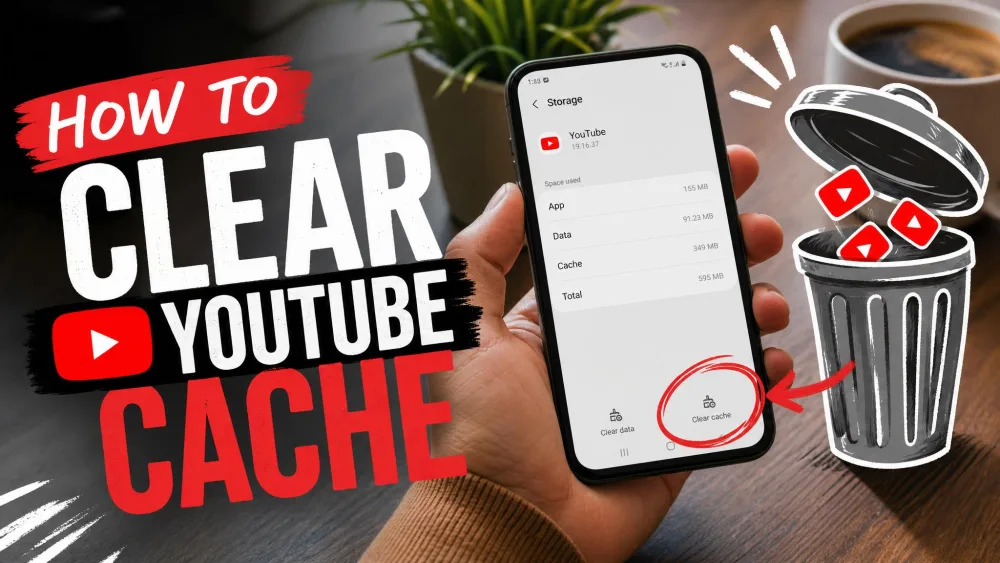
The YouTube cache is a pile of temporary files, mostly images, thumbnails, and site data, that the app or your browser stores to load videos faster. Over time those files can go stale and cause slow loading, freezing, buffering, or stuck thumbnails. Clearing the cache wipes those temporary files so YouTube can rebuild them fresh. It does not touch your account, and the steps differ by device. Here is how to clear it everywhere.
How to Clear the YouTube App Cache on Android
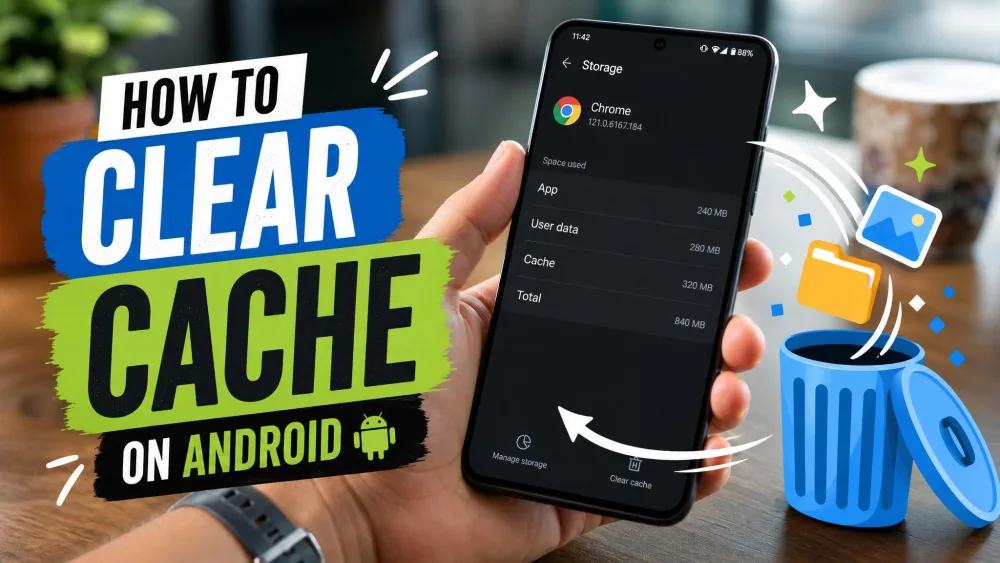
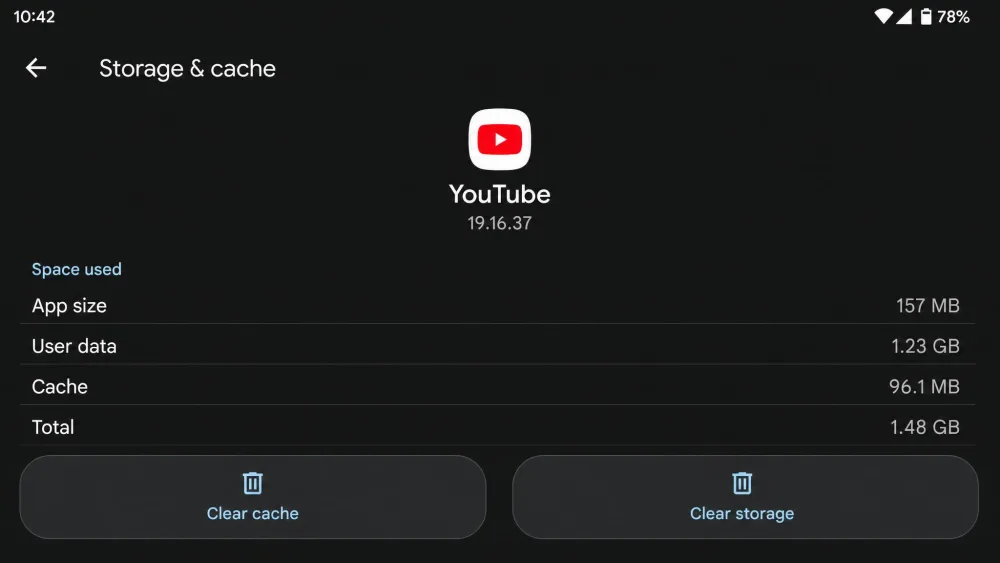
Android is the one place with a dedicated button for this, so it is the easiest device to start on. You clear the cache from your phone's settings, not from inside the YouTube app itself.
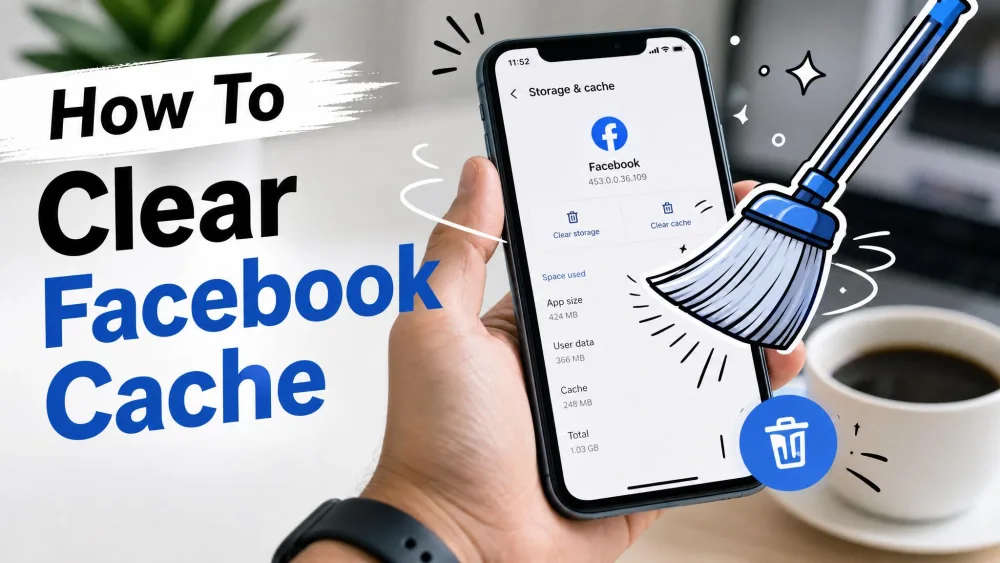
- Open Settings > Apps > YouTube > Storage & cache.
- Tap Clear cache.
That is the whole job. When we cleared the cache on an Android phone, tapping Clear cache wiped the temporary files instantly with no confirmation prompt, and the cache rebuilt on its own the next time we opened the app. Relaunching YouTube after clearing is the moment fresh thumbnails load back in.
Menu labels shift a little by phone brand and Android skin. On a Samsung or other non-stock phone, the wording under Storage can read differently, so look for "cache" rather than an exact match. If you want the official walkthrough, Google's own guide covers how to clear the YouTube app cache on Android.
On the same screen you will see Clear storage right next to Clear cache. They are not the same. Clear cache removes only temporary files and keeps you logged in. Clear storage resets the app to its defaults and logs you out. Tapping the wrong one is the most common complaint we see after over-clearing, so stick to Clear cache unless you truly want a full reset.
How to Clear the YouTube Cache in a Desktop Browser
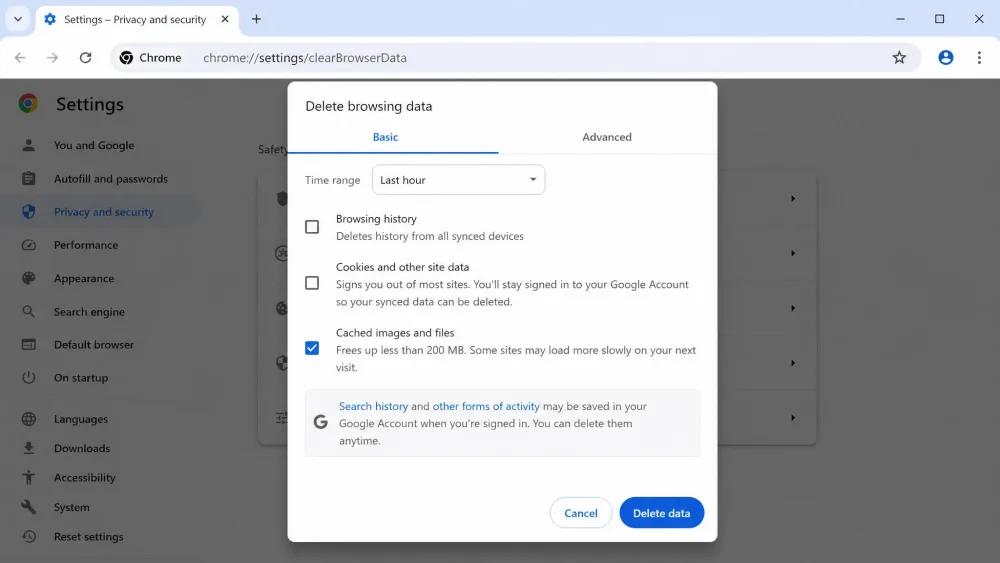
On a computer, YouTube runs in your browser, so you clear the browser's cache rather than an app cache. One catch worth knowing up front: browsers do not let you clear the cache for a single site. Clearing dumps every site's cached files, so you may need to sign back in to other sites afterward. The steps below live under each browser's privacy settings.
Google Chrome
- Click the three-dot menu in the top right.
- Choose Delete browsing data (older builds call it Clear browsing data).
- Pick a time range, then check Cached images and files.
- Click Delete data.
A faster route is the keyboard shortcut Ctrl+Shift+Delete on Windows, or Cmd+Shift+Delete on a Mac, which opens the same dialog. Every major browser opens its clear-data dialog on that shortcut, so the same keystroke works in Firefox and Edge too.
Microsoft Edge
- Open the three-dot menu > Settings > Privacy, search, and services.
- Under Clear browsing data, click Choose what to clear.
- Check Cached images and files, then click Clear now.
Mozilla Firefox
- Open the menu > Settings > Privacy & Security.
- Scroll to Cookies and Site Data and click Clear Data.
- Check Cached Web Content, then click Clear.
Apple Safari
- Turn on the Develop menu first: Settings > Advanced > Show Develop menu.
- From the menu bar, choose Develop > Empty Caches.
You can also manage cached site data through Settings > Privacy > Manage Website Data if you prefer to remove it site by site.
How to Clear the YouTube Cache on iPhone and iPad
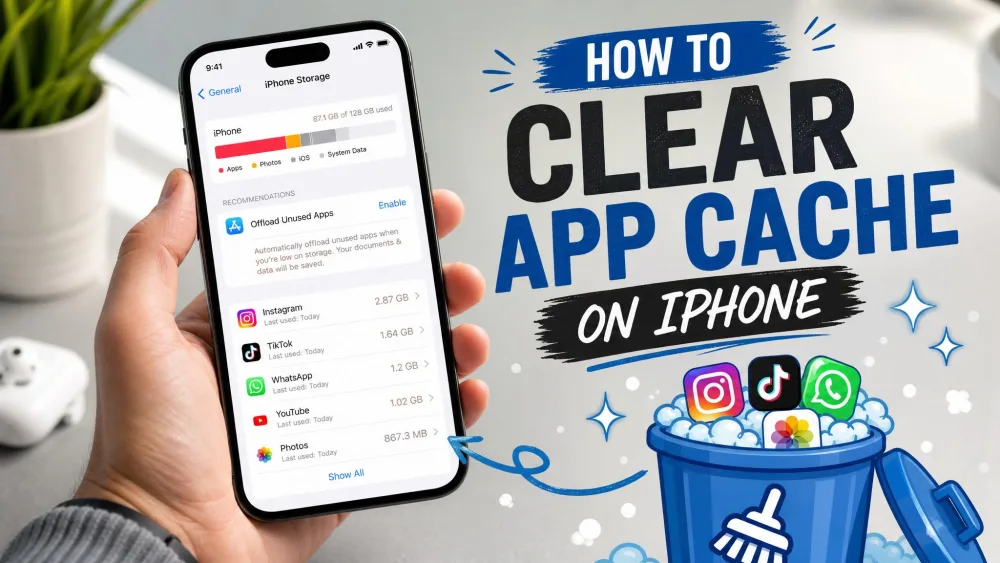
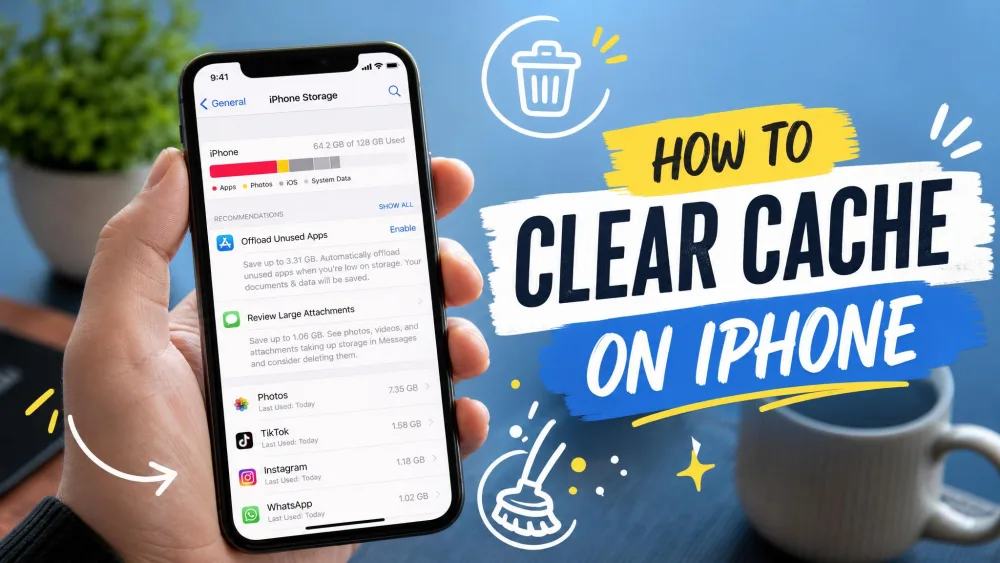
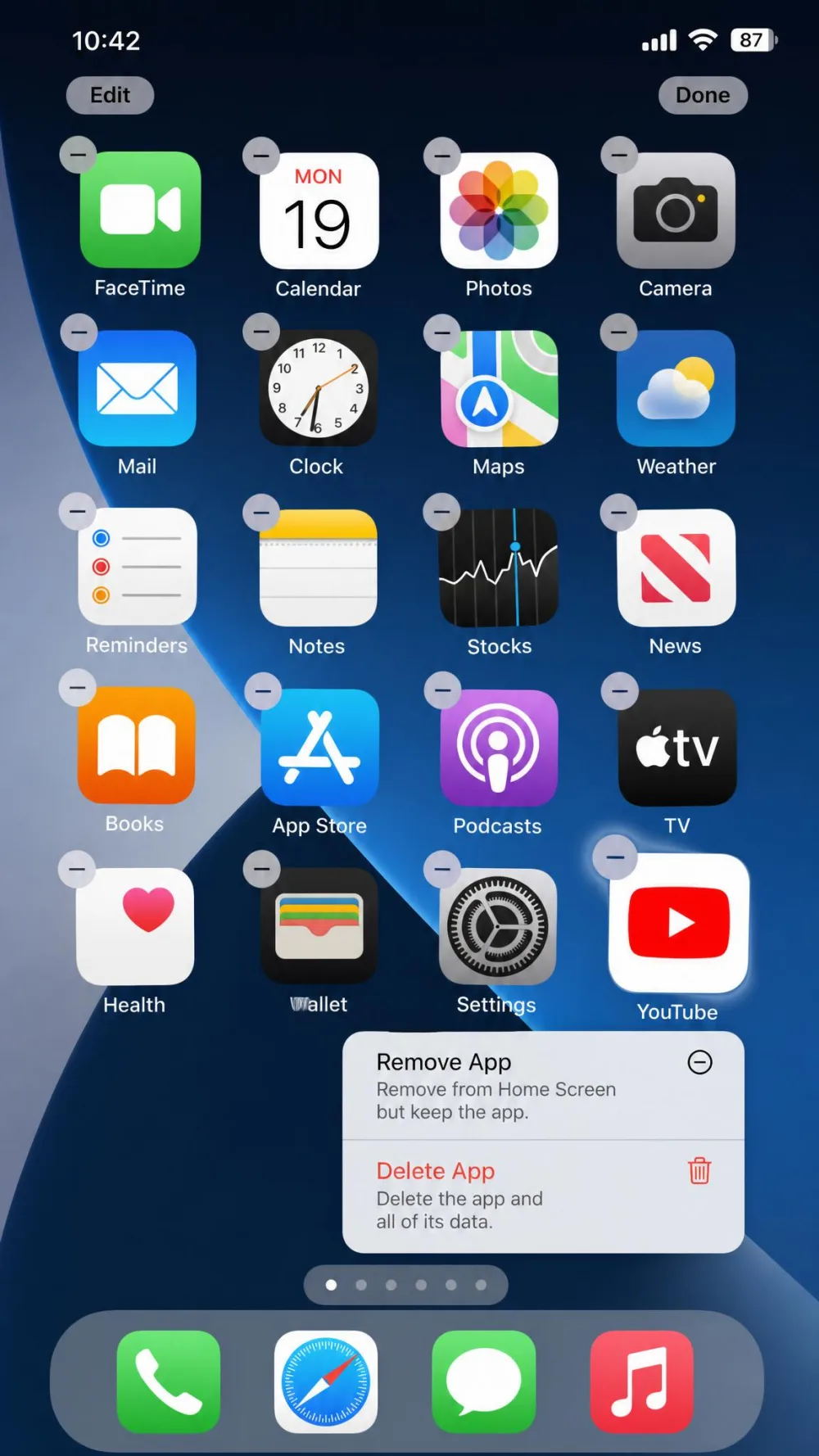
Here is the biggest gotcha of the whole topic. iOS has no per-app cache-clear button, so there is no way to clear only the YouTube app cache from Settings. The workaround that actually works is to delete the app and reinstall it.
- Press and hold the YouTube app icon.
- Tap Remove App, then Delete App.
- Reopen the App Store and reinstall YouTube.
Deleting the app removes its cached data along with it, and the fresh install starts clean. You will need to sign back in afterward.
If you watch YouTube in Safari rather than the app, clear Safari's cache instead through Settings > Apps > Safari > Clear History and Website Data. Apple's Safari cache guidance covers the exact wording, which can shift between iOS versions.
Offloading the app is not the same as deleting it. Offloading removes the app's program files but keeps its Documents & Data, which is where the cache lives. People who offload are often surprised the bloat and glitches remain. To actually clear the YouTube cache on an iPhone or iPad, delete and reinstall the app rather than offloading it.
How to Clear Your YouTube Watch and Search History
Your watch and search history is separate from the cache, and clearing the cache never touches it. History lives on your YouTube account, so you clear it from your account settings rather than your device.
Open your YouTube account History settings, or your Google My Activity page, to pause or delete watch and search history. Because this data is tied to your account, it syncs across every device where you are signed in.
What Clearing the YouTube Cache Actually Does (and What It Won't Delete)
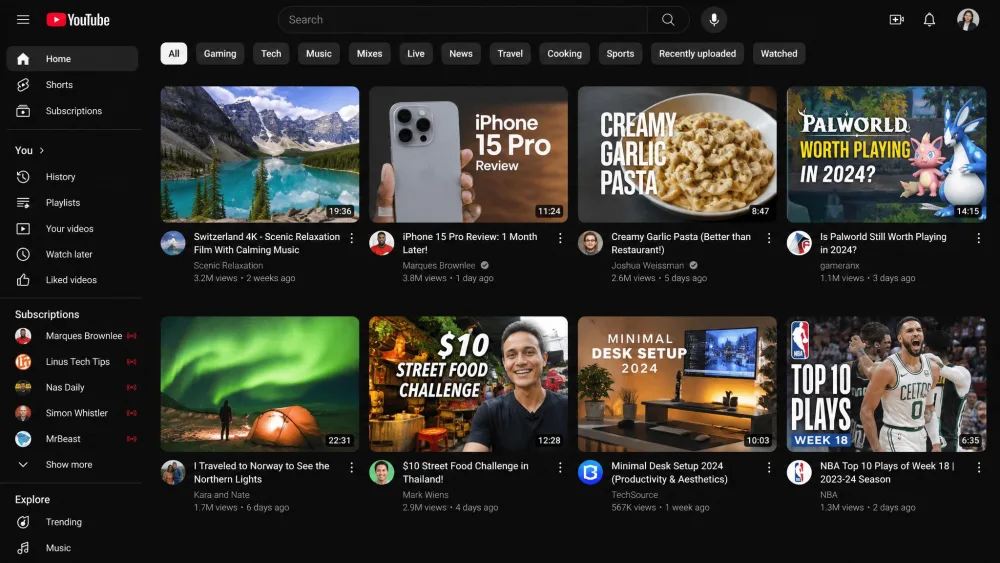
Clearing the cache only removes temporary files, and YouTube rebuilds them automatically the next time you use it. In our testing, that reliably fixes stuck or outdated thumbnails and minor playback glitches, with the fresh thumbnails loading in on relaunch. It is a low-risk first step for most performance issues.
What it does not do matters just as much. Clearing the cache does not delete your account data, watch history, search history, or video recommendations, because all of that lives on your YouTube account rather than in the cache.
Your sign-in, watch history, and recommendations stay intact when you clear the cache on Android or in a browser. On Android, Clear cache does not log you out. In a browser, clearing cache alongside cookies can sometimes sign you out, though Chrome often preserves your Google sign-in when you are already logged in. Deleting and reinstalling on iPhone does log you out, since that removes the login too.
Still Having Problems? More YouTube Troubleshooting Tips
If a fresh cache did not fix things, work through a few more basics. Restart the app or browser fully, then restart the device. Check that YouTube is updated to the latest version, since an old build causes its own glitches. On desktop, try a different browser to see whether the problem follows you.
For network buffering, test your connection speed and switch between Wi-Fi and mobile data. Disabling browser extensions, especially ad blockers, can clear up playback errors on the desktop site. If nothing else helps, a full delete and reinstall gives you the cleanest slate on any device.
Frequently Asked Questions
Does clearing the YouTube cache delete my history or recommendations?
Will clearing the cache log me out of YouTube?
Can I clear the YouTube app cache on an iPhone?
Does clearing the cache fix buffering, freezing, or outdated thumbnails?
How often should I clear the YouTube cache?
Bottom Line
Clearing the YouTube cache is a quick, low-risk fix for slow loading, freezing, and stuck thumbnails, and it never costs you your account or history. Android gives you a one-tap Clear cache button, desktop browsers clear everything at once from their privacy settings, and iPhone owners delete and reinstall the app. Start with the cache, relaunch, and most temporary glitches clear right up.