
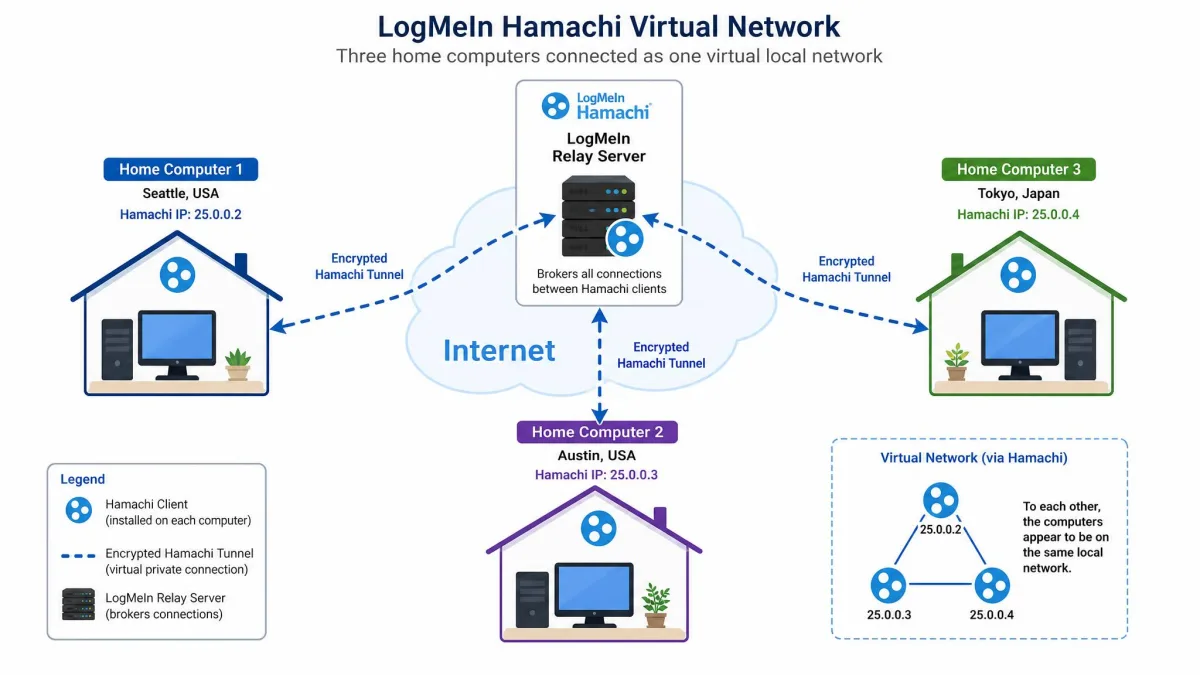
LogMeIn Hamachi is a hosted networking tool that stitches computers in different locations into one virtual local network over the internet. Released in 2004 and now owned by LogMeIn/GoTo, it lets scattered machines behave as if they share a single router, with no port forwarding and no manual router setup. That design is why gamers, small teams, and remote workers still reach for it.
The label "VPN" is where the confusion starts, so we will be precise about it throughout this review. Hamachi is a VPN in the tunneling sense, but it is not a privacy or streaming VPN. It will not hide your IP for browsing or unblock a Netflix library. The real question for 2026 is narrower: does a tool built for virtual LANs still earn a place on your machines when free mesh alternatives have caught up?
To answer that, our team installed the current client on our test machines and ran it the way people actually use it. We set up networks between Windows and Mac laptops, connected friends for LAN-style gaming sessions, tested a relayed link across a slow connection, and tried the fiddly mobile route on both Android and an iPad. What follows is what we found, plus the alternatives worth a look before you commit.
What Is LogMeIn Hamachi? (And Is It Really a VPN?)
At its core, Hamachi emulates a local area network across the internet. You install a small client, create or join a network, and every member gets a virtual IP address in the same range. From there, machines can share files, host game servers, reach a NAS, or run any app that expects everyone to sit on the same LAN. The whole thing is zero-config: there is no router port to open and no firewall rule to write, which is a big part of its lasting appeal.
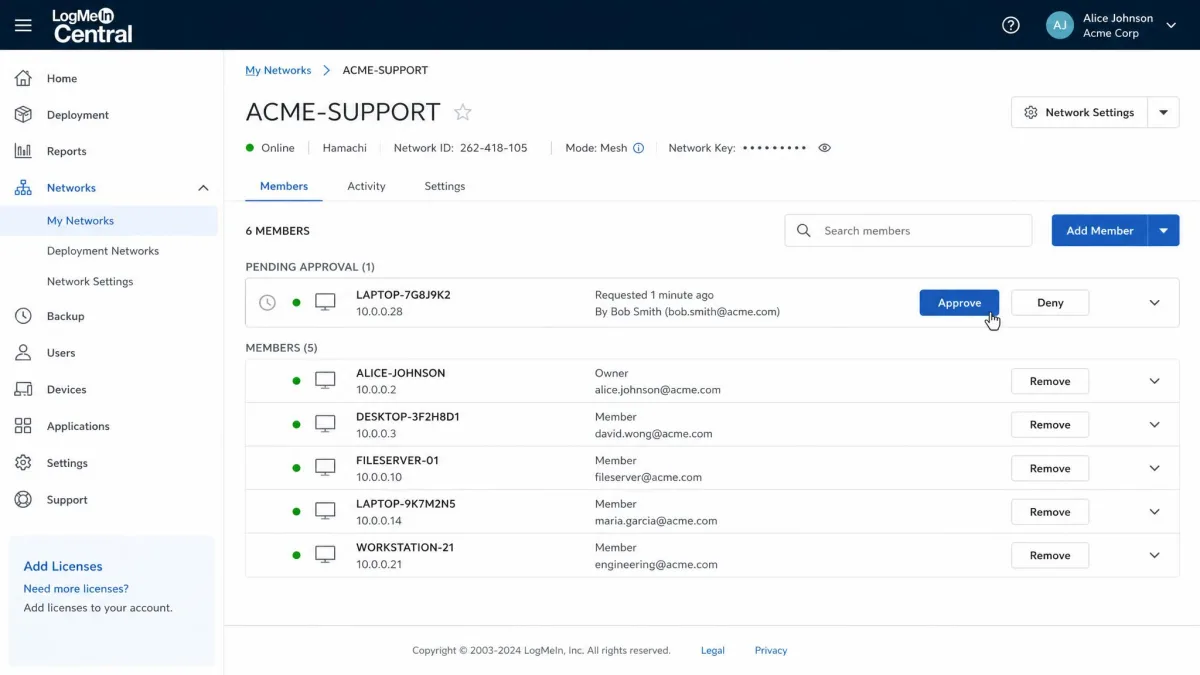
Management happens through a web console in LogMeIn Central, where you create networks, approve members, and pick a network topology. The service is hosted, so LogMeIn's servers broker the initial connection between peers and, when needed, relay traffic. You can read the neutral background on the tool's history and ownership on the LogMeIn Hamachi Wikipedia page.
Think of Hamachi as a virtual network cable between trusted machines, not as a shield for your browsing. It is a LAN-emulation and mesh tool. If your goal is privacy, geo-unblocking, or streaming, a commercial VPN is the right category, not this.
Does Hamachi work as a VPN for browsing?
Not in the way most people mean. Hamachi only tunnels traffic destined for the virtual network. Everything else, including your normal web browsing, Steam downloads, and streaming, keeps going out over your regular internet connection. In our testing that behavior was consistent: joining a Hamachi network did not change our public IP, did not route general traffic, and did not affect ordinary browsing or Steam at all.
That is by design, and it is actually helpful for its intended use. Because Hamachi does not swallow all your traffic, you can leave it running while a game server is up without slowing down the rest of your connection. But it also means Hamachi cannot do the jobs people buy a privacy VPN for. There is no IP masking, no server network to hop between, and no way to appear in another country.
Hamachi vs a traditional privacy or streaming VPN
A privacy VPN like the ones you would compare on speed, leak, and streaming benchmarks routes all of your traffic through a remote server and hides your origin IP. Hamachi does neither. It also does not support streaming services or torrenting, and it ships with no money-back guarantee, so the trial-and-refund cycle you expect from consumer VPNs does not apply here.
Hamachi at a Glance: Pros, Cons, and Our Verdict
After a week of hands-on use across desktops, a gaming group, and mobile, our impression settled into a clear shape. Hamachi is fast to set up and genuinely reliable for what it was designed to do, but it carries the rough edges of an older product and has been overtaken on features by free rivals.
Pros
- Installs and connects in minutes, with no port forwarding or router setup required
- Zero-config virtual LAN that just works for file sharing and LAN-style gaming
- AES-256 encryption with end-to-end protection at the endpoints
- Still a dependable go-to for Minecraft and older titles that expect a local network
- Some players find it connects when Radmin VPN and ZeroTier fail for them
Cons
- Free tier is capped at 5 computers, fewer than most free rivals now offer
- Relayed connections add noticeable latency when a direct tunnel cannot form
- No official mobile app, and the mobile workaround is fiddly and breaks after OS updates
- The client is annoying to remove fully and leaves junk behind on the system
- No kill switch, no streaming or torrenting support, and no money-back guarantee
The community sentiment we gathered lines up with this. Longtime users praise how painless it is for gaming with friends, but plenty also note it feels dated, leaves clutter when uninstalled, and is rarely recommended first anymore. We fold those points into our verdict rather than dismiss them.
Pros
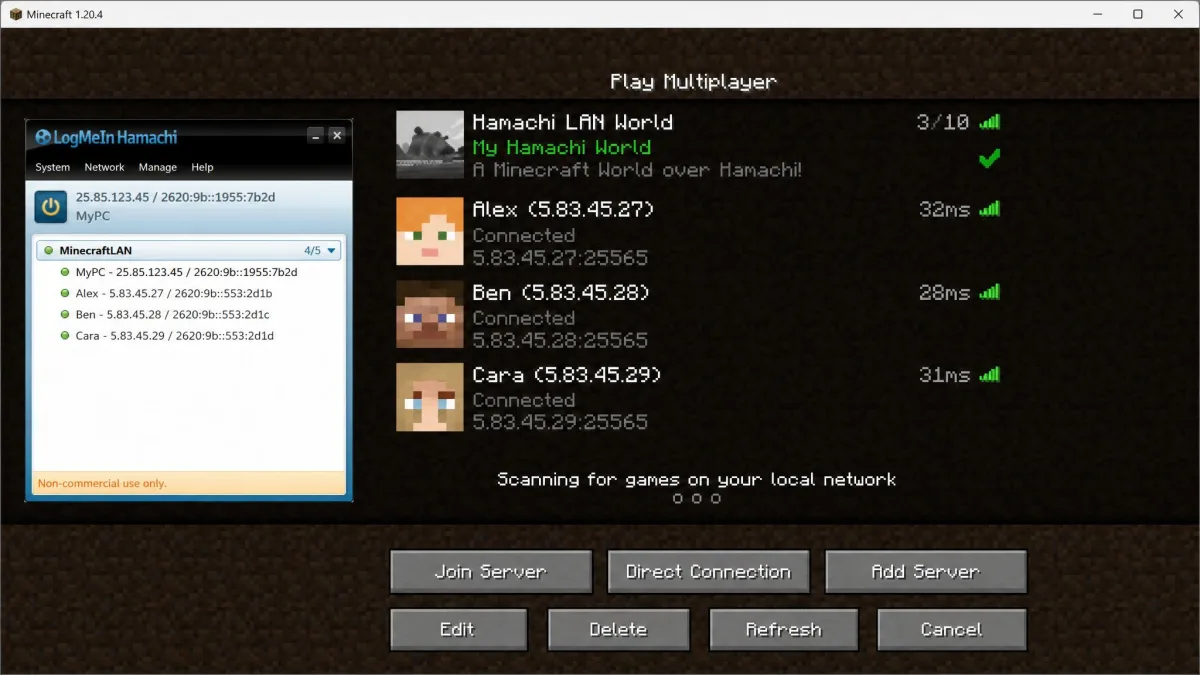
The strongest thing Hamachi has going for it is ease of use. In our setup it was up and running within minutes of the download, and connecting a second machine took a single network name and password. For LAN-style gaming it remains a genuine go-to, and it handled a Minecraft session between three players without any router fuss.
Cons
The drawbacks are mostly about age and scope. The 5-computer free cap is stingy next to newer tools, mobile support is a workaround rather than a product, and the client leaves a mess when you try to remove it. None of these are dealbreakers for the core use case, but they add up.
Hamachi Pricing and the Free Plan
Hamachi uses annual pricing tied to how many computers you need on a single network. The free plan is aimed at individuals and small friend groups, and the paid tiers scale up for larger teams. Note that these are yearly prices from the official site; there is no consumer month-to-month plan.
| Plan | Devices per network | Price | Best for |
|---|---|---|---|
| Free | Up to 5 computers | Free | Friends, small LAN gaming groups |
| Standard | 6 to 32 computers | $49/year | Small teams and larger gaming groups |
| Premium | 33 to 256 computers | $199/year | Larger organizations |
| Multi-Network | Up to 256 computers, unlimited networks | $299/year | Multiple separate networks |
What the free tier includes (the 5-device limit)
The free plan covers a single network of up to 5 computers, which is enough for a small circle of friends or a couple of your own machines. It includes the same zero-config networking and AES-256 encryption as the paid tiers; the limit is purely the device count. For a lot of people that ceiling is the deciding factor, since free rivals now offer more room, which we cover in the alternatives section.
Paid plans and cost
Stepping up unlocks bigger networks. The Standard plan is $49/year and supports 6 to 32 computers per network. Premium is $199/year and scales to 33 to 256 computers, and the Multi-Network plan is $299/year for up to 256 computers across unlimited networks. One thing worth flagging from user reports: cancelling a paid subscription can mean phoning customer service rather than clicking a simple online cancel button, so factor that friction in before you subscribe.
Where to download Hamachi
The client comes only from the official site. We recommend downloading straight from the official site rather than a third-party mirror, both for security and to get the current build. The download itself is small and installs quickly.
Security, Privacy, and Is Hamachi Safe?
Hamachi is safe to use in the technical sense: the encryption is solid and the tunnels are protected. The safety questions that matter are less about the cipher and more about who you let onto your network, because a virtual LAN is a two-way street by design.
Encryption and how connections are secured
Under the hood, Hamachi encrypts data with the AES-256-CBC cipher, handles key exchange with Diffie-Hellman using the 2048-bit MODP group, and authenticates packets with HMAC-SHA-1-96. Nodes and servers authenticate each other with RSA keypairs. Connections are end-to-end encrypted at the endpoints, so even traffic passing through a LogMeIn relay stays encrypted, while direct node-to-node traffic bypasses LogMeIn's servers entirely.
The real risks of a LAN-emulation tool
The genuine risk is not the encryption, it is the network model. Because Hamachi behaves like a two-way connection, joining a network lets other members reach your machine directly, just as if they were plugged into your local switch. If a peer's system is compromised, that access cuts both ways. An infected or hostile member could scan and probe the other devices on the network.
Hamachi exposes your machine two-way to everyone on the network. Only invite peers you actually trust, use a strong network password, and remove members you no longer recognize. Treat a shared Hamachi network the way you would treat handing someone a cable into your home network.
It is also worth knowing that Hamachi has no kill switch, so if a tunnel drops you have to notice and handle it yourself. For its intended LAN use that is a minor point, but it is another reminder that this is a networking tool, not a privacy product with safety nets built in.
Speed and Performance: Direct vs Relayed Tunnels
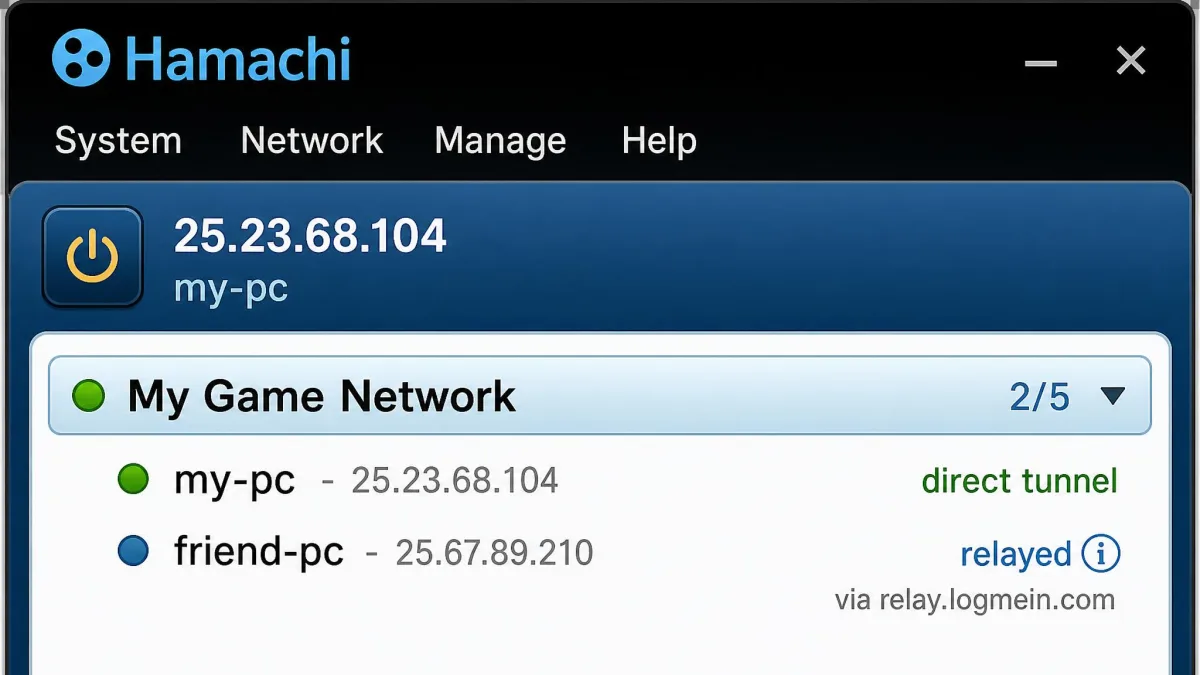
Performance in Hamachi comes down to one thing: whether your connection is direct or relayed. When two machines can reach each other directly, Hamachi gets out of the way and speeds feel close to a normal LAN. When a direct tunnel cannot be established, usually because of strict NAT or firewalls, the connection falls back to a relayed mode that routes through a LogMeIn server. Relayed links add latency and cut throughput, and in our testing across a slower connection the difference was easy to feel in a game.
This is exactly what the status indicators are telling you, which we explain in the setup section. If you are seeing lag, the first thing to check is whether you are on a direct or relayed tunnel. For latency-sensitive gaming, a direct connection is what you want, and it is worth adjusting firewall settings to get one.
Hamachi lives or dies on whether it can build a direct tunnel. Get a green, direct connection and it feels like a local network; drop to a relay and the latency shows up immediately.
Platform and Device Support
Desktop support is Hamachi's strong suit. Mobile is where it falls apart, and that gap is the single biggest reason to consider an alternative if phones and tablets are part of your plan.
Windows and Mac
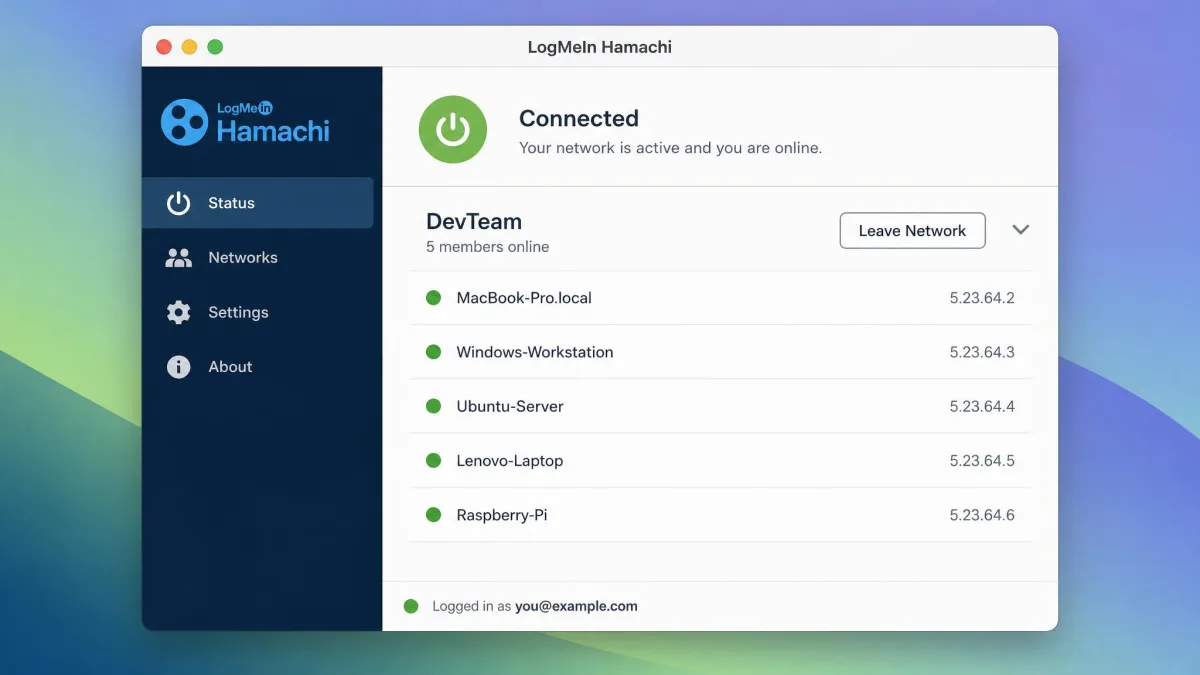
On Windows and Mac, Hamachi is a proper native client with a graphical interface. Both were straightforward in our testing: install, sign in, create or join a network, and you are connected. This is the experience the tool is built around, and it is smooth on both platforms.
Running Hamachi on Linux
Linux is officially supported, but with a catch: the Linux client is command-line only and offers a more limited feature set than the Windows and Mac versions. If you want a graphical frontend, the community project Haguichi provides an unofficial GTK GUI that wraps the CLI client. Distro-specific setup notes are well documented, for example Hamachi on Arch Linux in the Arch wiki. It works, but expect to spend time in the terminal.
Hamachi on Android, iPhone, and iPad: the honest situation
There is no standalone official Hamachi app for Android, iPhone, or iPad. This is the plain truth that a lot of listings gloss over. Mobile access instead relies on the device's own built-in VPN client, configured against a Hamachi network through LogMeIn Central.
In practice this is fiddly and unreliable. Connecting a phone means setting up the built-in VPN profile by hand, and newer Android and iOS updates often break a connection that was working fine before. On an iPad we found the VPN profile would connect, yet pinging local IPs and reaching shared drives could still fail. If mobile matters to you, this alone is a reason to look at ZeroTier or Tailscale instead.
How to Set Up Hamachi as a VPN
Setup is where Hamachi earns its reputation. In our testing it was genuinely one of the fastest tools of its kind to get working, with no router configuration at any point.
Installing the client and creating or joining a network
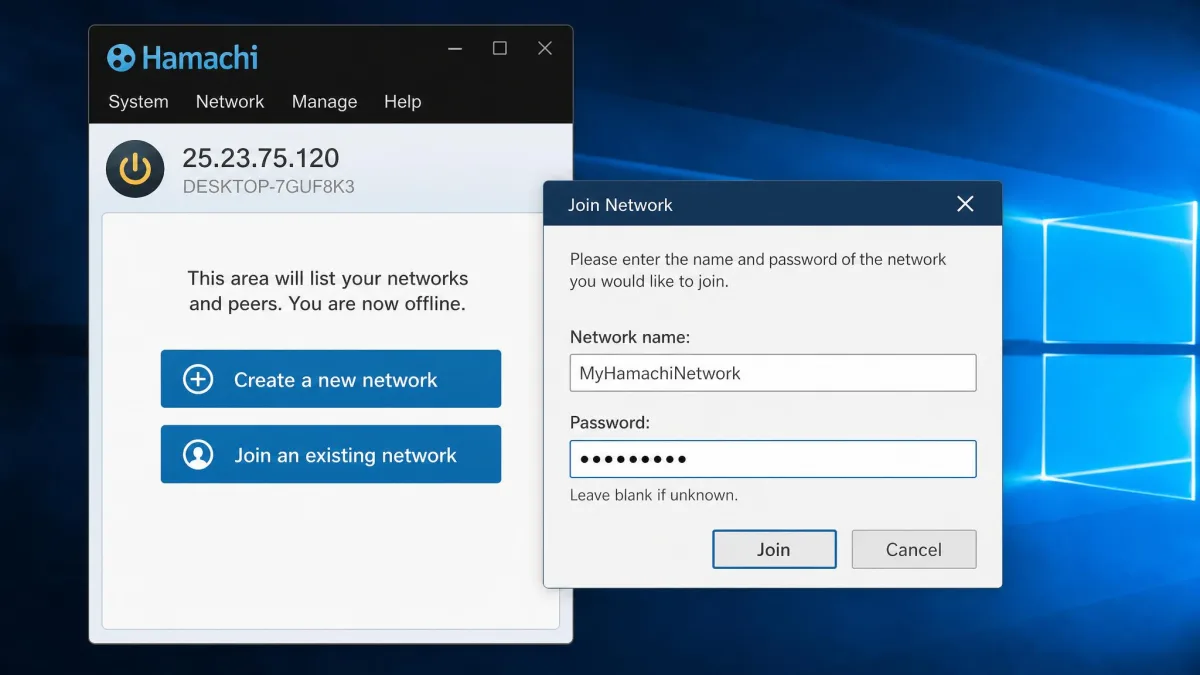
Download the client from the official Hamachi site, install it, and create a free account. To start a network, click Create a new network, give it a name and a password, and share those two details with whoever you want to join. On their end they choose Join an existing network and enter the same name and password. That is the entire process, and it took us only a few minutes end to end with no port forwarding.
Network types: mesh, hub-and-spoke, and gateway
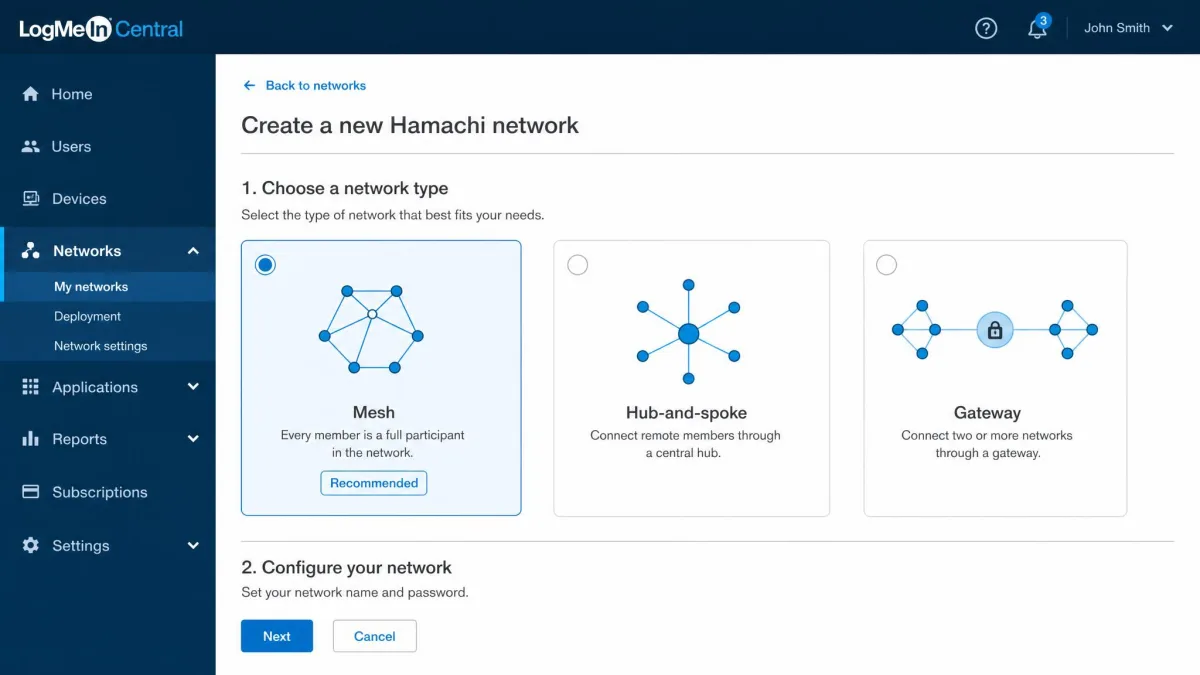
Hamachi offers three network types, and picking the right one matters. A mesh network connects every member to every other member, which is ideal for gaming and small peer groups. Hub-and-spoke connects members only to designated hubs, useful when you want central machines reachable but members isolated from each other. A gateway network bridges the virtual network into a physical LAN, so remote members can reach devices on a real office network. For most gaming and file-sharing use, mesh is the one you want.
Understanding Hamachi status indicators (green, blue, yellow)
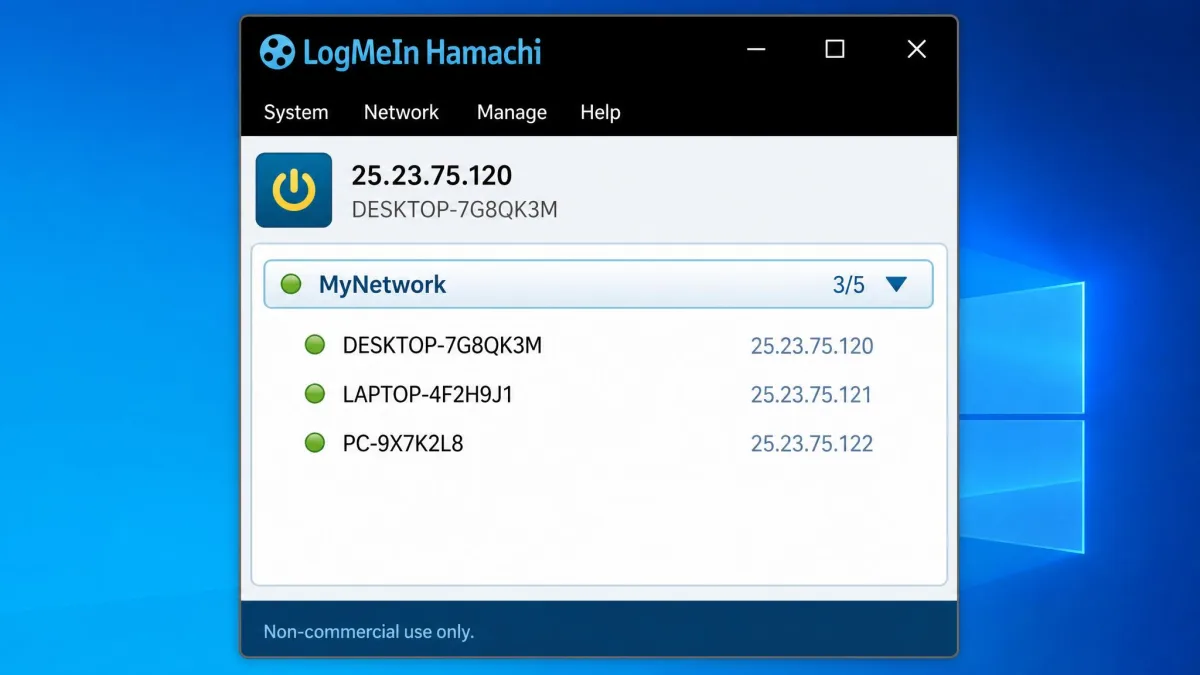
The colored dot next to each member tells you the health of that connection. In general, green means an active direct tunnel, blue means the traffic is being relayed through a LogMeIn server with higher latency, and yellow indicates a tunnel or connection problem. Exact color-to-state mapping varies by client version, and some states show as blinking or with an exclamation mark, so treat the colors as a guide rather than gospel. The practical takeaway is simple: green is what you want, blue means you are relayed and slower, and yellow means something needs fixing.
If you see a blue relayed dot instead of green, you are routing through LogMeIn's servers and paying a latency penalty. Opening the right firewall ports or adjusting NAT settings on your router often promotes the link to a direct green connection.
What Gamers and Reddit Say About Hamachi
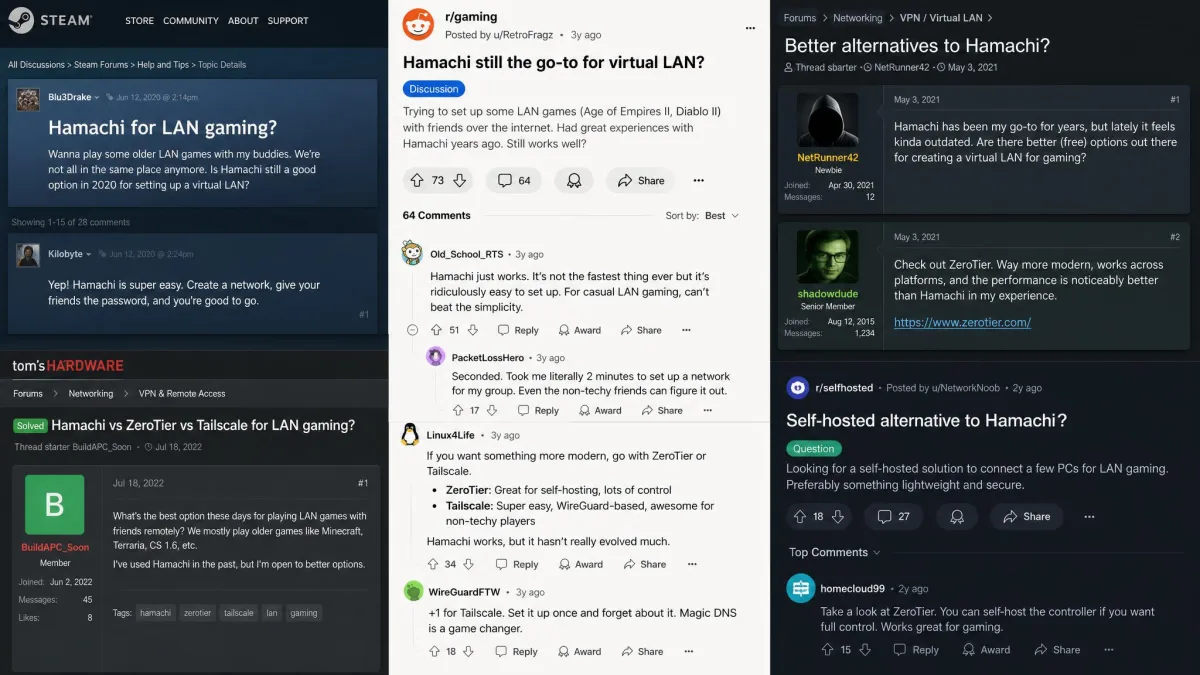
Community sentiment on Hamachi is split in a telling way. Among gamers it remains a common go-to for LAN-style play with friends, including Minecraft and older or pirated titles that expect everyone to be on a local network. When it works, people are loyal to it, and some players report that Hamachi connects for them in situations where Radmin VPN and ZeroTier simply will not.
The other half of the conversation is more skeptical. Other players prefer ZeroTier or Tailscale and find those more reliable, so the "which is best" question genuinely has no single answer. A recurring gripe is that the client leaves a lot of junk behind and is annoying to fully remove. And a fair number of longtime users say Hamachi feels dated, note that it is rarely mentioned anymore, and see it as a bit of a relic from the early 2010s. All of that is fair, and it is why we treat Hamachi as a still-capable option rather than an automatic recommendation.
Best Hamachi Alternatives (ZeroTier, Radmin VPN, Tailscale)
If the 5-device cap, the mobile gap, or the dated feel are dealbreakers, three alternatives cover most needs. ZeroTier and Tailscale are the modern mesh options with real mobile support, while Radmin VPN is the free, Windows-only gaming pick.
| Feature | Hamachi | ZeroTier | Radmin VPN | Tailscale |
|---|---|---|---|---|
| Free tier limit | 5 computers | 10 devices | Free, unlimited | 6 users, unlimited devices |
| Paid entry price | $49/year | $18/month | Free | $8/user/month |
| Platforms | Windows, Mac, Linux (CLI) | Windows, Mac, Linux, iOS, Android | Windows only | Windows, Mac, Linux, iOS, Android |
| Official mobile app | No | Yes | No | Yes |
| Ease of use | Very easy, zero-config | Moderate | Very easy (Windows) | Very easy |
ZeroTier is open-source software-defined networking with a peer-to-peer mesh, and its free tier covers 10 devices on one network, double Hamachi's limit. It runs on Windows, Mac, Linux, iOS, and Android, so mobile is a first-class citizen. Setup is a little more involved than Hamachi's, but it is powerful and free for personal use.
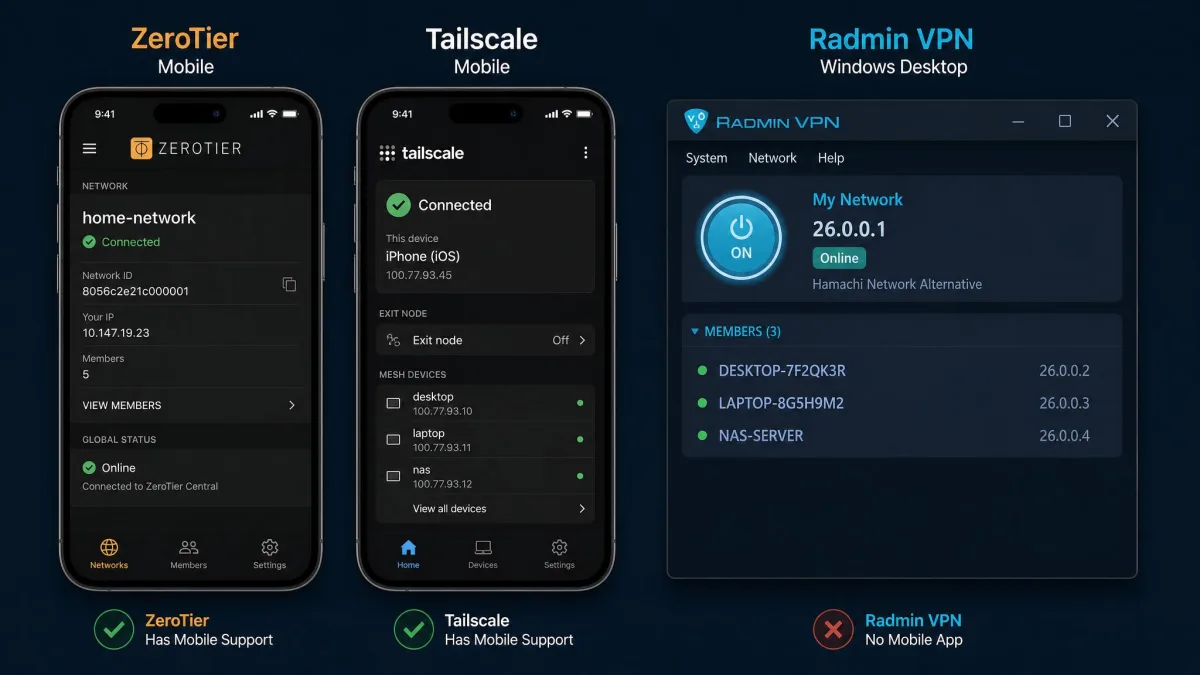
Radmin VPN is completely free with no ads or paid features, and it is squarely aimed at gaming. The catch is that it is Windows only, with no official Mac, Linux, or mobile client. If everyone in your group is on Windows and you want a free virtual LAN with no device cap, it is the most direct Hamachi replacement.
Tailscale is a WireGuard-based mesh VPN that is arguably the most polished of the group. Its free personal tier covers up to 6 users with unlimited devices, and paid plans start at $8/user/month. It is cross-platform including iOS and Android, with modern access controls. For a mix of desktops and phones, it is our first suggestion.
Frequently Asked Questions
Is Hamachi still free in 2026?
Is Hamachi safe to use?
Does Hamachi work as a VPN for browsing or streaming?
Does Hamachi work on Android and iPhone?
Is Hamachi good for gaming and Minecraft?
Final Verdict: Should You Use Hamachi in 2026?
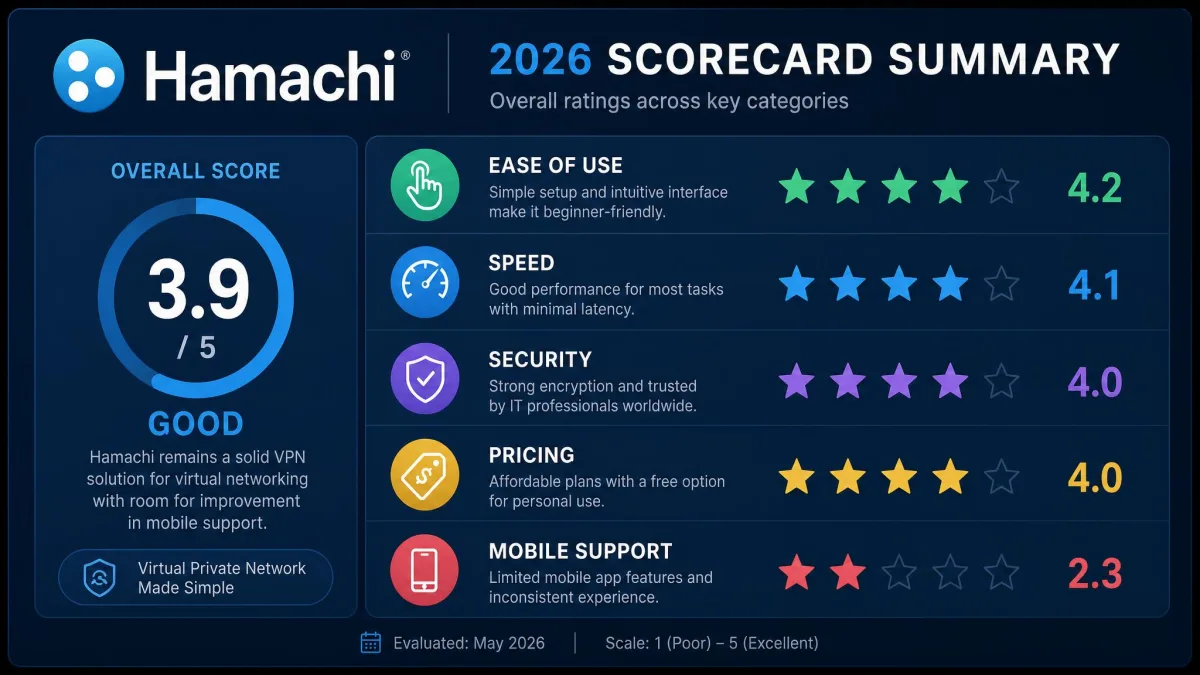
Hamachi in 2026 is a capable tool that has been narrowed by its own age and by better-equipped rivals. For its core job, creating a quick, encrypted virtual LAN between trusted computers for gaming or file sharing, it is still fast, dependable, and about as easy as this category gets. If that is exactly what you need and everyone is on a desktop, it holds up.
But the limits are real for many buyers. The 5-device free cap trails ZeroTier and Tailscale, mobile support is a fragile workaround rather than a product, and the client leaves clutter behind. If phones, larger free networks, or a more modern feel matter to you, a free alternative will serve you better. Our advice: use Hamachi if it fits the narrow desktop-LAN use case, and reach for Tailscale or ZeroTier if it does not.