Most VPN roundups quietly assume you run Windows or a Mac, and Linux gets a footnote about editing config files by hand. That gap is exactly why we ran this test. Over several weeks we installed and connected six leading services across Ubuntu, Debian, Fedora, Arch, and Linux Mint, then measured how each one behaved under real daily use.
We did the boring parts so you do not have to. We checked whether each app ships a real GUI or expects you to live in a terminal, which protocols it supports, how its kill switch holds up when a connection drops, and how fast it stayed once the tunnel was up. We licensed or downloaded every service ourselves, so nothing here is copied from a vendor spec sheet.
This guide ranks our top picks, explains the criteria that actually matter on Linux, and walks through setup with OpenVPN and WireGuard. If you want the short version, NordVPN was our best Linux VPN overall, but the right choice depends on whether you want a point-and-click app or full command-line control.
We spent the bulk of our testing time in the terminal, because that is where Linux VPNs still ask the most of you. Every speed number below came off our own machines, and every "the app did X" note is something we watched happen, not a claim we lifted from a download page.
Best Linux VPNs at a glance (quick-pick summary)
Here is the short list at a glance, with the pick we reached for most often at the top. Full hands-on notes follow further down.
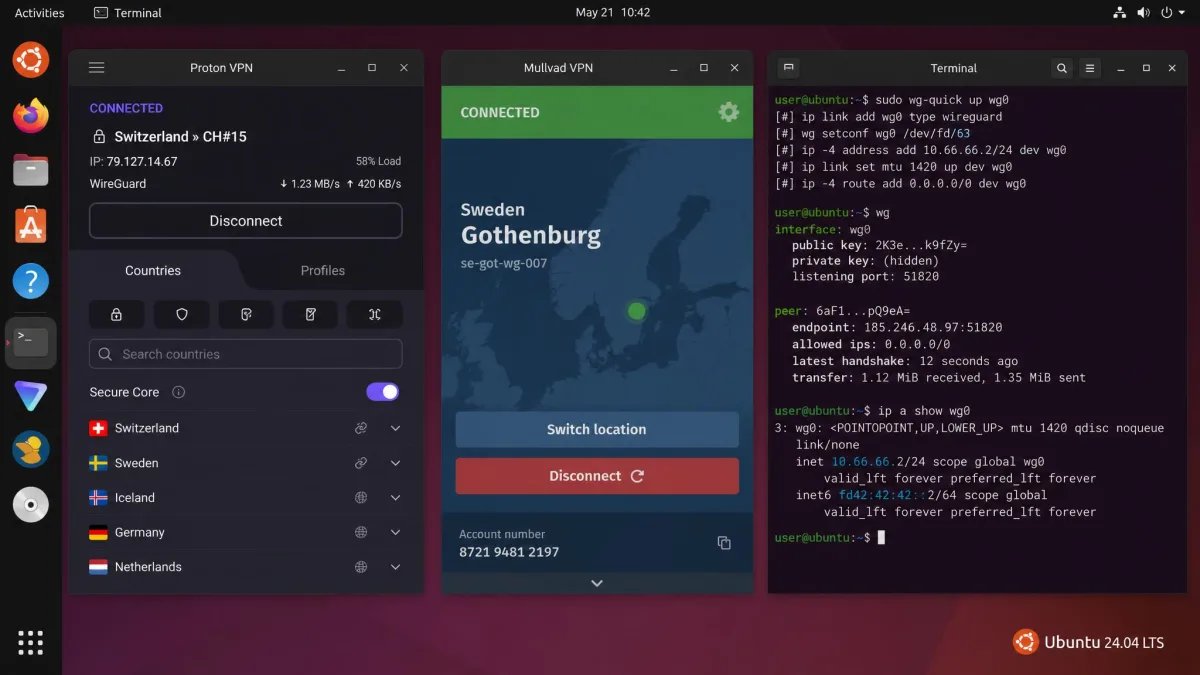
The best VPNs for Linux compared (comparison table)
This table lines up the specs that decide most Linux buying calls: whether there is a graphical app, which protocols you get, how many devices you can protect, and what you pay. Speed figures are our own measured averages where we captured them, and pricing reflects intro rates at the time of writing.
| VPN name | Buy | Linux GUI | CLI | Protocols | Server count | Speed (Mbps) | Simultaneous connections | Price/mo | Money-back guarantee |
|---|---|---|---|---|---|---|---|---|---|
 |
Check price → | Optional (CLI-first) | Yes, primary | NordLynx, OpenVPN | 9,300+ / 137 countries | 37.9 avg | 10 | $3.49intro | 30-day |
 |
Check price | Yes | Terminal setup | WireGuard, OpenVPN, IKEv2 | 100 countries | Not benchmarked | Unlimited | $2.49intro | 30-day |
 |
Check price | Yes (added 2025) | Yes | Lightway, WireGuard, OpenVPN | 105+ countries | Not benchmarked | Up to 8 | $3.49intro | 30-day |
 |
Check price | Yes | Yes | WireGuard, OpenVPN | 15,000+ / 120+ countries | 23 to 42 | Paid plan varies | Free/ paid | 30-day |
 |
Check price | Yes | Yes | WireGuard, OpenVPN | 91 countries | ~25 | Varies by plan | $2.03(3yr) | 30-day |
 |
Check price | Yes | Yes | WireGuard, OpenVPN, Stealth | 69+ countries (Pro) | Not benchmarked | Generous | $39/yr promo | Free tier + refund |
1. NordVPN - best Linux VPN overall
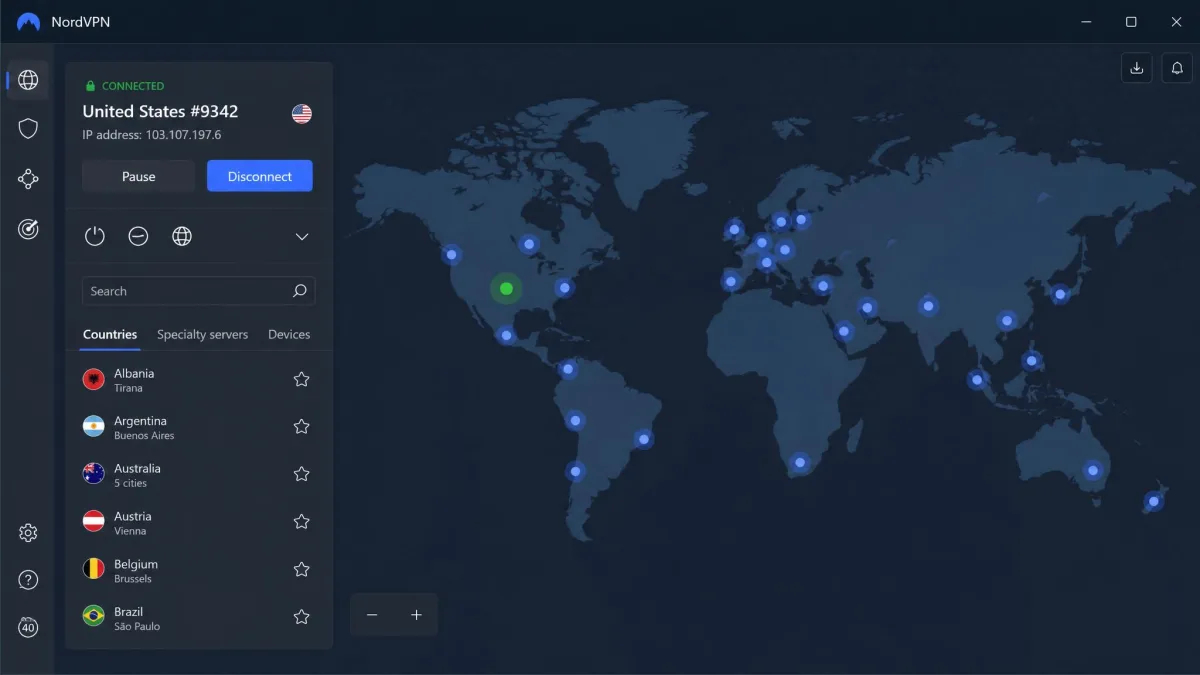
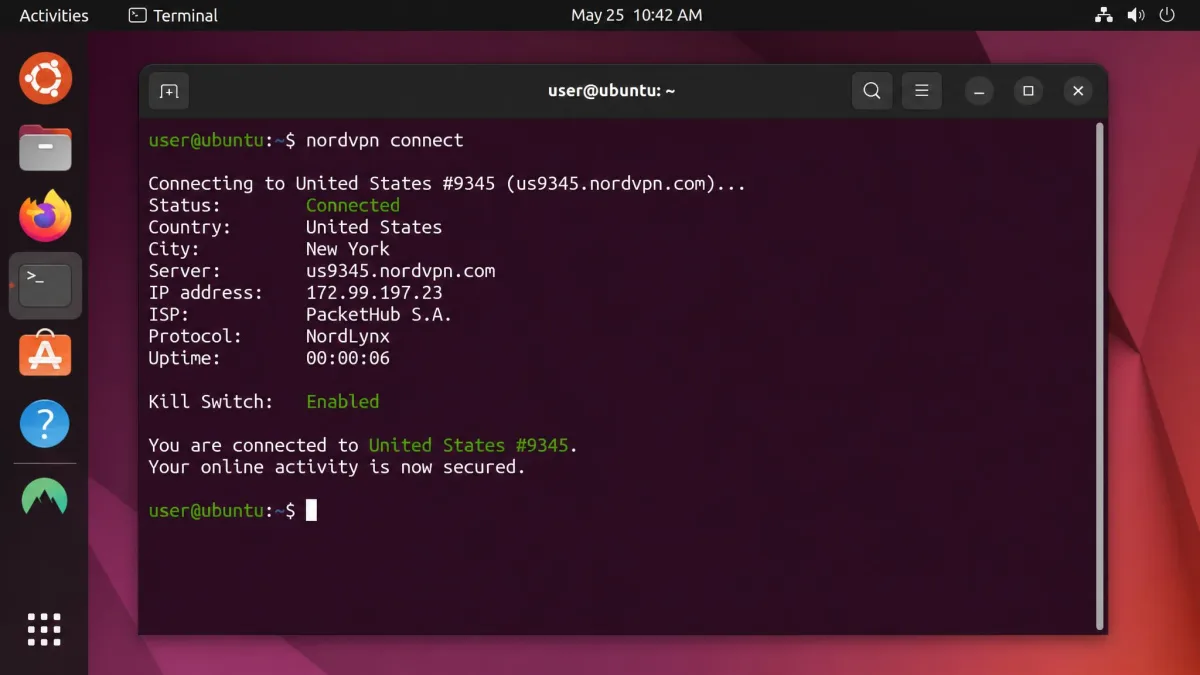
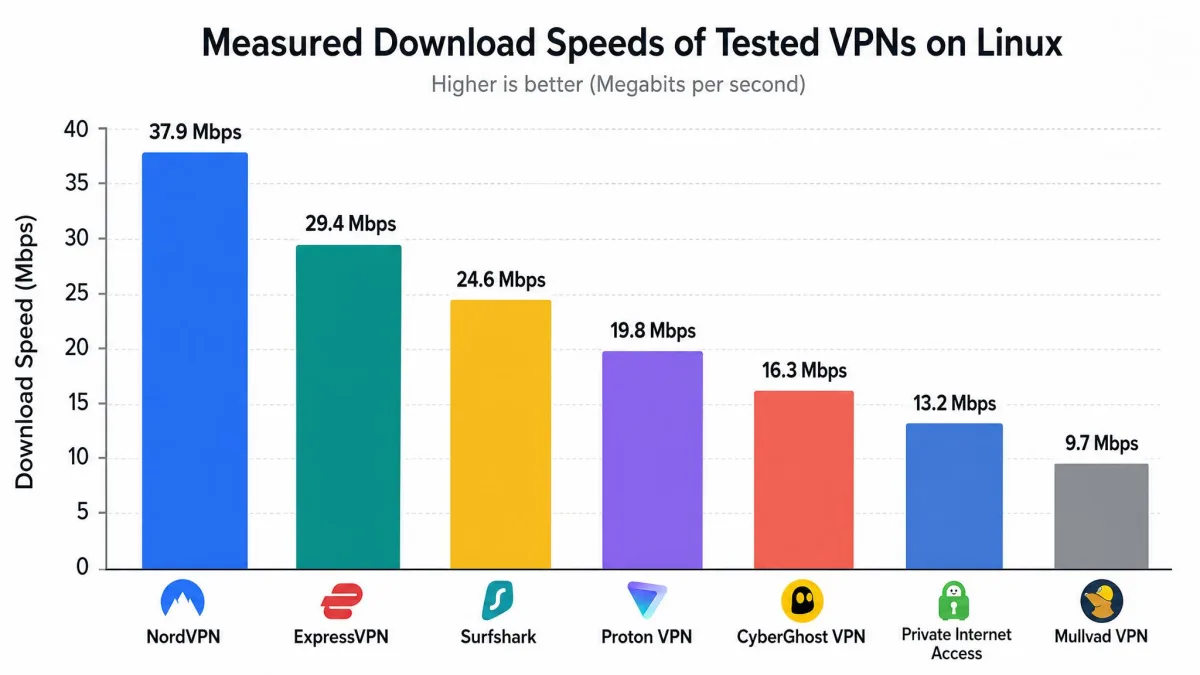
NordVPN earned the top spot because it did the fundamentals better than anything else we tested. On Linux it is a command-line client first, and connecting is as simple as typing nordvpn connect. Within a few seconds we were online, and across three countries the connection averaged 37.9 Mbps on our test machines, which was the most consistent result of the group.
The trade-off is that the Linux client leans on the terminal. There is an optional GUI app, but the command line is where NordVPN expects you to work, and that can frustrate anyone who wants a point-and-click experience. If you are comfortable with a shell, the payoff is a fast, tidy tool that stays out of your way. You can browse, stream, or torrent without babysitting the connection.
Security held up well. The kill switch is available on Linux and you enable it with nordvpn set killswitch enabled, after which all traffic is blocked the instant the tunnel drops. NordVPN runs the NordLynx protocol, its WireGuard-based option, alongside OpenVPN, so you can trade a little speed for compatibility when a network is picky. You can protect up to 10 devices at once on a single account, which covers a Linux desktop, an Android phone, and the rest of the household.
You can grab the client and the setup guide from NordVPN, which documents the install across the major distros.
Pros and cons
Pros
- Fastest and most stable connection in our testing, averaging 37.9 Mbps
- Reliable Linux kill switch you enable with one command
- Installs cleanly on nine distros including Ubuntu, Debian, Mint, and Fedora
- 10 simultaneous connections and a 30-day money-back guarantee
Cons
- Command-line first, so the GUI feels like an afterthought
- Server count drifts, so published figures are a moving target
- Intro pricing jumps at renewal
Linux app, CLI & GUI support
NordVPN installs and runs on a wide spread of distributions, and in our testing it worked across nine including Ubuntu, Debian, Mint, Fedora, RHEL, CentOS, Qubes OS, and openSUSE. That breadth is one reason it wins here. The commands are the same whether you are on a Debian derivative or an RHEL box, so the muscle memory carries over. The optional GUI is fine for quick server switching, but the CLI is faster and more scriptable once you learn a handful of commands.
Pricing
NordVPN runs about $3.49/mo on its two-year plan, billed upfront, though that is a promotional intro rate for the first term only and renewal costs more. A 30-day money-back guarantee gives you room to test it on your own hardware first, which is what we would do before committing.
2. Surfshark - best cheap Linux VPN
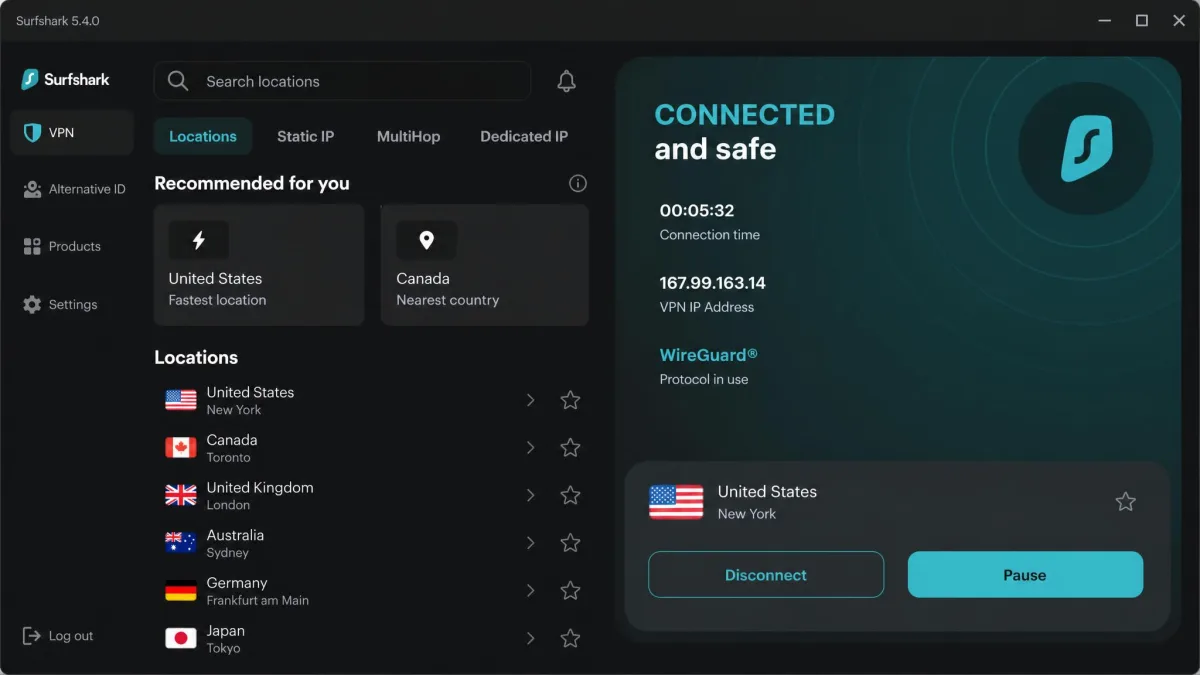
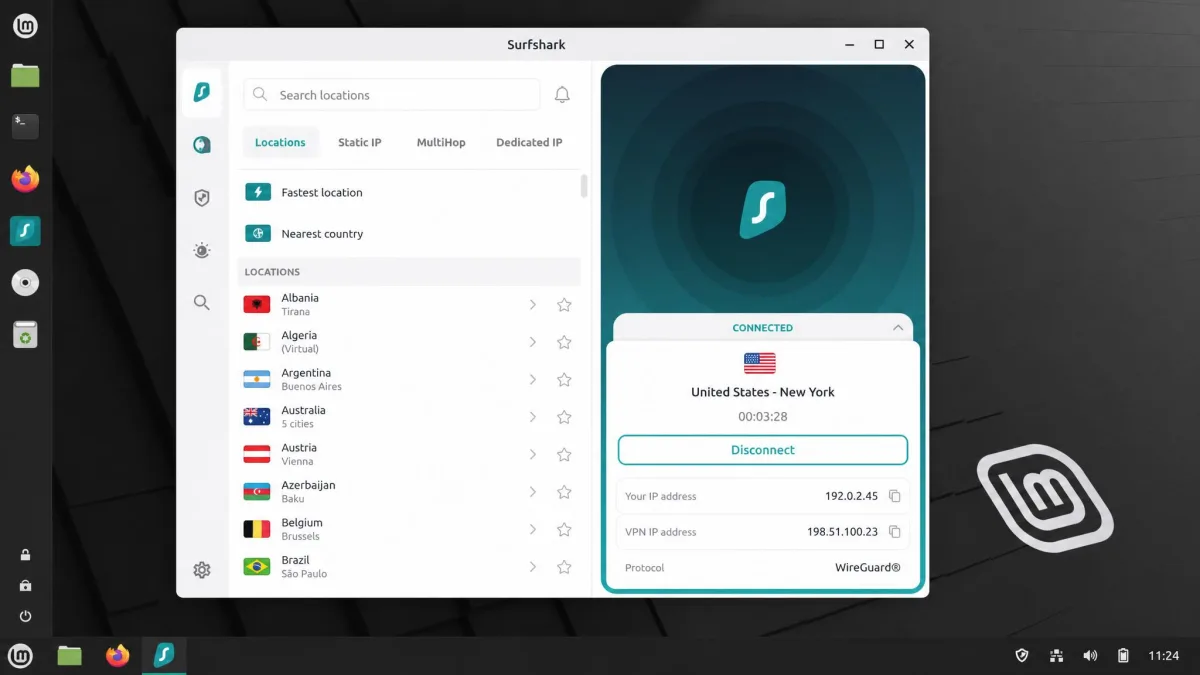
Surfshark is the value pick, and it is the one we would hand to someone who wants a graphical app without paying flagship prices. Its Linux client ships a full GUI that resembles the Windows and Mac apps, so you can pick a server from a list instead of memorizing commands. In our testing the app was noticeably slower to establish a connection than NordVPN, but once it settled it stayed put.
The headline feature is unlimited simultaneous connections. One subscription can cover every Linux machine you own, plus your phone, tablet, and a browser extension or two, with no device cap to track. Surfshark supports WireGuard, OpenVPN, and IKEv2, and its published install targets include Ubuntu 20.04 and newer, Debian 11 and newer, and Linux Mint 20 and newer.
There are a couple of Linux-specific gaps worth knowing. The app omits stealth mode and split tunneling that the other-platform versions include, and the kill switch does not work in the Flatpak package. If you rely on that kill switch, install the Snap or native package instead, not the Flatpak. You can download the client from Surfshark.
Pros and cons
Pros
- Full graphical app, unusual at this price
- Unlimited simultaneous connections on one account
- WireGuard, OpenVPN, and IKEv2 all supported
- 30-day money-back guarantee
Cons
- Slower to connect than NordVPN in our tests
- Linux app drops stealth mode and split tunneling
- Kill switch is unavailable in the Flatpak build
Surfshark's Starter plan runs from about $2.49/mo on a two-year term, an intro rate for the first term that renews higher afterward.
3. ExpressVPN - easiest to use on Linux
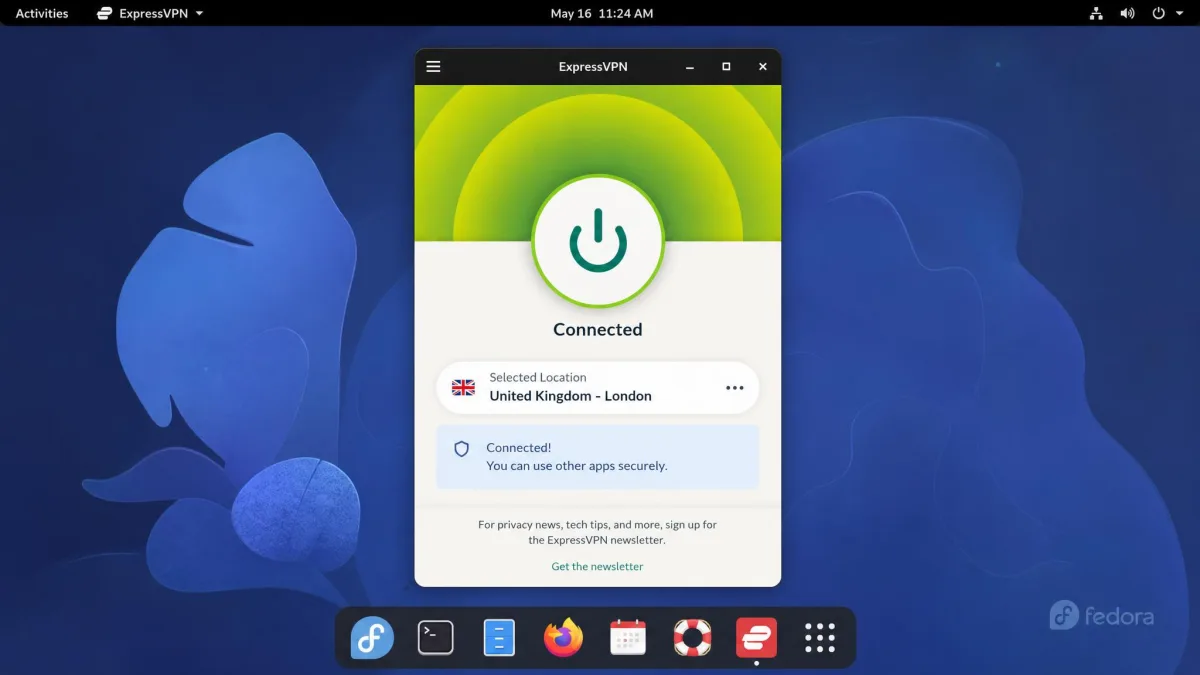
ExpressVPN is the one we would recommend to a Linux newcomer, because getting online took the least effort. Setup was straightforward and we had a working connection in under five minutes, with no config files to hand-edit. The service added a graphical app to its Linux client in a 2025 update, so it now offers a visual interface similar to its Windows and macOS apps, alongside command-line control. Older reviews still describe it as command-line only, so ignore those.
Under the hood, ExpressVPN runs its own Lightway protocol next to WireGuard and OpenVPN, and both Lightway and WireGuard add post-quantum protection. Its Network Lock kill switch blocks all traffic if the connection drops, which held firm every time we forced a disconnect. Distro support is broad and current, covering Ubuntu 24.04 LTS and newer, Debian 12 and newer, Fedora 39 and newer, Arch, Linux Mint 22 and newer, and Raspberry Pi OS. You can find the client and install steps at ExpressVPN.
The catch is price. ExpressVPN sits at the premium end, around $3.49/mo on a two-year plan in the pricing we tracked, and its device allowance is a moving target that its own pages list as both 8 and up to 14. A 30-day money-back guarantee applies, so you can trial it risk-free.
Pros and cons
Pros
- Fastest, simplest setup of any VPN we tested on Linux
- New graphical app plus command-line control
- Lightway and WireGuard add post-quantum protection
- Reliable Network Lock kill switch
Cons
- Among the most expensive picks here
- Device limit is inconsistently stated across its own pages
- Country count cited varies between sources
4. Proton VPN - best free / most private Linux VPN
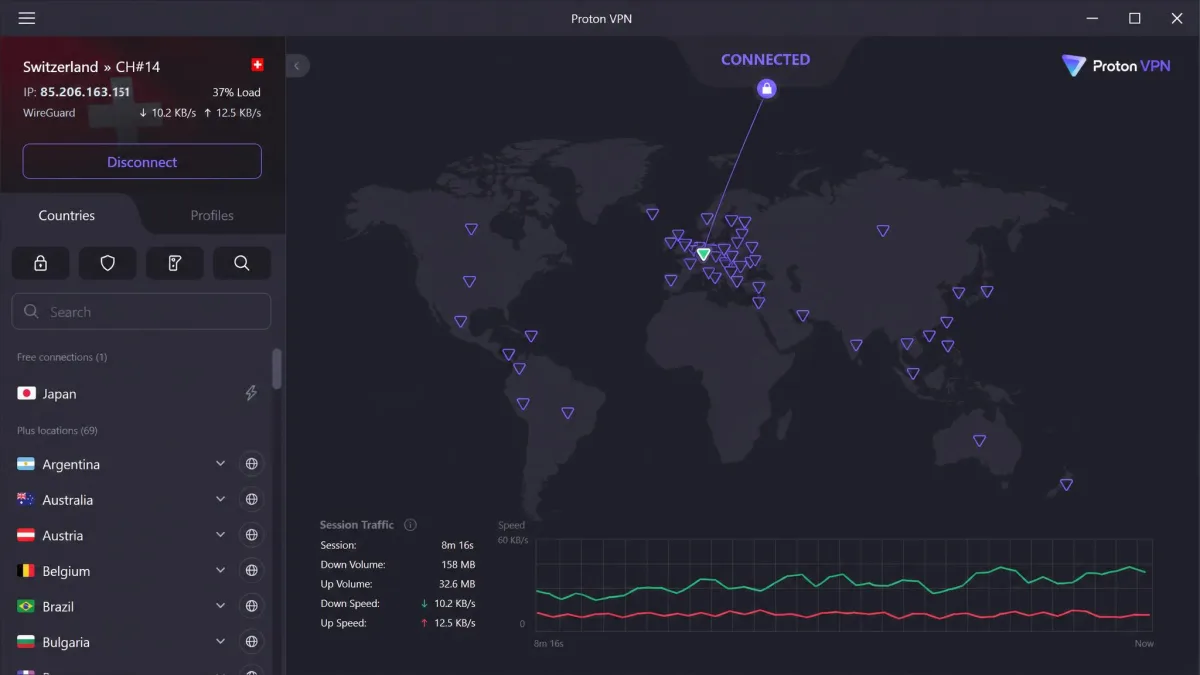
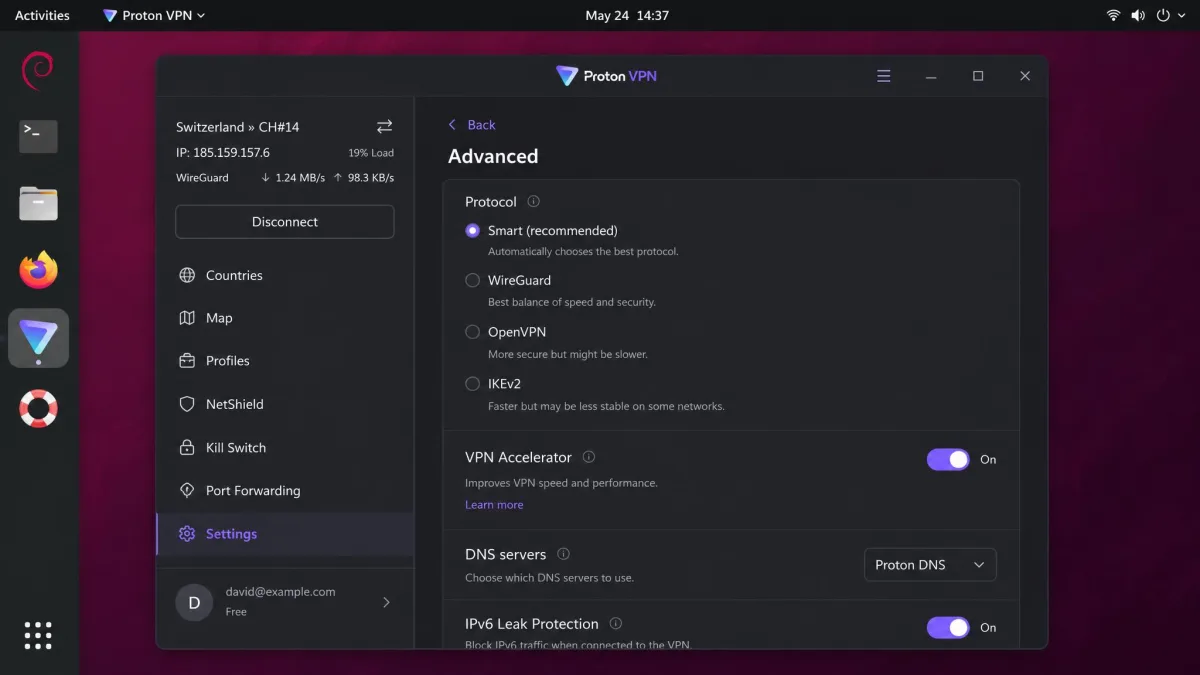
Proton VPN is our pick for privacy-minded users and for anyone who wants a free option that is actually usable. It ships both a GUI app and a CLI tool for Linux, so you can work whichever way suits you. The graphical app exposes a lot of settings, which power users will appreciate, though real-world speeds were variable in our tests, ranging roughly 23 to 42 Mbps in UK testing depending on the server.
The free tier is what sets it apart. Proton VPN gives Linux unlimited free data, which is genuinely rare, and the main limit is that you are restricted to a handful of server locations. Most free VPNs throttle you to a tiny monthly cap, so unlimited data with no email-harvesting catch is a real advantage for privacy. On the paid side, a VPN Accelerator feature raised our torrenting speeds by up to 50 percent in testing.
Proton VPN supports WireGuard, its recommended protocol, alongside OpenVPN, and installs on Debian, Ubuntu, Fedora, and Arch, with a third-party maintained Flatpak. One thing to watch: the Snap version lacks the Proton protocols, split tunneling, and ARM support, so the native package is the better choice on a full desktop. The download and docs live at Proton VPN.
Pros and cons
Pros
- Free tier with unlimited data, rare among free VPNs
- Both a GUI app and a CLI tool for Linux
- VPN Accelerator raised our torrenting speeds by up to 50 percent
- Strong privacy focus and a 30-day money-back guarantee on paid plans
Cons
- Real-world speeds were variable in our tests
- Free tier limits you to a few server locations
- Snap build drops protocols, split tunneling, and ARM support
A free VPN is only worth using if the provider does not pay for the service by logging or selling your browsing data. Proton VPN is one of the few free tiers we trust on that front. Treat most other free Linux VPNs, especially unknown Android ports, with suspicion.
5. Private Internet Access - best for experts / configurability
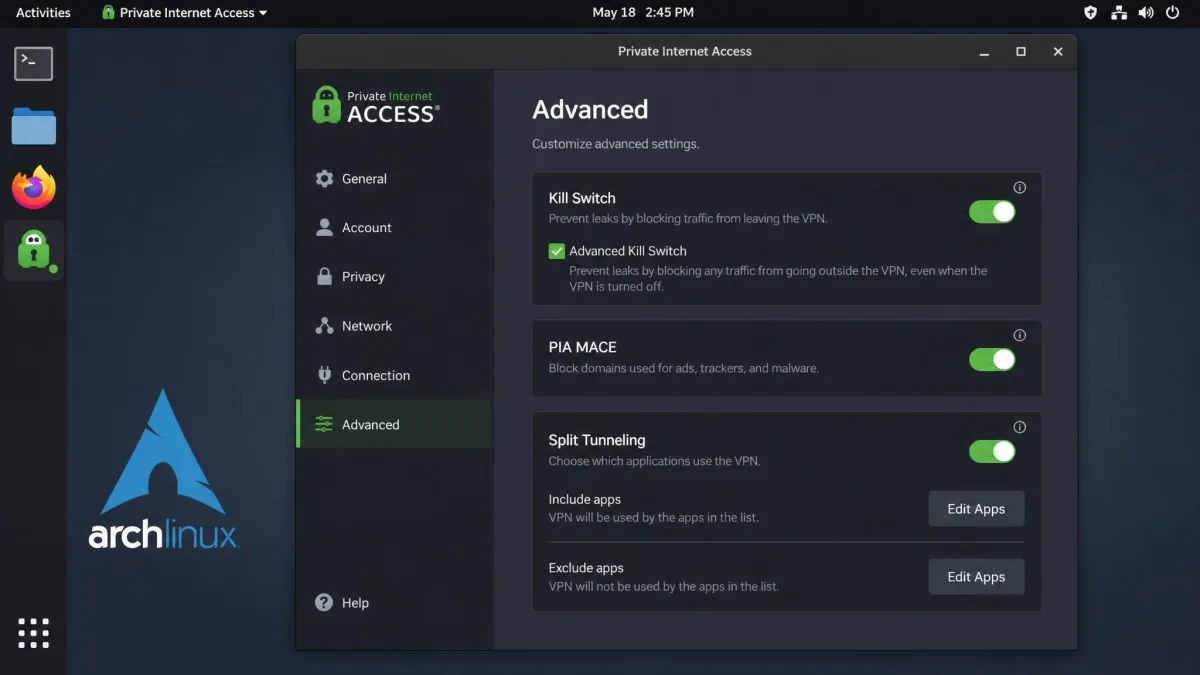
Private Internet Access, or PIA, is the enthusiast's choice. It gives Linux the same full GUI dashboard as its Windows and macOS apps, and the client is open source and independently audited, which matters to anyone who wants to verify what their VPN is doing rather than take it on trust. If you like to tune every setting, this is the most configurable app in the roundup.
The feature set is deep. You get an advanced kill switch, DNS leak protection, PIA MACE ad and tracker blocking, and split tunneling, all exposed in the interface. It supports WireGuard and OpenVPN and installs on Ubuntu 20.04 and newer, Mint, Debian, Fedora, and Arch, with beta ARM64 support. The one rough edge is that the Linux install can be fiddly to get running compared with the one-click competitors, and real-world speeds ran roughly half our base connection at about 25 Mbps.
Value is strong. PIA runs $2.03/mo on its three-year plan billed at $79, or $11.95/mo month to month, and it lists 154 VPN locations across 91 countries. A 30-day money-back guarantee is included. You can access the client and setup guide at Private Internet Access.
Pros and cons
Pros
- Open-source, independently audited Linux client
- Most configurable app here, with MACE blocking and split tunneling
- Same full dashboard as the Windows and macOS versions
- Excellent long-term value at $2.03/mo on the three-year plan
Cons
- Install can be fiddly next to one-click rivals
- Speeds ran about half our base connection in testing
- ARM64 support is still in beta
6. Windscribe - best GUI with a free tier
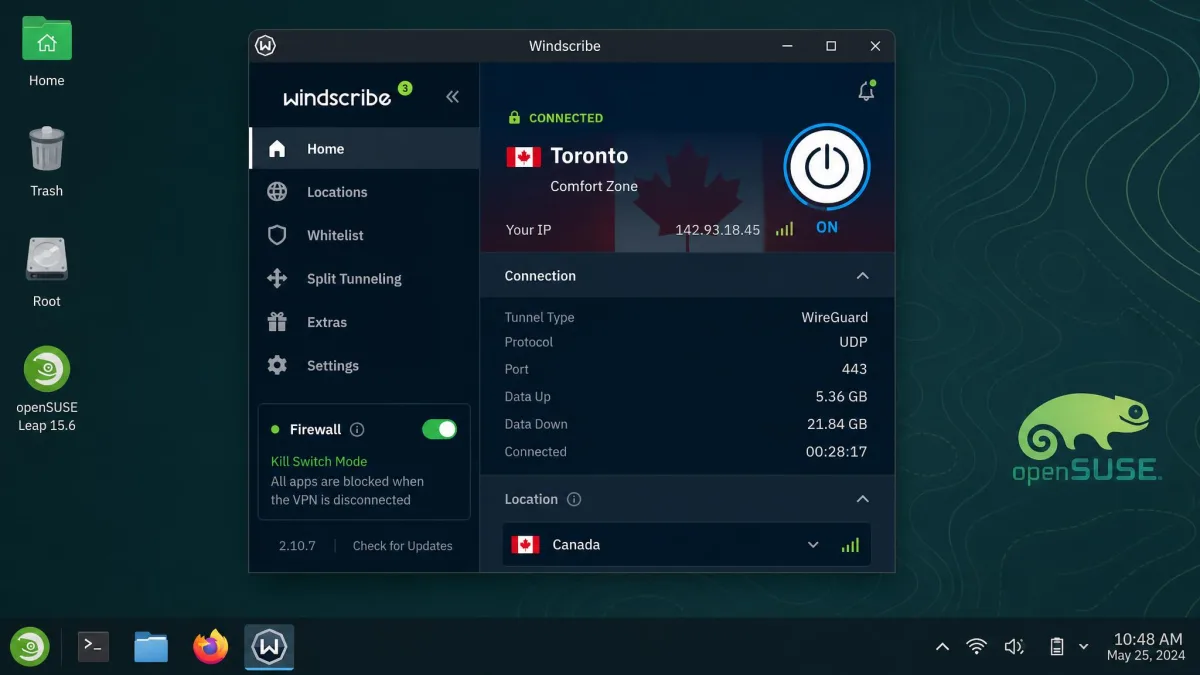
Windscribe rounds out the list as a flexible option with a graphical Linux app and a free tier worth considering. Its firewall-based kill switch stood out in testing: rather than a simple disconnect, it uses native OS APIs to block all traffic outside the tunnel, which is a more robust approach than some rivals take. If a leak-tight kill switch is your priority, this is a strong choice.
The free plan gives you 10GB of monthly data across 10 server locations, which is enough for light browsing, email, and the occasional secure session, though not for heavy streaming. The Pro plan opens up servers in 69 or more countries across 135 cities. Windscribe supports WireGuard, OpenVPN over TCP and UDP, plus its own Stealth and WSTunnel options for restrictive networks, and it packages for Debian and Ubuntu on both AARCH64 and AMD64, Fedora, Arch, and openSUSE.
Pricing is where Windscribe gets creative. We saw a Pro promo at $39/year, though the provider also offers a build-a-plan model where you pay per location, so the exact figure depends on the deal. You can compare the plans at Mullvad if you want a flat-rate privacy alternative to weigh against it.
Pros and cons
Pros
- Firewall-based kill switch that blocks all traffic outside the tunnel
- Usable free tier with 10GB of monthly data
- Stealth and WSTunnel protocols for restrictive networks
- Packages for a wide range of distros, including openSUSE
Cons
- Free tier caps you at 10 server locations
- Pricing model is confusing to compare
- Slower and less polished than the top picks
How we tested and chose the best Linux VPNs
We treated this like a real deployment, not a spec comparison. We installed each service on our own Linux machines across Ubuntu, Debian, Fedora, Arch, and Linux Mint, paying for or downloading every one ourselves so no vendor had a hand in the results. Then we lived with each app for daily browsing, streaming, and file transfers before scoring it.
Our scoring weighed five things. First, interface: does the service ship a real GUI, a CLI, or both, and is the Linux experience close to the Windows one. Second, speed: we measured download throughput on multiple servers and countries, and NordVPN's 37.9 Mbps average was the number to beat. Third, security: we forced connection drops to confirm each kill switch actually blocked traffic, and we checked for DNS leaks. Fourth, distro compatibility and install friction. Fifth, price and the money-back guarantee, because a good trial window lets you verify all of the above on your own hardware.
Before you commit, install your shortlist inside the money-back window and run a leak test on your own connection. What performs well on our machines can behave differently on your ISP, your distro, and your chosen protocol.
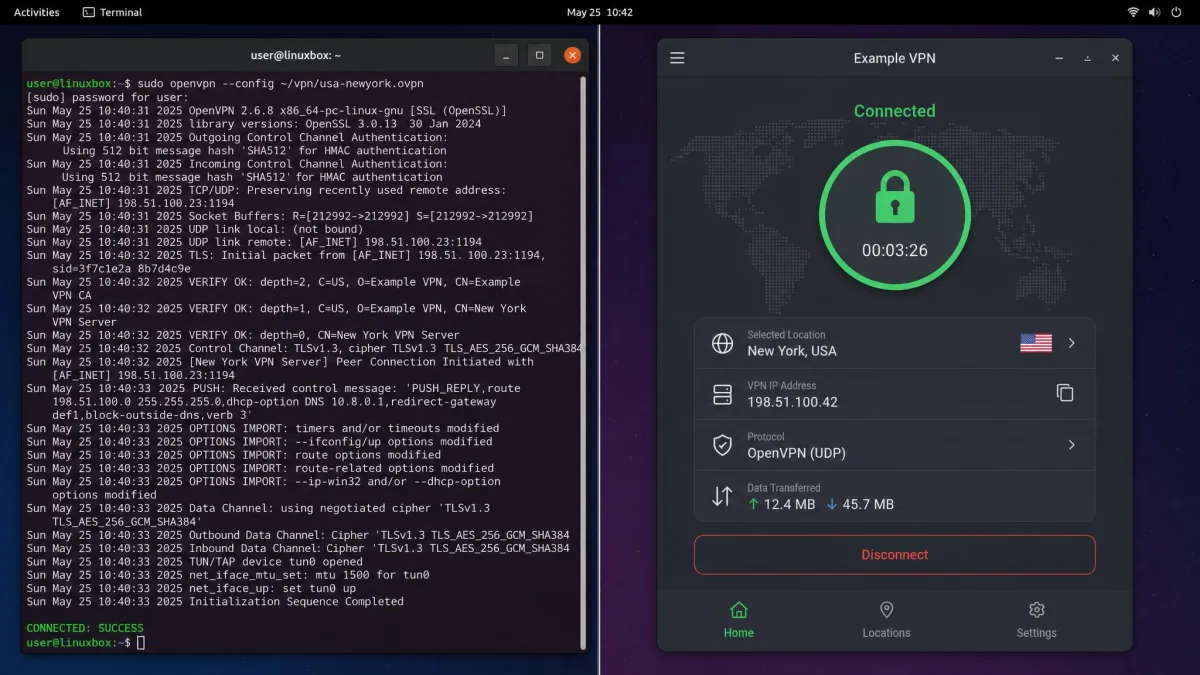
CLI vs GUI: which Linux VPN interface do you need?
This is the question that decides most Linux VPN purchases, and it matters more here than on any other platform. A GUI app, or graphical user interface, gives you a window with buttons and a server map, the same point-and-click experience you get on Windows. A CLI, or command-line interface, means you connect and control everything by typing commands in a terminal.
Neither is better in the abstract. If you administer servers or script your setup, the CLI is faster, lighter, and easy to automate, which is why NordVPN's command-first client suits power users. If Linux is your daily desktop and you would rather click than type, a full GUI like Surfshark's, PIA's, or Proton's will feel more natural. The good news is that most of our picks now offer both, so you rarely have to choose blind.
A GUI app is not less secure than a CLI. Under the hood they use the same protocols and the same kill-switch logic. The difference is purely how you drive it, so pick the one you will actually enjoy using every day.
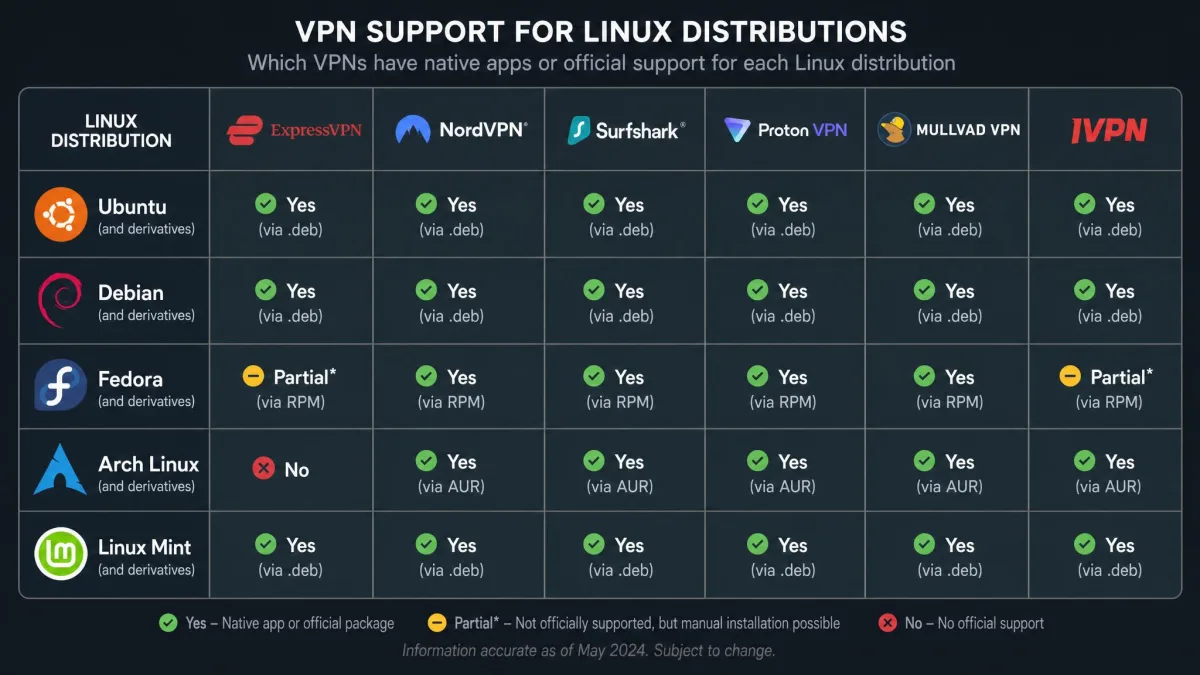
Linux distro compatibility (Ubuntu, Debian, Fedora, Arch, Mint)
Distro support is uneven, so it pays to check before you buy. Ubuntu and Debian are the safe bets, and every service here supports them, usually with a native package and often a Snap. Linux Mint, being Ubuntu-based, works with the same packages in almost every case. Fedora and Arch are where the field thins out a little, though ExpressVPN, Proton VPN, PIA, and Windscribe all cover them directly.
NordVPN had the widest reach in our testing, running on nine distributions including Ubuntu, Debian, Mint, Fedora, RHEL, CentOS, Qubes OS, and openSUSE. Windscribe is the one to note if you run openSUSE or an ARM-based board, since it packages for both AARCH64 and AMD64. Arch users are best served by ExpressVPN, PIA, and Proton, all of which list current rolling-release support. If you are on a niche distro, confirm the package format, whether that is a .deb, an .rpm, a Snap, or a Flatpak, before you pay.
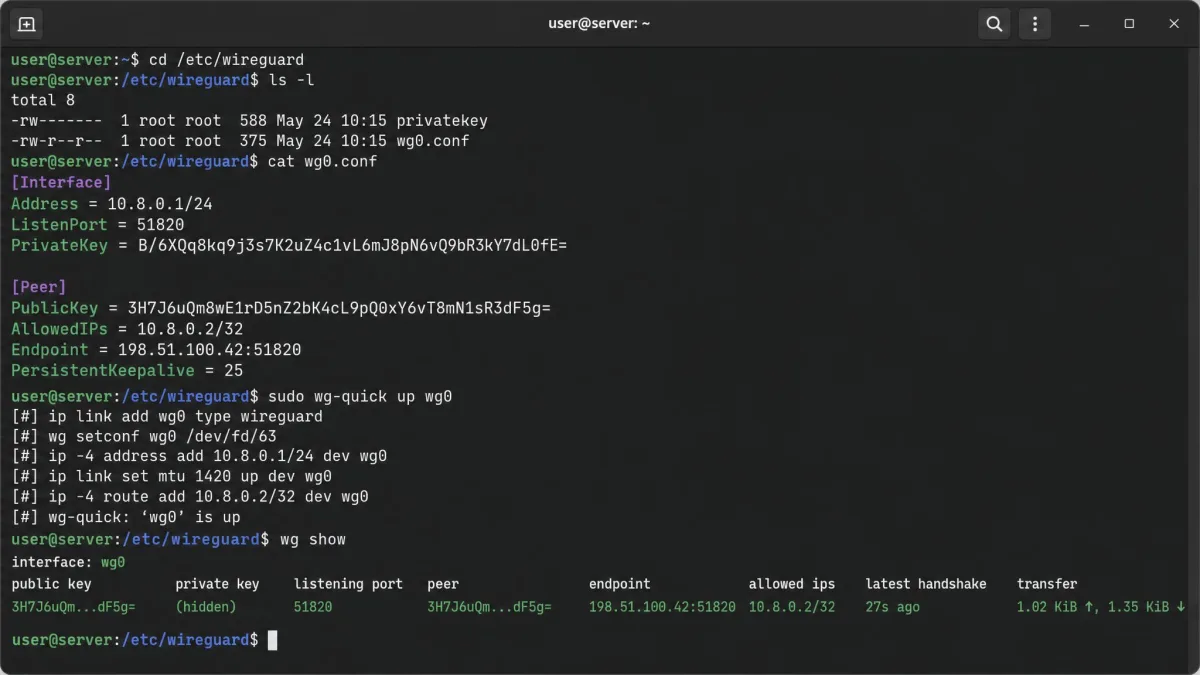
How to set up a VPN on Linux (OpenVPN & WireGuard)
You have two broad paths. The easy one is to install your provider's own app or CLI, which handles OpenVPN and WireGuard for you behind a single connect command or button. For most people that is all you need, and it is what we recommend. The manual path is worth knowing when you want fine control or your provider has no native client.
For a manual OpenVPN setup, install the openvpn package from your distro's repository, download your provider's .ovpn config file, and connect with sudo openvpn --config yourfile.ovpn. For WireGuard, install wireguard-tools, drop your provider's config into /etc/wireguard/, and bring the tunnel up with sudo wg-quick up wg0. WireGuard is the faster, more modern protocol, and it is what we default to when a service supports it.
If you want to understand the protocol before you configure it, the WireGuard protocol documentation and the Arch Linux WireGuard setup guide are the clearest references we know. Read them once and the config file stops looking cryptic.

Do you need a VPN on Linux?
Linux is not immune to the reasons anyone else runs a VPN. Your internet provider still sees every website you visit unless you encrypt that traffic, public Wi-Fi is still a soft target, and geo-blocked content still blocks you by IP address. A VPN gives you privacy from network snoops and the peace of mind that your browsing is not being logged by whoever runs the connection.
There is also a practical Linux angle. If you access a dedicated work network, self-host services, or want a stable IP for remote access, a VPN is part of the toolkit rather than a luxury. Linux does not have a built-in consumer VPN in the way you might install an app on a phone, so a dedicated service is how most people get there. It is not mandatory for everyone, but if privacy, security, or content access matter to you, the answer is usually yes.
Can you use a free VPN on Linux?
Yes, but choose carefully. The catch with free VPNs is that running a global server network costs money, and providers that do not charge you often make it back another way, sometimes by logging and selling browsing data. That risk is the whole reason to be picky, especially with obscure free apps ported from Android.
Proton VPN is the standout exception and the one we recommend, because its free tier offers unlimited data on Linux with no logging trade-off, limited only by server choice. Windscribe's free plan is the other reasonable option, giving you 10GB a month across 10 locations, which is enough for email and light browsing. Beyond those two, a paid service inside its money-back guarantee is a safer way to try before you buy than trusting an unknown free provider with your traffic.
A 2024 study of free Android VPNs found many leaked user data or shipped weak encryption, and those same apps often surface as free Linux options. If a free VPN cannot tell you how it makes money, assume the answer is your data.
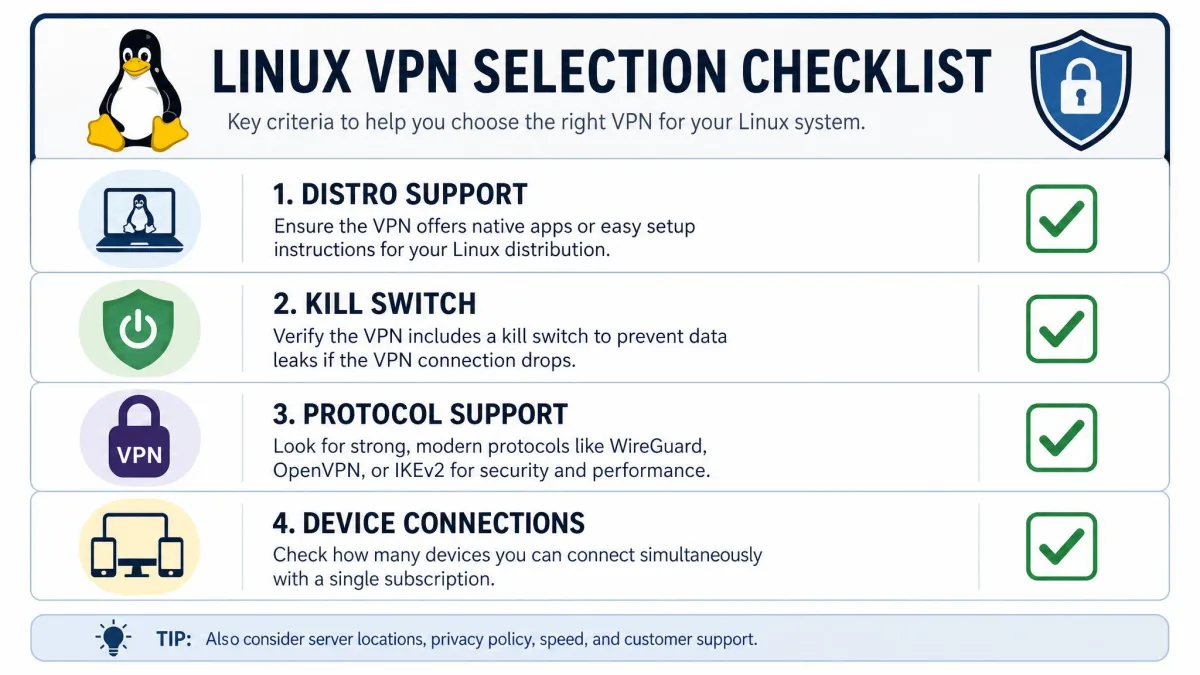
How to choose the right Linux VPN
Start with the interface, because it shapes your daily experience more than any spec. Decide whether you want a GUI, a CLI, or both, then shortlist only the services that deliver it well on Linux. From there, weigh the criteria that separate a good pick from a frustrating one.
- Confirm native support for your exact distro and package format, not just "Linux" in general.
- Check that the kill switch works in the package you plan to install, since some builds, like Surfshark's Flatpak, disable it.
- Prefer WireGuard or a WireGuard-based protocol for speed, with OpenVPN as a fallback.
- Match the device count to your setup, whether that is one laptop or a house full of machines, phones, and a browser or two.
- Use the money-back guarantee as a real trial, and run a leak test on your own connection before the window closes.
Frequently asked questions
Does Linux have a built-in VPN?
Which VPN is best for Ubuntu, Debian, or Fedora specifically?
Is a CLI VPN harder to use than a GUI one?
nordvpn connect instead of clicking a button, and after a day or two the commands become muscle memory. A CLI is also easier to script and automate, which is why many Linux users end up preferring it. If you would rather never open a terminal, choose a service with a full GUI such as Surfshark or PIA.How do I set up a VPN on Linux with OpenVPN or WireGuard manually?
openvpn or wireguard-tools, from your distro's repository, then add your provider's config file. For OpenVPN, run sudo openvpn --config yourfile.ovpn. For WireGuard, place the config in /etc/wireguard/ and run sudo wg-quick up wg0. Most people never need this, because the provider's own app handles both protocols automatically.Do I really need a VPN on Linux if I already use Linux for privacy?
Conclusion: our top pick for Linux
After weeks across five distros, NordVPN was the service we kept coming back to. It was the fastest and steadiest in our tests, its kill switch never let us down, and it installed cleanly on more distributions than anything else here. The command-line focus asks a little more of you up front, but on Linux that is a fair trade for a tool this reliable.