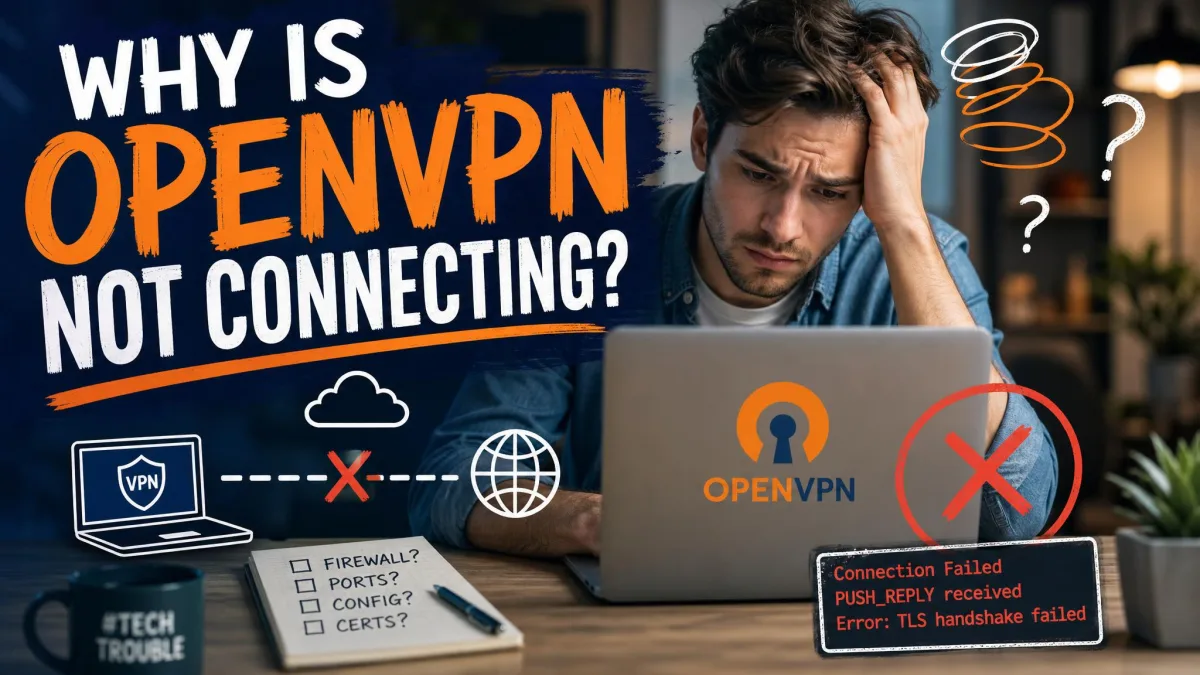
Urban VPN fails in a handful of familiar ways. You see a "connection error", a prompt asking you to retry the connection, "Connecting to {Country} has failed", or a registration error before the tunnel ever comes up.
Most of these failures come from an overloaded free location, another VPN or proxy fighting for the connection, or a firewall blocking the app. Your device is rarely the problem. Start with the quick fixes, move on to the fix for your specific error, and treat switching services as the last step.
If you only try one thing, pick a different location that sits close to you geographically. A stuck connection is usually tied to one crowded location rather than the whole service.
Why Urban VPN Won't Connect
The most common cause is simple congestion. Free locations have a per-location user cap, and at peak hours the busy ones show slow loading, failed handshakes, random disconnects and timeouts.
The other causes are easier to control:
- Conflicting software. A second VPN app, a system proxy or another VPN browser extension can leave Urban VPN hanging on "connecting".
- Firewall or antivirus blocks. Security software can stop the app from reaching Urban's servers or building the tunnel.
- An outdated build. Old versions carry bugs that a current download has already fixed.
- Blocked shared IPs. Streaming services, banks and Cloudflare-protected sites often block shared free IPs, so the VPN connects but specific sites fail.
- Local network or ISP limits. Some networks block VPN traffic outright.
- DNS problems. These produce the "connected but no internet" symptom.
Speed and stability also change from session to session. Urban VPN's glossary says the service is not peer-to-peer, while Security.org describes free traffic as exiting through other users' devices. Either way, results depend on where your session lands.

Quick Fixes to Try First
Each of these takes under a minute:
- Pick a different location, starting with a nearby country.
- If the connection just dropped, wait a few seconds. The auto-reconnect feature often restores it without any action.
- Quit Urban VPN completely and open it again.
- Turn off any other VPN, proxy or VPN extension.
- Switch from Wi-Fi to mobile data, or the reverse, to rule out your network.
If none of those work, go to the section for the error you see.
How to Fix the Urban VPN Registration Error
A registration error means the app failed to register with Urban's servers when it tried to make first contact. Urban VPN doesn't document this error on its support pages, so the exact wording and the moment it appears can differ between app versions and platforms.
It usually comes from an unstable connection, overloaded or unreachable Urban servers, an outdated build, another VPN or proxy in the way, or a firewall blocking that first request. In our experience, a registration error in Urban VPN clears with the same sequence you'd use for connection errors. Work through these steps in order:
- Close every other VPN or proxy app, including VPN browser extensions.
- Restart your computer or phone.
- Check your connection by switching from Wi-Fi to mobile data or a phone hotspot.
- Open Urban VPN again and choose a different server location.
- Update the app. If that doesn't help, uninstall it and install the latest build. On Windows, right-click the installer and choose "Run as administrator".
- On Windows, allow Urban VPN through the firewall on both Private and Public networks, using the firewall steps below.
- If the error survives all of that, contact Urban VPN support.

How to Fix Urban VPN "Connection Error" and "Could Not Connect"
When Urban VPN could not connect to a location, the fixes below run from fastest to most involved. Stop as soon as one works.
Switch to a Less Busy Server Location
- Open the location list.
- Pick a nearby country first, then work outward.
- If a location has vanished from the list, wait a few minutes and check again.
Why this works: switching locations is the fix that most often gets a stuck connection through in our testing. Nearby locations tend to connect more reliably than distant ones, and crowded free locations get worse at peak hours. On the free tier, a full location can drop off the list entirely and usually comes back once users leave.
Quit and Relaunch the App, Then Restart Your Device
- Close Urban VPN fully. On Windows, check the system tray. On a Mac, check the menu bar.
- Reopen it and try to connect.
- If it still fails, restart the device and try once more.
Why this works: a restart clears a hung process and resets the network stack.
Check Your Internet Connection or Try Another Network
- Turn the VPN off and load a few websites.
- On Windows, run the Windows network troubleshooter, which Windows 11 includes as the Network and Internet troubleshooter in the Get Help app.
- On a Mac, run Apple's Wireless Diagnostics tool.
- Restart your router, then try again.
- Connect through a phone hotspot or USB tethering.
Why this works: if your normal connection fails, no VPN will connect. Some ISPs and workplace networks also block VPN traffic outright, and a hotspot test shows quickly whether the local network is the problem.
Turn Off Other VPNs, Proxies and Browser Extensions
- Disconnect or quit every other VPN app on the device.
- Turn off any manual proxy in your system network settings.
- Disable VPN and proxy extensions at chrome://extensions/ in Chrome, about:addons in Firefox or edge://extensions/ in Edge.
Why this works: two VPN or proxy tools running at once is a common reason Urban VPN hangs on connecting. Disabling the other one usually clears it immediately.
Allow Urban VPN Through Your Firewall and Antivirus
- On Windows, open Windows Security, then Firewall & network protection, then Allow an app through firewall.
- Add Urban VPN if it's missing and tick both Private and Public.
- In third-party antivirus, add Urban VPN to the exceptions or allowed apps list.
Why this works: an exception lets the tunnel through while the rest of your protection keeps running.
Don't switch your firewall off to test this. Add an exception for Urban VPN instead, so the rest of your system stays protected while you troubleshoot.
Flush DNS and Reset Network Settings
- Open Command Prompt as administrator.
- Run these in order: netsh winsock reset, netsh int ip reset, ipconfig /release, ipconfig /renew and ipconfig /flushdns.
- Restart the PC.
- If that fails on Windows 11, open Settings, then Network & internet, then Advanced network settings, then Network reset.
Why this works: these commands clear stale DNS records and rebuild the network stack. Network reset is the heavier option. It removes and reinstalls your network adapters, so you may need to reinstall Urban VPN afterward.
Update or Reinstall Urban VPN
- Check for an update from the app or download the latest version from Urban VPN.
- If updating doesn't help, uninstall the app first.
- Download a fresh installer, right-click it and choose "Run as administrator".
Why this works: a clean reinstall clears leftover cache and settings that a plain update leaves behind. Running the installer as administrator also gets past setups that stop partway through on accounts without admin rights.

Urban VPN Error Messages and What They Mean
The strings below come from Urban VPN's own troubleshooting page, plus the most common symptom that has no message at all.
| Message | Likely cause | Fix |
|---|---|---|
| "Connecting to {Country} has failed" | No working internet connection, or another VPN or proxy in the way | Check your connection, then disable other VPN or proxy apps |
| "Connection to {Country} was Terminated" | The session dropped mid-connection | Wait a few seconds for auto-reconnect, then pick another location |
| "Urban VPN connection failed" | Internet down, or a conflicting VPN or proxy | Confirm you're online and disable conflicting apps |
| "UrbanVPN setup ended prematurely" | Windows installer running without admin rights | Right-click the installer and choose "Run as administrator" |
| "The downloaded update size does not match the size specified in updates configuration file" | An update download went wrong | Close Urban VPN completely and restart it |
| "Urban VPN connection error" | Extension blocked by weak internet or another proxy extension | Check your connection and disable other VPN or proxy extensions |
| "Urban vpn is connecting but not working" | Extension stuck on a busy location or fighting another extension | Switch locations and disable competing extensions |
| Connects, but websites won't load | DNS trouble or a blocked shared IP | Flush DNS, then try another location |
Is Urban VPN Down Right Now?
Urban VPN doesn't publish an official status page, and we didn't find a major outage tracker that follows it. That makes a quick process-of-elimination test the most reliable check.
Turn the VPN off and confirm websites load. Then try three or four locations in different regions, on two different networks. If every location fails everywhere while your normal connection works fine, the problem is almost certainly on Urban's side. There's no user-side fix for a server outage, so your only options are waiting it out or switching services.
Urban VPN Browser Extension Not Connecting
The extension shares the browser with every other add-on you've installed, and any proxy or VPN extension can take over the connection first.
- Open your browser's extension page and disable every other VPN or proxy extension.
- Switch to a different location inside the extension.
- Close and reopen the browser.
- If a single site refuses to load while others work, that site is probably blocking the shared IP. Try another location or visit it without the VPN.

Urban VPN Can't Connect on Android or iPhone
Phones add two extra variables: the carrier network and the operating system's own VPN handling.
On Android's free version, a missing location isn't a bug. Urban VPN's troubleshooting page says it means that location has reached its maximum user limit, and it usually reappears after a few minutes. Premium users who see this should relaunch the app and contact support if it continues.
On iPhone, Apple notes that other VPNs and third-party security software can cause connectivity problems, so remove any second VPN profile first. If connections still fail, open Settings, then General, then Transfer or Reset iPhone, then Reset, then Reset Network Settings. This clears saved Wi-Fi passwords, cellular settings and VPN settings, so expect to add Urban VPN's configuration again the next time you open the app.

When to Stop Troubleshooting and Switch VPNs
If you've worked through every fix and the connection still fails most days, the problem is the service, not your setup. The free app also gives you very few controls, with no protocol or DNS options to change, which limits how much you can fix from inside it.
Trustpilot's community rates Urban VPN 1.7 out of 5 across 65 reviews, with recurring complaints about mid-session disconnects and unavailable locations. Our Urban VPN review flags the same frequent disconnects.
It's also worth reading up on whether Urban VPN is safe to use before you keep troubleshooting. TechRadar reported that the Urban VPN Proxy Chrome extension was capturing users' AI chat conversations. That extension had 6 million Chrome users at the time. The capture arrived in version 5.5.0 as a silent update, enabled by default, and the same issue affected more than 8 million installs across four extensions from the same publisher. The extensions were removed from the Chrome Web Store in December 2025, though Urban VPN Proxy is currently listed there again. Check the privacy policy of any free VPN before you install it.
If you want a replacement, start with our list of free VPNs that connect reliably. Proton VPN is the one we'd try first, and our Proton VPN review covers what its free plan includes.

Urban VPN Not Connecting: FAQ
Does a registration error mean my Urban VPN account is banned?
Why does Urban VPN keep disconnecting?
Why does Urban VPN connect but no websites load?
Why is Urban VPN unable to connect on Windows?
What should I do if Urban VPN cannot connect on mobile data?
Is Urban VPN safe to use?
Bottom Line
Urban VPN connection problems are usually fixable in a few minutes. Switch to a nearby location, close competing VPNs and extensions, and allow the app through your firewall. The registration error responds to the same steps plus a clean reinstall.
If those fixes stop working within days, stop troubleshooting. A free VPN that needs constant attention to connect isn't saving you anything, and a more reliable free service is the better fix.