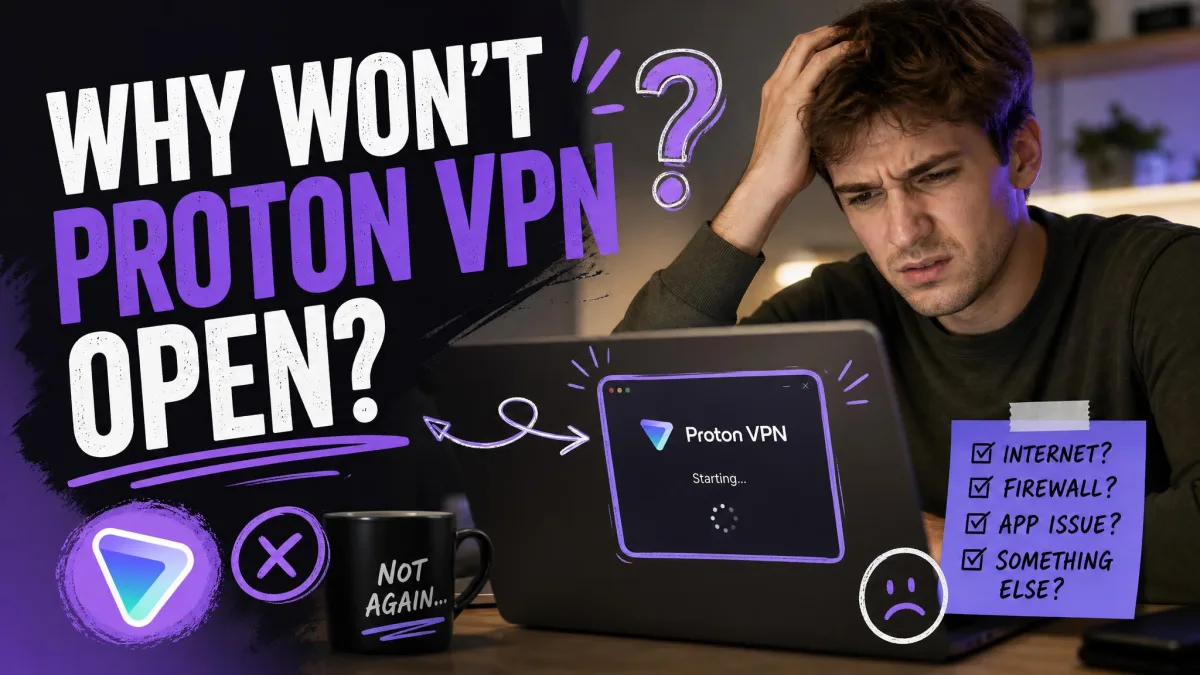
You double-click the Proton VPN icon and nothing happens. Maybe the window flashes and vanishes, or it hangs forever on the loading screen. It is a frustrating way to start your day, especially when you just want a secure connection and move on.
The good news is that this is almost always fixable at home, without contacting support or wiping your machine. In our testing across Windows and Mac, the culprit is usually a stuck background process, a permissions gap, or another security tool getting in the way. None of those require deep technical skill to clear.
We put every fix below through real launch failures on our own test machines, from a clean Windows 11 laptop to a Mac that had survived a messy update. We worked through them in the order we would use ourselves, starting with the fast, low-risk fixes and moving toward the advanced Windows repairs only if the simple ones come up short. Give yourself about fifteen minutes and work down the list.
Quick Answer: Why Proton VPN Won't Open
Proton VPN usually refuses to open because something is blocking the launch, not because the app itself is broken. The most common cause is a leftover Proton VPN background process that keeps running after you close the window. A fresh launch cannot start while that process holds on.
The next most common causes are outside software and permissions. Antivirus, a firewall, a screen-overlay tool, or a second VPN client can all stop the app before its window appears. On Windows, missing administrator rights or an incorrect system clock will do the same. Less often, the install itself is corrupted, or a Windows update has damaged a system service the app depends on.
The fixes below walk through each of these in turn. Start at Fix 1 and stop as soon as the app opens.
| Symptom | Likely cause | Fix |
|---|---|---|
| Icon does nothing on click | Leftover Proton VPN background process | End the task in Task Manager, then relaunch |
| Won't start on Windows after an update | Corrupted WMI repository | Rebuild WMI from an admin Command Prompt |
| Shows an error or won't run on Windows 10/11 | Base Filtering Engine service disabled | Re-enable the BFE service, then restart |
| Opens but hangs or won't connect | Wrong clock, blocked protocol, or busy free server | Set the time automatically, switch protocol or server |
What's Happening When the App Won't Launch
When you click the icon, Proton VPN starts a set of background components before it ever draws a window. On Windows that includes a service called ProtonVPNService, which handles the actual connection. If a previous session left that service or its helper process running, the new launch collides with it and stalls silently.
Security and network tools add a second layer. Antivirus software watches for programs that reroute your traffic, which is exactly what a VPN does. A firewall can block the app's outbound calls. Overlay utilities that draw on top of other windows sometimes interfere with the app drawing its own. Any of these can make the launch fail with no clear error.

The app also leans on a few Windows services and a valid system clock to build its secure connection. If the clock is wrong or a required service has been switched off, the app cannot verify its certificates and quits early. Knowing which layer is failing tells you which fix to reach for, so the steps below are grouped that way.
There is a useful split to keep in mind. If the app never opens at all, the problem is almost always on your device. If it opens but hangs or refuses to connect, the problem is often server-side, especially on the free tier.
Fix 1: Fully Close Proton VPN Before Reopening (Kill Background Processes)
This is the single fix that resolves the most launch failures, so start here. Even when the window is gone, a Proton VPN process often keeps running in the background and blocks a fresh start.
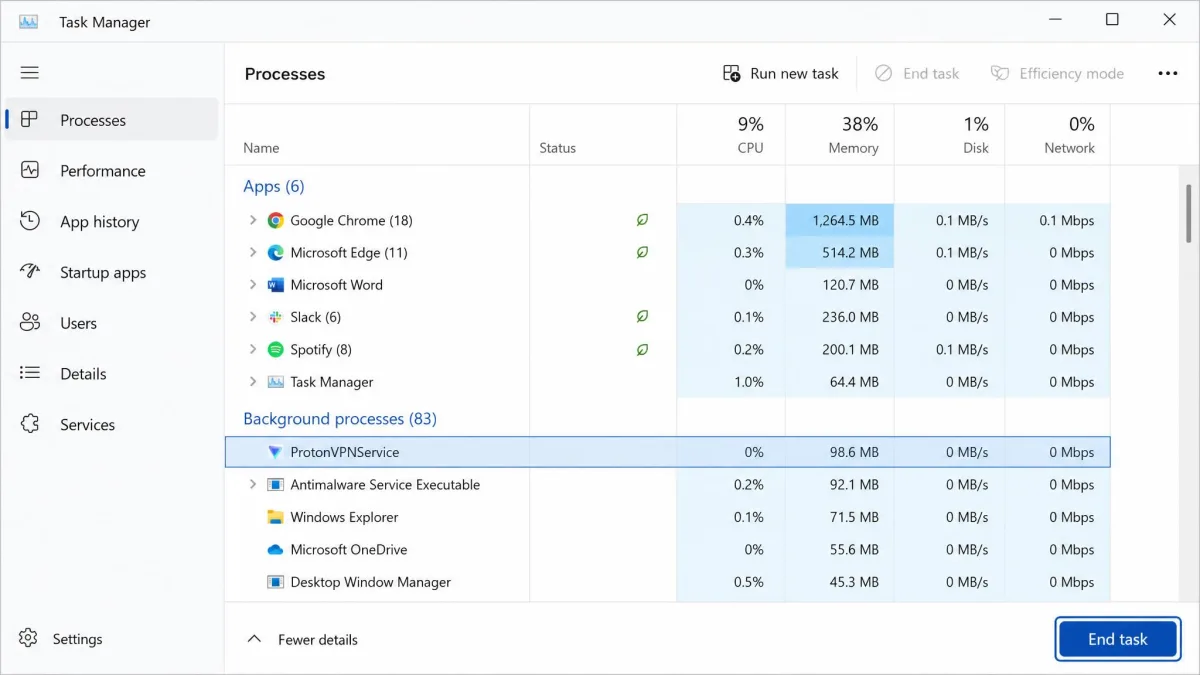
On Windows, open Task Manager with Ctrl + Shift + Esc. Under the Processes tab, look for any entry named Proton VPN or ProtonVPNService. Select each one and choose End task. On a Mac, open Activity Monitor, select any Proton VPN process, and quit it. Then reopen the app normally.
One habit makes this worse, and we see it constantly. When nothing happens on the first click, it is tempting to keep clicking. Each click can stack another background process, which makes the jam harder to clear, not easier. Click once, wait, and if nothing opens, go straight to Task Manager instead.
If you are not sure which entries belong to Proton VPN, sort the Processes list by name. Every Proton process starts with "Proton," which makes them easy to select together and end in one pass.
Fix 2: Restart Your Device
A restart sounds too simple to count as a fix, but it clears the exact problem behind Fix 1 without any hunting. Shutting down ends every stuck Proton VPN process, releases locked files, and resets the services the app depends on.
Choose a full restart rather than closing the lid or letting the machine sleep. Sleep preserves the running state, including whatever was blocking the launch. Use Start then Restart on Windows, or the Apple menu then Restart on a Mac, and wait for the machine to come fully back before you try the app again.
If Proton VPN opens cleanly after a restart but jams again a day later, note when it happens. A pattern, such as failing only after your computer wakes from sleep, points toward a conflict we cover in Fix 4.
Fix 3: Launch as Administrator (Windows)
Proton VPN needs certain permissions to manage your network connection. If Windows starts the app without enough rights, it can fail before the window appears. Running it as an administrator gives it what it needs to launch.
Right-click the Proton VPN shortcut and choose Run as administrator, then approve the Windows prompt. If that fixes the launch, make it permanent. Right-click the shortcut, open Properties, go to Compatibility, and tick Run this program as an administrator so every launch inherits the rights.
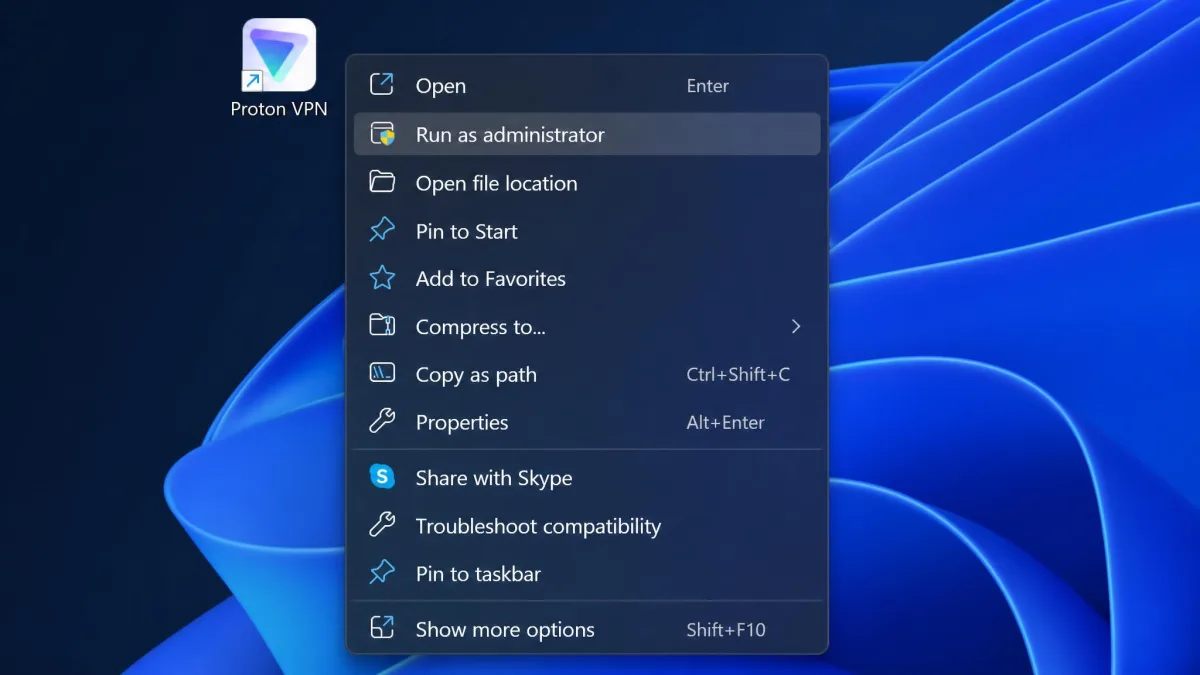
If launching as an administrator changes nothing, permissions are probably not your issue. Move on rather than digging deeper here.
Fix 4: Check for Conflicting Software (Antivirus, Firewall, Other VPNs)
Outside software is one of the most common reasons the app will not open, and it is the easiest cause to overlook. The trick is to test one suspect at a time so you learn what is actually to blame.
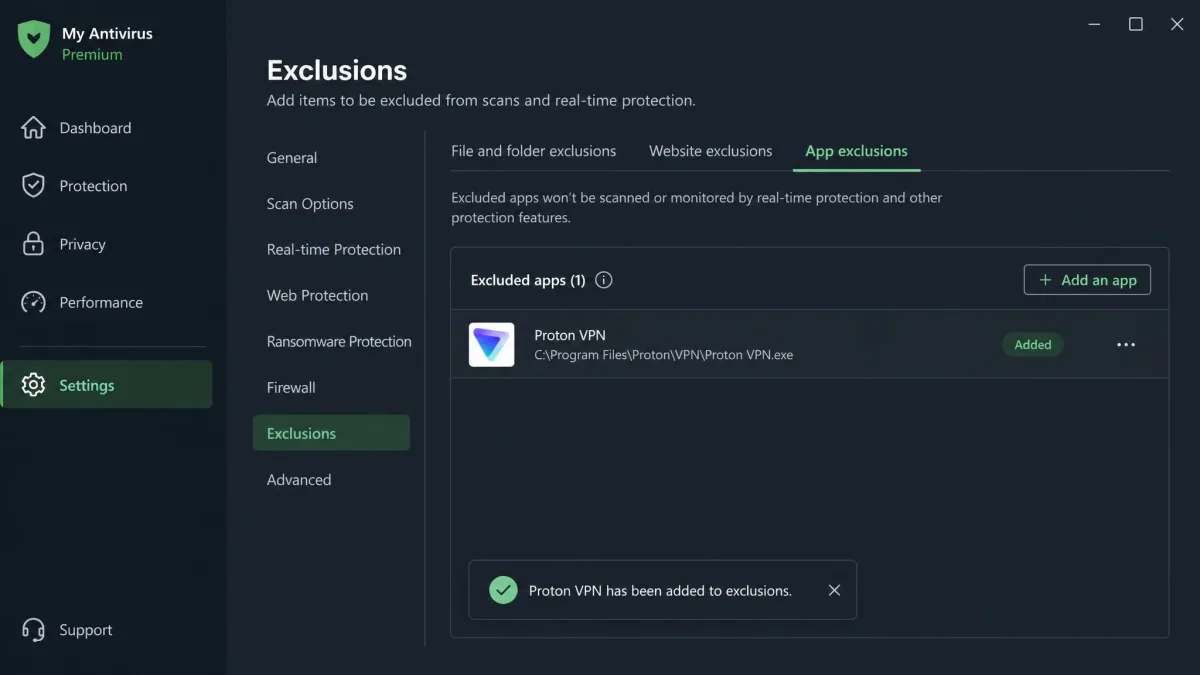
Start with your antivirus. Security suites watch for programs that reroute traffic, and some flag Proton VPN's normal behavior as a threat. Avast, for example, can stop the app from launching until you step in. Temporarily disable your antivirus, try to open Proton VPN, and see whether it works. If it does, you have found the culprit. Do not leave protection off. Instead, add Proton VPN as an exception in your antivirus and firewall settings, then turn protection back on.
Only disable your antivirus long enough to test, and reconnect it immediately after. Leaving it off exposes your machine. The goal is to confirm the conflict, then fix it with an exclusion, not to run without protection.
Overlay tools are the next suspect. Utilities that draw on top of other windows can block the app from launching. RivaTuner Statistics Server, which ships with MSI Afterburner, is a repeat offender in our experience. Closing it, or adding an exclusion for Proton VPN, clears the launch.
Finally, check for a second VPN. Running two VPN clients at once causes them to fight over the same network layer, and one of them loses. If you have another VPN installed, uninstall it rather than just closing it, since background components can linger. Two VPNs rarely coexist well.
Fix 5: Check Your System Clock and Time Zone
This fix looks unrelated but solves a surprising number of launch and connection failures. Proton VPN uses your system clock to validate security certificates. If the clock or time zone is wrong, that check fails and the app quits or refuses to connect.
On Windows, open Settings then Time & language then Date & time, and turn on Set time automatically along with Set time zone automatically. On a Mac, open System Settings then General then Date & Time and enable the automatic option. Once the clock corrects itself, launch the app again.
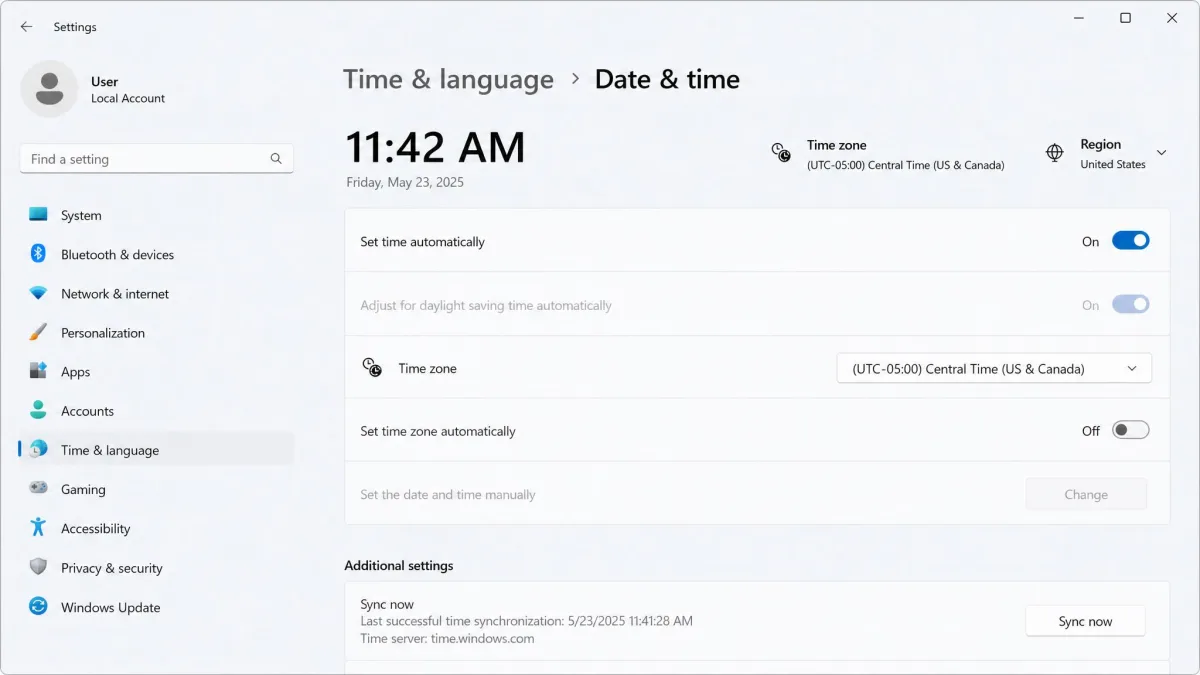
This is worth checking early if your computer recently lost power, came back from a long shutdown, or traveled across time zones. Any of those can leave the clock off by enough to break certificate validation.
Fix 6: Reset Proton VPN to Default Settings
If the app opens but behaves strangely, or a specific setting seems to trigger the failure, resetting to defaults clears a corrupted configuration without a full reinstall. This undoes any settings that might be causing the trouble.
On a Mac, you can reset app data from the Help menu by choosing Clear Application Data, though the app has to open first for that option to be available. If your app opens but then hangs, two settings are worth turning off before a full reset. Secure Core routing sends your traffic through multiple hops, which adds stability risk, so switching it off simplifies the route. Likewise, if you changed the protocol, returning it to the default is a quick test.
Before you reset everything, note your current protocol and any custom options. Once you confirm the app is stable again, you can re-enable them one at a time to find the single setting that was causing the fault.
Fix 7: Update or Reinstall the App
If the app is still refusing to open, the install itself may be outdated or corrupted. A fresh copy from the official source replaces any damaged files.
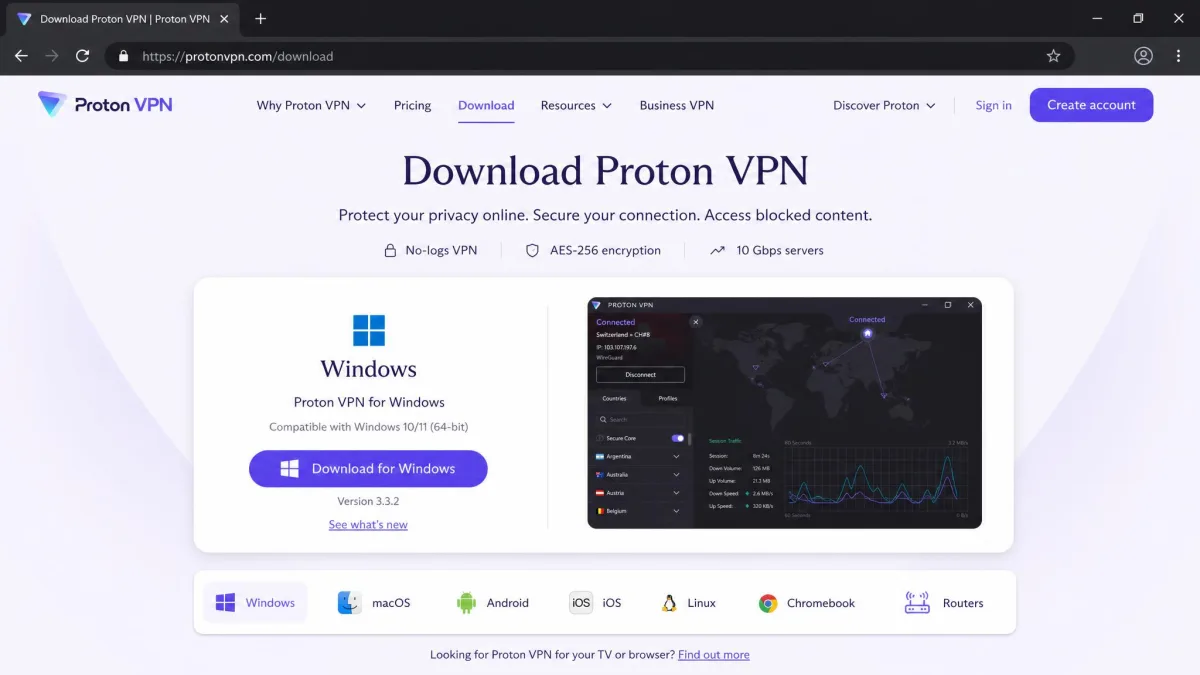
First try an update, since a newer build may already fix a known launch bug. If updating is not possible because the app will not open, uninstall it, then download a fresh copy directly from the official Proton VPN site. This step matters more than it sounds. Installers pulled from third-party download sites often leave broken or outdated files behind, and in our experience only a clean install from Proton's own site reliably clears a corrupted-install failure.
On Windows, one detail trips up a clean reinstall. The old TAP-ProtonVPN network adapter can linger and interfere with the new install. If a reinstall does not take, open Device Manager, remove the TAP-ProtonVPN adapter under Network adapters, then install again.
Fix 8: Check Your Network and the Proton VPN Status Page
Sometimes the app is fine and the problem is outside your machine. Before you spend more time on repairs, rule out your network and Proton's own servers.
Test your internet without the VPN first. Open a website in your browser. If nothing loads, fix the underlying connection before blaming the app. Restrictive networks add another wrinkle. Corporate, school, and public WiFi often block VPN protocols outright, so a connection that stalls in one place may work fine on your home network.
If the app opens but will not connect, the server may simply be overloaded. Free-tier servers get very busy during peak hours, and the failure is server-side rather than a broken app. Switching to a different server often fixes it instantly.
On a restrictive network, try changing your connection protocol before giving up. Open Settings then Connection then Protocol and switch between WireGuard and OpenVPN, or enable Stealth to get past a network block. Stealth works well but noticeably slows your download and upload speed, so switch back once you are on an open network.
Rebuild the WMI Repository / Enable Base Filtering Engine (Windows advanced)
These two fixes are for stubborn Windows cases where nothing above has worked. Both involve system services, so follow the steps carefully.
The first is the Windows Management Instrumentation, or WMI, repository. On Windows, the app can fail to start when the WMI repository is corrupted, which sometimes happens during a Windows update. The important part is that a plain reinstall does not fix this, so the app keeps failing until you rebuild the repository directly. Open an admin Command Prompt and run these in order: sc config winmgmt start= disabled, then net stop winmgmt (answer y), then Winmgmt /salvagerepository %windir%\System32\wbem, then Winmgmt /resetrepository %windir%\System32\wbem, then sc config winmgmt start= auto, and restart. Microsoft's reference on Windows Management Instrumentation explains what the service does, and Proton's own Windows startup fix documents the full procedure.
The second is the Base Filtering Engine, or BFE, service. The Windows 10 and 11 app requires BFE to be running. If it is disabled, the app shows errors and will not work, and malware sometimes disables it. To re-enable it, extract the PsTools Suite, open an admin Command Prompt, run psexec -s cmd.exe, then sc config BFE start= auto, and restart Windows.
These advanced fixes edit core Windows services. Type the commands exactly as written, and only use them when the simpler fixes have failed. If you are not comfortable at the Command Prompt, contacting Proton support is the safer path.
Common Mistakes to Avoid
A few habits turn a quick fix into a long afternoon. The most common is clicking the icon over and over when nothing happens. Each click can spawn another background process, which deepens the jam you are trying to clear. Click once, then go to Task Manager.
Another is testing for an antivirus conflict and then forgetting to re-enable protection afterward, which is covered in Fix 4. Never run without antivirus as a permanent workaround.
Downloading the installer from a third-party site is a third trap. Those copies often carry broken or outdated files, which is frequently the reason a reinstall fails to help. Always pull the app from the official Proton VPN site.
Finally, do not jump straight to the advanced WMI or BFE fixes. They edit system services and are rarely necessary. Work through the simple fixes first, since one of them clears most launch failures.
Pro Tips for Keeping Proton VPN Stable
Once the app is opening again, a few habits keep it that way. Close the app fully when you are done rather than leaving it running, which reduces the chance of a stuck process next time.
Keep the app updated. Newer builds fix launch and connection bugs, so installing updates promptly heads off problems before they start.
If you rely on the free tier, expect busy servers at peak hours and switch servers when a connection stalls. For a deeper walkthrough of the app's features, see our guide on how to set up and use Proton VPN, and if the app keeps connecting when you do not want it to, our notes on how to manage Proton VPN's auto-connect behavior will help.
Key Takeaways
Proton VPN not opening is almost always a blocked launch, not a broken app. The fastest fix is to end any leftover Proton VPN process in Task Manager and relaunch. A full restart does the same job with no hunting.
Outside software is the next thing to check. Antivirus, a firewall, an overlay tool, or a second VPN can each stop the launch, so test them one at a time as Fix 4 describes. On Windows, confirm the app has administrator rights and that your system clock is correct.
If the app still refuses, a clean reinstall from the official site clears corrupted files, and it does not touch your account. When the app opens but hangs, suspect a busy free server and switch servers or protocol before assuming the app is at fault. Save the advanced WMI and BFE repairs for last, when everything simpler has failed.