
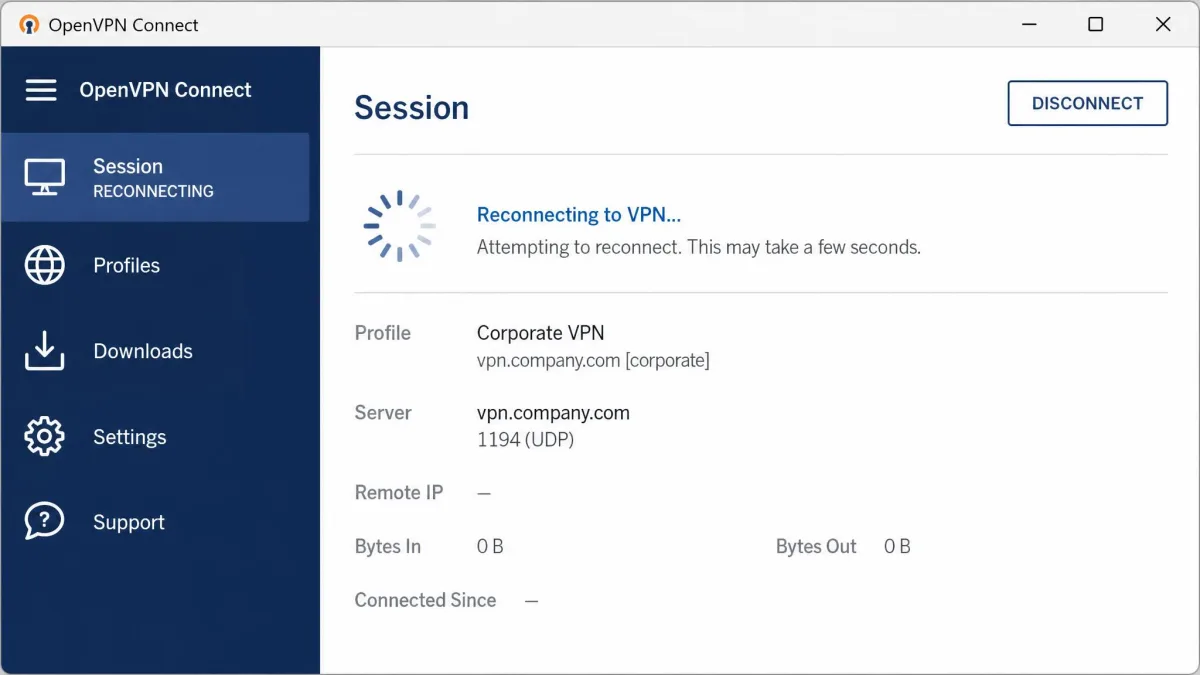
If OpenVPN will not connect, the client usually gives you a vague spinner and a log full of jargon. The good news is that most failures fall into a handful of known categories: a blocked port, a bad credential, an expired certificate, a routing gap, or a Windows driver problem.
We work through these failures constantly on our own test machines, so this guide is ordered the way we actually diagnose a dead tunnel. Start at the top with the quick checks, read the log to find the real error, then jump to the matching fix.
Every step here maps to a specific symptom or error string. You do not need to try all nine. Read the log first, match the message, and go straight to the section that names it.
Quick checks before you troubleshoot (internet, server reachable, correct profile)
Before you read a single log line, rule out the boring causes. These take two minutes and account for a surprising share of the tickets we see.
First, confirm your device has plain internet without the VPN. Open a website normally. If nothing loads, fix your connection before you blame OpenVPN.
Second, confirm the server is reachable. Ping the server address or hostname from your device. If the ping fails, the server is down, the address is wrong, or something upstream is blocking it.
Third, confirm you are using the correct, current profile. If you connect to work, check that you imported the right .ovpn file and picked the correct server entry in the client.
A connection that worked yesterday and fails today is often a changed server WAN IP, not a client fault. If your setup uses a dynamic public address, re-download a fresh profile or confirm the new IP before you troubleshoot anything on your own device.
If all three quick checks pass and OpenVPN still will not connect, the log will tell you why.
How to read OpenVPN logs to find the real error
The client status screen rarely names the actual problem. The log does. Nearly every fix below starts with one line from this file, so learn to find and read it.
Where the log files live (Windows, macOS, Access Server)
On Windows, OpenVPN Connect v3 writes its log to %AppData%\OpenVPN Connect\log\openvpn.log. Paste that path into the File Explorer address bar to open the folder.
On macOS, OpenVPN Connect v3 writes to ~/Library/Application Support/OpenVPN Connect/log/ovpn.log. Use Finder's Go to Folder command to reach it.
For Access Server, the server-side logs live in the admin machine's log directory, and the Admin Web UI exposes recent connection events. Check the server log when several users fail at once, since that points to a server problem rather than a client one.
| OS (Connect v3) | Log path |
|---|---|
| Windows | %AppData%\OpenVPN Connect\log\openvpn.log |
| macOS | ~/Library/Application Support/OpenVPN Connect/log/ovpn.log |
Community OpenVPN GUI (the non-Connect build) logs to your per-user directory at C:\Users\<username>\OpenVPN\log, with one .log file per config. That is distinct from the service log path under \Program Files\OpenVPN\log, so make sure you are reading the log for the client you actually launched.
What ERROR: and TLS: lines mean
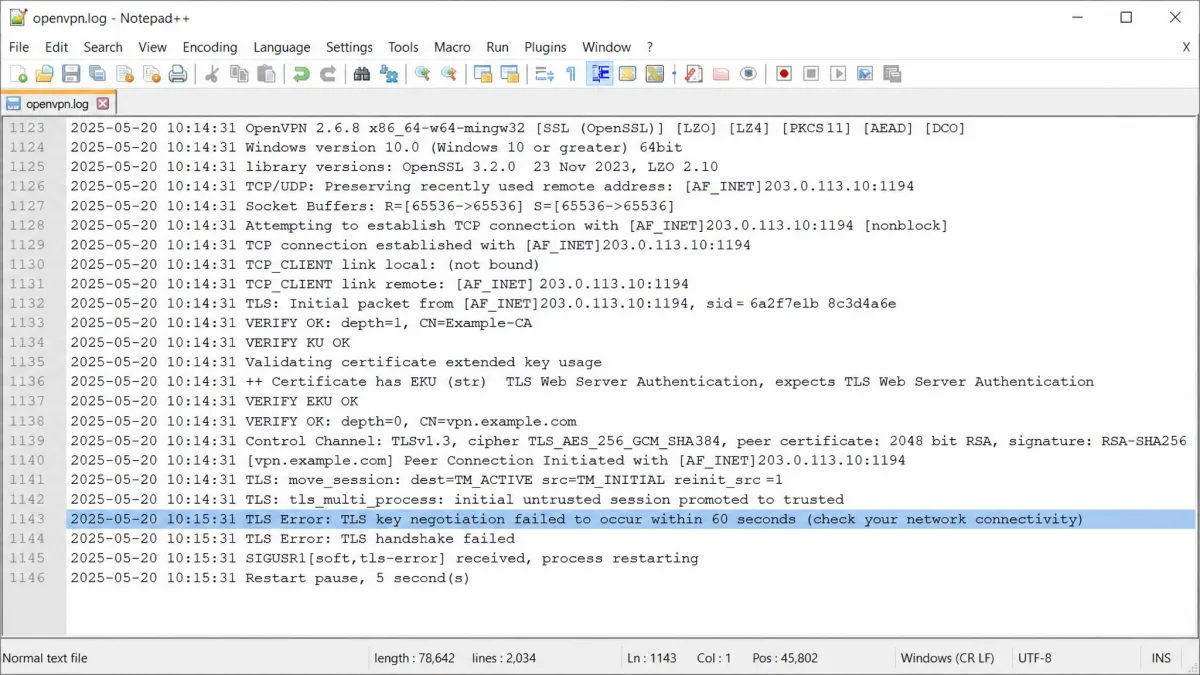
Scroll to the bottom of the log and read upward from the last connection attempt. Lines beginning with ERROR: name a hard failure. Lines beginning with TLS: describe the handshake, which is where blocked ports and bad certificates surface.
The important detail is that the log records the last thing that worked before it stopped. If the log gets as far as the TLS handshake, your ports are open and the problem is authentication or certificates. If it never reaches the handshake, the traffic is being blocked before it arrives.
Copy the exact error string out of the log and search it. OpenVPN's messages are specific enough that the wording maps directly to a cause.
Fix: TLS key negotiation failed / handshake errors
The full message reads: TLS Error: TLS key negotiation failed to occur within 60 seconds (check your network connectivity). Despite the wording, this is rarely a general connectivity problem.
In our experience the timeout is almost always silent about the real cause. The client keeps retrying and only gives up after a full 60 seconds, so a blocked port looks identical to a wrong server address in the log.
The most common cause is that the two OpenVPN daemons never establish their underlying TCP or UDP connection, usually because a firewall or router is blocking the port, or the CA certificate does not match between client and server.
Work through it in this order. Confirm the server address and port are correct. Confirm the port is open (see the firewall section below). Then confirm the client and server share the same CA certificate by re-importing a fresh profile.
Fix: AUTH_FAILED and authentication / session errors
If the log shows AUTH: Received control message: AUTH_FAILED, the handshake succeeded and the server rejected your session. That is actually good news, because it means your ports and certificates are fine.
The obvious cause is a wrong or changed password, or a mistyped or expired two-factor code. Retype both carefully and generate a fresh OTP if you use one.
The less obvious causes trip people up. We regularly see AUTH_FAILED appear even when the username and password are correct, because the server hit its maximum concurrent-session limit or the profile carries an auth-nocache directive with no stored session token. Disconnect an old session, or re-import the profile, and try again.
If two-factor is enabled, your password field may need to combine your password and the current code in one string, depending on how the server is configured. Check with your administrator before you assume the credentials are wrong.
Fix: certificate and SSL verification errors
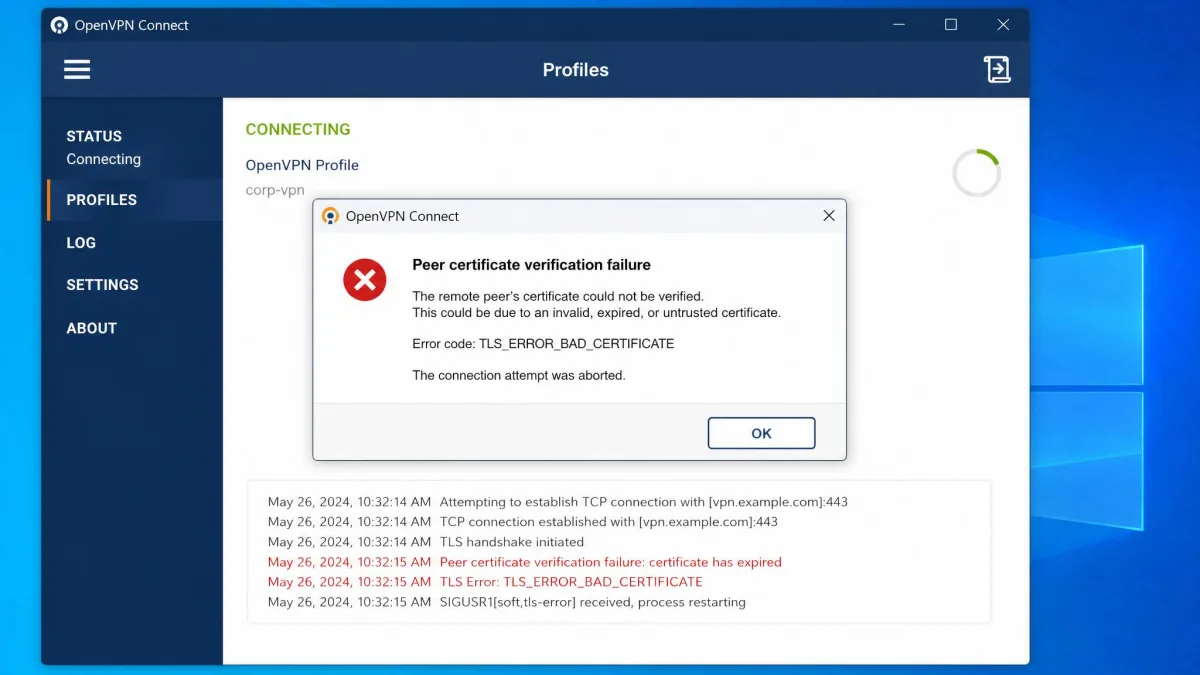
Certificate problems surface as Peer certificate verification failure. OpenVPN validates three certificates during the handshake: the CA, the client, and the server. If any one of them is expired or invalid, the whole handshake fails.
There is no client-side workaround for an expired certificate. The only path back online is to regenerate valid CA, server, and client certificates on the server, then download a fresh .ovpn connection profile that carries them.
One cause is easy to miss. Clock drift between your device and the server can make a valid certificate look expired, so an unsynchronized system time silently breaks the handshake. Set your device clock to sync automatically and reconnect.
Do not disable certificate verification to force a connection through. Turning off peer verification defeats the protection OpenVPN exists to provide and exposes the tunnel to interception. Fix the certificate or the clock instead.
Fix: ports and firewall blocking the connection (443 / 943 / 1194)
If the log never reaches the TLS handshake, a firewall or router is almost certainly blocking the port. This is the most common single cause of a dead tunnel on a new network.
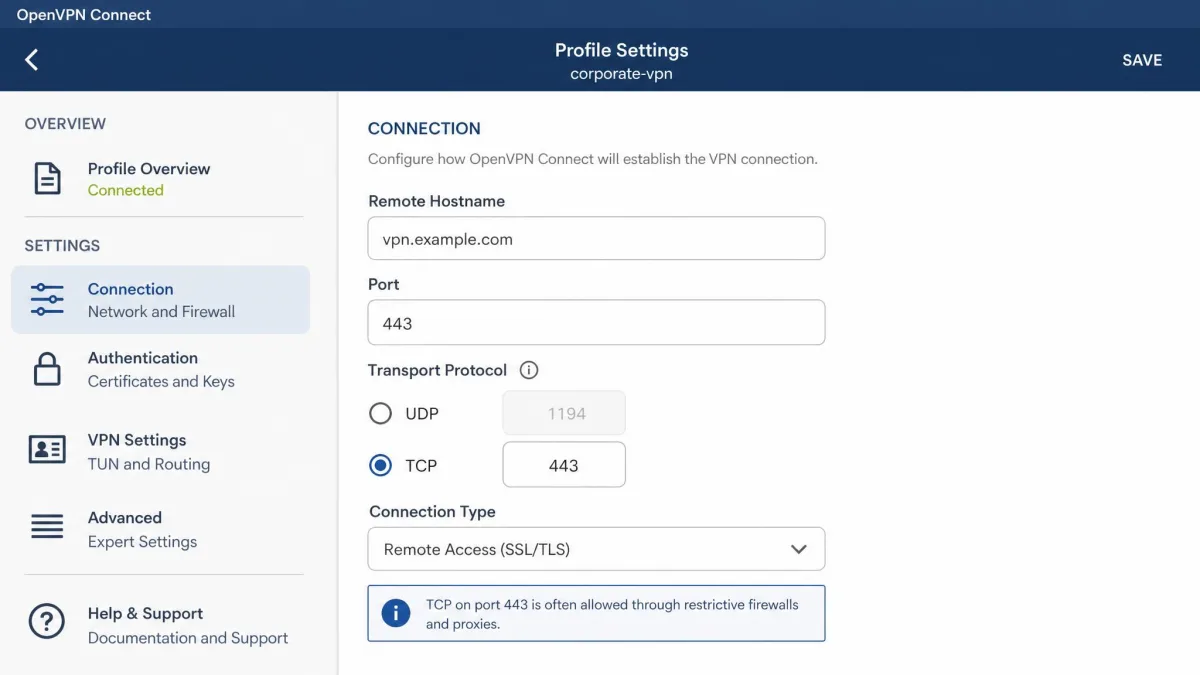
OpenVPN's default UDP data port is 1194. Access Server's TCP daemon defaults to 443, the standard HTTPS port, chosen because simple firewalls usually let it through. The Access Server Admin and Client Web UIs run on TCP 943 by default.
Confirm the port your server actually uses, then make sure it is open outbound on your local firewall and any router between you and the server. On a restrictive network, switching from UDP 1194 to TCP 443 often gets you through, because most networks allow HTTPS traffic.
| Port | Transport | Purpose |
|---|---|---|
| 1194 | UDP | Default OpenVPN tunnel (best performance) |
| 443 | TCP | Fallback tunnel; passes simple firewalls (HTTPS port) |
| 943 | TCP | Access Server Admin (/admin) and Client Web UI |
Access Server can share port 443 through port sharing: incoming HTTPS browser requests on 443 are forwarded to the web service on 943, so the VPN daemon and the web UI coexist on one port. That is useful when 443 is the only port you can rely on.
Fix: connected but no internet or local network access (DNS / routing)
Sometimes the client says connected but nothing loads. The tunnel is up; the problem is routing or DNS. This is a different class of failure, and the fix is on the server config.
For a full tunnel, the server must push redirect-gateway def1 bypass-dhcp. Without it, OpenVPN only links the two peers and does not route your internet traffic through the VPN.
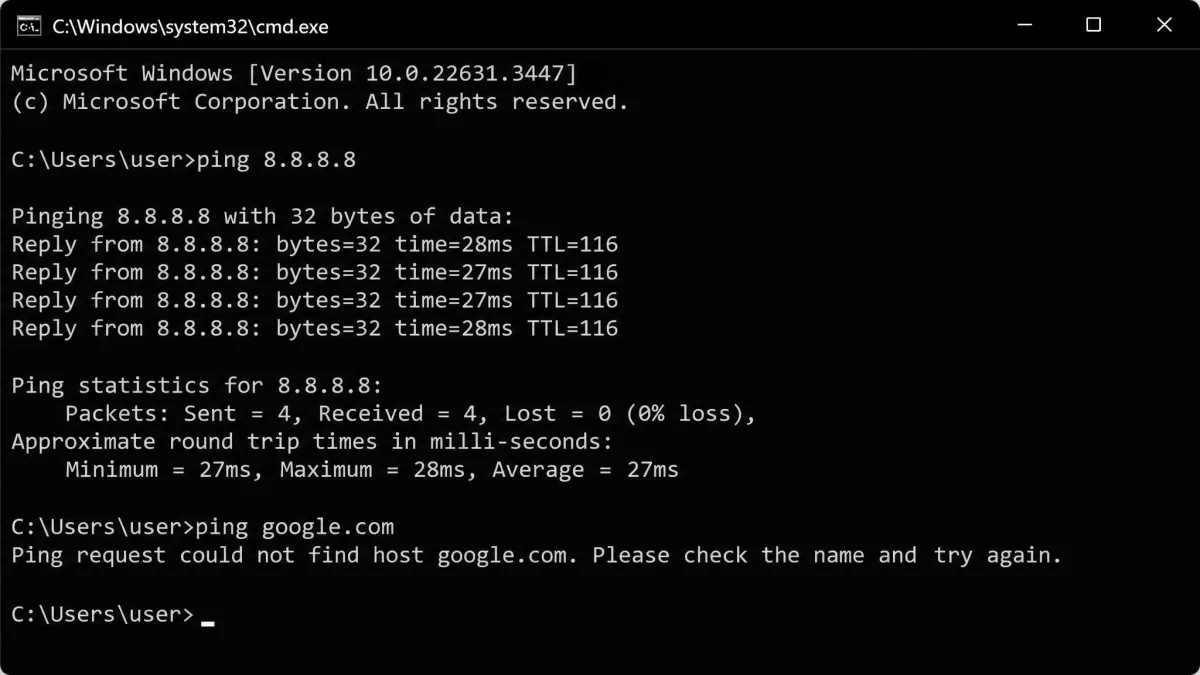
For DNS, the giveaway is that websites will not load but pinging an IP address still works. That means name resolution is failing because the server never pushed a DNS server. The fix is to push one from the server config, for example push "dhcp-option DNS 8.8.8.8".
To confirm which half is broken, ping a public IP such as 8.8.8.8. If the ping works but names do not resolve, it is DNS. You can then verify your resolver with a tool like the DNS leak test at Browser Leaks.
Enabling redirect-gateway on the client side can knock out all internet access on PPPoE and PPPoA connections, turning a routing fix into a total outage. Apply this change on the server config and test on one client before you roll it out.
Fix: profile and .ovpn file problems (re-import a fresh profile)
Many stubborn failures come down to a stale profile. Certificates rotate, server addresses change, and an old .ovpn file quietly stops matching the server.
When a fix above points to a certificate mismatch, an expired certificate, or a changed server address, the cleanest move is to delete the old profile from the client and import a fresh one from your server or provider.
Always download a brand-new .ovpn file rather than editing your old one by hand. A fresh profile carries current certificates and the correct server list, and it rules out subtle typos that a manual edit can introduce. You can also get the latest client from the official download the latest OpenVPN client page while you are at it.
OpenVPN Connect can also hold a server connection list. On connection failure it rotates through the list until it finds a responsive server, which is worth setting up if your provider offers more than one endpoint.
Fix: Windows / TAP-TUN driver and client-version issues
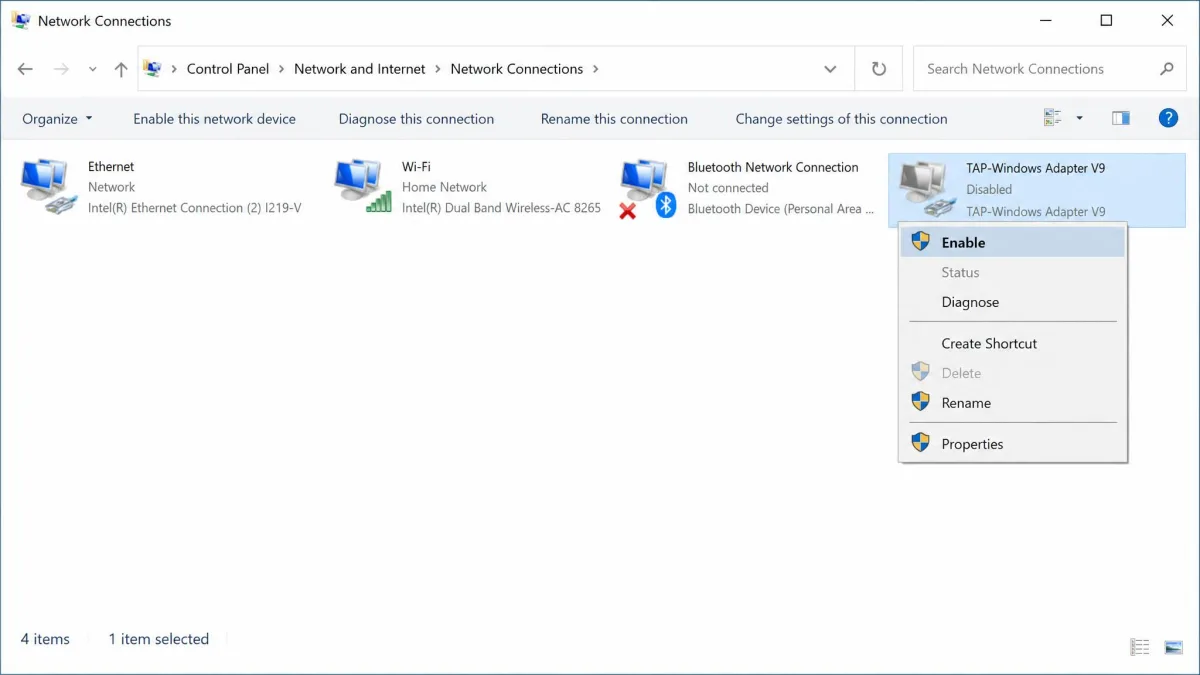
On Windows, a cleanly installed client that never connects is usually a virtual network adapter problem. OpenVPN routes traffic through a TAP or TUN (DCO) adapter, and if that adapter is missing or disabled, nothing connects.
We see this pattern often: a newer OpenVPN build installs without error but fails to create the virtual adapter, so the client looks fine and never links up until the TAP-Windows Adapter V9 is enabled by hand in Network Connections. Open Network Connections, find the adapter, and enable it if it is greyed out.
A related error, "All TAP-Windows adapters on this system are currently in use," blocks a new tunnel when a stale adapter is still claimed by a prior session. Disable and re-enable the adapter, or reboot, to release it.
Third-party software firewalls and antivirus commonly block or break TAP driver installation, so the adapter never appears at all. If the adapter is missing entirely, the official fix is to reinstall OpenVPN Connect as administrator by right-clicking the installer and choosing Run as administrator.
Client version is situational. Installing the latest OpenVPN Connect resolves many driver and TLS issues, but on some fresh Windows 10 systems with Secure Boot enabled, newer TAP drivers were rejected under stricter Microsoft driver-signing rules, and an older signed driver worked instead. Do not treat either "always newest" or "always oldest" as universal advice; match the version to what your machine will accept.
If it still won't connect: try another network, disable antivirus, update
When you have worked through the matching fix and the tunnel is still dead, change one variable at a time.
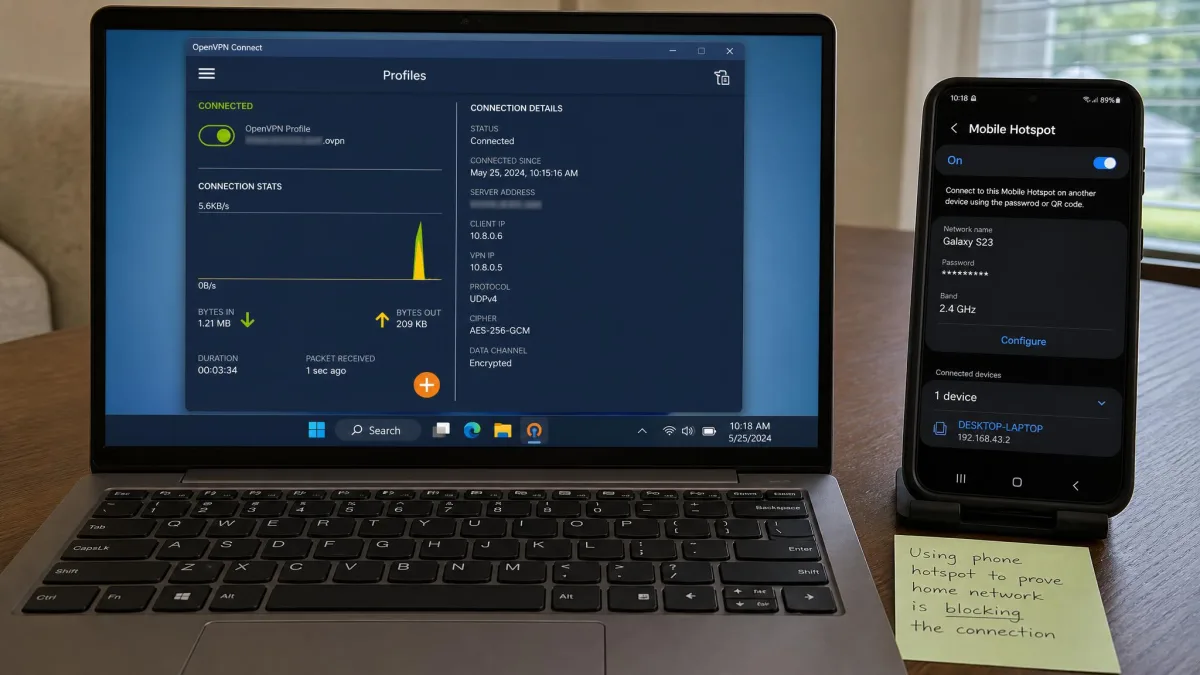
Try a completely different network. Tether to your phone's hotspot. If OpenVPN connects on mobile data but fails on your home or office network, the block is on that network, not your device, and you are dealing with a firewall or a corporate policy.
Temporarily disable your antivirus and local firewall to test whether they are interfering, then turn them straight back on. If disabling them fixes the connection, add an exception for OpenVPN rather than leaving your protection off.
Finally, update the client and confirm your profile is current. When you are behind a corporate firewall you cannot control, ask your network administrator which ports are open and whether OpenVPN is permitted at all.
If disabling your antivirus or firewall gets you connected, do not leave it off. Re-enable it and create a specific exception for the OpenVPN client and its port. Running without protection to keep a VPN working trades one risk for a worse one.