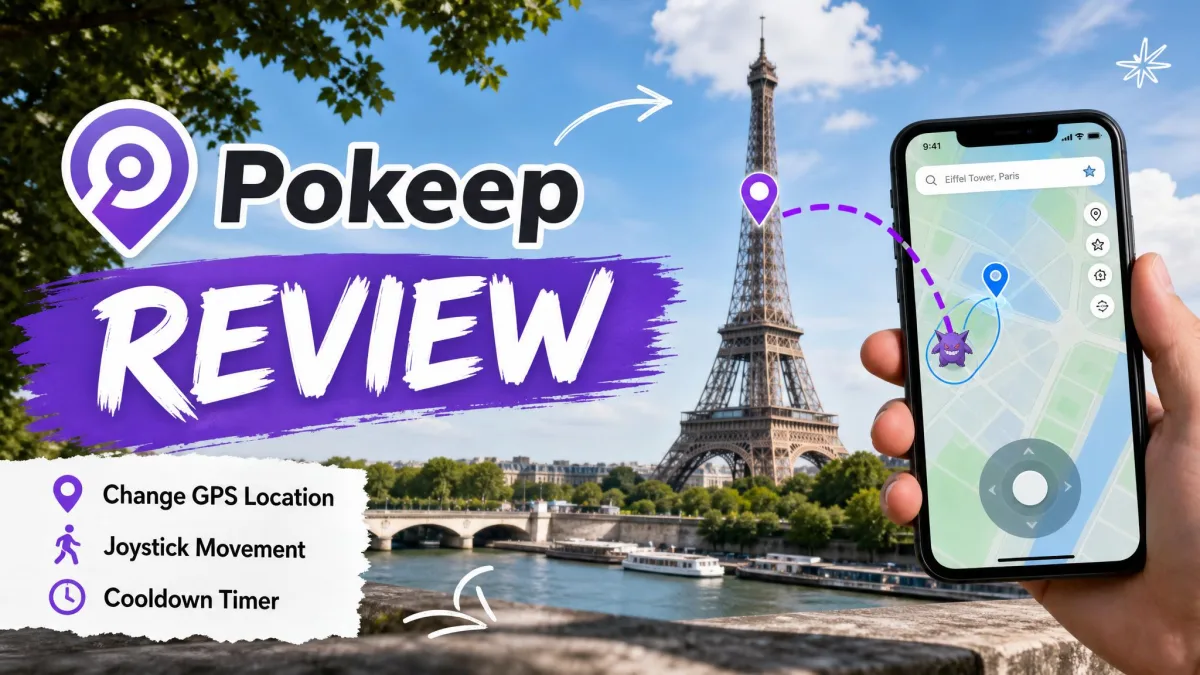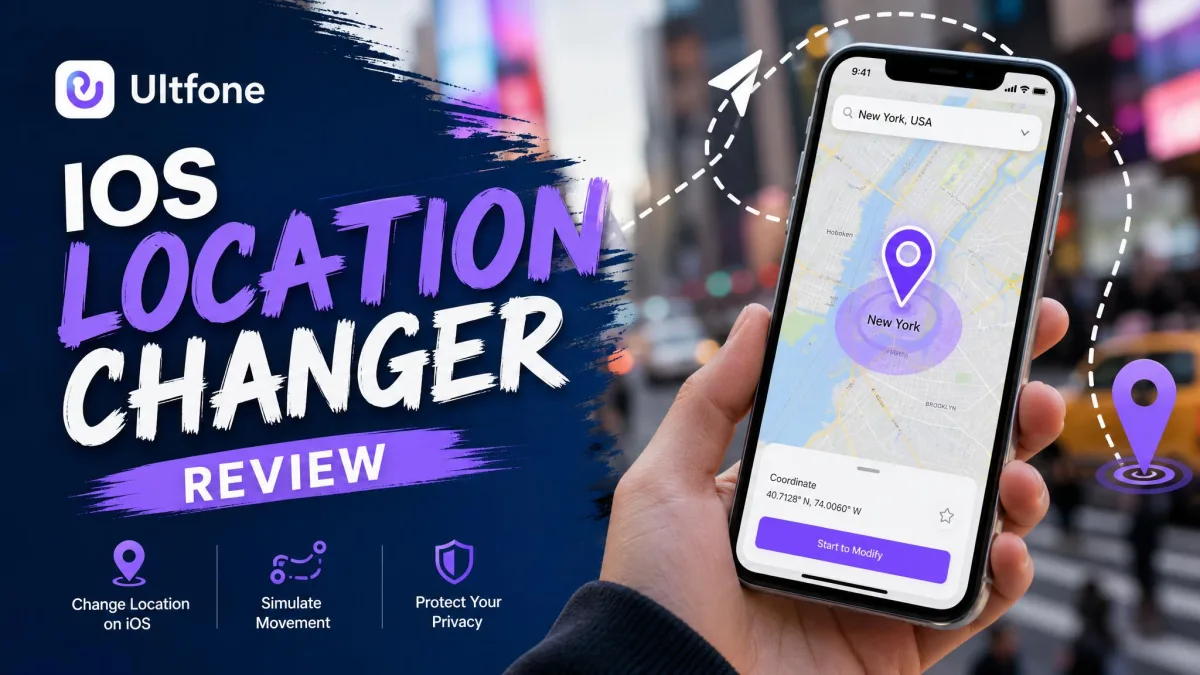
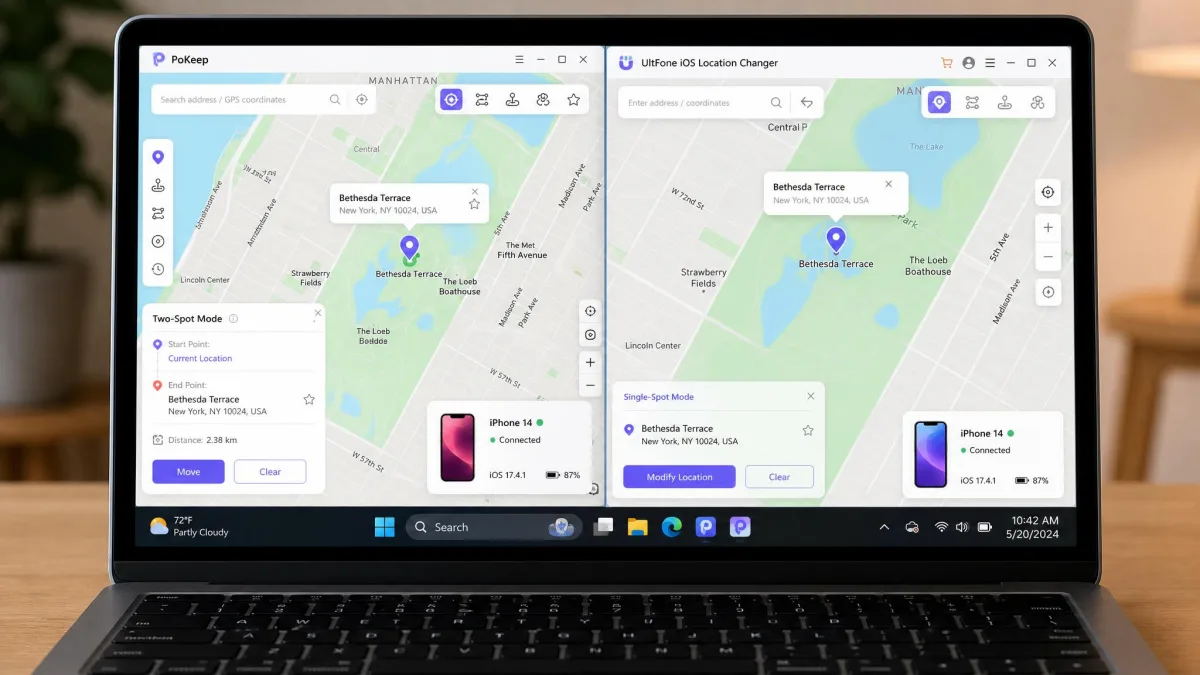
PoKeep and UltFone iOS Location Changer are desktop GPS spoofing tools that let you change your iPhone's location without jailbreak, since Apple gives you no built-in way to fake your location and both pair the phone to a Windows PC or a Mac to feed it new coordinates.
Both offer one-click teleports, joystick movement, route simulation, and GPX import and export, and both work with games like Pokémon GO and Monster Hunter Now. The differences show up in ban safety, device limits, platform range, and price, so this comparison covers all of them and ends with a pick for each type of user.
What Are PoKeep and UltFone iOS Location Changer?
PoKeep is a desktop location changer for Windows 10 or newer and macOS 11 or newer, pairing with iPhones from iOS 5 through iOS 26 and Android 6.0 and up. PoKeep connects over Bluetooth, USB, or Wi-Fi with no jailbreak or root, while Android phones use the standard mock-location developer option.
We tested both tools on iOS 18 devices for this comparison, covering teleports, joystick walks, route tests, and game-mode connections.
PoKeep at a Glance
The full version costs $12.95/month, with a free tier at $0 that allows 5 uses per core mode (change location, two-spot, multi-spot, jump teleport, joystick), up to 25 total. Multi-device control and GPX import and export are left out of the free tier, and PoKeep's Trustpilot page shows a 4/5 "Good" rating.
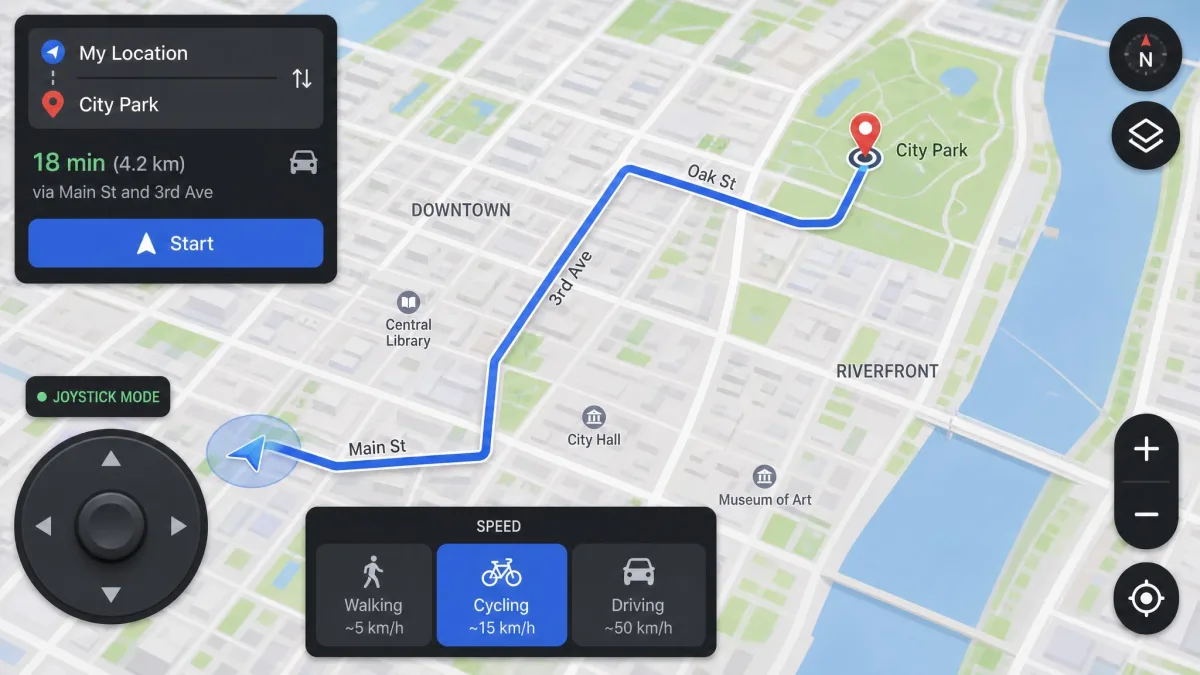
In our testing, the first connection took around 10 minutes to stabilize, which makes the first-run experience fiddly; once connected, the tool works normally. The 360° joystick moved smoothly and felt game-like, with custom speeds that simulate walking, cycling, or driving. Two quirks followed us through the sessions: the Windows installer can trigger antivirus warnings, and the tool changes the GPS position only, not your IP address.

UltFone iOS Location Changer at a Glance
UltFone iOS Location Changer covers Windows 7 through Windows 11 and macOS 10.10 or later, with an iOS app version for iOS 14 through iOS 27 that needs no computer. Plans start at $9.95/month for one PC, and every 1-PC plan includes free upgrades for the license term.
Movement in our sessions was smooth and bug-free: the map glided without jitters as we drove the joystick around, and the interface is basic and straightforward. The catch showed up the longer a session ran, since the spoofed position can snap back to the real GPS after about 3-5 minutes on iOS 18 devices. The joystick can also lose its connection mid-route and reset the avatar to the real location.

Why Change Your GPS Location?
Most people buy a location changer for one of three reasons. The biggest is location-based gaming, where your position on the map is the whole game, followed by dating apps like Tinder, Bumble, and Hinge and social apps like Facebook, WhatsApp, and Snapchat.
The mechanism is the same in every case. The desktop app changes the position your iPhone reports to the system, every app downstream inherits it, and a restart brings the real location back because nothing on the phone is modified.
Playing Location-Based Games (Pokémon GO, Monster Hunter Now)
Games that tie progress to a real-world position are the biggest reason buyers land on these tools. UltFone's jump teleport scans for PokéStops, Gyms, and Raids, and its iOS app version maps 1000+ PokéStops and Gyms, while PoKeep's Game Mode pairs over Bluetooth and waits for the cooldown timer before its jump teleport auto-jumps.
Pokémon GO throws Error 12, "Unable to detect current location 12", when it cannot verify your position; pairing the iPhone over Bluetooth clears it on UltFone, and PoKeep's Game Mode uses the same approach for a stable connection.
PoKeep vs UltFone: Feature-by-Feature Comparison
The feature lists overlap heavily, so the differences matter more than the similarities.
One-Click Location Change
You search for a city or drop a pin, click once, and the iPhone starts reporting the new position to every app that reads the system GPS. PoKeep calls it one-click teleport, UltFone calls it one-click location change, and both accept direct coordinate entry.
Movement Modes: Joystick, Teleport, and Routes
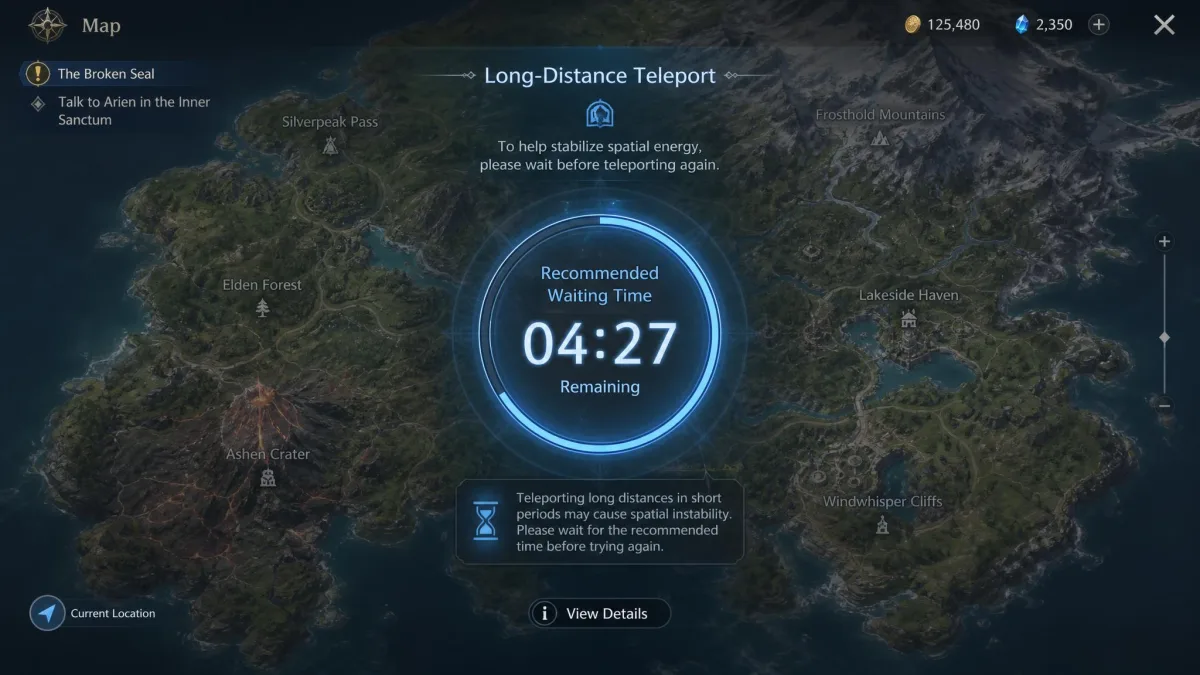
PoKeep's official user guide documents a 360° GPS joystick you can drive with the mouse or the W/A/S/D keys, plus two-spot routes that follow real roads and multi-spot routes with several chained points. A long jump shows the tool's character: we dropped a pin on a distant city, and the avatar stayed put while the cooldown timer counted down, only moving once the wait expired. That discipline is what makes it solid for experienced spoofers and risky for newcomers, who are the ones most likely to skip a recommended wait.
UltFone matches with a joystick that moves along custom paths, single-spot and multi-spot routes, and a jump teleport with PokéStop, Gym, and Raid scanning. The scanning earns its keep in practice: pick a destination city and the map marks the PokéStops, Gyms, and Raids around it, so a jump lands where there is actually something to do instead of an empty stretch.
Cooldown Timer and Ban Safety
Ban safety is the biggest feature difference. PoKeep has a built-in cooldown timer that auto-calculates the recommended waiting time from the distance you travel, and its jump teleport will not auto-jump until the cooldown expires, while UltFone does not advertise a cooldown timer at all, and where one is described it acts as a reminder rather than a technical safeguard that blocks jumps.
Spoofing runs against the terms of service of Pokémon GO and most location-based games. A cooldown timer lowers soft-ban risk but does not eliminate it, and temporary bans still appear in forum reports even with safety features enabled, so treat every jump as a judgment call.
Multi-Device Support and Compatibility
PoKeep allows up to 10 devices per license, controlled simultaneously or individually, while UltFone allows 5 devices per license on both the 1-PC and 2-PC plans. PoKeep lists iOS 5 through iOS 26, Android 6.0 and up, Windows 10 and newer, and macOS 11 and newer, while UltFone lists iOS 14 through iOS 27, Android 15 and 16, Windows 7 through Windows 11, and macOS 10.10 or later. Neither requires a jailbreak or root.
GPX Import and Extra Features
Both tools import and export GPX route files, so you can reuse a route another player shared. PoKeep adds saved favorite routes, historical records, coordinate search, a realistic fluctuation mode that varies your speed naturally, and an in-app restore for your true location, while UltFone adds coordinate search, historical records, adjustable speed from 3.6 to 108 km/h, and natural simulation with pause.
PoKeep vs UltFone: Price and Plans
UltFone is cheaper at every comparable tier. Its 1-PC plans run $9.95/month, $19.95/quarter, $39.95/year, and $69.95 lifetime, with 2-PC plans at $15.95/month, $29.95/quarter, and $59.95/year, while PoKeep's full version is $12.95/month on the current homepage, with vendor promo pricing around $45.95/year and $103.95 lifetime. Both vendors publish a 30-day money-back guarantee.
The trial story differs more. PoKeep's free tier gives 5 uses per core mode and up to 25 total, enough to test every mode except multi-device control and GPX import and export, while UltFone offers a free download with no published trial limits. If you spoof regularly, compare the lifetime licenses: about $103.95 for PoKeep against $69.95 for UltFone.
PoKeep vs UltFone: Quick Comparison Table
Here is the side-by-side in one place.
| Criteria | PoKeep | UltFone iOS Location Changer |
|---|---|---|
| Price (monthly) | $12.95/month (free tier $0) | $9.95/month |
| Price (annual / lifetime) | ~$45.95/year, ~$103.95 lifetime | $39.95/year, $69.95 lifetime |
| Free trial | Free tier: 5 uses per mode, up to 25 total | Free download, limits not published |
| One-click change | Yes | Yes |
| Movement modes | Joystick, two-spot, multi-spot, jump teleport | Joystick, single-spot, multi-spot, jump teleport + PokéStop scan |
| Cooldown timer | Built-in, auto-calculated waits | Not advertised |
| Max devices | 10 per license | 5 per license |
| Platform support | iOS 5-26, Android 6.0+, Windows 10+, macOS 11+ | iOS 14-27, Android 15/16, Windows 7-11, macOS 10.10+ |
| GPX import | Yes (import/export) | Yes (import/export) |
| Ban safety | Cooldown timer lowers soft-ban risk | Bluetooth Error 12 fix, no cooldown safeguard |
| Dating-app support | Tinder, Bumble, Hinge | Tinder and other dating/social apps |
PoKeep vs UltFone: Pros and Cons
The two tools are close on paper, but the hands-on picture is clearer.
PoKeep Pros and Cons
Pros
- Built-in cooldown timer that auto-calculates wait times
- Free tier with 5 uses per mode and up to 25 total
- Smooth, game-like joystick with walking, cycling, and driving speeds
- 30-day money-back guarantee
Cons
- First connection can take around 10 minutes to stabilize
- More expensive than UltFone at every paid tier
- Windows installer can trigger antivirus warnings
- Changes GPS position only, not your IP address
UltFone iOS Location Changer Pros and Cons
Pros
- Cheapest plans of the two, from $9.95/month
- Jump teleport with PokéStop, Gym, and Raid map scanning
- Bluetooth pairing clears Pokémon GO Error 12
- Smooth, straightforward interface
- 30-day money-back guarantee
Cons
- No cooldown timer advertised, so ban risk is on you
- Position can snap back to the real GPS after 3-5 minutes on iOS 18
- Connection can drop mid-route and reset the avatar
How to Change Your Location Step by Step
Both tools follow the same three-phase flow of install, pair, and move the pin.
Change Location with PoKeep
- Install the PoKeep desktop app on Windows 10 or newer, or macOS 11 or newer.
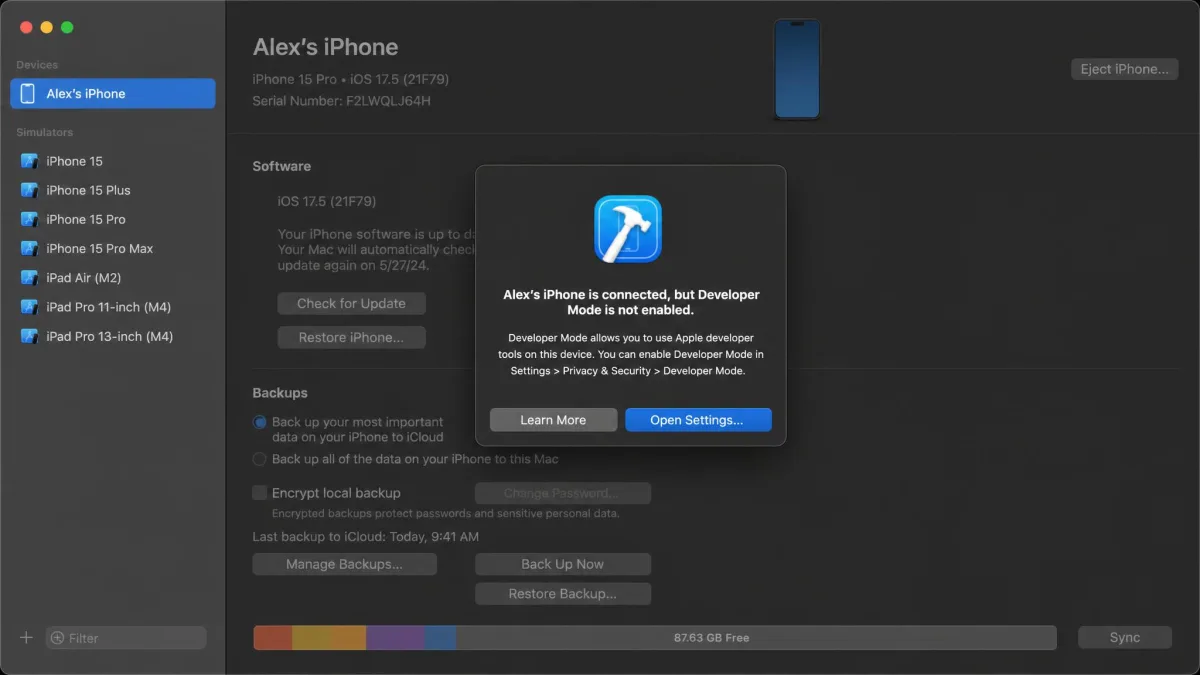
- Connect the iPhone by USB or Wi-Fi, or pair over Bluetooth in Game Mode for games; otherwise enable Developer Mode (Universal Mode) when prompted.
- Search a city or drop a pin, then click to teleport.
- Switch to a movement mode, like the joystick, two-spot, multi-spot, or jump teleport, for anything beyond a fixed point.
- Restore your true location from the app when done, or restart the phone.
Give the first connection time; in our testing it took around 10 minutes to stabilize.
Change Location with UltFone iOS Location Changer
- Install the desktop app on Windows or Mac.
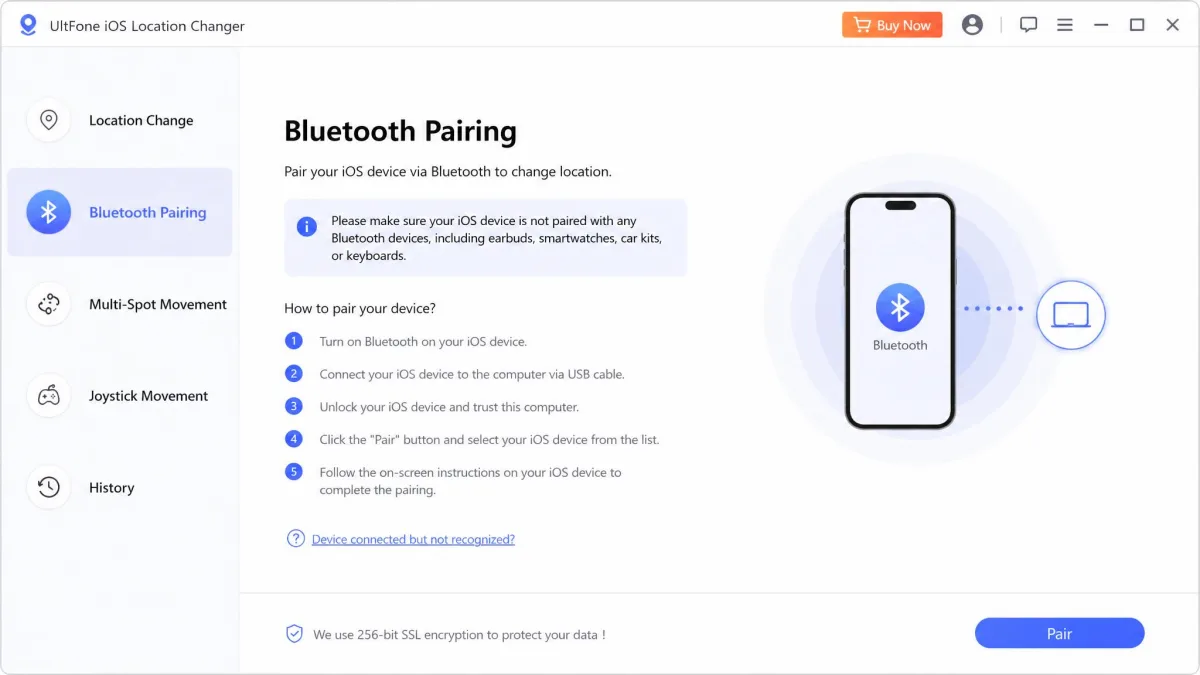
- Connect the iPhone by USB, or pair over Bluetooth if Pokémon GO reports Error 12.
- Choose a mode from one-click change, joystick, single-spot or multi-spot routes, or jump teleport with PokéStop and Gym scanning.
- Pick a destination and set a believable speed between 3.6 and 108 km/h for moving modes.
- Apply the change and confirm the new pin on the map before you start moving.
Which One Should You Choose?
Choose PoKeep if ban safety is your priority. The cooldown timer does the distance math for you, one license stretches across every phone in the house, and the free tier is usable enough to test before you pay; you pay more for it, and the first connection asks for patience, but the safety features behave the way the marketing describes.
Choose UltFone if price matters more and your sessions stay short. It costs less at every tier, starts spoofing faster, and its Bluetooth pairing is the dependable route past Pokémon GO's location check. The missing cooldown safeguard and the session-length limits mean long runs are its weak spot, so short jobs sit comfortably inside its limits.
For most readers we would pick PoKeep for regular game use and multi-device households, and UltFone for budget buyers who spoof occasionally. Both vendors make the first test cheap, so the decision is easy to try either way.
Frequently Asked Questions
Is it safe to spoof my location, and will I get banned?
Does either tool require a jailbreak or root?
Does it work with Pokémon GO, and what does Error 12 mean?
Should I buy the monthly plan or go straight to a lifetime license?
How do I restore my real location?
Do the device limits count phones or the computers running the app?
Will spoofing drain my battery?
Final Thoughts
Start small either way. PoKeep's official site points you to a free tier that covers every core mode, and UltFone's official product page offers a free download worth a test run; check the supported iOS version before updating the phone, since both tools have needed time to catch up after major iOS releases.
The category moves fast, and the next iOS release could shift the balance again. What holds steady is the advice that carried through this comparison: keep jumps small, respect the cooldown math, and test a tool on your own phone before trusting it with an account that matters.