UniFi doesn't have a "parental controls" menu, and that catches most families off guard. The Dream Machine and other UniFi gateways can still block adult sites, cap screen time, and pause the games at dinner. Each piece lives in a different corner of the Network app.
We configured every method on a UniFi Cloud Gateway Ultra (UCG-Ultra) running the current UniFi Network application, version 10.5.67 on UniFi OS 5.1, because it is the one budget UniFi gateway that carries the whole parental-control feature set. The first-time setup took us about an hour and a half start to finish, and the post-setup verification pass on each method ran roughly twenty minutes. We re-ran that suite across several days of real-world use, and we'd suggest repeating it quarterly and after any firmware update, because the controls quietly drift otherwise.
In this guide we'll show you how to set up parental controls on UniFi with the free tools built into the Network app, from content filtering to a family DNS backup.
Do UniFi Parental Controls Actually Exist?
Yes, but not under that name. UniFi handles the job with content filtering, WiFi schedules, and traffic rules. UniFi's content filtering feature is DNS-level, so it needs no software on each device.
What UniFi's built-in features can and can't do
The free Basic filter mode blocks malicious, explicit, and adult domains out of the box and adds Safe Search and ad blocking. WiFi schedules cut a network's internet during set off-times, and traffic rules block apps or full internet for a client or VLAN.
What you can't do without third-party tools (the honest limits)
There are no per-app time allowances, browsing reports, or alerts when a child hits a blocked site. A kid can change the DNS server on a phone and sidestep filtering in seconds, VPN traffic slips past nearly every restriction, and mobile data sits outside the network controls.
The built-in tools are limited compared with a dedicated parental-control app. For per-device time allowances, reports, and alerts, pair UniFi with a third-party service.
What You Need: UniFi Equipment and Account Requirements
A UniFi gateway with content filtering (UDM / UDR / Cloud Key / UXG)
Content filtering runs on the gateway itself, so you need a UniFi gateway rather than a third-party router running UniFi access points. The UDM, UDM-Pro and SE, UDR and UDR7, UniFi Express, and the UCG-Ultra, UCG-Max, and UCG-Fiber support it; legacy USG models do not. A Cloud Key hosts the Network app, but the gateway filters.
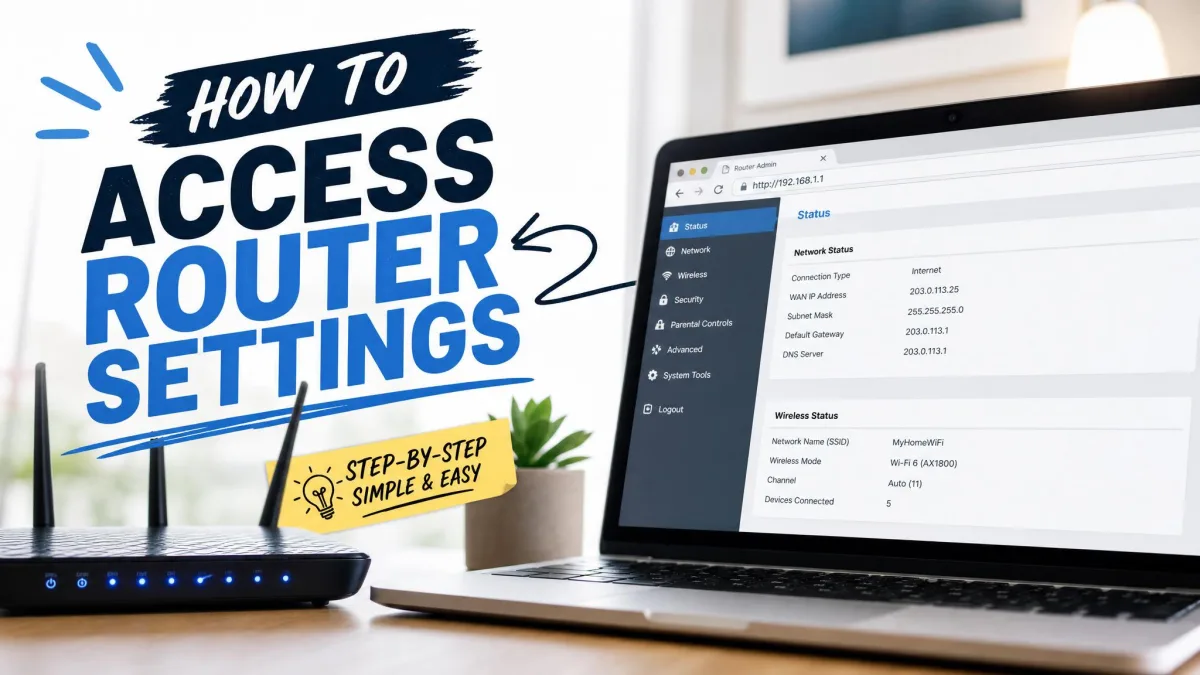
UniFi Network application and admin access
You need admin access to the UniFi Network application. If you can log in and see the Clients list, you're set for the free methods.
(Optional) UniFi Plus subscription for advanced security features
Every method here is free. The optional paid tier is now UniFi CyberSecure, $99/year per site Standard or $499/year Enterprise, adding Enhanced filtering with 100+ granular categories and 55,000+ threat signatures. Basic parental controls need no subscription.
Method 1: Turn On Content and Domain Filtering
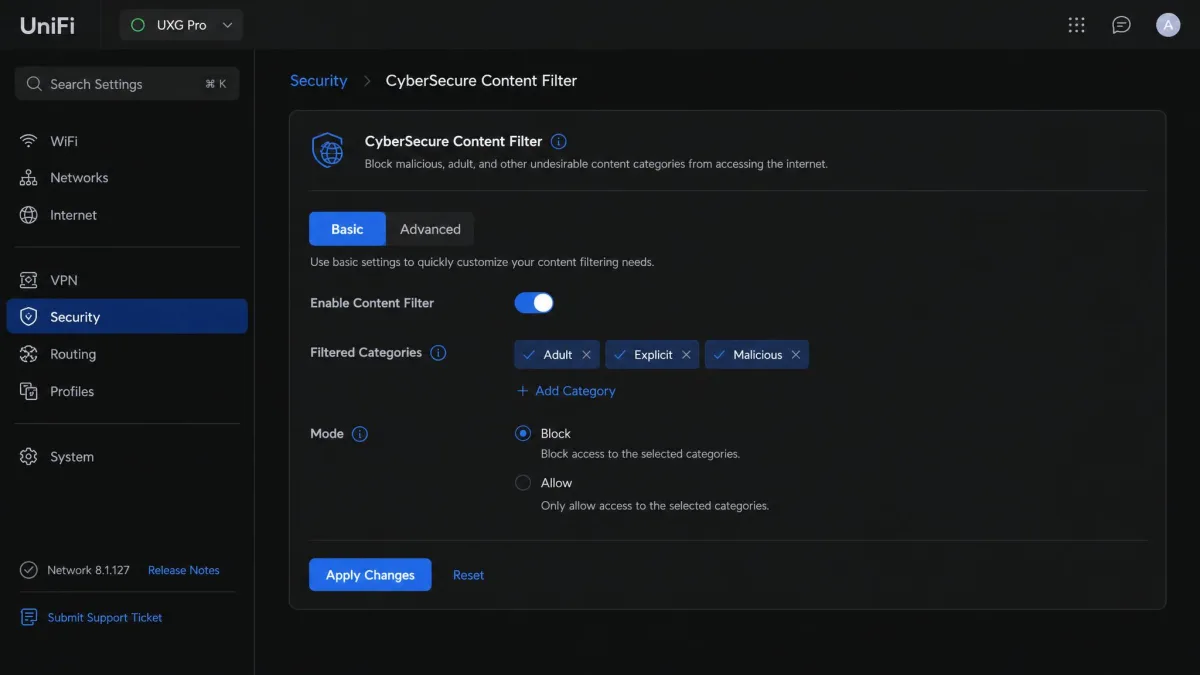
In current UniFi OS builds the filter lives at Settings > CyberSecure > Content Filter; older builds used Settings > Security > Content Filtering. Ubiquiti's official content and domain filtering guide covers the toggle.
Block adult, malicious, and inappropriate categories
Pick a scope, choose Basic or Enhanced, and enable the categories. The Basic mode needs no extra configuration beyond the toggle; Enhanced adds far more granular categories via CyberSecure.
Block specific websites and domains
Add specific domains to the blocked or allowed list in the same screen. Expect trial and error, because streaming and social services spread traffic across many domains.
Apply filtering to a client or VLAN
The filter applies to a whole network or VLAN, or to an individual client. Per-client filtering stays tucked out of sight until you open a device's settings.
After firmware or controller updates, double check that content filtering is still on; updates have occasionally reset it to Off.
Method 4: Build a Dedicated Kids Network on a Separate VLAN
We put this method second because a separate kids network makes schedules and traffic rules far easier to manage later. Every change applies to the whole network at once.
Create the VLAN
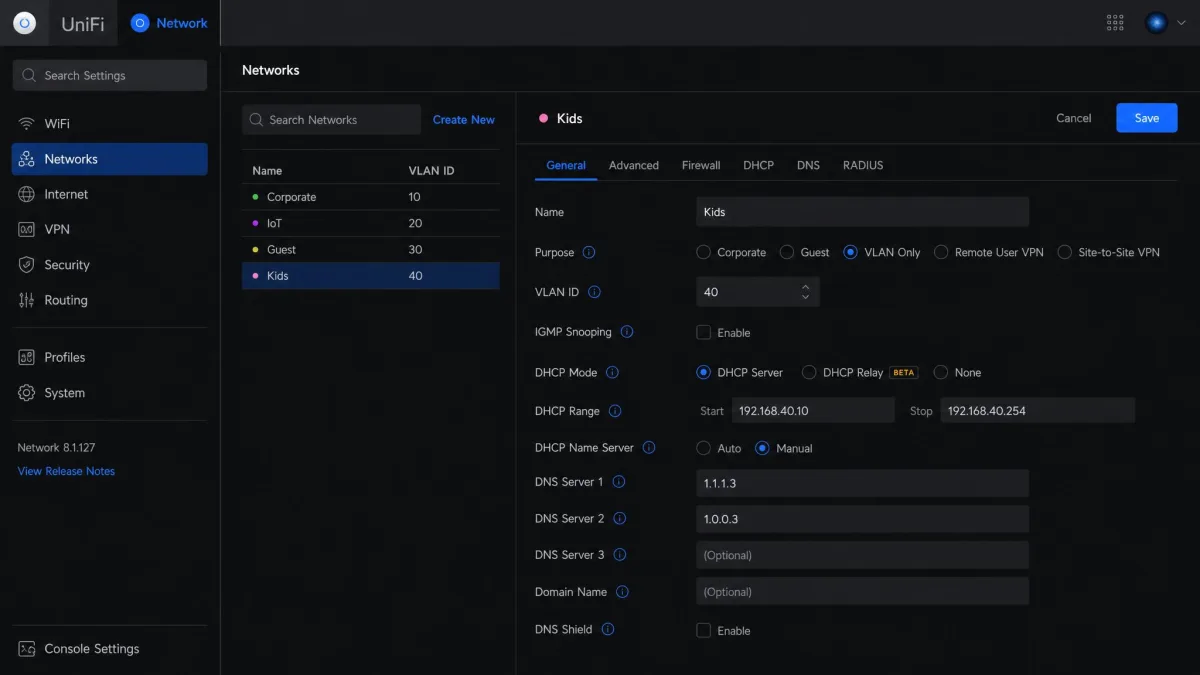
Open Settings > Networks and create a new network with a distinct VLAN ID, such as 20, and a clear name like "Kids."
Attach a WiFi network and move kids' devices
Create a WiFi network for the kids and attach it to that VLAN, then connect their devices to the new SSID. For stubborn devices, pin them with a Network Override or a fixed IP in the Clients list.
Method 2: Limit Screen Time with WiFi Schedules
If you built the kids network in Method 4, you're most of the way here. WiFi schedules apply per SSID, so your own devices stay off the off-time schedule.
Set up a separate WiFi network for the kids
You already have this if you followed Method 4. If not, create one first.
Create and apply a WiFi schedule / time limit
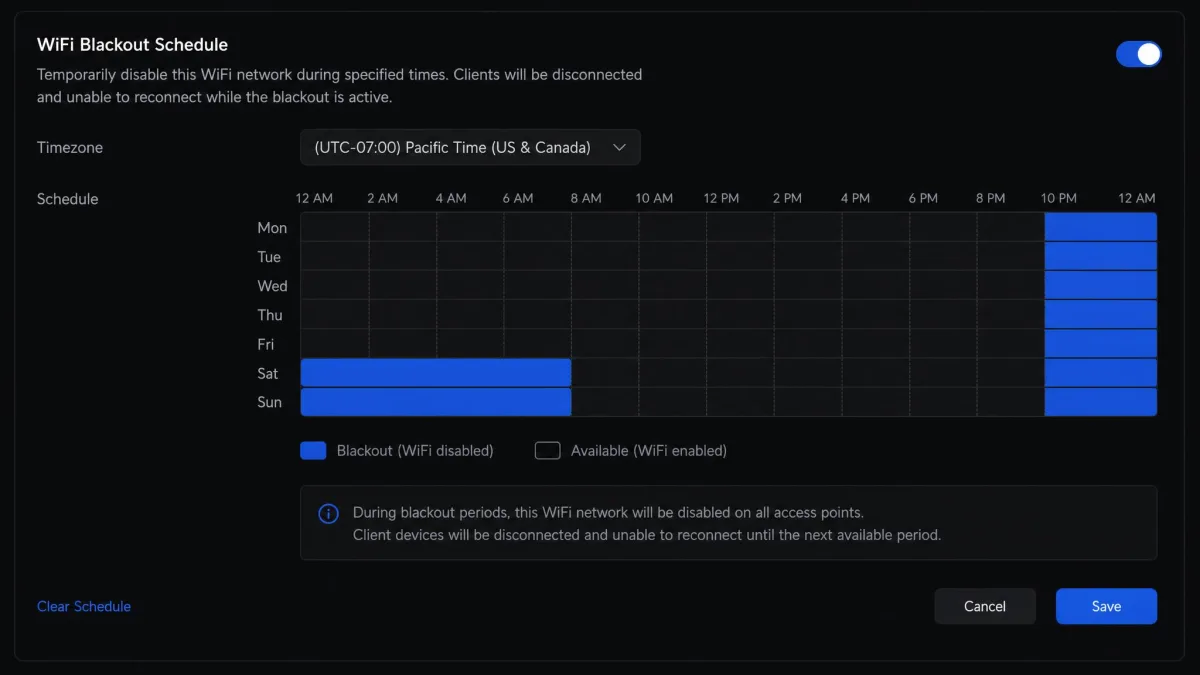
Open the wireless network's advanced settings and scroll to the bottom for the WiFi Blackout Schedule toggle; older versions call it WiFi Scheduler. Set the off-times, say weeknights from 9 p.m. to 7 a.m. Changes take a minute or two to reach the network.
Method 3: Block Specific Apps and Services with Traffic Rules
Where the WiFi schedule blocks the whole network at night, traffic rules block specific apps or full internet for a client or VLAN at any time.
Create a traffic rule for a client or VLAN
Open Settings > Security > Traffic Rules and create a new rule for a single client or an entire VLAN.
Block gaming, social media, and video apps (Fortnite, TikTok, YouTube)
Pick the app you want to block by name. We found naming a single app works more reliably than whole app groups, which behave inconsistently. Expect a blocked app to partially load and then freeze or fail to connect rather than cutting off cleanly.
Pause or remove a rule later
Rules can carry their own time schedule and be paused or deleted whenever you want.
Bonus: Layer On a Family DNS Filter (Cloudflare 1.1.1.3 / 1.0.0.3 or OpenDNS)
A family DNS filter catches sites that slip past the Basic list. Cloudflare's free Family DNS uses 1.1.1.3 and 1.0.0.3 and is free for home use. OpenDNS FamilyShield uses 208.67.222.123 and 208.67.220.123, needs no sign-up, and blocks adult content out of the box. OpenDNS has offered network-level filtering for years. In our testing, pointing a device at the family DNS blocked adult content as intended. Our video walkthrough shows it applied live.
Apple Private Relay and devices with hardcoded DNS, like many Google devices forcing 8.8.8.8, bypass the filter.
FAQ
What UniFi equipment do I need for content filtering and WiFi timing?
How do I set a UniFi parental control time limit?
How do I block specific apps like TikTok or Fortnite on UniFi?
Do I need UniFi Plus for parental controls?
Final Thoughts
Start with Method 1 for content filtering, build the kids VLAN, then add the schedule and traffic rules. The free tier handles most families well, but DNS tricks, VPNs, and mobile data slip past a network-level filter. Pair the built-ins with a family DNS filter and a conversation about those limits.