If you hand your child YouTube with no controls, a kid-friendly search can turn into something you did not expect in seconds. Autoplay rolls into the next suggestion, and the Shorts feed serves whatever the algorithm decides. The good news is that YouTube gives you free, built-in tools to fix this, and most of them take less than five minutes to switch on.
There are three main options, one for each age. YouTube Kids is a separate app for young children. Supervised accounts run inside the main YouTube app for tweens. Restricted Mode filters the feed for anyone. This guide walks through all three step by step, from desktop and phone setup to screen time, Shorts, and the gaps built-in controls miss.
Why YouTube Parental Controls Matter
Every video your child watches shapes what YouTube suggests next. One innocent search can surface videos aimed at the algorithm's goals, and comments, live chats, and endless autoplay add noise a young viewer cannot judge. The risk applies to any child who uses YouTube unsupervised.
The tools to push back are simpler than most parents expect. Restricted Mode filters flagged mature content, YouTube Kids walls off a curated library, and supervised accounts give a child a real YouTube experience inside limits you choose. None is perfect, and filters slip through on all three, so treat the settings as a start rather than a finish. For a visual tour, this parent-friendly YouTube safety lesson covers the same ground.
YouTube's 3 Parental Control Options Compared
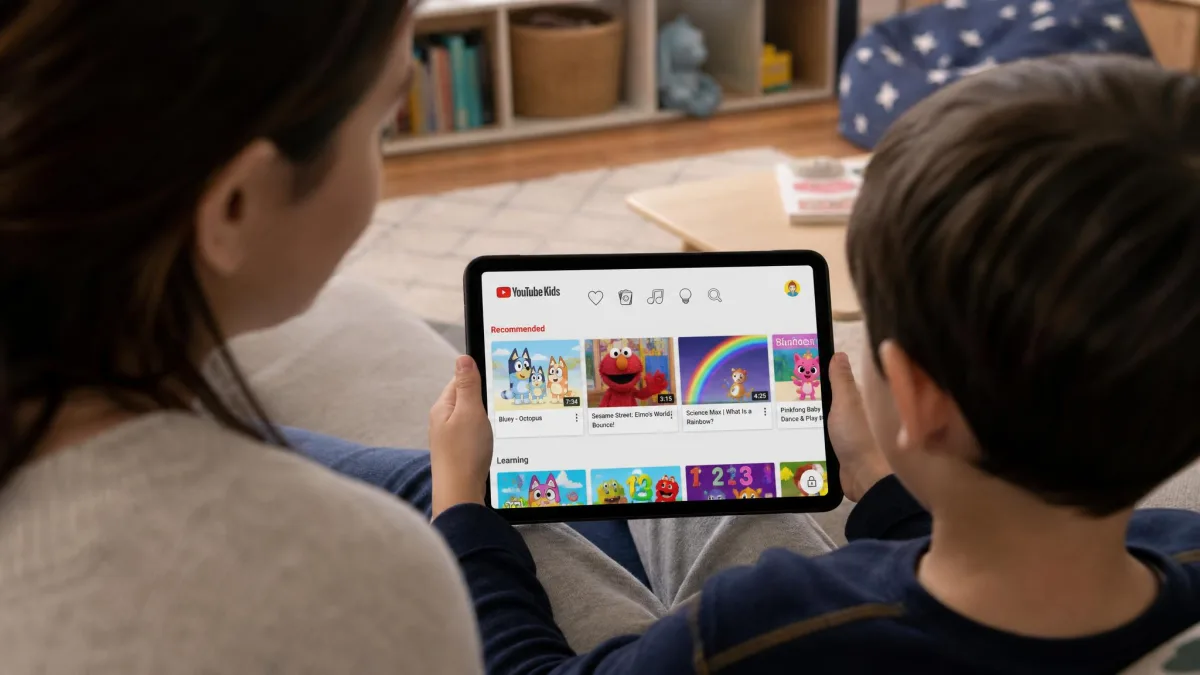
YouTube offers three built-in layers of protection, and each suits a different age. The short version: YouTube Kids for children under 8, a supervised account for tweens, Restricted Mode for teens. The detail below covers what living with each one is like, and the table at the end compares them feature by feature.
YouTube Kids (Best for Children Under 8)
YouTube Kids is a separate app, not a setting inside regular YouTube, and that separation is the point. A child gets a locked-in environment with a small, curated library, and you pick a content level for their age and can switch search off entirely. The trade-off is the library, which holds far less than the main site. Some educational content is missing, older children outgrow the app, and inappropriate videos still get through from time to time, so the filters need a re-check now and then.
Supervised Accounts via Family Link (Best for Tweens)
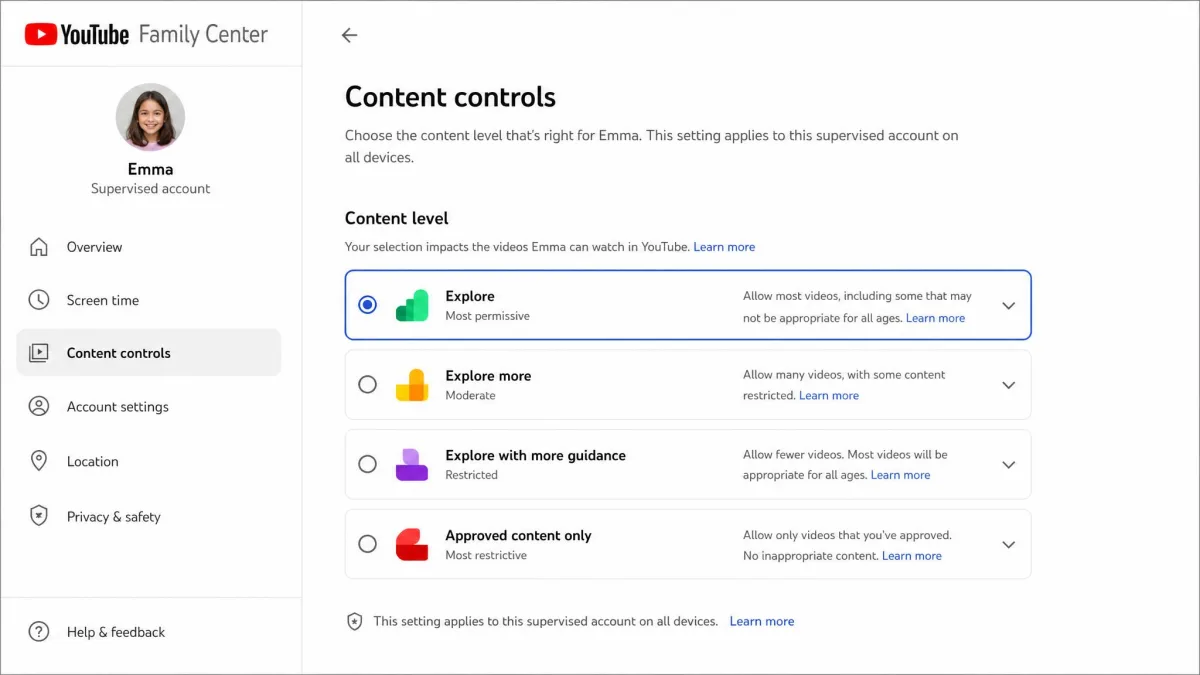
A supervised account is a Google account for your child that you control through Google Family Link. The child uses the main YouTube app rather than a separate one, but you choose one of three content settings: Explore for viewers around 9 and up, Explore more for teens, and Most of YouTube for everything except 18-plus content. The child cannot change these. The catch is the account itself, because setting one up means creating a whole Google account first, then linking your own within 14 days or the account can be deactivated. Children 13 and over in the US are not eligible, so this option is aimed at tweens.
Restricted Mode (Best for Teens)
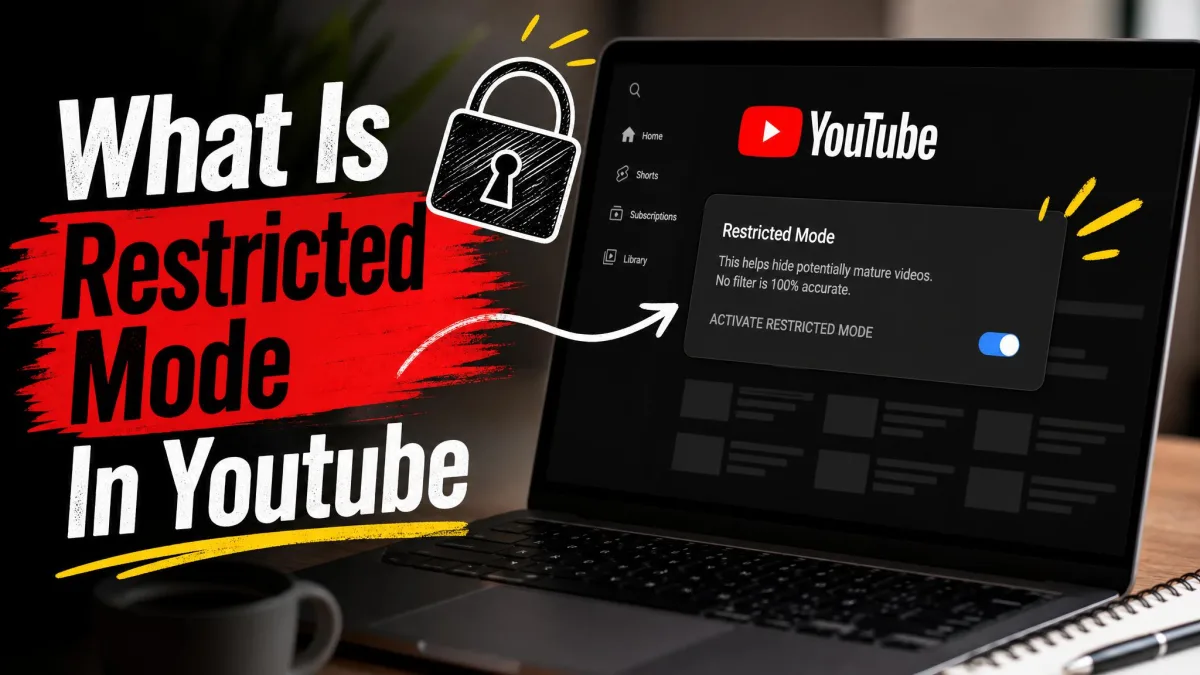
Restricted Mode is the simplest layer and the one most parents enable first. It filters videos YouTube has flagged as potentially mature, and when it is on, comments are hidden too. It works at any age, which makes it the natural pick for teens who want a guardrail rather than a kids-only app. The weakness is that it filters by metadata rather than by what the video shows. Newly uploaded and borderline content can slip through, and a child can route around it with a different browser, an incognito window, or a VPN. If your child is under 13 and you use Family Link, you can lock Restricted Mode on for a child under 13. Then the child cannot switch it off.
| Feature | YouTube Kids | Supervised Account | Restricted Mode |
|---|---|---|---|
| Best for age | Under 8; tiers to age 12 | Tweens under 13 | Teens and older, any age |
| Content library | Curated, human-reviewed subsets | Most of main YouTube, tiered | Full YouTube minus flagged content |
| Search control | On/off toggle | Tiered by content setting | Filter only, no toggle |
| History | Parent pauses or clears watch and search history | Parent pauses or clears via Family Center | No history controls |
| Autoplay | Parent disables it, child cannot re-enable | Parent disables it, child cannot re-enable | No autoplay control |
| Blocking | Block videos and channels | Block specific channels | Filter only, no channel blocks |
| Overall control level | Highest | High | Lowest |
A quick summary of the trade-off. YouTube Kids blocks the most but offers the smallest library. Restricted Mode blocks the least but covers every account. Supervised accounts sit in the middle with the most granular controls.
How to Turn On Restricted Mode
Restricted Mode works at the browser or device level, so you turn it on separately for every browser, profile, and device your child might use. It is a small chore, but you can leave it off on your own accounts.
Set Restricted Mode on every device in one sitting, then check it again once a month. A TV app update or a sign-out can silently switch it back off.
On a Computer (Desktop Browser)
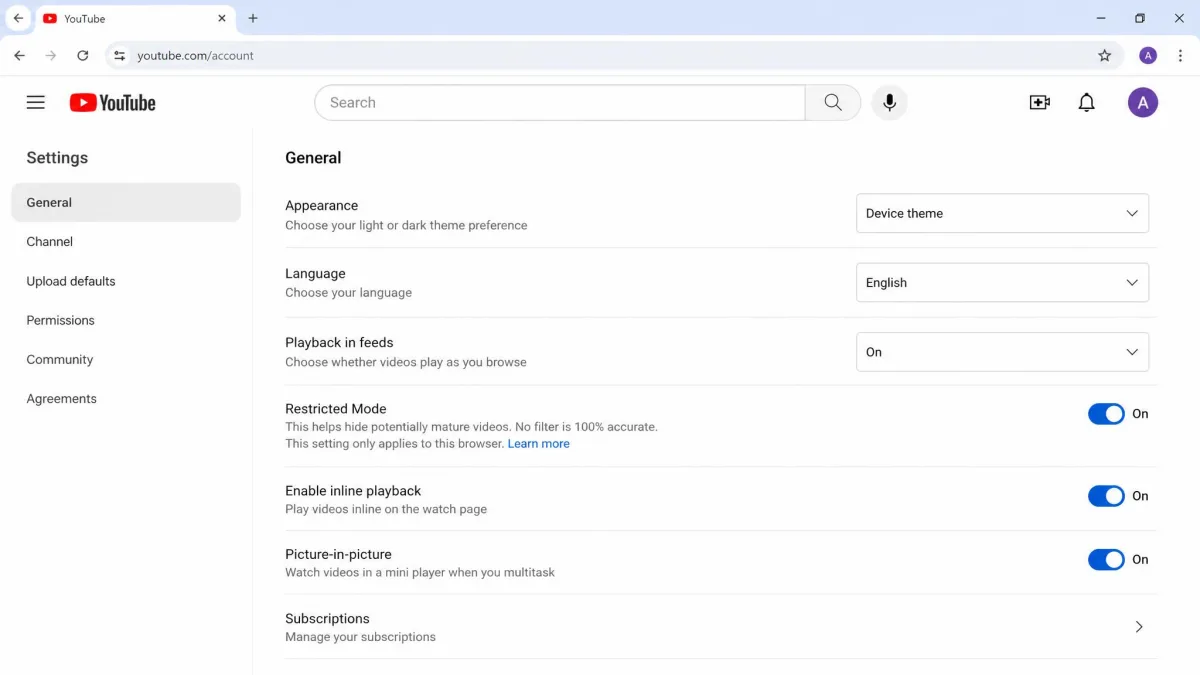
Sign in to YouTube in your usual browser. Click your profile picture, then choose Settings.
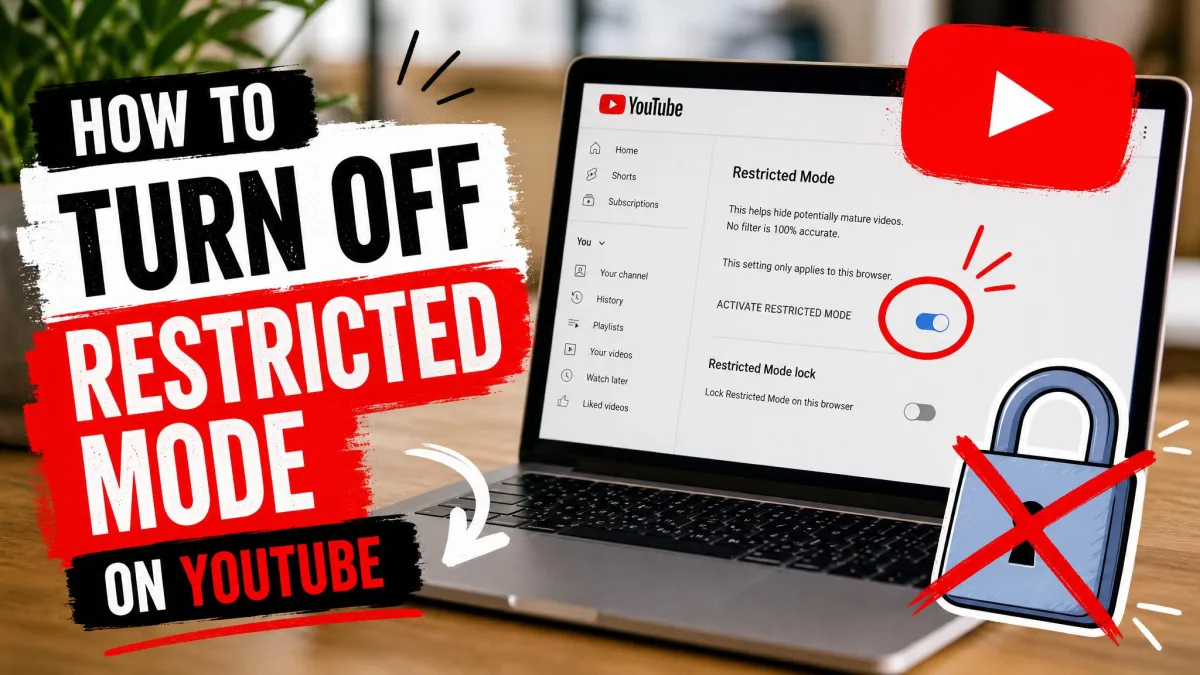
On the left, click General. Find the Restricted Mode toggle and switch it to On.
That covers only this browser and this profile. Repeat the steps in any other browser or profile your child uses. Incognito windows bypass it entirely, so treat the desktop setting as a soft limit rather than a lock.
On iPhone & iPad (YouTube App + Safari)
Open the YouTube app on the iPhone or iPad. Make sure your child is signed into their own account.
Tap the profile picture, then Settings, then General. Toggle Restricted Mode to On.
The app toggle does not carry over to a browser. If your child also watches in Safari, open youtube.com and switch it on there. Turn off private browsing on younger children's devices, because a private window undoes the setting.
On Android
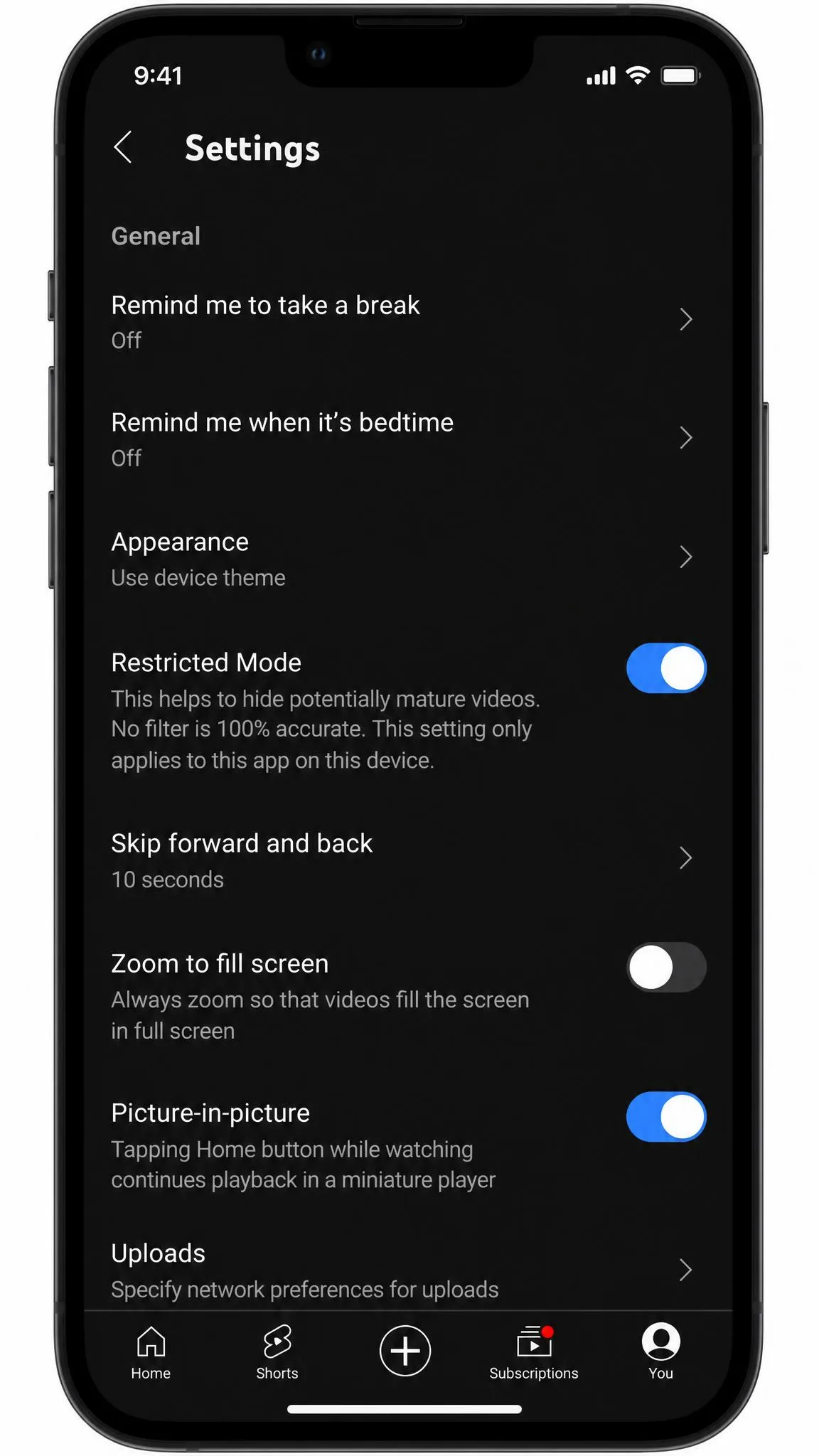
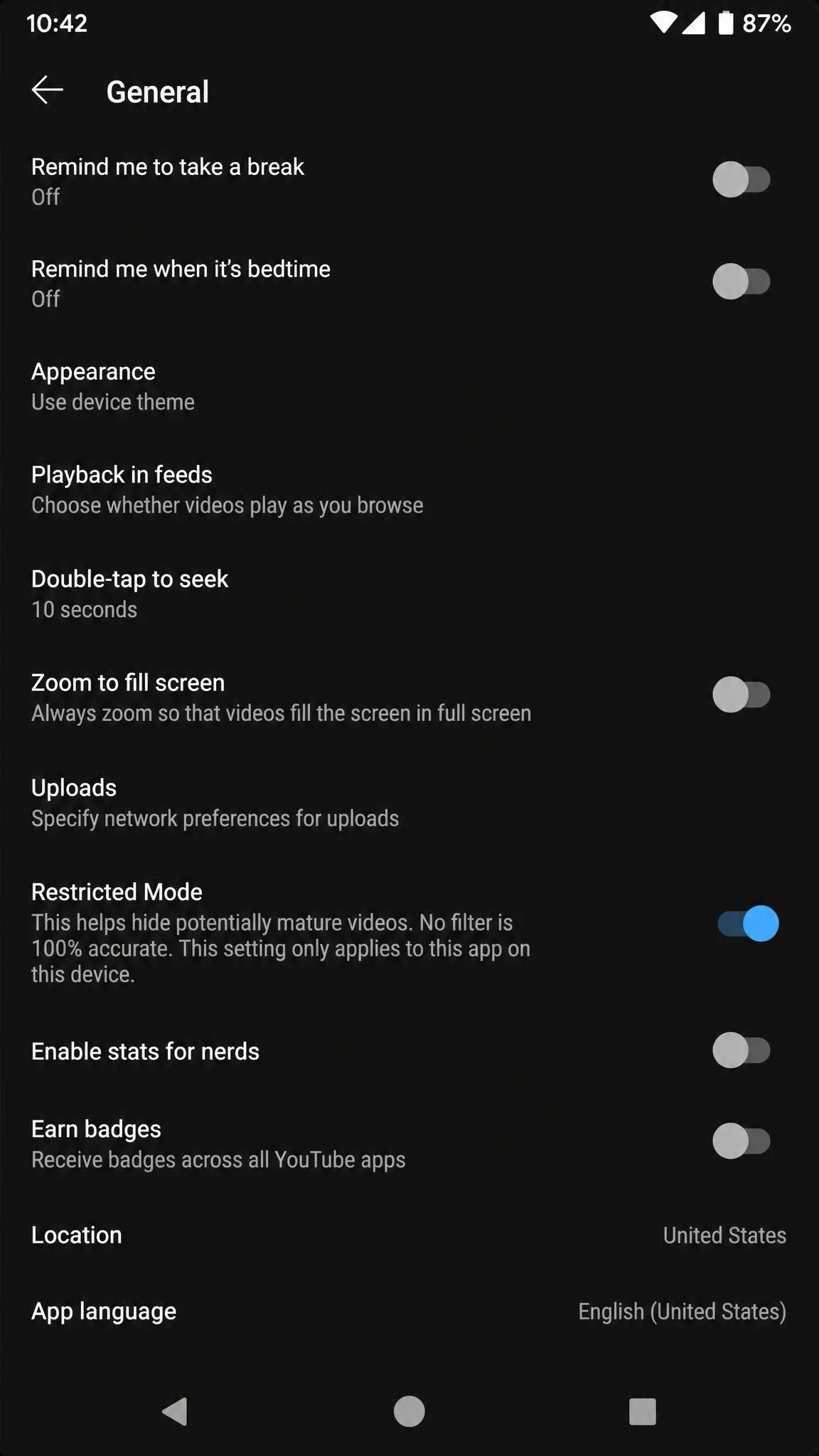
Open the YouTube app and tap the profile picture. Go to Settings, then General. Toggle Restricted Mode to On.
The setting applies to the signed-in account on this device. Repeat it on a child's tablet and phone. For a child under 13, Family Link can lock Restricted Mode on across every signed-in device. Then the toggle is out of their hands.
On Smart TV
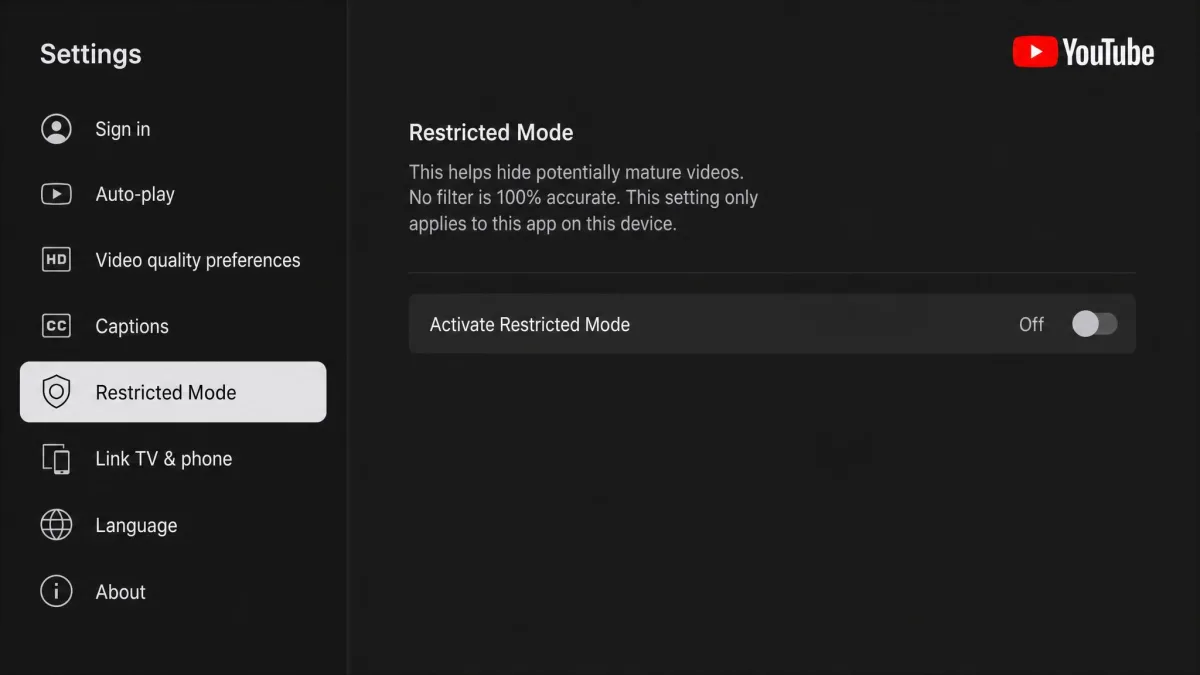
Smart TVs and game consoles are the hardest screens to keep locked down. Open the YouTube app and open Settings in the left column.
Select Restricted Mode and switch it to On. The setting applies only to that device, and it can reset after an app update or a sign-out.
Many TVs let someone watch without signing in. Account-level controls do not apply there. Set the 4-digit parent code in the YouTube app on the TV as well, so kids cannot open an account meant for older viewers.
How to Set Up YouTube Kids
If your child is under 8, YouTube Kids is the strongest built-in option. Download the app from the App Store or Google Play, open it, and follow the prompts to set up a YouTube Kids profile. You sign in with your own Google account to confirm you are the parent, then create a profile for each child.
Create a Profile and Choose an Age Tier
Each profile picks one of three age tiers: Preschool for ages 4 and under, Younger for ages 5 to 8, and Older for ages 9 to 12. The tier changes what shows up in the library. There is also an Approve content yourself mode, where the child can only watch videos, channels, and collections you have handpicked and cannot search at all. It is the closest thing to a guaranteed filter, and the right call for the youngest kids.
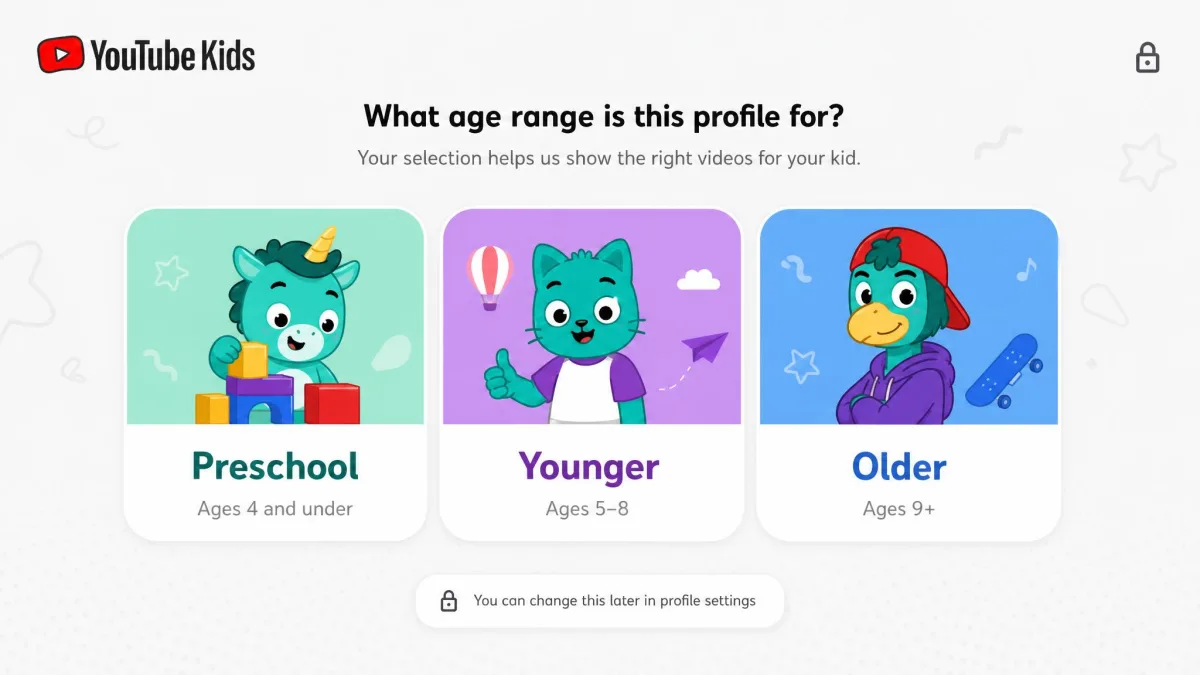
Changing a tier later requires solving a math problem or entering your Google password, which keeps the age settings in your hands and out of the child's.
Customize Content Level, Search, History, and Autoplay
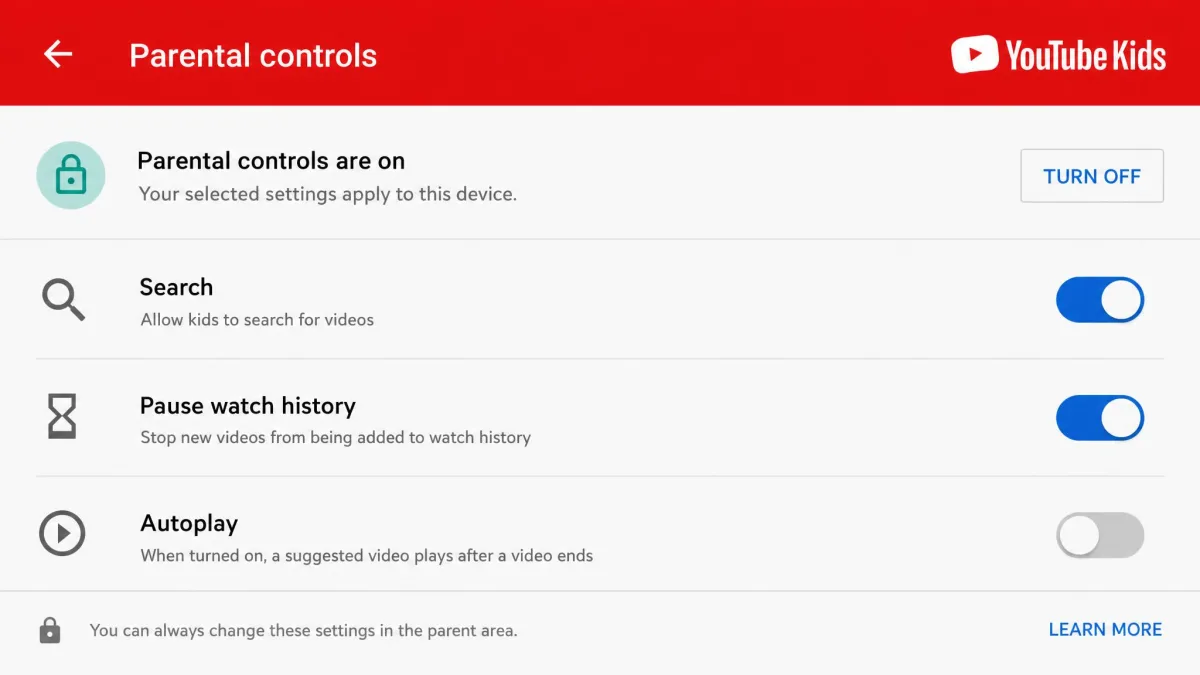
Open the child's profile and go into the YouTube Kids parental controls panel, then work through each switch. Turning off Search limits the child to videos and channels YouTube Kids has verified and clears the watch and search history for that profile. Pausing history stops the Recommended and Watch it again signals from building up. Disable Autoplay here too, and the child cannot re-enable it. You can also block specific videos and channels right from the app. The app is free but ad-supported, so a family YouTube Premium plan removes the ads and unlocks background play and downloads.
How to Set Up a Supervised Account with Family Link
A supervised account gives a tween the main YouTube app with training wheels. This is where the real work happens, because you are creating a Google account for your child rather than flipping a switch. When we set up a supervised account, the content-level options were where the real control lives.
Create a Google Account for Your Child
Start at Google Family Link and create a Google account for your child. The parent app runs on Android 6.0 and up, iPhones and iPads on iOS 16 or newer, or a Chromebook. After you create the account, link your own supervising account within 14 days, or the child's account can be deactivated. Google's walkthrough on how to set up a supervised account for your child shows the exact steps.
Manage Settings from the Family Center
Once the accounts are linked, open YouTube and go to You, then Settings, then Family Center. This is your dashboard for everything the child can do. From here you pick the content setting and preview each one before you commit. The child cannot change any of these, and the settings follow them across most smart TVs, Xbox, PlayStation, Nintendo Switch, and iOS. One honest caveat: Google's content classification makes mistakes sometimes, so even in the curated settings, an odd video can appear.
Block Content, Pause History, and Disable Autoplay
From the same Family Center, open a channel and block it if you want it gone, and pause or clear the child's watch and search history to quiet the feed. Disable Autoplay, and the child cannot turn it back on. Kids on a supervised account see no personalized ads, and on the Explore more and Most of YouTube settings they can read comments but not write them.
YouTube Parental Controls by Age (Toddler to Teen)
Here is how the three options map to real ages. For toddlers up to age 3, use YouTube Kids with the Preschool tier, and turn search and autoplay off. Consider Approve content yourself so nothing gets through that you have not picked. A parent stays in the room; no setting replaces that.
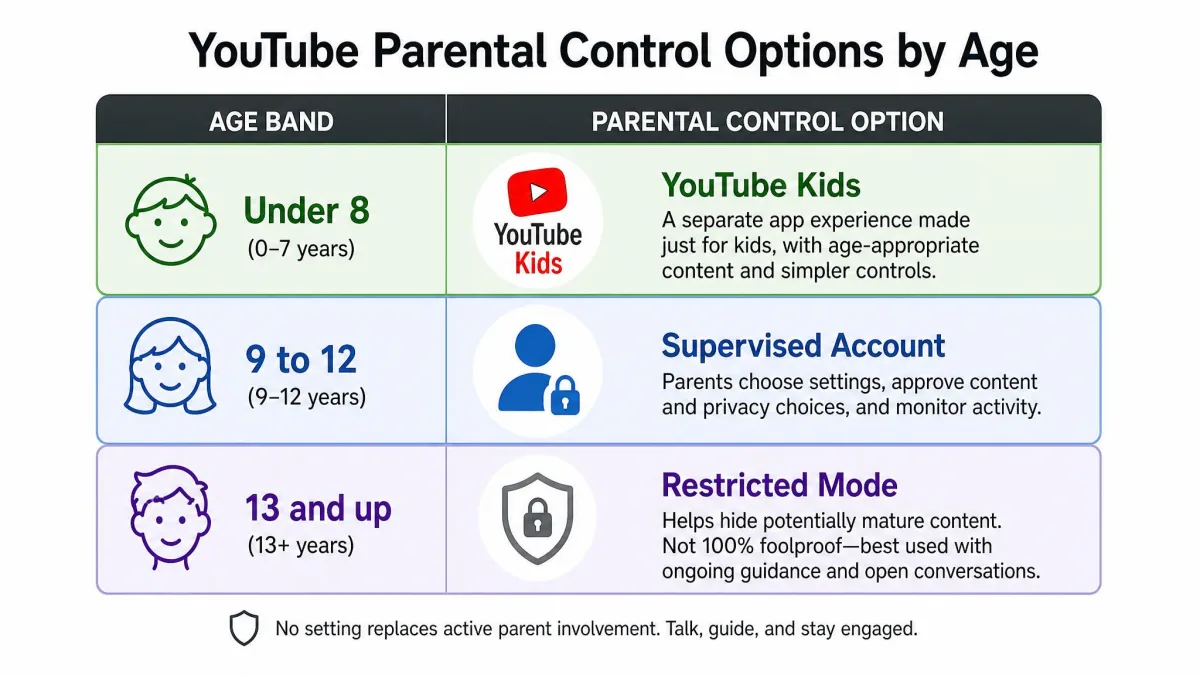
For ages 4 to 8, stay in YouTube Kids with the Younger tier, or Older for the top of the range. Block channels that drift off-topic and re-check the library every couple of weeks.
For ages 9 to 12, move to a supervised account with the Explore content setting. Keep history paused for a quieter feed, set a daily limit, and watch the Shorts feed.
For ages 13 and up, supervised accounts are not an option in the US, so Restricted Mode is the built-in filter. Family Link still handles screen time if you want it. The controls are guardrails rather than walls, so tell the teen what you have switched on and why.
Screen Time Limits, Autoplay, and YouTube Shorts
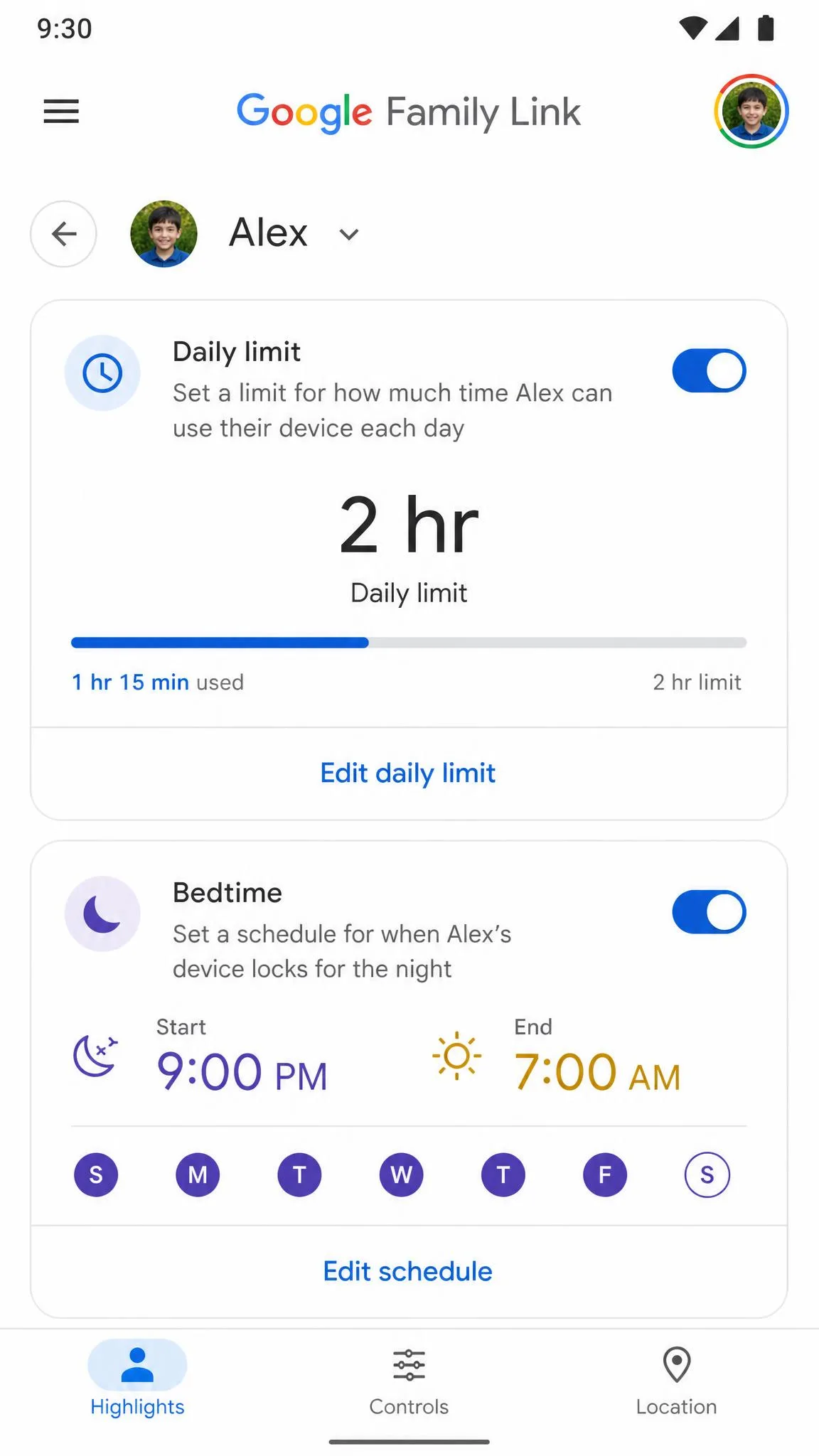
Parental controls are about content, but screen time is where most of the daily arguments happen. Family Link gives you the scheduling tools. Open the Family Link app on your own phone and go to Controls, then Content restrictions, then YouTube, and set a daily screen-time limit and a bedtime. The limits apply per device, so a two-hour limit means two hours on the phone and two more on the tablet. Budget for that. Family Link's strongest controls apply to Android devices and Chromebooks; its reach on iPhones and iPads is noticeably more limited.
With autoplay off, a video ends and the screen stops, which cuts the endless next-video loop and makes a stop time easier to enforce. On YouTube Kids and supervised accounts, the parent controls autoplay and the child cannot switch it back on.
Shorts are the newer problem. The Shorts feed serves rapid-fire clips that are hard to monitor in real time, and a scroll can run long without feeling like it. On a supervised account you can set a daily Shorts feed limit that resets each morning, and since March 2026 it can be set to zero. Younger kids in YouTube Kids simply have no Shorts feed to worry about. Take-a-break and bedtime reminders exist too, but a determined child can dismiss them, and the timer resets on app close or a device switch. Treat them as a nudge, not a lock.
What YouTube's Built-In Controls Can't Do (Third-Party Apps)
Be honest about the gaps, because knowing them is what lets you close them. YouTube's built-in controls cannot block by keyword, cannot filter a video the moment it turns inappropriate mid-watch, and cannot enforce account-level rules on a signed-out TV. Restricted Mode and YouTube Kids both lean on metadata and automated review, which is exactly why new or borderline videos slip through. Shorts exposes children to unfiltered clips through fast scrolling that no built-in setting fully contains.
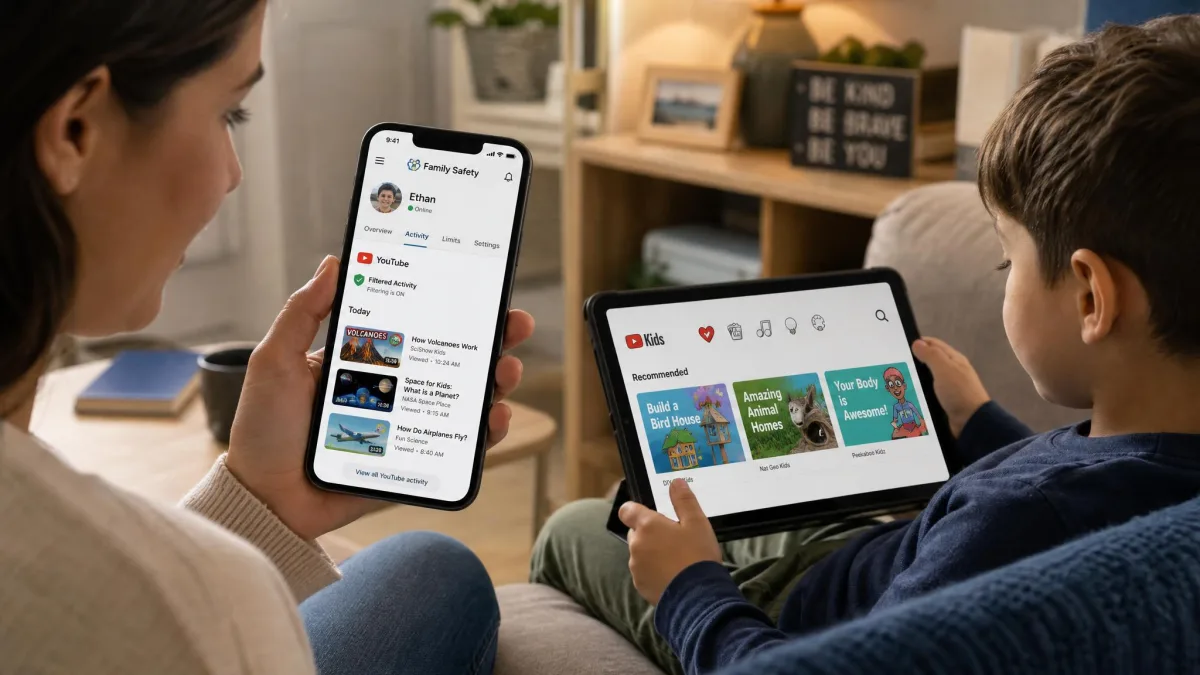
That is where third-party parental-control apps come in as an extra layer of protection. A dedicated family-safety app sits on the device, filters YouTube and the wider web, and adds keyword blocking and real-time video filtering that survive a sign-out or a new browser. They cost money and supplement rather than replace the free tools. Start with YouTube's built-in layers, and add a third-party app only if the gaps prove real in your house.

Frequently Asked Questions
Q: Can you put parental controls on YouTube?
Q: How do I block inappropriate videos on YouTube for my child?
Q: Is YouTube Kids safer than regular YouTube?
Q: Can kids bypass YouTube parental controls?
Q: How do I restrict what my child watches?
Q: How to put age restrictions on YouTube?
Conclusion: Keep Your Child Safe on YouTube
Set the basics today and refine them as your child grows. Start with the mode that matches their age: YouTube Kids for the youngest, a supervised account for tweens, Restricted Mode for teens. Turn autoplay off, decide on search and history, and agree on a screen-time limit you can enforce. Revisit all of it every few weeks, because content and interests change.
The tools are free, built in, and take minutes to switch on. No setting replaces a parent who occasionally watches alongside their kid, but the right combination closes most of the gap. Set it up now, and let the settings do the steady work while you handle the conversations.