An iOS location changer is a desktop or mobile app that feeds your iPhone a virtual location in place of its real GPS coordinates. Every app that reads Core Location then sees the spot you picked on a map instead of where you are standing. FonesGo Location Changer and UltFone iOS Location Changer are two of the most visible tools in that category, and they solve the same problem in noticeably different ways.
Both change your location with one click, neither asks you to jailbreak, and both add joystick movement and route simulation on top of simple teleporting. The differences that matter are stability during long sessions, how many devices a licence covers, and what you pay for a permanent copy.
Our comparison covers both current desktop clients and their mobile apps, checked against vendor documentation and hands-on findings for setup, movement modes, cooldown behaviour and pricing. Where the two tools behave differently in real use, we say so plainly.
FonesGo vs UltFone at a Glance
FonesGo is the broader package. One licence drives up to 15 devices at once, it ships an Android app as well as an iOS app, and its custom speed control runs from walking presets up to 100 km/h.
UltFone is the tighter, more focused product. Every tier covers 5 devices, the interface stays clean, and the published speed range runs from a slow walk to motorway pace.
Quick verdict: who each one is for
FonesGo is the best fit if you want to change location on several phones from one licence, or if you need an Android client. Choose UltFone if you only spoof one iPhone and want the cheapest lifetime price of the two.
Side-by-Side Comparison Table
| Product |  |
 |
|---|---|---|
| Monthly price | $9.95 desktop | $9.95 on 1 PC |
| Quarterly price | $19.90 | $19.95 |
| Annual price | $39.95 | $39.95 |
| Lifetime price | $79.95 | $69.95 |
| Free trial | Trial builds on all platforms | Limited trial, about 3 uses |
| Jailbreak required | No | No |
| iOS versions supported | iOS 13 upward | iOS 14 through iOS 27 |
| Android support | Yes | Yes, including Android 16 |
| Mobile app | iOS and Android apps | iOS app |
| One-click teleport | Yes | Yes |
| Joystick | Yes, 360 degrees | Yes |
| Single-spot route | Yes | Yes |
| Multi-spot route | Yes | Yes |
| Jump mode | Yes | Yes |
| Cooldown timer | Teleport actions only | Advisory only |
| Speed control | Presets up to 100 km/h | 3.6 km/h to 108 km/h |
| GPX import | Yes | Import and export |
| Simultaneous devices | Up to 15 | 5 per licence |
| Refund window | 30-day guarantee | 30 days |
| Support channels | Email, quality varies | Email, 48 hours stated |
Core Location-Changing Features Compared
The feature sheets overlap almost completely. What separates them is how each mode behaves once you leave it running.
One-click teleport to any spot
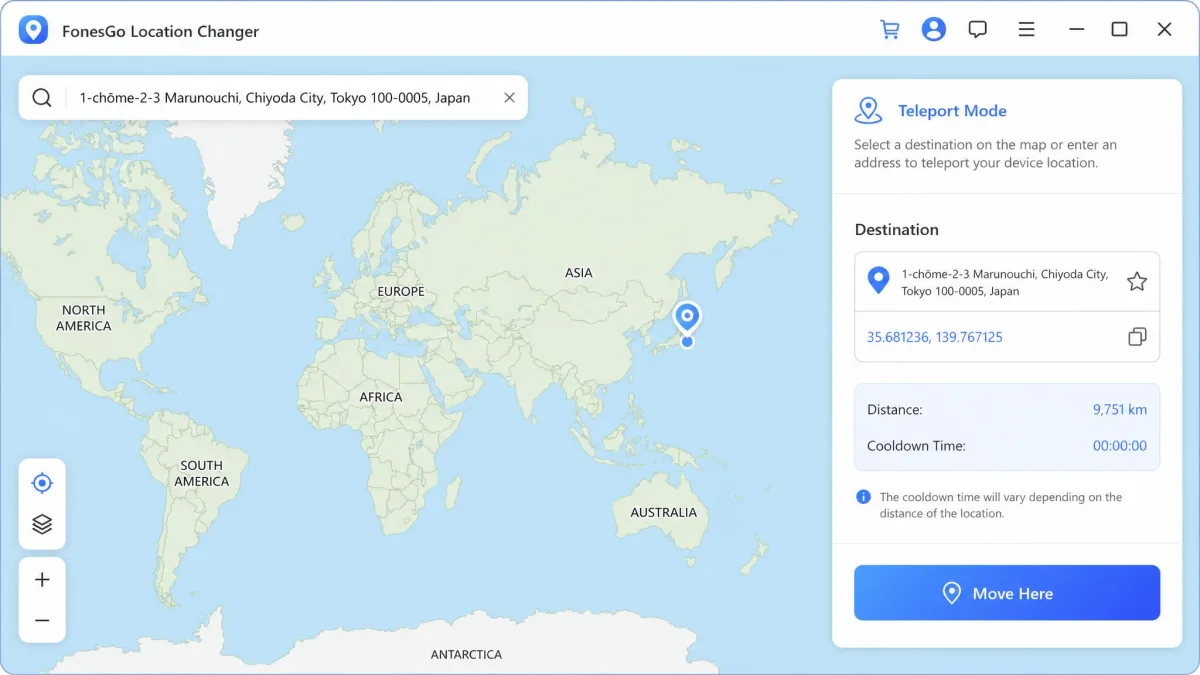
Both tools do the headline job the same way. You open a map, search or click a destination, confirm, and the iPhone reports the new coordinates to every app on it.
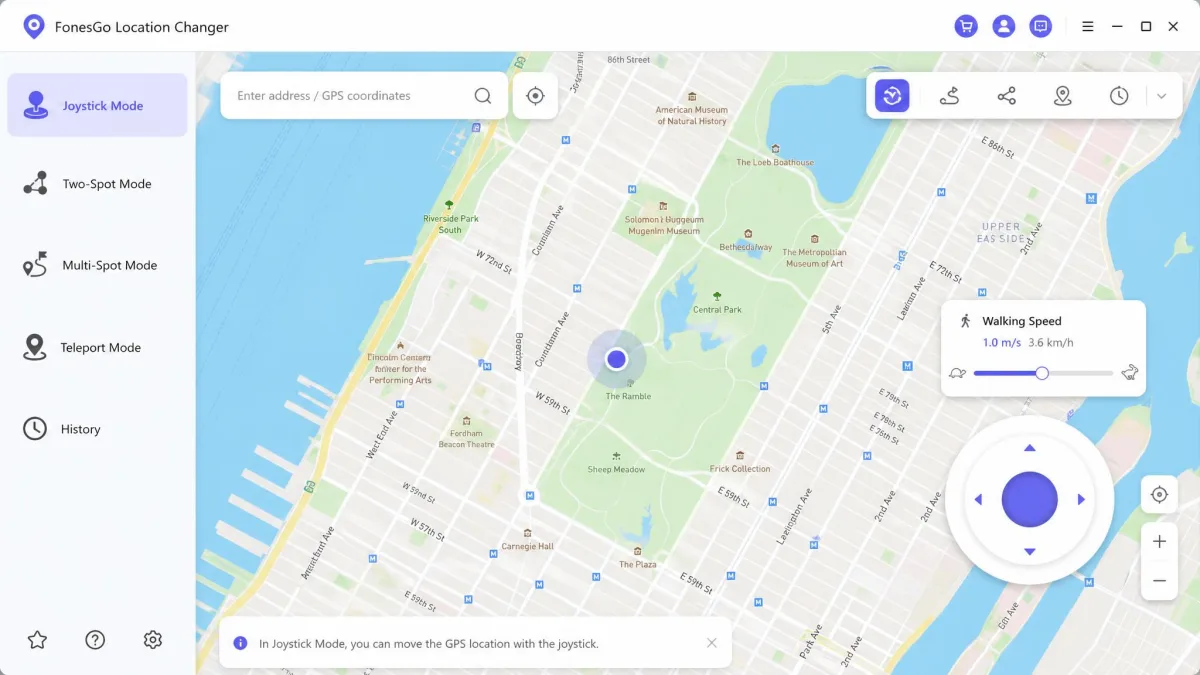
This is a one-click GPS change with no jailbreak and no profile installation on either side. FonesGo runs it from Windows, Mac, its own iOS app or its Android app. UltFone runs it from Windows, macOS or its standalone iOS app.
Joystick movement control
The joystick is the mode people use most after teleport. It puts a circular control on screen so you can steer your virtual position by hand instead of drawing a path first.
FonesGo's joystick turns a full 360 degrees, which makes fine direction changes easy on a dense city map. UltFone's joystick is simpler in layout and quick to reach once your iPhone is connected.
Both let you hold a direction and keep walking, and both keep the movement speed you set in the panel above. The joystick is available in the mobile apps as well as on the desktop clients.
Single-spot and multi-spot route simulation
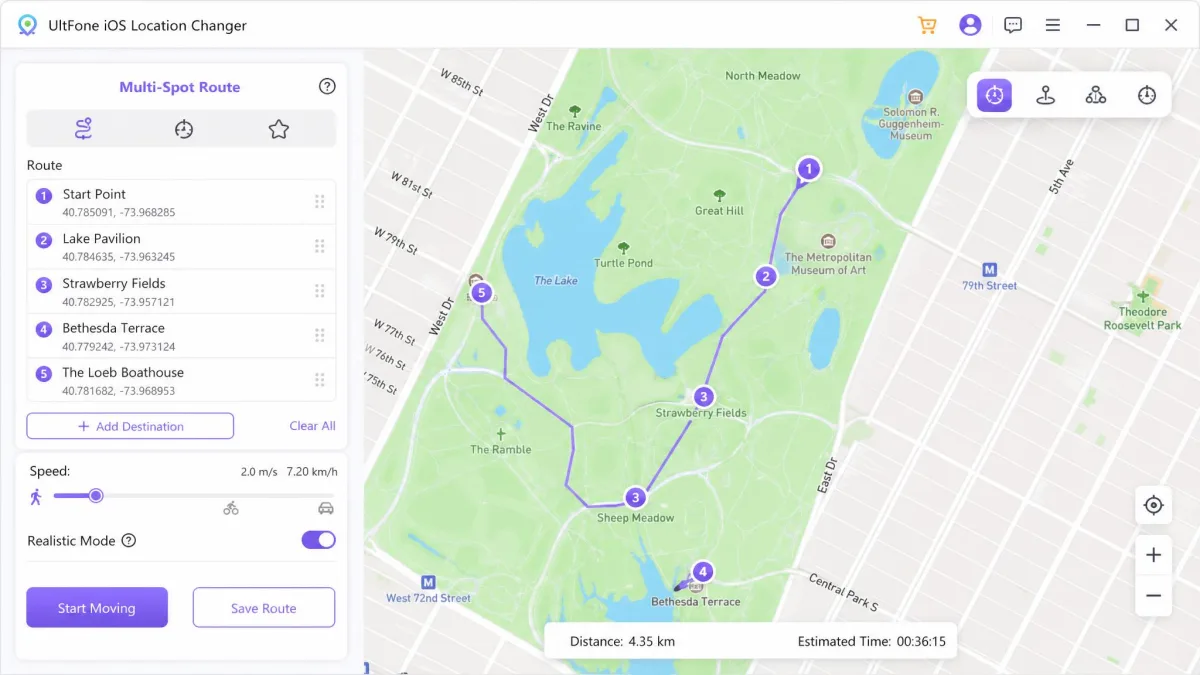
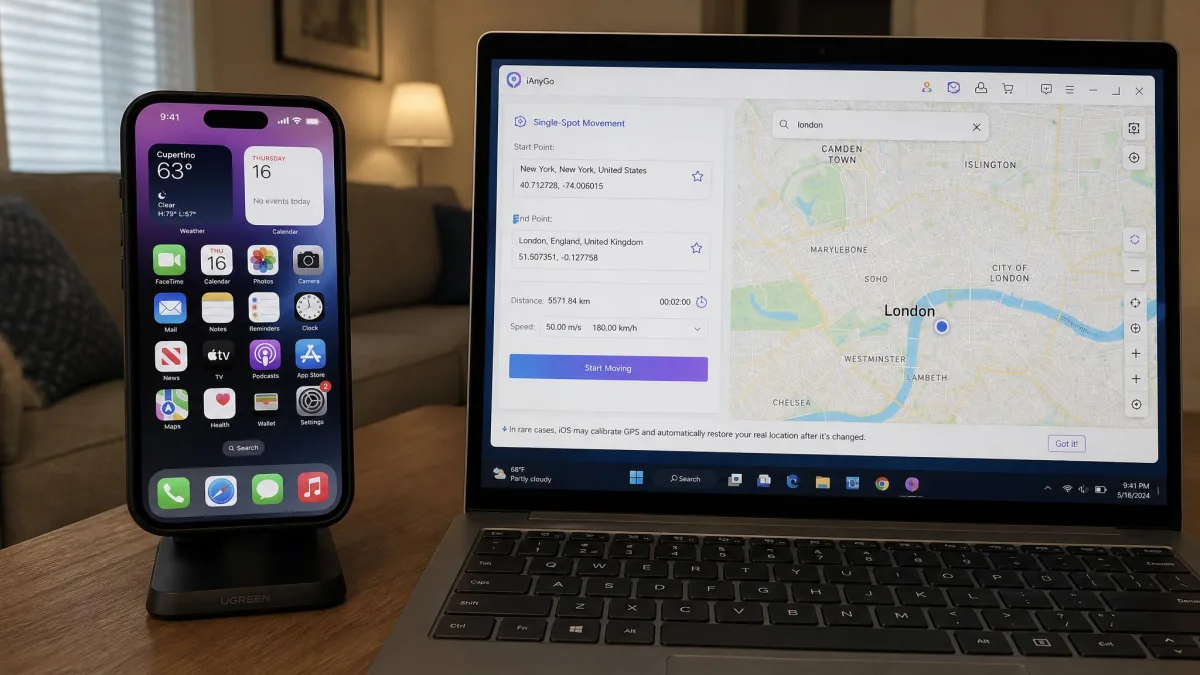
Route simulation is where you tell the app to walk you somewhere rather than drop you there. A single-spot route takes two points and plans the path between them automatically.
Multi-spot routes let you create a path from several waypoints and set a speed for the whole run. UltFone adds waypoints with per-route speed control, and FonesGo calls the same two modes two-spot and multi-spot.
We would use routes rather than teleporting whenever an app is watching movement patterns. A walk that takes realistic time looks like a walk.
Draw route waypoints slightly off the exact centre of roads and vary your speed between legs. A path that follows a road with millimetre precision at a constant speed is the easiest kind of movement to spot.
Jump mode and the cooldown timer
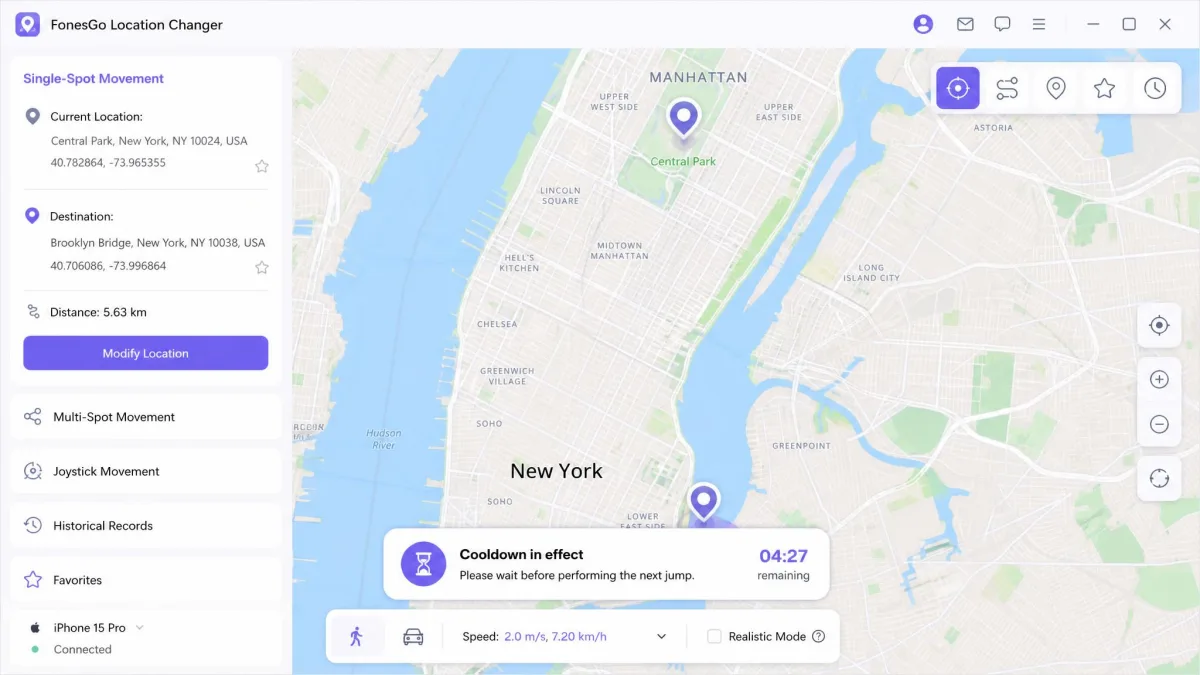
Jump mode is a rapid teleport built for game players who want to move again quickly. Both apps include it, and both pair it with a cooldown timer that tells you how long to wait before your next jump.
The important difference is scope. On FonesGo the cooldown timer covers teleport actions but not two-point or multi-point routes, so route runs need you to pace them yourself.
On UltFone the cooldown is advisory only. Nothing in the software stops you from teleporting again before the timer clears, which makes the counter a suggestion rather than a guard rail.
Speed customization and GPX route import
UltFone publishes a movement speed range of 3.6 km/h to 108 km/h, which covers walking through to driving. That ceiling differs between the desktop build and the mobile app, so the usable top speed depends on which client you drive the route from.
FonesGo takes the same ground from the other end. Its movement speed is adjustable at will up to 100 km/h, and you set it with a slider carrying walking, cycling and driving presets plus a realistic mode rather than a numeric entry box. No lower bound is published, so the slowest setting is whatever the walking preset gives you.
Both apps import GPX files, so a route recorded elsewhere can be replayed on your iPhone. UltFone also exports GPX, which is useful if you want to reuse a route you built by hand.
Performance in Real Use Cases
Pokemon Go and location-based games
Pokemon Go is the reason most people go looking for a location changer at all. Both tools support it directly, and both include the movement modes the game rewards.
FonesGo also names Monster Hunter Now among its supported games. UltFone documents handling for Pokemon Go Error 12, the failed-to-detect-location message that spoofers run into most often.
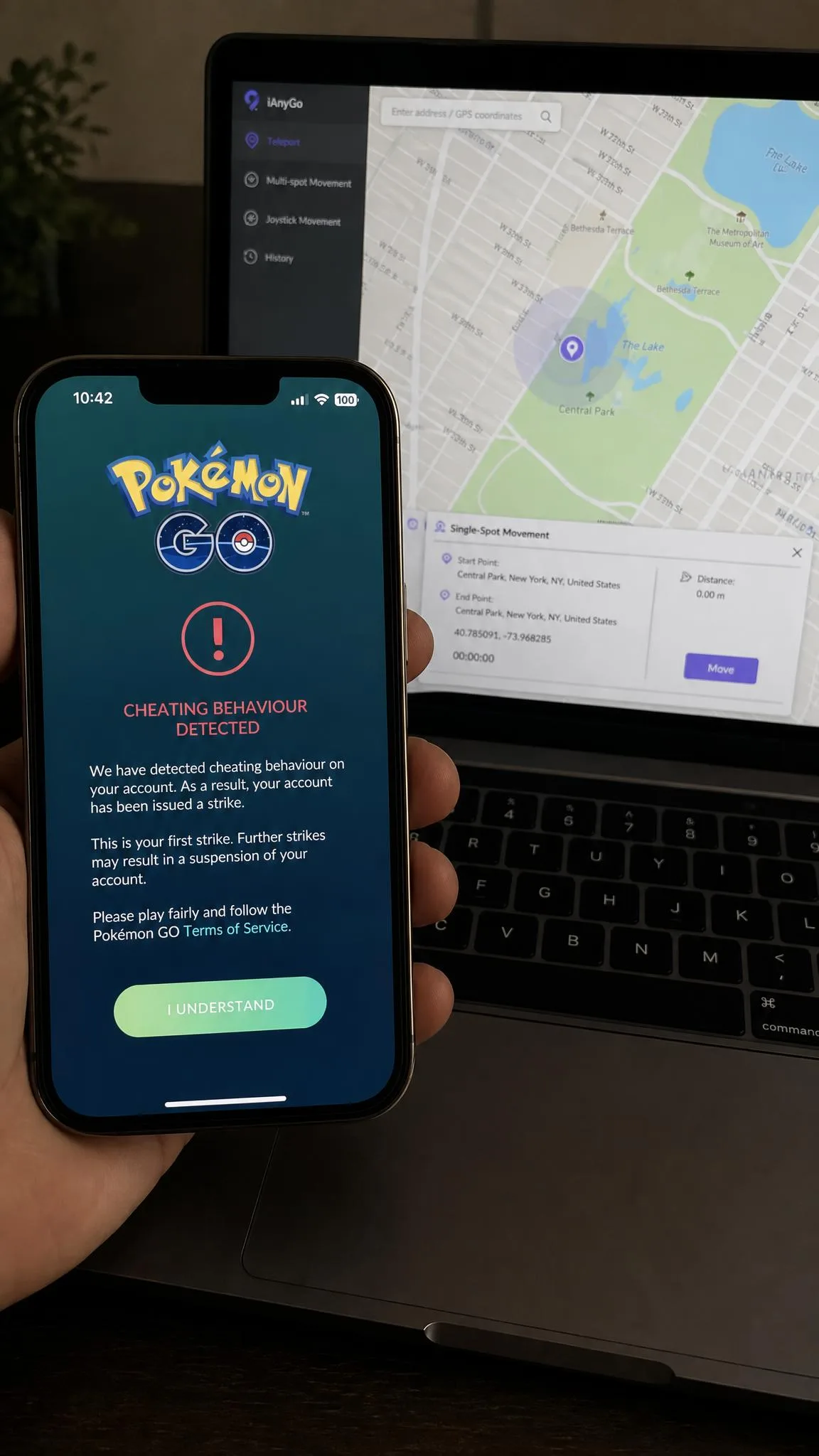
Neither app removes ban risk. Both carry account suspension exposure when jumps ignore realistic travel time, and that exposure is a property of the game's detection rather than the tool you used.
Dating apps (Tinder, Bumble)
Dating apps read the same Core Location feed, so a spoofed position changes who you see. Bumble and Tinder both refresh your discovery area from your reported coordinates.
Teleport is enough here. There is no need for joystick or route work, because these apps care about where you are and not how you got there.
What does matter is stability. If the location snaps back to your real GPS mid-session, your profile distance changes while you are swiping.
Social apps and virtual location sharing
UltFone documents support for Facebook, WhatsApp and Snapchat, which is the group most people mean by virtual location sharing. FonesGo works the same way, since neither app targets individual services.
Anything that reads your location, including Find My and weather apps, follows the virtual position automatically. That is worth remembering before you spoof a phone that family members can see.
Privacy: hiding your real GPS location
Both tools double as a privacy layer. Setting a virtual location a few suburbs away from home keeps your real location out of apps you do not fully trust.
The catch is that the effect lasts only as long as the session. Restart the iPhone and it returns to its real GPS position.
Ease of Use and Interface
Setting up FonesGo
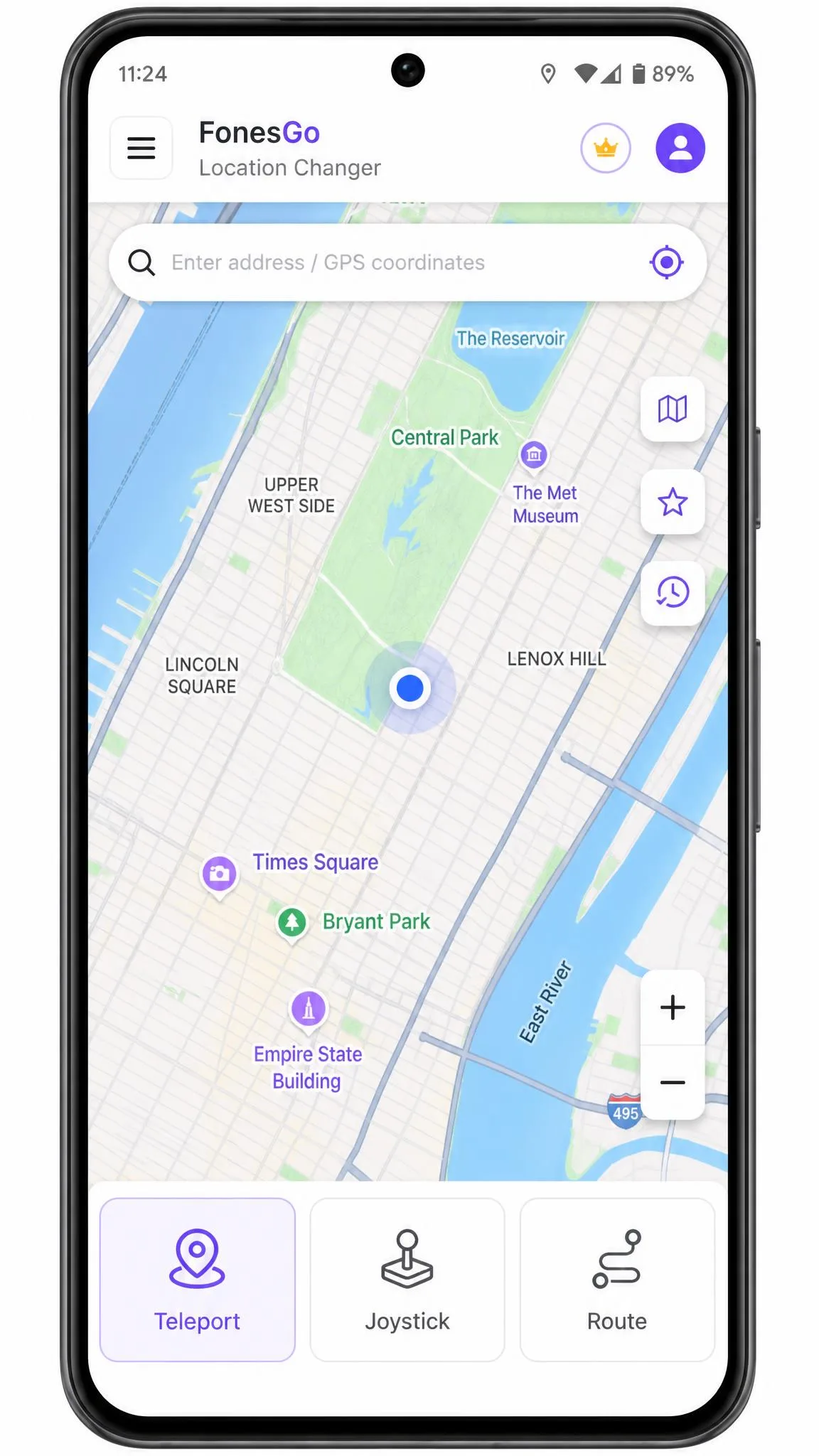
FonesGo installs and connects without friction over USB or Bluetooth, and the interface is straightforward to learn. The map, the mode selector and the speed panel sit where you would expect them.
The desktop workflow still requires tethering the phone to a PC or Mac, which limits spoofing away from a desk. FonesGo also throws occasional bugs and does not behave identically on every handset.
Setting up UltFone
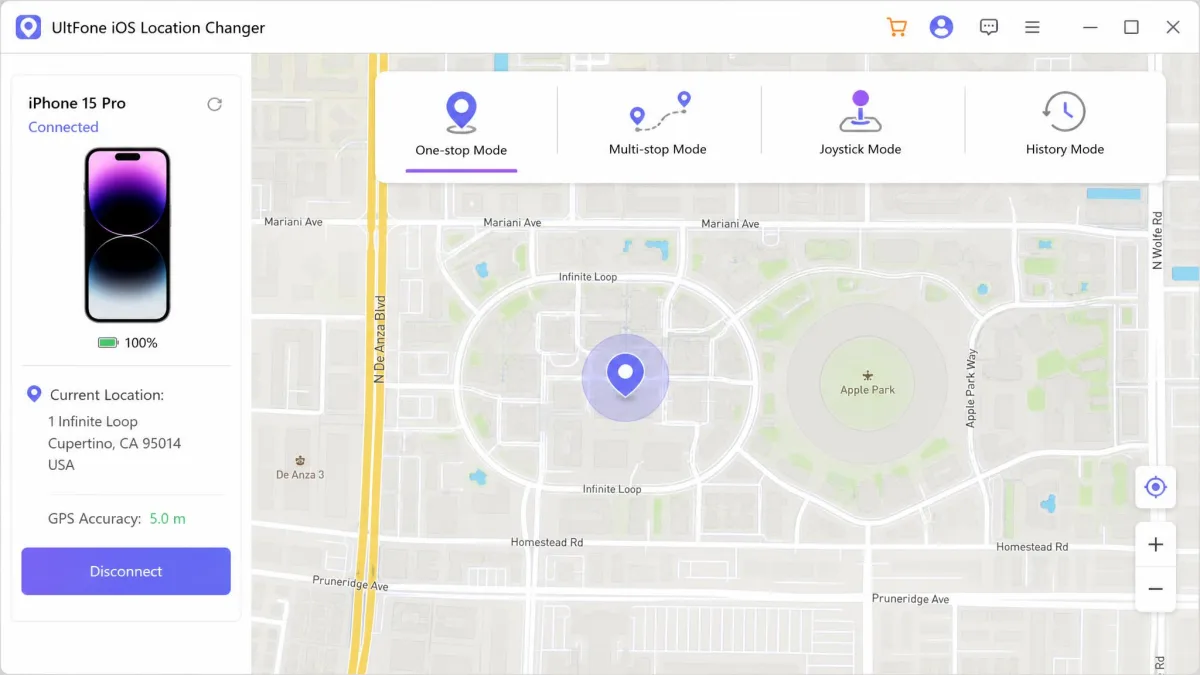
Setup is short. Install the desktop client, connect the iPhone by cable, unlock the phone and tap Trust, then pick your start and end points on the map.
The interface stays clean and navigation is quick once the device is connected. One rough edge shows on first launch, where the map can display the wrong current location before any spoofing has been applied.
How to Change Your iPhone Location, Step by Step
With FonesGo Location Changer
- Install FonesGo on your PC or Mac, or install the FonesGo iOS Location Changer app directly on the iPhone.
- Connect the iPhone by USB or Bluetooth and tap Trust on the device.
- Pick teleport mode, then search for the address or click the spot you want on the map.
- Confirm the move and watch the marker jump to the new coordinates.
- For movement, switch to joystick, two-spot or multi-spot mode and set your speed first.
With UltFone iOS Location Changer
- Install the UltFone desktop client on Windows or macOS.
- Connect the iPhone by cable, unlock it and tap Trust.
- Choose one-click teleport, then click your destination on the map.
- For a route, select single-spot or multi-spot, drop your waypoints and set the movement speed.
- Start the route and leave the client running until the run completes.
Device and Platform Support
iOS and iPadOS version support
UltFone supports iOS 14 through iOS 27. FonesGo starts lower, at iOS 13, and claims support up to the newest release, although vendor compatibility claims run ahead of independent testing.
Spoofing reliability on the very latest iOS release lags the stated support on both tools. If your iPhone is running a release that shipped in the last few weeks, expect rough edges regardless of which app you buy.
Android support
FonesGo ships a full Android app that can also drive an iPhone over Bluetooth. UltFone supports Android too, including Android 16.
If Android is your main platform rather than a secondary one, FonesGo is the more complete option.
Desktop app vs mobile app
FonesGo runs on Windows and on macOS 10.12 or later, plus iOS and Android apps. UltFone's desktop client runs on Windows 11, 10, 8.1, 8 and 7, with a macOS build on the download page and a standalone iOS app that changes location without a computer.
The mobile apps are the difference-maker if you want to spoof away from a desk. Both vendors offer one, and FonesGo bundles its desktop versions with the iOS app tier.
Does either need a jailbreak or root?
No. Neither FonesGo nor UltFone requires a jailbreak or root, and both work on a stock iPhone.
What they do require is a connection. The desktop clients need USB or Wi-Fi to reach the phone, and that requirement is the practical limit on where you can spoof.
Pricing and Plans Compared
FonesGo Location Changer pricing
The desktop plan is $9.95 per month, listed as reduced from $19.95. The lifetime licence is $79.95 and covers up to 15 devices plus one PC or Mac.
FonesGo also sells app-first tiers: $19.95 per month for the iOS app, which bundles the Windows and Mac desktop versions, and $14.95 per month for the Android app. A quarterly rate of $19.90 and an annual rate of $39.95 appear on third-party listings, though FonesGo runs rotating promotional discounts, so those figures move between checkout visits.
UltFone iOS Location Changer pricing
UltFone's pricing tiers are laid out by licence length and PC count. A quarter is $19.95 on 1 PC, a year is $39.95 on 1 PC, and the lifetime licence is $69.95.
Two-PC licences cost $15.95 monthly and $59.95 annually. The monthly 1-PC rate is listed at $9.95, but UltFone's monthly pricing differs between the 1-PC and 2-PC licences and moves with the running promotion.
Every UltFone tier covers 5 devices, and support states a 48 hours response time.
Free trial and refund policy
FonesGo offers free trial builds on every platform, and the allowance is metered by uses rather than by days. The Android app gives you all of its features three times before you have to buy. On the desktop side the trial is reported as three free two-spot and multi-spot runs and five joystick runs, but FonesGo publishes no desktop cap of its own, so the number of free runs differs per mode and per build.
UltFone's trial runs out after only a few location changes, so evaluating the movement modes properly means paying first. Trial allowance varies by client and download channel rather than being a fixed published entitlement.
Both vendors offer a refund window of 30 days. FonesGo grants its 30-day money-back guarantee only for the circumstances listed in its refund policy, so read that list before you buy on the strength of the guarantee.
Pros and Cons
FonesGo Location Changer pros and cons
Pros
- Up to 15 devices spoofed at once from one licence
- Native Android app as well as an iOS app
- Installs and connects without friction over USB or Bluetooth
- Wide iOS floor, starting at iOS 13
- 360-degree joystick and GPX import included
Cons
- Lifetime licence costs $10 more than UltFone's
- Occasional bugs, and behaviour varies by handset
- Support quality is inconsistent from one contact to the next
- Cooldown timer skips two-point and multi-point routes
- Speed set by preset slider rather than a numeric field
UltFone iOS Location Changer pros and cons
Pros
- Cheapest lifetime licence of the two at $69.95
- Clean interface with quick navigation once connected
- Short setup, roughly four steps to a spoofed location
- Published speed range from 3.6 km/h to 108 km/h
- GPX import and export, plus a stated 48 hours support response
Cons
- Spoofed location can snap back to real GPS after three to five minutes
- GPS connection drops unpredictably during active movement simulation
- Only 5 devices per licence
- Free trial ends after a handful of location changes
- Map can show the wrong current location on first launch
Safety, Account Risk and Ban Considerations
Location spoofing sits outside the terms of service of most games and several social apps. In Pokemon Go specifically, falsifying location data is named as a violation in Niantic's terms of service, and enforcement runs from a warning to a permanent ban.
The mechanic that gets accounts flagged is impossible travel. Jumping between cities faster than a plane could carry you is the pattern detection systems look for, and the cooldown tables in both apps exist specifically to stop you doing it.
FonesGo's cooldown table forces a wait between actions to imitate real travel time, and skipping that wait is the main route to an account flag. UltFone's counter does not enforce anything at all.
Neither tool removes ban risk. Treat the cooldown timer as a minimum wait rather than a formality, use route simulation instead of repeated jumps, and never spoof an account you cannot afford to lose.
Which Should You Choose?
Choose FonesGo if...
You spoof more than one phone, you need an Android client, or you want the widest device coverage per licence. Fifteen devices against five is a large gap, and it is the clearest reason to pay the extra $10 for the lifetime tier.
Choose UltFone if...
You spoof a single iPhone and want the lowest permanent price. The cheaper lifetime licence, the published speed range and the quicker setup all favour a one-device user, provided you can live with the session-length drops.
Alternatives worth a look
If neither fits, the same category has several close competitors worth comparing on price and device count before you commit. Our FonesGo Location Changer review goes deeper on the app's day-to-day behaviour than a head-to-head allows.