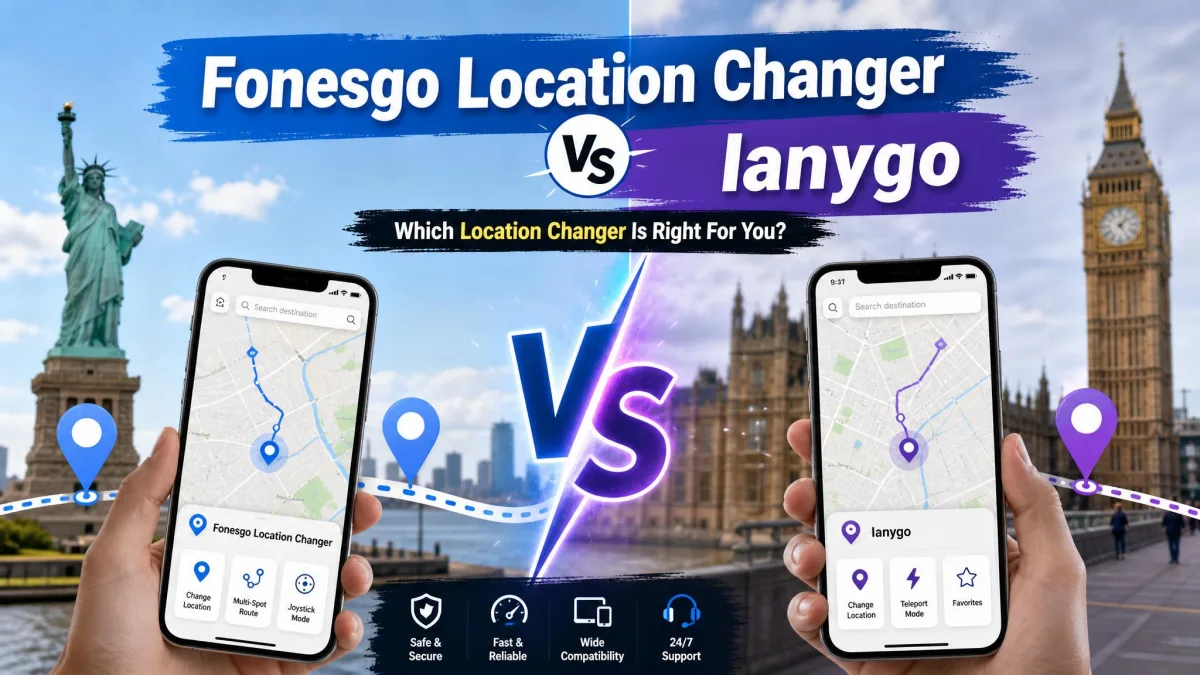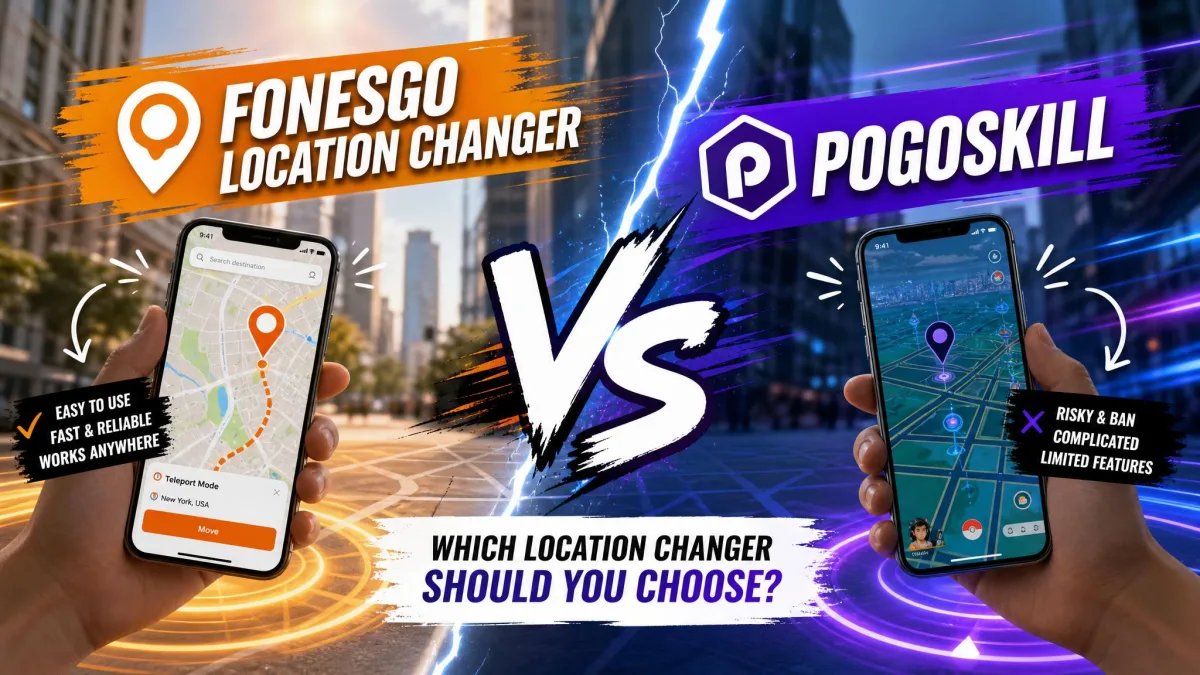
A location changer is a desktop app that feeds your phone a virtual GPS position instead of your real location. FonesGo and MagFone both do that job from a Windows or Mac machine, and both market a one-click teleport that works on iPhone and Android without jailbreak or root. On paper they look almost identical, right down to matching monthly and yearly prices.
The differences sit in the details: movement modes, devices per licence, the price of a lifetime key, and how steady the connection stays once you start moving. We installed both apps, connected an iPhone and an Android handset to each, and ran them through map jumps, joystick walks and route playback before picking a winner.
FonesGo vs MagFone at a Glance
Here is how the two line up on the specifications that change a buying decision.
| Product | Buy | Supported iOS | Supported Android | Jailbreak or root | Movement modes | GPX import | Devices per licence | Free trial | Refund window |
|---|---|---|---|---|---|---|---|---|---|
 |
Check price → | iOS 13 upward, ceiling listed as iOS 26 or 27 | Vendor lists Android 17, directories list 16 | Not required | 4: 2-Spot, Multi-Spot, Jump Teleport, joystick | Yes | 15 | Yes | 30-day |
 |
Check price | Vendor lists iOS 27, directories still list iOS 12 to 18 | Android 6.0 and later, vendor lists up to 16 | Not required | 6: adds keyboard control and automatic movement | Yes, import and export | 10 | Yes, limited | 30 days yearly, 5 days monthly |
What Each Tool Actually Does
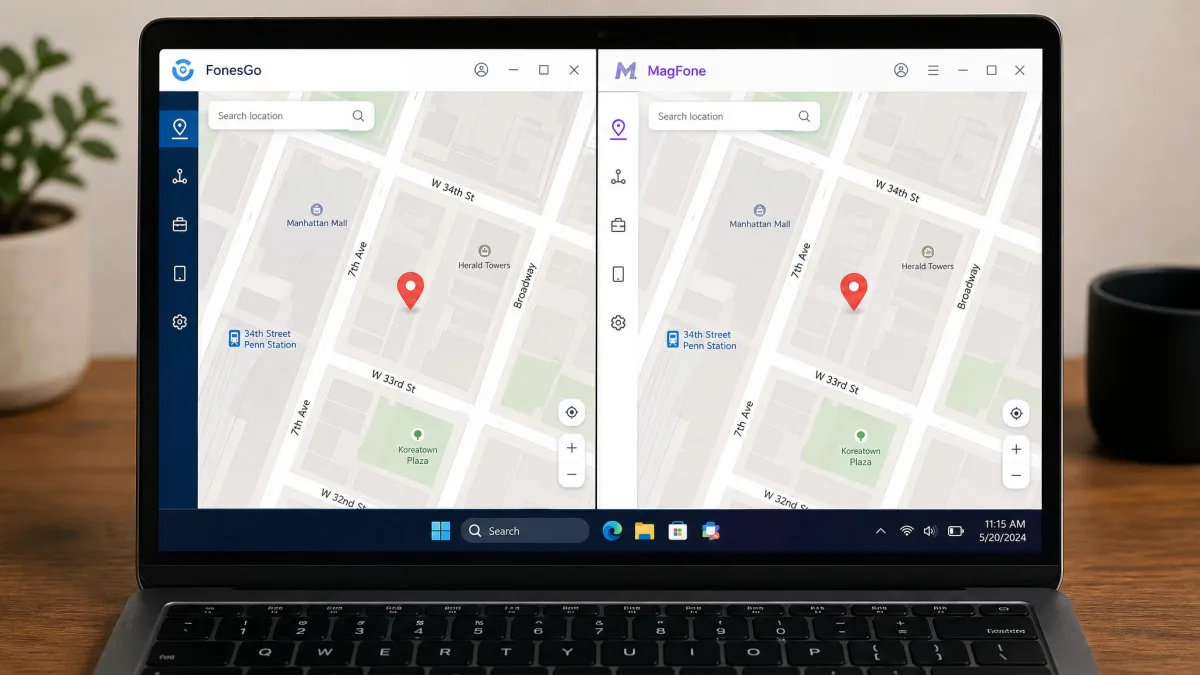
Both are desktop apps that talk to a phone over USB or Wi-Fi and rewrite the GPS coordinate the handset reports to every location-based app on it. You pick a spot on a map, click once, and your phone believes it is there.
FonesGo Location Changer in Brief
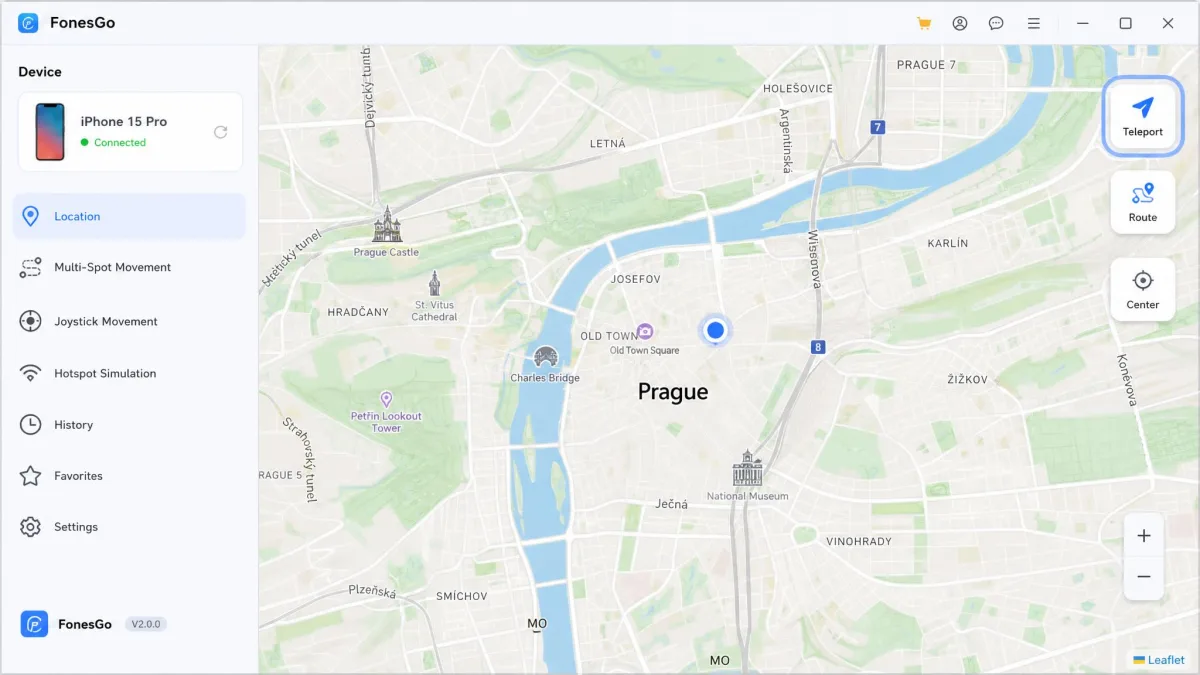
FonesGo Location Changer runs on Windows, Mac, iOS and Android. It gives you 2-Spot movement, Multi-Spot movement, Jump Teleport and a 360-degree joystick, plus a cooldown timer, favourite routes, history records, GPX import and a custom speed setting that tops out at 100 km/h.
Support runs through phone and 24/7 live chat, with documentation and video training behind it. The catch we ran into is portability. The workflow depends on a PC or Mac staying connected, so this is not something you run from a phone alone.
MagFone Location Changer in Brief
MagFone Location Changer has been sold since 2018 and takes the same desktop-first approach. Its feature list is longer: six movement modes, GPX import and export, cycle and round-trip routes, realistic and fluctuation movement, and a speed slider from 0.4 to 108 km/h. The interface is English only, and the licence includes free technical support, phone contact, video training and upgrades.
Side-by-Side Feature Comparison
Movement Modes: Teleport, Two-Spot, Multi-Spot and Joystick
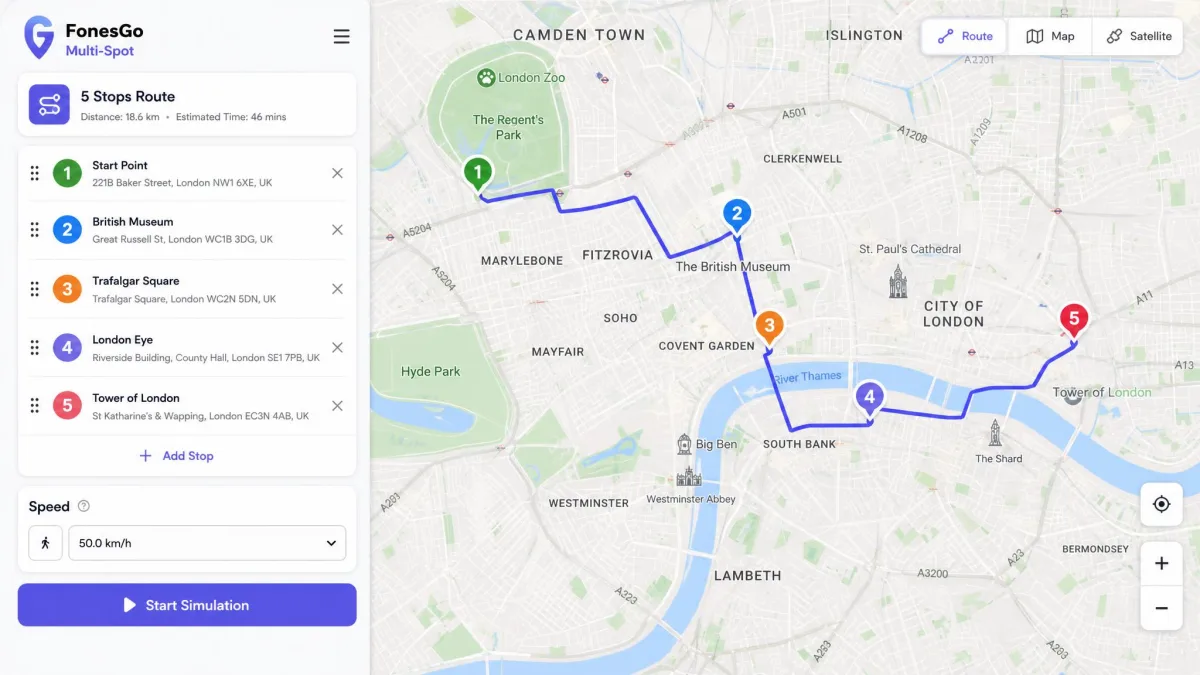
Teleport is the easy mode, and the one most people want. You search an address, click, and the phone jumps. Both handle it identically and both keep a history list. Two-Spot movement walks a straight line between two points at a speed you set, Multi-Spot follows a path you draw across several pins, and the joystick gives full 360-degree control while a game is open.
MagFone adds two modes FonesGo does not have. Keyboard control maps movement to WASD and the arrow keys, and automatic movement runs a route without you holding anything down. If you plan to leave a walk running while you do something else, that is a meaningful gap.
Route Realism and Speed Control
MagFone's realistic and fluctuation settings vary your pace as you travel, which reads more like a person walking than a constant velocity does. It also supports cycle and round-trip routes. FonesGo keeps this simpler: you set a speed up to 100 km/h and the app holds it, which is fine for a commute and less convincing over a long game route.
GPX Import, Favourites and History
GPX import is available in both apps, so a route recorded elsewhere can be replayed on your phone. MagFone also exports GPX, which helps if you want to reuse a route elsewhere. Favourites and history records are in both.
Save your home address as a favourite before you start experimenting. Returning to your real location is then one click instead of a search.
Device and OS Compatibility
iPhone and iOS Version Support
Both advertise support for the newest iOS release, and both figures move every time Apple ships an update. FonesGo lists iOS 13 as its floor, with the ceiling given as iOS 26 or 27 depending on the listing. MagFone claims iOS 27 while software directories still describe it as an iOS 12 to iOS 18 tool. Treat the top number as a moving target and check the vendor page on the day you buy.
Neither app changes a setting inside iOS itself. The phone keeps reporting position through the normal system.
Android Support and Whether You Need Root
MagFone states Android 6.0 and later as its minimum, which covers almost any handset still in use. FonesGo's page claims Android 17 support while directory listings put the ceiling at Android 16.
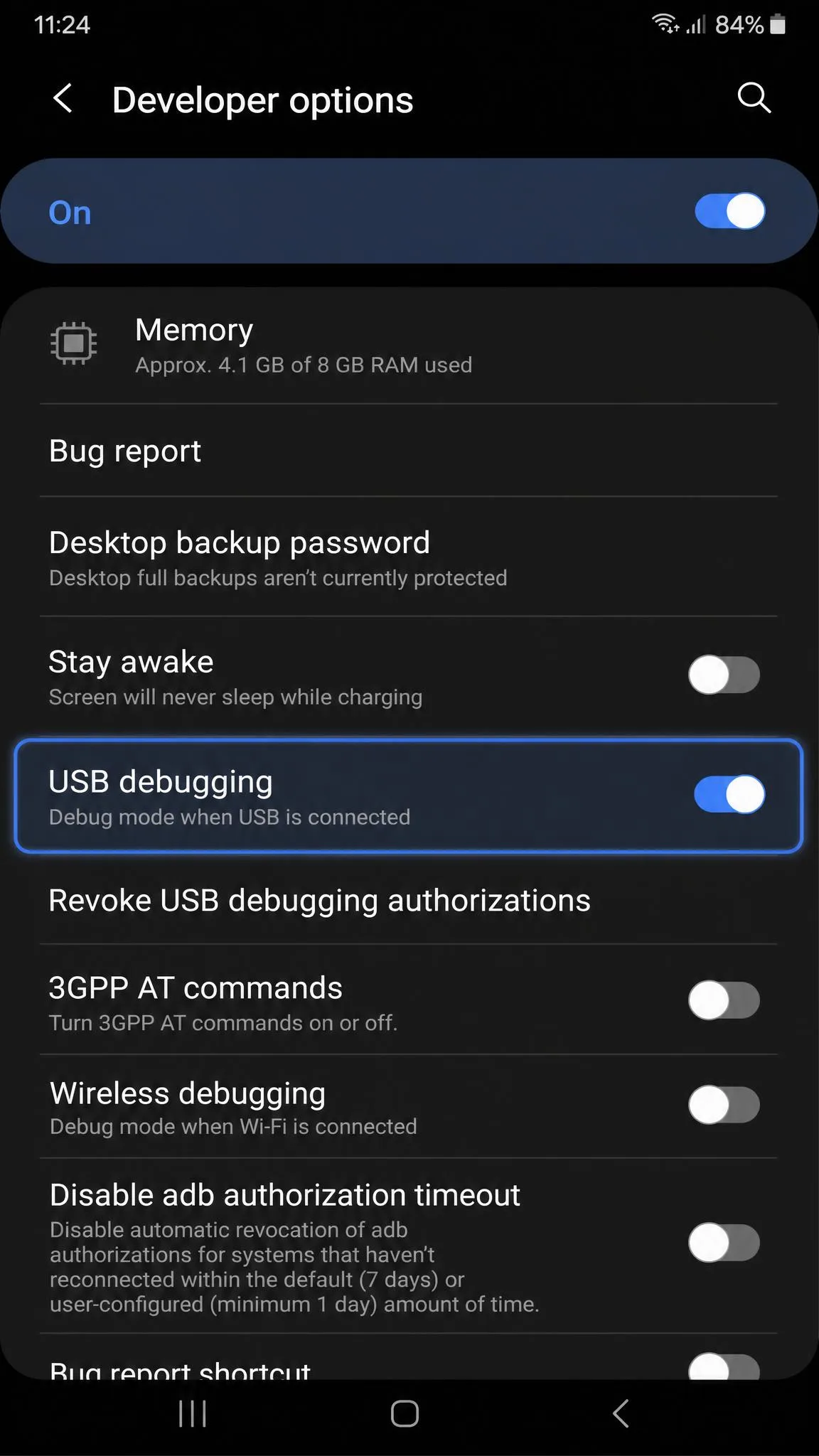
Both need Developer Options open and USB debugging switched on before the desktop app sees the phone. Tapping Build number seven times under About phone reveals the menu, and the whole thing takes about a minute.
Jailbreak and Root: Neither Tool Requires It
This is where the two are genuinely equal. Neither asks you to jailbreak an iPhone or root an Android phone. Both change location through the desktop connection, so the handset stays stock and keeps its warranty and its updates.
Ease of Use: Setup and First Location Change
Both get you to a changed position in a few minutes on a first run, and neither wants anything beyond a cable and, on Android, Developer Mode.
How to Change Your Location with FonesGo (Step by Step)
- Install the desktop app on your Windows PC or Mac and open it.
- Connect your phone by cable or over Wi-Fi, then choose your operating system when prompted.
- Confirm the connection when the app lists your device.
- Let the map centre on your real location, then search for the place you want.
- Click to move, and the new position appears in apps like Google Maps and Snapchat right away.
How to Change Your Location with MagFone (Step by Step)
- Switch on Developer Mode on the phone first, then open MagFone on the desktop.
- Connect over USB or Wi-Fi and wait for the handset to be detected.
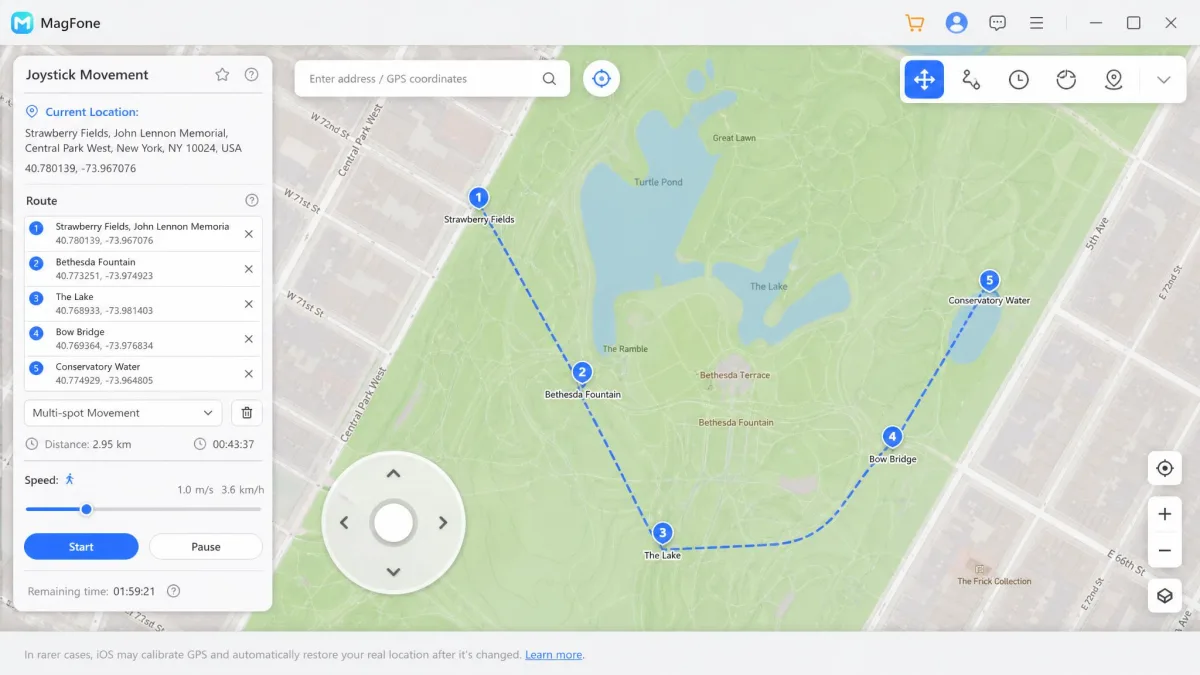
- Pick your mode from the icons in the top right corner.
- Search the map for your destination and start the change.
MagFone's map is clean enough that our first location change landed without hunting through menus. The connection step is where it stumbles. It occasionally failed to detect a handset for us, and the fix was re-enabling USB debugging, re-trusting the computer on the iPhone, or swapping the cable or port.
Performance With Location-Based Apps
Pokemon GO and Other AR Games
Both list Pokemon GO and Monster Hunter Now. MagFone names more titles, including Ingress Prime, Jurassic World Alive, Pikmin Bloom and Geocaching.
For a game, the joystick and the multi-spot route matter more than the teleport. MagFone's keyboard and automatic modes make long walks easier to run. FonesGo's joystick is responsive and its cooldown timer sits on the same screen, which keeps the safe-jump maths in front of you.
Dating Apps: Tinder, Bumble and Hinge
MagFone lists Tinder and Bumble by name. FonesGo covers dating and social apps in general terms. In practice both change the position a swipe app reads, because they work at the system level rather than per app.
Social and Sharing Apps: Find My, Life360, WhatsApp
MagFone names Life360, Instagram, Snapchat, TikTok, Spotify and Netflix. FonesGo names Google Maps and Snapchat. When we moved a phone with FonesGo, the new position appeared in both immediately, with no drift back to the real coordinate.
Pricing and Licensing Compared
FonesGo Plans and What You Get
FonesGo sells the usual ladder of monthly, quarterly, yearly and lifetime keys, and the figures are in the table below. Alongside those, it offers an iOS quarterly bundle at $31.96, down from a listed $116.50, which covers five iOS devices plus the Windows and Mac apps. That bundle is the odd one out in the range, so read the device allowance rather than assuming it matches the standard tiers. The FonesGo pricing page carries the current mix, and it shifts with whatever promotion is running.
MagFone Plans and What You Get
Every MagFone pricing tier is listed as a discount from a much higher figure, so the headline saving is closer to marketing than to a real drop. The range runs monthly, quarterly, yearly and lifetime in the same shape as FonesGo's, and one licence is tied to a single PC. A lifetime Windows plus Mac bundle costs $107.95, which is the only plan here that covers both desktop platforms in one purchase.
Which Offers Better Value
| Product | Monthly | Quarterly | Yearly | Lifetime |
|---|---|---|---|---|
|
$9.95 | $19.90 | $39.95 | $79.95 |
|
$9.95 | $19.95 | $39.95 | $89.95 |
Month to month and year to year, this is a coin flip. Value separates at the ends. If you want to pay once, FonesGo is the cheaper key. If you need Mac and Windows together forever, MagFone's bundle is the tidier answer, and it is worth pricing that against buying two separate FonesGo lifetime keys before you decide.
Reliability, Support and Refund Policy
FonesGo held a stable connection for us across sessions, with no crashes and no GPS drift once a position was set. It is not flawless. We hit occasional bugs, some advertised features behaved inconsistently, and support response times varied despite the 24/7 live chat promise.
MagFone's weak point is the same connection layer. It dropped mid-session for us rather than staying pinned for a whole run, and its free trial is limited enough that judging the app before paying is hard.
Refunds favour FonesGo for clarity. It offers a flat 30-day money-back guarantee across its products, with the usual exclusion that an auto-renewal charge taken after the renewal date is not refundable. MagFone's terms depend on the licence: its purchase pages advertise a flat 30-day guarantee, while its policy page sets 5 days on monthly licences and 30 on yearly and single ones.
Safety, Cooldowns and Account Risk
A spoofed position can still be flagged inside strict location-based games. Neither app removes that risk, and any tool claiming otherwise is overselling. Two patterns cause almost all of the trouble: continental-scale jumps and unrealistic movement speeds. Ignoring the built-in cooldown timer between jumps is what actually puts a game account in danger, and both include that timer for exactly this reason.
Changing your GPS position may breach the terms of service of games, dating apps and sharing apps, and mock locations sit under Google Play's policy on mock locations. Suspension is a possible outcome. Wait out the cooldown, keep speeds plausible, and do not spoof a sharing app you are trusted on.
Pros and Cons of Each Tool

FonesGo: Pros and Cons
Pros
- Cooldown timer sits on the map screen where you can see it
- Runs on Windows, Mac, iOS and Android
- Clear 30-day money-back guarantee
- Phone support and 24/7 live chat on the books
- No jailbreak or root needed on either platform
Cons
- Only four movement modes, with no keyboard or automatic option
- Occasional bugs, and some advertised features are inconsistent
- Support response times vary
- Priced slightly above comparable spoofing tools
- Needs a PC or Mac connected at all times
MagFone: Pros and Cons
Pros
- Six movement modes including keyboard and automatic control
- GPX import and export, plus cycle and round-trip routes
- Realistic and fluctuation movement for more convincing walks
- Names far more supported apps and games
- Speed range from 0.4 to 108 km/h
Cons
- Sometimes fails to detect a connected handset
- Free trial is too limited to judge the app properly
- Refund window is 5 days on monthly licences
- Interface is English only
- Licence is tied to one computer at a time
Which One Should You Choose?
Choose FonesGo If...
You want a simple teleport, a clear refund path if it does not suit you, and a household setup you can license from a single computer. It suits the buyer who plans to change location occasionally rather than run long automated routes, and who would rather pay once than keep a subscription running.
Choose MagFone If...
You play location-based games seriously and want automatic routes, keyboard control and realistic pacing, or you need GPX export or the Windows plus Mac lifetime bundle. The wider list of named apps also helps if you are spoofing something more niche than Google Maps.
We ran both apps from the same Windows machine with the same iPhone and Android handset, so the connection differences we describe come down to the software.
Frequently Asked Questions
Is FonesGo or MagFone safer to use?
Do either require jailbreak or root?
Will I get banned from Pokemon GO?
What happens if Apple ships a new iOS before the app supports it?
Does changing location also change my App Store region?
Is there a genuinely free option?
The Verdict