Your Mac ships with strong built-in security, but none of it encrypts your internet traffic or hides your IP address. Gatekeeper, XProtect, and FileVault protect what lives on the disk. They do nothing about the data leaving your machine over a coffee-shop network, and that gap is exactly what a VPN fills. A VPN wraps your connection in an encrypted tunnel, masks your real location, and keeps your browsing private from the network you happen to be sitting on.
We spent weeks putting the leading Mac VPNs through the same battery of speed, leak, and streaming tests, on the same hardware, so the results line up side by side. We looked at how each app behaves on Apple Silicon, whether it holds a connection through sleep and wake, how far it drops your throughput, and whether it can actually unblock the services people care about. We also paid for or licensed every service ourselves, so nothing here is shaped by a free press account.
Below you will find our ranked picks, a full comparison table, and a buying guide that answers the questions we hear most: whether macOS already has a VPN built in, whether free VPNs are safe, and what to look for before you enable a subscription.
How We Tested and Ranked These Mac VPNs
We treat a VPN the way a network administrator would: it does not earn a recommendation until it survives real-world speed, leak, and streaming benchmarks on actual Apple hardware. For this roundup we installed each app on Apple Silicon Macs running current macOS, connected to both nearby and long-distance servers, and measured the throughput drop against an unprotected baseline on the same line.
Rather than lean on a single lab bench, we ran each app across current Apple Silicon Macs on the latest macOS, over an extended stretch of everyday use rather than a one-off snapshot. We measured every VPN's throughput against the same unprotected baseline on the same connection, so the percentage drops line up like for like even though the absolute speeds depend on the line you happen to be on.
Speed was only the start. We ran DNS and WebRTC leak checks to confirm no traffic escaped the tunnel, toggled Wi-Fi off and on to see whether the kill switch actually blocked data during a drop, and put each Mac through sleep and wake cycles to catch apps that silently reconnect unprotected. For streaming, we tried Netflix, Disney+, BBC iPlayer, and Hulu across several server locations and noted whether we needed to hop servers to get in.
We also ran each test more than once and at different times of day, because a single benchmark can flatter or punish a server that happened to be busy. Where two runs disagreed, we took the slower result, since the worst case is what you actually live with on a bad network. We logged which apps reconnected cleanly after a dropped connection and which needed a manual nudge, because an app you have to babysit is not one you will leave running.
We scored each service on five things: speed retention, security and leak protection, privacy policy and jurisdiction, macOS app quality including Apple Silicon support, and streaming plus torrenting access. Price mattered too, but only as value for what you get. We bought or licensed every subscription ourselves, and none of these companies had any say in the ranking.
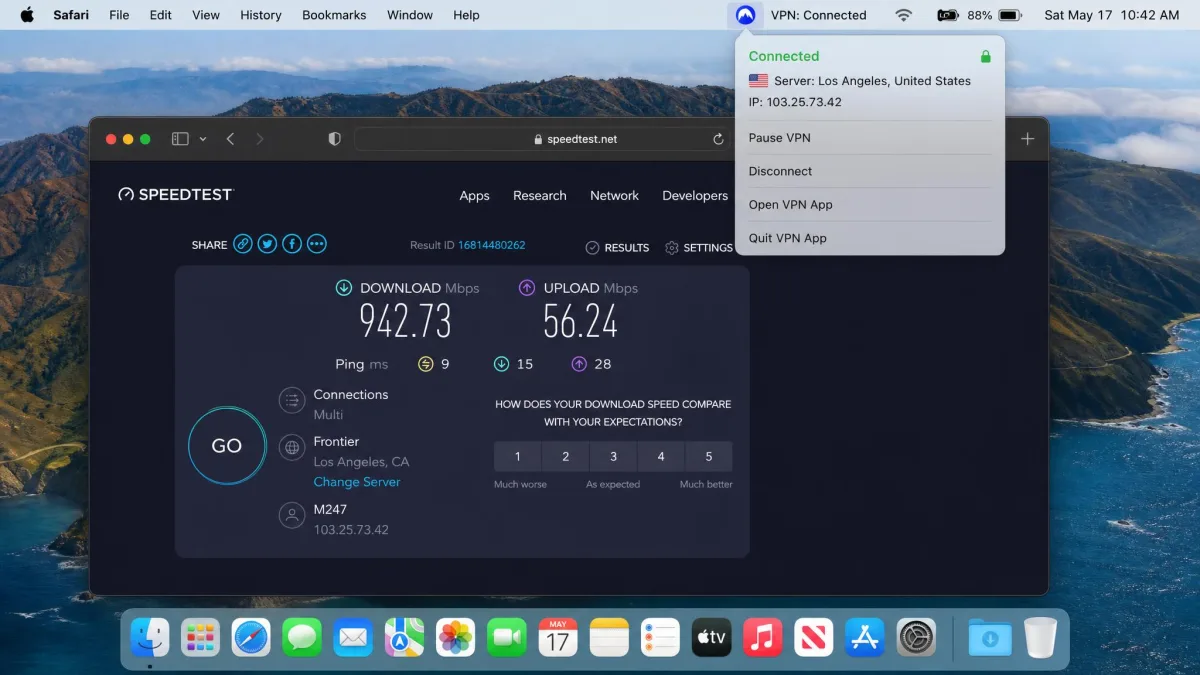
After running the same speed, leak, and streaming tests on every app across a stack of Apple Silicon Macs, the gaps that mattered were not the headline server counts. They were the small things: which apps held the tunnel through sleep, which leaked for a half-second when Wi-Fi flickered, and which needed a second app just to enable split tunneling.
Best Mac VPNs at a Glance (Comparison Table)
Here is how our five picks stack up on the specs most people compare before they buy. Prices are starting-from figures on the longest plans and shift with each promo window, so treat them as a guide rather than a fixed quote.
| VPN | Buy | Price (from) | Servers / countries | Simultaneous connections | macOS compatibility | Money-back | Streaming / torrenting |
|---|---|---|---|---|---|---|---|
 |
Check price → | ~$3.39/mo | ~7,000-8,400 / ~110-160 | 10 | Native Apple Silicon | 30-day | 4K Netflix, Disney+, P2P |
 |
Check price | $2.49/mo | 4,500+ / 100 | Unlimited | Native macOS | 30-day | Netflix, P2P |
 |
Check price | ~$2.79/mo | 3,000+ / ~105 | 8 (up to 14 by tier) | Native macOS | 30-day | Netflix, iPlayer, Hulu, HBO |
 |
Check price | Free / ~$2.99/mo | Varies (~129 countries) | 10 (paid) | macOS Sonoma+ | 30-day | Limited on free tier |
 |
~$2.19/mo | 2,400+ / 100+ | Unlimited | Native macOS | 30-day | Netflix US, Hulu |
The Best VPNs for Mac in 2026
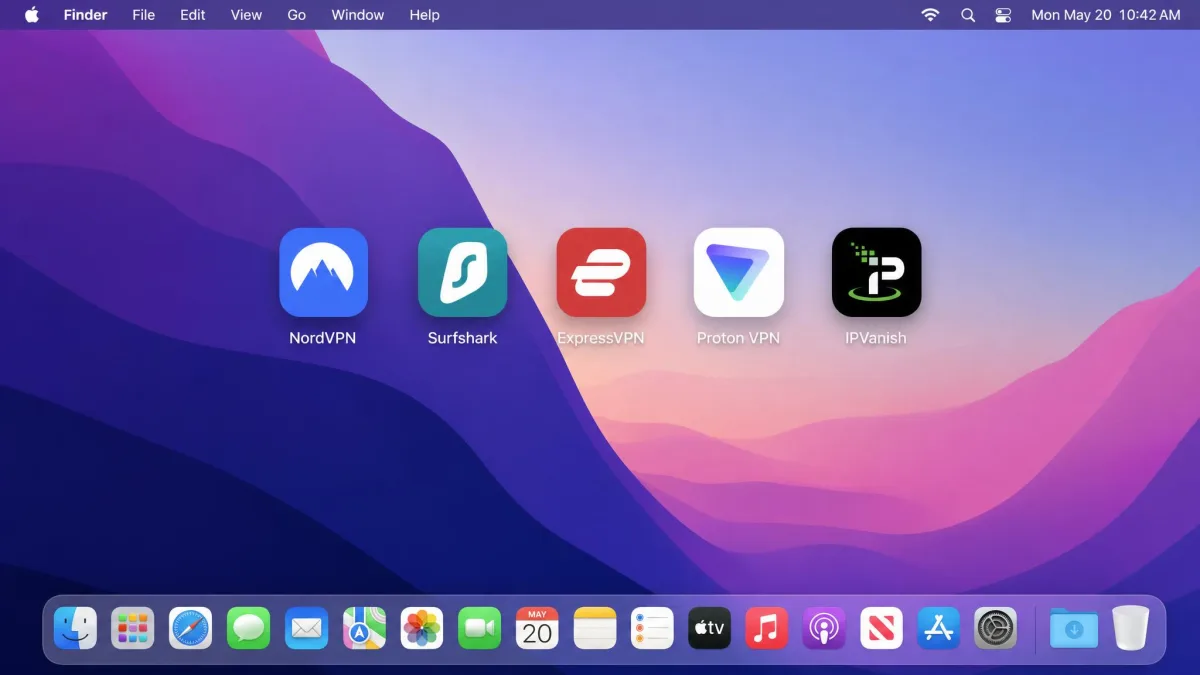
Each pick below earned its spot on measured results, not marketing. We include what using the app on a Mac actually felt like, where it shines, and where it falls short.
1. NordVPN: Best Overall
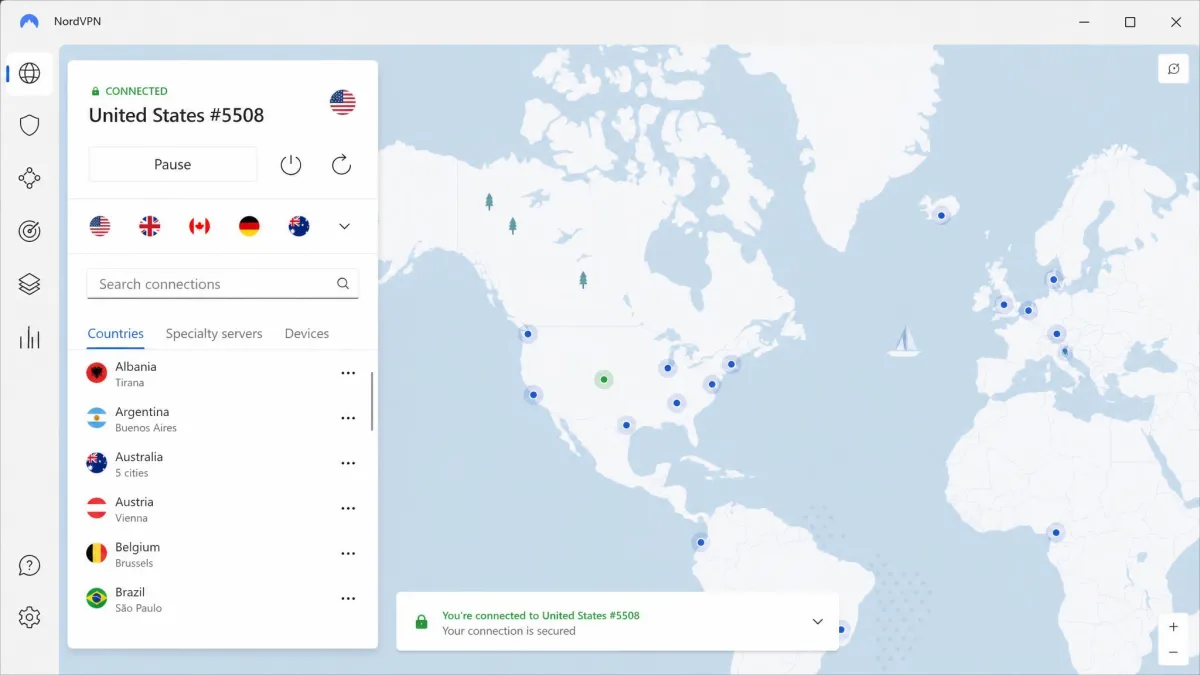
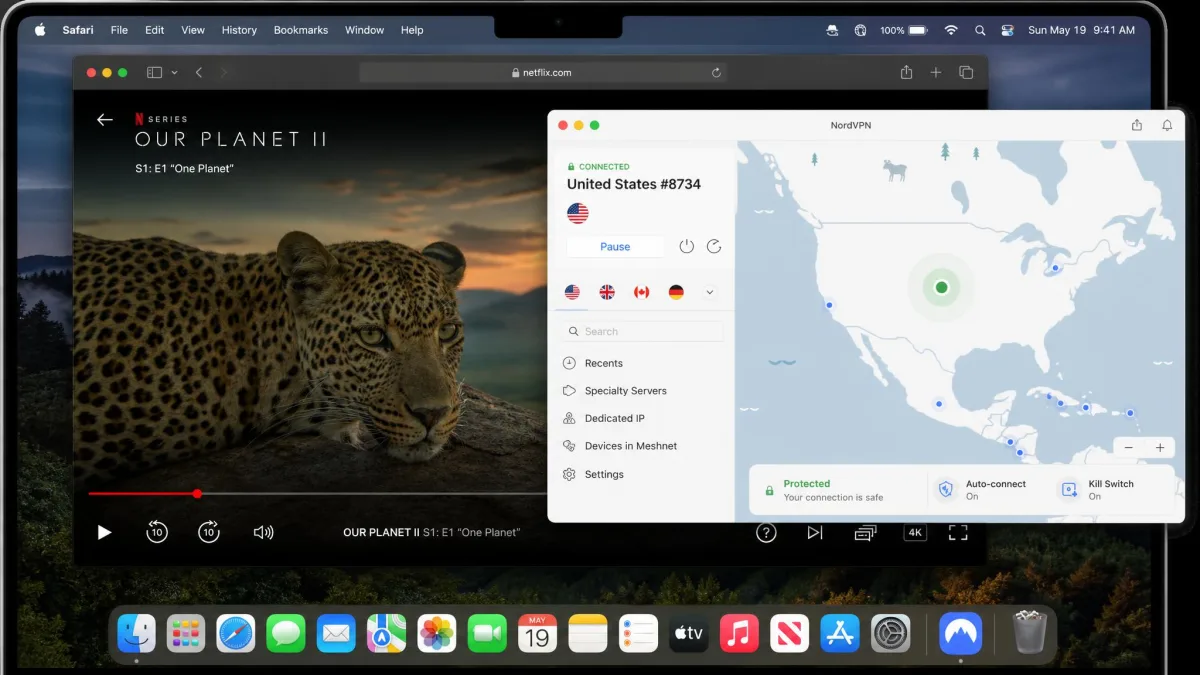
NordVPN took the top spot because it does the boring things right. On our Apple Silicon Macs the native app showed only a small speed drop on nearby servers, roughly 5 to 20 percent depending on the test, which is well within the range where you never notice it in daily use. More importantly, it held a stable connection through sleep and wake cycles, an area where several rivals quietly dropped the tunnel and left traffic exposed until we noticed.
The app uses AES-256 encryption and NordLynx, Nord's WireGuard-based protocol, and it plugs neatly into macOS with menu-bar controls, Touch ID, and Keychain integration. Threat Protection blocks trackers and known malware sites at the network level, and the kill switch does its job. One quirk to know: NordVPN splits some functions across two separate apps, which is confusing at first, and split tunneling only appears in the direct-download build, not the sandboxed App Store version. For streaming, it was faultless, playing 4K Netflix and Disney+ without buffering across a wide range of server locations. Meshnet, which lets you link your own devices into a private encrypted network, is a genuinely useful extra if you route between a home Mac and a laptop on the road.
You can read our full NordVPN review for the deep dive, but for most Mac owners this is the one we would enable first. Pricing starts from around $3.39 a month on the two-year plan, though the exact figure moves with each promo. You get 10 simultaneous connections and a 30-day money-back guarantee.
Pros
- Small, barely noticeable speed drop on Apple Silicon
- Holds the connection through Mac sleep and wake
- Streams 4K Netflix and Disney+ without buffering
- Native Apple Silicon app with Touch ID and Keychain
Cons
- Some functions split across two separate apps
- Split tunneling only in the direct-download build
- Server and country counts vary widely by source
2. Surfshark: Best Value
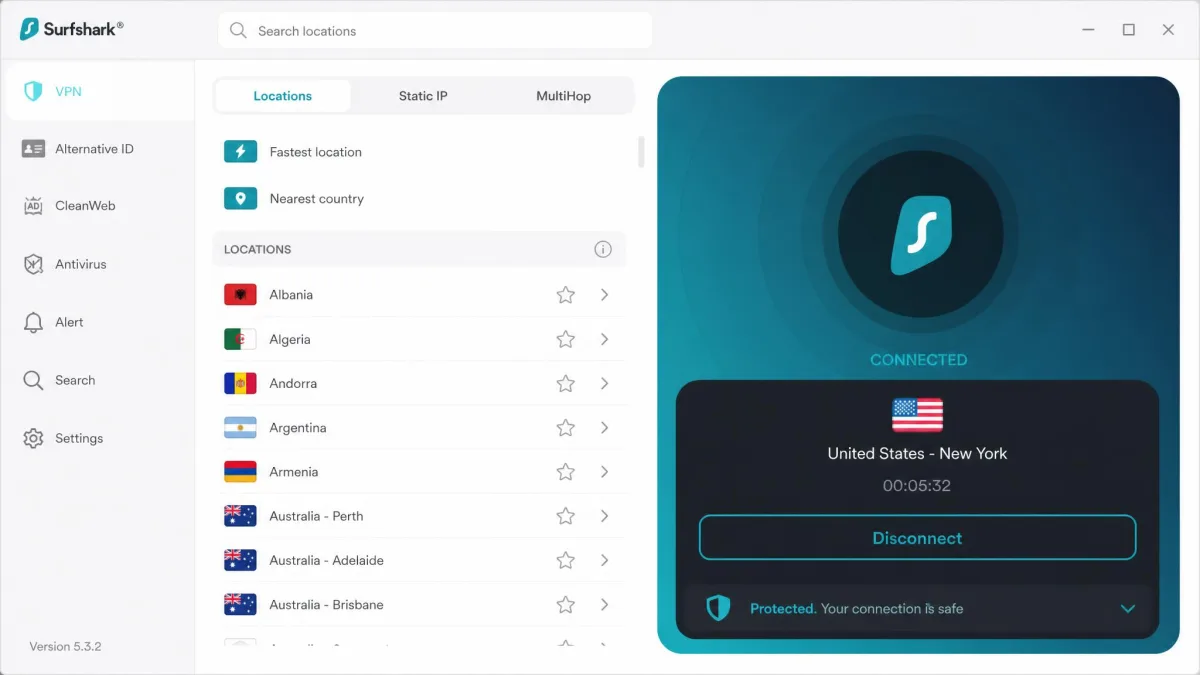
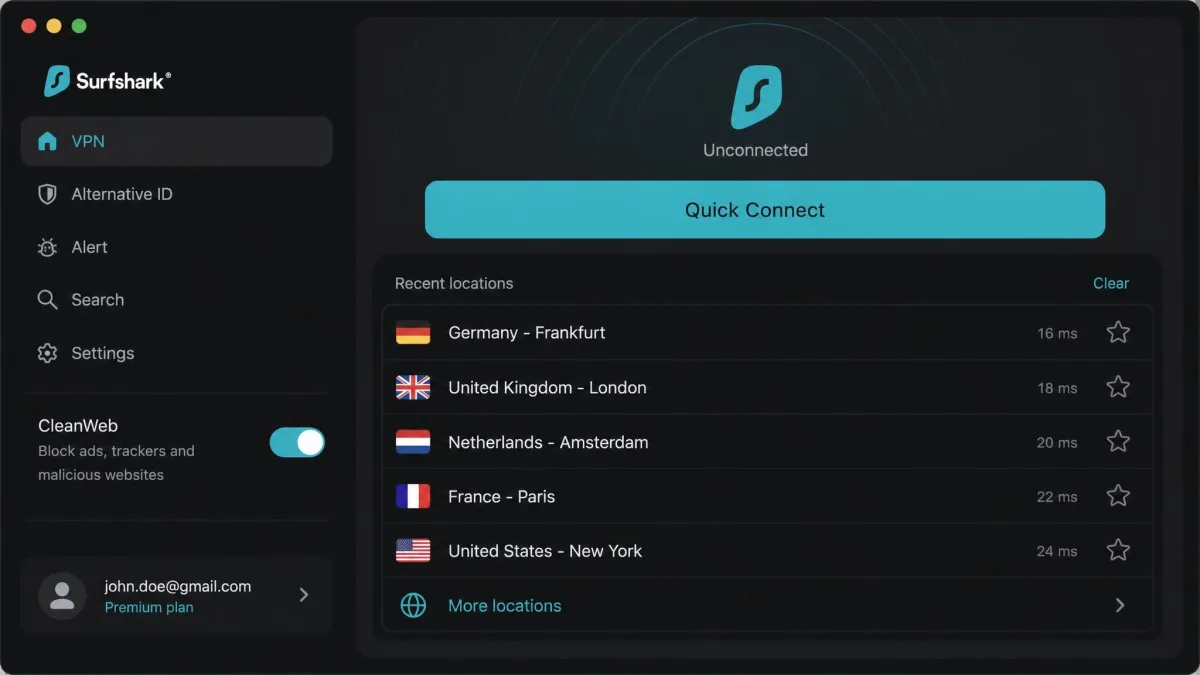
Surfshark is the pick we point people to when they want almost everything NordVPN offers for less money, and want to protect every device they own. Its headline feature is unlimited simultaneous connections, so the app never once rejected a new device for hitting a limit. On an M3 MacBook Air we saw little to no noticeable slowdown in everyday use, which is exactly what you want from a VPN you leave on all day.
The macOS app is clean, with a native dark mode and a menu-bar Quick Connect, and the feature set has grown to include the CleanWeb ad and tracker blocker, MultiHop, and a Rotating IP option. That growth is a mild double-edged sword: the pile of extras adds a little complexity to what used to be a very simple app. Note too that the App Store build omits CleanWeb and Rotating IP, so you need the direct download for the full feature set. In practice we left CleanWeb on and MultiHop off for daily use, since the double-hop routing costs speed you rarely need for ordinary browsing.
Our full Surfshark review covers the extras in depth. Pricing starts from $2.49 a month on the 24-month plan, connections are unlimited, and you get a 30-day money-back guarantee. For a household full of Surfshark-protected Macs, iPhones, and iPads, the value is hard to beat.
Pros
- Unlimited simultaneous device connections
- Little to no slowdown on an M-series MacBook
- CleanWeb ad and tracker blocker built in
- Native dark mode and menu-bar Quick Connect
Cons
- Growing feature pile adds some complexity
- App Store build omits CleanWeb and Rotating IP
- Full feature set needs the direct download
3. ExpressVPN: Most User-Friendly
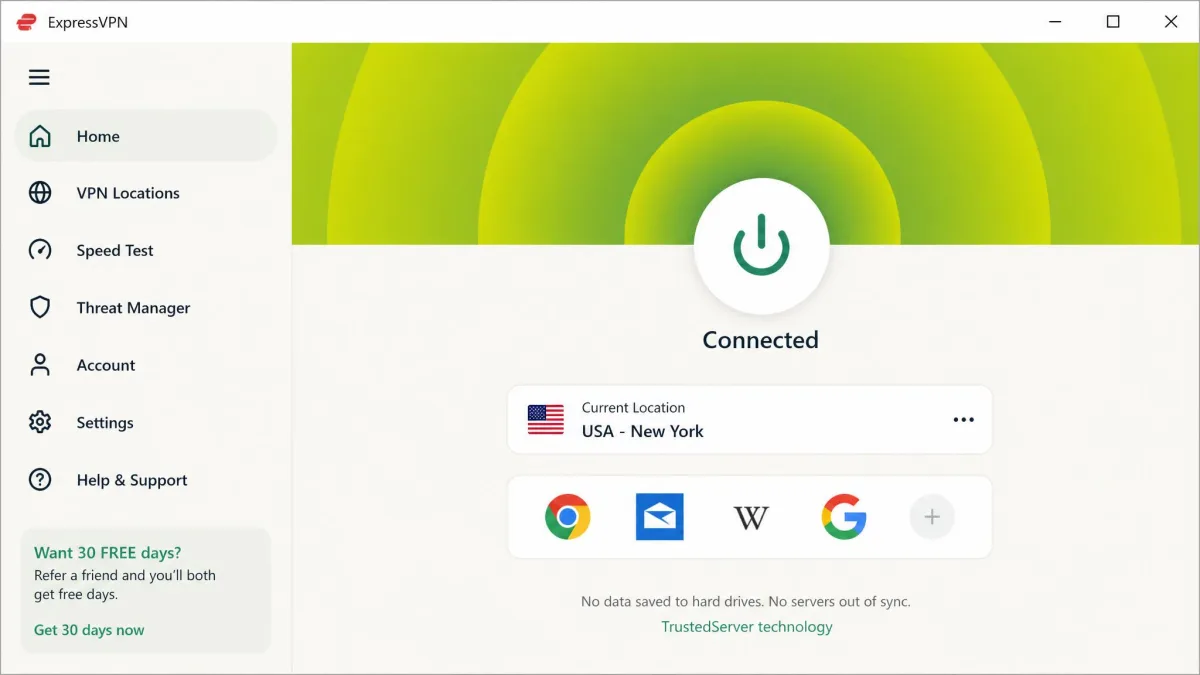
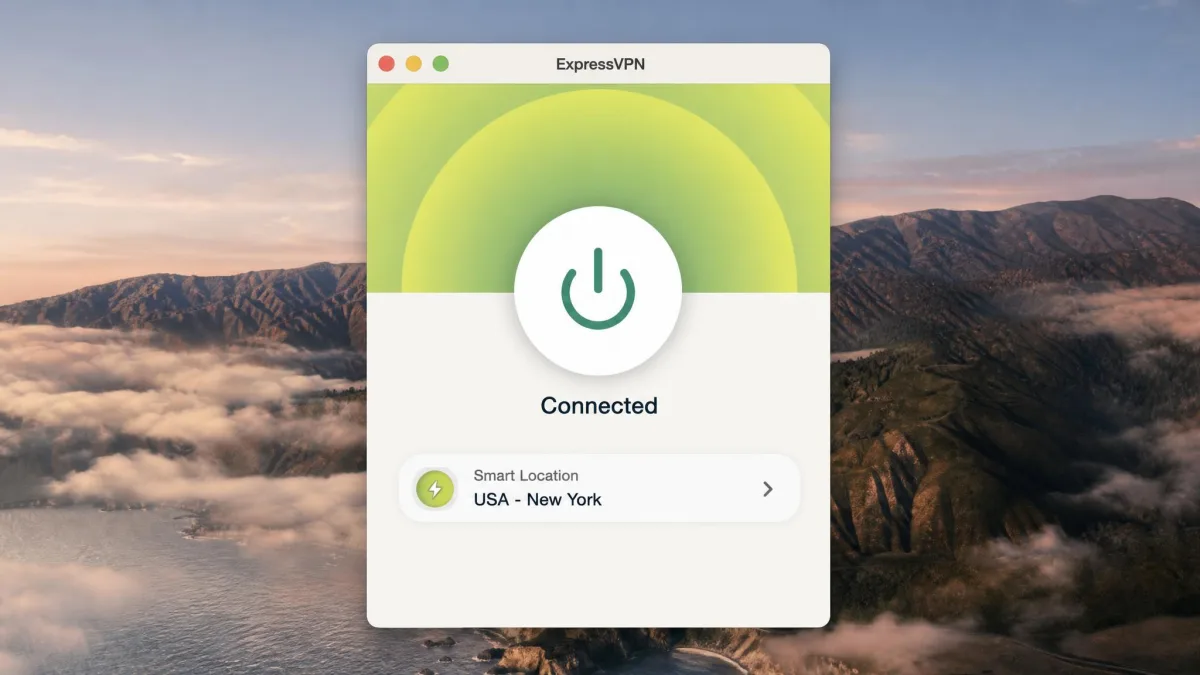
If you want a VPN you never have to think about, ExpressVPN is the easiest to live with. Its macOS app is genuinely minimalist: a single power button with automatic location selection and no protocol menus to wade through. Its Lightway protocol connected almost instantly in our tests and exceeded 950 Mbps on a fast line, so speed is never the reason you would look elsewhere.
Streaming is where it pulls ahead. ExpressVPN reliably opened Netflix, BBC iPlayer, Hulu, and HBO without manual server switching, even on restrictive networks that tripped up other apps. Security is handled by RAM-only TrustedServer infrastructure and the Network Lock kill switch, which blocked traffic the instant our Wi-Fi flickered and prevented any leak during the drop. The single-button design does hide the controls a power user might want, so if you like to pick a specific protocol or city by hand, you will spend a moment digging through the settings. The one real drawback is cost: ExpressVPN runs noticeably more than most rivals on the Mac, and the connection limit sits at 8 on most plans, up to 14 on higher tiers.
See our full ExpressVPN review for the full breakdown. Entry pricing starts from around $2.79 a month on the two-year plan and climbs on shorter terms, with a 30-day money-back guarantee. Pay the premium for the simplicity and the streaming reliability.
Pros
- One-button app, no menus to configure
- Lightway connects almost instantly, very fast
- Reliably unblocks Netflix, iPlayer, Hulu, HBO
- Network Lock kill switch prevents leaks on drops
Cons
- Costs noticeably more than most rivals
- Baseline of 8 connections, more only on higher tiers
- Country count reported differently across sources
4. Proton VPN: Best for Privacy
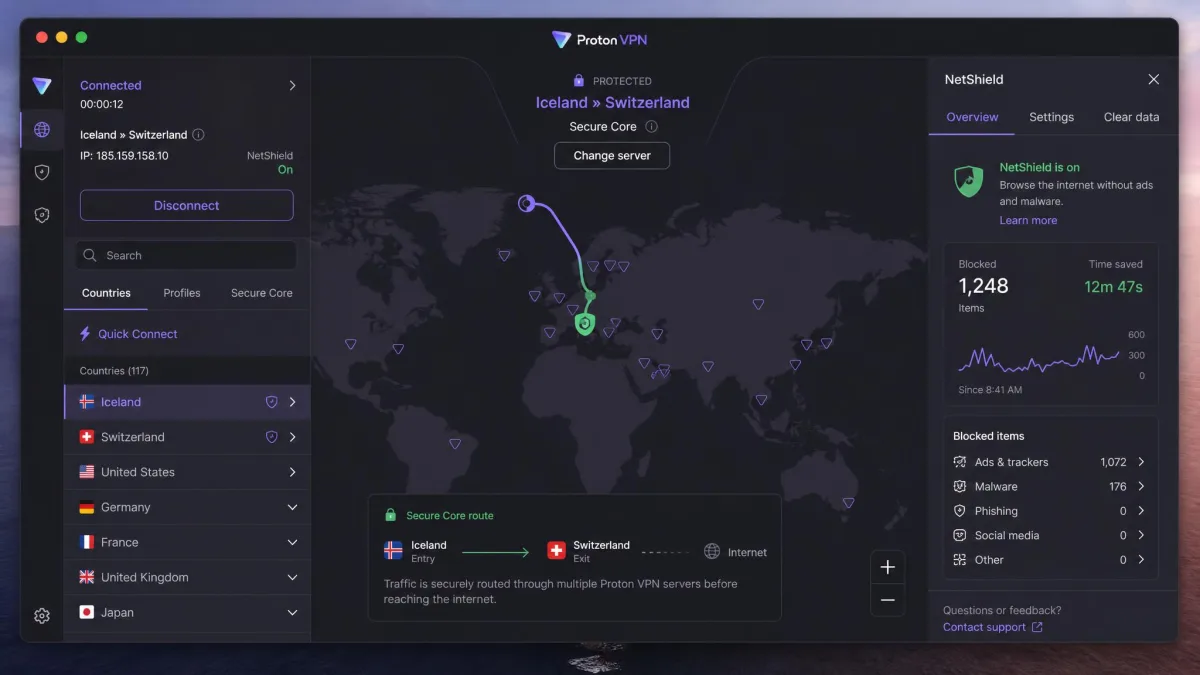
Proton VPN is the pick for people who put privacy first and want to verify, not just trust. Its apps are open source, it operates under Swiss jurisdiction, and it layers on Secure Core routing and a Stealth protocol for hostile networks. On WireGuard it held about 85 to 90 percent of baseline speed in our testing, which is respectable, though Secure Core and Stealth trade more speed for extra protection.
It is also the only pick with a genuinely trustworthy free tier, covering one device and roughly ten countries at medium speed. That free plan is noticeably slower than the paid plans and limits streaming access, so treat it as a safety net rather than a Netflix machine. The macOS app can feel a little fiddly during setup, advanced features like Secure Core carry a steeper learning curve for non-technical users, and the Mac app lacks the split tunneling some rivals offer. The NetShield blocker is the feature we would leave on permanently, since it strips ads and known malware domains without the speed penalty a full second hop imposes.
Our full Proton VPN review digs into the security model. Paid plans start from around $2.99 a month on the two-year term and give you 10 device connections plus a prorated 30-day money-back guarantee. If your threat model is serious, this is the one to know.
Pros
- Open-source apps and Swiss jurisdiction
- Secure Core and Stealth for hostile networks
- Trustworthy free tier for one device
- Holds 85-90% of baseline speed on WireGuard
Cons
- Setup can feel fiddly on macOS
- Secure Core has a steeper learning curve
- Mac app lacks split tunneling
5. IPVanish: Best for Unlimited Devices
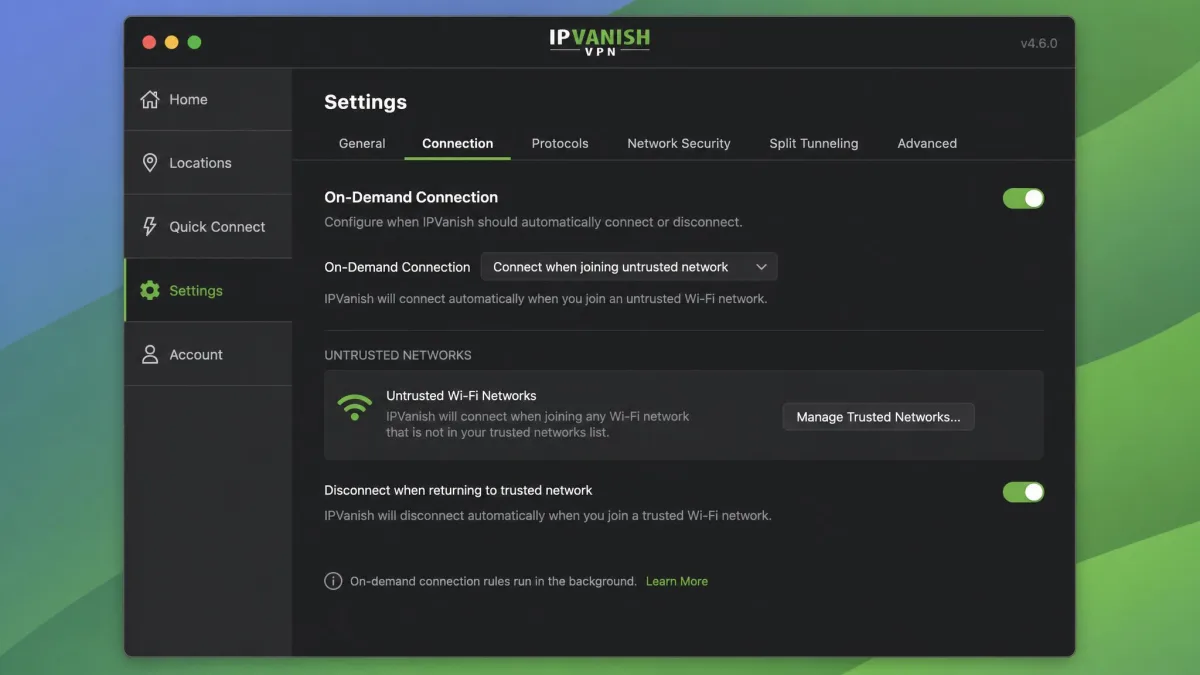
IPVanish rounds out the list as a fast, no-limits option that is especially handy if you want the VPN to manage itself. Like Surfshark it allows unlimited simultaneous connections, and in testing it kept over 90 percent of baseline speed, enough for 4K streaming and lag-free gaming. Its on-demand connection rules are the standout: you can set the Mac to auto-activate the VPN the moment it joins an untrusted network, which is exactly the behavior you want on public Wi-Fi.
It supports domain-based split tunneling on macOS, integrates with Apple Keychain, and runs on WireGuard with an independently audited no-logs policy. Streaming is solid for US libraries like Netflix US and Hulu, though more exotic international catalogs sometimes needed server-swapping to load. Once we set the on-demand rules, the app largely disappeared into the background, reconnecting on its own each time we rejoined a network, which is the closest any pick came to true set-and-forget. The one caveat for privacy purists is its US jurisdiction, which sits inside the Five Eyes alliance, even though the no-logs claim has been audited.
Our full IPVanish review covers the testing in depth. The short version: pricing starts from around $2.19 a month on the two-year plan, connections are unlimited, and the 1-year and 2-year plans carry a 30-day money-back guarantee.
Pros
- Unlimited simultaneous device connections
- Keeps over 90% of baseline speed
- On-demand rules auto-connect on untrusted Wi-Fi
- Domain-based split tunneling on macOS
Cons
- US jurisdiction inside Five Eyes
- International libraries can need server-swapping
- No dedicated HTS review page yet
Why Do You Need a VPN on a Mac?
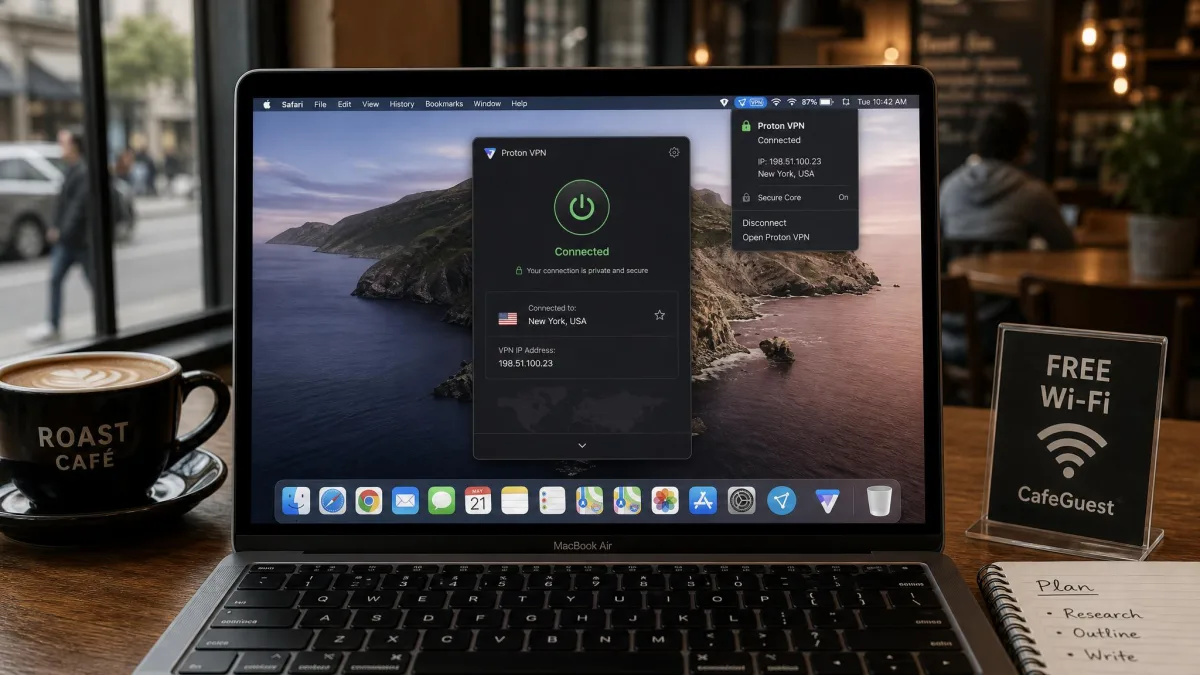
A common myth is that Macs are private by default. They are hardened against malware, but privacy on the network is a different problem. Every website you visit still sees your IP address, and every network you join, including your home ISP, can log which sites you access. On public Wi-Fi at an airport or cafe, an unencrypted connection lets anyone on that network watch your traffic.
A VPN closes that gap in three ways. It encrypts everything leaving your Mac, so the local network sees only scrambled data. It replaces your real IP with the server's, so websites and services cannot tie your activity to your location. And it lets you access content and services as if you were somewhere else, which matters for travel, remote work, and streaming a library from home.
Encryption protects your data in transit, but it does not make you anonymous. A VPN hides your traffic from the network and your ISP; it does not stop a site you log into with your email from knowing it is you.
You do not need a VPN running every second of the day. But the moment you connect to a network you do not control, or you want to keep your browsing private from your ISP, having one ready to enable is the single easiest security upgrade you can make on a Mac.
Does macOS Have a Built-in VPN? (iCloud Private Relay vs. a VPN)
This is the question we get most, and the answer is no, not a full one. macOS includes the plumbing to connect to a VPN, meaning you can add a configuration under System Settings, but Apple does not provide the VPN service itself. You still need a provider to supply the servers and encryption.
What Apple does offer is iCloud Private Relay, and it is easy to mistake for a VPN. Private Relay is included with iCloud+ and hides your IP address and DNS lookups, but only for traffic in Safari. It does nothing for your other apps, and it routes through Apple's own two-hop relay rather than letting you choose a country. It is a privacy feature, not a location-changing, all-traffic VPN.
If you already pay for iCloud+, enable Private Relay for an easy Safari privacy boost, then add a full VPN for everything else. The two work together without conflict.
For the full picture of what macOS secures on its own, Apple's own Apple platform security documentation is worth a read. The short version: the operating system protects the device, and a VPN protects the connection. You want both.
What to Look for in a Mac VPN
Not every VPN treats macOS as a first-class platform. Some ship a decent Windows app and a bolted-on Mac port. These are the features and details that separated our picks from the rest.
Native Apple Silicon support. A VPN built for Apple Silicon runs faster and drains less battery than one running through translation. Every pick here has a native app. Check for Touch ID unlock and Keychain integration as signs the developer cares about the Mac. An app that still ships only an Intel binary in 2026 is a warning that the Mac is an afterthought, and you will feel it in the fan noise and the battery meter.
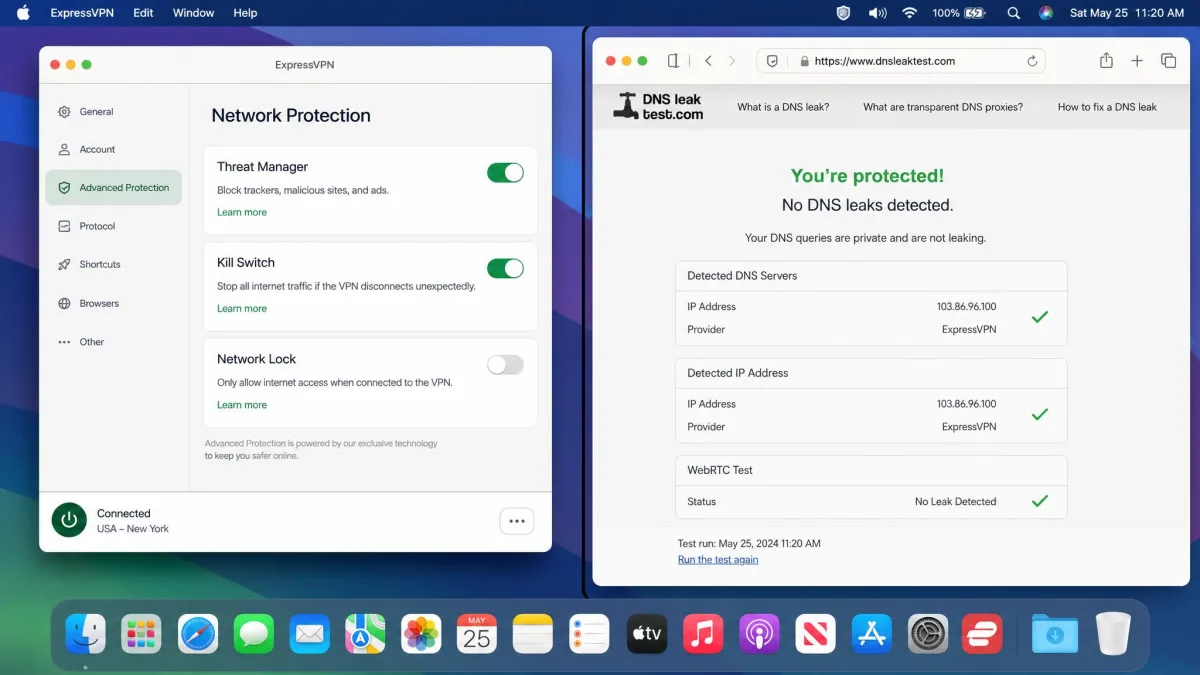
A working kill switch. The kill switch blocks all traffic if the VPN drops, so nothing leaks in the gap. We test this by yanking Wi-Fi mid-session. ExpressVPN's Network Lock and NordVPN's kill switch both passed cleanly. Look closely at whether the switch is on by default, because a kill switch you forgot to enable protects nothing, and some apps bury the toggle two menus deep.
Speed retention. A VPN always costs you some throughput. The good ones on WireGuard-class protocols lose only single digits to about 20 percent on nearby servers. Anything worse and you will feel it on video calls and large downloads. Distance to the server matters more than the brand, so if speed is your priority, pick a provider with servers in or near your own country.
A no-logs policy, ideally audited. The whole point is privacy, so the provider must not keep records of what you do. Prefer services whose no-logs claim has been independently audited, and consider the jurisdiction the company operates under. A Swiss or Panama base sits outside the main intelligence-sharing alliances, which is why privacy-first buyers weigh it alongside the audit.
Split tunneling. This lets you route certain apps through the VPN while others use your normal connection, handy when a service blocks VPNs. Just know that on macOS this feature is sometimes limited to the direct-download build rather than the App Store version.
The features that decide a Mac VPN are rarely the ones on the pricing page. They are whether the kill switch holds when Wi-Fi flickers and whether the tunnel survives your Mac going to sleep.
— From our hands-on Mac testing
Streaming and torrenting support. If you stream, confirm the service reliably unblocks the libraries you use and does not throttle P2P. Our reviews above note which handled Netflix, iPlayer, and Hulu without server-hopping.
How to Set Up and Install a VPN on Your Mac
Getting a VPN running on a Mac takes about five minutes. Here is the path we recommend, using any of the paid picks above.
- Sign up and choose a plan. Buy the subscription on the provider's website. The longer plans are far cheaper per month, and the money-back guarantee lets you commit and still bail if it disappoints.
- Download the native Mac app. Get it from the provider's site rather than the Mac App Store when you can, because the direct download often includes features like split tunneling that the sandboxed version omits.
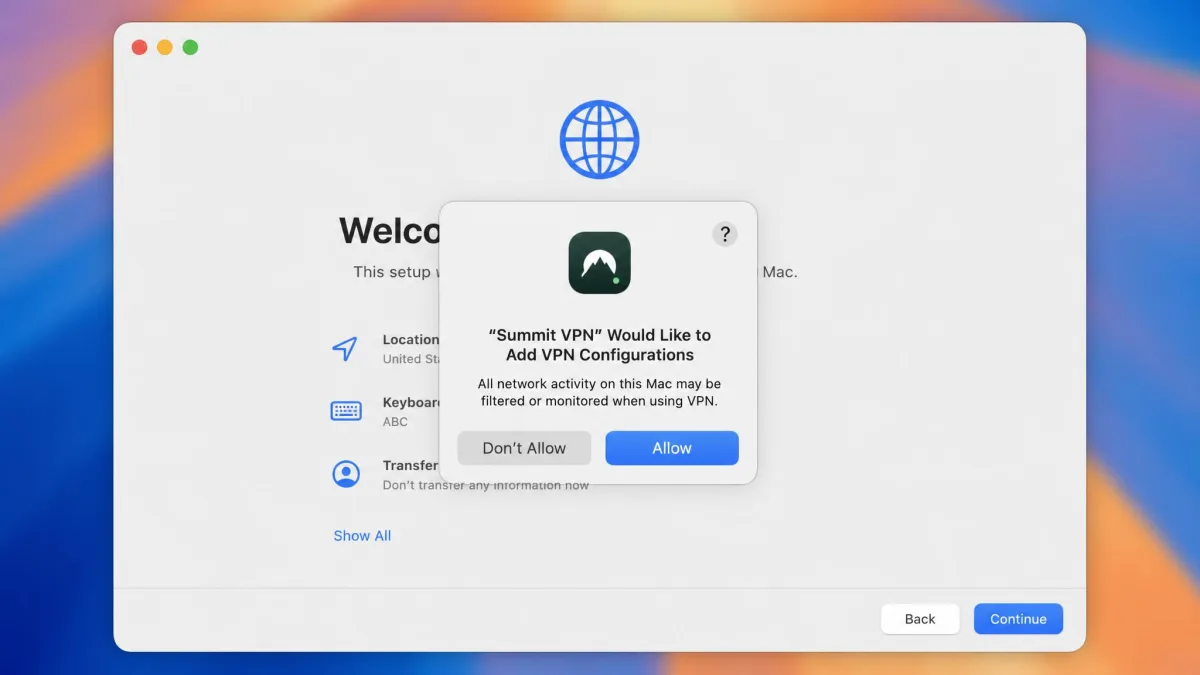
- Install and grant the VPN permission. macOS will ask you to allow the app to add VPN configurations. This is normal and required for the tunnel to work; approve it in the prompt or under System Settings.
- Sign in and connect. Open the app, log in, and hit Quick Connect for the fastest nearby server, or pick a country manually.
- Enable the kill switch and auto-connect. In settings, turn on the kill switch and, if offered, set the VPN to connect automatically on untrusted networks. Then run a quick leak test to confirm everything routes through the tunnel.
If the app will not connect after install, the fix is almost always the VPN permission itself. Open System Settings, look under General and then VPN and Device Management, and confirm the configuration is present and allowed; if it is missing, quit the app, reopen it, and approve the prompt again. When a connection stalls, switching protocols to WireGuard or the provider's WireGuard-based option usually clears it, since the older OpenVPN mode is slower to negotiate and more likely to be blocked on a locked-down network. If your Mac wakes from sleep without a tunnel, check the app's launch-at-login and auto-connect settings before you blame the provider.
If the App Store version is missing a feature you expected, that is usually Apple's sandbox at work, not a bug. Uninstall it and grab the direct download from the provider to unlock the full feature set.
Is It Legal and Safe to Use a VPN on a Mac?
In the United States, the United Kingdom, most of Europe, and the great majority of countries, using a VPN is completely legal. A handful of authoritarian states restrict or ban them, so check local law if you travel to one. Using a VPN to commit a crime is still a crime; the tool does not change that.
Safety comes down to who you trust with your traffic. When you enable a VPN, you route everything through that provider, so a shady one can see what your ISP used to. That is why we stick to audited, reputable services and are wary of unknown free apps. A paid provider with an independently audited no-logs policy, a clear privacy policy, and a real corporate address is a safe bet on a Mac.
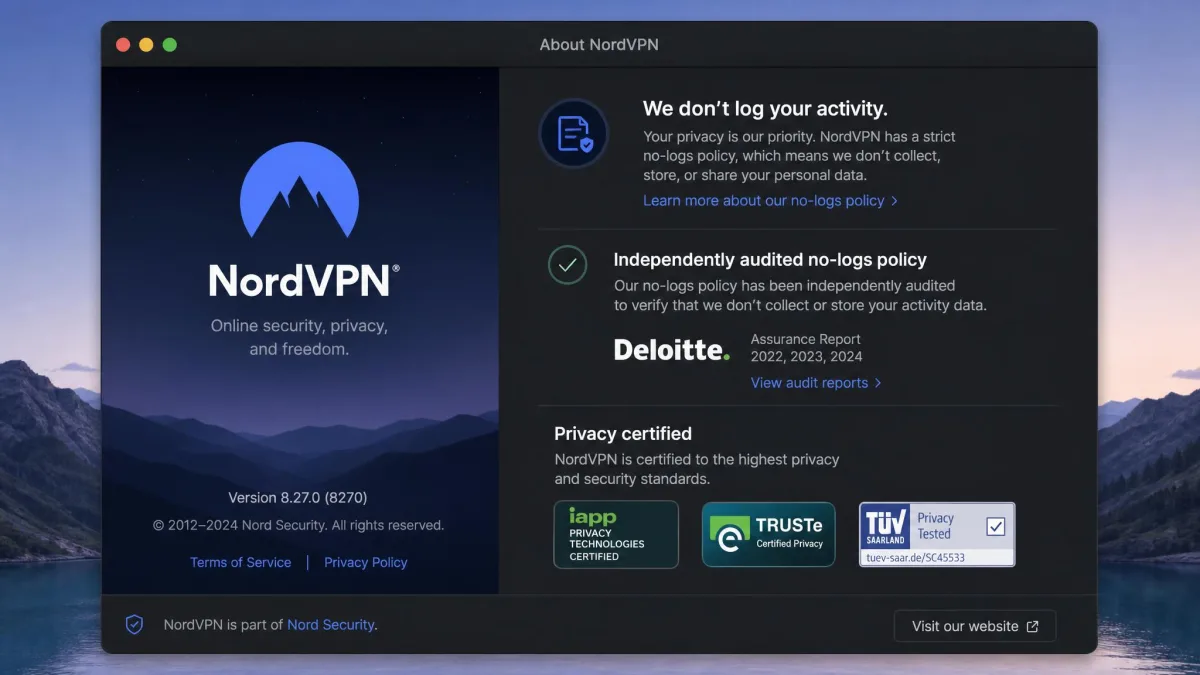
A VPN moves trust, it does not eliminate it. You are trading your ISP's visibility for the VPN provider's, so the provider's track record and audit history are the whole game.
macOS Compatibility: Apple Silicon and Version Support
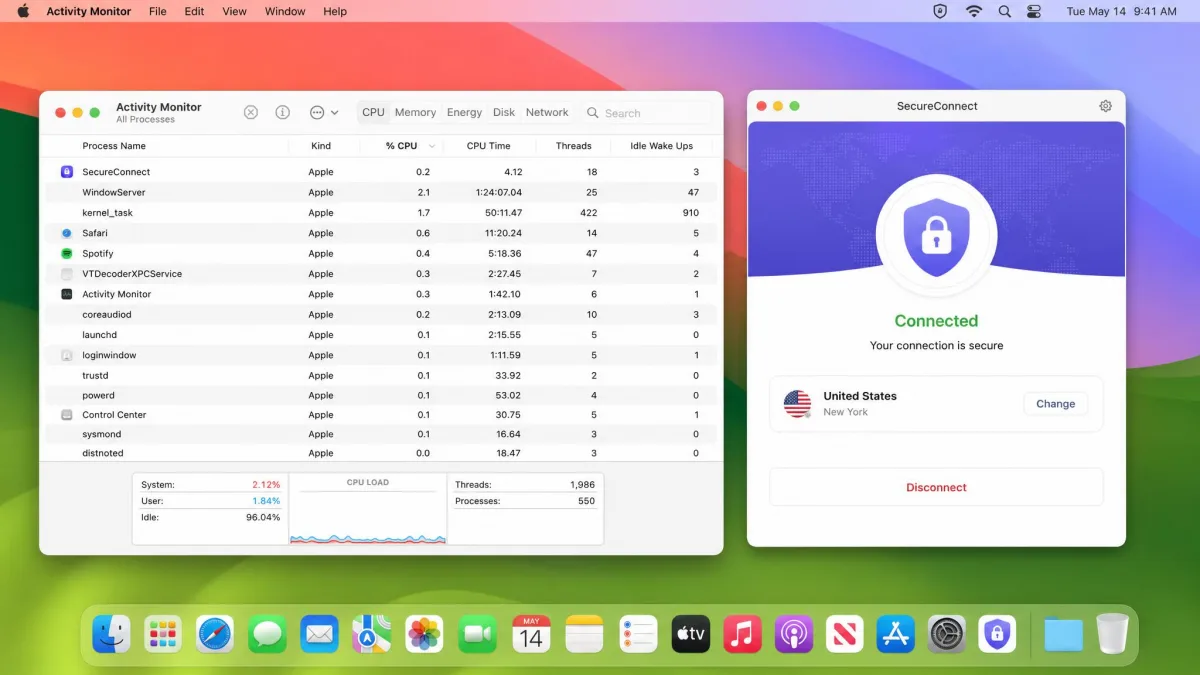
All five of our picks ship native apps that run on Apple Silicon, the M-series chips, without translation, which means better speed and battery life than an Intel-era binary. If you are on an older Intel Mac, every one of these still supports you, though you may see slightly higher overhead.
Version support is worth a glance before you buy. The providers here target current macOS releases, and Proton VPN in particular lists macOS Sonoma and later for its latest app. If you are running an older macOS, check the provider's system requirements page and, if needed, download an older app build. Keeping macOS itself updated is the bigger security win, since it patches the operating system flaws a VPN cannot touch.
Best Free VPNs for Mac
Free VPNs are where most of the risk lives. Many free apps make their money by logging and selling the very data you installed them to protect, and some inject ads or throttle you to uselessness. For that reason we recommend only one free tier on a Mac.
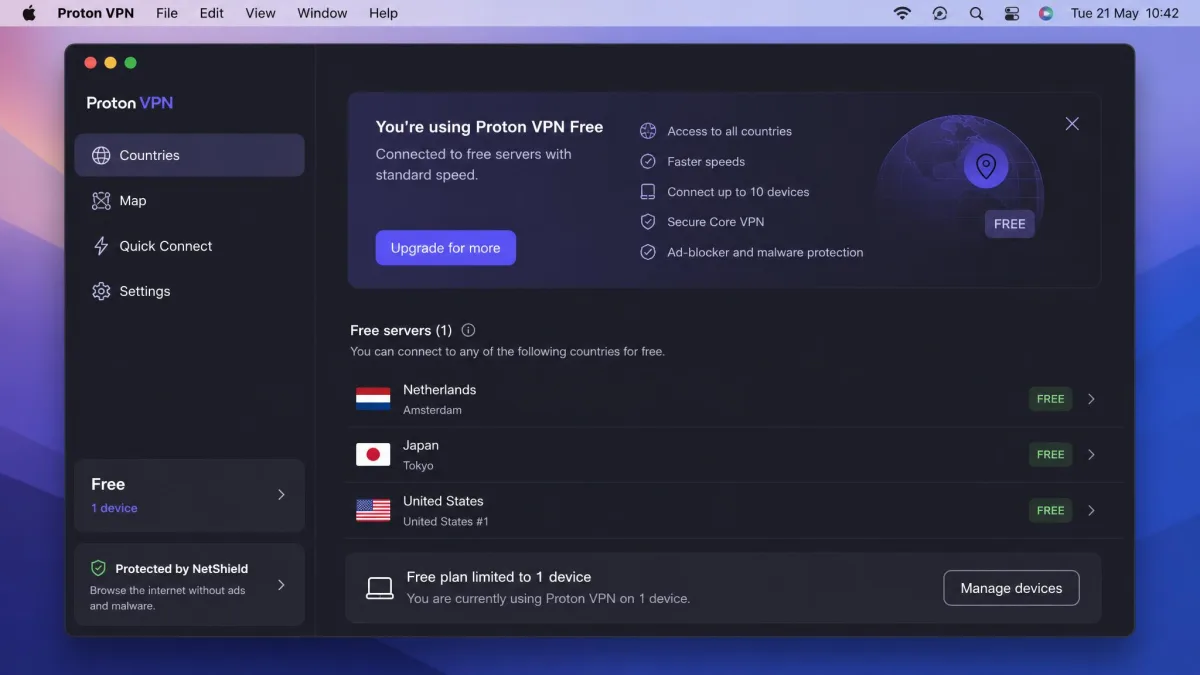
Proton VPN's free plan is the exception. It comes from a company with open-source apps and a real paid business, so it has no incentive to sell your data. The free tier covers one device across roughly ten countries at medium speed, with no time limit and no ads. It is noticeably slower than the paid plans and limits streaming, but for basic private browsing on public Wi-Fi it is genuinely safe.
If you need streaming, unlimited devices, or full speed, a paid plan on any of our top picks is worth the few dollars a month. And remember the 30-day money-back guarantees: they let you use a full paid service for a month at no real cost if you only need short-term protection.
Avoid unknown free VPNs from the App Store that ask for payment info or bombard you with ads. If a VPN is free and you cannot tell how it makes money, assume the answer is your data.
Frequently Asked Questions
Does a Mac have a built-in VPN?
Are VPNs safe and legal to use on a Mac?
Will a VPN slow down my Mac?
Can a VPN unblock Netflix on a Mac?
Should I use a free VPN for Mac?
What is the difference between a VPN and a proxy?
Bottom Line
Any of the five services here will protect your Mac well, but for most people NordVPN is the one to enable first. It was fast and unobtrusive on Apple Silicon, it held its connection through sleep and wake where others dropped it, and it streamed 4K without a hitch. Surfshark is the value champion for households full of devices, ExpressVPN is the easiest to live with, Proton VPN is the privacy specialist with the only free tier we trust, and IPVanish is the set-and-forget option for unlimited devices.
Whichever you choose, buy through the provider's website, enable the kill switch, and lean on the 30-day money-back guarantee to confirm it fits your Mac before you commit.