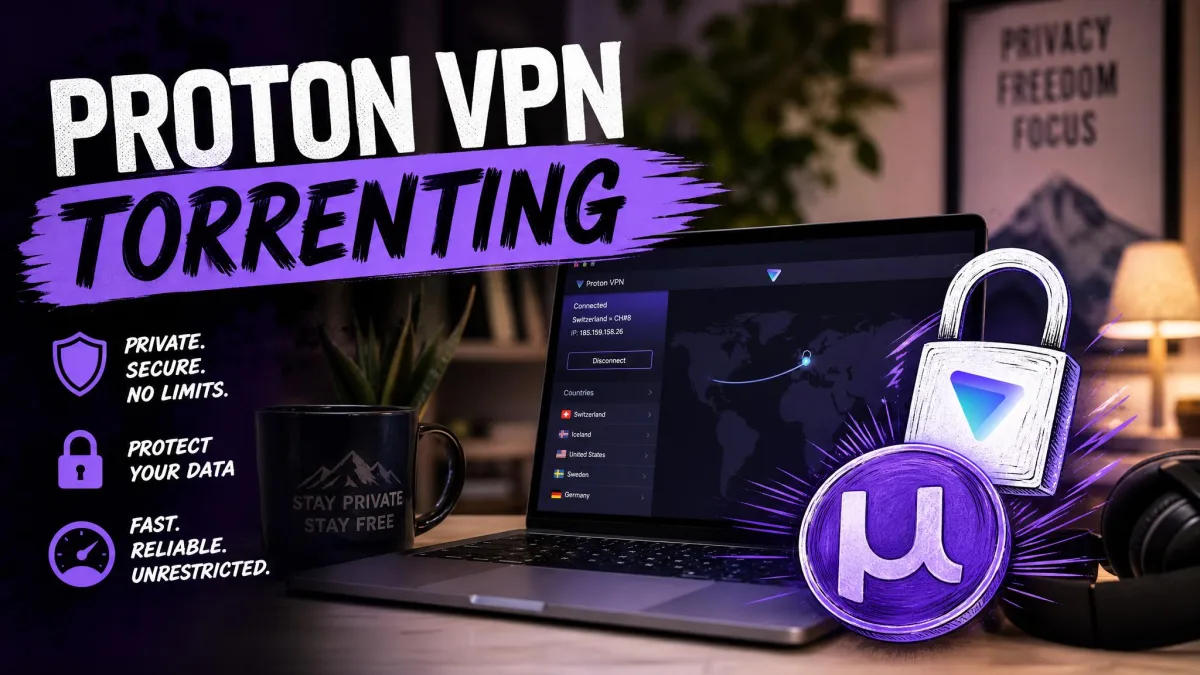
Yes, Proton VPN supports torrenting on every paid plan through its dedicated P2P servers, while the Free plan blocks P2P traffic outright. That matters because BitTorrent is a public network. Without a VPN, every peer in a swarm, and your internet provider, can see your real IP address.
In this guide, we cover the Proton VPN BitTorrent setup we'd use ourselves. You'll turn on the kill switch, connect to the right server, bind qBittorrent to the VPN's network interface so it can't leak, and forward a port for faster downloads.
Does Proton VPN Allow Torrenting?
Yes, as long as you pay for a plan and connect to a server built for P2P (peer-to-peer file sharing). Proton enforces that rule at the server level.
Which Plans Support P2P: Free vs Paid
P2P works on every paid plan: Plus, Unlimited, Duo, Family and Business. The free tier, with servers in 10 countries on one device, is built for browsing rather than downloads. We explain what the free tier can and can't do in our guide to torrenting on Proton's free plan.
What Happens If You Torrent on a Free or Non-P2P Server
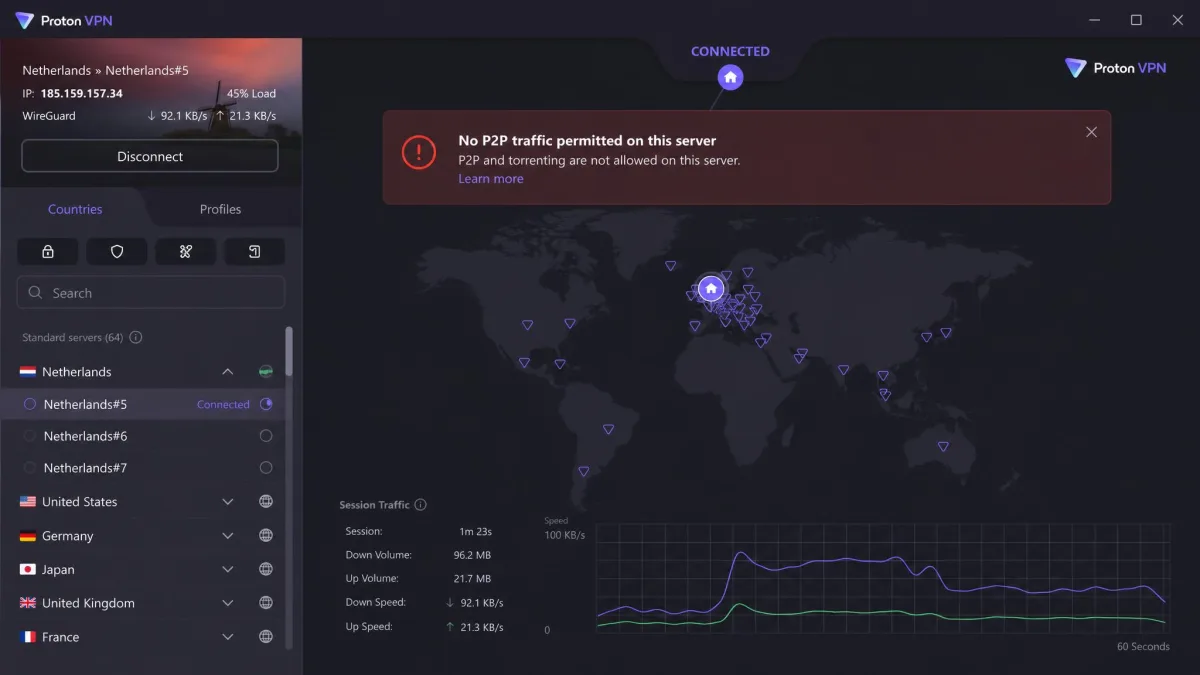
No, the download won't quietly continue. In our testing, starting a torrent on a free server in the Netherlands or the US cut the VPN connection almost immediately and triggered an in-app alert. That protects you, because the download never keeps running unprotected.
On a paid plan, a regular (non-P2P) server behaves differently. It may show a "No P2P traffic permitted on this server" message and tell you to switch to a P2P server yourself. Older app versions redirected this traffic automatically, so the exact behavior may differ by app version. Either way, the safe habit is to connect to a P2P server before you open your torrent client.
Is Proton VPN Safe for Torrenting?
Yes. The privacy case rests on three things: a no-logs policy that has been audited repeatedly, a kill switch with a strict mode, and leak protection that held up in our checks. For the wider verdict beyond P2P, see our Proton VPN review, and for the company's track record in detail, read our breakdown of whether Proton VPN is safe.
No-Logs Policy and Swiss Jurisdiction
Proton VPN is based in Switzerland, where it is not obligated to save connection logs. A no-logs policy only counts if someone checks it, and Proton has had independent no-logs audits from the European security firm Securitum every year since 2022. The 2026 audit is the fifth in a row. Its evidence did not indicate that Proton logs browsing activity, DNS queries, destination services, traffic contents or user-identifiable connection metadata.
The legal record points the same way. Proton's transparency report lists 458 legally binding orders from Swiss authorities in total, including 59 in 2025. In every case, Proton had no identifying data to hand over, because it doesn't keep any.
Kill Switch and IP/DNS Leak Protection
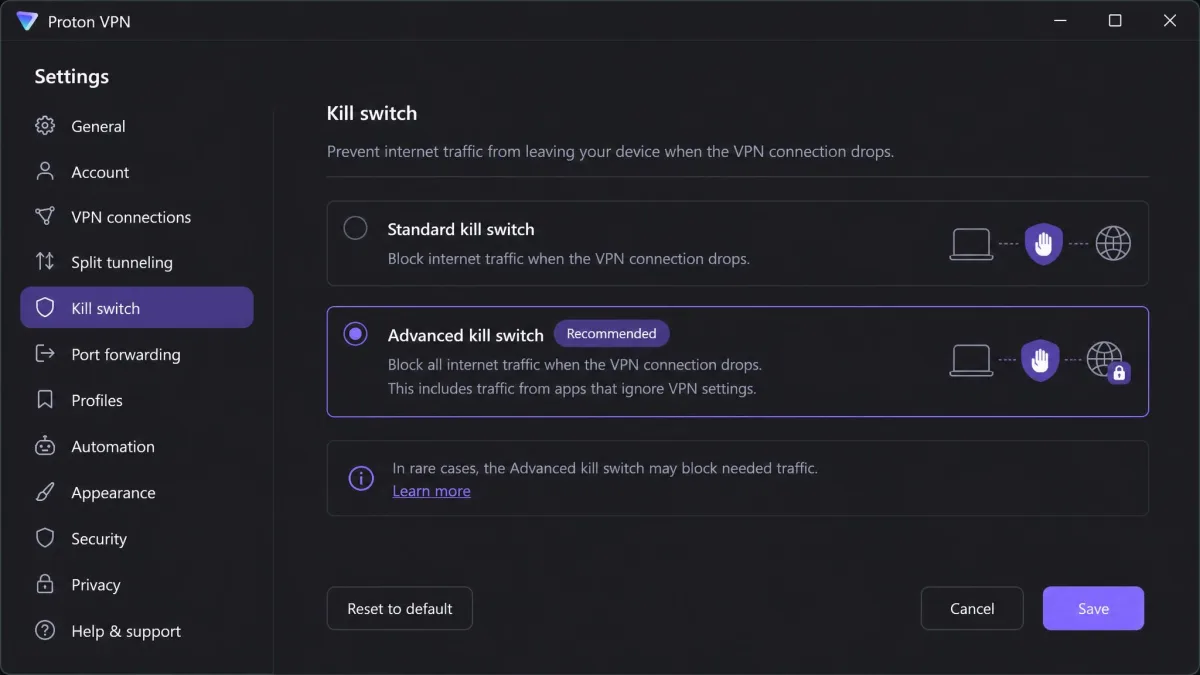
A kill switch blocks your internet connection if the VPN drops, so your torrent client can't fall back to your real IP. If you're new to the idea, our explainer on how a VPN kill switch works covers the basics. Proton's standard kill switch runs on Windows, macOS, iOS, Android and Linux. In our testing on Windows and macOS, it cut all network traffic when the connection failed.
Keep in mind that the standard mode only triggers on an accidental drop. If you disconnect on purpose, it stays out of the way. The Advanced kill switch goes further and allows internet only while you're connected to Proton, even after a restart. It is available on Windows, the Linux GUI app, and iOS/iPadOS in beta.
We also found two soft spots on a Mac. The kill switch can briefly expose your real IP while you switch servers, and some Apple-service DNS requests can bypass the tunnel. Binding your torrent client closes that gap, which is why it matters more on macOS.
P2P Servers: How Many and Where
Proton says it runs over 20,000 servers that allow P2P in more than 140 countries, and that most of its network carries torrent traffic. Treat those as approximate: the P2P server and country totals change as the network expands, and a few locations (for example Bosnia, Cyprus and North Macedonia) have not allowed P2P because of datacenter restrictions.
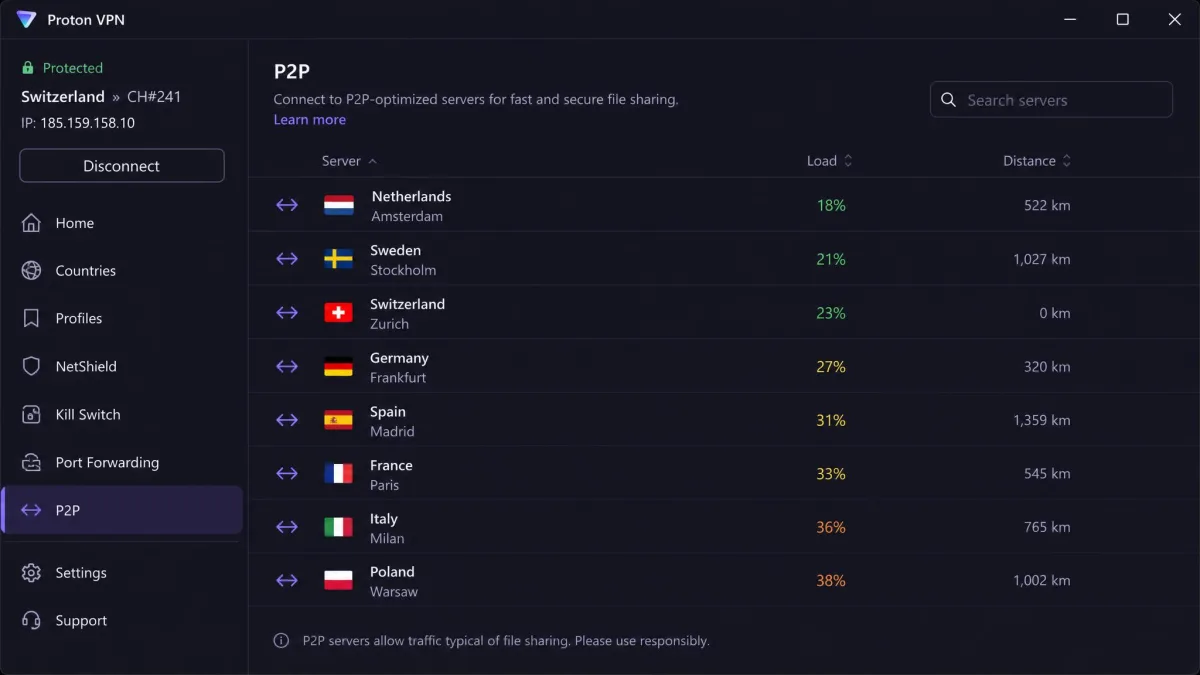
You spot P2P servers by the double-arrow icon (⇄). Windows and Android have a dedicated P2P tab, while macOS and Linux show the icon next to countries, cities and servers. On top of that, Proton places these servers in jurisdictions that allow P2P file sharing, and many of them run on 10 Gbps connections.
Proton VPN Torrenting Speeds and How to Improve Them
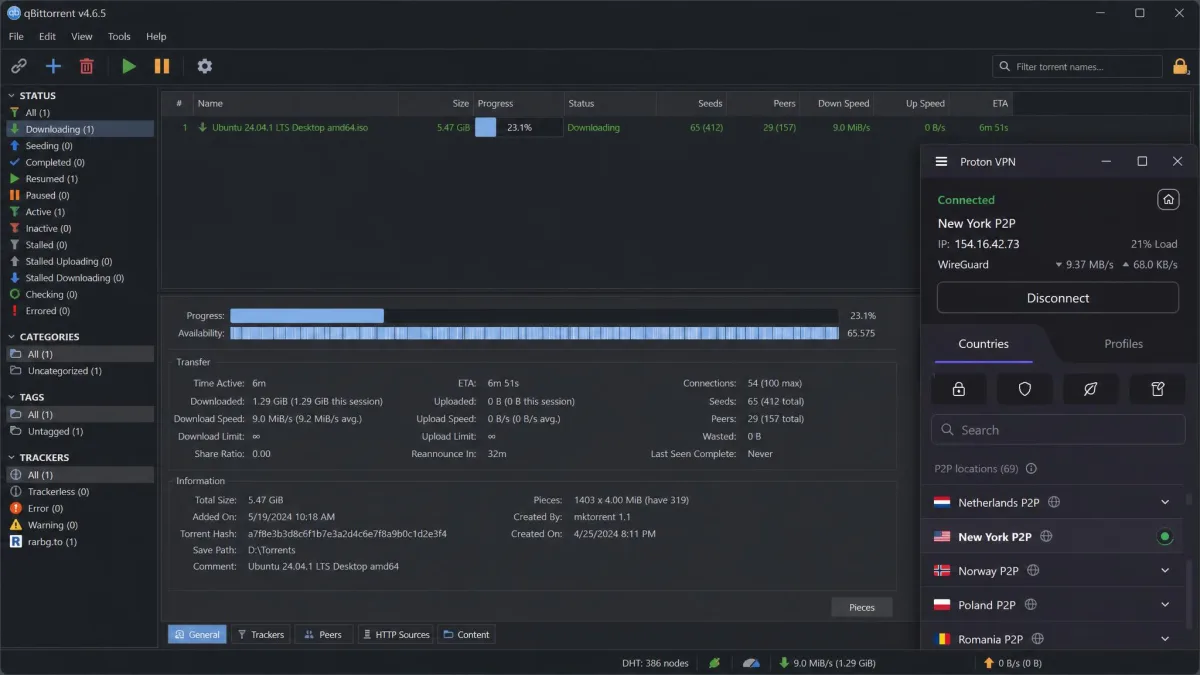
Speed is the other half of the torrenting question, and Proton held close to full speed for us. On a paid P2P server in New York, a 50GB qBittorrent download averaged 9.2MiB/s on a 10MiB/s line. That is only about an 8% drop from the line speed.
VPN Accelerator, Protocol Choice and Server Load
VPN Accelerator is Proton's speed feature, and the company claims it can boost performance by up to 400%. Leave it on. For protocol, WireGuard is usually the quickest choice, and Smart protocol will pick a working option for you if your network blocks VPNs.
Server load matters too, so pick a nearby P2P server with a low load percentage. Avoid Secure Core for big downloads: its multi-hop routing ran roughly a third slower in our checks (about 35%), which is a poor trade for a large torrent.
Split Tunneling: Keep Local Apps Off the VPN
Split tunneling lets you choose which apps use the VPN and which use your normal connection. Proton supports routing only your torrent traffic through the tunnel, which keeps games, video calls and local network devices at full speed. Our guide on what split tunneling does explains the options. Just make sure your torrent client is on the VPN side, never the excluded side.
How to Set Up Proton VPN for Torrenting (Step by Step)
With the safety and speed questions covered, here is the Proton VPN for torrenting setup from scratch.
1. Choose a Torrent Client
We recommend qBittorrent, and the rest of this guide assumes a Proton VPN qBittorrent setup. It is free, open source, has no ads, and it lets you bind the client to a specific network interface. Proton VPN works with mainstream clients such as qBittorrent, BitTorrent and uTorrent without special tweaks, apart from turning off UPnP/NAT-PMP when you forward a port.
2. Subscribe to a Paid Plan and Install Proton VPN
Create a Proton account and pick a paid plan. VPN Plus costs $2.99/month on the 2-year plan ($71.76 upfront) or $9.99 month to month. After the introductory term, it renews at $83.88 per year, which is notably higher, so set a reminder. Plus covers 10 devices at once, and every paid plan has a 30-day money-back guarantee. Then install the Proton VPN apps on the computer you torrent from and sign in.
3. Turn On the Kill Switch and Pick a Protocol
- Open Proton VPN and go to Settings.
- Turn on the kill switch.
- Choose Advanced mode if your platform offers it.
- Set the protocol to WireGuard or Smart.
- Confirm VPN Accelerator is switched on.
4. Connect to a P2P Server
On Windows or Android, open the P2P tab and connect to the fastest server near you. On macOS or Linux, pick a country or server marked with the double-arrow icon. To save time later, create a profile set to P2P, Smart protocol and Fastest server. It gives you a one-click torrent-ready connection.
5. Start Torrenting
Open your torrent client only after the VPN shows Connected, then add torrents with Proton VPN running as usual. Before you download anything large, bind the client and run a leak test, both covered below.
How to Bind Proton VPN to qBittorrent
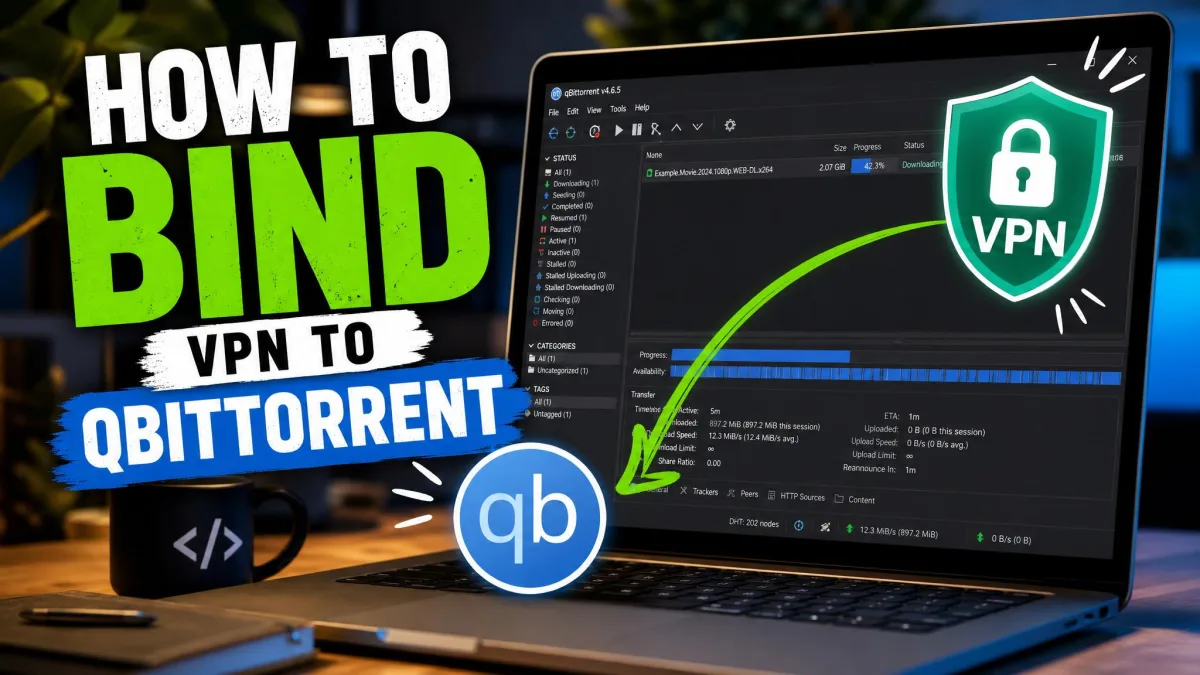
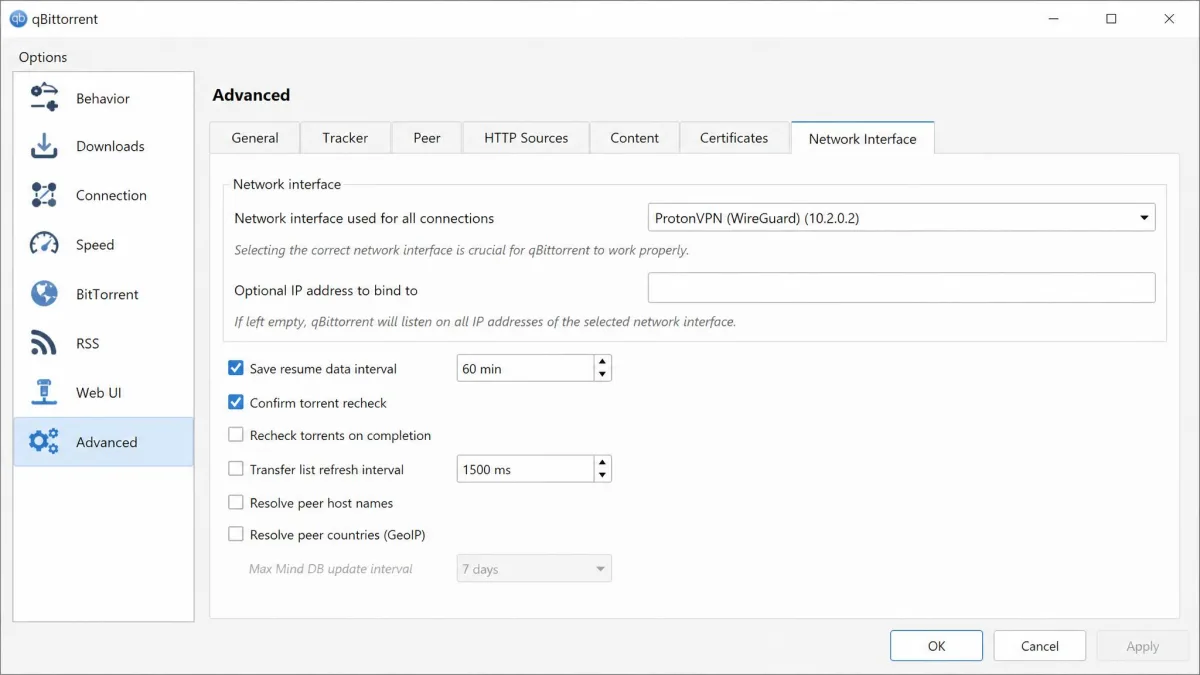
Binding tells qBittorrent to send traffic only through the Proton VPN adapter. If you don't bind it, an unbound client falls back to your real connection whenever the VPN drops or you disconnect on purpose. Here is how to bind Proton VPN to qBittorrent on any desktop system, so your qBittorrent Proton VPN pairing can't leak.
The kill switch alone can't save you if qBittorrent uses the wrong network interface. The standard kill switch also stays off after a manual disconnect, so an unbound client left running will keep downloading on your regular connection.
Find the Proton VPN Network Interface Name
The adapter name depends on your OS and protocol. These are the names binding your torrent client to the VPN requires, per Proton:
| OS | Protocol | Interface to select | Where the setting lives |
|---|---|---|---|
| Windows | OpenVPN | ProtonVPN TUN | Tools, Options, Advanced |
| Windows | WireGuard or Stealth | ProtonVPN | Tools, Options, Advanced |
| macOS | Any | utun interface (for example utun5) | qBittorrent menu, Preferences, Advanced |
| Linux | WireGuard | proton0 | Tools, Preferences, Advanced |
| Linux | OpenVPN | tun0 | Tools, Preferences, Advanced |
On a Mac, the utun number varies. Connect Proton VPN, open Terminal, and run ifconfig. Look for the utun interface that holds a private VPN address and appears only while you're connected. On Linux, ip link shows whether proton0 or tun0 is active.
Set the Network Interface in qBittorrent (Windows, macOS, Linux)
- Connect Proton VPN to a P2P server.
- Open qBittorrent.
- On Windows, open Tools, then Options.
- On macOS, open the qBittorrent menu, then Preferences.
- On Linux, open Tools, then Preferences.
- Select the Advanced section.
- Find the "Network interface" setting.
- Select the Proton VPN adapter from the table above.
- Optionally, set "Optional IP address to bind to" to the VPN address.
- Click Apply, then OK.
- Restart qBittorrent.
- Disconnect Proton VPN and confirm downloads stop.
That last step proves binding works. With a bound client, transfers should drop to zero instead of moving to your home connection, then resume once you reconnect.
Binding Other Clients: Transmission and Deluge
Transmission and Deluge can also be tied to a VPN adapter or address, but the setting sits in different places depending on the version and OS. Our general walkthrough on how to bind a VPN to qBittorrent explains why binding works, which helps when you hunt for the equivalent setting in another client. If your client has no binding setting at all, rely on the Advanced kill switch and never disconnect the VPN while it's running.
How to Use Proton VPN Port Forwarding for P2P
Port forwarding opens an incoming path through the VPN, so other peers can connect to you instead of only the other way round. More connectable peers usually means faster downloads and better seeding. If you want the general picture, we compare VPNs with port forwarding in a separate guide.
The feature is available on all paid plans, and you must be connected to a P2P server for it to work. The in-app toggle is in the Windows, macOS and Linux apps. In our testing, a 700MB torrent dropped from about 14 minutes to about 10 minutes with it on. The gain depends on the swarm's size and how many peers are connectable, so expect anywhere from about 15% to nearly 30%.
Enable Port Forwarding in the Proton VPN App
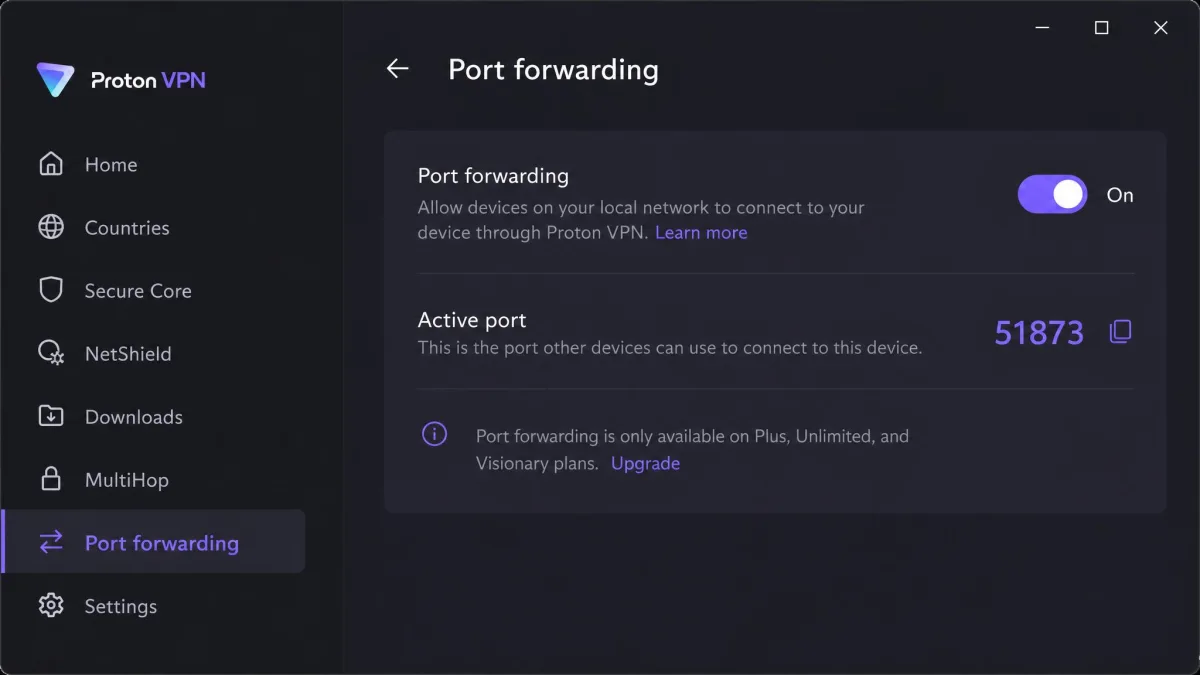
On Windows, open Countries, pick the P2P tab and connect to a P2P server. Click Port forwarding in the right sidebar, switch it on, and click Apply. On macOS, connect to a P2P server, click the Port forwarding shortcut and choose Port forwarding On. On the Linux GUI, connect to a P2P server, open Settings, then Features, and switch Port forwarding on.
Enabling it is a single toggle. The app then shows the freshly assigned port number, ready to copy.
Enter the Forwarded Port in qBittorrent
- Copy the port number from Proton VPN.
- In qBittorrent, open Tools, then Options.
- Select the Connection section.
- Paste it into "Port used for incoming connections".
- Untick "Use UPnP / NAT-PMP port forwarding from my router".
- Click Apply, then OK.
Don't skip step 5. qBittorrent's own UPnP/NAT-PMP mapping conflicts with Proton's port forwarding, and the forwarded port won't work until you switch it off.
Why the Port Changes When You Reconnect
Proton usually assigns a new port each time you connect. The number changes when you reconnect, switch servers or recover from a drop, and a client left on the old port stops accepting incoming peers. This happens often enough that community tools exist to sync the new port into qBittorrent automatically.
Every time Proton VPN reconnects or you restart qBittorrent, check the port in the Proton app and re-enter it under Connection if it changed. That one check keeps your torrents connectable.
How to Test Your Torrenting Setup for Leaks
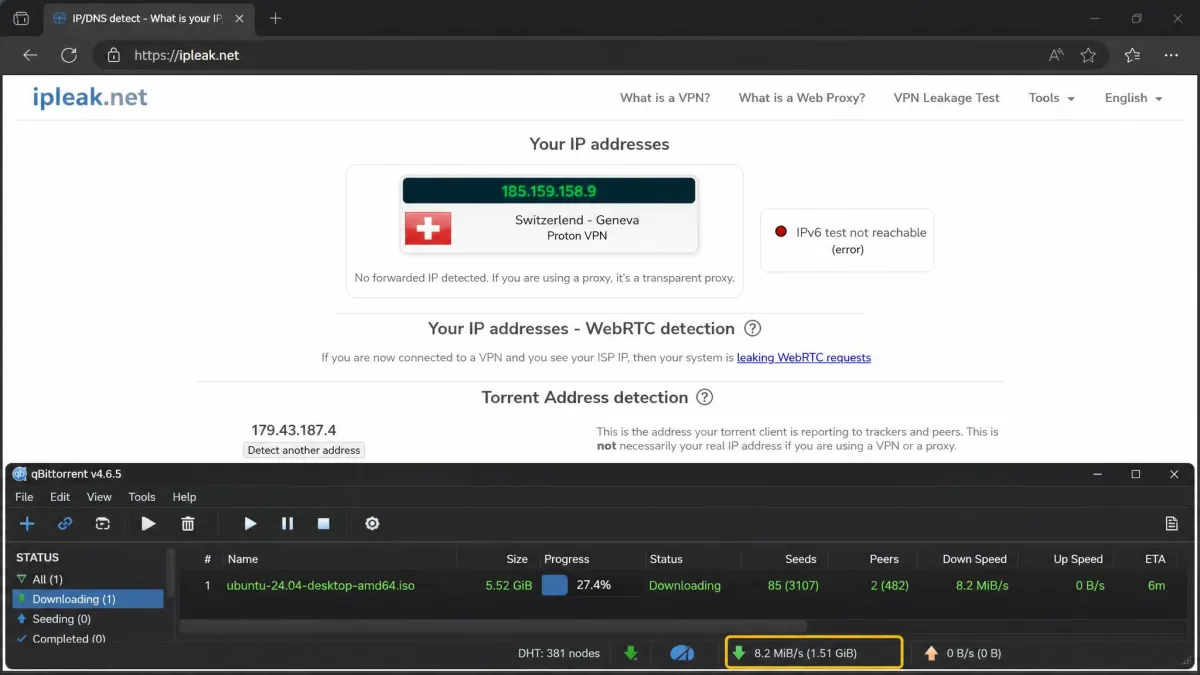
A bound client and a kill switch should keep you covered, but test once before you rely on them. Go to ipleak.net and run an IP and torrent leak test. Its torrent address detection gives you a magnet link to add to qBittorrent, then shows which IP address your client reports to the swarm. It should show a Proton server address, never your home IP.
In our checks, Proton showed no IP, DNS, IPv6 or WebRTC leaks on ipleak.net across 60 server countries. We also inspected P2P traffic with Wireshark and found it fully encrypted. If a result confuses you, our guide to test for DNS leaks explains what each line means and how to fix a failure.
Troubleshooting Proton VPN Torrenting Problems
Most problems come down to the server you picked or a port setting. Paid P2P servers ran reliably for us, with no leaks or stability issues during torrent sessions, so start with the simple checks below.
Torrents Blocked or Redirected to Another Server
If your torrents stop and Proton shows a P2P warning, you're on a server that doesn't allow P2P. Disconnect, open the P2P tab or look for the double-arrow icon, and reconnect. If the app won't connect at all, our guide to Proton VPN not working fixes walks through the usual causes.
Slow Downloads and No Incoming Connections
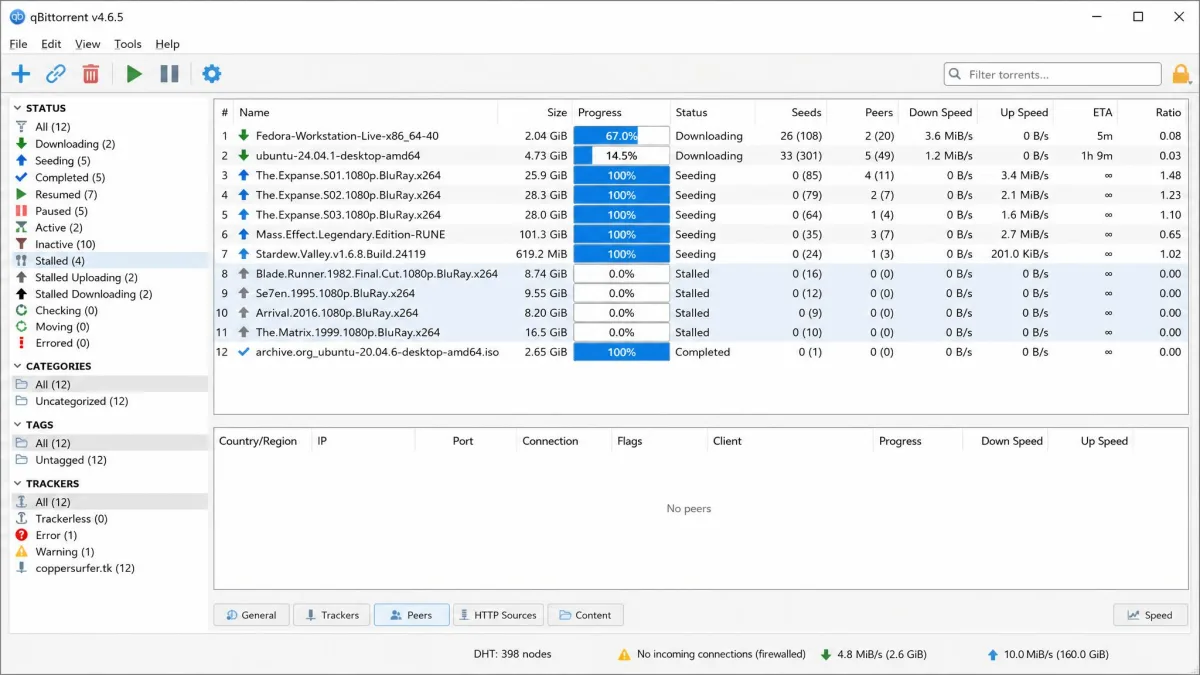
Torrents sitting on "Stalled" usually need port forwarding turned on or a less congested P2P server. Check that the port in qBittorrent matches the one in the Proton app, and that UPnP/NAT-PMP is off. Also check the app's NAT type: port forwarding doesn't work with Moderate NAT (NAT type 2). If speeds are still low, turn off Secure Core and pick a closer server with a lower load.
Is Torrenting Legal With Proton VPN?
Yes, torrenting itself is not illegal. BitTorrent is a file-sharing protocol, and people use it to distribute Linux ISOs, open-source software and public-domain media every day. What can be illegal is downloading or sharing copyrighted material without permission.
A VPN doesn't change that. Proton hides your IP address from peers and your provider, but it doesn't make an infringing download lawful. Proton makes the same point in its own guidance: you stay out of trouble by not downloading copyrighted or unlawful material. Stick to content you have the right to share, and check the rules where you live.
Proton VPN Torrenting FAQ
Can I torrent with Proton VPN free?
Should I keep the VPN on while torrenting?
Can other torrent users see my real IP?
Does Proton VPN port forwarding work on every platform?
Can I torrent on iPhone or Android with Proton VPN?
Does Proton VPN P2P work with Secure Core?
Bottom Line
Proton VPN is a strong choice for torrenting if you pay for a plan and take the time to bind qBittorrent and forward a port. Its audited no-logs policy and leak-free P2P servers cover the privacy side, and the speed hit on a nearby P2P server is small. If you'd like to compare other options first, our roundup of the best VPNs for torrenting ranks the alternatives.
Pros
- P2P on every paid plan, across most of the network
- Five consecutive annual no-logs audits
- Built-in port forwarding on desktop apps
- Advanced kill switch on Windows and Linux
Cons
- Standard kill switch stays off after a manual disconnect
- Forwarded port usually changes when you reconnect
- No port forwarding toggle listed for mobile apps
- Renewal price is much higher than the intro rate