If Proton VPN won't connect, gets stuck on "Connecting" or connects but nothing loads, the problem is usually easier to fix than it looks. In most cases the root cause is an outage or scheduled maintenance, an overloaded server, a network that blocks the VPN protocol, or a firewall or antivirus app that stops the connection.
Rule out the service side before you touch a single setting on the device. Check Proton's status first, then work through the fixes below in order, testing your connection after each one.
Is Proton VPN down right now?
Before you change anything, find out whether the problem is on Proton's end, because no amount of tweaking fixes a server that is offline.
Check Proton's status page and outage trackers
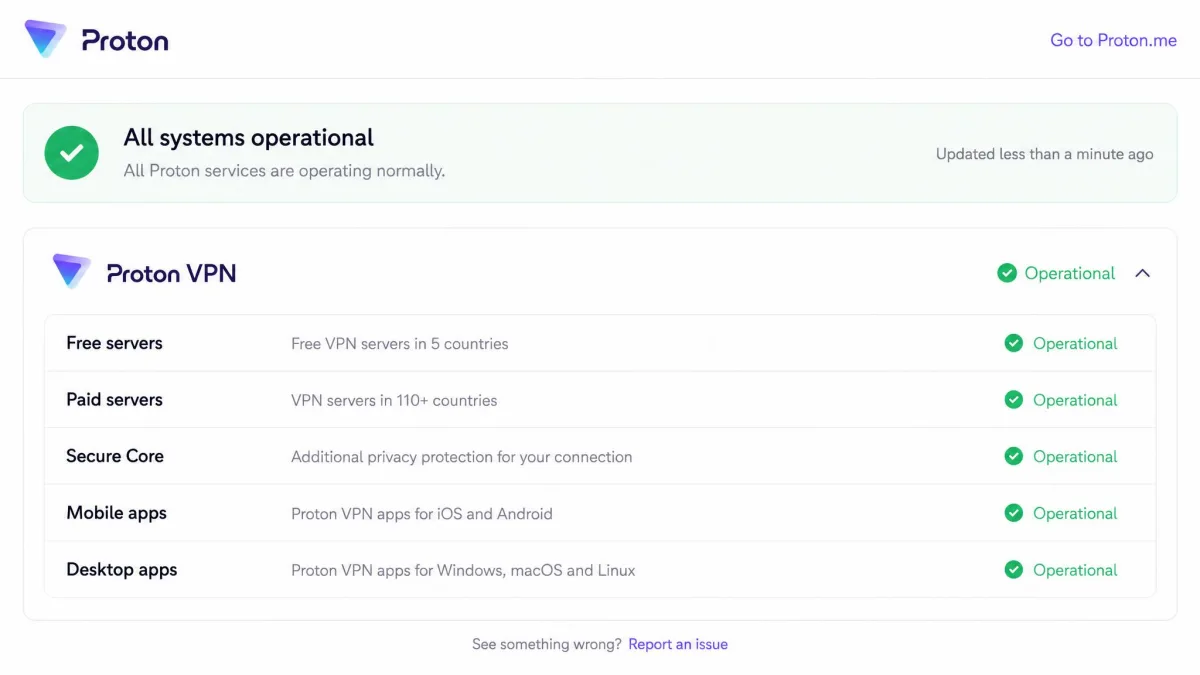
Open Proton's official status page and look at the Proton VPN components. Free servers, paid servers, Secure Core and the apps are listed separately, so you can see whether only one part of the service is affected. Then cross-check Downdetector's Proton VPN page, which collects live reports from other people.
The page does not update in real time, so refresh it before you trust it.
"All servers in this country are under maintenance" and other outage messages
Proton has been running a global upgrade of its VPN infrastructure through autumn 2026, and various paid servers go into short maintenance windows along the way. In late August, people connecting to US servers saw this in-app message: "All servers in this country are under maintenance. Please connect to another country." It isn't a fault on your device, so connect to a different country and return to your usual location later.
Why is Proton VPN not working?
When the status page is clear, the fault sits somewhere between your device and the VPN server. The usual causes are: a server offline for maintenance, a blocked protocol, an expired paid plan, a firewall or antivirus conflict, a wrong system clock and an unstable internet connection.
How does Proton VPN work, and where can the connection fail?
So how does ProtonVPN work? The app builds an encrypted tunnel between your device and a Proton server, and your traffic passes through it before reaching the open internet. Proton VPN launched in 2017, and its no-logs policy has passed repeated audits by Securitum.
The tunnel can break at several points. Your internet can be down, or security software can stop the app from opening the tunnel. Your network can block the protocol, which is the set of rules the tunnel uses to talk to the server. The server can be full or offline, or your account may lack access to it.
Match your symptom to the cause
| Symptom | Likely cause | First fix |
|---|---|---|
| Won't connect at all | Internet down, server offline | Fixes 1 and 2 |
| Stuck on "Connecting" | Blocked protocol, firewall | Fixes 3 and 5 |
| Connects, then drops | Busy server, unstable Wi-Fi | Fixes 2 and 8 |
| Connected, no internet | DNS or network settings | Fix 9 |
| Fails on one Wi-Fi only | Network blocks VPNs | Fixes 3 and 8 |
| Only some countries fail | Maintenance, plan limits | Fixes 2 and 7 |
| App won't open | App or install problem | Proton VPN won't open |
With your likely cause in mind, start at fix 1 and work down, since the early steps solve most cases in a minute or two.
How to fix Proton VPN not working
1. Check your internet with the VPN turned off
Disconnect Proton VPN and load a few websites. If nothing loads, the problem is your internet connection, not the VPN. Restart your router by switching it off for at least 10 seconds, move closer to it, or try a wired connection.
2. Connect to a different server
Servers get busy and go offline for maintenance, so a new server is the quickest thing to try. Picking a specific server manually often works when the auto-selected "fastest" server keeps failing. On the free plan, switching to another free server usually helps more than changing any device setting, because free servers are often overloaded at busy times.
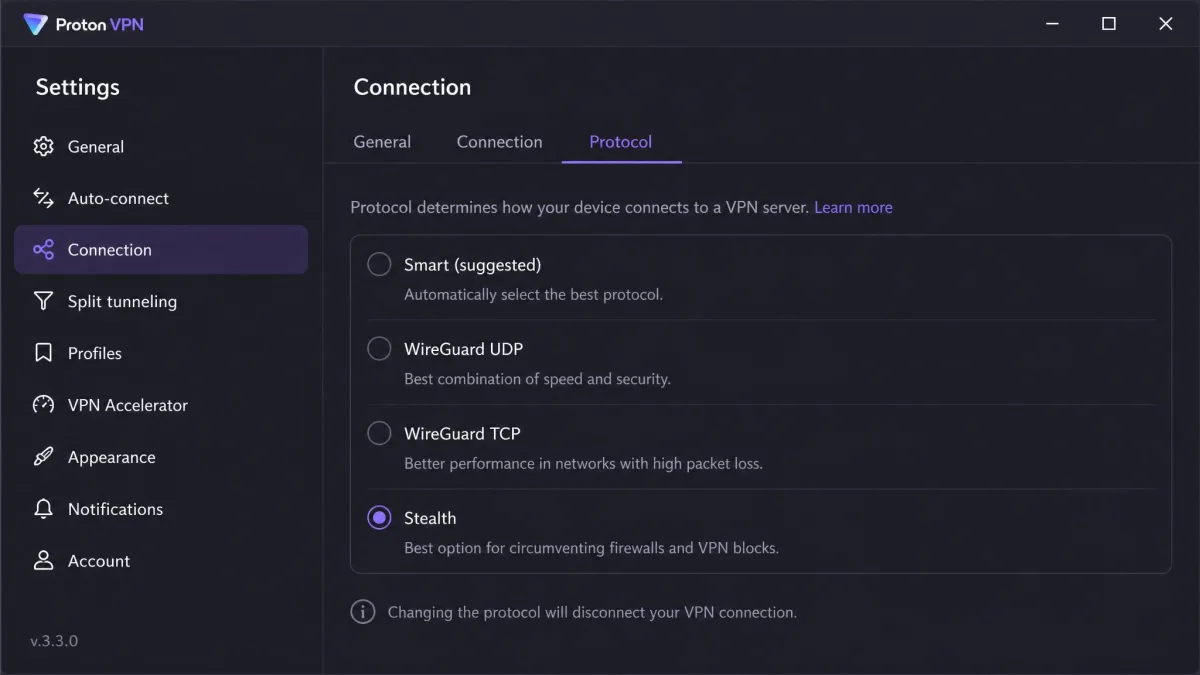
3. Change the VPN protocol (Smart, WireGuard, OpenVPN TCP, Stealth)
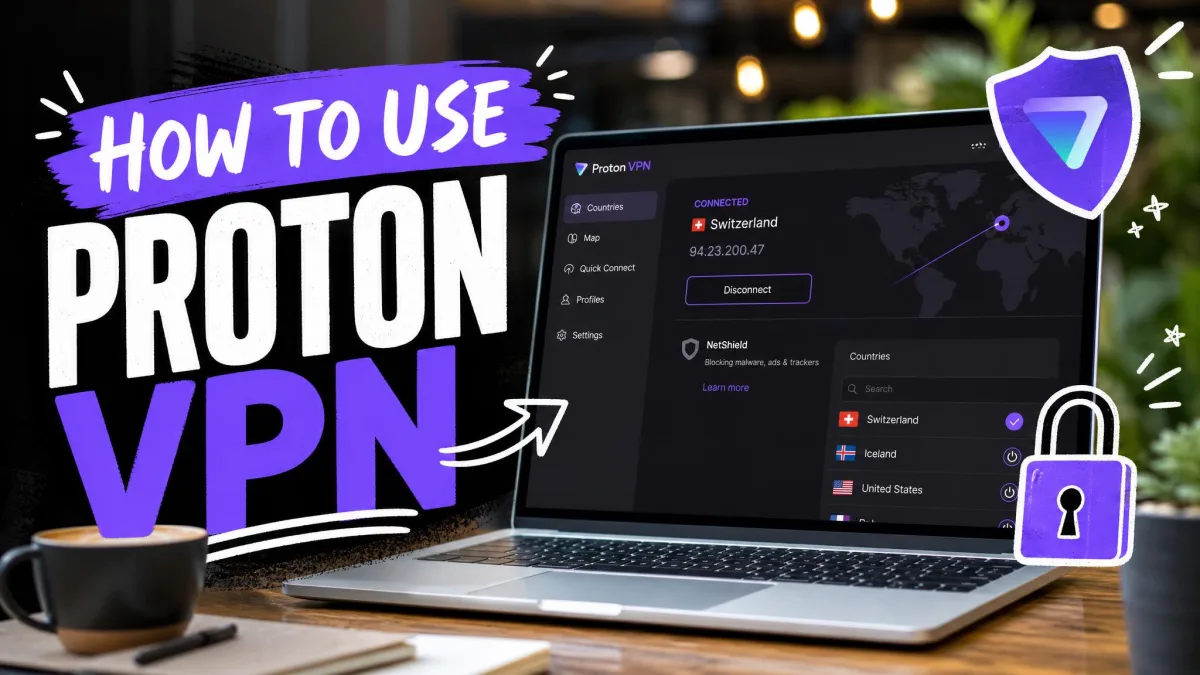
The protocol decides how your traffic is packaged, and some networks block certain protocols. The default is Smart Protocol, which automatically tries other protocols when the first one is blocked. Open Settings → Connection → Protocol and pick one manually. Our guide on how to use Proton VPN shows where the setting lives in each app.
| Protocol | Best for | What to know |
|---|---|---|
| Smart | Default choice | Can loop on filtered networks |
| WireGuard | Speed on open networks | First to be blocked |
| WireGuard TCP | Networks that block UDP | Slower than standard WireGuard |
| OpenVPN TCP | Linux, manual setups | Linux app only now |
| Stealth | Networks that block VPNs | Available on all plans |
On school, office and hotel Wi-Fi, WireGuard TCP or Stealth connect more reliably than standard WireGuard. If Smart keeps cycling without settling, force Stealth manually to break the loop. We explain Stealth in the Russia section below.
4. Turn off Secure Core, NetShield and the kill switch to test
Secure Core sends your traffic through an extra hardened server in Switzerland, Iceland or Sweden, and turning it off removes that hop and often gets a stubborn connection through. NetShield, Proton's ad and malware blocker, filters your DNS requests, so switch it off briefly too. Both are paid features.
The kill switch cuts your internet when the VPN drops, which can look like a failure. Our explainer on what a VPN kill switch does covers how it behaves. Turn each feature off one at a time, test, and switch it back on afterward.
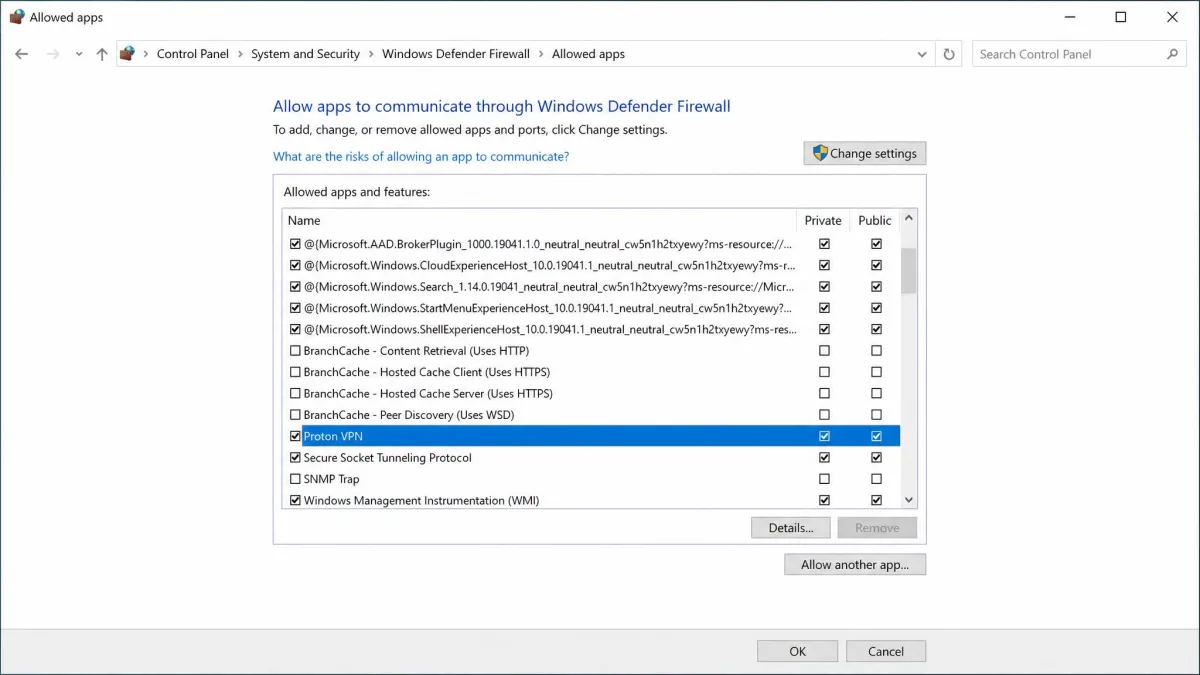
5. Allow Proton VPN through your firewall and antivirus
Security software sometimes blocks the app from opening its tunnel. Disable your antivirus or third-party firewall briefly and try to connect. If the VPN works, turn your protection back on and allow Proton VPN for incoming and outgoing connections. Add an exception rather than leaving your protection off.
6. Correct your system date and time
A wrong system clock makes the app reject the server's security certificates, so the connection fails. On Windows, go to Settings → Time & language → Date & time and turn on "Set time automatically." On a Mac, open System Settings → General → Date & Time and let it set the time automatically.
7. Check your plan, sign-in and device limit
An expired paid plan drops your account back to the free plan, and your usual servers disappear. Sign out of the app and back in to refresh your account. Then count your devices: the free plan allows 1 device at a time and VPN Plus allows 10 devices. Our Proton VPN review covers what each plan includes.
8. Try a different network (public, school or work Wi-Fi)
Public, school and office networks often block VPN traffic. Switch your phone to mobile data, or share it as a hotspot to your computer, and try again. If Proton connects on mobile data but not on Wi-Fi, the local network is the problem, so go back to fix 3 and use Stealth.
9. Reset DNS and network settings
The app can show "Connected" while no traffic flows at all. On Windows, open Command Prompt as administrator, run ipconfig /flushdns and then netsh winsock reset, and restart your PC to clear that stuck state. On a Mac, restart, then remove and re-add your Wi-Fi network.
10. Update or reinstall Proton VPN
Old app versions can break after server changes, so get the latest version from Proton's download page or your app store. If that fails, uninstall, restart and install fresh, since reinstalling clears corrupted settings a restart can't. If the app won't launch at all, see our guide on why Proton VPN won't open.
Fixes by device: Windows, Mac, Linux, Android and iPhone
Each platform also has its own weak spots.
- Windows: Go to Start → Settings → Network & Internet → Proxy and turn off "Use a proxy." A system-wide proxy or another VPN client left installed stops Proton VPN from connecting.
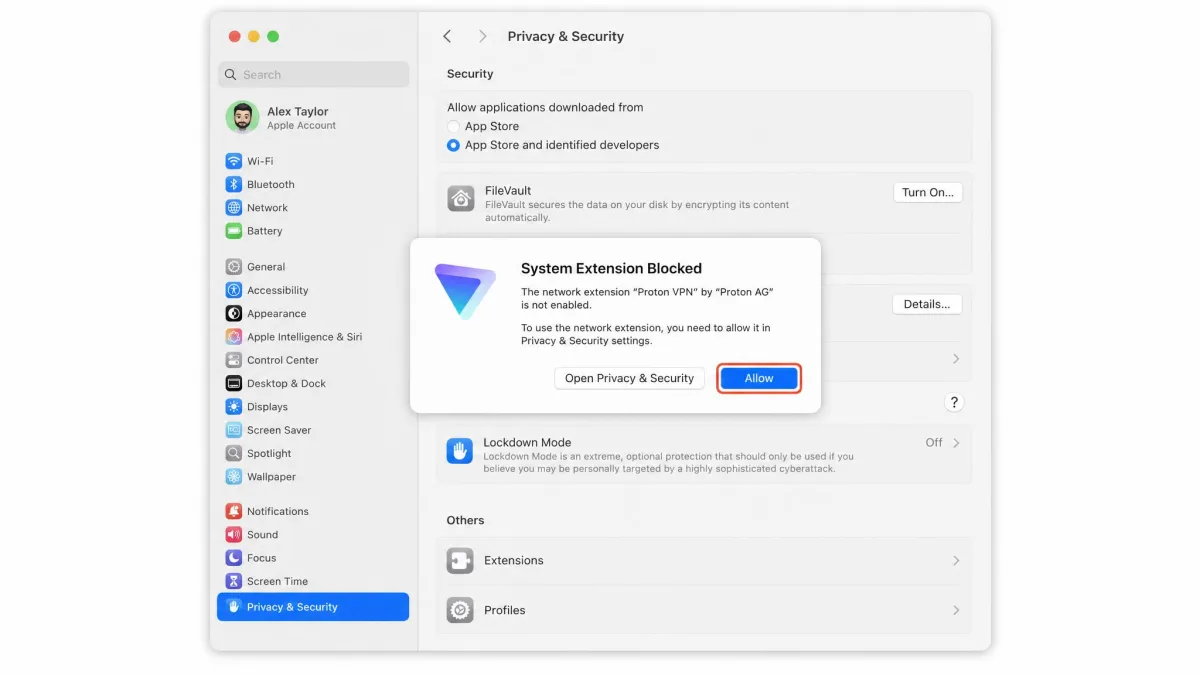
- Mac: Open System Settings → Privacy & Security and allow the Proton network extension, or the VPN won't connect. If you use IKEv2, switch protocols, as Proton asks during its upgrade.
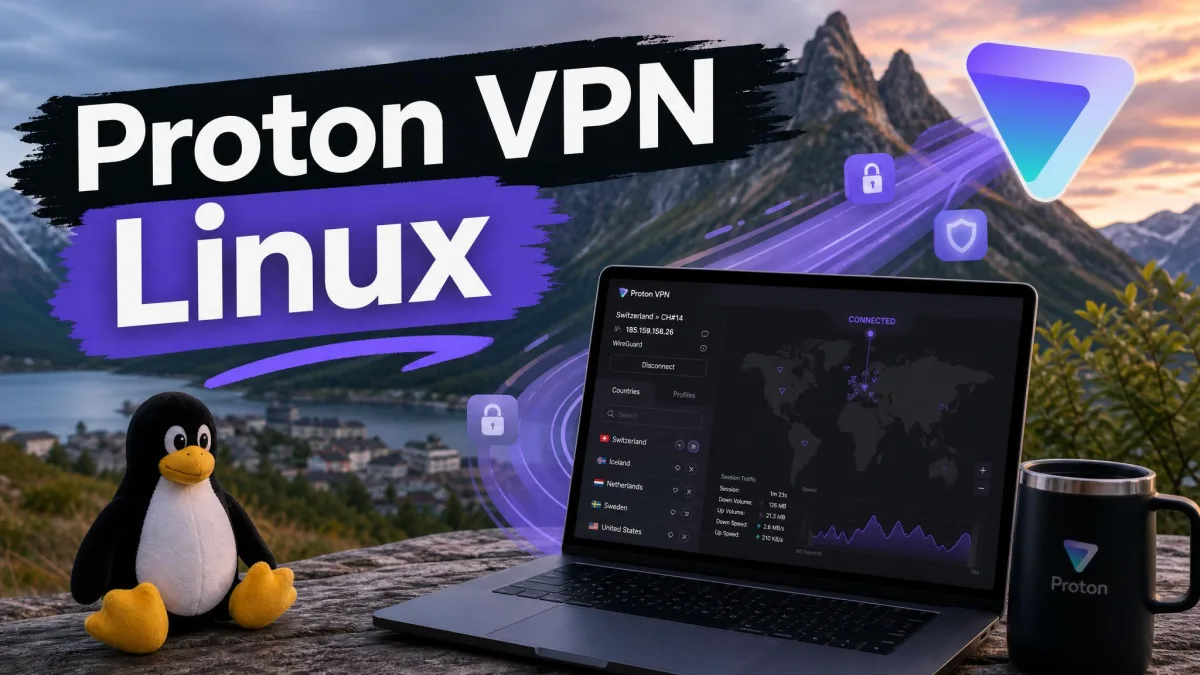
- Linux: The Linux app offers WireGuard and OpenVPN, while Smart and Stealth need the beta Proton Protocols option. Our guide to Proton VPN on Linux covers setup and common errors.
- Android: Open Settings → Network & internet → VPN and make sure no other app is set as Always-on VPN. Proton has removed OpenVPN from Android, so use WireGuard or Stealth.
- iPhone: The VPN can drop when your phone hops between Wi-Fi networks or onto cellular, so reconnect after the switch.
Proton VPN stopped working suddenly: what changed?
If Proton VPN stopped working after months of running fine, ask what changed just before it broke.
- An update: A new app build or a major Windows update can reset settings or break the VPN network adapter, and a clean reinstall restores it.
- An expired plan: Your account falls back to free servers.
- Maintenance: Proton's autumn 2026 upgrade can make a favorite server vanish for a while.
- Old config files: Proton retired manual OpenVPN files downloaded before September 2023, with a cutoff of February 28, 2026, so download fresh ones for routers and third-party clients.
- A new network: A new router, office or hotel may block VPN traffic.
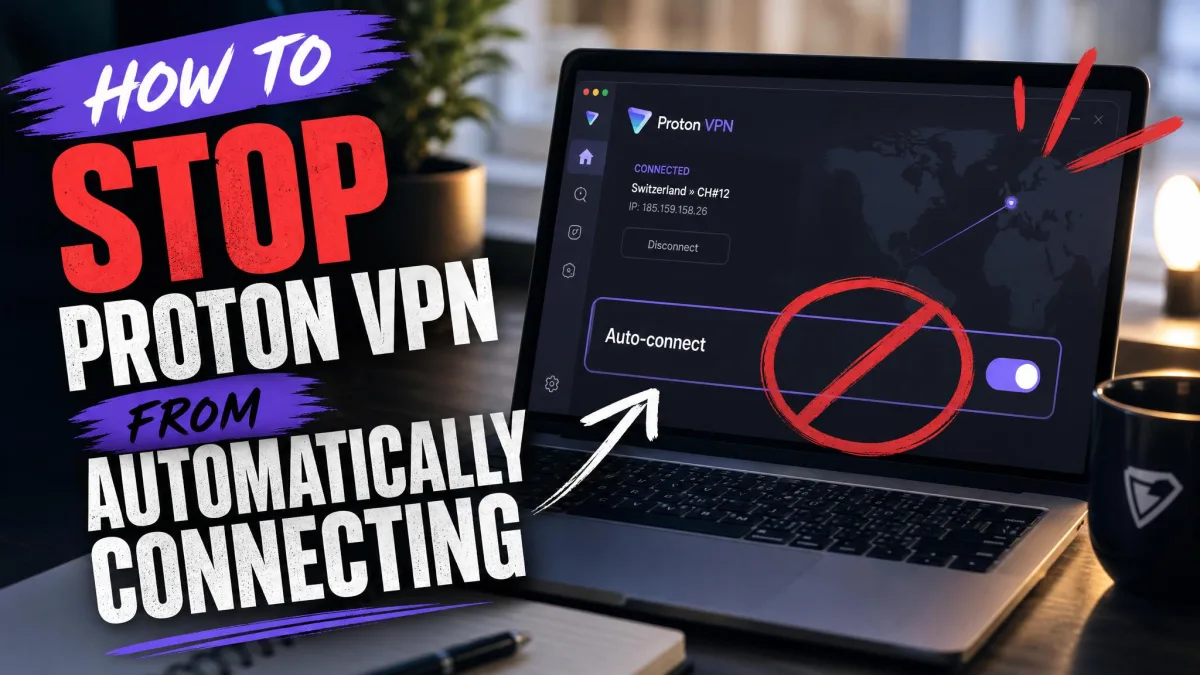
A common case is Proton working on your phone but failing on your desktop with the same account. That points to the desktop's network settings, firewall or app state, not your account. The late-August 2026 upgrade showed this split, with US servers returning the maintenance message on Macs while phones still connected. If the app connects or blocks traffic on its own, our guide on stopping Proton VPN from connecting automatically explains how to take back control.
Proton VPN error 86101 and other error messages
Error codes are a different story from the plain-language maintenance message above, because Proton does not publicly document error 86101. We couldn't find it on Proton's support site, blog or status page, so we won't guess at a cause. If you see it, follow this order:
- Update the app.
- Sign out and sign back in.
- Change the server, then the protocol.
- Try another network, such as mobile data.
- Contact Proton support with the exact code.
Other messages are clearer. A certificate error usually points to your system clock (fix 6).
Does Proton VPN work in Russia and other restricted countries?
Country-wide censorship is a bigger obstacle than any single error code, and the honest answer is sometimes, with no guarantee. If Proton VPN doesn't work in Russia for you, you're far from the only one. Roskomnadzor, Russia's telecom regulator, confirmed it was restricting Proton VPN in June 2022, and Apple pulled Proton VPN and other VPN apps from the Russian App Store on July 4, 2024.
Since late 2025, Russian censors have filtered individual protocols with deep packet inspection, a method that recognizes VPN traffic by its shape, and blocking changes often by region and carrier. Proton VPN fails often on the ground in Russia in 2026, and during mobile-internet whitelisting nothing gets through with or without a VPN.
Your best tool is Stealth, Proton's own protocol that disguises VPN traffic as ordinary HTTPS web traffic. It has been around since 2022 and is included on every plan, including Free. Proton also uses alternative routing, introduced in 2020, which reaches Proton through third-party infrastructure when its servers are blocked. The same advice applies in other censoring countries.
How do I know if Proton VPN is working?
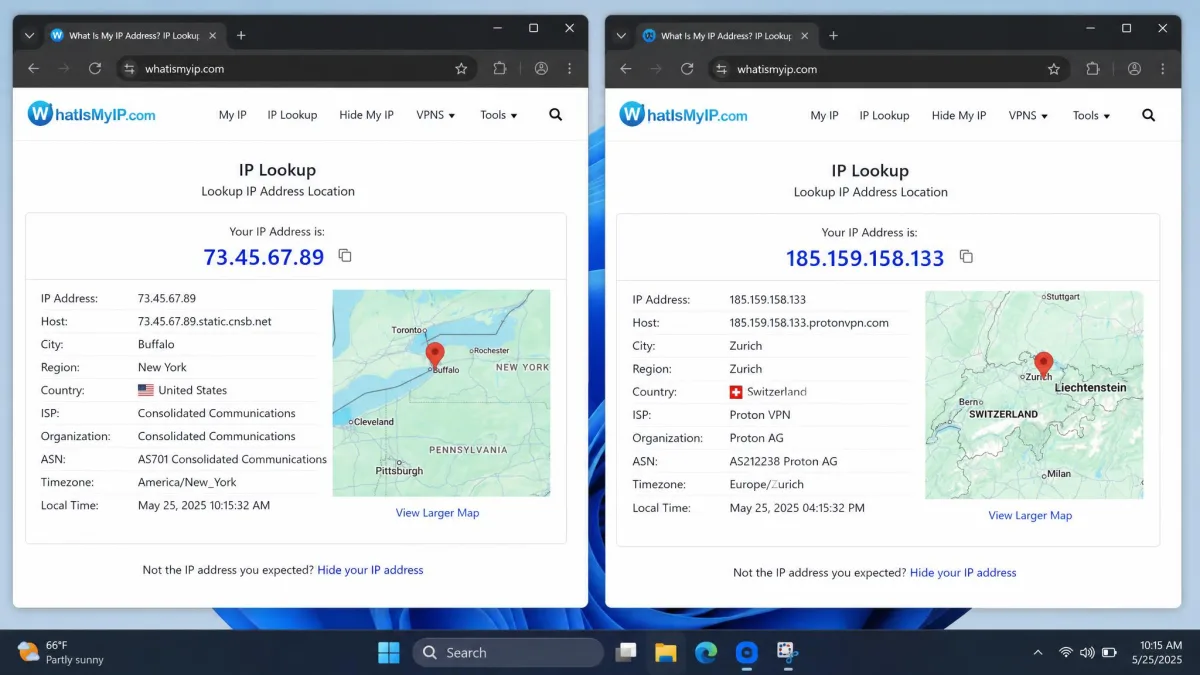
Once you're back online, don't trust the green "Connected" badge alone. Two quick checks tell you whether your traffic really goes through the tunnel, and our guide on how to tell if your VPN is working covers them in more depth.
Check your IP address
Look up your public IP address with the VPN off, then connect and check again. If the address and location change to match the server you picked, the VPN is working.
Run a DNS leak test
A DNS leak test shows which servers answer your website lookups, and you should see only VPN-owned resolvers, not your internet provider. Our guide on how to test for DNS leaks walks through it. On a healthy Proton connection, the test should show no DNS, IPv6 or WebRTC leaks. If your provider's resolvers appear, switch servers and run it again.
When to contact Proton support (and what to send)
If every fix fails, contact Proton support with enough detail to act on your first message:
- Your device, operating system and app version
- The protocol and server you tried
- The exact error message or code, with a screenshot
- When it happened and what network you were on
Support may also ask for the app's logs, so keep the app installed until the ticket closes.
FAQ
Why does Proton VPN get stuck on "Connecting"?
Why does Proton VPN work on mobile data but not on Wi-Fi?
Which protocol should I use if Proton VPN won't connect?
Does ProtonVPN work on the free plan, and does the free plan cause more failures?
Why does Proton VPN connect but no websites load?
Why is my internet not working after disconnecting Proton VPN?
Does Proton VPN work in Russia?
How do I check if Proton VPN is down?
Bottom line
Most Proton VPN problems come down to a busy server, a blocked protocol or a local setting. Check the status page, confirm your internet works, then switch servers and protocols before you dig into firewall, clock, account and DNS settings. Once it connects, an IP check confirms it's working.