Proton VPN port forwarding opens one port on the VPN server so that incoming connections from the internet can reach an app on your device, such as a torrent client or a game. It only works on a paid plan, and only while you're connected to a P2P server.
You switch it on with the Port forwarding setting in the Proton VPN app. The server then hands you a random port through NAT-PMP, and that port usually changes every time you reconnect. This guide covers the app toggle on each platform, manual NAT-PMP, routers, Docker, and the fixes for when it stops working.
What Is Proton VPN Port Forwarding?
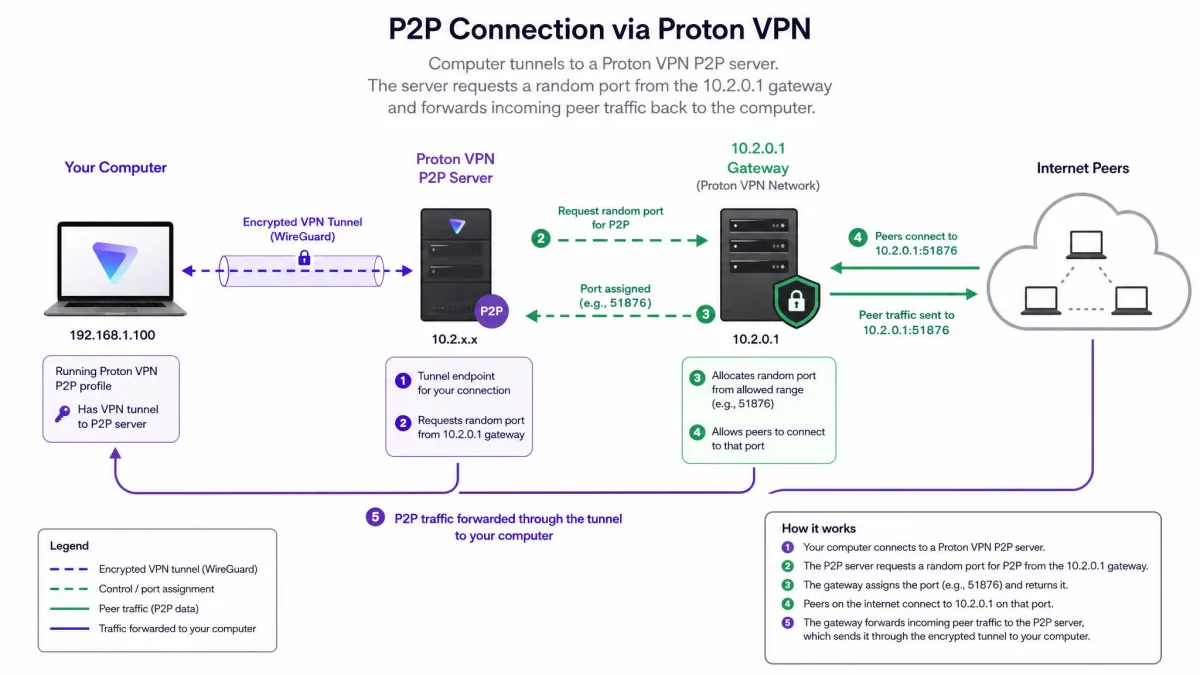
On a VPN, your device sits behind the server's shared address, so unrequested incoming traffic normally has nowhere to go. A forwarded port gives that traffic a single numbered doorway on the server that leads back to you.
How NAT-PMP and the random port work
Proton hands out ports with the NAT Port Mapping Protocol (NAT-PMP), a small protocol Apple introduced in 2005 and later standardized as RFC 6886. Your device, or the Proton app acting for it, asks the VPN gateway at 10.2.0.1 for a mapping. The server picks a random port and opens it for incoming traffic.
The same port number is allocated for both TCP and UDP. Each mapping is a lease that lasts 60 seconds. The Proton apps renew it in the background, while a manual connection must renew it itself, which Proton's script does every 45 seconds.
The port number usually changes when you reconnect to the VPN, so every app that listens on it has to learn the new number.
What you can use a forwarded port for
Most people turn it on for BitTorrent and other P2P apps. With an open port, peers can start connections to you instead of waiting for you to reach them. It can also improve online gaming, and it lets you expose a self-hosted service such as Plex, I2P or a small web server.
If you only want to publish a service and have no privacy need, a cheap VPS with a stable IP and standard ports is simpler than VPN port forwarding.
Which Proton VPN Plans and Servers Support Port Forwarding?
Port forwarding is available on all paid Proton VPN plans, which means VPN Plus or higher. The Free plan does not include it. Proton's port forwarding support page also sets the second rule: you must be connected to a P2P server.
P2P servers carry a double-arrow icon (⇄) in the server list, and all of them support port forwarding. One less obvious conflict: port forwarding is not compatible with NAT type 2 (moderate NAT), so switch that off first if you use it for gaming. For how the paid tiers compare beyond this one feature, see our full Proton VPN review.

How to Enable Port Forwarding in the Proton VPN App
The in-app toggle is the easiest route, and it is available on Windows, macOS and Linux only. Here is where every route stands.
| Platform | In-app toggle | Manual NAT-PMP | Notes |
|---|---|---|---|
| Windows | Yes | Not documented by Proton | Hover over Port forwarding to see the port |
| macOS | Yes (early access) | Yes, with Python 3 and py-natpmp | Port shows under the Port forwarding On button |
| Linux GUI | Yes | Not needed | Port shows in the info panel and a local file |
| Linux CLI | Yes, via a config command | Yes, with the natpmpc loop | Proton pairs the command with the manual loop |
| Android | No | No documented route | Use a router running Proton instead |
| iOS | No | No documented route | Use a router running Proton instead |
| OpenWRT router | No | Yes, natpmpc plus a firewall rule | Needs a config with NAT-PMP enabled |
| Gluetun/Docker | Not applicable | Built in | Turn on with VPN_PORT_FORWARDING=on |
Windows
Version 4.1.9 (April 2025) brought a redesigned Windows app whose Connection profiles support port forwarding, and version 4.2.0 (June 2025) added a way to see the active port number.
- Open Proton VPN, select Countries, then choose the P2P tab on the left sidebar.
- Connect to any country, city or server in that list.
- Click Port forwarding on the right sidebar, or open Settings (⚙) and find it there.
- Toggle the Port forwarding switch on and click Apply.
- Hover over Port forwarding on the right sidebar to see the active port.
We recommend turning on Notifications too, so the app tells you when the active port number changes. Those alerts keep you from silently seeding on a stale port after a reconnect.
macOS
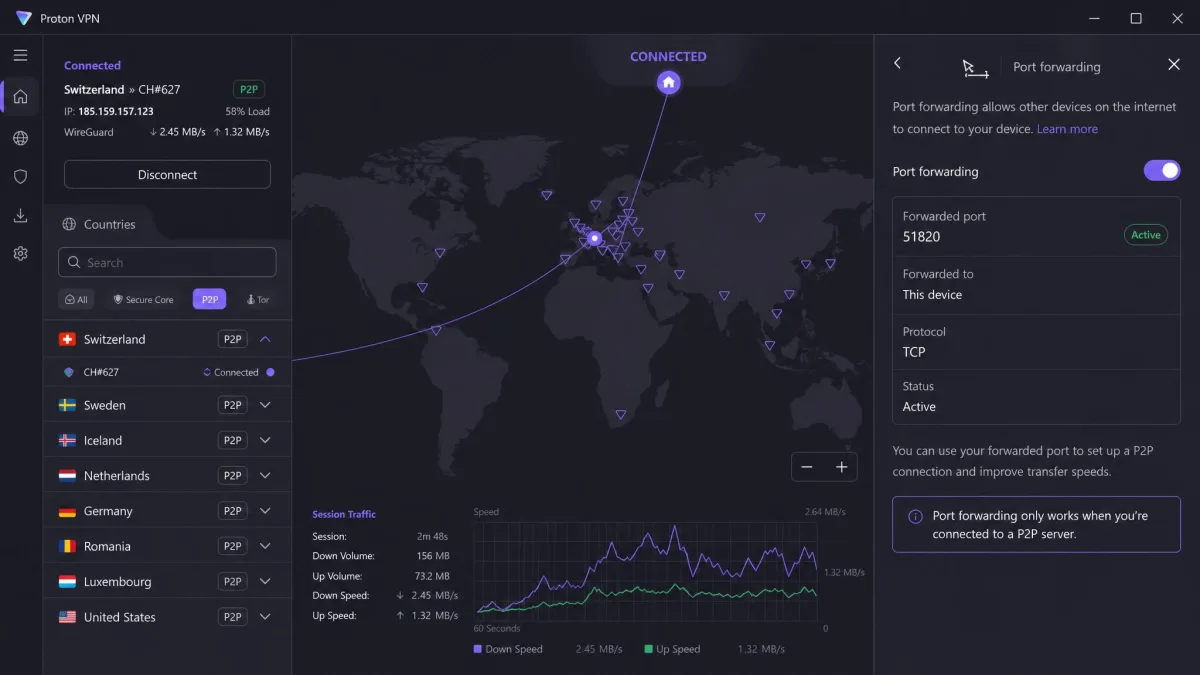
Port forwarding reached the Mac app in version 6.0.0 (September 2025), and Proton still labels it an early-access feature. That release also dropped macOS 13 Ventura, so a Mac still on Ventura needs the manual route further down.
- Open Proton VPN and go to Countries.
- Connect to any country, city or server marked with the P2P icon.
- Click the Port forwarding shortcut, or open Settings (⚙).
- Click Port forwarding On. The active port number appears right underneath the button.
Linux (GUI app)
The Linux desktop app gained automated port forwarding in version 4.9.0 (February 2025), so there's no script to write. If the app isn't on your machine yet, see our guide to installing Proton VPN on Linux.
- Open Proton VPN and go to Countries.
- Connect to a P2P server.
- Go to Settings → Features and toggle Port forwarding on.
The active port then shows in the information panel at the top of the main window.
The Linux app also writes the active port to /run/user/$UID/Proton/VPN/forwarded_port. A small script can read that file and push the number into your torrent client whenever it changes.
Linux CLI
The new Linux CLI got a port forwarding setting in version 0.1.5 (January 2026) and runs on Ubuntu, Debian, Fedora and Arch. Run this command to switch the feature on:
protonvpn config set port-forwarding onProton's support page says to reconnect if you were already connected. Whether a reconnect is still required depends on the CLI version you run, since later release notes say most setting changes no longer need one. Proton also calls CLI port forwarding a two-stage process: stage two is the Linux natpmpc step in the manual section below, so follow both.
Android, iOS and other devices
Proton VPN's Android and iOS apps have no port forwarding. Neither platform appears on Proton's list, and there's no mobile toggle to find. Any device that can't run the Windows, Mac or Linux app is in the same position.
For those devices, move the tunnel upstream. Running Proton on an OpenWRT router, covered below, lets you pass the forwarded port to a phone or other device on your network. Gluetun, also covered below, only forwards the port to Docker containers on the same host, such as qBittorrent running in a container.
How to Find Your Forwarded Port
The desktop apps show the number in the places covered above. For the other routes:
- Manual NAT-PMP: read the "Mapped public port" line in the natpmpc output.
- Linux CLI: Proton doesn't document a way for the CLI to show the port, so use the natpmpc output.
- Gluetun: query the control server at /v1/portforward on port 8000, which returns something like {"port":5914}.
Whatever the platform, check the number again after every reconnect.
Why Your Port Keeps Changing (and Can You Get a Fixed Port?)
The server picks a random port each time it creates a mapping, and a reconnect creates a new mapping. That's why the number usually changes when you reconnect, restart your device or switch servers.
A lapsed lease can have the same effect. If renewal stops during a short network drop or because a script crashed, the next request can come back with a different random port. Proton documents only the reconnect case, so officially, it is unclear whether a lapsed lease always yields a new port.
This is the main day-to-day friction with ProtonVPN port forwarding. Every reconnect or restart can mean typing a new port into your torrent client and any firewall rules.
So can you get a fixed port? No. Proton does not offer a fixed or static port, and none of its documentation describes one. You can automate the updates, but you can't make the number stay put. If a stable port matters most, compare VPNs that offer port forwarding with a fixed port before you commit.
Manual Proton VPN Port Forwarding with NAT-PMP
Manual forwarding suits machines without the Proton app, such as a headless Linux server.
Create a WireGuard or OpenVPN config with NAT-PMP enabled
For WireGuard, the modern VPN protocol Proton offers alongside OpenVPN, generate a config with NAT-PMP switched on:
- Sign in to your Proton account and go to Downloads → WireGuard configuration.
- Pick a P2P server, marked with the double-arrow icon.
- Under Select VPN options, make sure NAT-PMP (port forwarding) is enabled.
- Download the file and load it into your WireGuard client.
For OpenVPN, add the suffix +pmp to your OpenVPN username, for example myusername2023+pmp. Your OpenVPN credentials are not your Proton login, so copy them from Account → OpenVPN username.
Request and renew the port with natpmpc
Install the client with sudo apt install natpmpc on Debian or Ubuntu, or sudo dnf install libnatpmp on Fedora and Red Hat. Builds from 20150609 misread Proton's responses, so use 20230423 or newer.
Connect to the VPN, then run this to check that the server allows port forwarding:
natpmpc -g 10.2.0.1If that fails, the usual cause is a non-P2P server or a config generated without the NAT-PMP option. Switch to a P2P server and regenerate the config.
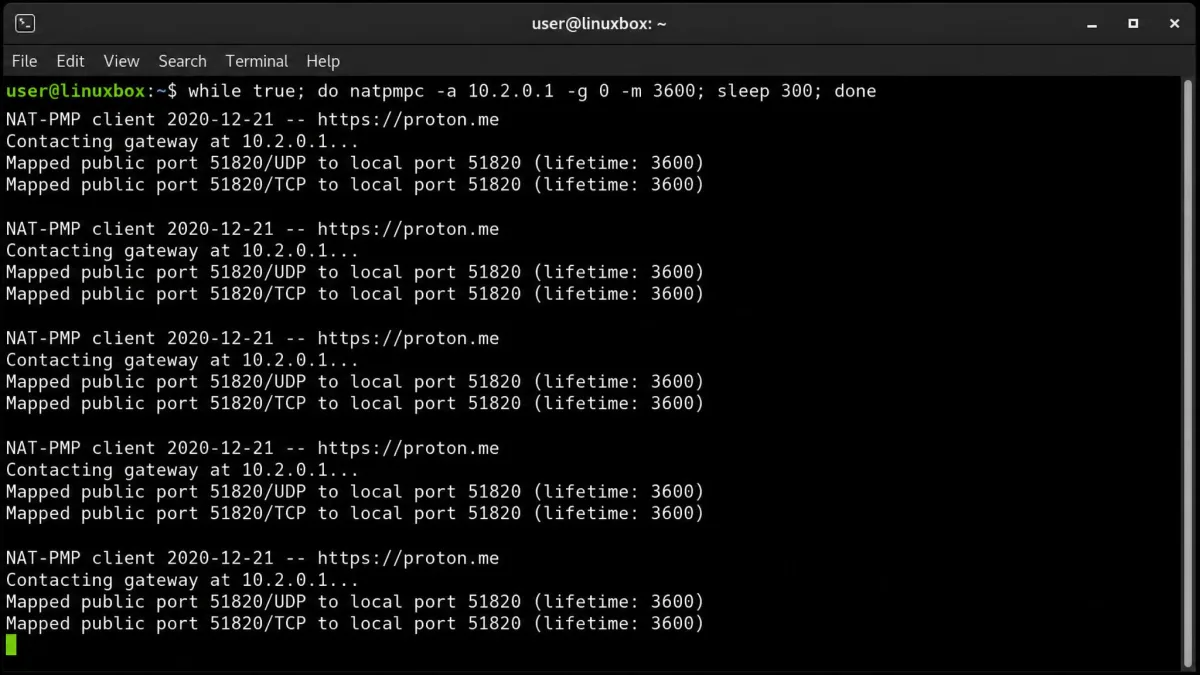
Next, start Proton's renewal loop. It requests a UDP and a TCP mapping with a 60-second lease, then repeats every 45 seconds:
while true ; do date ; natpmpc -a 1 0 udp 60 -g 10.2.0.1 && natpmpc -a 1 0 tcp 60 -g 10.2.0.1 || { echo -e "ERROR with natpmpc command \a" ; break ; } ; sleep 45 ; doneThe "Mapped public port" line in the output is your forwarded port. Closing the terminal ends the loop, and without it the port stays open for only 60 seconds.
On macOS, Proton's manual route swaps natpmpc for Python 3 and the py-natpmp package, running the same 45-second loop. Keep Terminal open and switch off Audible Bell under Terminal → Settings → Profiles → Advanced, or the loop rings the bell on every pass.
Keep the lease alive automatically
A loop in an open terminal is fragile. Running it as a systemd service or under supervisord with restart-on-failure is far more reliable than a terminal or tmux session.
Then connect the loop to your app. Extract the port with awk '/Mapped public/ { print $4 }', write it into the app's config, and restart the app when the number changes. Even automated, manual NAT-PMP is less practical than port forwarding on a home router, because the loop must run continuously and your service needs reconfiguring whenever the port changes.
Proton VPN Port Forwarding on an OpenWRT Router
Proton has no native router support, so a ProtonVPN port forward on OpenWRT uses the manual route above: a config with NAT-PMP enabled, plus natpmpc on the router. If your router isn't running Proton yet, start with our guide on how to set up a VPN on your router.
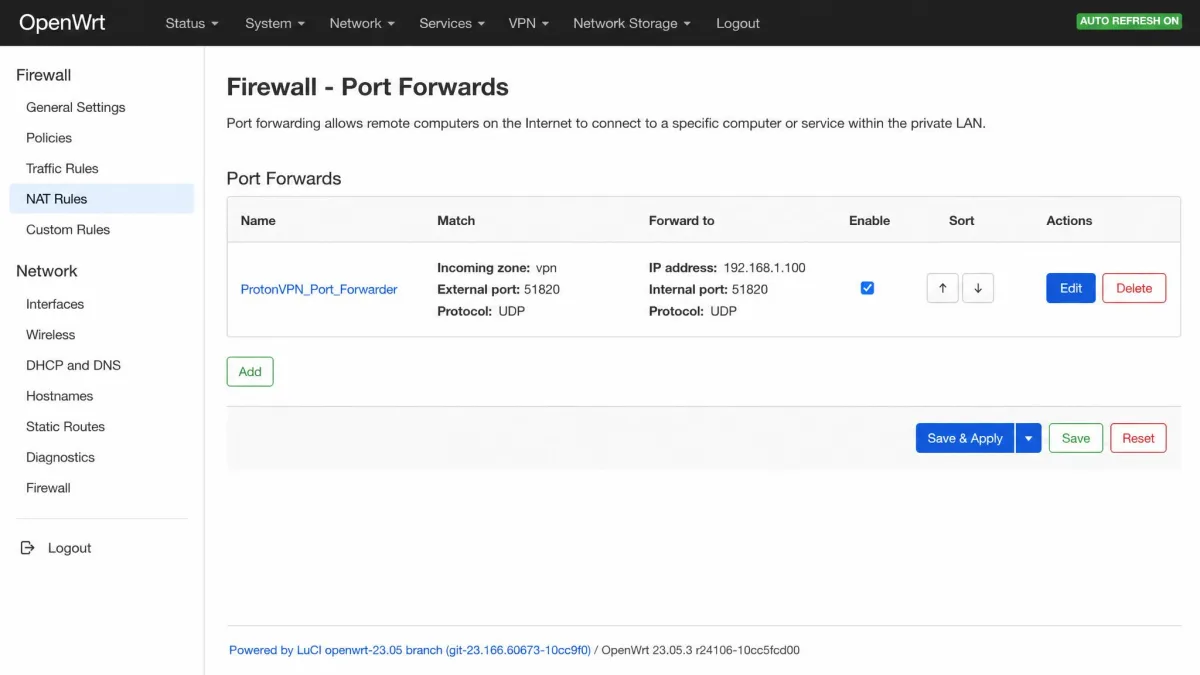
Install the tools with opkg install natpmpc libnatpmp. A service in /etc/init.d then runs natpmpc against 10.2.0.1 every 45 seconds and updates a firewall redirect with the mapped port. These commands create that redirect from the vpn zone to one LAN device, assuming you already have lan and vpn zones:
uci add firewall redirect
uci set firewall.@redirect[-1].name='ProtonVPN_Port_Forwarder'
uci set firewall.@redirect[-1].src='vpn'
uci set firewall.@redirect[-1].src_dport='<forwarded port>'
uci set firewall.@redirect[-1].dest='lan'
uci set firewall.@redirect[-1].dest_ip='<LAN device IP>'
uci set firewall.@redirect[-1].dest_port='<app port>'
uci set firewall.@redirect[-1].target='DNAT'
uci commit firewall
Have the service reload the firewall only when the forwarded port has actually changed. Reloading on every 45-second renewal disrupts traffic for everything behind the router.
Proton VPN Port Forwarding with Gluetun and Docker
Gluetun is a VPN client container with NAT-PMP built in, so the simplest route is to send your other containers' traffic through it. Use network_mode: "service:gluetun" in the same compose stack, or network_mode: "container:gluetun" from a separate one.
These environment lines turn it on for Proton over WireGuard:
VPN_SERVICE_PROVIDER=protonvpn
VPN_TYPE=wireguard
WIREGUARD_PRIVATE_KEY=<key from your NAT-PMP config>
VPN_PORT_FORWARDING=on
PORT_FORWARD_ONLY=on
PORT_FORWARD_ONLY=on is optional and limits Gluetun to P2P servers. VPN_PORT_FORWARDING_PROVIDER defaults to your current provider, so you only set it to protonvpn with Gluetun's custom provider and WireGuard.
Gluetun writes the port to /tmp/gluetun/forwarded_port, though its wiki says that file will be deprecated in v4.0.0. A better option is VPN_PORT_FORWARDING_UP_COMMAND, which runs whenever a port is assigned and can pass {{PORT}} straight to qBittorrent's Web UI. Pair it with the DOWN command, because qBittorrent doesn't always re-establish forwarding after a disconnect until the listen port is set again. Sidecar containers that sync the port can log a success while the client's port stays unchanged, so the built-in UP command is the simpler choice.
Skip VPN_PORT_FORWARDING_LISTENING_PORT for torrent clients. It redirects the forwarded port to a local one, and torrent clients announce their own port.
Use the Forwarded Port in Your Torrent Client
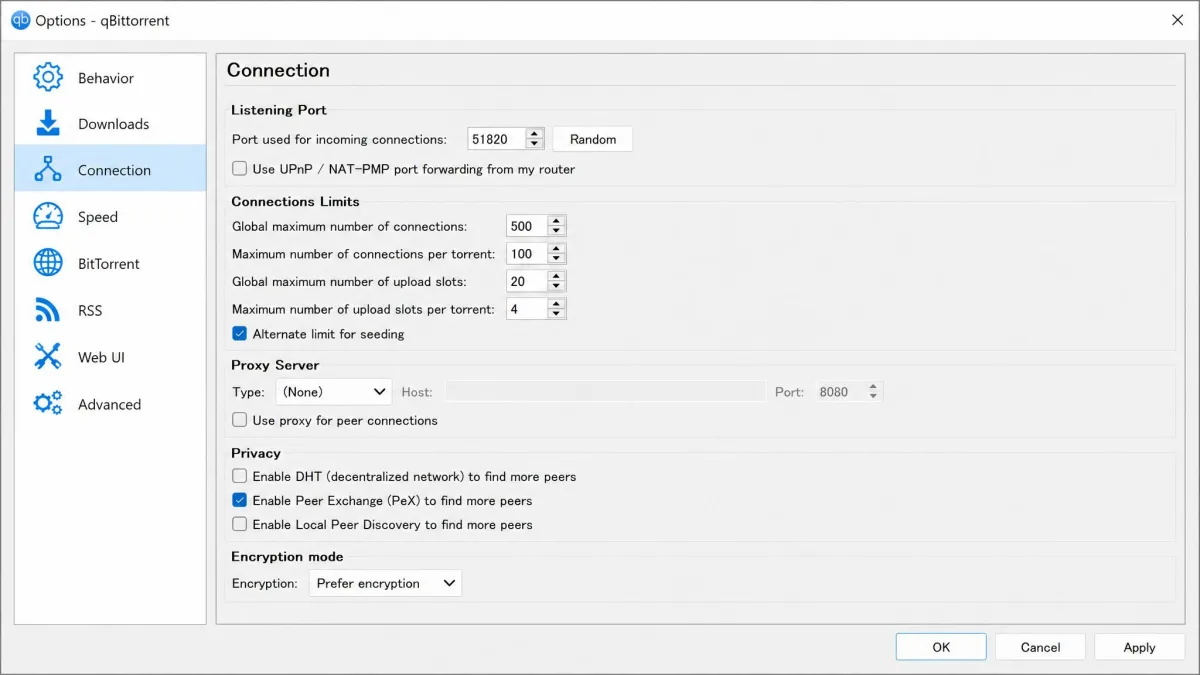
Two settings matter in any client. First, turn off the client's own UPnP and NAT-PMP forwarding, which can conflict with Proton's. Second, enter the forwarded port as the listening port.
In qBittorrent, open Tools → Options → Connection. Uncheck "Use UPnP / NAT-PMP port forwarding from my router", type the port into "Port used for incoming connections", and click OK. Re-enter the port after every reconnect, or let the Linux forwarded-port file or Gluetun's UP command do it for you.
You should also bind the client to the VPN interface so traffic can't slip out if the tunnel drops. Our guide on how to bind qBittorrent to your VPN walks through it, and our Proton VPN torrenting setup guide covers kill switch settings and client tuning.
How to Check That Port Forwarding Is Working
Start inside your app, not on a website. In qBittorrent, the connection status icon and the arrival of incoming peers are the most useful signs. Compare the client's listening port with the port shown in the Proton app or the Linux forwarded-port file, since a mismatch is the first thing to rule out.
Don't treat the status icon as final proof. qBittorrent can show "Firewalled" even when Gluetun logs a successfully forwarded port. Starting the client before Gluetun has finished setting up forwarding is a common cause, and restarting the client once Gluetun is fully up usually clears it.
Online port checkers make a poor test here. Proton notes they only detect an open port if an app is actively listening on it, and otherwise report it as closed or filtered even when forwarding works (its example uses port 44375). On a fresh connection with nothing listening, a checker will say the port is closed.
Proton VPN Port Forwarding Not Working? How to Fix It
Start with the basics from the plans section: a paid plan, a P2P server, and moderate NAT switched off. If those are right, work through these:
natpmpc -g 10.2.0.1fails. Switch to a P2P server and regenerate your config with the NAT-PMP option ticked.- natpmpc output looks garbled. Upgrade from a 20150609 build to 20230423 or newer.
- The client is listening on an old port. Enter the current number again. With Gluetun, this often follows an internet drop or a container restart.
- The port dies after 10 to 15 minutes in Docker. Restarting Gluetun and the app brings a new, working port.
- Containers go offline when Gluetun reconnects. Recreate the containers attached to Gluetun's network.
- Logs say "the gateway does not support nat-pmp". This temporary failure can leave the port closed even when the same port comes back, so reconnect and request it again.
If Proton VPN won't connect at all, that's a different problem. Our guide to fixing Proton VPN when it's not working covers connection failures beyond port forwarding.
Is Proton VPN Port Forwarding Safe?
For most people, yes. Proton's port forwarding security notes say opening a port does carry a small security risk, but that risk is very low, especially for everyday uses like torrenting and gaming. Proton also says its port forwarding is not vulnerable to known attacks such as Port Fail.
Most of the risk sits with the app using the port. A file-sharing app could expose the files you share, and a remote access tool could allow broader control of your machine if it isn't secured.
Only expose trusted apps from reliable sources on the forwarded port, keep them updated, and don't open ports you don't need.
FAQ
Is port forwarding available on Proton VPN Free?
Does port forwarding work on Android or iOS?
Does port forwarding make torrenting faster?
Does port forwarding work with WireGuard and OpenVPN config files?
Do I need to disable UPnP in my torrent client?
Can I forward more than one port?
Bottom Line
If torrenting is why you're here, our Proton VPN torrenting guide picks up where this one ends, with client binding and kill switch settings. If you need a port that never changes, Proton can't give you one, so look at our roundup of the best VPNs with port forwarding instead.