If CCleaner is still sitting in your system tray after you close the window, or CCleaner64.exe is still listed in Task Manager, the app isn't really closed. The short version: open CCleaner, go to Options and then Smart Cleaning, turn Smart Cleaning off, and the background process ends by itself a few seconds after you close the window. Below is the longer, step-by-step version, including what to do when the process keeps coming back, how to stop CCleaner launching with Windows, and when uninstalling is the cleaner answer.
We work with CCleaner regularly as a cleanup tool, and this is the part that trips people up most often. Closing the window is not the same as quitting the app.
Quick answer: how to close CCleaner in 10 seconds
Open CCleaner and go to Options, then Smart Cleaning. Untick Enable Smart Cleaning and confirm the prompt with Disable anyway. Now close the CCleaner window with the X in the top right. The background process shuts down on its own shortly afterwards, though the exit is not instant and the delay varies from machine to machine.
If the tray icon has disappeared from the notification area, the app has genuinely closed. That is the most reliable signal we have found, and it only happens once Smart Cleaning is off.
Do the Smart Cleaning step first, before anything else. Every other method on this page is a workaround for the fact that CCleaner is still monitoring your system in the background.
Method 1: Close the CCleaner window normally
This is what most people try first, and it works fine if you only want the window out of the way.
Using the X button and Alt + F4
- Click the X in the top-right corner of the CCleaner window.
- Or click inside the window and press Alt + F4, which closes the focused window on Windows.
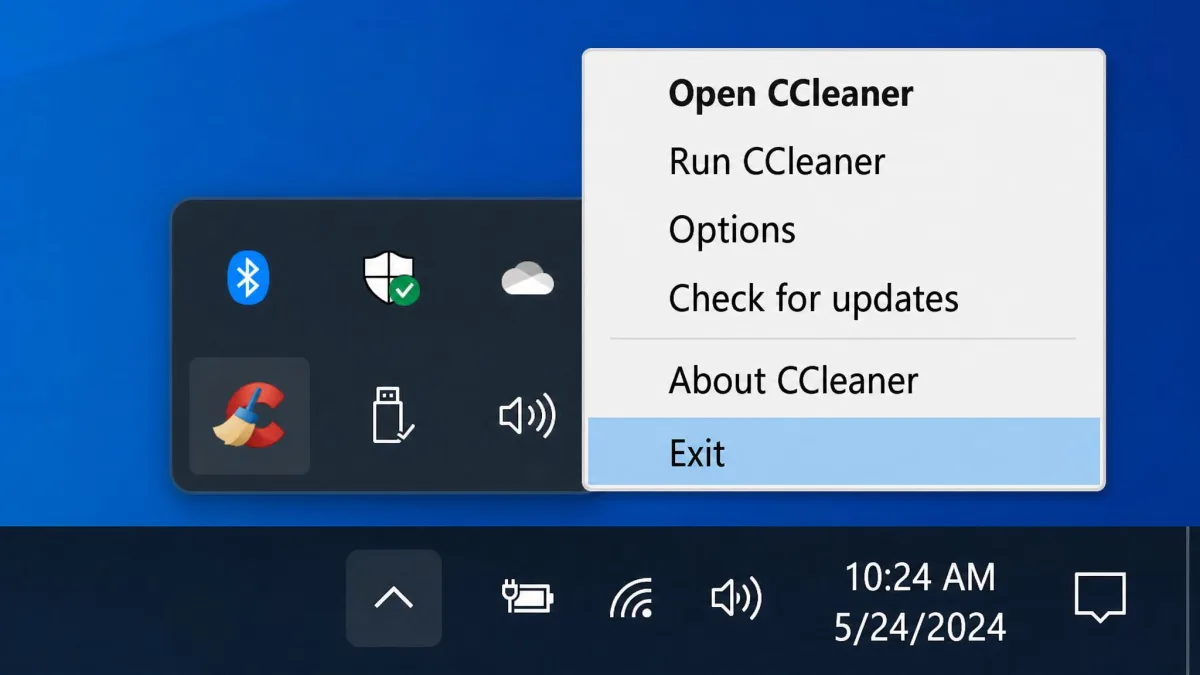
- Check the notification area at the bottom right of your screen for the CCleaner icon.
If the icon is still there, the app is still running. With Smart Cleaning switched on, closing the window does not end the process at all. CCleaner carries on scanning quietly in the background, and it can even start an unrequested scan while it looks closed.
Exiting from the system tray icon
Right-click the CCleaner icon in the notification area and choose Exit. That stops monitoring straight away, but only until CCleaner is started again. The next launch brings monitoring back with it, so treat this as a temporary mute rather than a fix.
Closing the window does not stop background monitoring, and force-ending the process while Smart Cleaning is on simply hands the job back to the CCleaner service, which restarts it. Turn Smart Cleaning off first or you'll be doing this every day.
Method 2: Disable Smart Cleaning so CCleaner actually exits
This is the method that solves the problem properly. Smart Cleaning is the feature that keeps CCleaner resident, watching your browsers and your disk for junk to clear.
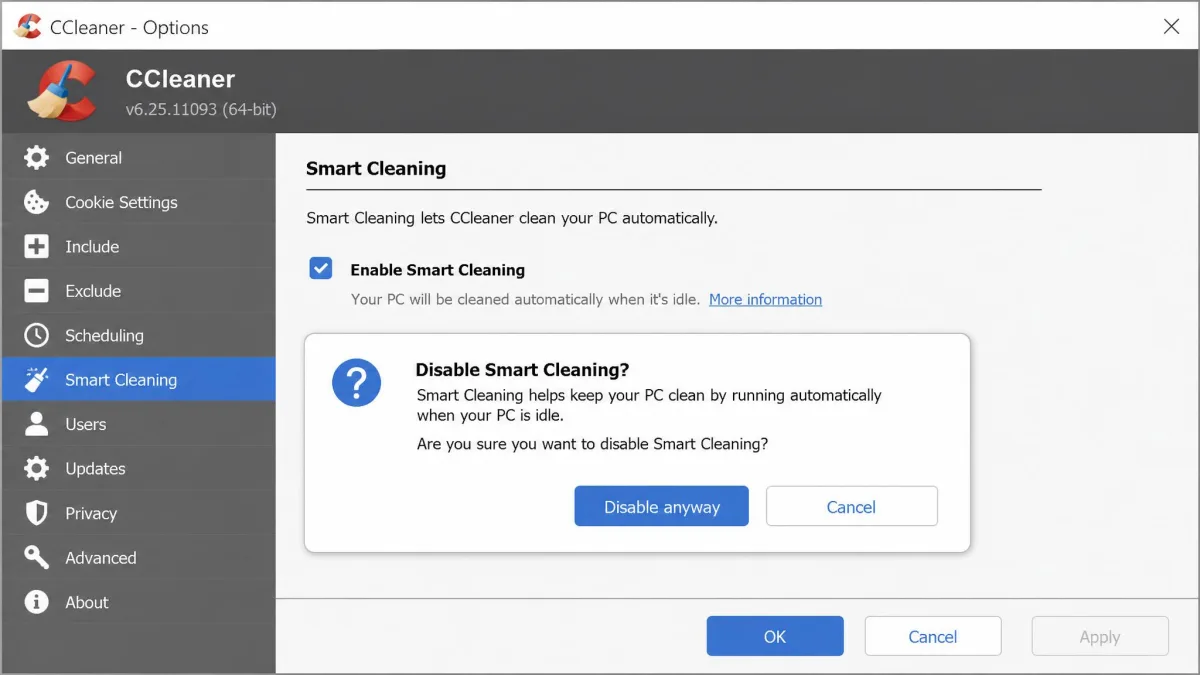
Options, then Smart Cleaning: the exact steps
- Open CCleaner from the Start menu or the desktop shortcut.
- Go to Options in the left-hand menu, then select the Smart Cleaning tab.
- Untick Enable Smart Cleaning.
- Confirm the prompt with Disable anyway.
- Close the CCleaner window and wait a few seconds.
Step 4 catches people out. The tickbox does not simply untick: CCleaner throws a confirmation prompt that has to be cleared with Disable anyway, and if you dismiss that prompt the setting stays on. Make sure the box is genuinely clear before you close the window.
Turning off system and browser monitoring
Older CCleaner builds label this differently. On those versions you go to Options and then Monitoring, where you'll find separate tickboxes for Enable system monitoring and Enable Active Monitoring. Both are on by default after installation, so untick both.
Browser monitoring and some of the extra system-monitoring options are greyed out in CCleaner Free and only usable in CCleaner Professional. If you're on the free build and an option won't respond, that's why, not a fault.
On the version 7 line, CCleaner requires a continuously running Windows service and no longer offers a plain Exit command inside the app. Version 6 builds still close the old way. Some long-time users respond to the always-on service by rolling back to 6.39 rather than living with it.
Method 3: Force close CCleaner with Task Manager
Use this when the window has frozen or when you need the process gone immediately.
Ending CCleaner64.exe and related processes
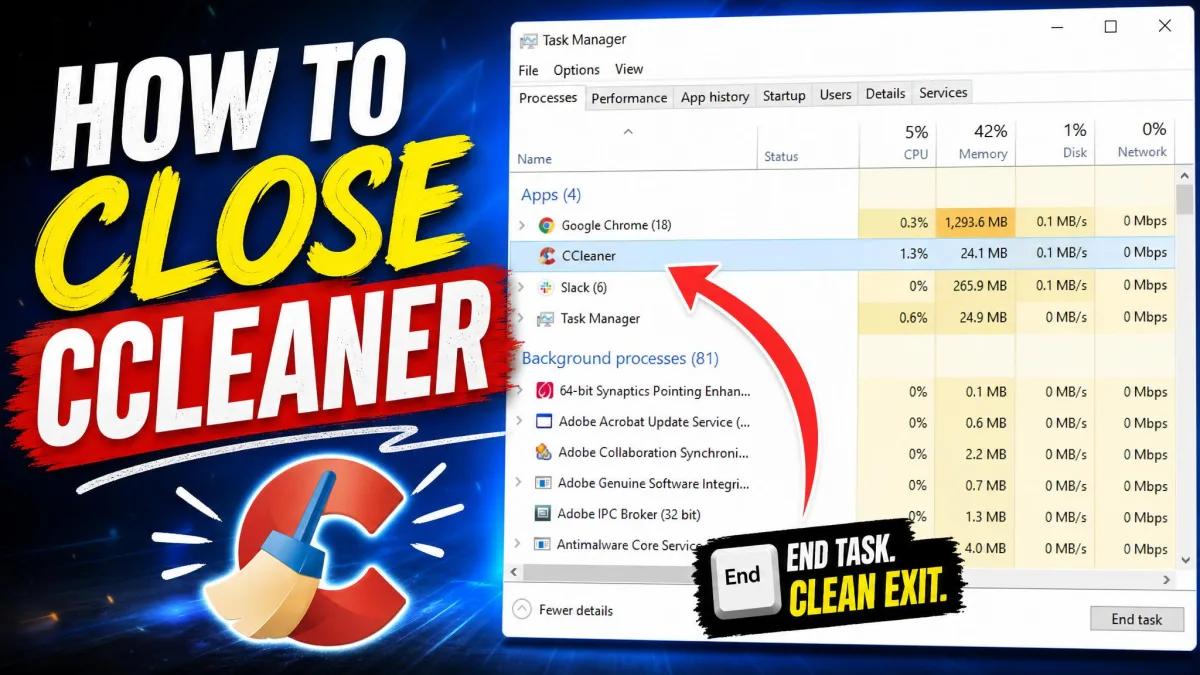
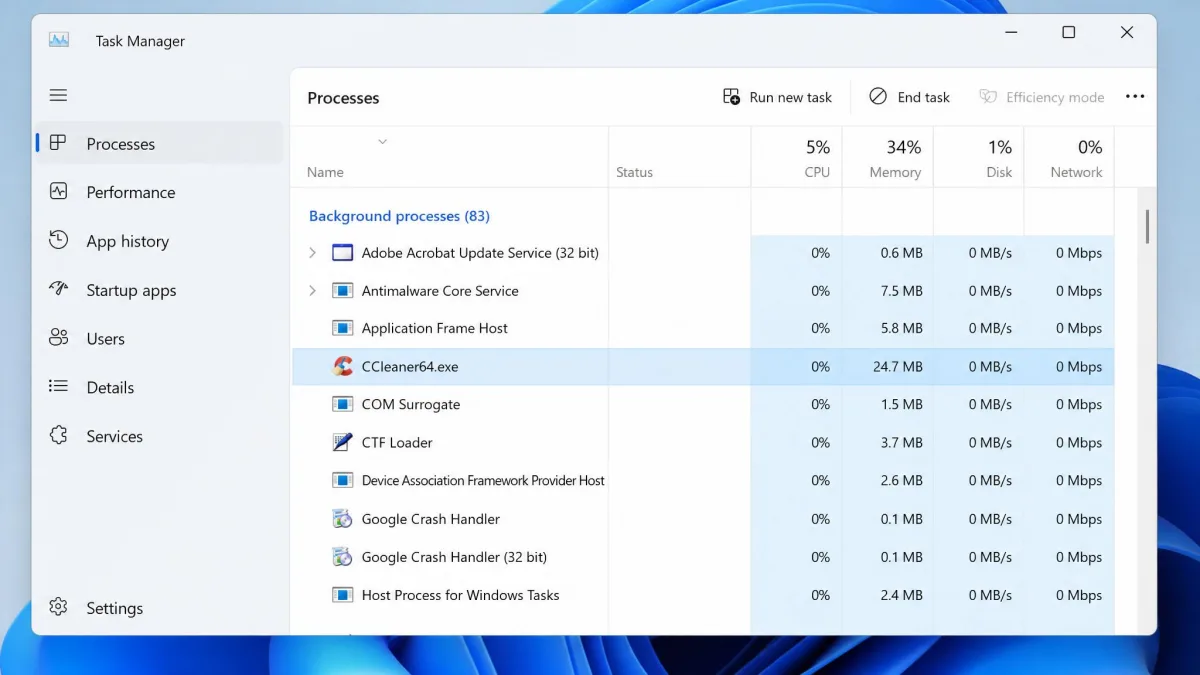
- Press Ctrl + Shift + Esc to open Task Manager.
- Find CCleaner in the list of apps, or scroll to CCleaner64.exe under background processes.
- Select it and click End task.
- Repeat for any other entry with CCleaner in the name.
Ending CCleaner64.exe does not destabilise Windows. It isn't a system process, and the machine carries on normally afterwards. What it does not do is keep the app closed: on its own, ending the task achieves very little, because the service restarts the process within seconds.
The sequence that holds is two steps rather than one. Set the CCleaner service to Manual and stop it first, then end the CCleaner process. Both have to be reversed before CCleaner will run again, so remember what you changed.
Using Command Prompt (taskkill) if Task Manager fails
Open the Start menu, type cmd, and run Command Prompt as administrator. Then type taskkill /f /im CCleaner64.exe and press Enter. That force-ends the process from the command line, which helps when Task Manager itself is unresponsive. The Windows support site has Microsoft's own walkthrough of Task Manager if you need it.
Method 4: Stop CCleaner from starting with Windows
Closing the app today doesn't help much if it launches again at your next boot. CCleaner Free starts with Windows and shows adverts in the notification area, with no dedicated autostart off-switch in the app. That advertising, arriving shortly after every startup, is the single most common complaint about recent free builds.
Disabling it in Task Manager Startup on Windows 10 and 11
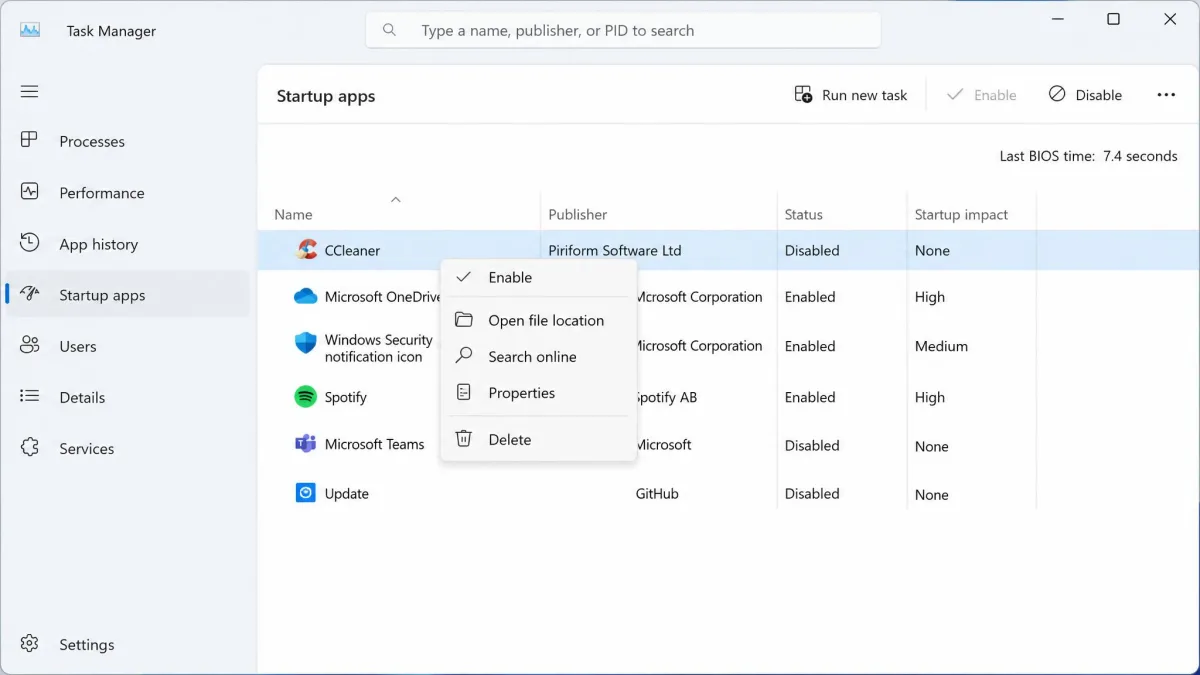
- Open Task Manager with Ctrl + Shift + Esc.
- On Windows 11, click Startup apps in the left-hand icon rail. On Windows 10, click the Startup tab along the top instead.
- Find CCleaner in the list.
- Right-click it and choose Disable.
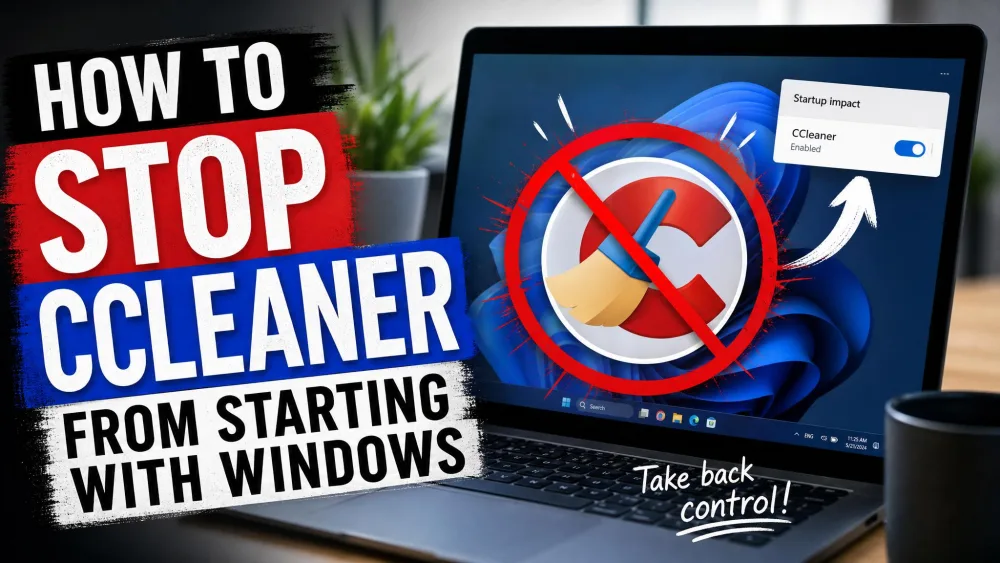
Our full guide on how to stop CCleaner from starting with Windows goes further, including the entries Task Manager doesn't show you. Even with Smart Cleaning off, a crash-reporting component and a user-account-control helper still launch at boot, which is why the machine never feels completely quiet.
For those, Microsoft's Autoruns utility finds and disables the remaining CCleaner startup entries. One caveat: launching CCleaner manually puts those startup entries straight back, so Autoruns is not a permanent fix on its own.
Disabling the CCleaner background service
Press Windows + R, type services.msc and press Enter. Stop any service whose name contains CCleaner or Piriform, then set its Startup type to Disabled. The one to look for is CCleanerPerformanceOptimizerService, published by Gen Digital.
Setting that service to Manual rather than Disabled is the gentler option, and the one we'd pick if you still use the app occasionally. It keeps CCleaner usable on demand while stopping it loading at boot. CCleaner's startup tasks also live in Task Scheduler under a Piriform folder, so check there if something is still firing at login.
Why CCleaner keeps running after you close the window
Smart Cleaning, active monitoring and the tray icon
CCleaner is designed to sit in the background. Smart Cleaning watches for junk building up and prompts you to clear it, so the app has to stay resident to do its job. The window you close is only the front end.
The tray icon is your honest indicator. Turning off Smart Cleaning also removes the CCleaner icon from the system tray, so if the icon is gone, monitoring is genuinely off.
Which CCleaner processes stay resident
CCleaner installs by default to C:\Program Files\CCleaner. From there, the visible process is CCleaner64.exe on a 64-bit system, backed by CCleanerPerformanceOptimizerService running as a Windows service. Alongside those sit the crash-reporting helper and the user-account-control helper that load at startup regardless of your Smart Cleaning setting.
That layering is why single-step fixes disappoint. End the process and the service revives it. Disable the service and the scheduled task may still launch it.
What you give up when CCleaner is fully closed
With Smart Cleaning off, nothing is watching your temporary files, browser cache or cookies between manual runs. Junk accumulates until you open CCleaner and clean it yourself.
For most people that's a fair swap. A monthly manual clean does the same work as continuous monitoring, without a resident process and without the notification-area adverts. You also keep the registry cleaner, startup manager and Health Check tools, which all work normally when you launch the app deliberately. If you'd rather clean up without any resident software at all, our guide to clear cache and cookies on any browser covers the same ground manually.
If closing is not enough: uninstalling CCleaner cleanly
Standard uninstall on Windows 11 and 10
Close CCleaner first. Running the uninstaller with the app still open can fail partway through, so quit it and check the tray icon has gone before you start.
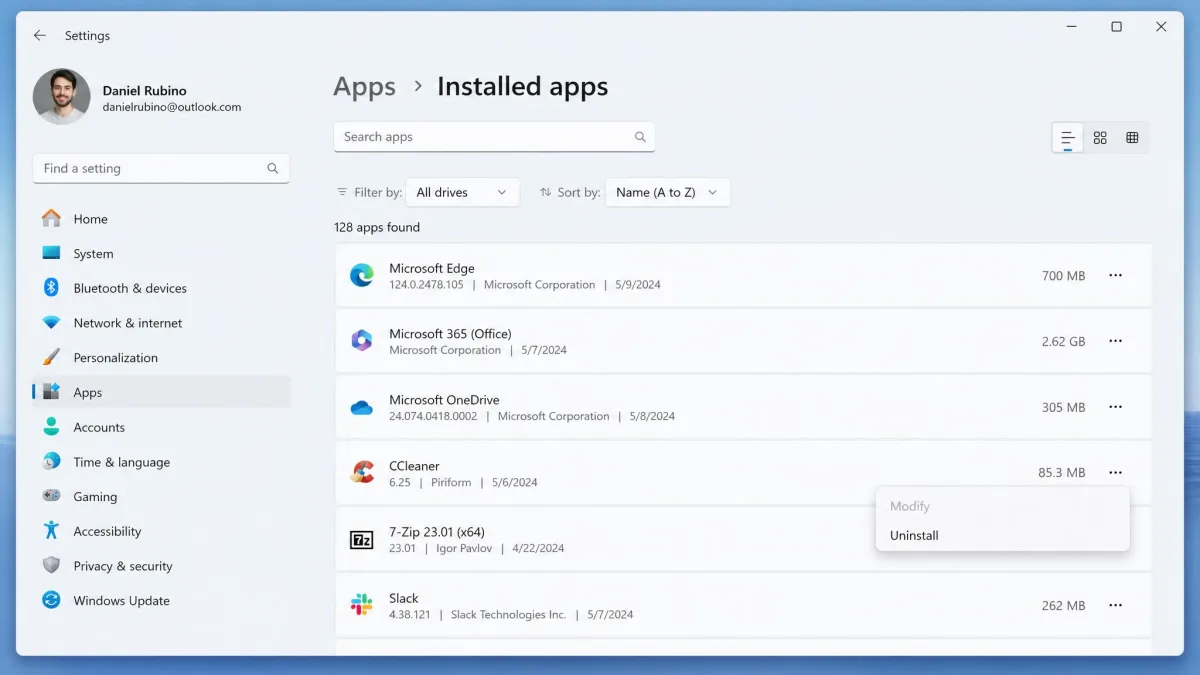
Then open Settings, go to Apps and then Installed apps, find CCleaner in the list and choose Uninstall. You can also run the bundled uninstaller directly: it sits in C:\Program Files\CCleaner as uninst.exe. CCleaner's official uninstall instructions are the vendor's own doc if you want to follow their wording.
Removing leftover files and registry entries
The standard uninstall is clean enough for most machines, but it does leave stray folders and registry entries behind. Check C:\Program Files\CCleaner and your user AppData folder, and delete anything that remains.
Editing the registry can break Windows if you delete the wrong key. Back up the registry first, and only remove entries you can clearly identify as CCleaner's. One known leftover is the App Paths key for ccleaner.exe under HKEY_LOCAL_MACHINE\Software, though the exact path differs between 32-bit and 64-bit installs and between CCleaner versions.
Frequently asked questions
Why does CCleaner keep running after I close it?
Is it safe to end the CCleaner process in Task Manager?
How do I disable Smart Cleaning so CCleaner closes cleanly?
How do I stop CCleaner starting with Windows?
Do I need to close CCleaner before uninstalling it?
Does closing or uninstalling CCleaner cancel my paid subscription?
How do I close CCleaner on a Mac?
Bottom line
CCleaner isn't hard to close once you know that closing the window was never the point. Turn Smart Cleaning off, watch the tray icon disappear, and the background process ends on its own. If it's the startup behaviour and the notification-area adverts you're tired of, disable the startup entry and set the service to Manual so the app is there when you want it and silent when you don't.
If none of that gets you the quiet machine you're after, uninstall it and switch to a CCleaner alternative. Between the always-on service in the version 7 line and the helper components that load whatever you do, a clean removal is the only version of "closed" that stays closed.