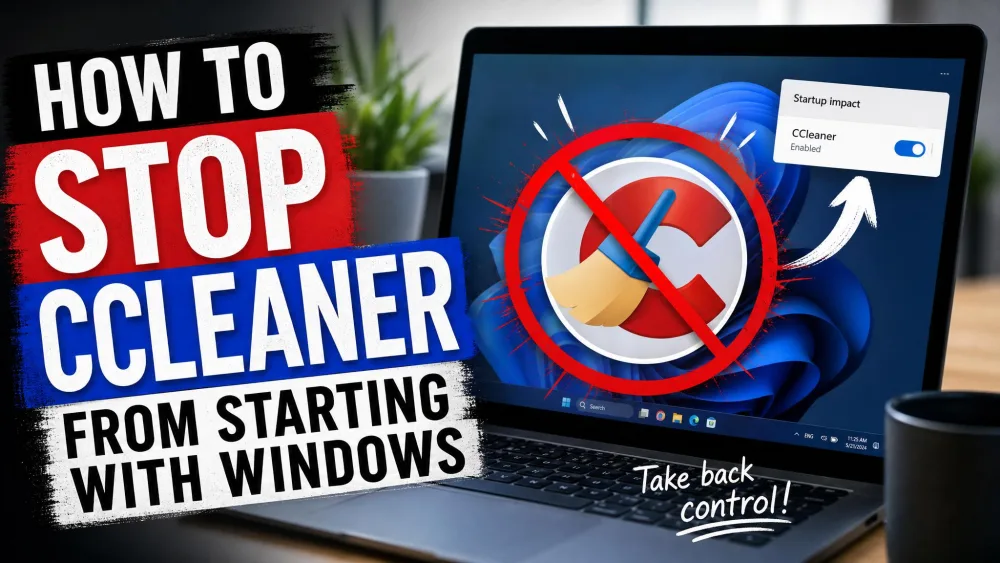
CCleaner loads itself every time Windows boots, and it never asks first. You get a tray icon, the occasional ad notification, and a slower start-up, all without an obvious off switch. If you have hunted through the settings and come up empty, you are not imagining it. The free version is built to keep coming back.
The good news is that you can stop it. Below are five methods, from the quick in-app toggle to the durable fix. We tested these on Windows 10 and 11, and we will flag which ones stick and which ones CCleaner quietly undoes.
Why CCleaner Launches at Startup (and Why the Free Version Fights Back)
CCleaner runs a lot in the background. Its feature set includes junk-file cleaning, a registry cleaner, and Smart Cleaning, which monitors your drive and offers to clean when junk builds up. That monitoring is why it wants to run from the moment you log in.
The catch is the free build. It starts with Windows, shows ad notifications, and offers no direct deactivation option for autostart. Disable one entry, and another mechanism brings it back, which is why a single toggle rarely holds.
Before You Start: Which CCleaner Version Do You Have
Open CCleaner and check the version number at the top of the window. The steps below apply to recent CCleaner 7 builds on Windows 10 and 11. Older versions use different task names, but the paths are the same.
Method 1: Turn Off Smart Cleaning in CCleaner Options
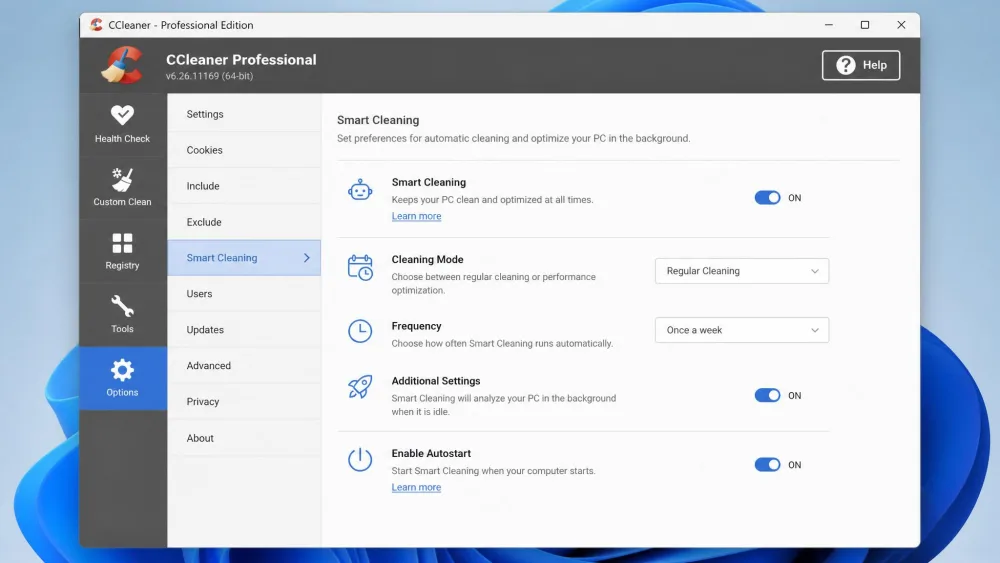
Start inside the app. Smart Cleaning lives under Options > Smart Cleaning, and it is the setting most responsible for the background presence.
Open CCleaner, click Options, then choose Smart Cleaning. Uncheck "Tell me when there are junk files to clean" first, which unlocks the greyed-out "Enable Smart Cleaning" box, then confirm the prompt. CCleaner's notes on CCleaner's Smart Cleaning settings describe what it does.
This quiets the tray icon, but it is not enough on its own. In our testing, disabling only Smart Cleaning calmed the notifications while crash-report and UAC-bypass helpers still loaded at boot, so the process reappeared.
Method 2: Disable CCleaner in Task Manager Startup
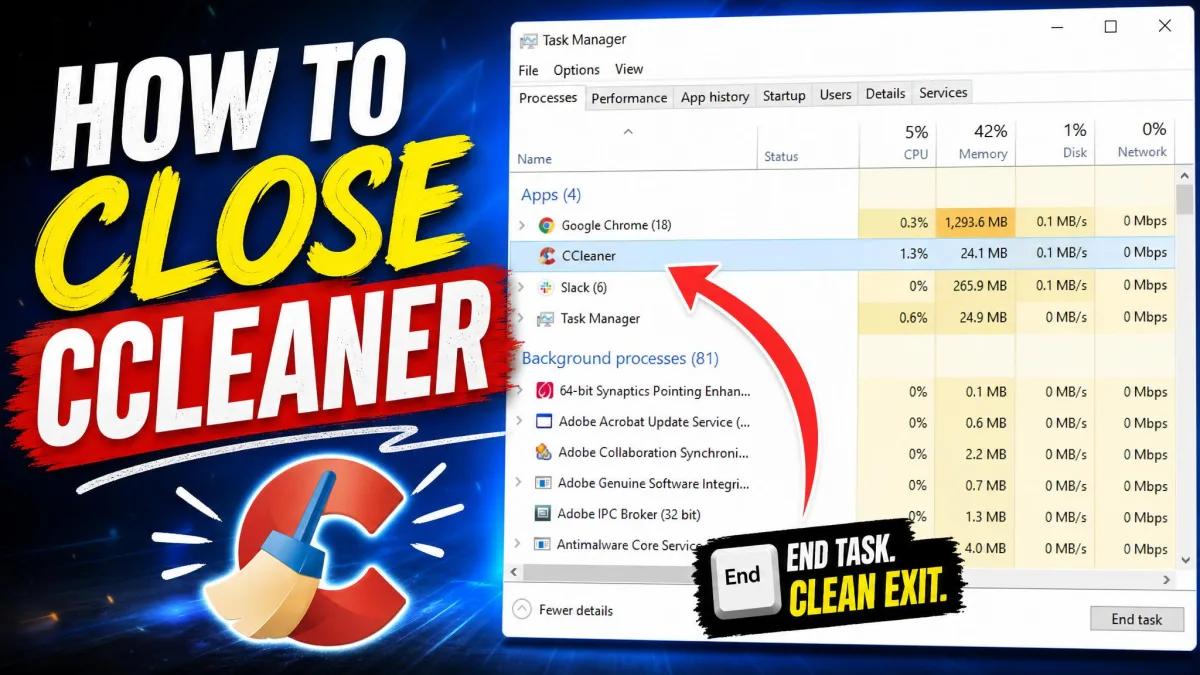
Next, block the startup shortcut. Press Ctrl+Shift+Esc to open Task Manager, click the Startup tab, select CCleaner, and click Disable.
This removes the visible startup entry, but CCleaner can re-add it the next time you open the program by hand. We watched entries disabled this way return after a manual run, so Task Manager alone will not settle it.
CCleaner Free can silently re-enable its own startup and scheduled tasks after you next open the program. Treat Methods 1 through 4 as partial measures, and pair them with the Task Scheduler step in Method 5.
Method 3: Remove CCleaner From Startup Apps in Windows Settings
Windows offers the same control in a friendlier place. Press Win+I to open Settings, go to Apps, then Startup, and toggle CCleaner to Off.
This is the same startup entry from Task Manager in a different view, so it carries the same caveat: it can switch back on when CCleaner next runs. Microsoft explains which apps run at startup in Windows Settings if you want more detail.
Method 4: Disable the CCleaner Service (services.msc)
CCleaner also installs a background service. Press Win+R, type services.msc, and press Enter. Find the CCleaner service, open it, and set the Startup type to Manual so it starts only when you open the program.
One honest warning from our bench: this does not stick reliably. After you next run CCleaner, the app can flip the service back, so recheck it if the launch returns.
Method 5: Disable the Piriform Task in Task Scheduler
This is the step that finally does the work. CCleaner Free installs scheduled tasks that run at Windows log-in, often around four, though the exact count varies by version and edition.
Open Task Scheduler, expand Task Scheduler Library, and open the Piriform folder. Select the top CCleaner task, often named something like "CCleaner 7 - Skip UAC," and click Disable. Disabling that top task is what actually stops the app launching and clears the taskbar icon on Windows 11.
When we combined the two fixes that matter, disabling Smart Cleaning in-app and disabling the Piriform scheduled task, the relaunch finally stopped on both our Windows 10 and Windows 11 machines. Disabling the service or a startup entry alone always left a mechanism that brought CCleaner back.
If CCleaner Keeps Coming Back: Make the Fix Stick
If the in-app setting, Windows Settings, and Task Manager all failed, that matches what we found: none of those work on their own. The durable fix is a combination. Disable Smart Cleaning AND the Piriform scheduled task, because each closes a door the other leaves open. One stubborn detail: the SkipUAC task can re-enable itself every time CCleaner starts, so after you next open the app, confirm the top Piriform task is still disabled.
After the two-part fix, restart the PC and check that the CCleaner tray icon does not appear. Then open CCleaner once and confirm the Piriform task did not re-enable itself.
Frequently Asked Questions
Why does CCleaner keep starting after I disable it?
How do I stop CCleaner from running in the background?
Where is CCleaner's autostart setting (Smart Cleaning)?
Does uninstalling CCleaner stop it for good?
Bottom Line
CCleaner's free version is designed to persist, so no single switch keeps it off. Turn off Smart Cleaning and disable the top Piriform task in Task Scheduler, then recheck both after your next manual launch. If you would rather weigh alternatives, you can compare CCleaner with other PC cleaners first.