Radmin VPN puts you and your friends on one virtual local network. That means an "Open to LAN" world works even when everyone plays from a different house. The whole radmin vpn minecraft setup needs no router changes and no port forwarding.
Radmin VPN is free and runs on Windows only. The LAN flow is built for Java Edition, so Bedrock players should read the caveats below before they start. In this guide to Radmin VPN for Minecraft, we'll walk through hosting and joining step by step, then cover the fixes we reach for when a friend can't connect.
For our take on Radmin VPN beyond Minecraft, our full Radmin VPN review covers speed, privacy and everyday use.
What you need before you start
Every player needs the same basic setup. Check this list before anyone installs anything, because most failed connections trace back to one of these items.
Requirements checklist (Windows PC, same Minecraft version, same mods)
- A Windows PC running Windows 7 or later. Radmin needs a 1 GHz processor, 100 MB of storage and an internet connection.
- The exact same Minecraft version on every PC, down to the minor number.
- The identical mod list and mod versions, if the world is modded.
- A separate Minecraft account for each player. Two people on the same account can't be in one world at once.
- A host PC with a decent upload connection, since the host's machine runs the world for everyone.
Java Edition vs Bedrock Edition
Java Edition is the natural fit. Its Open to LAN option shares a single-player world, and friends on the same Radmin network can join it.
Bedrock has a "Visible to LAN players" setting, but it was designed for one physical network. Over a virtual LAN it behaves inconsistently across devices and versions, so treat Bedrock support as unreliable. Consoles can't run Radmin at all.
Step 1: Download and install Radmin VPN
Every player, host and guests, repeats this step on their own PC.
- Go to Radmin VPN's official download page.
- Click the download button and save the installer.
- Run the installer and accept the license terms.
- Accept the prompt to install the network adapter.
- Launch Radmin VPN once installation finishes.
The current version is 2.1.4951.1. Only download it from the official site, never from a mirror.

The install adds a virtual adapter called "Famatech Radmin VPN Ethernet Adapter." If Radmin gets stuck on "Waiting for adapter response" after installing or after a Windows update, do a clean uninstall, reboot and reinstall. That usually fixes it.
Step 2: Create a Radmin VPN network (host)
Only the host does this step.
- Click Create network in the Radmin window.
- Type a network name your friends can spot.
- Enter a password and confirm it.
- Click Create.
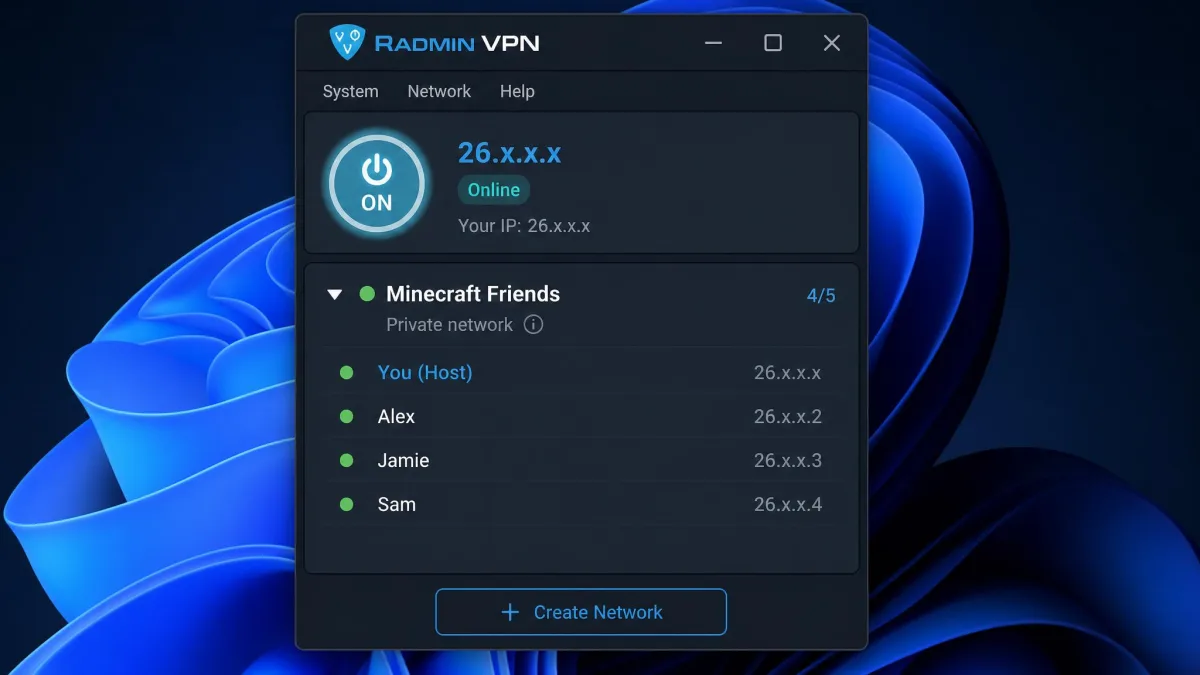
- Note your Radmin IP, shown at the top of the window.
Your Radmin IP always starts with 26, because Radmin hands out addresses in the 26.0.0.0/8 range. You'll share this address in Step 5.
Step 3: Have your friends join the network
Send your friends the network name and password in a private message.
- Each friend clicks Join network.
- They type the exact network name.
- They enter the password and click Join.
- The host's PC should now appear in their network list.
This is the quick part. Install, create, share, join: nothing on anyone's router needs to change.
Step 4: Open your Minecraft world to LAN
The host now loads the world. Radmin makes remote friends look like they're on the same LAN, so Minecraft treats them exactly like players in the next room.
- Launch Minecraft and load your single-player world.
- Press Esc to open the game menu.
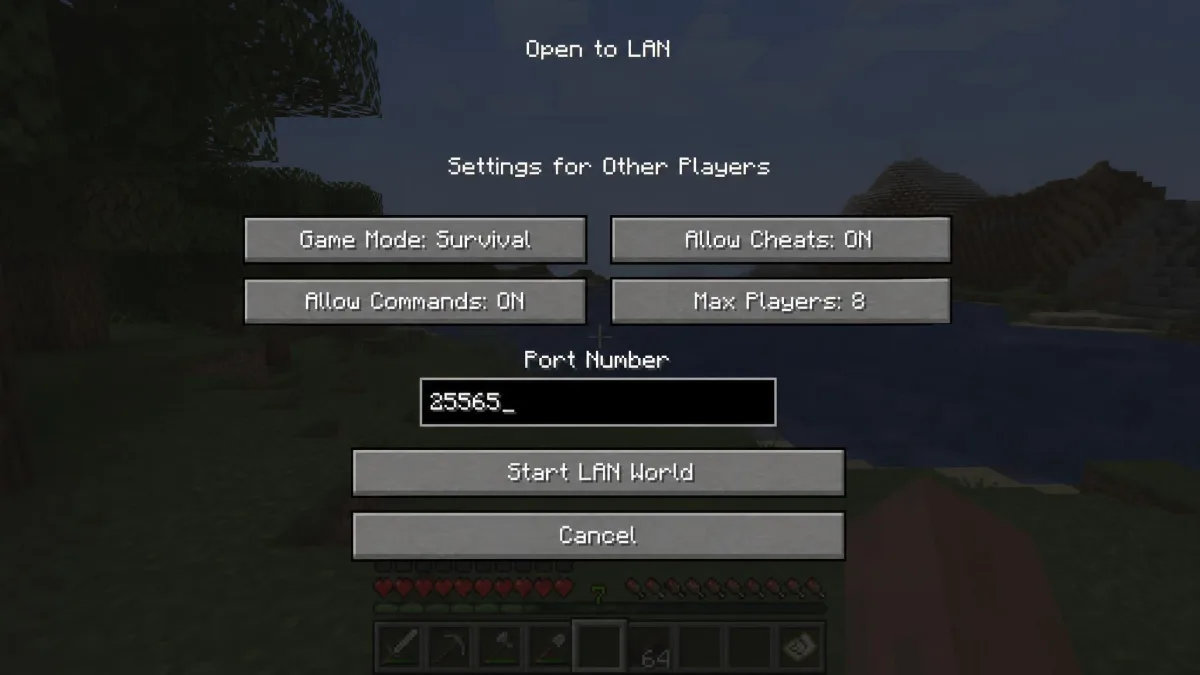
- Click Open to LAN.
- Pick the game mode and whether to allow commands.
- Click Start LAN World.
Minecraft then prints a line in chat with the port number. If you don't set one, it picks a random port every time you open the world to LAN. That means a Direct Connection address your friends saved last session stops working.
To keep one port, type it into the Port Number field on the Open to LAN screen. That field has existed since Java Edition 1.19.3. On older versions, run the /publish command with a port number instead.
Step 5: Connect to the host's Radmin IP in Minecraft
Friends can join in two ways. Direct Connection is the one we trust most.
Joining through Direct Connection (IP and port)
- Open Minecraft and click Multiplayer.
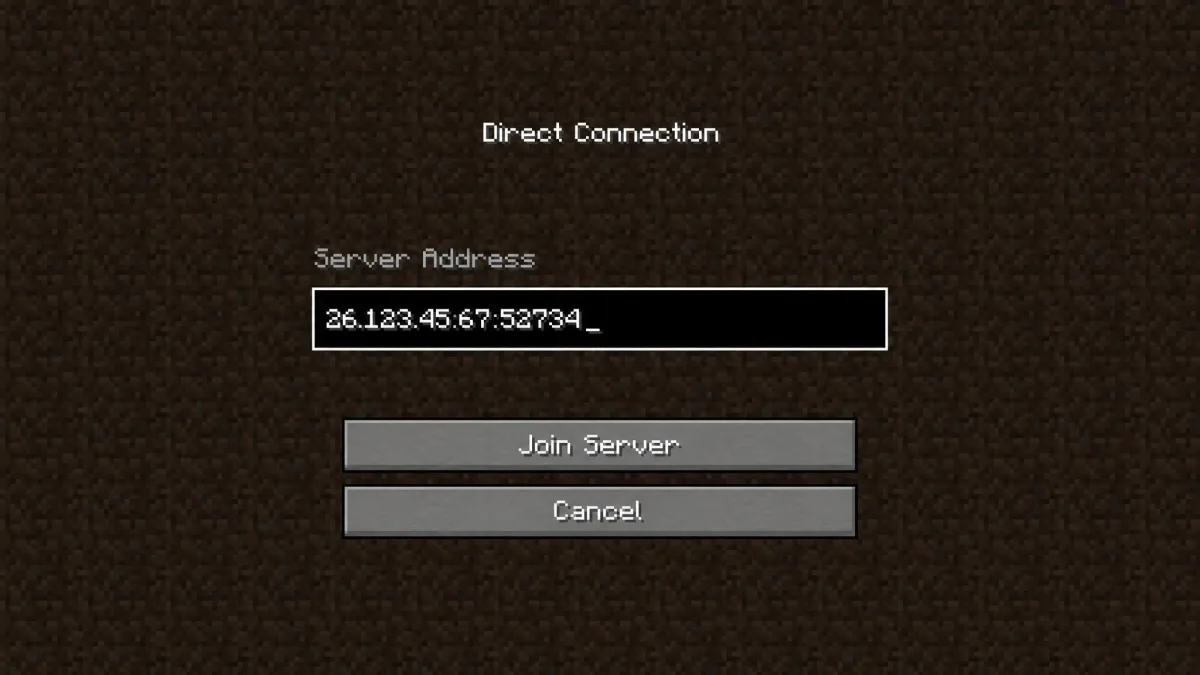
- Click Direct Connection.
- Type the host's Radmin IP, a colon and the port.
- Click Join Server.
The address should look like 26.12.34.56:51234, using the host's real numbers. A common slip is entering the host's home IP from ipconfig instead of the 26.x address. That home address won't work for remote friends.
Copy the host's IP from the Radmin window, then add the port Minecraft printed in chat. Paste the full address to your friends so nobody mistypes it.
When the world shows up under LAN worlds
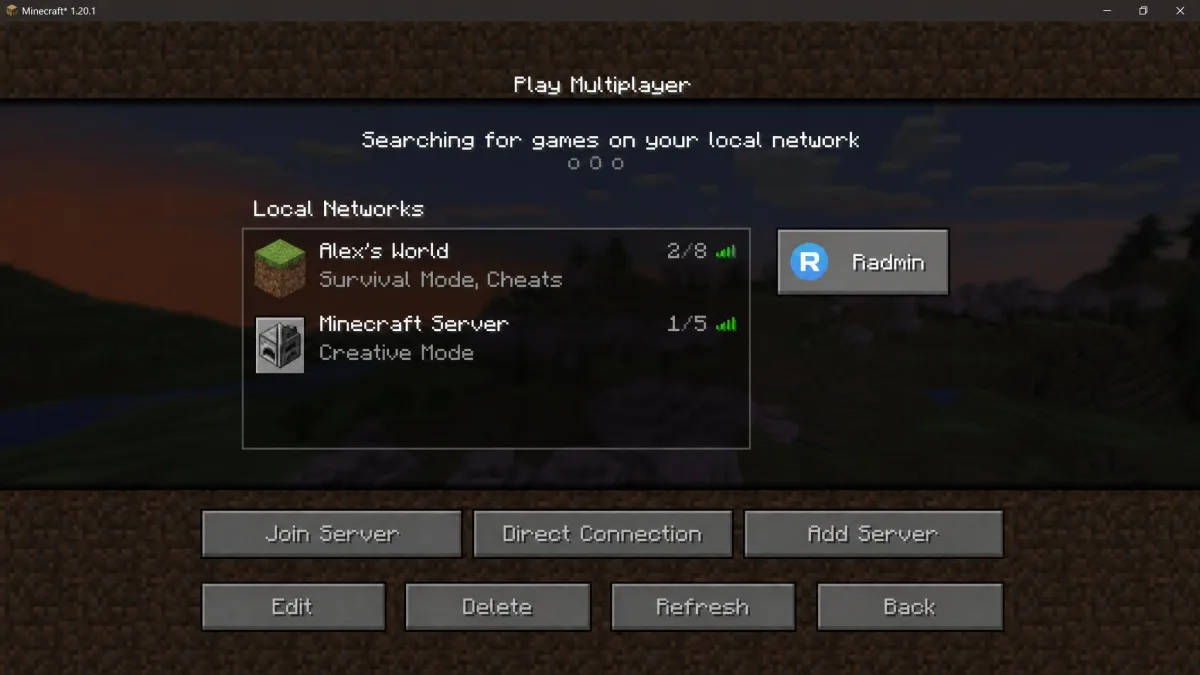
Sometimes the world appears on its own in the Multiplayer list under a LAN heading. Minecraft finds it through a small broadcast the host sends every 1.5 seconds on port 4445. Click the world and join.
In practice, the world often fails to show up in that list even when both PCs sit on the same Radmin network. Don't wait for it. Typing the 26.x address and port into Direct Connection usually gets you in.
Running a dedicated Minecraft server over Radmin VPN
A LAN world closes when the host quits. If you want a world that stays up longer, run a dedicated server on the host PC instead.
- Download the official Minecraft server .jar file.
- Run it once to generate the config files.
- Open eula.txt and set
eula=true. - Launch the server again.
- Share your Radmin IP with your friends.
Friends then use Multiplayer > Direct Connection and type your 26.x address. The default server-port is 25565, so they don't need to add a port unless you changed it. Leave server-ip empty so the server listens on every address, including Radmin's. You can check both options in the server.properties settings on the Minecraft Wiki.
A dedicated server still depends on the host's PC and upload speed. If everyone lags, lowering the view distance helps.
Radmin VPN Minecraft LAN not working? Fixes for common problems
When radmin vpn minecraft lan play fails, the cause is usually one of four things. Work through them in order.
Friends can't see the LAN world
First, confirm everyone is in the same Radmin network and running the same game version. Then check that the host allowed Java through the firewall, as covered in the next section.
If the world still won't appear, Windows may be sending the discovery broadcast out of your home adapter instead of Radmin's. Lowering the Radmin adapter's interface metric often clears it: open the adapter's IPv4 properties, click Advanced, untick Automatic metric and set it to 1. Direct Connection (Step 5) bypasses discovery entirely.
"Connection timed out" or "Can't connect to server"
A timeout usually means the host's firewall blocked the connection, or the port changed. Reopen the world to LAN, read the new port in chat, and share the updated address.
We've also seen connections drop every 20 to 30 minutes with a "request timed out" error on some setups. If that happens, reconnect in Radmin and rejoin the world.
Relay/TCP connection and high ping
Radmin tries to connect players directly. When it can't, usually because of an ISP limit, it falls back to Relay/TCP. You'll see that label next to a friend's name.
When a friend shows Relay/TCP, ping rises and lag spikes appear. The usual cause is the ISP's shared NAT (CGNAT), not Minecraft. Radmin's own fix is to get a public IP from your ISP or switch providers. For more on what a VPN can and can't do for latency, see our guide on can a VPN help with ping.
Version or mod mismatch errors
Mismatched Minecraft versions are the most common reason a friend joins and gets kicked straight back out. Check the version in the launcher on every PC. On modded worlds, every player needs the identical mod list and the same mod versions.
Allow Minecraft and Radmin VPN through your firewall
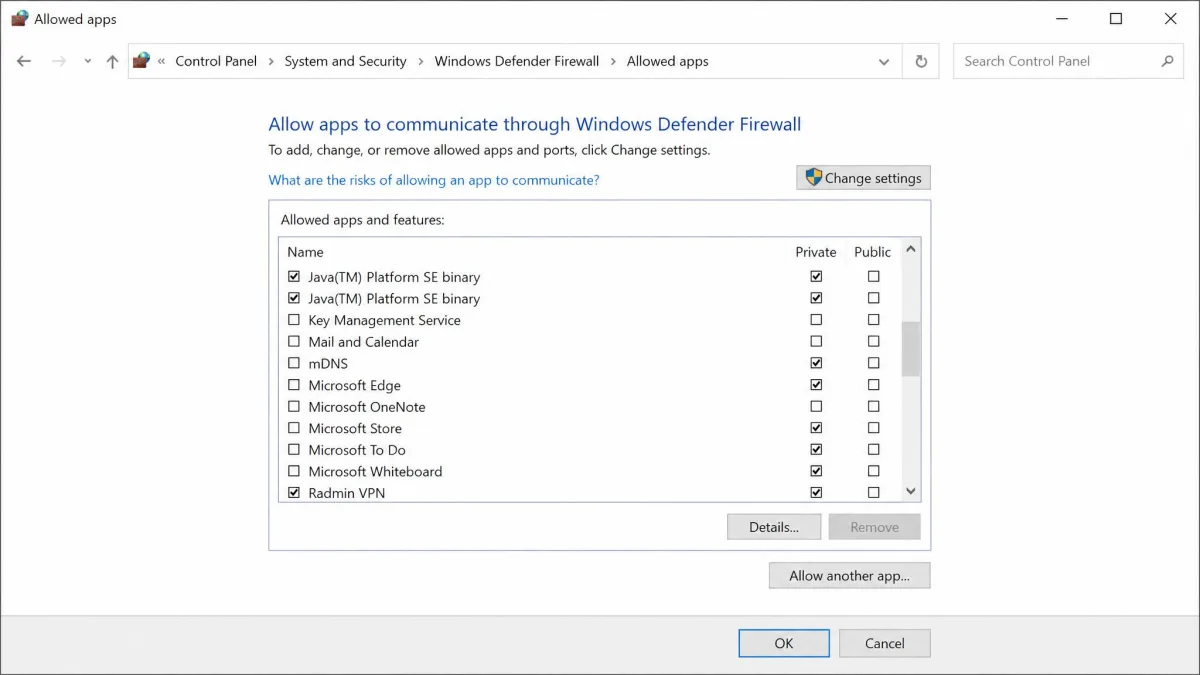
Windows Firewall doesn't ask about "Minecraft." It asks about "Java(TM) Platform SE binary," so players often click past the prompt and later find the host unreachable. Fix that before you troubleshoot anything else.
Don't turn your firewall off to make Minecraft work. Add an exception or set the Radmin adapter to a private network instead. Share your network password only with people you trust.
Windows Defender Firewall
- Open Windows Security, then go to Firewall & network protection > Allow an app through firewall.
- Click Change settings.
- Find every "Java(TM) Platform SE binary" entry.
- Tick the Private box for each one.
- Click OK to save.
If Radmin VPN is missing from that list, click Allow another app. Browse to C:\Program Files (x86)\Radmin VPN\RadminVPN.exe and add it.
Next, make sure Windows treats the Radmin adapter as private. Open Settings, then go to Network & internet and select the Radmin network entry. Set its network profile type to Private.
Third-party antivirus firewalls
Suites like Avast, McAfee, Norton and ESET can quietly treat the Radmin adapter as a public network. They then block LAN traffic until you switch it to Private or trusted. Radmin VPN's firewall setup instructions include steps for Avast, Dr.Web, ESET, Kaspersky, McAfee and Norton.
Is Radmin VPN safe for Minecraft?
For a private game with friends, Radmin VPN is a reasonable choice. Traffic between players uses end-to-end 256-bit AES encryption.
Radmin says it doesn't log, track or collect your traffic or personal data. That's the company's own no-log claim, and no independent audit has been published. Famatech, the developer, operates under British Virgin Islands jurisdiction and launched Radmin VPN in 2016.
In public Gaming Networks, a built-in firewall blocks common Windows services like shared folders. In a private network, you're only exposed to people who have your password. Our Radmin VPN review goes deeper on privacy and reliability.
Radmin VPN alternatives for Minecraft
Radmin is hard to beat on price, but it isn't the only option. Here's how the common alternatives compare.
| Product | Price | Free player limit | Platforms | Setup effort |
|---|---|---|---|---|
|
Free | Varies (see FAQ) | Windows only | Low: create or join a network |
 |
Free tier, paid plans | 5 computers | Windows, macOS, Linux (beta) | Low |
 |
Free Personal plan | 10 devices | Varies | Medium |
 |
Free Personal plan | 6 users | Windows, macOS, Linux, iOS, Android | Medium |
 |
Free | 8 players at once | Minecraft Java (mod) | Low: in-game |
Radmin Connect mod (optional shortcut)
The Radmin Connect mod on Modrinth adds a button to Minecraft's local networks menu and connects to Radmin automatically. It also adds commands such as /open world and /connect setup.
Treat it with some caution. It's a small third-party mod by Tenoych, not a Famatech product. It only supports Minecraft 1.20.1 on Fabric and Forge. You still need Radmin VPN installed.
Hamachi, ZeroTier and other options
Hamachi works the same way as Radmin and adds a macOS client, but its free plan is tight for a bigger group. Our Hamachi review covers the paid tiers.
ZeroTier and Tailscale take a little more setup. Tailscale is the pick for mixed groups, since it runs on almost every platform. Our Tailscale vs WireGuard comparison explains how it works under the hood.
The Essential mod hosts a world from inside Minecraft with no VPN at all. Realms costs a monthly subscription but keeps the world online without your PC. If you already pay for a VPN, our guide to a LAN connection with Windscribe shows another route.