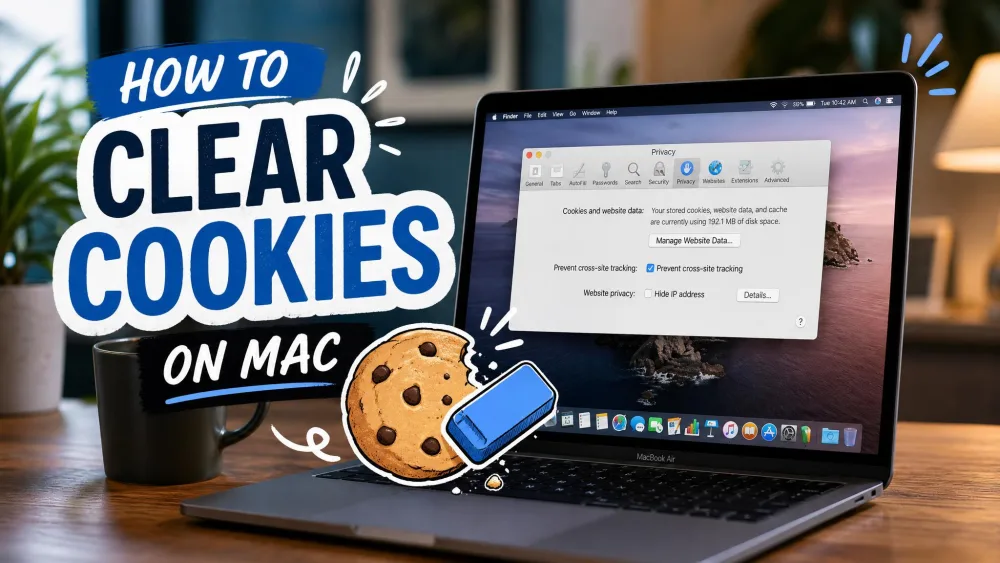
Chrome saves two kinds of data as you browse. The cache is a stash of images, scripts, and page files that Chrome keeps so sites load faster the second time. Cookies are small text files that remember who you are and which sites you stay signed in to. Both are helpful most of the time, and both can go stale.
When a page loads broken, shows an old version, or logs you out for no reason, clearing this data is usually the fix. The steps are almost identical on Windows, Mac, Android, and iPhone, and we walk through each one below.
What Are Cache and Cookies (and Why Clear Them)?
Think of the cache as Chrome's short-term memory for the web. Instead of re-downloading a logo or a stylesheet every visit, Chrome reuses a copy saved on your device. That makes browsing faster, but it can also leave you looking at an outdated version of a page.
Cookies do a different job. They store small bits of state, such as your login, your language, and your site preferences. This is why you stay signed in to your email and why a shopping site remembers your cart.
You usually clear this data to fix a problem. Clear the cache when pages load incorrectly, refuse to show a recent update, or feel sluggish. Clear cookies when a login loops or a site behaves as if it does not recognize you. It also wipes tracking data, which is a privacy win.
How to Clear Cache and Cookies on Chrome (Windows & Mac Desktop)
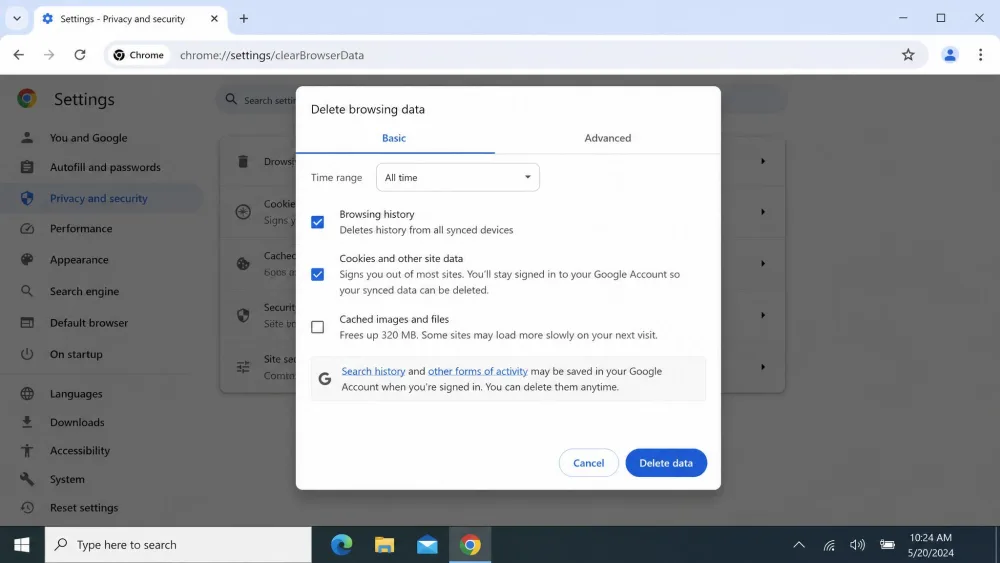
On a computer, the whole process lives in one dialog:
- Open Chrome and click the three-dot More menu in the top-right corner.
- Go to Settings, then open Privacy and security.
- Click Delete browsing data. On older versions this button reads "Clear browsing data," but it opens the same window.
- Choose a time range at the top of the dialog.
- Tick Cached images and files and Cookies and other site data. Leave the history and password boxes unchecked if you only want cache and cookies gone.
- Click Delete data to finish.
That is the entire routine on both Windows and Mac. The dialog offers a Basic and an Advanced tab for finer control.
Clearing cookies signs you out of most sites that remember you, and it can reset saved preferences like language or theme. Clearing your saved passwords is optional and only happens if you tick that box yourself, so leave it unchecked unless you mean it.
Clear Everything vs. a Single Website
You do not always need to wipe every site's data. If only one site is misbehaving, clear cookies for that site alone. Go to Settings, then Privacy and security, then Third-party cookies, and open See all site data and permissions. Find the site in the list and click Delete. This clears that one site without signing you out of everything else.
Choosing a Time Range
The time-range selector at the top of the dialog controls how far back Chrome reaches. It defaults to All time, and the full list runs Last hour, Last 24 hours, Last 7 days, Last 4 weeks, and All time. The shortest option is Last hour. If you are troubleshooting a page that broke today, pick Last hour or Last 24 hours, and reserve All time for a full privacy clean-out.
For the fastest route on desktop, skip the menus. Press Ctrl+Shift+Delete on Windows, or Cmd+Shift+Delete on a Mac, and the Delete browsing data dialog opens straight away.
How to Clear Cache and Cookies on Chrome (Android)
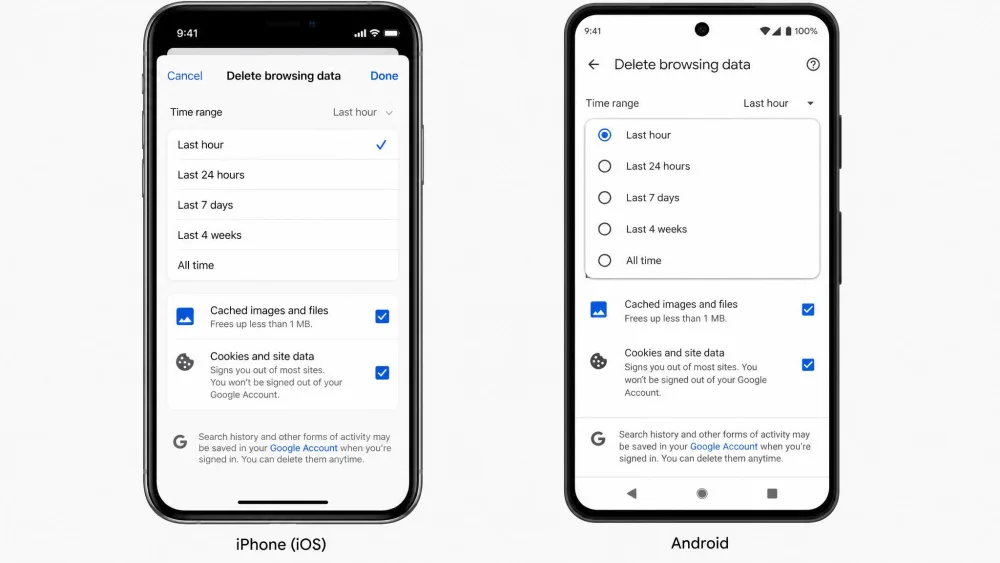
On an Android phone or tablet, the steps mirror the desktop, just with taps:
- Open the Chrome app and tap the three-dot menu.
- Tap Delete browsing data.
- Choose a time range and tick the data types you want to clear.
- Tap Delete data to confirm.
To clear the cache but stay signed in, leave the Cookies box unchecked and clear cached files only.
How to Clear Cache and Cookies on Chrome (iPhone & iPad)
Chrome on iOS follows almost the same pattern:
- Open the Chrome app and tap the three-dot menu in the bottom-right corner.
- Tap Delete browsing data, or go through Settings, then Privacy and security.
- Pick a time range and select the data types to remove.
- Tap Delete data to finish.
As on Android, unchecking Cookies lets you refresh the cache without logging out of your accounts.
Keyboard Shortcut to Open Clear Browsing Data Fast
The shortcut is worth memorizing because it saves the menu hunt every time. On Windows, press Ctrl+Shift+Delete. On a Mac, press Cmd+Shift+Delete. Either combination jumps straight to the Delete browsing data dialog, so you land on the time range and checkboxes without touching the Settings menu.
What Happens After You Clear Cache and Cookies
Here is what to expect once the data is gone, based on what we see every time we run this on our own machines.
The first visit to a familiar site loads noticeably slower. That is normal: Chrome has to re-download the page content it had cached, so the initial load feels heavy before things speed back up next time. If you cleared cookies too, you get signed out of sites that remembered you, and any passwords you had entered need to be typed again.
Clearing the cache on its own is much gentler. When we leave the Cookies box unchecked, nothing logs us out, because sign-outs only happen when cookies go too. Bookmarks and saved passwords also survive a normal clear. They only disappear if you deliberately tick those extra boxes.
Google accounts are a special case. If Chrome sync is on, deleting cookies does not sign you out of your Google Account across devices. Chrome refreshes the Google sign-in cookie rather than fully removing it. To remove Google cookies, sign out of Chrome first.
Common Problems After Clearing (and What You'll Lose)
The biggest surprise is the round of logins. Clearing cookies means re-entering credentials on the sites you use most, so have your password manager ready. Pages will also feel slow for a little while, which is temporary rather than a sign that something broke.
One habit to avoid is clearing too often. Wiping the cache daily is counterproductive, because you force Chrome to re-download everything each time, which slows browsing instead of speeding it up. Clear when pages misbehave, not on a schedule. What you will not lose in a standard clear is your bookmarks, saved passwords, or autofill, unless you go out of your way to select them.
For account-level behavior, see Google's official Clear cache and cookies guide, and the page on how to manage cookies in Chrome settings for per-site controls.
Frequently Asked Questions
Will clearing cookies delete my saved passwords?
Will I get logged out of my accounts and Google?
How often should I clear my Chrome cache?
Does clearing cache remove bookmarks?
What is the keyboard shortcut to clear cache in Chrome?
Conclusion
Clearing cache and cookies is one of the most reliable fixes in Chrome, and it takes under a minute once you know the path. On desktop, head to Settings, then Privacy and security, then Delete browsing data, or just press Ctrl+Shift+Delete. On Android and iPhone, the three-dot menu gets you to the same place. Reach for the cache clear when a page looks broken or out of date, and add cookies when a login misbehaves or you want a privacy reset.