Browser cookies are small files that websites store on your device to remember who you are. They hold your logins, your site preferences, and the tracking data advertisers use to follow you around the web. Clearing them is one of the simplest ways to protect your privacy, and it often fixes pages that load wrong or refuse to sign you in.
We clear cookies constantly in our own cleanup testing, on every major browser and on both phones and computers. The steps below are the exact menu paths we followed, with the real button labels you will see on screen. Pick your browser, follow the numbered steps, and you will be done in under a minute.
One thing worth knowing up front: right after you clear, the first load of each site feels a little slower, because the browser has to rebuild fresh cookies. After that, browsing usually feels quicker and cleaner than before.
Quick Answer
To clear cookies in most desktop browsers, press Ctrl+Shift+Delete (or Command+Shift+Delete on a Mac) to open the clear-data dialog, tick the cookies option, choose a time range, and confirm. On Chrome and Edge that box is labeled "Cookies and other site data." In Safari and on mobile the path is different, and we cover each one in full below.
What Are Browser Cookies?
A cookie is a tiny text file a website writes to your browser the first time you visit. On your next visit, the site reads that file to recognize you. This is how a shopping site keeps your cart, how a news site remembers your dark-mode choice, and how you stay logged in without typing your password every time.
Cookies are not programs and they cannot run or infect your device. Most are harmless conveniences. The ones people worry about are third-party tracking cookies, which advertising networks use to build a profile of your browsing across many sites. Clearing your cookies wipes that slate, which is why privacy rules like the EU's cookie consent framework exist in the first place. You can read the plain-language explanation in the official EU guide to cookies.
Cookies vs. Cache vs. Browsing History
These three get confused constantly, so here is the clean distinction. Cookies store site-specific data such as logins, preferences, and tracking identifiers. The cache stores copies of page assets like images and scripts so pages reload faster. Browsing history is simply the list of pages you have visited.
Clearing cookies signs you out and resets preferences, but it does not speed up page loads on its own. Clearing the cache is what refreshes stale images and layouts. If a page looks broken, clear both.
Why You Might Want to Clear Cookies
There are three common reasons. The first is privacy: removing tracking cookies limits how much advertisers can follow you. The second is troubleshooting, because a corrupted cookie is a frequent cause of a site that will not load, will not log you in, or shows an old, broken layout. The third is housekeeping on a shared or public computer, where you never want to leave your sessions behind.
How to Clear Cookies in Google Chrome
On Windows and Mac
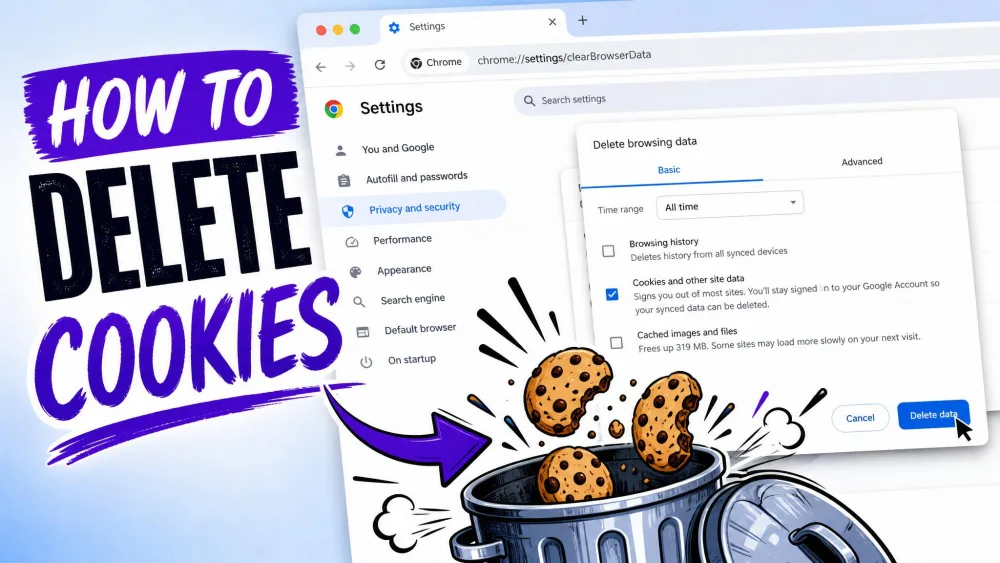
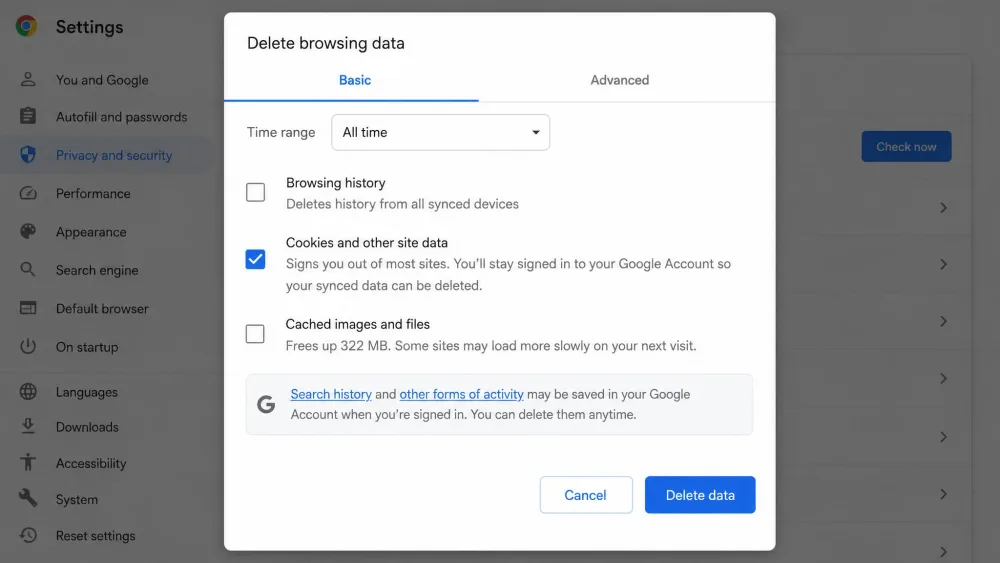
- Open the three-dot menu at the top right, labeled More, then choose Delete browsing data.
- In the dialog, tick the box labeled "Cookies and other site data."
- Pick a Time range. The options run from Last hour, Last 24 hours, Last 7 days, and Last 4 weeks up to All time. Choose All time to remove everything.
- Click the confirm button, labeled "Delete data."
The fastest way to reach that dialog is the keyboard. Press Ctrl+Shift+Delete on Windows, or Command+Shift+Delete on a Mac, and Chrome jumps straight to it.
That same Ctrl+Shift+Delete shortcut opens the Clear browsing data dialog in Chrome, Firefox, and Edge on Windows. It is the one shortcut worth memorizing if you clear cookies often.
One quirk trips people up. When you are signed into Chrome, clearing everything quietly refreshes your Google sign-in cookies rather than deleting them, so you stay signed into your Google Account. If you want to remove those too, sign out of your Google Account first, then clear.
On Android and iPhone
On Android, open the Chrome app, tap More (the three dots), then tap Delete browsing data. The default time range is Last 15 minutes, so change it if you want a deeper clean, then tap Delete data. Deleting cookies here does not sign you out of your Google Account. On iPhone, the Chrome app follows the same Delete browsing data path inside its own settings menu.
How to Clear Cookies in Mozilla Firefox
On Desktop
- Open the hamburger menu (the three lines) and choose Settings.
- Go to Privacy & Security, then scroll to the Cookies and Site Data section.
- Click Clear Data, tick "Cookies and site data," and click Clear.
Firefox also gives you a set-and-forget option. In that same Cookies and Site Data section you can turn on "Delete cookies and site data when Firefox is closed," and the browser wipes them automatically every time you quit. If a label looks different on your machine, cross-check the Firefox support documentation.
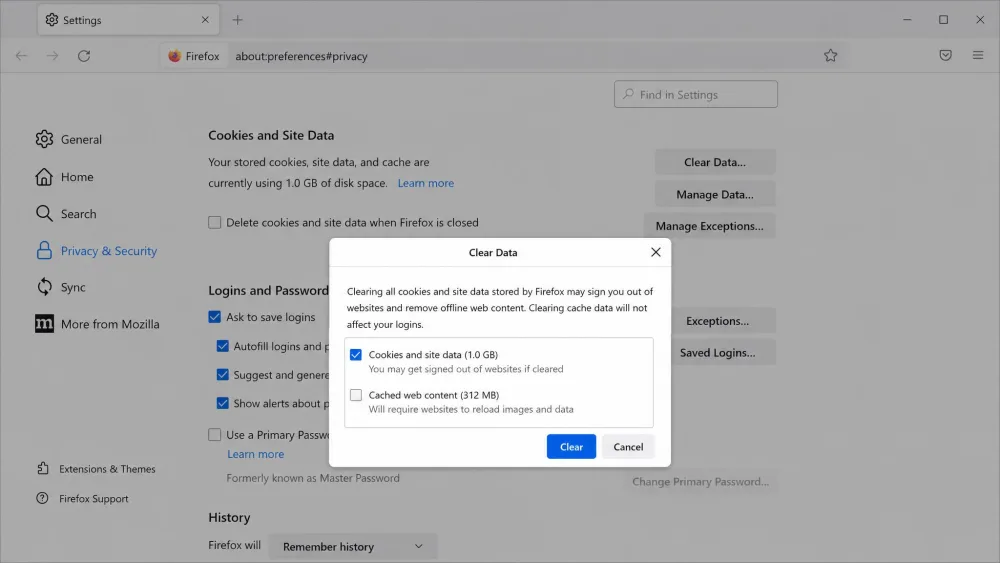
Firefox interface labels have drifted a little between versions. Before you follow any cookie-clearing walkthrough, confirm you are on the current release, or the menu names may not match what you see.
On Mobile
In the Firefox app, open the menu, tap Settings, then go to Privacy and security and choose Delete browsing data. Tick the "Cookies & Active Logins" option, then tap Delete browsing data and confirm. As on desktop, this signs you out of the sites you were logged into.
How to Clear Cookies in Microsoft Edge
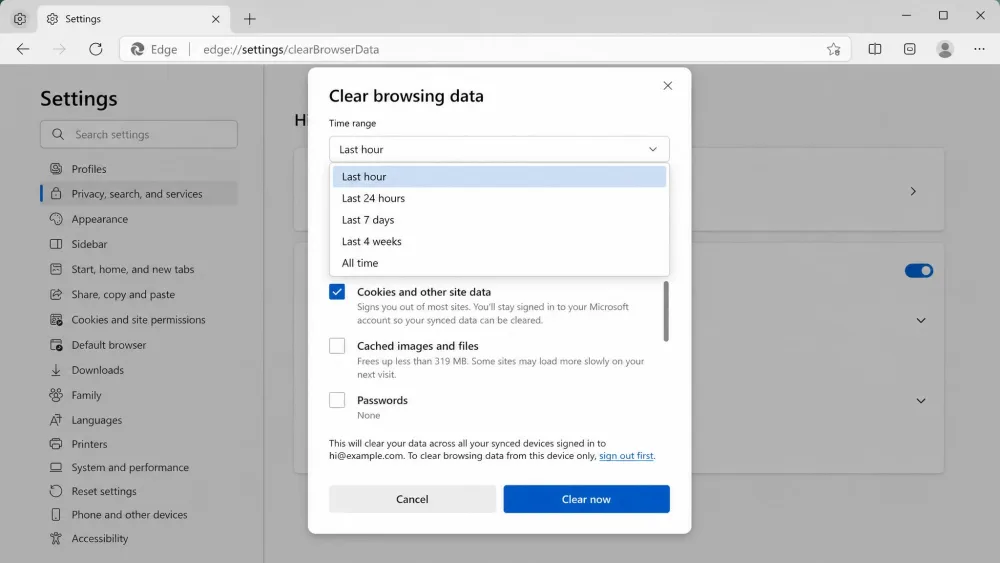
- Open the Settings and more menu (the three dots), choose Settings, then Privacy, search, and services.
- Under Clear browsing data, click Choose what to clear.
- Tick "Cookies and other site data," pick a Time range, then click Clear now.
Edge honors the same keyboard shortcut. Press Ctrl+Shift+Delete and the Clear browsing data dialog opens directly. Edge also warns you plainly that clearing cookies signs you out of most sites, which matches what we see every time. The full walkthrough lives in Microsoft Edge cookie settings.
How to Clear Cookies in Safari
On Mac
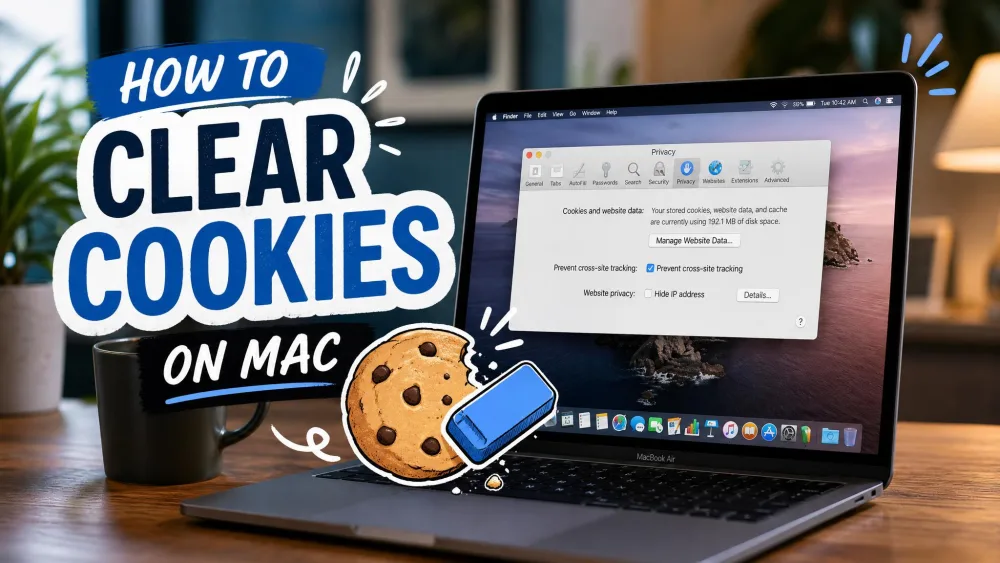
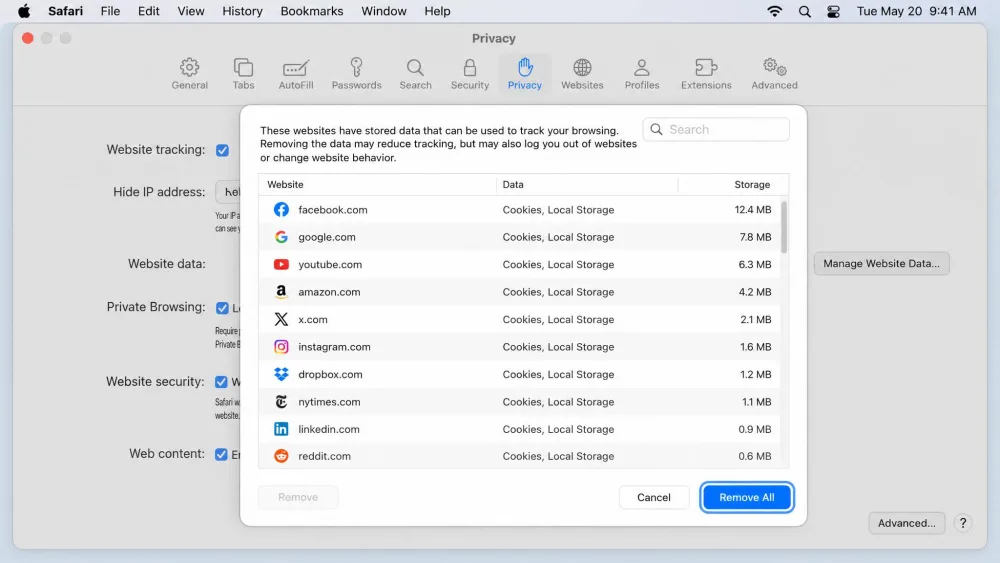
- Open Safari, then go to Safari > Settings and click the Privacy tab.
- Click Manage Website Data.
- Select the sites you want to clear and click Remove, or click Remove All to clear everything.
These steps hold steady across macOS versions from High Sierra through the current macOS Tahoe 26, so the path is the same whether your Mac is old or new. One caution from Apple: removed website data may be shared with other apps, so a clear in Safari can affect behavior beyond the browser. The details are in Apple's Safari guide.
On iPhone and iPad
The simplest route clears everything at once. Go to Settings > Apps > Safari > Clear History and Website Data, confirm the timeframe, then tap Clear History. This removes your history, cookies, and cache together. It does not change your saved AutoFill information.
If you want to keep your history and remove only cookies and cache, take the longer path instead: Settings > Apps > Safari > Advanced > Website Data > Remove All Website Data.
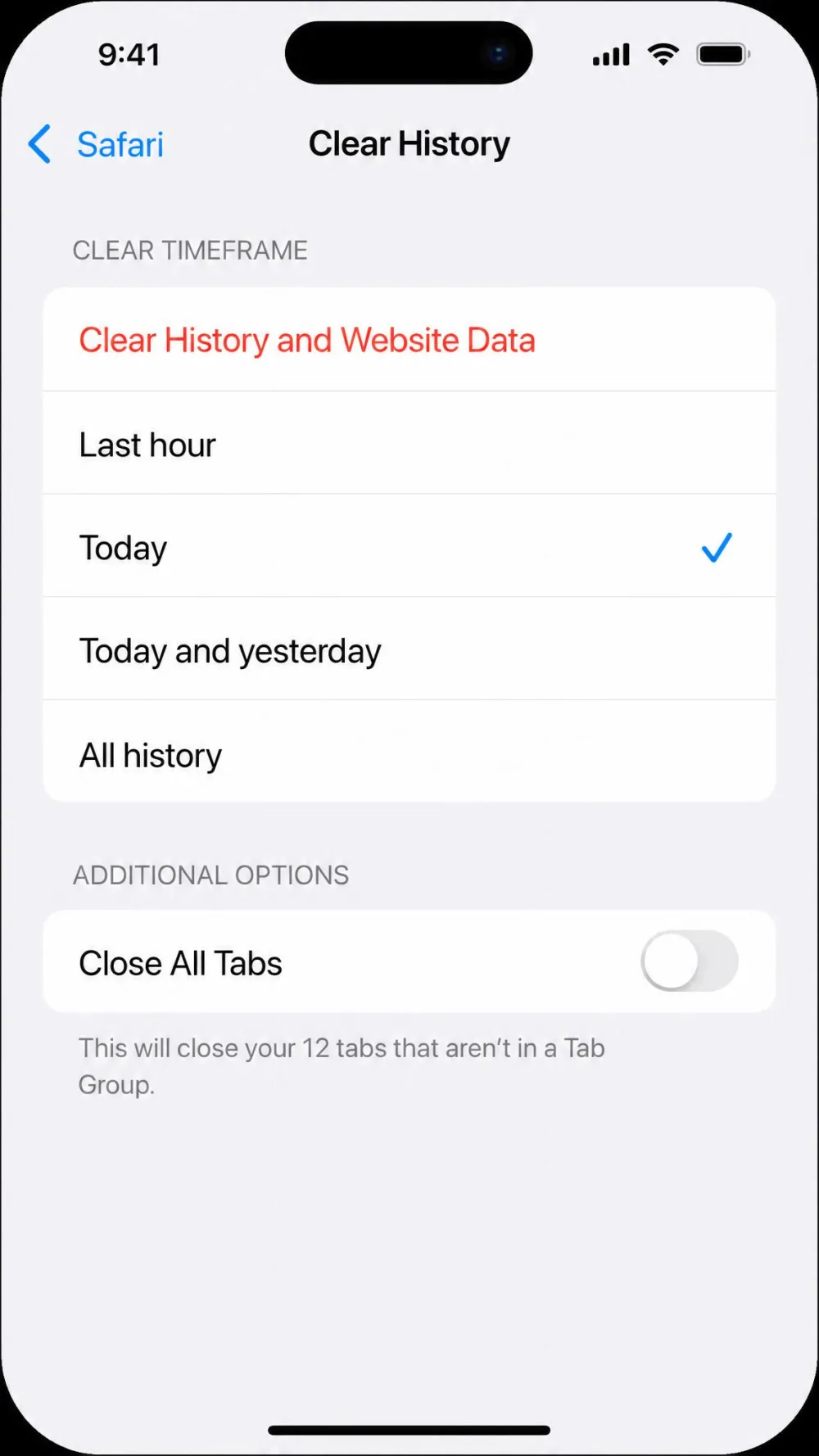
On iPhone, the Clear History and Website Data button is greyed out when there is nothing to clear, or when Screen Time web-content restrictions are switched on. If the button will not tap, check your Screen Time settings first.
How to Clear Cookies for a Single Website
Sometimes you only need to fix one misbehaving site without logging out of everything else. Every browser supports this, though the path is a little buried.
In Chrome, go to More > Settings > Privacy and security > Third-party cookies > See all site data and permissions, search for the site, and click the Delete icon. In Firefox, open Cookies and Site Data and click Manage Data to see per-site cookies and remove the ones you choose. In Edge, go to Settings > Privacy, search, and services > Cookies > See all cookies and site data, search the site, then select the down arrow and Delete. In Safari on Mac, use Manage Website Data, select the single site, and click Remove.
Be warned that per-site deletion is fiddly in every browser. You search, expand, delete, and repeat, which is exactly why most people fall back to a full clear despite losing all their logins.
What Happens After You Clear Cookies
The most noticeable change is that you get signed out of nearly every site at once. Expect to re-enter passwords and two-factor codes on the sites you use most. Your saved passwords survive the clear, though, so if you use your browser's password manager or autofill, getting back in is quick.
Site personalization resets too. Your chosen language, dark mode, font size, and even the items left sitting in a shopping cart can disappear, because those preferences were stored in cookies. Passwords saved in the browser's own password manager are the one thing a cookie clear leaves untouched.
How Often Should You Clear Cookies?
For most people, a monthly clear strikes the right balance between privacy and convenience. If you are more privacy-conscious, a weekly or bi-weekly rhythm keeps tracking to a minimum without much hassle. Beyond any schedule, the common-sense trigger is a shared or public computer: clear your cookies the moment you finish, every time, so you never leave a live session behind.
Frequently Asked Questions
Does clearing cookies delete my passwords?
Will clearing cookies log me out of websites?
How often should I clear cookies?
What is the difference between cache and cookies?
Does clearing cookies remove saved preferences?
How do I clear cookies for one specific site?
Conclusion
Clearing cookies is a fast, low-risk habit that protects your privacy and fixes a surprising number of everyday browser problems. Whichever browser you use, the pattern is the same: open the clear-data dialog, tick the cookies option, choose how far back to go, and confirm. Keep your passwords saved so the log-outs are painless, remember that Chrome keeps you signed into Google unless you sign out first, and clear on a schedule that fits how private you want to be. Do it once and the steps stick for good.