If NordVPN is stuck on Connecting or Finding server, or NordVPN won't connect at all, the cause is usually on your side of the tunnel. The common culprits are a busy server, a blocked protocol, a firewall or antivirus, an outdated app, or a network that filters VPN traffic, and the fastest fix is to pick a country by hand and switch protocols.
Below are the quick checks first, then 12 fixes ordered from simplest to most involved. For our broader take on the service, see our NordVPN review.
Quick Fix Checklist
These quick fixes solve most NordVPN connection problems. Test the connection after each one.
- Disconnect NordVPN and confirm a normal website loads.
- Quit the app completely, then open it again.
- Pick a specific country instead of the one-click connect button.
- Change the VPN protocol in the app settings.
- Install the latest NordVPN version.
- Add NordVPN to your firewall and antivirus exceptions.
Change one thing at a time. If you switch server, protocol and DNS at once, you won't know which change fixed it.
Why NordVPN Won't Connect: The Most Common Causes
NordVPN won't connect when something between the app and the server blocks the handshake. Under normal conditions the service is very stable, and our extended testing across many servers produced no drops, stalls or server blackouts. So the root cause usually falls into one of these groups:
- Server problems. The server you picked is overloaded or temporarily offline.
- Protocol blocks. Some networks block UDP port 51820, which stops NordLynx from connecting.
- Security software. A firewall or antivirus treats the tunnel as a threat and drops it.
- An outdated app. Old builds fall behind operating system updates.
- Network or ISP filtering. Office, school, hotel and some ISP networks restrict VPN traffic.
- Account limits. An expired plan or too many active devices stops the app early.
Match Your Symptom to the Right Fix
The status message NordVPN shows tells you where to start. Find your symptom and try the first fix before anything else.
| Symptom | Likely cause | First fix |
|---|---|---|
| Stuck on Connecting | Blocked protocol or busy server | Change protocol (fix 4) |
| Stuck on Finding server | App can't reach any server | Pick a country manually (fix 3) |
| Connected but no internet | DNS problem or kill switch block | Change DNS (fix 7) |
| Login fails or loops | Expired plan or blocked sign-in page | Check your Nord Account |
| Works on mobile data, not Wi-Fi | Network blocking VPN traffic | Obfuscated servers (fix 8) |
| Session Limit Reached | Too many devices or attempts | Wait 10 minutes, retry once |
How to Fix NordVPN Not Connecting
These 12 fixes run from quick checks to deeper system changes. Stop as soon as NordVPN connects.
1. Check Your Internet Connection Without the VPN
Start by testing your connection without NordVPN. Disconnect the VPN and load any website. If the page is slow or won't load, the problem is your internet, not the VPN.
Restart your router if the connection looks weak. Older routers can drop VPN handshake packets on a congested 2.4GHz band, so a 5GHz band or a wired connection often helps.
2. Restart the NordVPN App and Your Device
A full restart clears stuck processes that a simple disconnect leaves behind. Quit the app completely rather than closing its window: press Command + Q on a Mac, or swipe the app away on a phone. If reopening it doesn't help, restart the whole device.
3. Connect to a Different Server
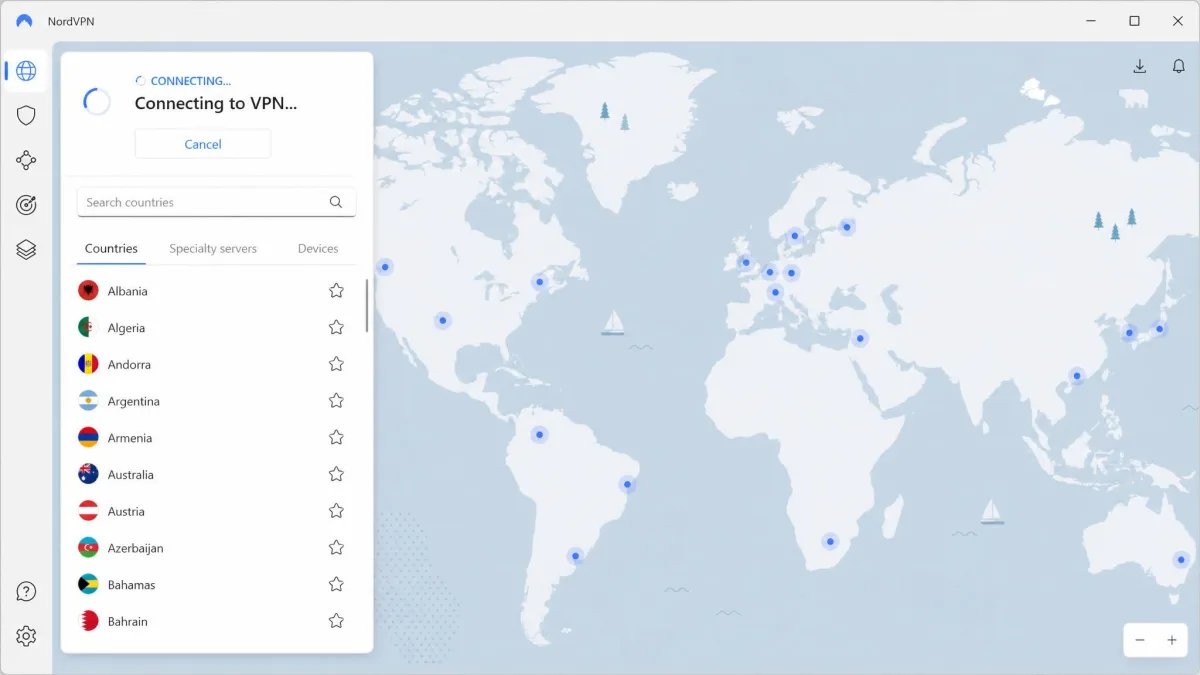
Switching servers is the fastest fix for a single overloaded or offline server. NordVPN's own guides say to connect manually to several countries instead of relying on the one-click quick connect button.
Open the country list, pick a nearby location, then try a second and third country if needed. The server map in the redesigned Windows and Mac apps is crowded on small screens, so we use the search bar to pick a country faster.
4. Change the VPN Protocol
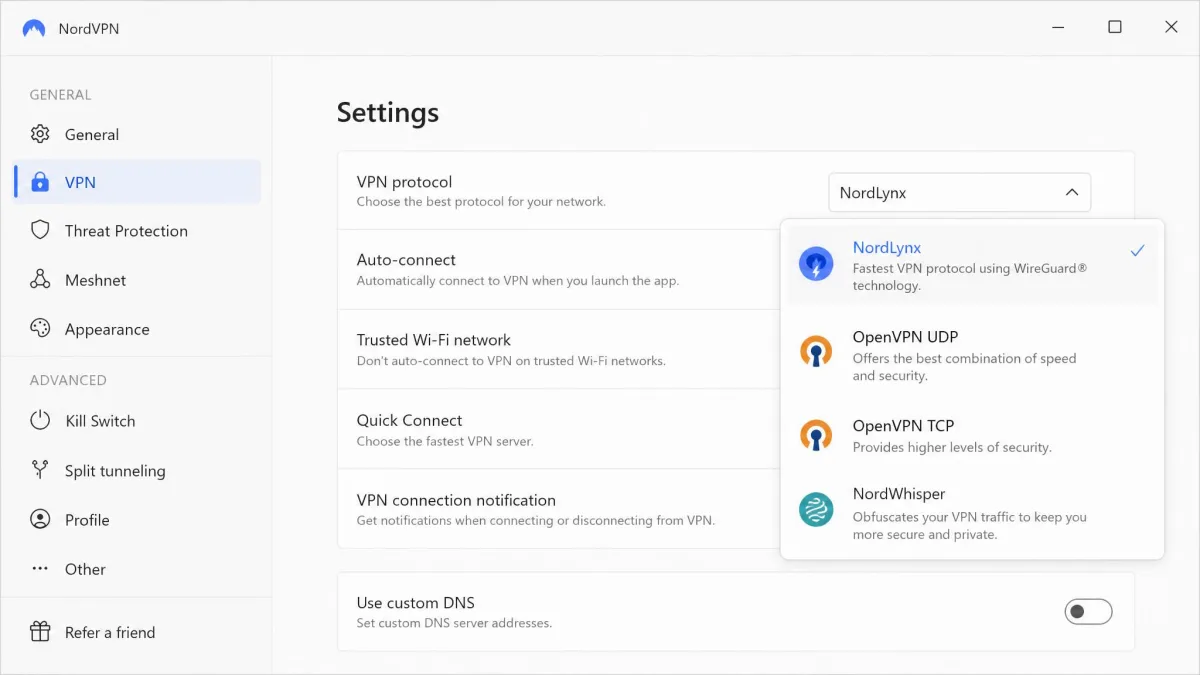
Changing the protocol is the most effective fix for a stuck connection, and it is usually the first thing NordVPN support suggests. The protocol is the set of rules the app uses to build the encrypted tunnel, and some networks block one protocol but not another.
Open the app's settings and find the VPN protocol option. The exact menu label changes between app versions. On Windows, try Auto (Recommended) first. Elsewhere, cycle through the options:
- NordLynx (the default) uses UDP port 51820.
- OpenVPN UDP uses UDP port 1194, with 1231-1234 as alternates.
- OpenVPN TCP uses TCP port 443, the same port as ordinary HTTPS traffic, so it gets through strict firewalls more often.
- NordWhisper is built for filtered networks such as office or campus Wi-Fi.
In our testing, NordLynx completes its handshake almost instantly, while OpenVPN can take 5 to 10 seconds to authenticate, so don't cancel an OpenVPN attempt too early. If OpenVPN itself refuses to connect, our guide on why OpenVPN won't connect covers the protocol-level causes.
5. Update or Reinstall the NordVPN App
An outdated app is a common cause of failures after an operating system update. Check for updates in the app settings first; on Windows, open the cogwheel menu and choose Update. If that doesn't help, do a clean reinstall:
- Uninstall NordVPN and restart the device.
- Download a fresh copy from the official NordVPN download page.
- Install it, log in and connect to a specific country.
Reinstalling the same app over and over rarely fixes a network-level block, so move on if the first reinstall changes nothing.
6. Allow NordVPN Through Your Firewall and Antivirus
Security software can block NordVPN outright, so add the app as an exception. Windows Defender Firewall is a frequent offender, and adding NordVPN as an exception restores a stable connection without leaving your PC exposed.
- Open your firewall settings and choose the option to allow an app through.
- Add NordVPN for both private and public networks.
- Add NordVPN to your antivirus exclusions list.
- Restart the app and connect again.
Add an exception, don't switch protection off. If you disable your firewall or antivirus for a quick test, turn it back on right away.
7. Change Your DNS Settings
DNS turns website names into addresses, and a broken setting can stop pages loading even when the tunnel is up. First, flush the DNS cache: on Windows, open Command Prompt and run ipconfig /flushdns. That is a quick first fix when NordVPN shows Connected but pages won't load.
Next, turn off the app's Custom DNS feature and any custom DNS on your router. To set DNS manually, use NordVPN's servers: 103.86.96.100 as primary and 103.86.99.100 as secondary.
8. Use Obfuscated Servers on Restricted Networks
Obfuscated servers disguise VPN traffic as ordinary web traffic, which helps on networks that block VPNs. These include office, campus, airport, hotel and cafe Wi-Fi, plus some ISPs.
Open the specialty servers list, choose Obfuscated Servers and connect. On current builds this category runs on the NordWhisper protocol, with nothing extra to configure. NordVPN is still moving obfuscation over from OpenVPN, though, so older builds (and Linux) may need OpenVPN selected before the category appears.
9. Reset the Network Adapter and Network Settings
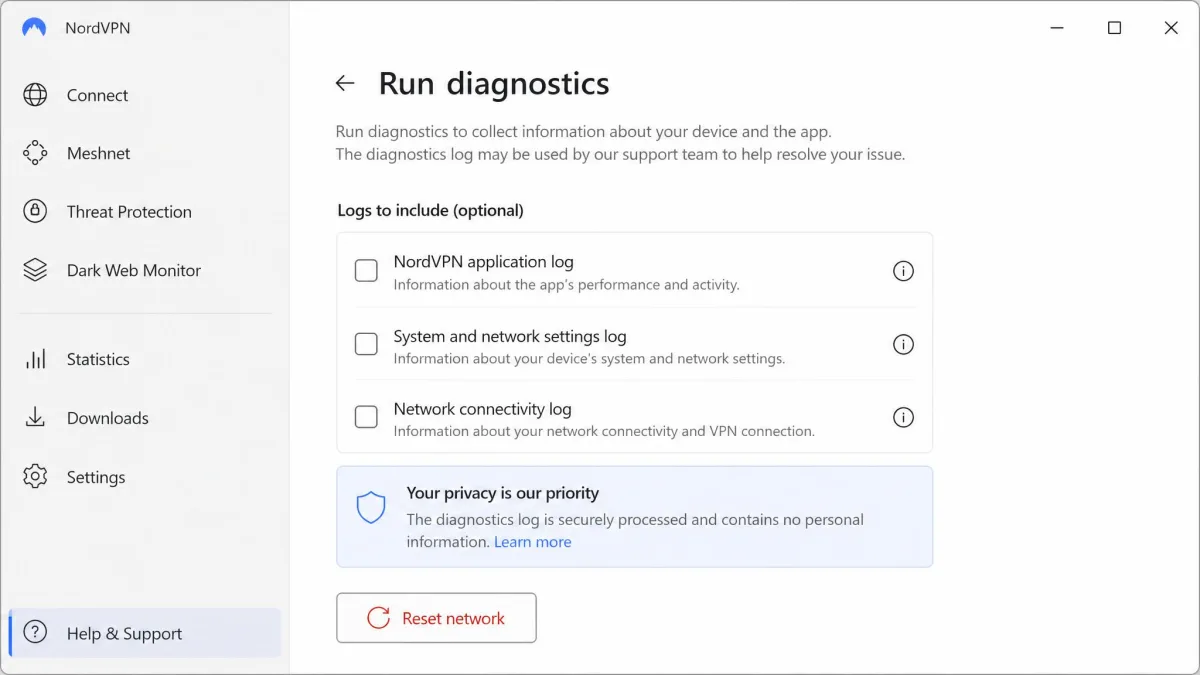
A network reset clears corrupted adapter settings that survive a restart. The Windows app has a built-in tool:
- Click the question mark button in the lower-left corner of the app.
- Choose Run diagnostics, then click Continue.
- Click Reset network and restart your computer.
On a Mac, open System Settings, go to VPN, click the info icon next to NordVPN and choose Remove Configuration. Reopen the app and it reinstalls the VPN profile.
A network reset wipes saved Wi-Fi networks and passwords, plus VPN and APN settings. Note your Wi-Fi password first.
10. Disable IPv6
Turning off IPv6 can help because NordLynx is most prone to trouble on IPv6-heavy networks. This is general networking advice rather than an official NordVPN step, so undo it if nothing changes.
On Windows, open Network Connections, right-click your adapter, choose Properties and untick Internet Protocol Version 6. On a Mac, open Network settings, click Details, go to TCP/IP and set Configure IPv6 to Link-Local Only.
11. Check Whether NordVPN Servers Are Down
Outages are rare, and NordVPN has no public status page, so test it yourself. Try three or four countries on two different protocols, then try another network, such as your phone's hotspot. If every server fails on every network, the problem is likely on NordVPN's side.
Some large websites block known NordVPN server IP addresses. If one site fails while everything else loads, the VPN is working. Switch server to get a fresh IP.
12. Contact NordVPN Support
Live chat is the last step when nothing else works. Contact NordVPN support through the help center, where live chat runs 24/7 and email carries a 24-hour response commitment. There is no phone line.
Live chat answers within seconds to a few minutes, and the agents are responsive and knowledgeable. Support usually starts with basics such as reinstalling, so list the fixes you already tried. Ignore any chatbot step that names a retired feature such as CyberSec.
NordVPN Stuck on "Finding Server" or "Connecting"
When NordVPN is stuck on Finding server, the app can't reach any server to start the handshake. This may be the case alongside error pop-ups and IP details that never load.
On a healthy network, each server connection completes in about 10 seconds or less, so a longer spinner points to a real problem. Cancel it, pick a specific country (fix 3), switch to OpenVPN TCP (fix 4), then try obfuscated servers (fix 8) and another network (fix 11).
Don't keep tapping connect. Up to 10 devices can use one account, but only 5 can share a server, and rapid retries trigger a Session Limit Reached error. When it appears, wait 10 minutes before one new try, because repeated taps extend the timeout.
NordVPN Not Letting You Log In
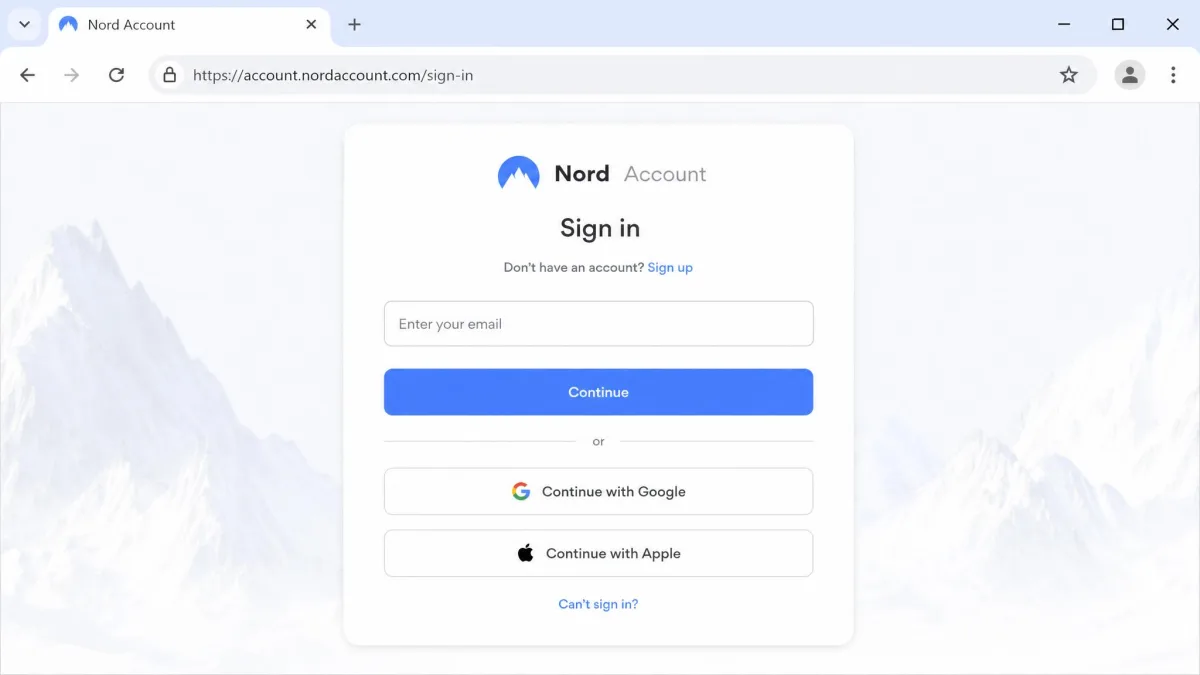
NordVPN not letting you log in usually traces back to your account status or the browser page the app opens for sign-in. Login runs through a Nord Account web page, so browser settings matter as much as the app.
Check Your Subscription Status
An expired plan is a common reason for a failed login. Sign in to your Nord Account dashboard in a browser and check that your plan is active and hasn't expired. If it lapsed, renew it and log in to the app again.
Fix Login Loops and Automatic Logouts
Login loops happen when the browser can't hand your session back to the app. Try these steps in order:
- Close every open Nord Account tab.
- Allow cookies and turn off pop-up blockers for nordaccount.com.
- Turn on automatic time sync on your device.
- Pause ad blockers, or switch your default browser.
- Sign in with Google or Apple instead.
- Fully quit and relaunch the app.
An "Error: 429 Too Many Requests" message means you tried too often. The cool-down isn't a fixed published timer, so give it at least half an hour.
NordVPN Not Connecting on Windows, Mac, iPhone, and Android
Each platform adds its own quirks. Check that your device meets NordVPN's minimum version, then try the steps below.
Windows
NordVPN supports 64-bit Windows 10 (version 1607 and later) and Windows 11. After a Windows update, switching from NordLynx to OpenVPN TCP can clear an endless Connecting state. Also turn off Post-quantum encryption and confirm no other VPN is running. If the background nordvpn-service isn't running in Task Manager, restart it; NordVPN doesn't document this step, and the service name can change between versions.
macOS
NordVPN needs macOS Sonoma 14 or later. The Mac app shows a stuck Connecting status or a "Can't establish connection" error. Try every protocol, and after several failures on one server, wait a few minutes before retrying it.
iPhone and iPad
The app needs iOS 17.0 or later, and a "Connecting has taken too long" notice is the usual symptom. Turn off Meshnet and Post-quantum encryption, then use Reset VPN Profile in the app settings. Switching between Wi-Fi and cellular shows whether your network is the problem.
Android
The app runs on Android 9 and up, and stalls show as "It's taking a bit longer than usual". Turn off Meshnet from the Products tab and Post-quantum encryption in settings. If that fails, reset Wi-Fi, mobile and Bluetooth settings, then reinstall.
Browser Extension
The Chrome, Firefox and Edge extensions usually fail on "Assigning IP address". Don't run the desktop app and the extension together. Clear your browser cache, try Incognito and check for clashing extensions. The Firefox extension can drop its connection, so try another browser if that keeps happening.
NordVPN Connected but the Internet Stopped Working
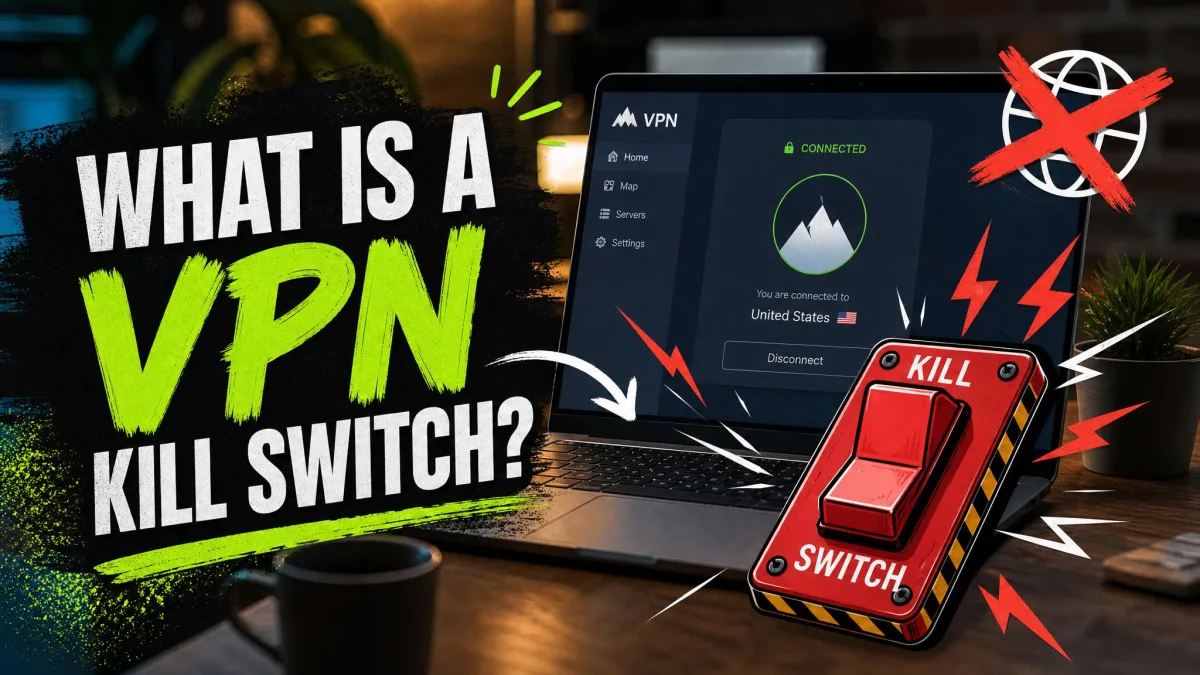
If NordVPN says Connected but nothing loads, the kill switch is often behind it. It blocks all traffic the moment the tunnel drops and keeps it blocked until the VPN reconnects, so a dropped VPN can look like your internet has died.
A failed tunnel can also leave the kill switch holding a stale block, so reconnect or toggle the kill switch off and on. Next, pause Real-time protection (older builds call it Threat Protection) from the shield icon, then flush DNS (fix 7). If only certain apps fail, our guide to NordVPN split tunneling not working shows how to route them outside the tunnel.
When to Try a NordVPN Alternative
Try an alternative only after ruling out your own network. Install a different VPN on the same device and network. If it connects straight away, the problem sits with NordVPN or your account. If it fails too, your network is blocking VPNs, and switching providers won't help.
Other services hit the same walls, as our Urban VPN not connecting guide shows. Before you cancel, our full NordVPN review sets out what you would give up.
Final Thoughts
Most NordVPN connection failures come down to a server, a protocol or security software. Start with a manual country pick and a protocol change, then clear firewall blocks, fix DNS and reset the network. Save support for last, and tell the agent which steps you already tried.