If you have been handed an .ovpn file by your VPN provider or your workplace, and you are not sure what to do with it, this guide is for you. OpenVPN is one of the most widely used VPN systems in the world, but the naming can be confusing and the setup steps are scattered across half a dozen pages. We wanted to pull the whole process into one place.
We walk through the current OpenVPN Connect client on Windows first, then cover the same steps on macOS and Android, so the walkthrough below matches what you will actually see on screen. We cover installing the client, importing a connection profile, connecting, and fixing the errors that trip most people up.
The good news: once you understand what a connection profile is and how to import it, the rest is straightforward. Let us start with what OpenVPN actually is.
What Is OpenVPN and How Does It Work?
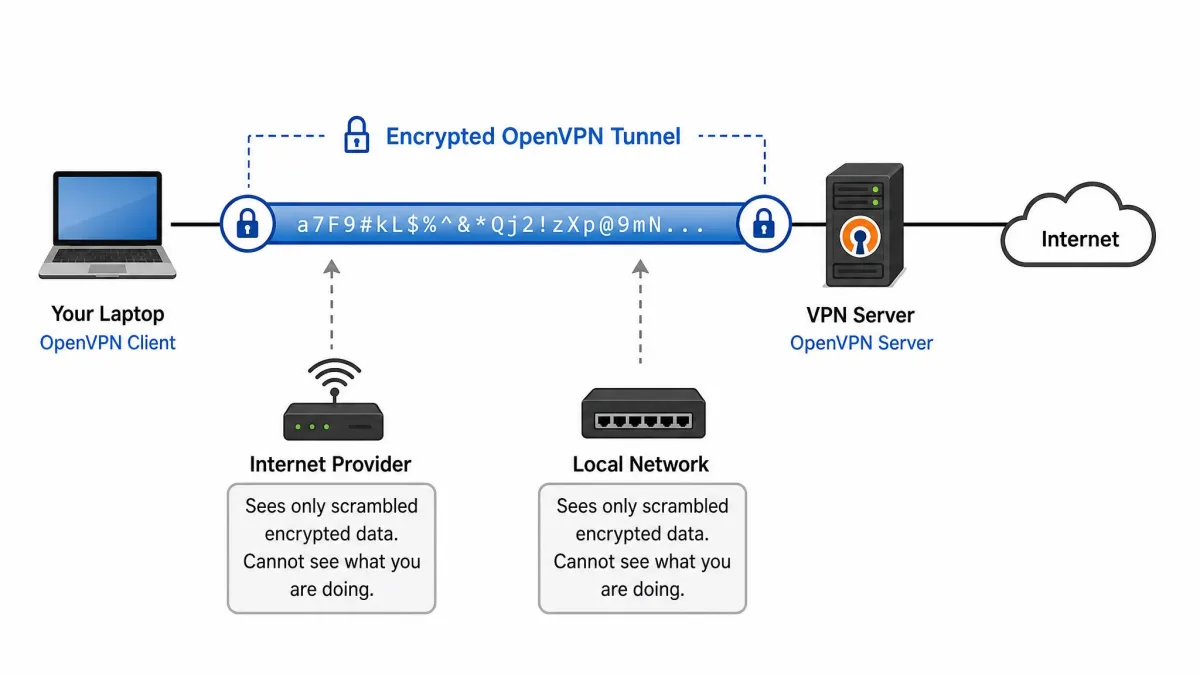
OpenVPN is an open-source VPN system that creates an encrypted tunnel between your device and a server. It was first released in 2001 by James Yonan, and it is free and open source under the GPLv2 license, with commercial licenses also available. Two things share the name: the underlying protocol, and the OpenVPN Connect app that most people install to use it.
The system carries all your traffic through the tunnel, so your internet provider and anyone on your local network see only encrypted data. To connect, your device needs a connection profile, which is a small file that describes the server address, the port, the transport protocol, and the certificates used to verify the connection.
OpenVPN protocols: TCP vs UDP
OpenVPN can run over either UDP or TCP. The default IANA-assigned port is 1194 for both. The two transports behave differently, and picking the right one matters more than most guides admit.
UDP is the faster everyday choice. On a 100 Mbps line to a nearby server, a UDP connection tends to land around 80 to 95 Mbps in our testing, while TCP on the same setup lands closer to 60 to 80 Mbps. TCP is the reliable fallback: it guarantees delivery, which helps on lossy or restrictive networks.
There is a catch with TCP. If you run OpenVPN over TCP while the apps inside the tunnel also use TCP, you can trigger the TCP-over-TCP meltdown, where both layers retransmit under packet loss and throughput collapses. For that reason, we start with UDP and only switch to TCP when UDP will not connect.
| Feature | OpenVPN UDP | OpenVPN TCP |
|---|---|---|
| Priority | Speed and low latency | Reliability and guaranteed delivery |
| Default port | 1194 | 1194 (often 443 to bypass firewalls) |
| Best for | Everyday browsing, streaming | Restrictive networks that block UDP |
| Typical speed on 100 Mbps | ~80 to 95 Mbps | ~60 to 80 Mbps |
| Known drawback | Some packet loss | TCP-over-TCP slowdown under loss |
Encryption and security (SSL/TLS)
OpenVPN uses the OpenSSL library and the TLS protocol to secure the tunnel. It supports up to 256-bit encryption, along with Perfect Forward Secrecy, which means a compromised session key cannot be used to decrypt past sessions. This is the same family of technology that protects banking websites, so the cryptography is well understood and heavily audited.
What You Need Before You Start
Before you install anything, you need two things: the OpenVPN Connect client for your device, and a connection profile from a server you are allowed to use. The client alone does nothing. OpenVPN Connect is not a VPN service; it does not come with servers of its own. It is the app that reads your profile and makes the connection.
Community (free) vs Access Server / Connect
There are a few OpenVPN products, and the names overlap. The Community edition is the free, open-source version you configure by hand with a text config file, and it is popular with people running their own server. The current stable community release is around version 2.7.7, though release numbers advance frequently, so the exact point release may differ by the time you read this.
OpenVPN Connect is the friendly client app most users want. Access Server and CloudConnexa are the paid, business-focused server products. For this guide we focus on OpenVPN Connect, because that is what you install to use a profile someone gave you.
If you already use a commercial VPN, you may not need to install OpenVPN separately. Most commercial VPNs ship OpenVPN under the hood, so on Windows you can often find OpenVPN.exe inside the provider's install folder.
Getting your connection profile (.ovpn file)
Getting connected is mostly a matter of importing the .ovpn profile, because that single file carries the server address, port, protocol, and certificates in one bundle. You get this file from one of three places: your VPN provider's account dashboard, your workplace IT team, or a free public server list. Save it somewhere you can find it, like your Downloads folder.
How to Install OpenVPN
Installation is quick on every platform. The client is a normal app; the only wrinkle is knowing which download to grab. Always download from the official OpenVPN site or your device's app store, never from a third-party mirror.
Installing OpenVPN Connect on Windows
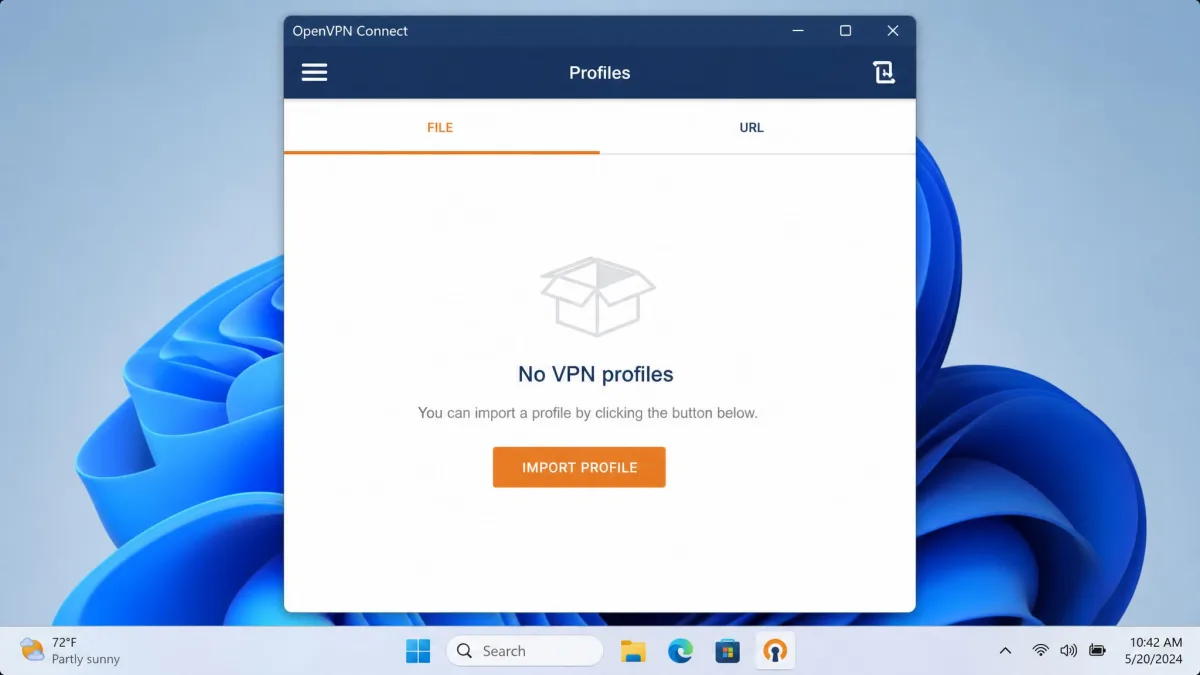
On Windows, download the OpenVPN Connect installer from the official site, run the .msi file, and accept the defaults. The installer sets up a virtual network adapter, which is why Windows may ask for administrator permission. When it finishes, OpenVPN Connect opens with an empty profile list, ready for you to import a profile. The full walkthrough lives in the OpenVPN Connect user guide.
If the installer stalls or the virtual adapter fails to install, close the installer, right-click it, and choose Run as administrator. Adapter installation is the step most likely to need elevated permissions.
Installing on macOS, Android, and iOS
The client covers Windows, macOS, Android, iOS, and ChromeOS. On macOS, download the installer from the official site and drag the app into Applications. On Android, install OpenVPN Connect for Android from the Play Store; on iOS, install it from the App Store. The mobile apps look nearly identical to the desktop version, so the import steps below apply everywhere.
How to Import a Connection Profile and Connect
This is the core of using OpenVPN. Once your profile is imported, connecting is a single tap.
Importing an .ovpn profile
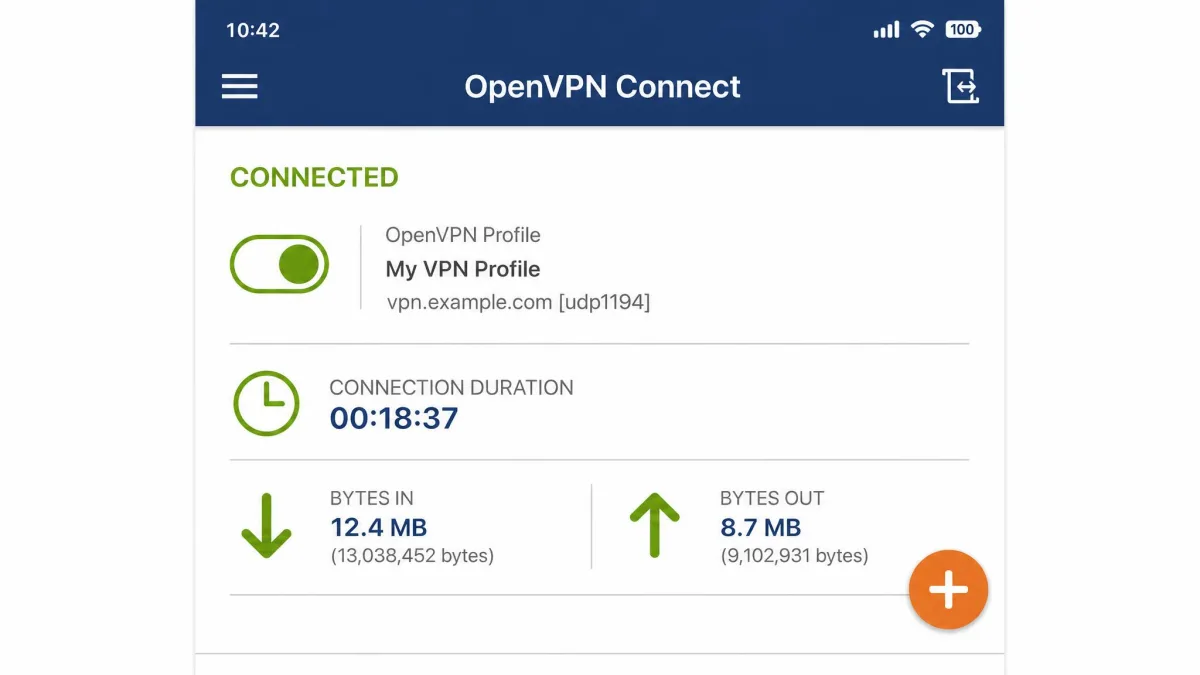
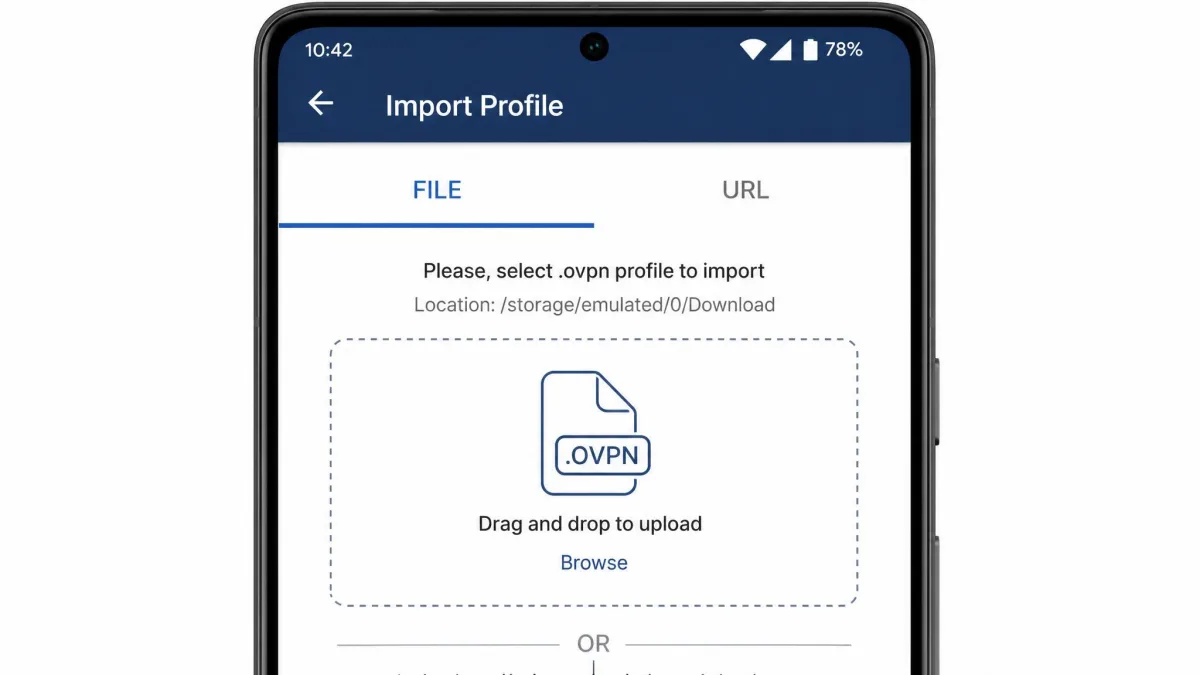
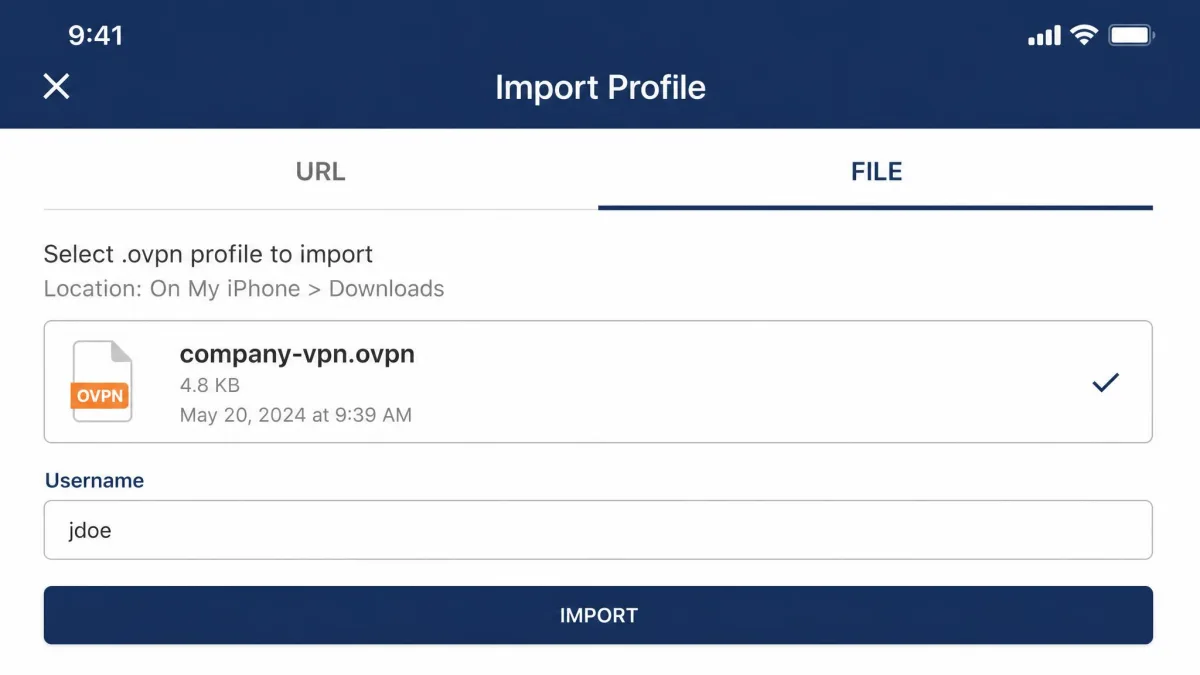
Open OpenVPN Connect and look for the import option, usually shown as a File tab and a URL tab. Choose the File tab, browse to your saved .ovpn file, and select it. The app reads the server details from the file and adds the profile to your list. If the profile requires a username and password, you enter them here, with an option to save them. Then toggle the connection on, and the status changes to Connected within a few seconds.
For the Community edition, the equivalent step is placing your config file where the client expects it and starting the connection from the command line or tray icon. The OpenVPN 2.x setup and configuration how-to covers the manual approach in detail, and the sample client.conf config is a useful starting template.
Adding certificates, keys, and authentication (SAML/MFA)
Most .ovpn files already contain the certificates and keys inline, so you do not add anything by hand. If your provider ships the certificate or key as separate files, import them alongside the profile when prompted. OpenVPN supports pre-shared keys, certificate-based authentication, and username and password login, and the client also handles SAML and multi-factor authentication for organizations that require it. When SAML is in use, connecting opens a browser window where you sign in with your company account before the tunnel comes up.
Never import a profile from a source you do not trust. A malicious .ovpn file can point you at a server that intercepts your traffic. Only use profiles from your provider, your employer, or a reputable public server list, and confirm the certificate details match what you expect.
Configuring and Using OpenVPN
Once you are connected, most people leave the defaults alone. A few settings are worth knowing about.
Adjusting settings (proxies, auto-connect)
OpenVPN Connect lets you set a proxy for networks that require one, and turn on auto-connect so the tunnel starts whenever your device goes online. If your default UDP connection will not establish, this is also where you can edit the profile to use TCP instead. Switching an OpenVPN profile to TCP on port 443 lets it slip past restrictive firewalls that block the default 1194 UDP traffic, which is the single most useful troubleshooting change we make on locked-down networks.
Finding and using free OpenVPN servers
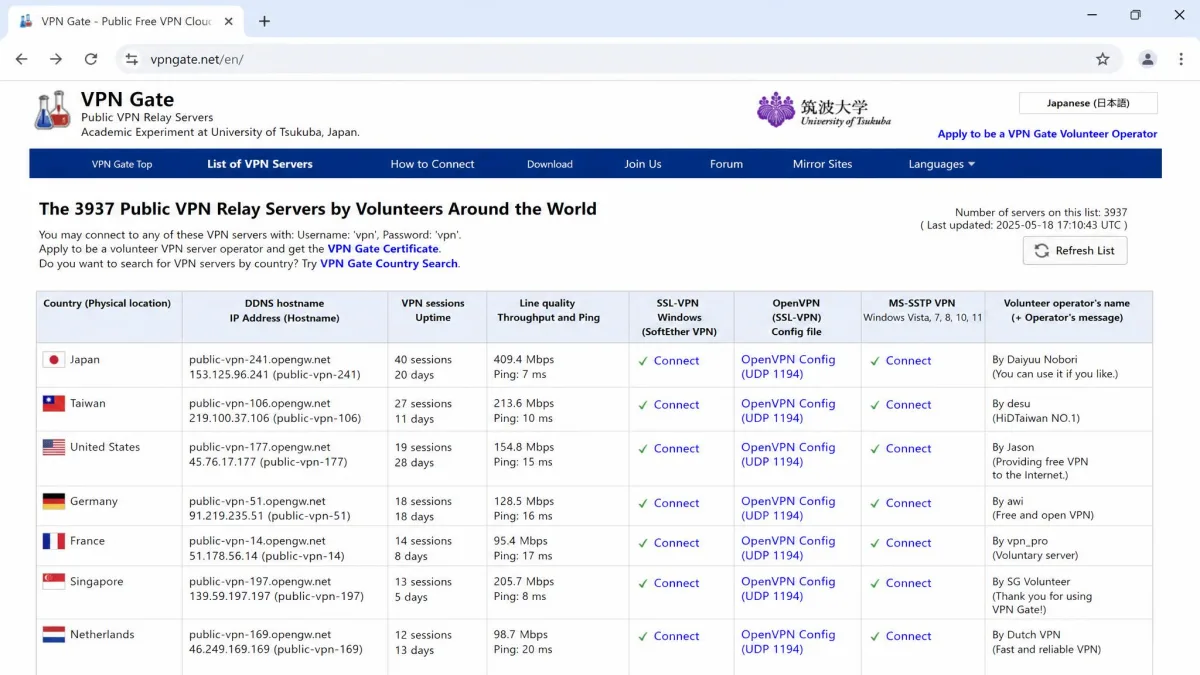
If you do not have a provider, VPN Gate free servers, run by the University of Tsukuba in Japan, offer thousands of free public OpenVPN servers. You download an .ovpn file from the server list and import it exactly as above. Be patient: free public relays are hit-or-miss, and individual servers drop out or run slow, so it often takes trying several profiles before one connects cleanly. These are fine for casual use but not for anything sensitive, since you do not control who runs the server.
Troubleshooting Common OpenVPN Issues
Most connection failures come down to a handful of causes, and the fixes are quick once you know where to look.
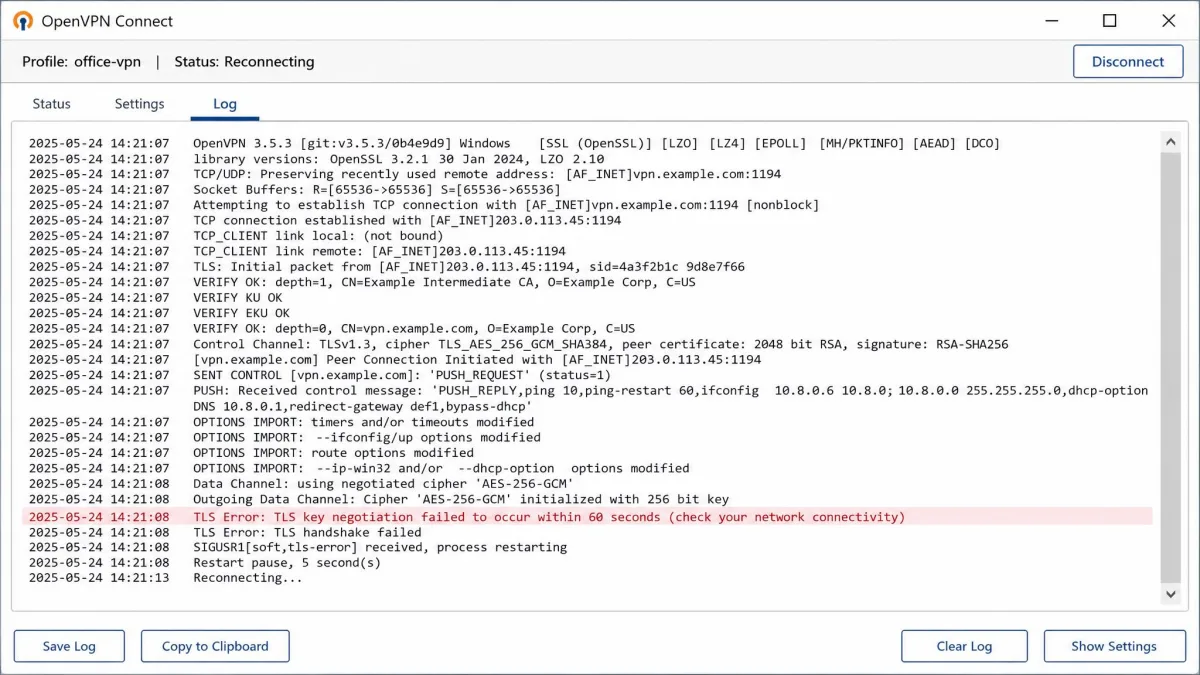
The most common problem is a connection that hangs and never completes. On a network that blocks or throttles UDP, an OpenVPN connection over UDP silently fails to establish, while the same profile over TCP connects. If your UDP connection stalls, switch the profile to TCP and try again. If that works, the network was filtering UDP.
If TCP connects but feels sluggish, you may be hitting the TCP-over-TCP slowdown described earlier; switch back to UDP whenever the network allows it. Authentication errors usually mean a wrong username, an expired password, or a certificate that has been revoked, so re-download a fresh profile from your provider. When you are stuck, the in-app troubleshooting log shows exactly where the handshake fails, and that log is the first thing we check.
Before you change any settings, try connecting to a different server profile. A single dead server is a far more common cause of failure than a broken configuration, especially with free public servers.
Is OpenVPN Safe to Use?
Yes. OpenVPN is one of the most trusted VPN protocols precisely because it is open source and has been reviewed by security researchers for over two decades. Its use of OpenSSL, TLS, up to 256-bit encryption, and Perfect Forward Secrecy puts it on par with the best available. The protocol itself is not the weak point.
What varies is the server you connect to. A VPN only shifts your trust from your internet provider to whoever runs the server, so the safety of any given connection depends on that operator. Use a provider you trust, keep the client updated, and treat free public servers as convenient rather than private.