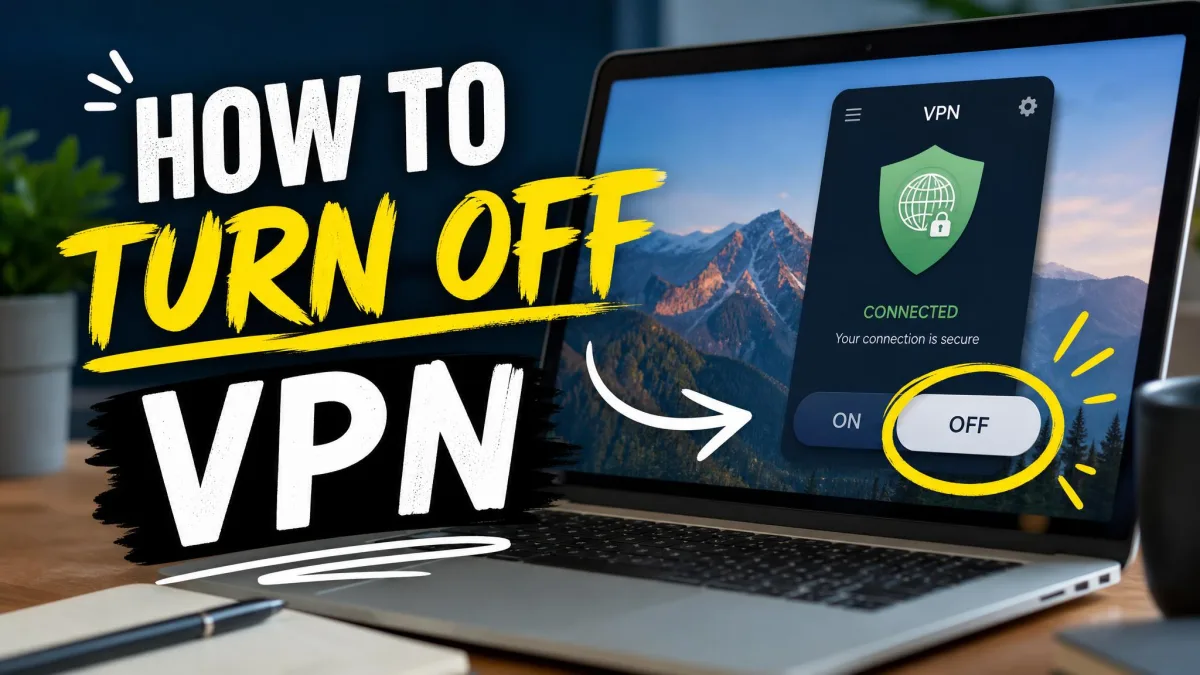
A VPN encrypts your internet connection and hides your real IP address, which is exactly why we recommend leaving one on for most of your day. But there are plenty of moments when you need to turn it off: a banking app that flags the foreign IP, a streaming service that blocks you, a work login that only trusts your home network. The quick answer is that on nearly every device you open your network or VPN settings, find the active connection, and toggle it off or tap Disconnect.
That's the short version, and for most people it really is just a few taps. The catch is that a VPN can turn itself back on, a kill switch can leave your internet looking dead the second you disconnect, and a managed device may not let you turn it off at all. We've run into every one of those on our own test machines, so this guide walks through the exact steps for each device and the traps that make a "simple" disconnect stick.
We tested these steps across Windows 10 and 11, macOS, Android, iPhone and iPad, Linux, a couple of home routers, and the usual browser extensions, using both built-in VPN clients and standalone VPN apps. Everything below is what we clicked, in the order we clicked it.
Quick answer: how to turn off a VPN
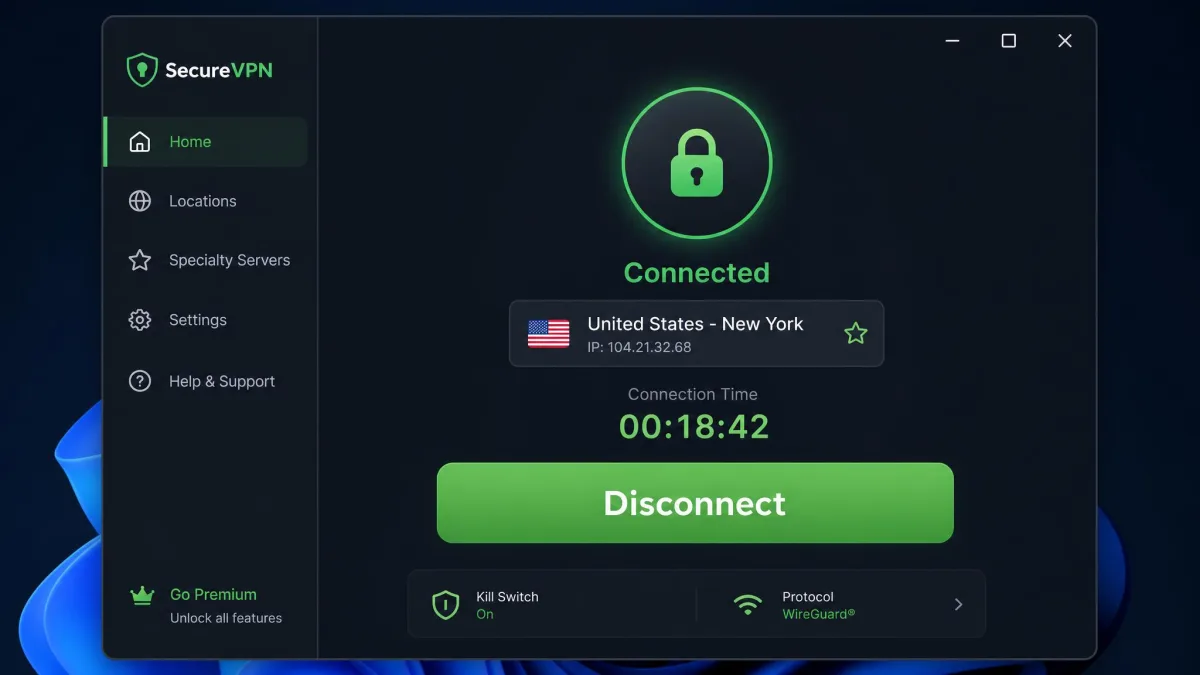
The pattern is the same almost everywhere. If you use a standalone VPN app, open it and tap the big Disconnect button, then quit the app so it can't reconnect. If you use your device's built-in VPN, open Settings, find the VPN section, and toggle the connection off.
The only real differences are where each device hides that setting and whether something is quietly holding the connection open. Below we cover each platform step by step, then show you how to confirm the VPN is actually off.
Many apps offer a timed "pause" instead of a full disconnect. If you only need the VPN off for a minute, a pause is cleaner than fully disabling it, because the app switches everything back on for you when the timer ends.
How to turn off a VPN on Windows (10 & 11)
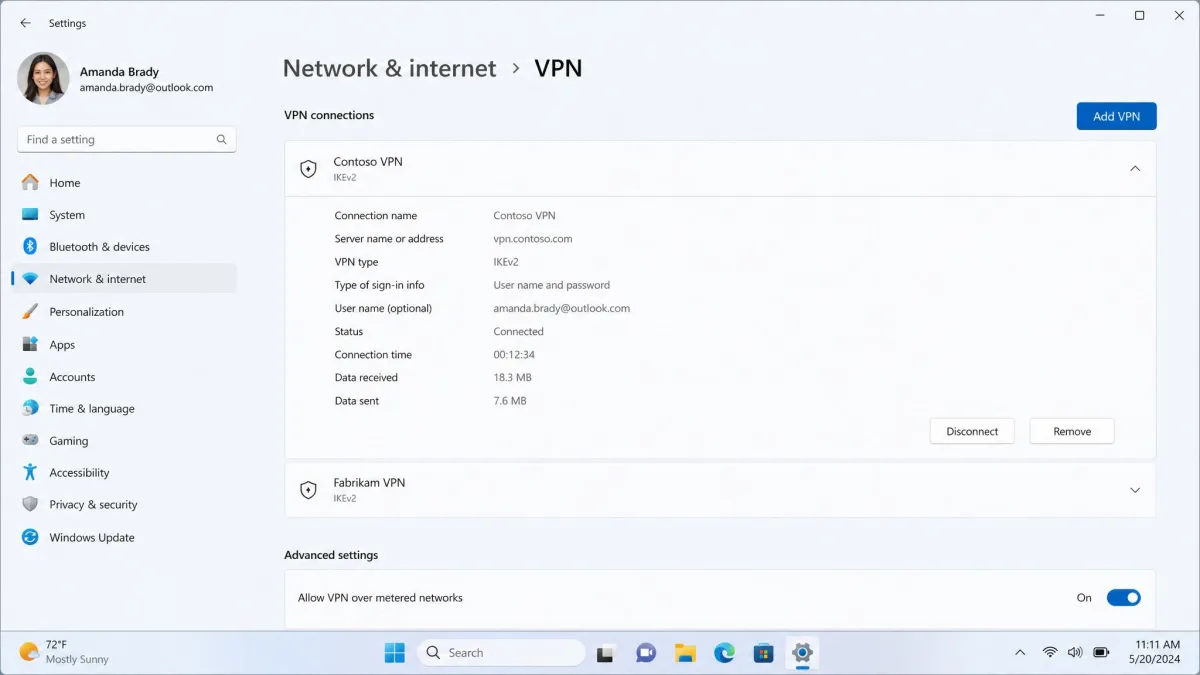
For the VPN built into Windows, open Settings > Network & Internet > VPN, select the VPN connection you want to stop, then click Disconnect. If you want it gone for good rather than just paused, click Remove or Delete on that same connection instead.
If you're running a third-party VPN app, the faster route is the taskbar. Find the app's icon in the tray in the lower-right corner of the screen, right-click it, and choose Disconnect or Quit. In our testing this is also the reliable fix when Windows 11 misbehaves: the built-in VPN screen sometimes shows no working Disconnect or Delete button, and quitting the third-party app from the tray is what actually drops the connection.
Windows separates the built-in VPN client from any VPN app you install. If toggling one off doesn't change anything, check the other. Hover the taskbar network icon and Windows shows the VPN name when a tunnel is still active.
For more detail on managing native connections, Microsoft's own Windows VPN settings walkthrough covers adding and removing profiles.
How to turn off a VPN on macOS
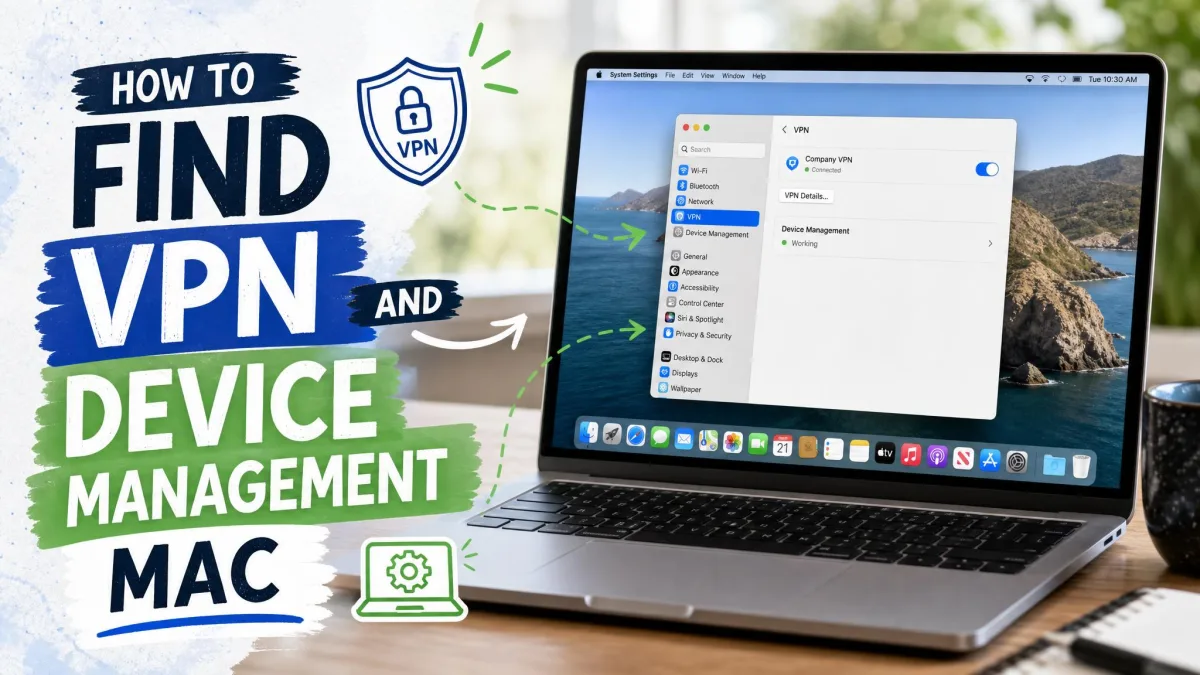
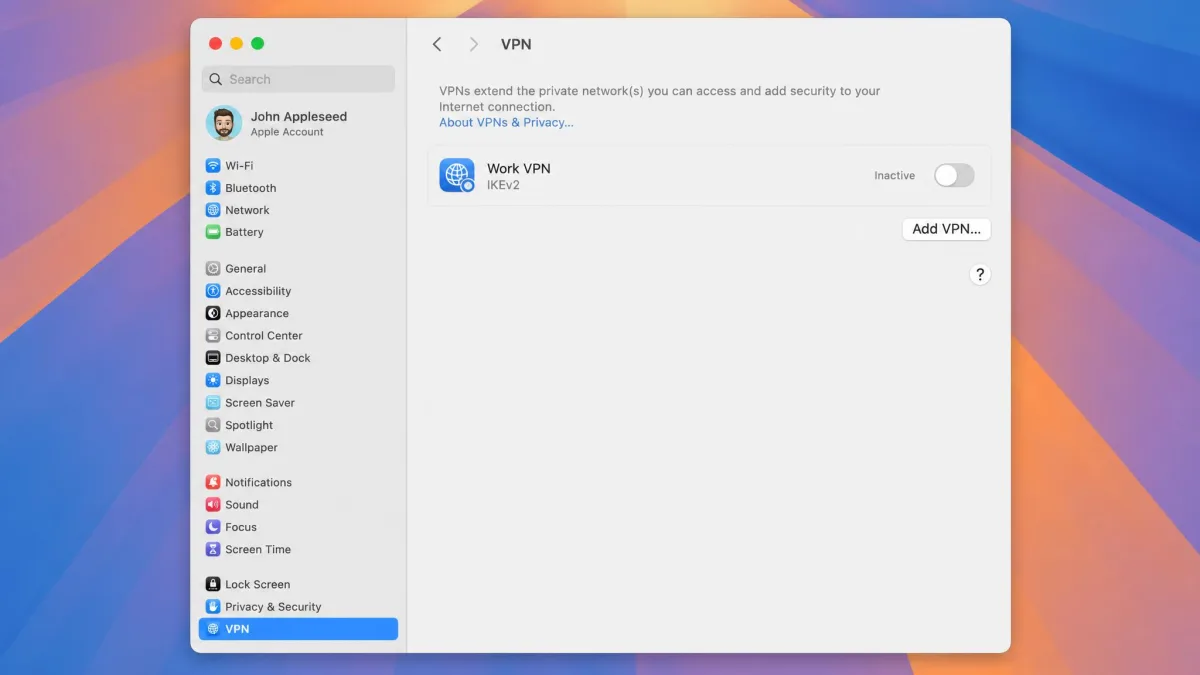
On a Mac, open the Apple menu > System Settings, click VPN in the sidebar, and toggle the connection Off. You can also click Disconnect on the specific connection if you have more than one saved. On modern macOS, from Ventura onward, this menu is called System Settings rather than the older System Preferences, so don't go hunting for the old name.
If you connect through a provider's own Mac app instead, open it from the menu bar and click Disconnect there. macOS shows a small VPN status icon in the top menu bar whenever a tunnel is live, which is a quick way to confirm you're really disconnected.
How to turn off a VPN on Android
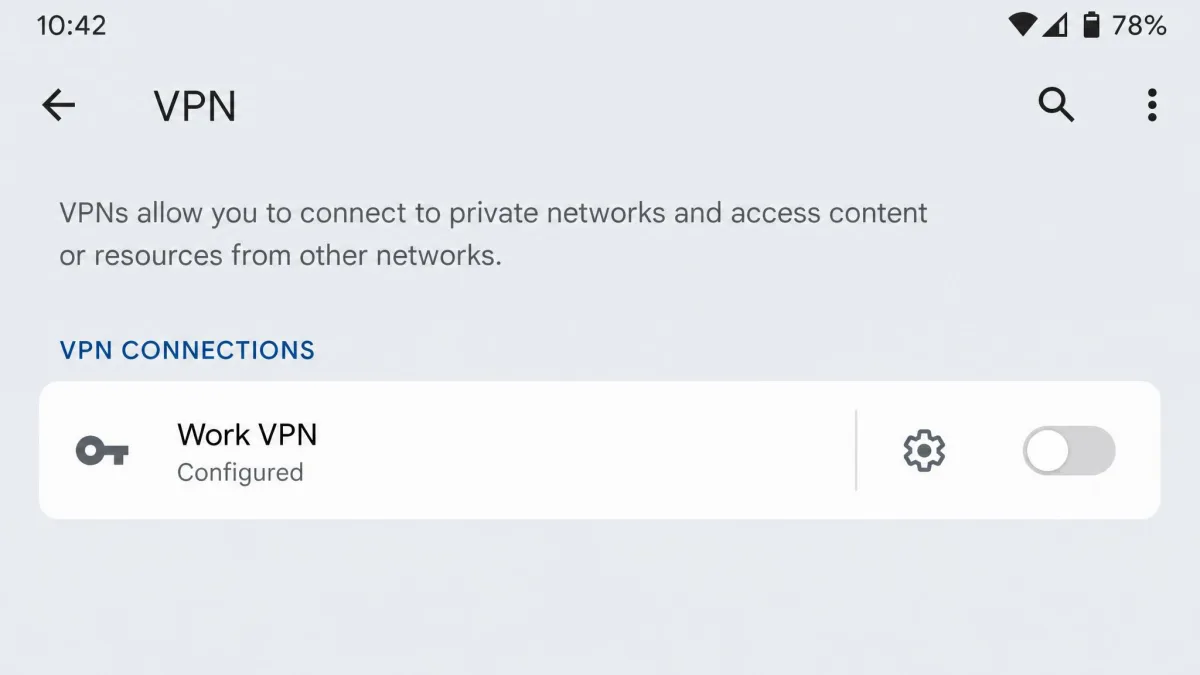
Android varies a little by manufacturer, but the path is short. Open Settings > Network & internet, which Samsung labels Connections, then tap VPN. Tap the gear or settings icon next to your VPN, and toggle it off or tap Disconnect.
If you installed the VPN as an app, opening that app and tapping Disconnect does the same job, and it's often quicker. When a VPN is active, Android shows a small key or shield icon in the notification bar at the top of the screen, so glance up there to check the connection state after you turn it off.
On a work or school phone the VPN toggle is often grayed out because a Mobile Device Management profile controls it. You can't turn that off yourself. Your IT admin has to change or remove the profile.
How to turn off a VPN on iPhone and iPad
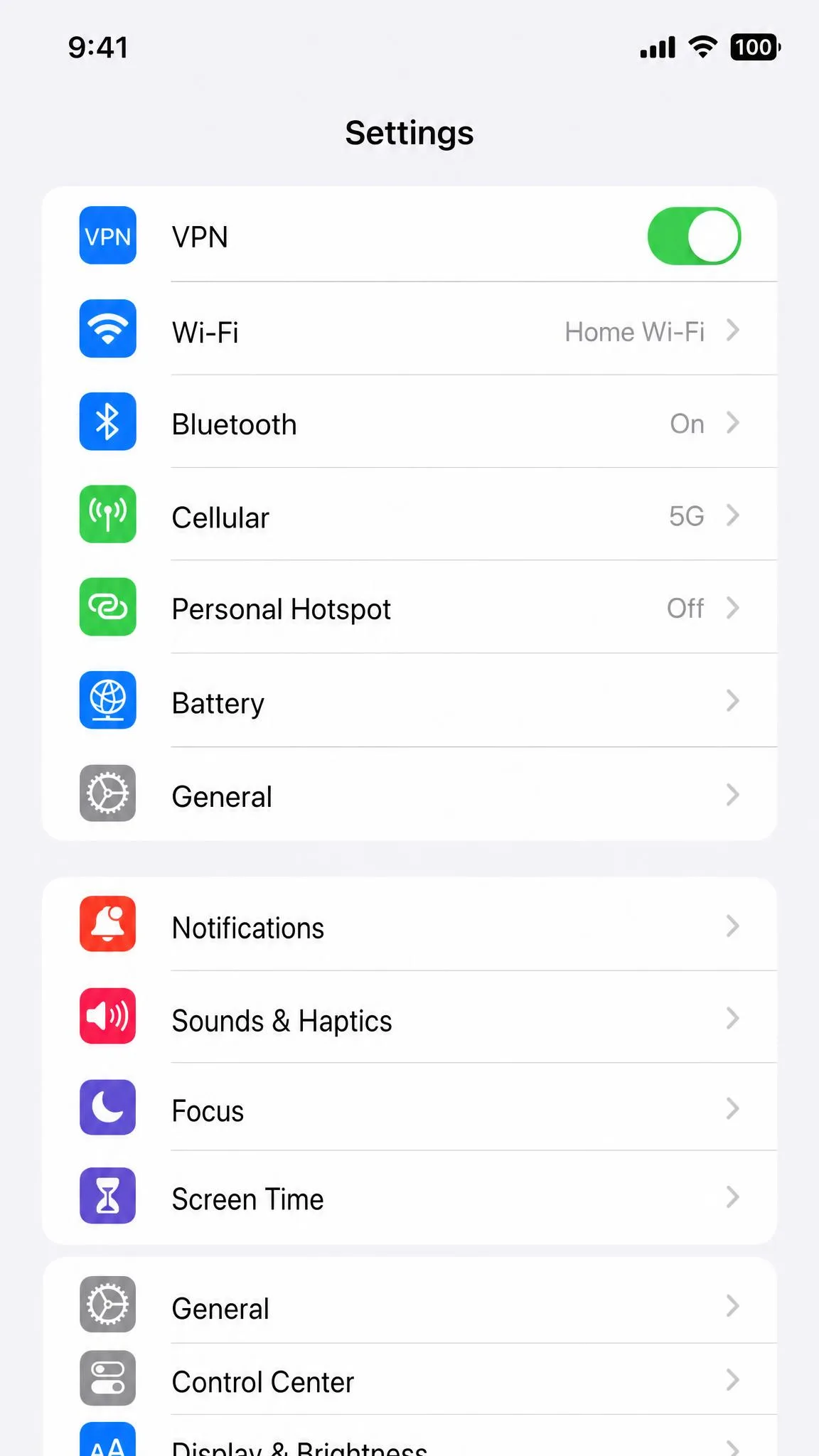
On iOS and iPadOS, open Settings > VPN and toggle the status switch to off. That's the quickest route, and it's right near the top of the main Settings list when a VPN is configured. If you'd rather use the provider's app, open it and tap Disconnect, which does the same thing.
There's a second place worth knowing about. A VPN installed by a company or school lives under Settings > General > VPN & Device Management. If you see a Mobile Device Management profile listed there, the VPN is managed, and you won't be able to disable it without IT. Apple's own iPhone Settings guidance explains where these controls sit if you can't find them.
To confirm it worked, open Control Center and look near the battery indicator: iPhone and iPad show a VPN badge whenever a tunnel is running.
How to turn off a VPN on Linux
On Ubuntu and other GNOME-based systems, open Settings > Network, or click the system and network icon in the top menu bar, find the VPN connection, and toggle it Off. The menu-bar shortcut is usually the fastest, since it drops the tunnel without opening the full Settings window.
If you started the VPN from the terminal or a provider's Linux client, stop it the same way you started it, either by disconnecting in that client or with the app's own command. After that, the network icon in the top bar should no longer show the VPN as active.
How to turn off a VPN on a router
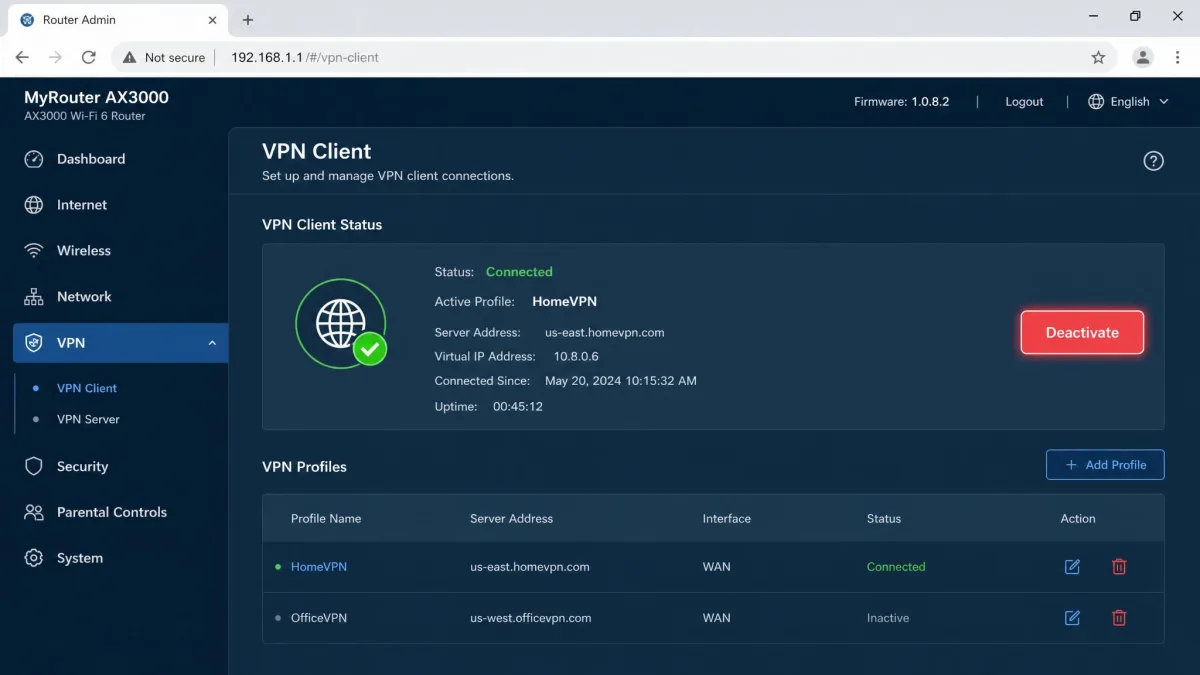
A router-level VPN protects every device on your network at once, which also means you turn it off in one place. Enter your router's IP address in a browser (commonly 192.168.1.1, though it varies by brand), log in with your admin credentials, find the VPN Client section, often under Advanced, Security, or VPN, and toggle or deactivate the client.
The exact path depends on the make. On an ASUS router running ASUSWRT, go to VPN > VPN Client tab, select the active profile, and click Deactivate. On a TP-Link Archer, open Advanced > VPN Client and toggle Enable off; on a TP-Link Deco mesh, use the Deco app under More > VPN > VPN Client and flip the master switch off. On a Netgear Nighthawk, go to Advanced > Advanced Setup > VPN Service, uncheck Enable VPN Service, and click Apply.
On some routers, disabling the VPN client kills your internet entirely, because a "block clients if the tunnel goes down" safeguard is still on. ASUS and GL.iNet ship this kind of setting, sometimes on by default. If the network goes dark after you deactivate the client, look for that tunnel-down block and turn it off separately.
How to turn off a browser-based (extension) VPN
An extension VPN only protects your browser, so you turn it off inside the browser. In Chrome, Brave, or Edge, click the puzzle-piece Extensions icon in the top-right corner, open the VPN extension, and click Disconnect. You can also go to chrome://extensions (or edge://extensions), find the VPN card, and toggle it off.
Firefox works the same way: click the Extensions puzzle icon and disconnect the VPN, or open Menu > Add-ons and extensions > Extensions and toggle it off. In Safari, open the Safari menu > Settings > Extensions and uncheck the VPN in the sidebar. Note that fully removing a Safari VPN extension can also delete its companion app from your Applications folder.
How to turn off a VPN on smart TVs and game consoles
This is where people waste the most time, because they go looking for an on-device switch that doesn't exist. Consoles and most smart TVs have no VPN app to toggle, so the connection is almost always coming from your router or a tethered device. Once you know that, the fix is quick.
On a Fire TV, open the VPN app from the Home row and Disconnect; if it's stuck, go to Settings > Applications > Manage Installed Applications and Force Stop it. On Android TV or Google TV, open the VPN app and Disconnect, or open Settings > Network & Internet and toggle the VPN off. On an Apple TV running tvOS 17 or later, open the VPN app and Disconnect, or go to Settings > General > VPN & Device Management, select the profile, and Disconnect or Delete.
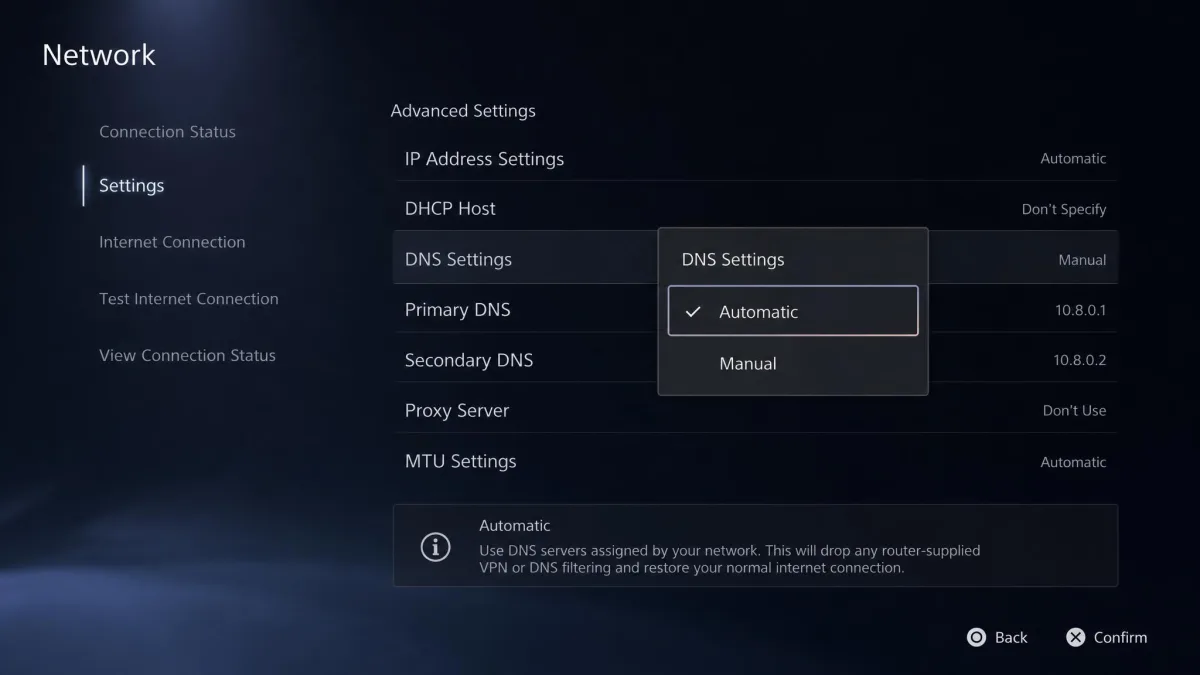
Roku and most Samsung and LG TVs have no native VPN app at all, so the VPN is running at the router level or through Smart DNS. Disable it at the router, or set the TV's DNS to obtain automatically under Settings > Network > Advanced.
Game consoles are the same story. PlayStation, Xbox, and Nintendo Switch don't run native VPN apps, so the VPN is coming from your router, a tethered PC, or Smart DNS. Turn it off at that source, or on the console change the Network DNS settings from Manual back to Automatic. The Steam Deck is the exception: in Desktop Mode, click the network icon in the bottom-right taskbar, find the VPN, and Disconnect. Do this in Desktop Mode first, because a VPN left running there often stays active after you switch to Game Mode, which quietly breaks online play.
How to check that your VPN is actually off
Don't trust the status icon alone. In our testing, the fastest way to confirm a VPN is truly off is an IP or location check in your browser rather than the icon, because the icon can lag behind the real connection state. Open any IP or location checker: if the city it shows matches where you actually are, the VPN is off; if it still shows a foreign city, the tunnel is live.
The status bar is a useful second signal. iPhone and iPad show a VPN badge near the battery in Control Center, Android shows a key or shield in the notification bar, Windows shows the VPN name when you hover the taskbar network icon, and macOS shows a VPN status icon in the top menu bar.
Sometimes the status icon lingers after you disconnect because the interface didn't refresh or a leftover configuration profile is still active. A reboot usually clears it. If it doesn't, delete the stale profile in your system VPN settings.
What to do if your VPN won't turn off
If your disconnect won't stick, one of three things is usually going on. The most common is a kill switch. It's the number-one reason the internet looks dead right after you disconnect, because it blocks all unencrypted traffic on purpose, so nothing loads until you re-open the VPN app and toggle the kill switch off.
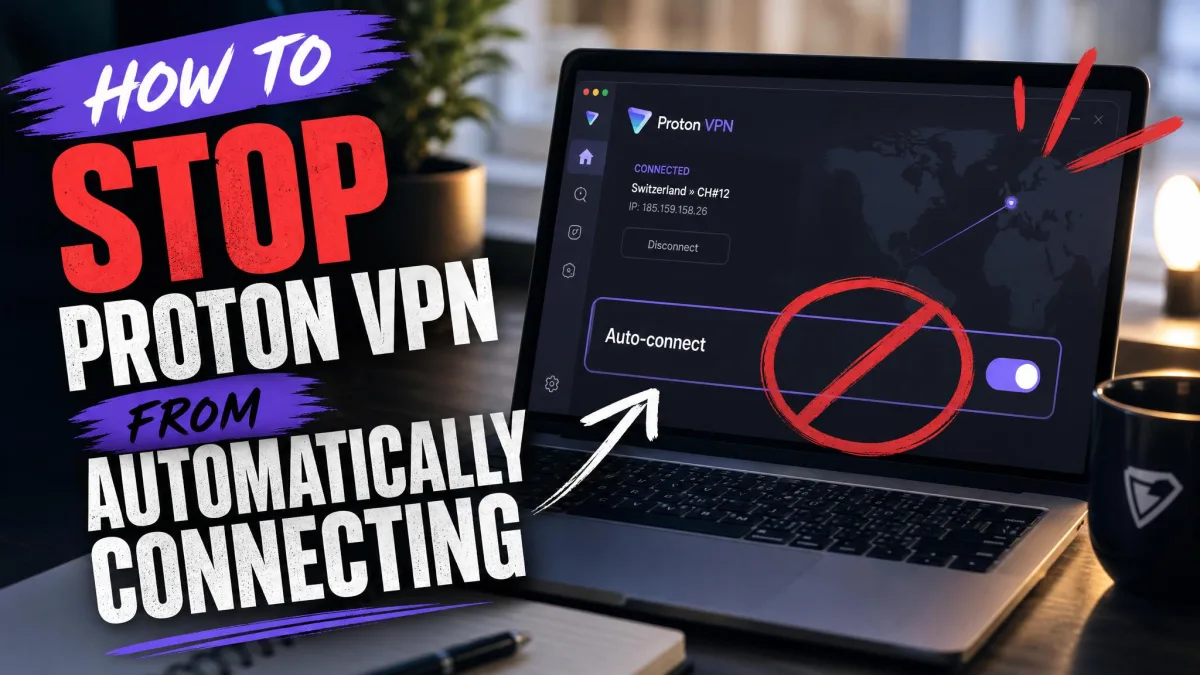
The second is auto-reconnect. Many VPN apps quietly reconnect on their own when the device wakes from sleep or switches networks, so a disconnect doesn't hold until you turn off auto-connect in two places: the app's own settings and your device's system VPN settings. The third is a managed device, where the toggle is grayed out because an IT profile controls it, and only your admin can change that.
It helps to know there are really four levels of "off." There's a timed pause that auto-resumes, a manual disconnect that may reconnect depending on always-on rules, a system-level disable, and a full uninstall. Picking the wrong one is why a VPN keeps coming back. If you want it gone for good, remove the connection or uninstall the app rather than just tapping Disconnect.
When should you turn off your VPN?
There are genuinely good reasons to switch it off for a bit. A bank or payment app may flag the foreign IP address and lock you out. A streaming service might block a VPN connection outright. A work login might only trust traffic from your home network. Local devices like a printer or a Chromecast sometimes can't be reached while the tunnel reroutes your connection. And occasionally you just want to test whether the VPN is what's slowing a download.
In most cases those are short, deliberate disconnects. Turn it off, do the one thing you need, then switch it back on.
When you shouldn't turn off your VPN
There are moments where leaving it off is the one you regret. Keep the VPN on when you're on public Wi-Fi, when you're banking or shopping, when you're handling sensitive data, and any time you're on a network you don't control. Disconnecting on public Wi-Fi or while signed into sensitive accounts is exactly when people get burned, because your traffic goes unencrypted and your real IP is exposed the instant the tunnel drops.
Turning the VPN off exposes your real IP address and sends your traffic unencrypted, which raises your exposure to tracking, snooping, and ISP throttling, especially on networks you don't trust. If your only reason to disconnect is to reach one app or site, you probably don't need to drop protection everywhere.
Alternatives to turning off your VPN (split tunneling)
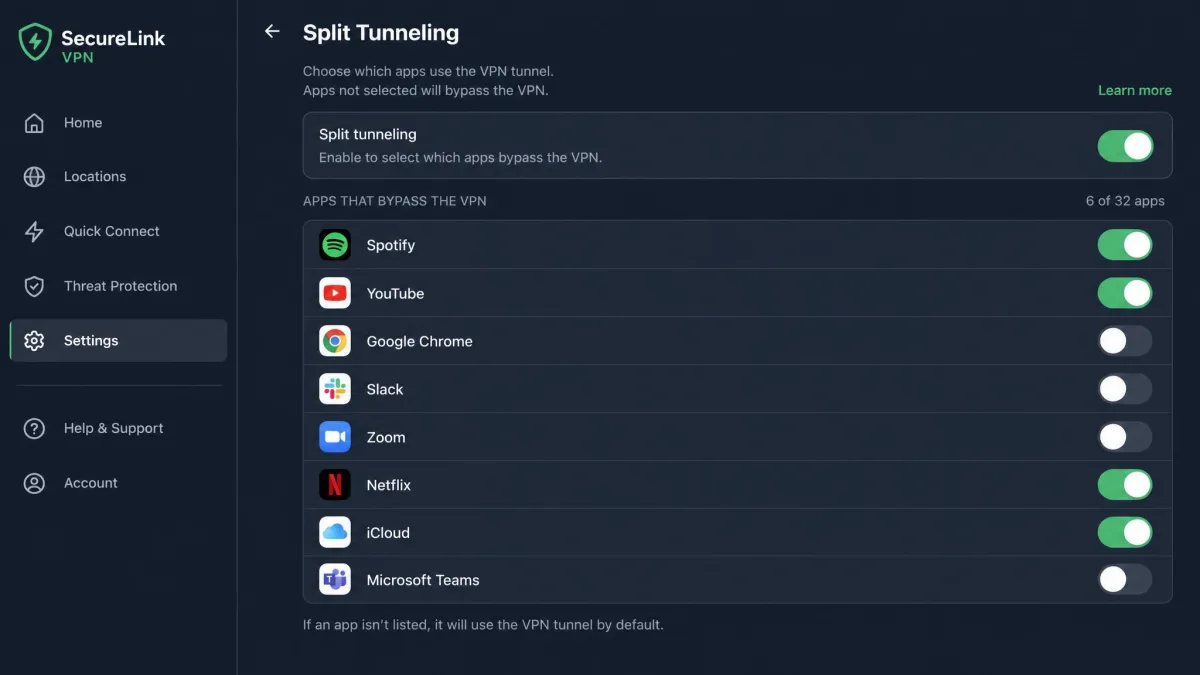
Split tunneling is the fix most people are actually looking for. Instead of fully disabling the VPN, it routes some apps or sites outside the tunnel while keeping everything else encrypted. So you can reach a local printer, a banking app, or a work login without dropping protection across your whole device.
Most major VPN apps include split tunneling in their settings, usually under a name like Split Tunneling, Bypass, or App Exceptions. Add the one app that's giving you trouble to the exception list, and you get the best of both: that app connects directly while the rest of your traffic stays protected.
Before you disable a VPN to fix one stubborn app, check whether the app supports split tunneling. It's usually a two-minute setting change, and you never have to remember to switch protection back on.