An iPad can drive an external monitor or TV over a cable, send its picture wirelessly over AirPlay, and act as a second display for a Mac. This guide covers all three, the gear each one needs, and how to set up a real second screen instead of a mirrored copy.
Most of the friction happens in the first five minutes, usually over the wrong adapter or the wrong monitor input. We have set this up on both USB-C and Lightning iPads, so the fixes below are the ones that actually cleared a black screen for us.
How to Connect Your iPad to a Monitor With a Cable
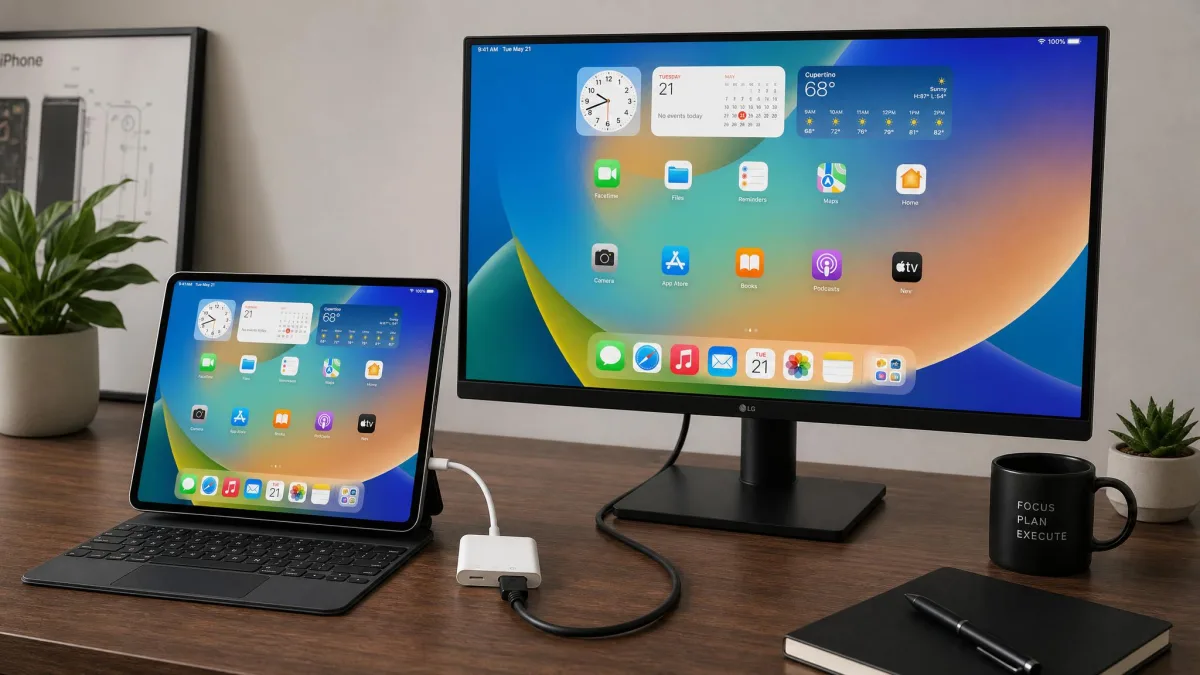
A wired connection is the most reliable option, and the only one that gives you a genuine second screen. Apple's own cable guidance covers the short version: connect your iPad to a display with a cable.
Step 1: Identify your iPad's port
Look at the bottom edge of your iPad. A wide, oval port is USB-C, and a smaller flat port is Lightning, which changes everything about what the connection can do.
Step 2: Choose the right cable or adapter
If your monitor has a USB-C input, a single USB-C or Thunderbolt cable is all you need. For an HDMI monitor, choose the Apple USB-C Digital AV Multiport Adapter, which outputs 3840 x 2160 at 60Hz on iPad Pro models with USB-C. On a Lightning iPad, the Apple Lightning Digital AV Adapter mirrors the iPad screen to HDMI at up to 1080p.
Cheap unbranded adapters often fail to pass any video at all. When a connection refused to work for us, swapping to a certified USB-C hub was what finally put a picture on the screen.
Step 3: Connect and switch the monitor's input
Plug the cable in at both ends, then press the monitor's input or source button and select the port you used. A monitor sitting on the wrong input looks exactly like a dead connection.
Step 4: Adjust the display settings
Open Settings, tap Display & Brightness, and turn mirroring off if you want the extra room. To send windows to the monitor, open Settings, tap Multitasking & Gestures, and turn on Stage Manager on the External Display tab.
What You Need Before You Start
Make sure the iPad, the cable and the monitor all agree before you buy anything, because most failed setups trace back to a mismatch in this list.
Check which iPad you have (USB-C vs Lightning)
USB-C iPads can extend the workspace onto a second display. Lightning iPads mirror only and cannot extend, so a Lightning model will never give you two independent screens no matter which adapter you use.
Stage Manager on an external display arrived in iPadOS 16.2, and the full external Display settings appear on a 16:9 monitor with a native resolution of 1920x1080 or greater. Extended-display support has widened with newer iPadOS releases, so an older compatibility list may not match what your iPad actually offers.
Cables, adapters, and what each port supports
HDMI 2.0 adapters top out at 4K at 60Hz on newer iPads, or 4K at 30Hz on older USB-C iPads. A VGA adapter carries video only, so silence from the monitor is expected behavior rather than a fault. Output ceilings vary by model, roughly 4K on iPad Air 4th generation and iPad 10th generation and up to 6K on current M-series models, so check your own iPad rather than assuming the top figure.
| Method | Max resolution | Refresh rate | Latency | Extend or mirror |
|---|---|---|---|---|
| Direct USB-C or Thunderbolt | Up to 6K on M-series iPads | 60Hz, up to 120Hz on the newest iPad Pro | Lowest | Extend with Stage Manager |
| HDMI or Lightning adapter | 3840 x 2160 over USB-C, 1080p over Lightning | 60Hz newer iPads, 30Hz older | Low | Lightning mirrors only |
| AirPlay, wireless | Set by the receiver, 1080p to 4K | Varies | Noticeable | Mirror only |
How to Connect Your iPad to a Monitor Wirelessly
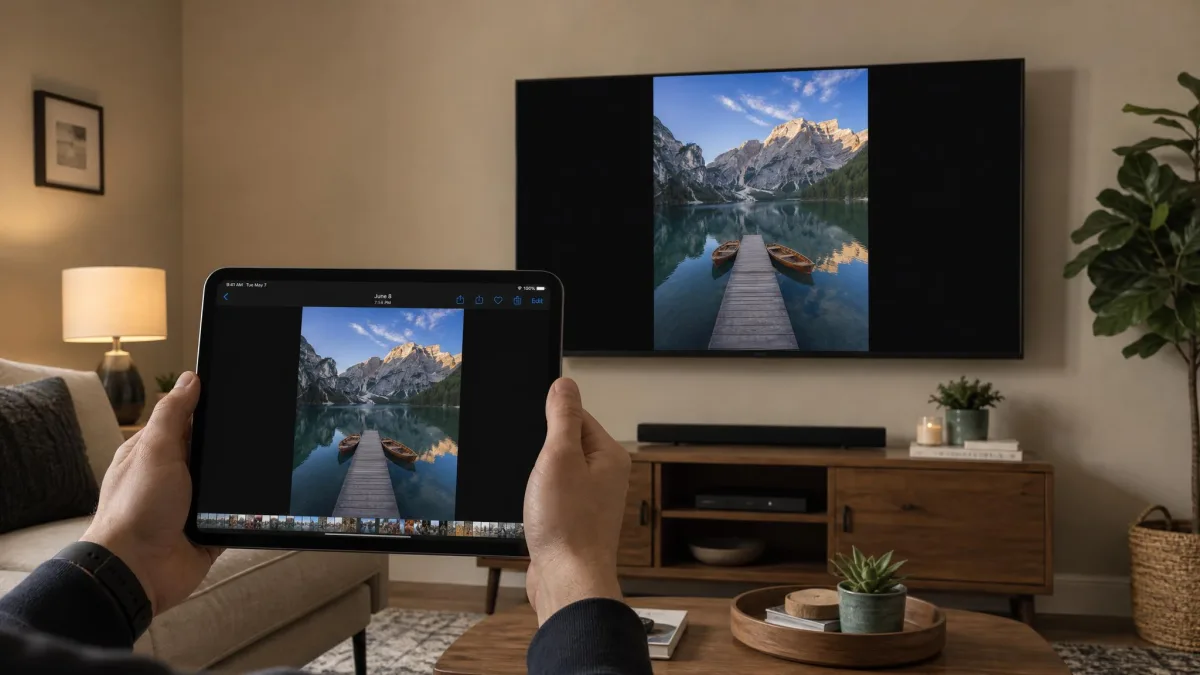
Going wireless skips the cable, at the cost of some responsiveness. It mirrors rather than extends, so treat it as a way to put your iPad screen on a bigger screen, not as a workspace upgrade.
Using AirPlay with an Apple TV or AirPlay-capable display
Put the iPad and the receiver on the same Wi-Fi network first. Most AirPlay failures we have hit were a network mismatch, and confirming both devices sit on the same Wi-Fi, then restarting the receiver, cleared them.
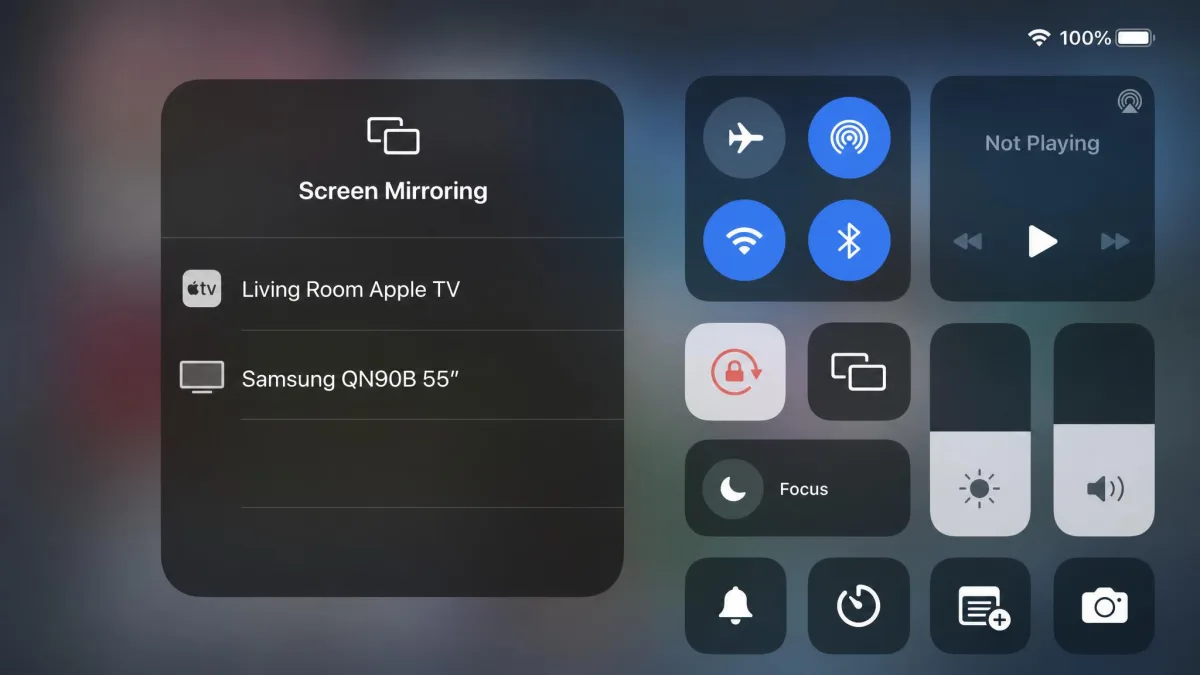
Screen mirroring from Control Center
Swipe down from the top-right corner to open Control Center, tap Screen Mirroring, and choose your Apple TV, smart TV or Mac. Enter the four-digit code if the receiver shows one, and the connection holds until you tap Stop Mirroring.
Mirror vs. Extend: Which Display Mode to Use
Mirroring keeps the iPad's aspect ratio, so a 16:9 monitor shows thick black bars down both sides, and no display setting removes them while you are mirroring. Only apps built for a widescreen ratio fill the whole monitor, and in practice that is mostly video and streaming apps, and only while media is playing.
Extending is the fix, because it gives the monitor its own space, though interacting with that space realistically needs a mouse or trackpad connected to the iPad.
Using Stage Manager on an External Display
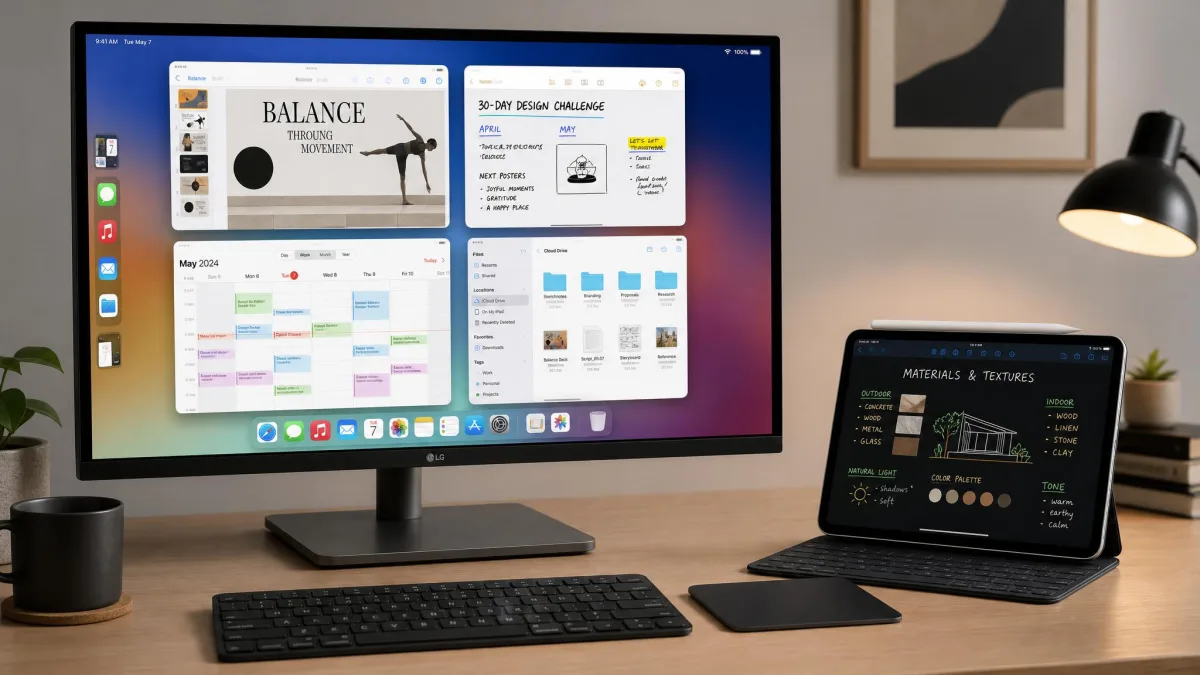
Stage Manager is what turns the monitor into a real workspace. It supports an external display at up to 6K resolution and runs up to 8 apps at once across the iPad screen and the monitor, and Apple's guide to Stage Manager on an external display covers the gestures.
Resizing and arranging app windows
Drag the curved handle at a window's bottom-right corner to resize it, then drag the window by its top edge to move it. Overlapping windows stack, and tapping one brings it forward.
Moving apps between the iPad and the monitor
Drag a window off the edge of one screen and it lands on the other. If no keyboard or mouse is connected, or the Continue button never appears, Stage Manager stays out of reach and the iPad falls back to plain mirroring.
How to Use Your iPad AS a Monitor for a Mac (Sidecar)
Sidecar runs the other direction, turning the iPad into a second display for your Mac computer at no extra cost.
Sidecar requirements
Sidecar requires a compatible Mac running macOS Catalina or later and a compatible iPad running iPadOS 13 or later, and Apple lists the rest under Sidecar's system requirements. That covers all iPad Pro models, iPad 6th generation or later, iPad Air 3rd generation or later, and iPad mini 5th generation or later. Both devices need the same Apple Account with two-factor authentication, plus Bluetooth, Wi-Fi and Handoff turned on for wireless use.
Setting up and positioning the iPad display
Click the Screen Mirroring icon in the Mac menu bar and select your iPad, then choose whether to extend or mirror the desktop. Wireless Sidecar needs the two devices within 10 meters of each other, so keep the tablet on the same desk. You can also plug in over USB-C for a steadier connected session, and the Apple Pencil works on the iPad screen if you want pen input.
Third-Party Apps for Using an iPad as a Display
Sidecar works only with a Mac, and iPad software is locked down enough that using the tablet as a display for a Windows PC means buying third-party software. Duet Display covers Mac and Windows over a cable or Wi-Fi, with a Pro tier at $24.99 per year, though plan naming and regional pricing vary.
Troubleshooting: When Your iPad Won't Connect
A black or no-signal screen usually clears by reseating the adapter at the iPad end, power-cycling the monitor, and confirming the monitor is on the right input.
Flicker and lag on a wired connection usually trace back to an under-spec cable, and a cable rated for 4K at 60Hz settles it.
If the external display keeps dropping out, the iPad is auto-locking, so change the auto-lock timing in Display & Brightness.
Driving a high-resolution monitor speeds up battery drain noticeably. A hub with USB-C power delivery keeps the iPad charging while it is connected, which is worth having for a long working session.
Limitations to Keep in Mind
An iPad drives only one external display at a time, so a dual-monitor desk is out. Not every app cooperates with the extended layout either, and some always mirror no matter what the display settings say.
Protected streaming content needs an HDCP-compatible connection, and some apps block playback on an external screen outright. AirPlay also adds enough latency that it is poor for drawing, fast cursor work or color-critical work, while a direct USB-C connection stays responsive.
Frequently Asked Questions
Can I use any monitor with my iPad?
Do I need a special app to extend my iPad screen?
Can I use my iPad as a second monitor for my computer?
What if my monitor has no HDMI port?
Can I connect wirelessly without an Apple TV?
Will all apps work on the second screen?
Final Thoughts
For a real workspace, use a USB-C cable and turn on Stage Manager. For putting a video on the big screen, AirPlay is quicker to set up and good enough. And if the monitor stays black, check its input before you blame the iPad, because that one step solves it more often than anything else.