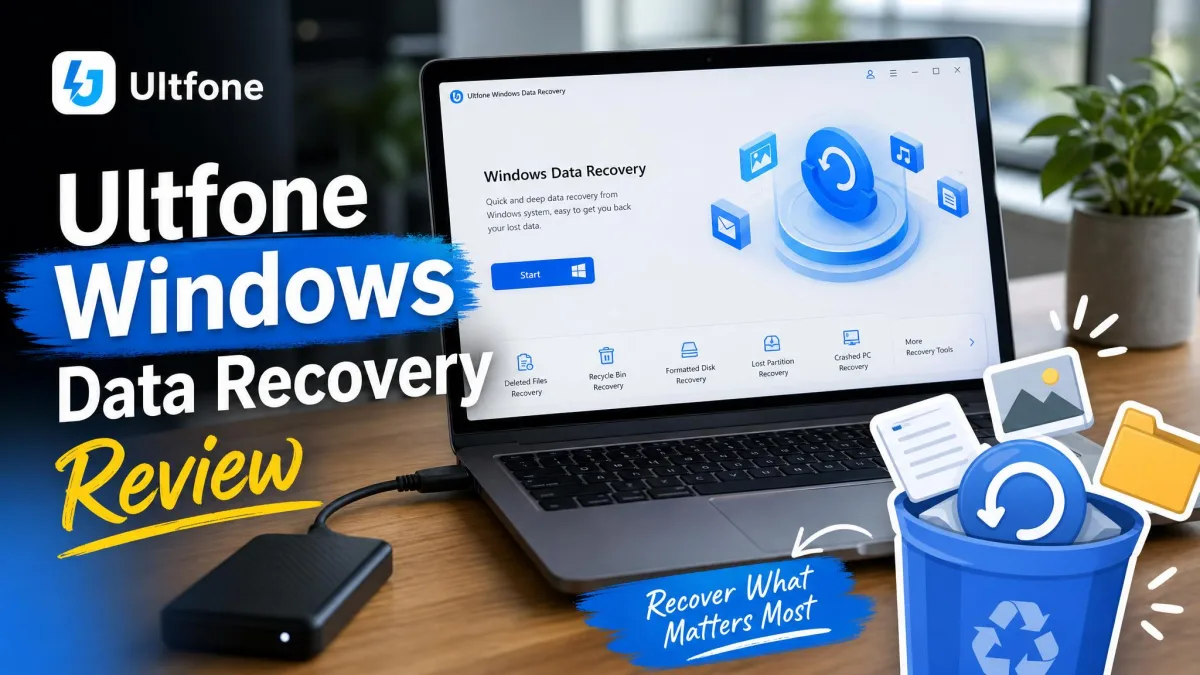
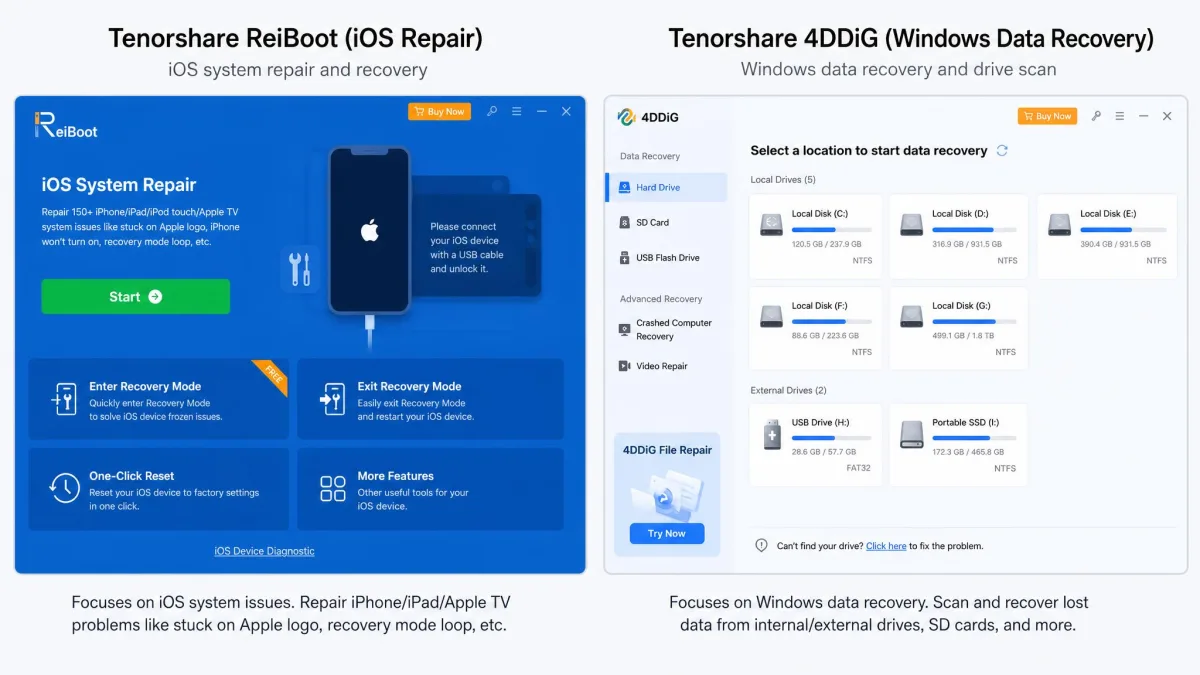
Tenorshare 4DDiG for Windows is a paid file recovery app that scans a Windows drive, SD card or USB stick and pulls back deleted, formatted or otherwise missing files. It is not Tenorshare ReiBoot, which is the same company's iOS repair tool and recovers nothing at all from a Windows disk. People search for the two together constantly, so we will settle that first. Our short verdict after putting version 10.8.2 through simple deletions, formatted media and a corrupted RAW volume: 4DDiG is quick, easy to use and genuinely good at recent deletions, but it is weaker on damaged drives than its marketing suggests, and its auto-renewing licence needs watching.
What Is Tenorshare 4DDiG for Windows?
4DDiG is Tenorshare's consumer data recovery application for Windows. You point it at a drive, a partition, a memory card or a folder, it scans for recoverable file records, and it shows you what it found before you pay to restore anything. The current release is version 10.8.2, published in April 2026, and it runs on Windows 11, 10, 8 and 7.
The scope is wider than plain undelete. 4DDiG reads NTFS, FAT32, FAT16, exFAT, EXT4, EXT3, EXT2 and HFS/HFS+ volumes, covers network-attached storage and BitLocker-encrypted drives, and can build bootable WinPE media for a machine that no longer starts. The requirements are undemanding: 512MB of RAM, a 1GHz processor and 200MB of free disk space. The interface ships in 16 or more languages.
Install 4DDiG on a different drive from the one you are recovering. The installer only needs 200MB, but every byte written to the affected volume is a byte that could land on the file you want back.
ReiBoot vs 4DDiG: Which Tenorshare Tool Do You Actually Need?
ReiBoot and 4DDiG are frequently confused because both are Tenorshare products with Windows installers and similar branding. They solve completely different problems, and it is worth two minutes to be sure which one you need.
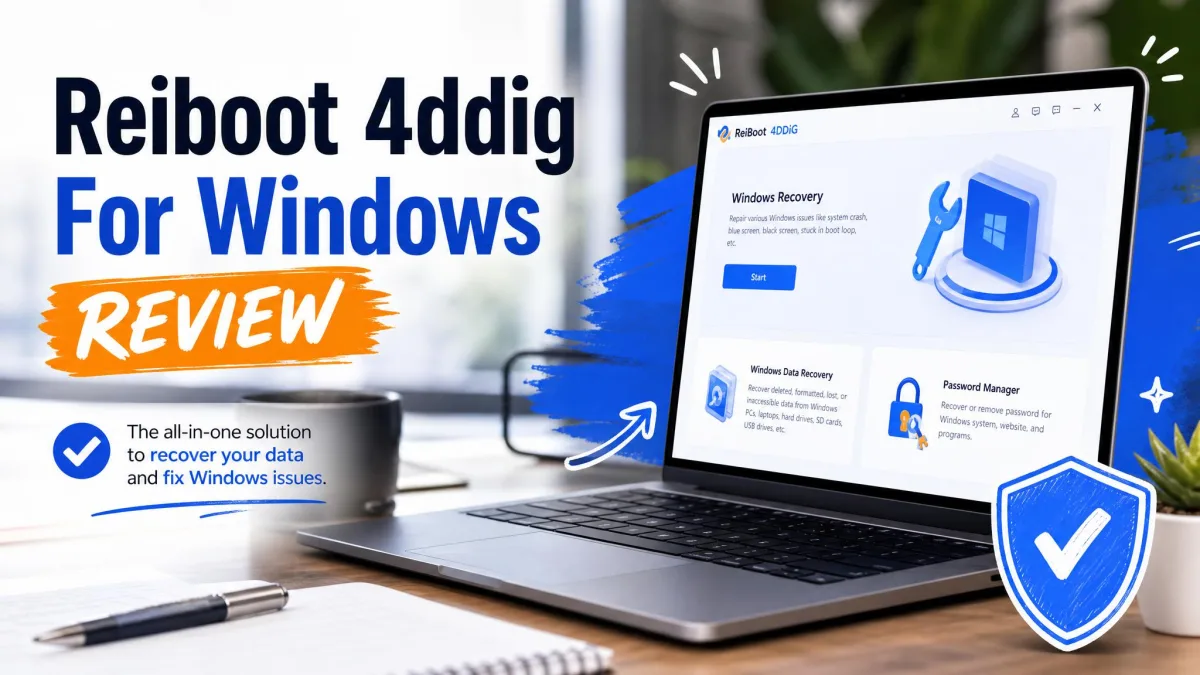
Tenorshare ReiBoot is an iOS and iPadOS system repair utility. It fixes boot loops, a stuck Apple logo and frozen screens, and it advertises repairs for 150 or more iOS system faults. It offers Standard Repair, which keeps your data, Deep Repair, which may erase it, and DFU Repair for the worst cases. Entering and exiting iOS recovery mode is free in the unpaid version, and the paid product carries a 30-day money-back guarantee. It runs on Windows 11, 10, 8.1, 8 and 7 in both 32-bit and 64-bit builds, plus macOS, but that Windows install is only the host for an iPhone repair session. It recovers nothing from a Windows disk. Our separate Tenorshare ReiBoot review covers that product on its own terms.
4DDiG is the one you want if files have gone missing from a PC, an external drive, a USB stick or a camera card. The rule of thumb: if the broken thing is an iPhone, look at ReiBoot. If the broken thing is a drive, look at 4DDiG.
How We Tested 4DDiG
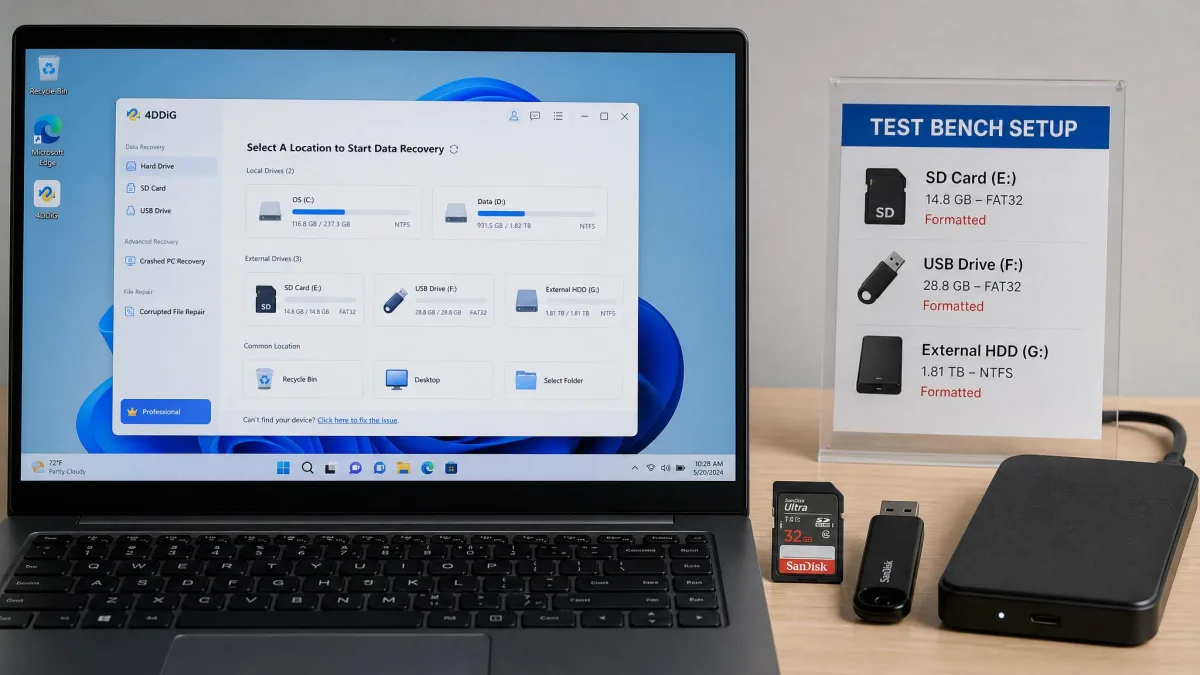
We installed 4DDiG on a Windows 11 test machine and worked through the scenarios that actually send people looking for recovery software, in the order they usually happen. Simple deletion first, then an emptied Recycle Bin, then a quick-formatted SD card, then a corrupted USB volume that Windows reported as RAW. We checked drive health with CrystalDiskInfo before each pass, so we knew we were measuring software behaviour rather than a dying disk.
For each scenario we recorded how much came back, whether the recovered files opened cleanly, and whether names and folder structure survived. That last measure gets skipped in a lot of reviews, and it is the difference between a ten-minute restore and an evening of manual sorting.
The first-launch flow is the smoothest in this category. You install it, pick a drive and scan, with no configuration screens in the way. Scans on modest volumes finish in seconds, and a 200GB system drive scan stayed under 20% CPU with roughly 250MB of memory in use, so the machine remained usable throughout. Scans can also be paused and resumed, and sessions can be saved, which makes a multi-hour deep scan on a large drive practical rather than a day lost.
Stop writing to the affected drive before you scan. Do not install the recovery app onto it, do not save downloads to it, and if the drive holds your Windows install, shut down and recover it as a secondary disk on another PC.
Key Features
With that testing method in place, here is what the software actually offers. 4DDiG's feature list is broad for a consumer tool: quick and deep scan modes, preview before recovery, recovery while a scan is still running, smart filtering of results, AI photo and video repair, bootable WinPE media, direct saving to OneDrive or Google Drive, NAS recovery and BitLocker support. Here is how the parts that matter behaved.
Deep Scan and File Preview
The quick scan reads the file system records and is near instant on a healthy volume. The deep scan matters when those records are gone, and it falls back to file carving, which identifies files by their signatures rather than by any directory entry. That works, and it is why formatted media returns anything at all. It also explains the biggest practical annoyance in this product: carved files arrive without their original names or folder hierarchy, as generically named items you have to sort by hand.
Preview is the feature to lean on hardest, because it is your only pre-purchase evidence. It is also uneven. The pane can be slow, and it has frozen mid-session on large result sets. More importantly, some file types will not open in the unlicensed build until a licence is applied, which is exactly when you most want proof that the file is intact. There is no integrity indicator on results either, so a recovered file's condition is only knowable once you open it.
Tenorshare claims support for 2,000 or more file types. Treat that as a marketing figure: the supported-format count is generous accounting, and several modern camera RAW and professional video codecs are not in fact handled.
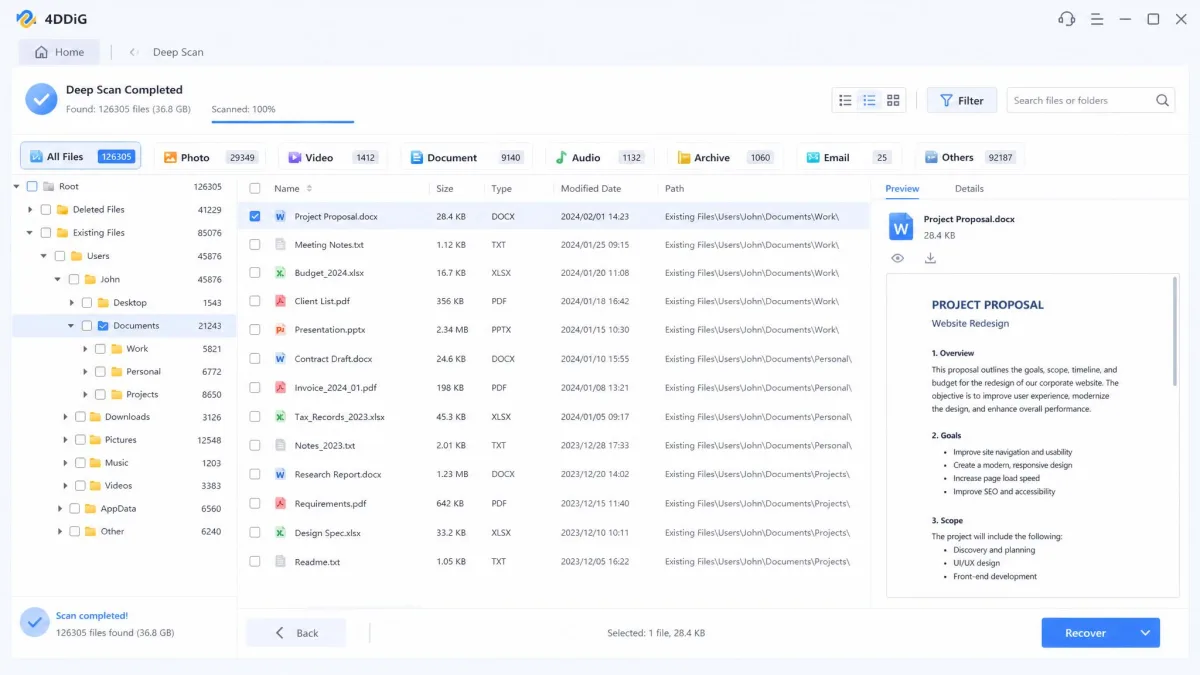
Photo and Video Repair
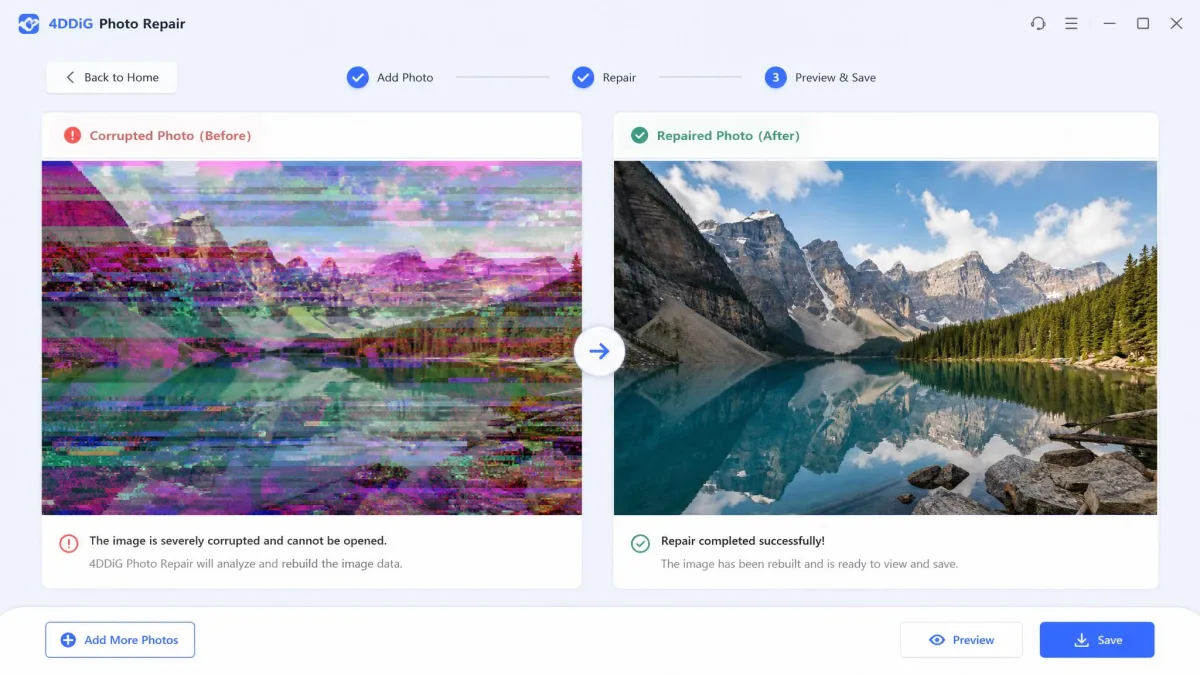
4DDiG bundles a repair module that rebuilds photos and video files damaged rather than merely deleted. It is a genuine differentiator at this price, since Stellar Data Recovery only offers repair at its Premium tier and EaseUS does not include it in the core product at all.
The caveat is format coverage. Modern camera RAW formats such as CR3, RAF, ORF and RW2 are handled poorly or not at all, which matters if you are a photographer scanning card media. JPEG and standard MP4 material is where this module earns its keep, and codecs like ProRes and RED are outside its range.
Bootable Recovery for Crashed PCs
If Windows will not start, 4DDiG builds a WinPE USB stick you boot from to reach the drive. It works, and it gives you a usable path into an unbootable install. Most consumer-tier rivals reserve that capability for their more expensive tiers, so finding it in the standard 4DDiG licence is a real advantage.
Cloud Save and Export Options
Recovered files can be written straight to OneDrive or Google Drive instead of a local folder. That sounds like a convenience feature and is actually a safety feature. It avoids the classic mistake of restoring files back onto the same drive you are recovering from, which can overwrite the very data still waiting to be found.
Recovery Performance: What It Actually Got Back
Deleted files and emptied Recycle Bin
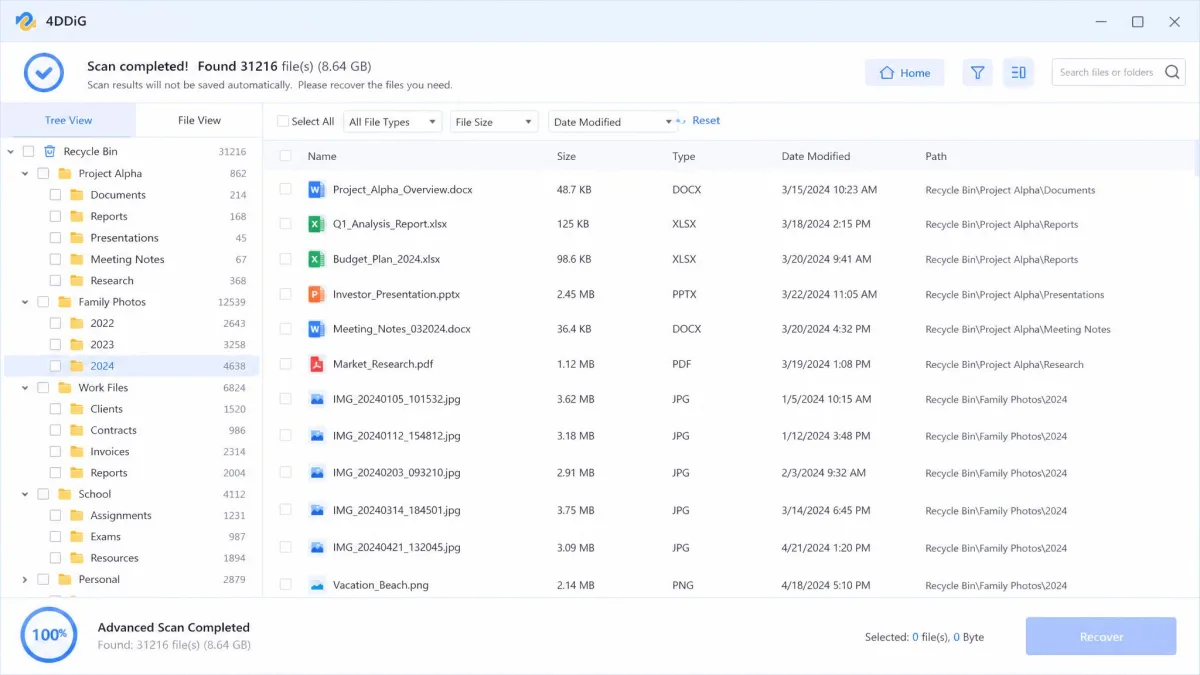
This is 4DDiG at its best. Recently deleted files and emptied Recycle Bin contents come back reliably, with names and folders intact, because the file system records are still there to read. Recovery from a hard drive runs at about 82% of deleted files, which is what a healthy NTFS volume with nothing overwritten should give you. For the everyday "I deleted the wrong folder yesterday" case, this tool does the job well.
Formatted and RAW drives
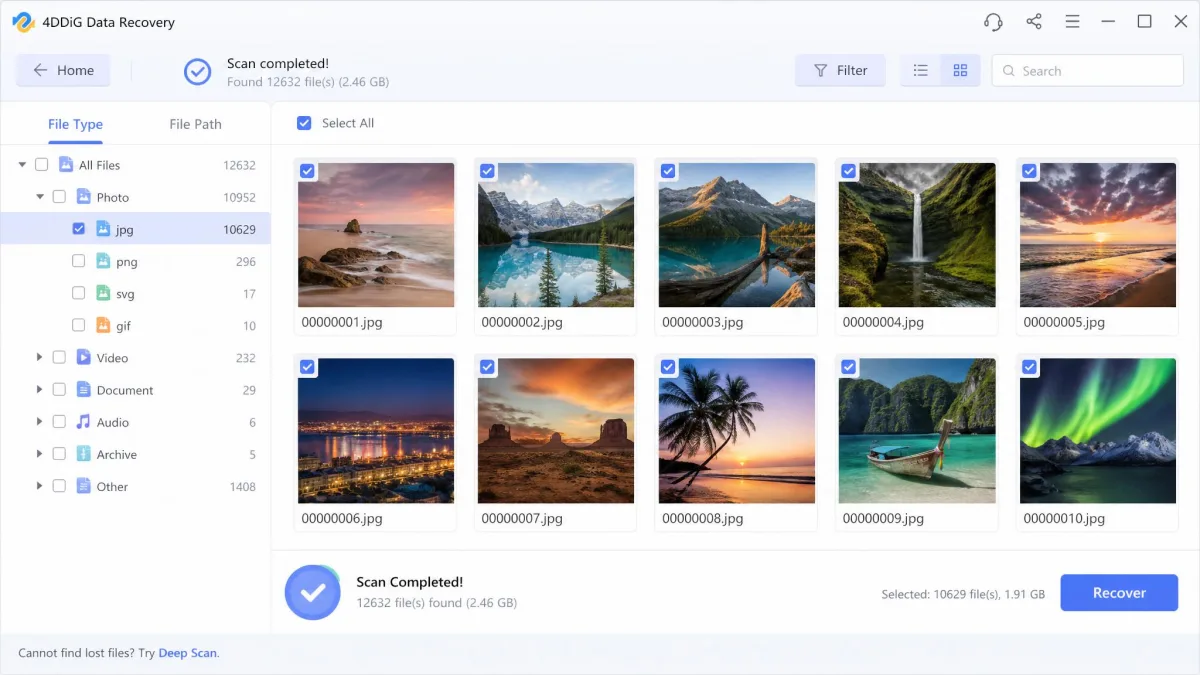
Results fall off here, exactly as the technology predicts. A quick-formatted SD card returned about 61% of its contents. A corrupted USB drive showing as RAW returned about 58%. Files recovered from a formatted USB drive opened correctly, but they came back without their original names, so identifying them meant opening each one.
When a partition is damaged the scan drops to raw signature carving, and 4DDiG has no lost-partition search to fall back on. Rivals that can rebuild a missing partition table will beat it on this class of failure.
USB drives and SD cards
Removable media behaves like the formatted-drive case, because that is usually what has happened to it. Cards pulled from cameras and phones scan quickly, and JPEG and MP4 material comes back well. RAW photo formats are the weak spot, and card media is where photographers meet it.
The recovery is the easy part. The subscription is the part that catches people out, so buy the lifetime licence and there is nothing left to cancel.
— From our Windows recovery testing
Why SSD recovery rates lag hard drives
This is not a 4DDiG failing, and no recovery product escapes it. On a modern SSD with TRIM enabled, the drive proactively wipes the blocks behind a deleted file within seconds, so there is nothing left to carve. On a mechanical hard drive, deletion only removes the pointer, and how Windows handles deleted files leaves the contents sitting in place until something else claims the space. That is the whole reason recovery works at all.
In practice, deleting a file on an internal SSD with TRIM active usually leaves nothing to find. A scan can run to completion and still return almost none of the deleted data, and that is a limit of the storage layer rather than a fault in the scanner. The exceptions are worth knowing: recovery odds improve when TRIM never reached the drive because of a crash or a power loss, when TRIM has been switched off, or when the drive is an external SSD over USB, since USB enclosures frequently do not pass TRIM through at all. Deletions on those external drives come back far more often than the same deletion on an internal NVMe disk.
We cannot give you an SSD recovery percentage for 4DDiG, and we are not going to invent one. Every hands-on figure we have, our own included, comes from a mechanical hard drive, a USB flash drive or a microSD card, and SSD outcomes hinge entirely on whether TRIM has already fired on the blocks you want back. No single number describes that. So expect strong results on hard drives, memory cards and USB sticks, treat any SSD recovery as a bonus, and do not buy a recovery licence of any brand on the strength of an SSD promise.
Tenorshare advertises a 99.8% recovery success rate. Measured results land far below that figure, so treat 99.8% as a marketing ceiling rather than an expected outcome.
Pros and Cons
Pros
- Recovers recent deletions and emptied Recycle Bin contents reliably, around 82% on a hard drive
- The smoothest first-launch flow in this category, with no configuration to work through
- Light on resources: under 20% CPU and roughly 250MB of memory scanning a 200GB drive
- Bootable WinPE media included in the standard licence, not held back for a higher tier
- Photo and video repair built in, which rivals charge extra for
- Save recovered files directly to OneDrive or Google Drive
- Pause, resume and save scan sessions on long deep scans
- 30-day money-back guarantee
Cons
- Recovered files often lose their original names and folder structure
- No lost-partition search, so damaged partitions drop straight to raw carving
- No bad-sector detection and no disk imaging, so a failing drive keeps being read directly
- Weak coverage of modern camera RAW formats and professional video codecs
- Monthly and annual licences auto-renew by default
- Free build's recovery allowance is disputed and may be zero
- No integrity indicator on recovered files
- Licence is tied to one PC, and moving it needs a support request
Pricing and Plans (Is 4DDiG Free?)
Set against that recovery record, the price is the next question. Tenorshare lists three consumer options for one PC: $45.95 for a 1 Month License, $59.95 for a 1 Year License and $79.95 for a Lifetime License. List prices are higher at $89.95, $99.95 and $119.95, and the discounted figures are the ones on the buy page day to day. Business licensing starts at $89.95 for up to five PCs. Promotional pricing shifts, so check the current figure before you commit.
The lifetime licence is the one that makes arithmetic sense, at $20 more than a single year and a one-time payment rather than a subscription. If you are recovering one drive and never touching the software again, the monthly plan is the cheapest way in, provided you cancel it.
So is 4DDiG free? Not in any way you should plan around. The free build scans and previews, which is genuinely useful, because it tells you whether your files are recoverable before you pay. What it recovers without a licence is another matter. The free allowance varies by build and promotion, and several 2026 tests found the unlicensed app recovers nothing at all. Treat the free version as a diagnostic, not as a way to get your files back for nothing.
| Licence | Price | Renews |
|---|---|---|
| 1 Month License, 1 PC | $45.95 | Automatically |
| 1 Year License, 1 PC | $59.95 | Automatically |
| Lifetime License, 1 PC | $79.95 | One-time payment |
| Business, up to 5 PCs | From $89.95 | Varies |
Subscription, auto-renewal and cancellation
The monthly and 1 Year plans are auto-recurring subscriptions by default, and unexpected renewal charges are a recurring source of billing disputes around this product. The lifetime licence is the only option that cannot surprise you later.
Cancelling is not a one-click action inside the app. Auto-renewal is stopped either through the payment platform you used at checkout or by contacting Tenorshare support directly. Refund handling can be slow, and cancellation requests have been recorded as not taking effect before the next charge landed. Tenorshare offers a 30-day money-back guarantee, and approved refunds return to the original payment method in 2 to 4 working days.
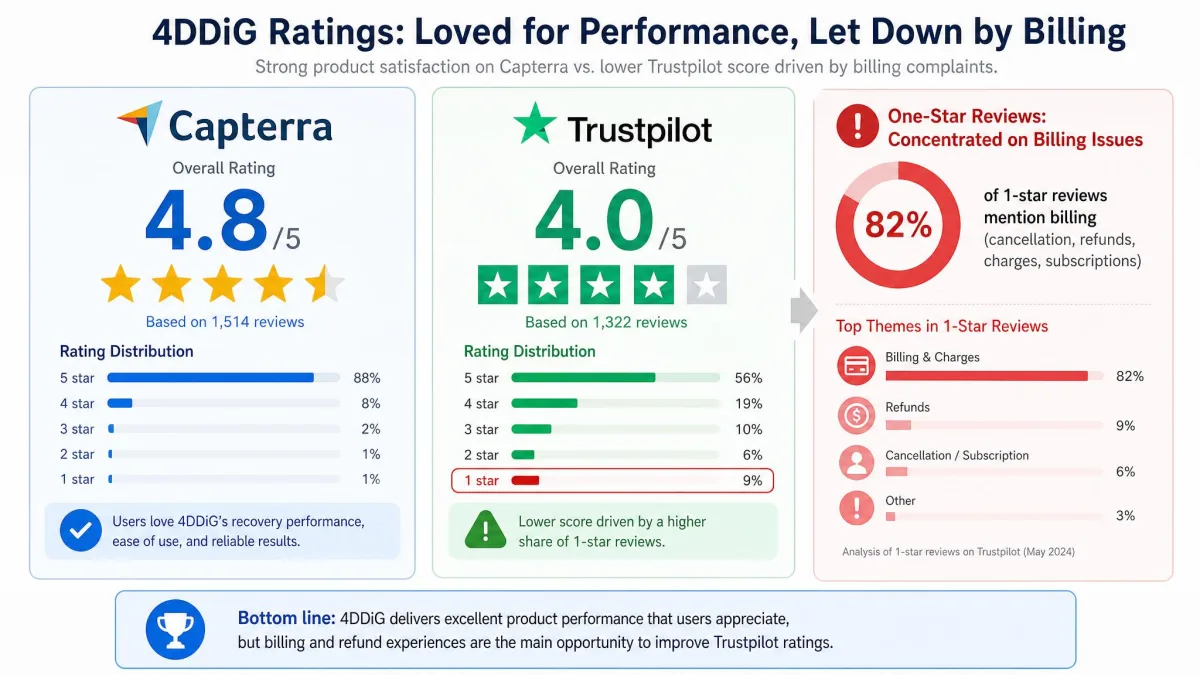
If you only need a one-off recovery, either buy the lifetime licence or cancel the auto-renewal the same day you buy the monthly plan. Do it through your payment provider, keep the confirmation, and check your statement on the renewal date. Most of the one-star complaints about this product are about billing, not about recovery.
Is Tenorshare 4DDiG Safe and Legit?
Yes, on both counts, with a caveat that is commercial rather than technical. Tenorshare is an established vendor with a public refund policy and a support channel. 4DDiG reads the source drive and writes recovered files to a destination you choose, its installer is not bundled with adware, and the app does not require an account to scan.
The reputation picture is split in an informative way. Capterra verified reviews put it at 4.8 out of 5 across 44 reviews, praising ease of use and fast support replies while calling the licence expensive. Trustpilot reviews for 4DDiG sit near 4.0 out of 5 with a strongly bimodal split: roughly four in five reviewers give five stars, while about one in five give one star, and most of those one-star reviews concern billing rather than recovery. The Trustpilot score and review count move week to week.
Read together, those numbers say people are largely happy with what the software does and unhappy with how the subscription behaves afterwards. That is a purchasing problem you can avoid by choosing the lifetime licence.
The one safety point we would raise is technical. Bad sectors are passed over silently rather than flagged, and there is no disk-imaging step, so a physically failing drive keeps being read directly during recovery. If your drive is clicking, making unusual noises or disappearing from Windows intermittently, stop and talk to a recovery lab. Repeated scanning of a dying disk can finish it off.
How to Use 4DDiG on Windows (Step by Step)
If the safety questions above have not put you off, the run itself is straightforward. The step-by-step flow is short, which is the point of this product.
Step 1: Download and install
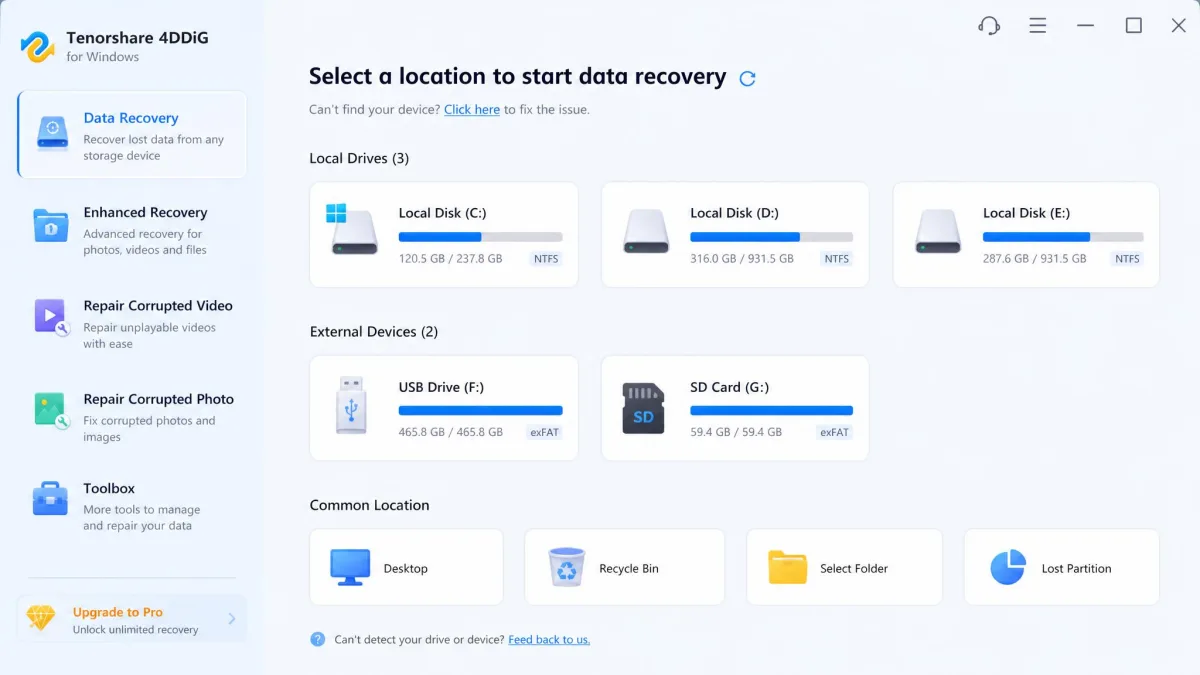
Download the installer from the official 4DDiG Windows page and install it to a drive other than the one you are recovering. Installation needs 200MB. Launch it and you land straight on the drive selection screen with no setup wizard.
Step 2: Select a location to scan
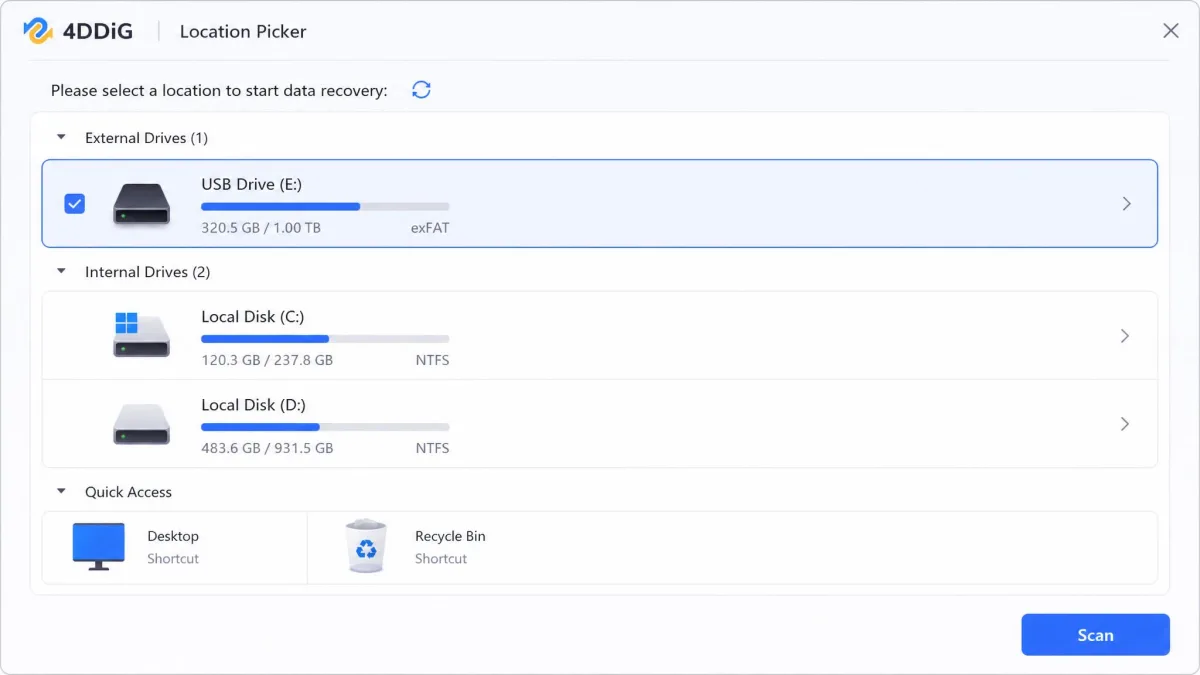
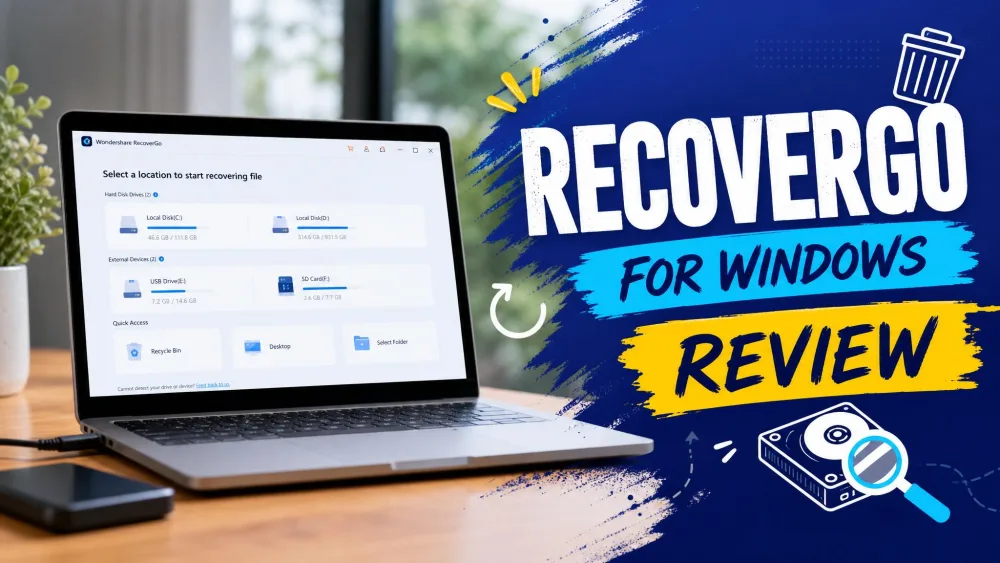
Pick the affected drive, partition, memory card or folder from the grid. You can also target a specific folder such as Desktop or Recycle Bin, which cuts scan time considerably when you know roughly where the files were.
Step 3: Scan and filter results
Start with the quick scan. If your files are recent deletions, they will usually appear before the scan finishes, and you can begin recovering while it continues. If they do not appear, let the deep scan run. Use the file type and date filters to narrow thousands of results down to what you actually want, and use the pause and resume controls if you need the machine back for something else.
Step 4: Preview and recover
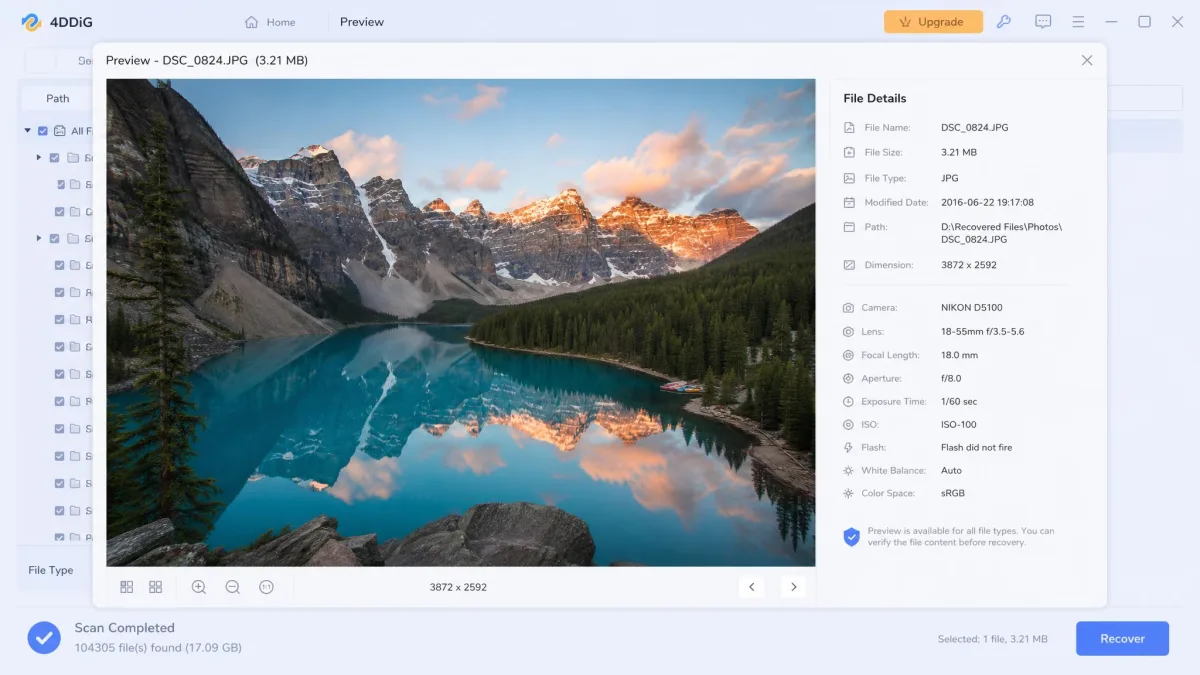
Preview every file that matters before you buy anything. This is the step people skip, and skipping it means paying before you know whether recovery will succeed. If a file type will not preview in the unlicensed build, treat that as unproven rather than confirmed. When you recover, choose a destination on a different physical drive, or send the files straight to OneDrive or Google Drive.
What Real Users Say
Our own runs match the broad shape of what buyers report. On Capterra, support response times draw particular praise, with replies sometimes arriving within a minute, and the recurring complaint is price rather than performance. One structural gripe repeats: a licence is tied to one PC, and moving it needs a support request, because there is no self-service device release.
The scan preview showed every file I was looking for, and the paid recovery finished inside an hour.
Recovery worked, but the files came back with meaningless names and no folders, so I spent longer sorting them than scanning.
The Trustpilot one-star tail is worth reading on its own, because it is not really about recovery quality. It clusters around renewal charges, cancellation requests that did not take effect in time and refund delays. Threads on r/datarecovery show the same division: broadly positive on simple deletions, sceptical about consumer recovery tools generally when a drive is physically damaged.
4DDiG vs. the Alternatives
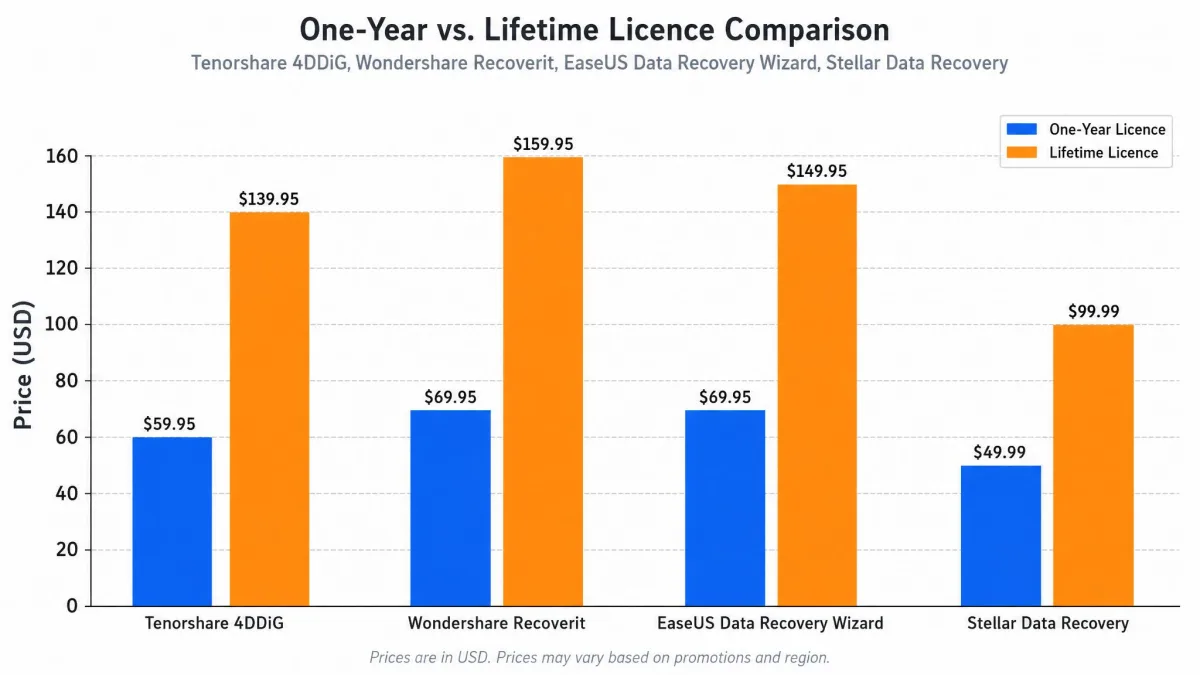
4DDiG's position in this market is clear once you line it up against rival data recovery tools. It is the cheapest of the four on a lifetime basis, it includes repair and bootable media that others gate behind higher tiers, and it gives up ground on damaged partitions.
| Product | Buy | Free tier | 1 year | Lifetime | Formatted drive | RAW / lost partition | Photo/video repair | Bootable media | OS support |
|---|---|---|---|---|---|---|---|---|---|
 |
Check price → | Scan and preview, recovery allowance disputed | $59.95 | $79.95 | Yes, about 61% on a quick-formatted card | RAW carving only, no lost-partition search | Yes, built in | Yes, WinPE USB | Windows 11/10/8/7, Mac |
 |
Check price | 100MB free recovery | $79.99 | $139.99 | Yes | Yes | Yes, AI repair | Yes | Windows, Mac |
 |
Check price | 500MB, up to 2GB after sharing | $99.95 | Promotion-dependent | Yes | Yes, deleted-partition search | Not in the core product | Yes, Pro tier | Windows, Mac |
 |
Check price | Up to 1GB free recovery | $59.99 Standard, $89.99 Pro, $99.99 Premium | $199 Premium | Yes | Yes, Professional tier and above | Yes, Premium tier | Yes, Professional tier and above | Windows, Mac |
EaseUS is the pick if you want a free tier you can actually use, since 500MB rising to 2GB after sharing is a real allowance rather than a preview, and it has proper deleted-partition search. Recoverit costs more across every term. Stellar covers lost partitions and repair properly, but you pay $89.99 or $99.99 a year to get there, and $199 for a Premium lifetime licence.
Scan speed on large volumes trails rivals such as Disk Drill, so if you routinely scan multi-terabyte disks, 4DDiG will not be the fastest tool on your bench.
Who Should Buy 4DDiG (and Who Shouldn't)
Buy it if you deleted files from a Windows PC, an external drive, a USB stick or a memory card recently and the drive itself is healthy. That is the scenario it handles best, it costs less than every rival here on a lifetime basis, and the free preview confirms your files are there before you pay.
Skip it if your drive is physically failing, since there is no bad-sector handling or imaging step to protect it. Skip it if you shoot in CR3, RAF, ORF or RW2 and need those RAW files back. Skip it if you have lost a whole partition and need it rebuilt rather than carved. And skip it if you know you will forget to cancel a subscription, unless you take the lifetime licence.
If your problem is an iPhone stuck on the Apple logo, you are in the wrong place entirely, and ReiBoot is the Tenorshare product you want.
Frequently Asked Questions
Is ReiBoot the same as 4DDiG?
Is 4DDiG free?
Is 4DDiG safe or a scam?
How do I cancel a 4DDiG subscription and get a refund?
Does 4DDiG recover permanently deleted files?
Does a full format ruin my chances compared with a quick format?
Can I turn TRIM off on my SSD to improve my chances later?
fsutil behavior set DisableDeleteNotify 1, but we would not. Running an SSD without TRIM degrades write performance and endurance over time, and it only helps for deletions that happen after you disable it. The better insurance is a backup. If you do keep an external SSD in a USB enclosure, note that most enclosures never pass TRIM through anyway, so deletions there stay recoverable for longer without you changing anything.Final Verdict
Our final verdict is a qualified yes. 4DDiG earns its place for the ordinary Windows user who has deleted something important from a healthy drive and wants it back today. It installs in a minute, scans without fuss, previews before it charges you, and comes in cheaper than every rival on a lifetime licence. It is a competent rather than a class-leading tool, and that middle ground is exactly where our own testing left it.
Where it falls short is the hard end of recovery: damaged partitions, failing disks, professional RAW and video formats, and the loss of file names on carved results. If those describe your situation, EaseUS or Stellar's higher tiers are the better spend. And whichever way you go, buy the one-time licence rather than the subscription.