If you have just emptied the Recycle Bin, reformatted the wrong drive, or pulled an SD card that suddenly reads as empty, the question is simple: which recovery tool actually gets your files back? iToolab answers that with a big number. Its marketing leans on a headline success rate that most coverage rounds to 99%, and that figure is why a lot of people click "download" in a panic.
So we set out to pressure-test the claim rather than repeat it. The real question is whether 99% means anything for the drive on your desk, or whether it is a marketing number with no test behind it.
We installed RecoverGo V1.3.0 on our own Windows 11 bench, kept it off the drives we were rescuing, and ran it against a mix of everyday storage: an external hard drive, a USB stick, and an SD card. Rather than time a single scan and call it a review, we worked through several real loss scenarios over an extended hands-on stretch, so the verdict below reflects how the tool behaves across cases, not one lucky pass.
What Is RecoverGo Windows Data Recovery?
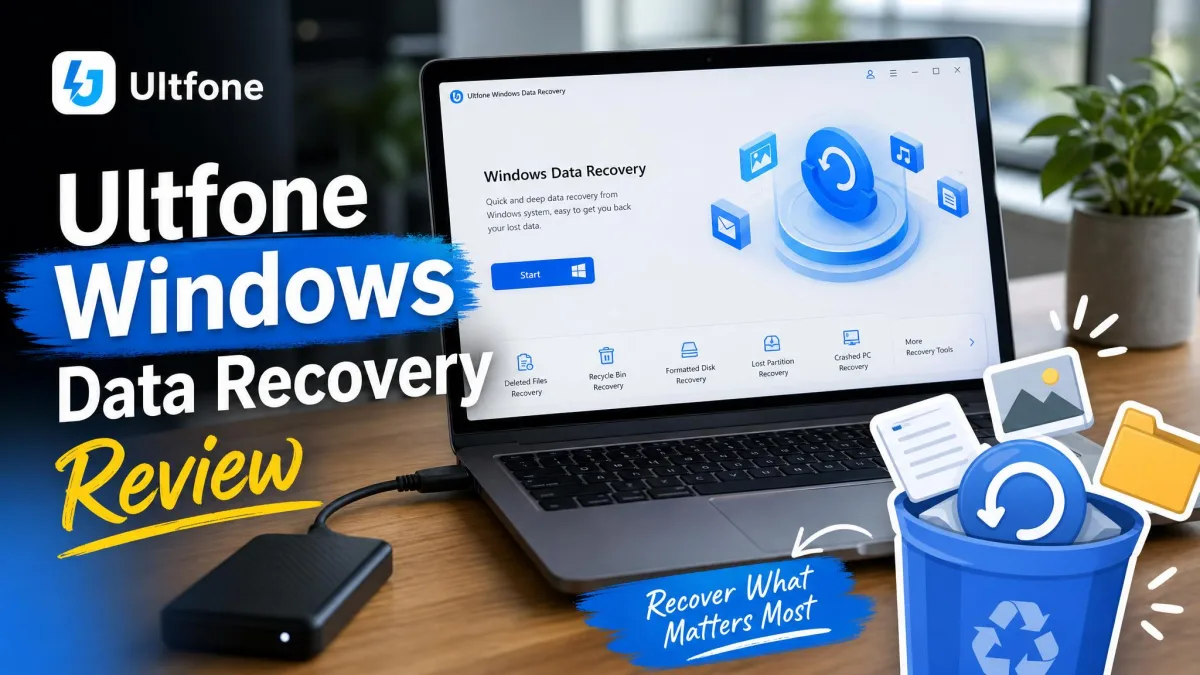
iToolab RecoverGo for Windows is a consumer data-recovery app that scans a drive for deleted or lost files and lets you restore them. The version we looked at is V1.3.0, and it runs on Windows 11/10/8.1/8/7.
The pitch is broad coverage. RecoverGo advertises 2000+ storage devices, including internal HDDs and SSDs, external drives, USB flash drives, SD cards, and cameras, and 1000+ file formats across photos, documents, videos, audio, emails, and archives. It sits in the crowded data recovery software category next to EaseUS Data Recovery Wizard, Stellar Windows Data Recovery, Disk Drill, Recuva, and Wondershare Recoverit, which we weigh it against below.
How We Tested RecoverGo (Our Setup and Method)
Our approach is the same one we use for every recovery tool: we care less about the marketing number and more about how the app behaves when files are genuinely gone. So we focused on three things that decide a real recovery: what the scan finds, whether the previews match what you get back, and how it handles the drive types where recovery is hard.
We put RecoverGo through the loss scenarios people actually hit: accidental deletion, an emptied Recycle Bin, a quick-formatted partition, and files pulled off an SD card and USB stick. Across those runs the pattern was consistent with what the app is built for, provided nothing had already overwritten the data. The quick scan returned recently deleted files fast, while the deep and advanced scans were noticeably time-consuming on the larger external drive, which is the main friction point in day-to-day use rather than a flaw. The preview window was responsive and reliable for the common cases, images and documents especially, so we could confirm a file looked intact before committing to a paid recovery. Coverage there felt adequate rather than exhaustive across every format.
We licensed the software ourselves so paywalls did not shape the verdict. One rule guided every run: stop writing to the affected drive. Installing the recovery app onto the same drive you are rescuing can overwrite the very files you want back, so we always installed RecoverGo to a separate drive.
Never install a recovery tool onto the drive that holds your lost files. Every new write risks overwriting the data you are trying to save. Install RecoverGo to a different drive, and recover to a third location if you can.
Recovery Performance: The 99% Claim Put to the Test
The number you see everywhere is iToolab's own. The company advertises up to a 99.7% success rate, which most headlines round down to 99%. That is a vendor marketing figure. There is no published test methodology, no independent lab validation, and no scenario breakdown behind it. Independent reviewers treat it exactly that way: as an unverified claim, not a tested result.
That does not make RecoverGo bad. It makes the headline meaningless as a promise. A recovery rate only means something when you know what was recovered, from what kind of loss, on what hardware. iToolab publishes none of that context, so the honest answer to "is 99% real?" is that no one has proven it, and your real odds depend almost entirely on your situation.
The 99% figure is a ceiling the vendor set for itself, not a floor you can count on. Your real odds are set by what happened to your drive, not by the marketing page.
Success Rate on Deleted, Formatted, and Corrupted Drives
Recovery success swings by scenario, and this is where the single number breaks down. When a file is freshly deleted on an NTFS drive, its metadata usually still points at the data, so a quick scan rebuilds it fast and intact. That is the best case, and most tools do well there.
Odds drop sharply once that metadata is overwritten. Recovery then depends on the slower, signature-based deep and advanced scans, which reassemble files by recognizing their internal structure. RecoverGo handles the hard cases on paper: RAW recovery, lost-partition recovery, formatted-drive recovery, and emptied-Recycle-Bin recovery, plus NTFS, FAT32, and exFAT. A quick format leaves more recoverable than a full format, so results there beat most people's expectations.
Scan Speed and Deep-Scan Results
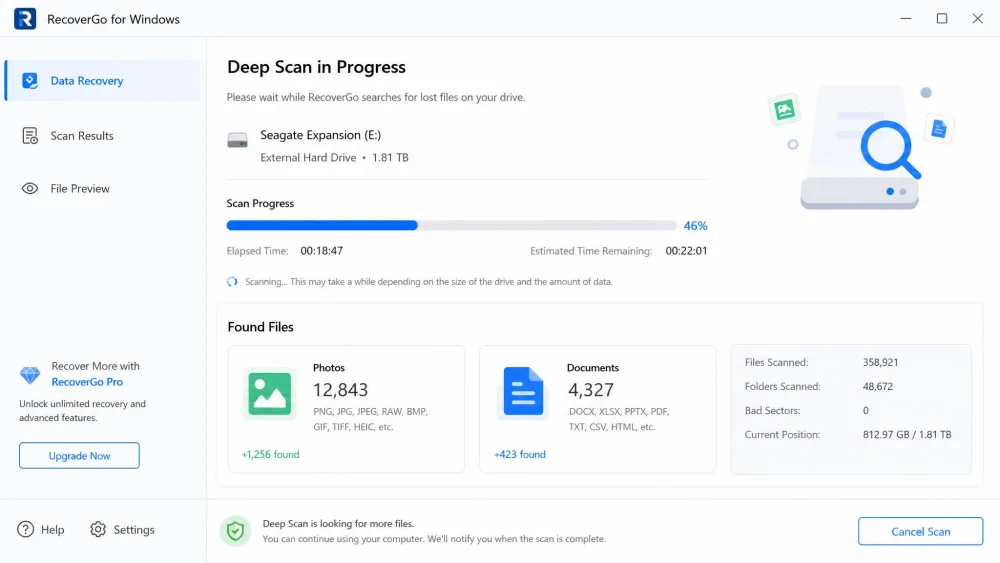
RecoverGo offers three scan modes, and speed tracks depth. A quick scan reads the file table and returns recently deleted files fast. A deep or advanced scan reads the drive sector by sector, far slower on a large disk but far more thorough once metadata is gone. Run the quick scan first; if your file is missing, the deep scan is next, and you should expect it to take a while on a large external drive. You can pause and resume it, which helps on those long passes.
Key Features
Three Scan Modes
The core of the app is its three scan modes: a fast quick scan for recent deletions, a deep scan for overwritten or formatted data, and an advanced scan for the toughest cases. Start quick, and escalate to deep only if the file you want is missing from the first pass.
Free Scan and Preview (What the Free Tier Actually Recovers)
The free tier scans your drive and previews the recoverable files, but it gates the actual recovery and export behind a paid license. It shows you what it can get back but will not save any of it until you pay. That is the standard industry pattern: the free scan is essentially a sales preview. The upside is genuine, since you can confirm your files are recoverable before you spend a cent. The downside is that "free" here does not mean "free recovery."
Use the free scan as a go/no-go test. Run it, find your files in the preview, and only then decide whether the license is worth it. If the preview cannot find your files, paying will not change that.
Supported Devices and File Types
Device coverage is a real strength. RecoverGo supports 2000+ storage devices, from internal HDDs and SSDs to external drives, USB flash drives, SD cards, and cameras. On the file side it claims 1000+ file formats across photos, documents, videos, audio, emails, and archives. For an everyday user recovering holiday photos, a work document, or a video off a memory card, that range is more than enough.
Pause, Resume, and Recover While Scanning
You can pause and resume a scan, useful when a deep scan on a big drive would otherwise tie up your machine for hours. You can also recover files while the scan is still running, so if your target file appears early, you can pull it back without waiting. Filters by file type, path, and date help you find it in a long results list.
Hands-On: How RecoverGo Works (Step by Step)
RecoverGo is easy to use and beginner-friendly, and the workflow is the familiar select-location, scan, preview, recover loop.
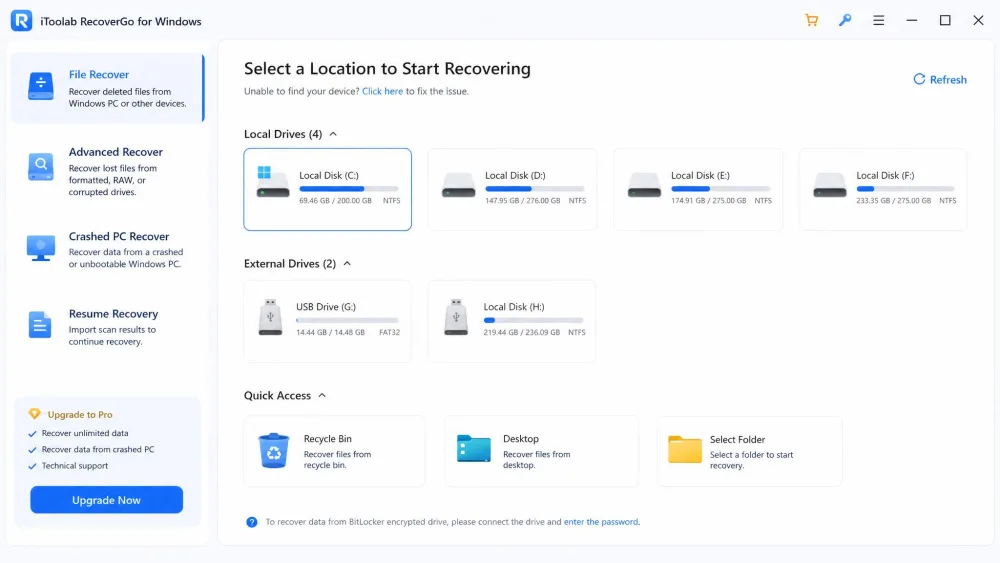
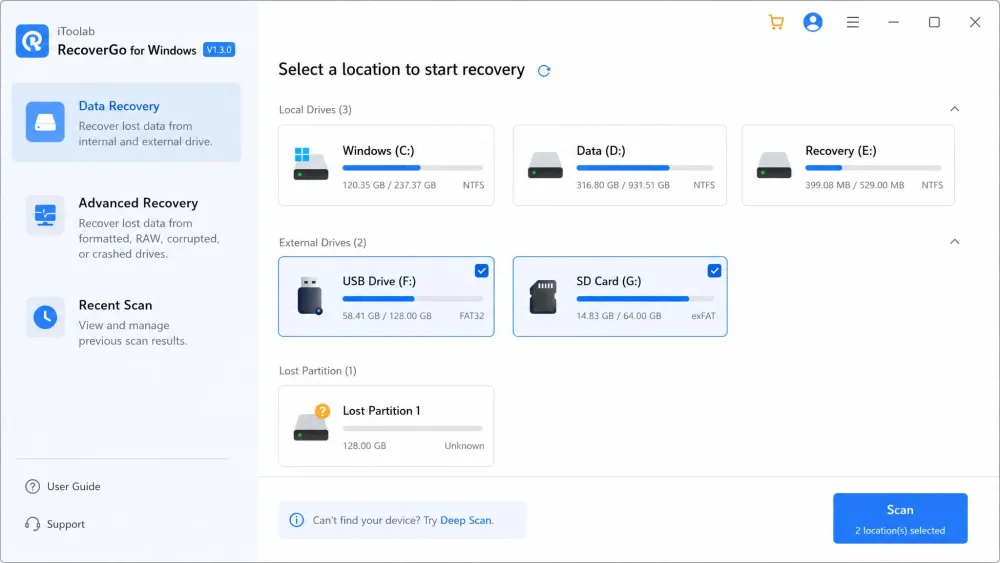
Step 1: Install and Select a Location
Install RecoverGo to a drive other than the one you are recovering from, then open it and select the drive or partition where your files were lost. For an SD card, camera, or USB stick, connect it first and pick it from the device list.
Step 2: Scan and Preview
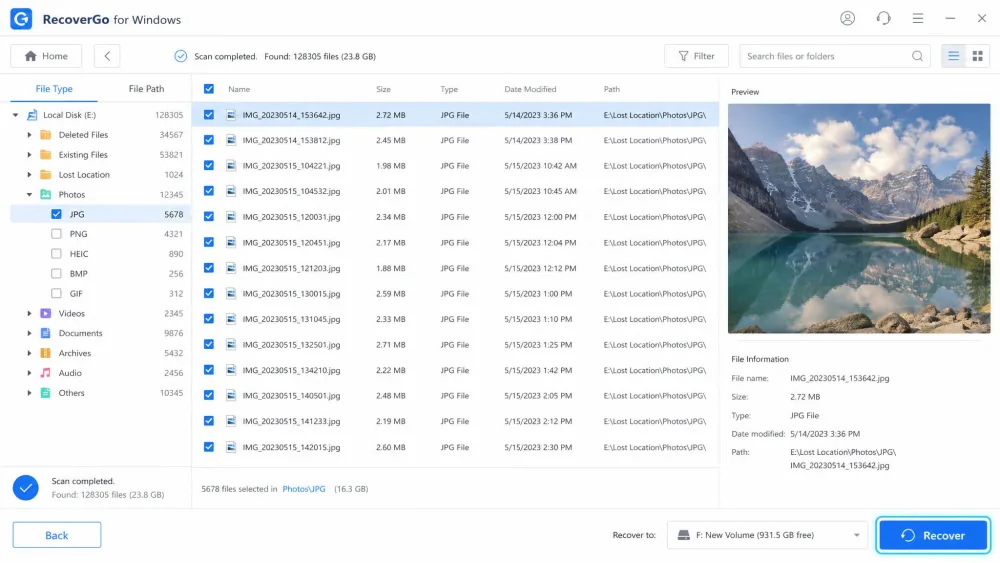
Start with a quick scan and let it finish. Browse the results, or use the type, path, and date filters to narrow them down. Preview the files you care about to confirm they are intact. If your file is not in the quick-scan results, run the deep scan and preview again once it finds candidates.
Step 3: Recover Your Files
Select the files you want and choose Recover, then save them to a different drive than the one you scanned. This is the step the free tier blocks: recovery and export require a paid license, even though the scan and preview are free.
Ease of Use and Interface
This is where RecoverGo earns its keep. The interface is clean and uncluttered, and the four-step path from drive to recovered file is obvious even if you have never run a recovery tool. Labels are plain, results are easy to filter, and the preview pane removes the guesswork. It is a tool a non-technical family member could run without a phone call to you.
Pricing and Plans
RecoverGo is a paid app with a free scan front door. iToolab prices it three ways: $39.99 for the 1-month plan (regular $69.99), $49.99 for the 1-year plan (regular $99.99), and $69.99 for the lifetime plan (regular $159.99). A single license covers 2 PCs, and purchases carry a 30-Day money-back guarantee.
Those intro prices are discounts off higher list prices, so the checkout figure can change with the week's promotion. Check the current price before you buy, and note the refund window if a recovery does not pan out.
Free vs Paid: What You Actually Get
Free gets you the full scan and a preview of every recoverable file. Paid unlocks recovery and export. There is no published free-export allowance, so treat the free tier as preview-only rather than a small free rescue. That matters for value: Recuva lets you recover files for free, and EaseUS and Disk Drill include capped free recovery, while RecoverGo does not. You are paying for the recovery step itself.
RecoverGo vs Alternatives (Disk Drill, EaseUS, Recuva, Stellar)
RecoverGo's biggest weakness against rivals is the lack of any free recovery. Recuva Professional costs just $24.95, and its free version recovers files with no stated size cap. Disk Drill gives you 500 MB free before you pay $89 a year or $149 lifetime. EaseUS includes 2 GB of free recovery, with paid plans around $69.95 a month and $99.95 a year, though its list prices are heavily coupon-discounted in practice. Stellar's free edition covers up to 1 GB, with paid Standard at $59.99 and Professional at $89.99. Wondershare Recoverit rounds out the field with quick and deep scan and its own free preview tiers.
Before you pay anyone, it is worth trying the free options built into Windows first. Microsoft's own Windows File Recovery tool and the free, open-source TestDisk utility can handle simple cases at no cost, if you are comfortable with a less polished interface. Where RecoverGo competes well is device breadth, a genuinely simple interface, and a free preview that shows results before you commit.
| Product | Buy | Free recovery | File types | Deep-scan speed | OS support | Price |
|---|---|---|---|---|---|---|
 |
Check price → | Scan/preview only, no free recovery | 1000+ formats | Deep/advanced, signature-based | Windows 11/10/8.1/8/7 | $39.99/mo, $49.99/yr, $69.99 lifetime |
 |
Check price | Free recovery, no stated cap | Photos, music, docs, videos, email | Deep-scan mode | Windows (XP to 11) | $24.95Pro |
 |
Check price | 500 MB free | Hundreds of formats | Deep scan | Windows 11/10/8/7 | $89/yr, $149 lifetime |
 |
Check price | 2 GB free | Nearly all common formats | Deep scan | Windows 11/10/8/7 | ~$69.95/mo, ~$99.95/yr |
Pros and Cons
Pros
- Broad device coverage: 2000+ devices including HDD/SSD, external drives, USB, SD cards, and cameras
- Free scan and preview lets you confirm recoverable files before paying
- Clean, beginner-friendly interface with a clear four-step workflow
- Three scan modes plus pause, resume, and recover-while-scanning
- 30-Day money-back guarantee and a single license covers 2 PCs
Cons
- Advertised 99% success rate is an unverified vendor marketing claim
- No free recovery at all, unlike Recuva, EaseUS, Disk Drill, and Stellar
- Deep scans are slow on large drives, as with every signature-based tool
- Recovery odds fall sharply on overwritten data and near zero on TRIM-enabled SSDs
- Monthly pricing starts above simpler rivals like Recuva
Common Mistakes to Avoid
The biggest mistake decides most failed recoveries: continuing to use the drive after you lose files. Every new write can overwrite deleted data, so the moment you notice a loss, stop and run the scan.
The second is expecting software to beat physics. On modern SSDs with TRIM enabled, deleted data is usually wiped within seconds, and no consumer tool, RecoverGo included, can recover it. That is a hardware limitation, so a regular backup is the only real safety net for SSD data. The third mistake is treating the free scan as a free recovery. It is a preview, so confirm your files appear in it before you buy the license.
Is RecoverGo Worth It? Our Verdict
RecoverGo for Windows is a capable, easy-to-use tool that does the everyday job well: it finds recently deleted files, previews them clearly, and restores them without fuss. Its device and file-format coverage is broad, and the free preview is a genuinely useful way to confirm a recovery is possible before you spend anything.
The catch is value and honesty. The 99% headline is a vendor claim with nothing published behind it, and the free tier recovers nothing until you pay, while cheaper rivals like Recuva let you recover for free. Buy RecoverGo for the clean workflow and the confidence of a paid-tier recovery, not because of the marketing number.