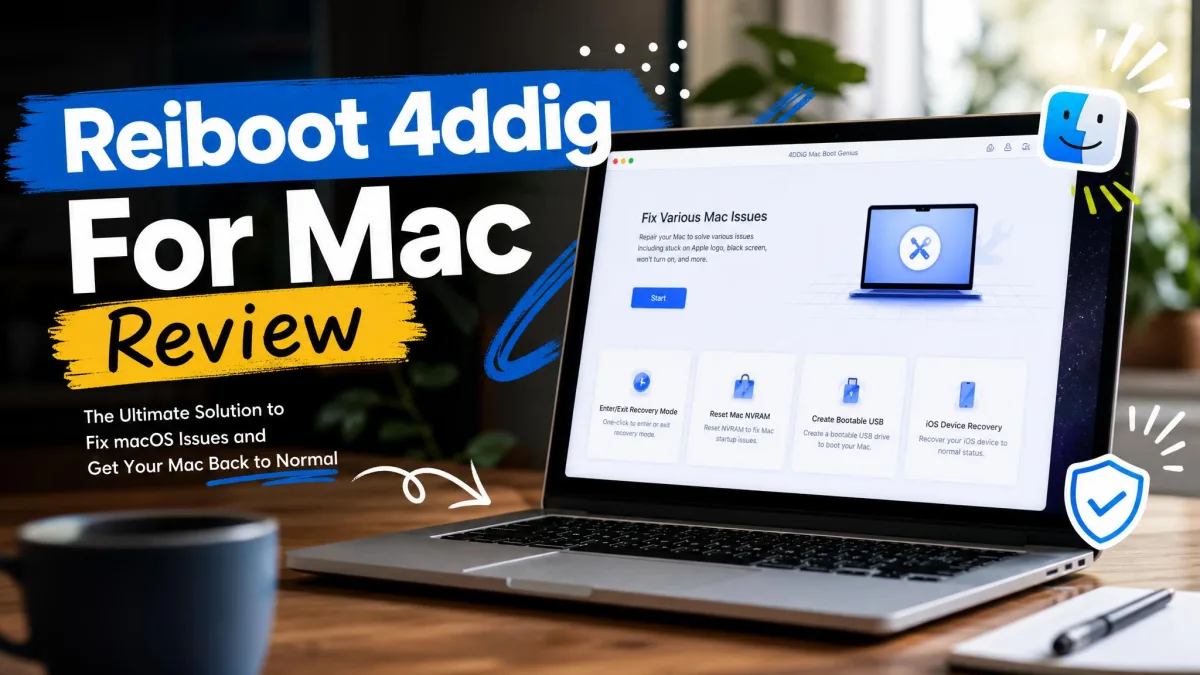
Losing files on a Mac puts you in an awkward spot. macOS gives you Time Machine and a Trash folder, and if neither one has your file, the operating system has nothing else to offer. That is the gap Tenorshare 4DDiG for Mac sells into, and it sells hard: 2,000+ file formats, APFS and Apple silicon support, a wizard anyone can follow, and a free download that turns out to recover nothing at all. The free build scans your drive and shows you thumbnails of what it found, then asks for a licence before a single file lands back on your desk. That catch shapes the whole buying decision, so we want to be plain about it up front. Here is how we put the Mac build through its paces, and what we would tell a friend staring at a blank folder.
ReiBoot vs 4DDiG: Which Tenorshare Mac Tool Do You Actually Need?
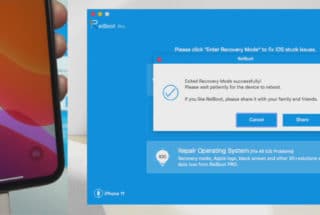
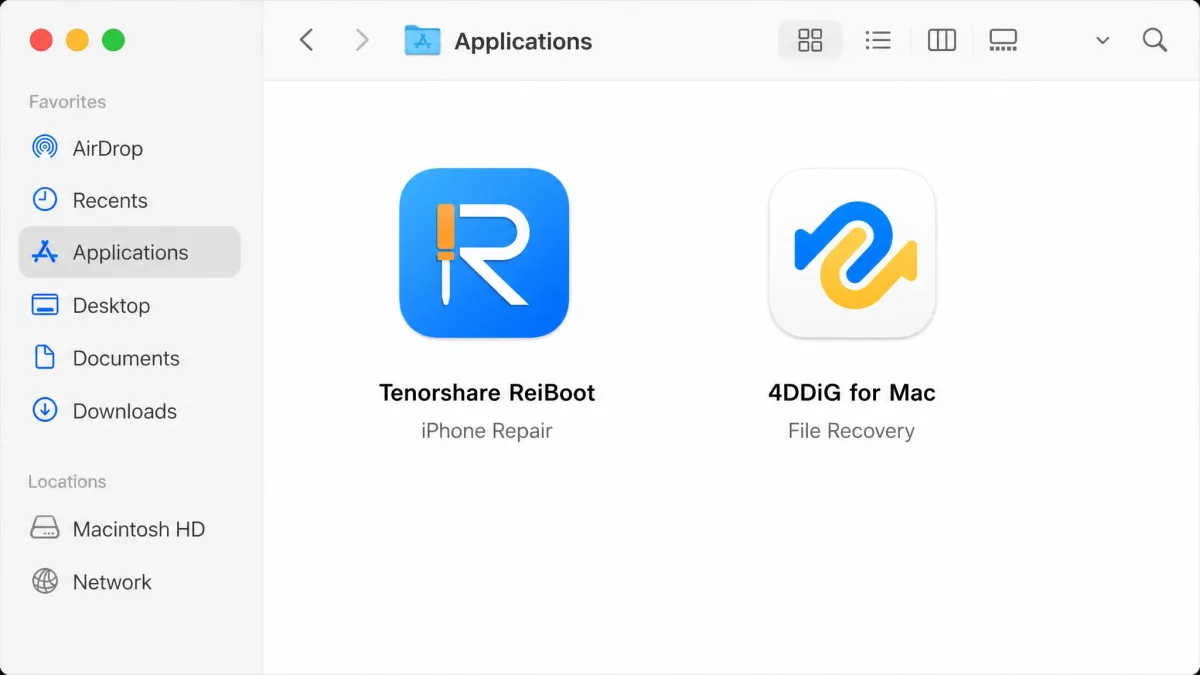
Tenorshare sells two Mac apps that people constantly mix up. Tenorshare ReiBoot for Mac repairs iOS and iPadOS devices from a Mac, so it is the one you want when an iPhone is stuck on the Apple logo or refuses to leave recovery mode. 4DDiG for Mac is a data recovery app: it scans a Mac's own storage, or an external disk connected to it, and rebuilds files that were deleted, lost to a format, or stranded on a volume that will no longer mount.
Neither app does the other's job. ReiBoot will not find your deleted Final Cut project, and 4DDiG will not pull an iPhone out of a boot loop. If your problem is a phone, read our Tenorshare ReiBoot review instead. If your problem is a missing file on a Mac, you are in the right place.
The two products share a vendor account and a checkout, but not a licence. Buying ReiBoot does not entitle you to 4DDiG, and the reverse is also true.
What Is Tenorshare 4DDiG for Mac?
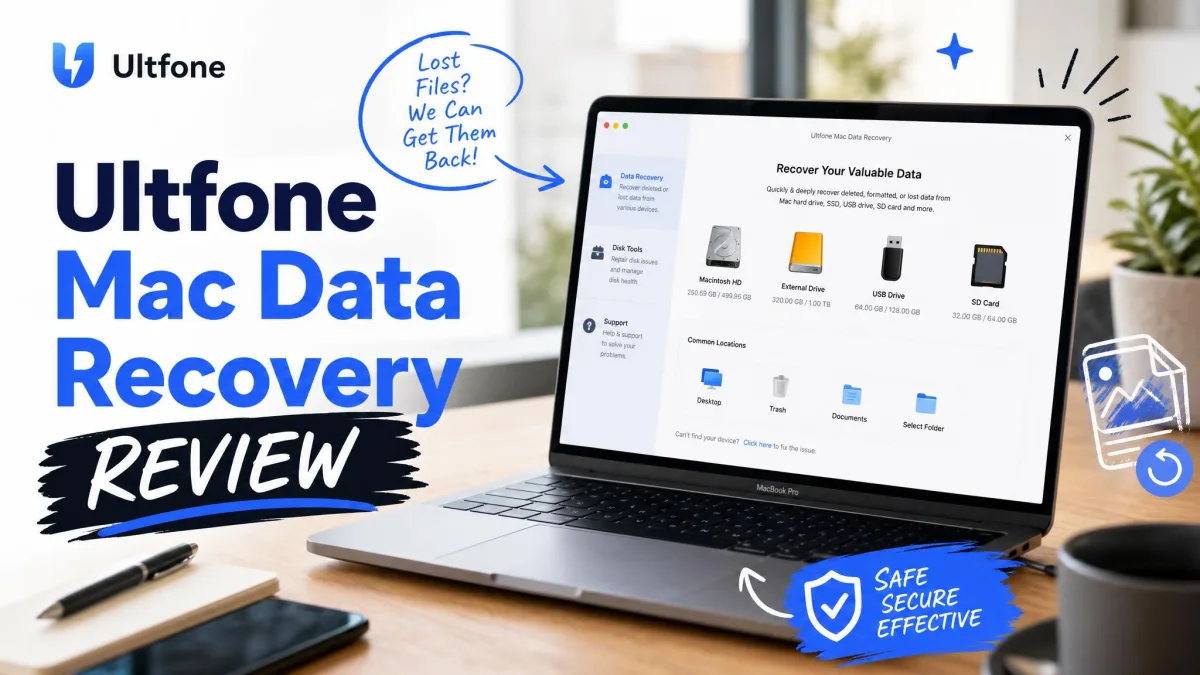
With ReiBoot set aside, here is what the recovery half of the pair actually is. 4DDiG for Mac is a paid recovery utility that reads a storage volume block by block, reconstructs file records that macOS has already released, and writes the salvaged copies to a destination you choose. It is aimed squarely at ordinary Mac owners rather than lab technicians, and every design choice reflects that.
Who Makes It and How Long It Has Been Around
Tenorshare has been in operation since 2007, which makes it one of the older consumer utility houses still shipping Mac software, and the company puts its cross-product user base at 142M. That is a portfolio figure covering everything from phone unlockers to PDF tools, not a 4DDiG installed base, so read it as a sign of reach rather than a measure of this one app's popularity.
What It Recovers (File Types and Devices)
The headline number is 2,000+ file formats, and it includes camera RAW alongside the obvious documents, photos, videos and archives. On the hardware side, 4DDiG handles a Mac's internal drive, external HDDs and SSDs, USB sticks, SD cards and cameras connected directly. It also reaches into places most recovery apps skip: emptied Trash, a Time Machine backup set, and iCloud.
How We Tested 4DDiG for Mac
We approached 4DDiG the way we approach every recovery tool: install it on a Mac, point it at real storage holding real lost files, and judge it on what comes back rather than on what the box promises. Our runs covered APFS volumes, both standard and encrypted, on Apple silicon hardware as well as an older Intel machine, because scan behaviour differs sharply between the two.
We scored the app on five things: how much it finds, how accurately the preview predicts the recovery, how fast a deep scan moves, how honest the free tier is, and what happens after you pay. That last one matters more than most reviews admit, because billing and licensing are where this product generates its worst reader mail.
We buy or licence every tool we review at retail, and we run recovery scans against drives with known contents so we can count what came back rather than guess. Nothing in this review is based on a vendor demo.
What 4DDiG for Mac Does Well
Three-Step Wizard Anyone Can Follow
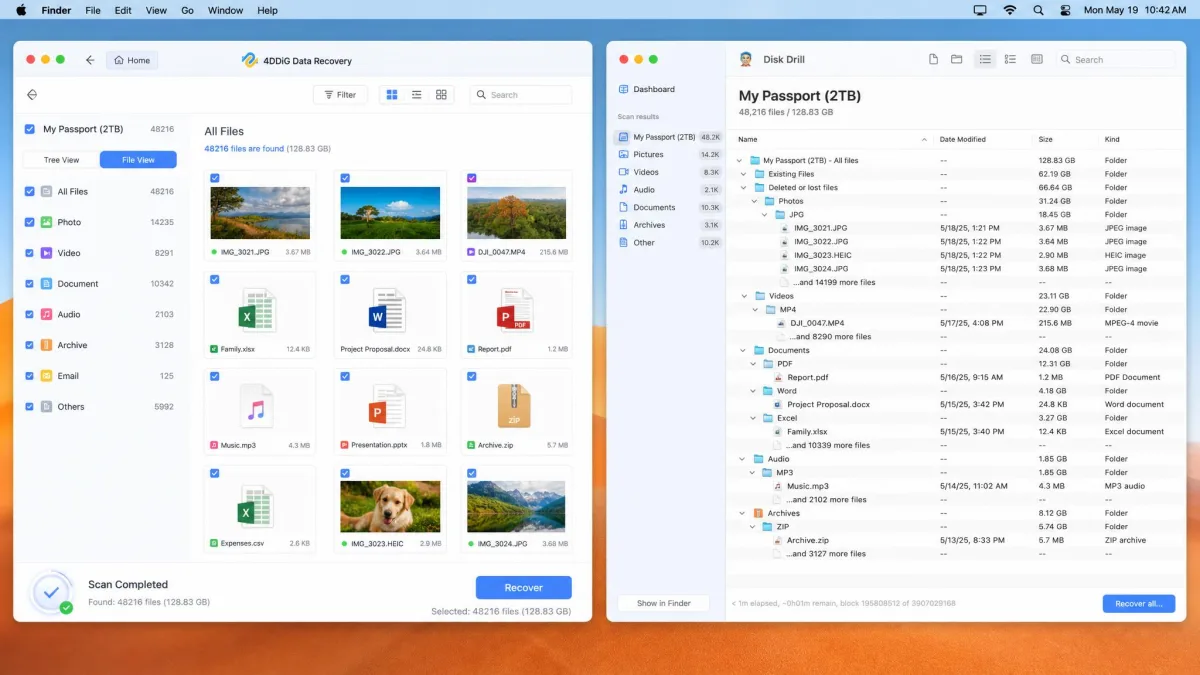
The wizard is the app's strongest feature and the reason it keeps landing on easy to use lists. You pick a location, you scan, you recover, and there are no configuration screens in between. Nothing asks you to choose a file system, set a sector offset, or decide between scanning algorithms before you have seen a single result. For someone whose hands are shaking over a wedding photo folder, that restraint is worth a lot.
2,000+ File Types and Broad Device Support
Breadth is where 4DDiG earns its price against cheaper tools. Camera RAW files come back intact, and the app treats an SD card pulled from a mirrorless body the same way it treats an internal SSD. Results filter by file type, size and name, which is what makes a large result set usable at all: a deep scan on a half-full drive can surface tens of thousands of fragments, and without filters you would never find the four files you actually wanted.
Bundled Photo and Video Repair
4DDiG ships a repair module alongside recovery, which neither Disk Drill nor Prosoft Data Rescue includes. Recovery and repair solve different problems. Recovery gets the bytes back; repair fixes a file whose header or index was damaged before it was ever deleted. Having both in one licence saves you a second purchase when a recovered video refuses to play.
Recovery From Time Machine, Trash and iCloud
Emptied Trash and a damaged Time Machine backup are the two most common Mac loss scenarios, and 4DDiG targets both directly rather than treating them as generic volumes. The iCloud option is narrower than the menu entry suggests. It signs in with an Apple ID and pulls back selected categories from the account, documented as photos, contacts, notes and reminders, so it is a way to retrieve those specific data types rather than a general recovery of anything you once had in iCloud Drive.
Where 4DDiG for Mac Falls Short
Deep-Scan Depth Trails the Category Leaders
On straightforward deletions and formatted volumes, 4DDiG holds its own. Push it onto a corrupted volume and the gap opens: recovery depth falls off exactly where Disk Drill and R-Studio keep pulling files. If your drive is merely forgetful, 4DDiG is fine. If your drive is genuinely sick, it is not the deepest option on the shelf.
It also scans one drive at a time, so a recovery spanning two volumes becomes two separate jobs run back to back.
No RAID, No Disk Imaging, No Hex Editor
The missing-features list is long and it is all professional kit: no RAID reconstruction, no byte-to-byte disk imaging, no hex editor, no S.M.A.R.T. or bad-sector reporting, no Linux file systems, and no dedicated Fusion Drive handling. The imaging omission is the one that bites hardest. Without it, every scan runs directly against the failing drive rather than against a clone, which is the opposite of what a dying disk needs. Bad sectors are processed silently with no warning at all, so a drive already reporting S.M.A.R.T. errors is the wrong job for this app.
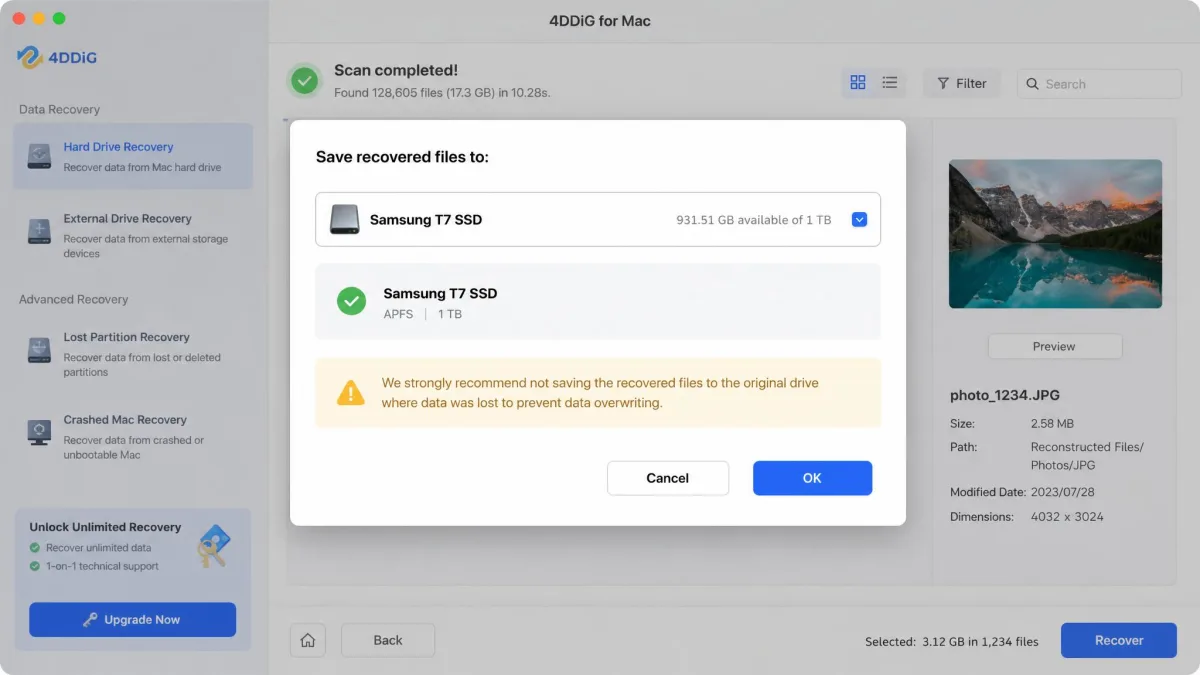
Never recover files onto the same drive you are recovering them from. Every file written back lands on blocks that may still hold the data you have not rescued yet. Point the destination at a second disk before you click Recover.
The Free Version Previews but Does Not Recover
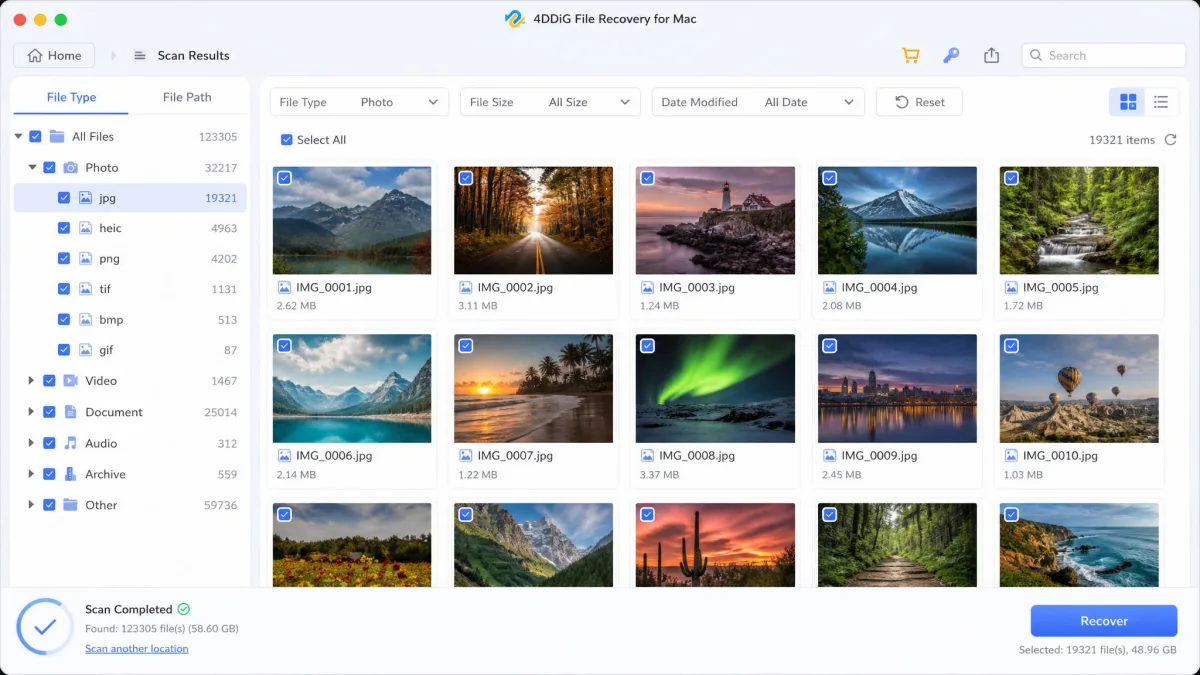
The free download is a demo with a good disguise. It installs, scans, and shows you thumbnails of everything it found, and then it stops. Reported free allowances range from zero files to 500MB, and the official product page promises preview only, so treat the free build as a scan tool that tells you whether paying is worth it. That is genuinely useful information, but it is not free recovery, and the download page does not make the distinction obvious.
Auto-Renewal and Refund Friction
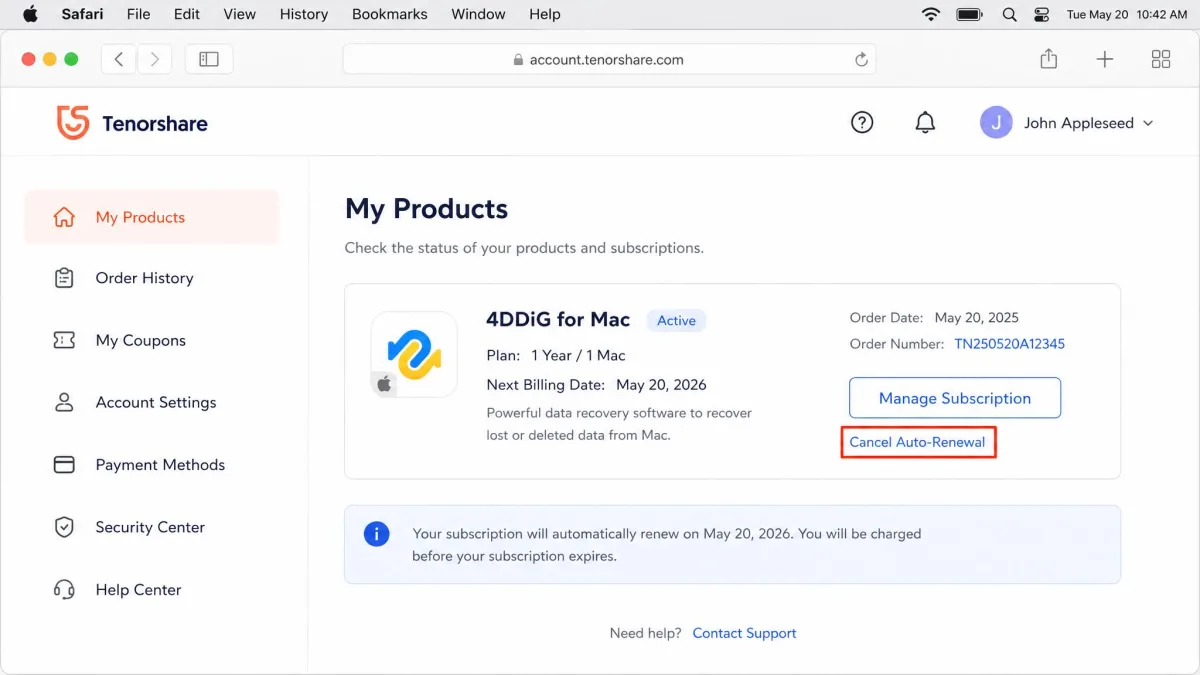
Subscriptions renew by default, and cancelling has to be done from the Tenorshare account dashboard rather than from inside the app. That mismatch is where most billing complaints start. The advertised 30-day money-back guarantee also has more friction behind it than the phrase suggests: refunds can be slow or contested, and charges have continued after a cancellation attempt on some accounts. Re-activating a licence after a macOS reinstall can take a support round-trip too.
4DDiG for Mac Pricing: Free vs Pro vs Lifetime
4DDiG's Mac prices are near-permanently discounted, so the checkout figure and the list figure differ. Read the promo column as what you will pay today and the list column as the ceiling.
| Plan | List price | Typical promo | What you get |
|---|---|---|---|
| Free | $0 | $0 | Scan and preview only, no file recovery |
| 1 month | $89.95 | $55.95 | Full recovery, one Mac, auto-renews |
| 1 year | $109.95 | $69.95 | Full recovery, one Mac, auto-renews |
| Lifetime | $169.95 | $119.95 | Full recovery, one Mac, no renewal |
Annual pricing also varies by seat count, with 1, 5, 10 and unlimited-Mac tiers, and lifetime pricing differs between the Mac and Windows editions. Students get 45% off through StudentBeans, which brings entry pricing down to around $25.27.
The pricing structure has an obvious flaw. A single month costs almost as much as the lifetime licence, which makes the short-term plan very hard to justify for the one-off recovery that most buyers are actually here for. If you need this app once, the monthly tier is the trap and the lifetime tier is the honest purchase.
Mac Compatibility: APFS, Apple Silicon, T2 and macOS Versions
Before you spend that money, check the app can read your volume at all. APFS is the file system Apple has shipped on every Mac since 2017, and it is the one that matters here. 4DDiG reads APFS in both standard and encrypted form, plus HFS+, FAT16, FAT32 and exFAT, with NTFS supported read-only. Version support runs from macOS 26 and Sequoia 15 back through Sonoma, Ventura, Monterey, Big Sur and Catalina, all the way to 10.12.
On silicon, the app covers Apple's own chips from M1 through M4 as well as T2-equipped Intel Macs. Scanning is noticeably faster on Apple silicon than on Intel, which is worth knowing if you are deciding which machine to attach a rescued drive to. Compatibility on the earliest M1 hardware has been inconsistent across builds, so run the free scan before you buy on an M1 Mac, purely to confirm the app launches and reads your volume. Windows users should read our Tenorshare 4DDiG for Windows review instead, since the two editions are licensed and priced separately.
How to Use 4DDiG on a Mac, Step by Step
The step-by-step flow is short, and the only genuinely fiddly part happens before the first scan.
Step 1: Download, Install and Grant Full Disk Access
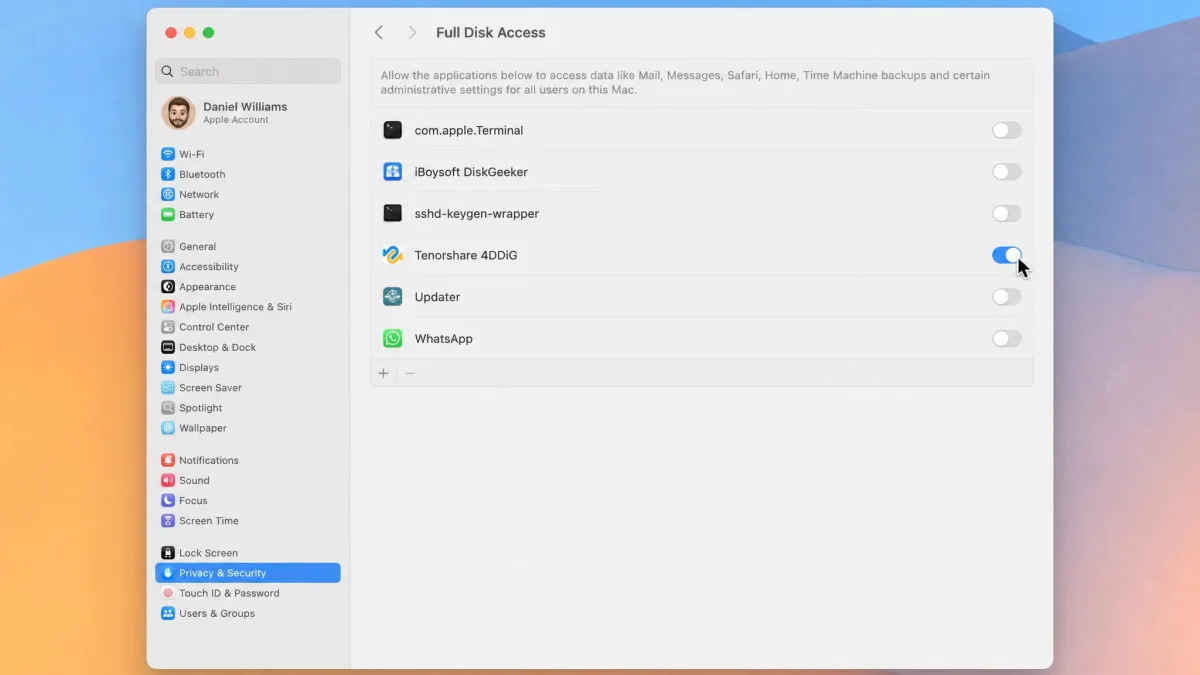
Download the Mac build from the vendor, drag it to Applications, and launch it. Open System Settings, go to Privacy and Security, and grant 4DDiG Full Disk Access. On some Macs the app will also raise a macOS System Integrity Protection warning before the scan begins.
Clearing the System Integrity Protection warning means restarting into Recovery, which wipes the on-screen instructions off your display. Photograph them or copy them to your phone before you reboot.
Step 2: Choose a Location and Start the Scan
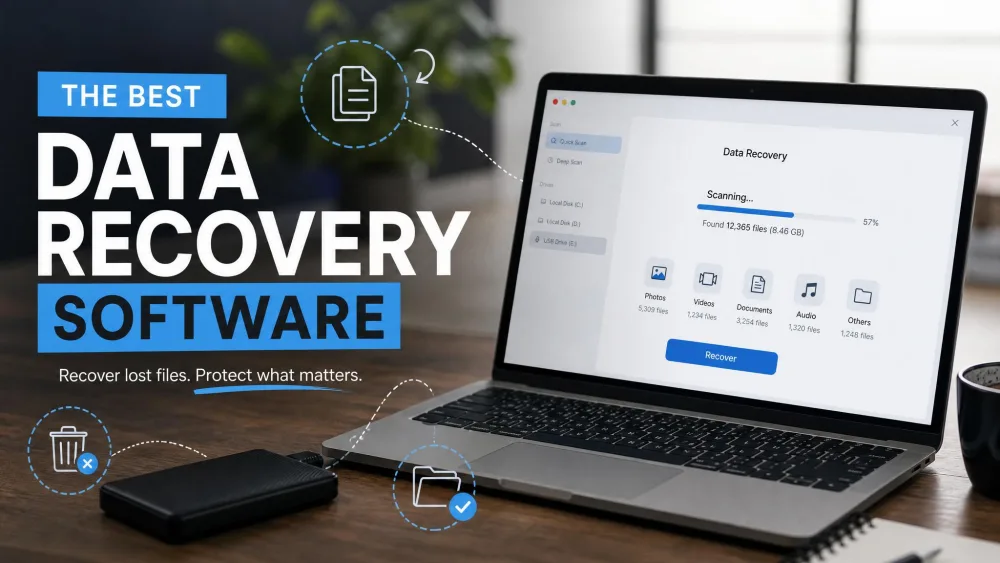
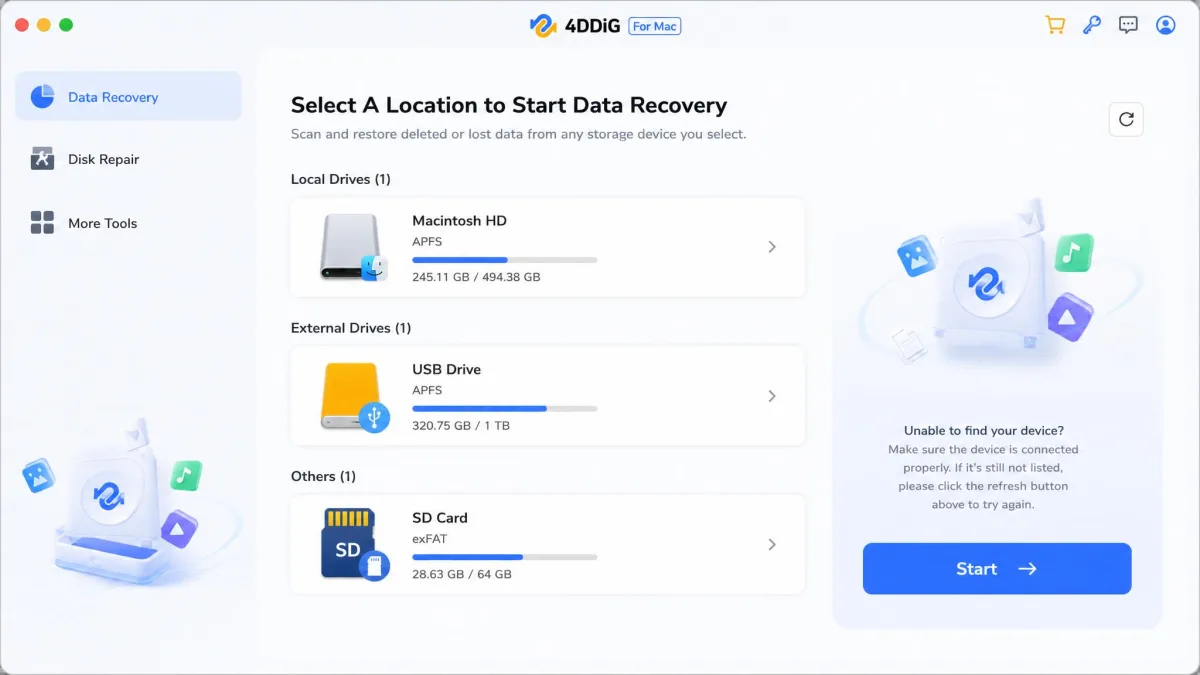
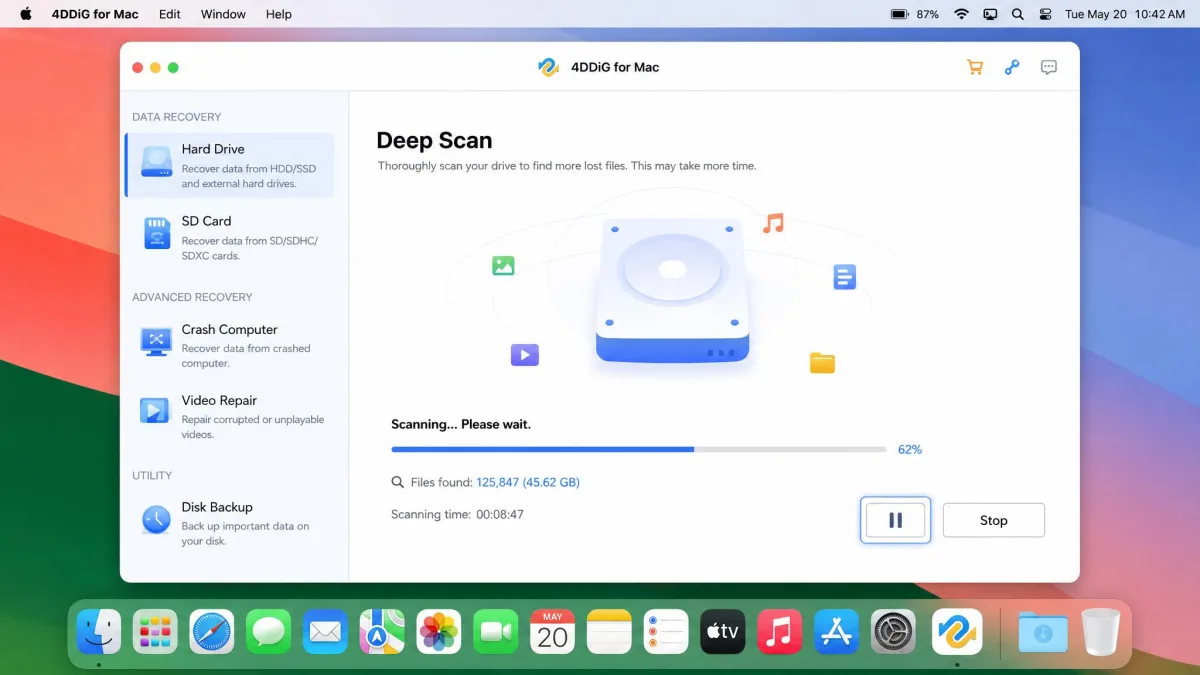
Select the drive, partition or card you lost files from, then start the scan. 4DDiG runs a quick pass first and escalates to Deep Scan automatically, and you can pause and resume a long run without losing progress. Deep Scan keeps up a respectable pace rather than crawling, though a large drive is still a sit-and-wait job.
Step 3: Filter and Preview Before You Recover
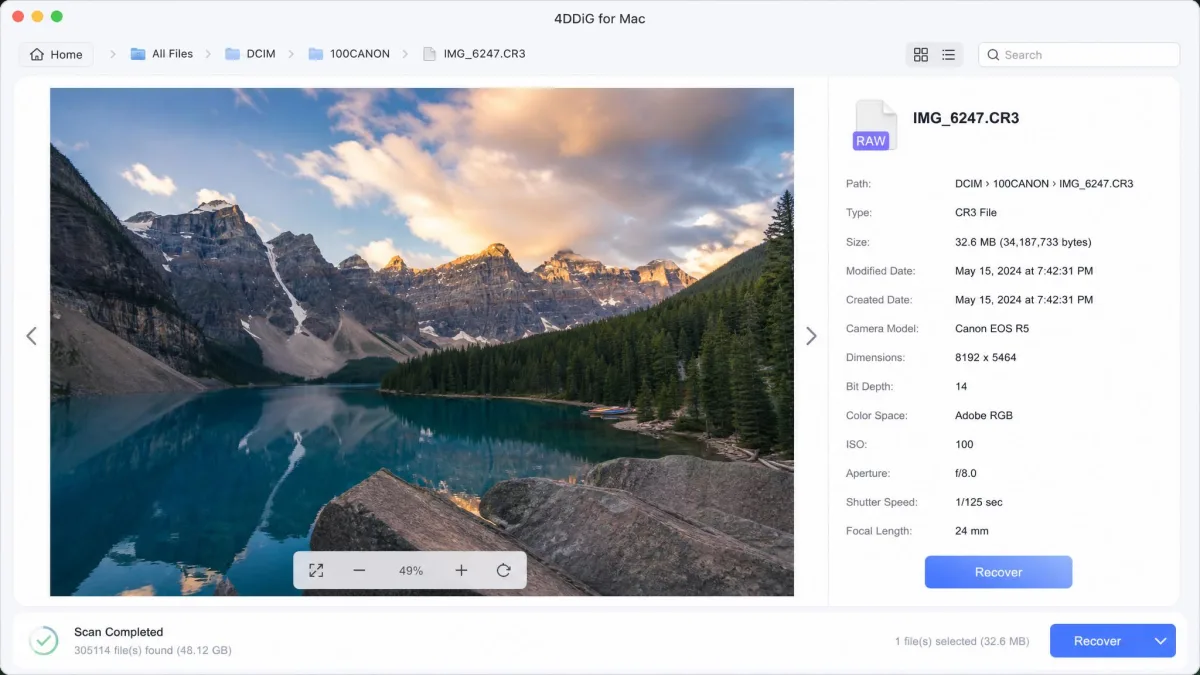
Filter the results by file type, size or name, then preview individual files before you commit. Do not skip this. The preview reliably matches what actually comes back, which makes buying after a clean preview a low-surprise decision, and it is the single best use of the free build.
Step 4: Recover to a Different Drive
Tick the files you want, click Recover, and choose a destination on a different physical disk. Verify a handful of the recovered files open properly before you wipe or reformat anything.
Recovering From an Unbootable Mac
If the Mac itself will not start, 4DDiG's crashed-computer module builds bootable media on a second machine so you can boot the dead Mac and scan its internal drive. It is slower and clumsier than a clone-and-scan workflow, but it works, and it saves pulling the drive out of a sealed chassis. Apple's Disk Utility guide is worth a read first: if Disk Utility can still mount the volume in Recovery mode, a plain external-drive scan is the easier route.
Scan Speed and Recovery Success Rate in Our Tests
Speed is where 4DDiG genuinely surprised us. Deep Scan on an Apple silicon Mac moves at a pace that lets you stay at the machine rather than walk away, and pause-and-resume means an overnight job survives being interrupted. The same scan on Intel hardware is a slower affair.
Success rate is more nuanced. On deleted and formatted APFS volumes, results were good and the preview accuracy meant no nasty surprises after payment. On corrupted volumes the recovery depth thinned out, and that is the boundary line for this product. For scale, an independent bench of a 1TB mechanical HDD full of deleted files finished its deep scan in about 75 minutes, though that timing scales with drive size, interface and file count, and the Mac build is not separately timed anywhere we could find. The same bench recovered roughly 82% from that deleted-file drive, around 61% from a quick-formatted 64GB microSD card, and about 58% from a RAW-corrupted 16GB USB stick. Recovery rate therefore swings from roughly 58% to 82% depending on whether the volume was deleted, formatted or corrupted, and Tenorshare's own 99% marketing claim sits far above every measured run. That spread matches the shape of what we saw: clean deletions come back well, corruption does not.
Is 4DDiG for Mac Safe and Legit?
Yes. The Mac build is Apple-notarized, which means Apple has scanned it for malware before it will run on your machine, and it operates in read-only mode on the source drive so scanning does not modify the volume you are trying to rescue. Tenorshare is a nearly twenty-year-old company with a public support operation and a real refund policy.
The risks here are commercial, not technical. Auto-renewal, refund friction, and a free tier that implies more than it delivers are the things to watch. Nothing about installing 4DDiG will hurt your Mac.
4DDiG vs Disk Drill vs EaseUS vs Data Rescue
| Product | Buy | Deep-scan depth | APFS / Apple silicon | File types | Photo/video repair | Free tier | Price |
|---|---|---|---|---|---|---|---|
 |
Check price → | Good on deleted and formatted, trails on corrupted | APFS incl. encrypted, M1 to M4, T2 | 2,000+ | Yes, bundled | Preview only | $119.95lifetime |
 |
Check price | Category-leading | APFS, HFS+, FAT, NTFS, native Apple silicon | 400+ | No | Preview plus free disk tools | $89one-time |
 |
Check price | Strong, comparable to 4DDiG | APFS, HFS+, exFAT, NTFS, Apple silicon and T2 | 1,000+ | Yes | Limited free allowance | $169.95lifetime |
 |
Check price | Strong, clone-first | M1 and M2, macOS 10.12 to 13 | Documents, audio, images, RAW | No | 1GB, new users only | $79for 30 days |
Disk Drill for Mac
Where 4DDiG optimises for approachability, Disk Drill optimises for depth. The PRO licence is $89 one-time with lifetime upgrades a $20 add-on, and it undercuts 4DDiG's lifetime tier while adding byte-to-byte imaging, bootable recovery media, S.M.A.R.T. monitoring and Recovery Vault. The imaging feature alone makes it the better choice for a failing drive, because it lets you scan a clone instead of the patient. Our full Disk Drill review covers the free disk-health tools it throws in.
EaseUS Data Recovery Wizard for Mac
EaseUS Data Recovery Wizard for Mac is the closest thing to a like-for-like rival: comparable scan depth, file repair in the box, bootable media, Time Machine recovery, and a genuine free allowance rather than preview-only. Its pricing is the confusing part. The EaseUS store lists $89.95 monthly, $119.95 yearly and $169.95 lifetime, while the Mac App Store in-app tiers run considerably cheaper, so check both before buying.
Prosoft Data Rescue
Data Rescue takes the opposite approach to 4DDiG: clone first, scan the clone, protect the failing disk. Pricing is unusual too, at $79 for 30 days of unlimited recovery or $399 per year for the Professional licence across all devices, with 1GB of free recovery for new users. The catch is a strict no-refund policy, which is why Prosoft pushes everyone through the demo first.
What Real Users Say About 4DDiG for Mac
The sentiment split is unusually clean. Capterra's 44 verified reviewers rate 4DDiG 4.8 out of 5, and the praise concentrates on the three things we also rated highly: ease of use, scan speed, and the preview step that removes the guesswork before payment. Trustpilot carries 307 customer reviews and a TrustScore in the region of 4.0 out of 5, with the caveat that the score differs between Trustpilot's regional storefronts and moves as reviews land, so no single value holds across them. The distribution is more telling than the average anyway: ratings sit at opposite poles rather than clustering in the middle, with roughly four in five raters giving five stars and about one in five giving one.
The one-star reviews cluster on exactly two themes, and both are worth knowing before you buy. The first is a scan that found nothing recoverable, which is the inherent gamble of any recovery purchase and the reason the free preview matters so much. The second is a refund request that support declined. Neither complaint is about the software damaging anything, and that pattern is consistent with what we found.
Who Should Buy 4DDiG for Mac (and Who Should Not)
Buy it if you deleted files, emptied the Trash, or formatted a working drive, and you want the least intimidating path from panic to recovered folder. Once the files are back, copy them somewhere durable the same day and only then reformat the original disk, because a second scan of a drive you have already written to rarely goes as well as the first. The monthly tier is defensible in exactly one case: you are recovering on a machine you do not own and will never touch again.
Skip it if the drive is making noise, showing S.M.A.R.T. errors, or already refusing to mount reliably. Skip it if you need RAID reconstruction or a hex editor. In all of those cases Disk Drill's imaging workflow or Data Rescue's clone-first approach protects your data better. If your Mac is simply running slow rather than losing files, that is a different problem entirely, and our best Mac cleaner software guide is the right starting point.
Frequently Asked Questions
Is 4DDiG for Mac safe to install?
Is the free version actually free, and does it recover anything?
Does 4DDiG work on Apple Silicon M1, M2, M3 and M4 Macs?
Can it recover from an APFS-encrypted or formatted drive?
Can it recover files from a Mac that will not boot?
How do I cancel 4DDiG auto-renewal or get a refund?
Can I install ReiBoot and 4DDiG on the same Mac?
Does 4DDiG recover files after the Trash was emptied?
Final Verdict: Our Rating
4DDiG for Mac is a genuinely user-friendly recovery app with the broadest format list in its class, and it deserves the good reviews it gets from people who deleted something and got it back. What it is not is a professional rescue kit. Without disk imaging, S.M.A.R.T. reporting or RAID support, it belongs on healthy drives with missing files, not on dying ones.
Pros
- Three-step wizard with no configuration screens to get lost in
- 2,000+ supported file formats, camera RAW included
- Preview accurately predicts what you will actually get back
- Photo and video repair bundled at no extra cost
- Broad macOS support from 10.12 through macOS 26
Cons
- Scans one drive at a time, so a two-volume recovery is two separate jobs
- No disk imaging, so scans run against the failing drive itself
- Bad sectors are processed silently with no warning
- Monthly licence costs almost as much as the lifetime one
- Auto-renewal cancels only from the web dashboard, not the app