You empty the Recycle Bin, then remember the folder of photos you actually needed. Or your SD card asks to be formatted, or a phone stops booting with a year of messages still on it. That sinking feeling is exactly the moment people go looking for a recovery tool, and iToolab RecoverGo is one of the names that keeps coming up. The question is whether it earns your money or just your hope. This review walks through what RecoverGo does, what it costs, how the recovery actually holds up, and where a different tool might serve you better.
What Is iToolab RecoverGo?
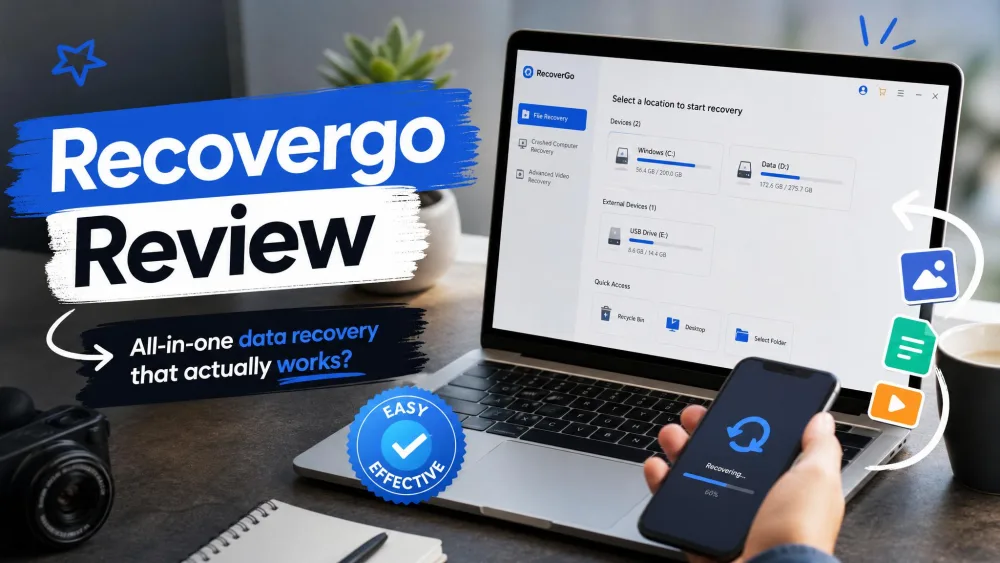
iToolab RecoverGo is a family of data recovery apps that scan a drive or device, show you what can be brought back, and restore the files you choose. You install it, run a scan, preview the results, and pay only when you want to save recovered files. The Windows edition is currently at version V1.3.0, released in February 2026.
The core promise is simple. RecoverGo reads the leftover traces of deleted files that still sit on your storage and reassembles them before new data overwrites them. It handles deletion, formatting, a system crash, water damage, and even a forgotten password, and it can pull data from hard drives, SSDs, USB sticks, SD cards, and cameras.
Supported Platforms and File Types
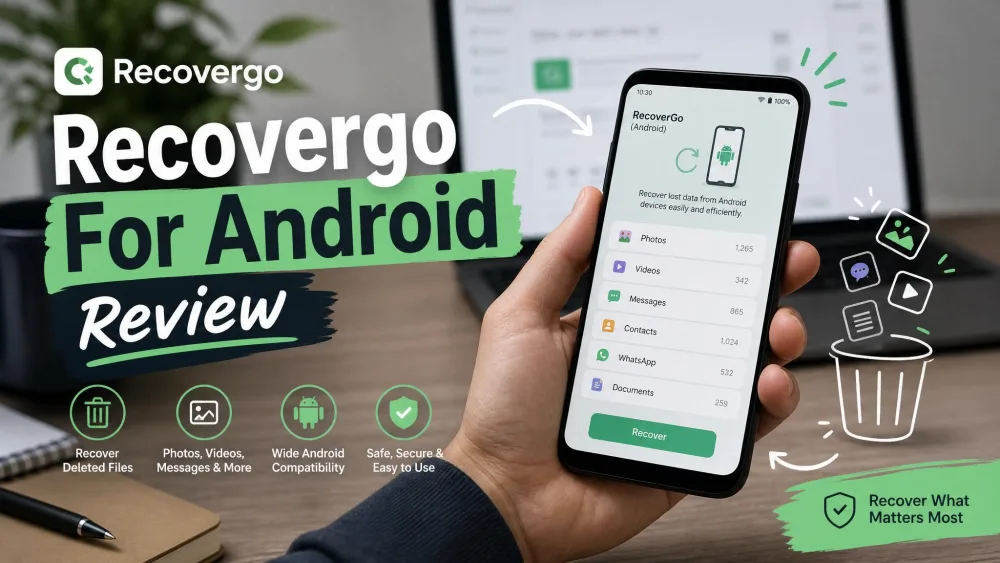
RecoverGo is sold as separate editions per platform rather than one universal app. The Windows edition supports Windows 11, 10, 8.1, 8, and 7, and reads over 1,000 file formats across 2,000+ storage devices. The Android edition recovers 11+ file types, including contacts, messages, photos, videos, audio, documents, and call history, and it does so without root.
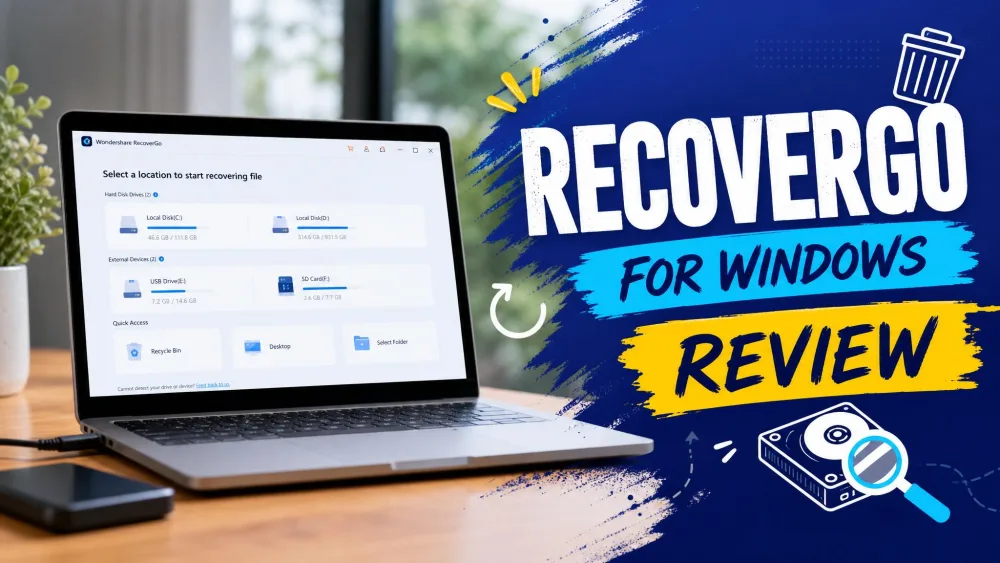
Because each platform is its own product, we cover them in dedicated pieces. For deep detail on a specific edition, see our RecoverGo for Windows review, our RecoverGo for Android review, and our RecoverGo for iOS review.
Who It's For (Use Cases)
RecoverGo is aimed at everyday users rather than data-recovery specialists. It suits you if you deleted files by accident, formatted the wrong drive, or need messages and photos off an Android phone without sending it to a lab. The point-and-click workflow is genuinely beginner-friendly and needs no technical expertise, so you do not have to understand file systems to get a result.
It is a weaker fit if your data lives on a modern SSD, or if the drive is physically damaged. In those cases no consumer app can promise much, and RecoverGo is honest company rather than a miracle.
Key Features
The RecoverGo product line leans on a handful of features that matter more than the marketing gloss around them:
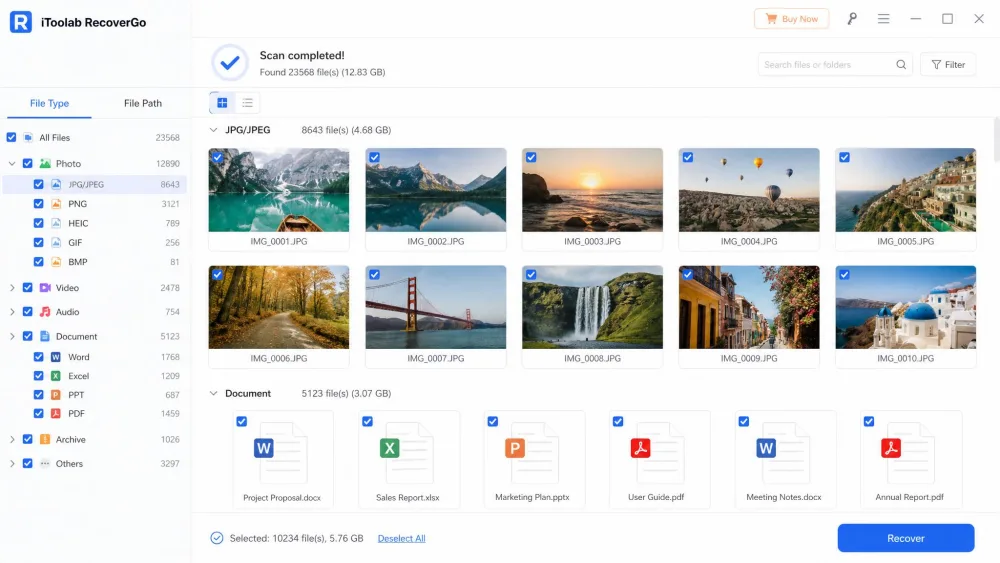
- Free scan and preview. The free download scans your drive and previews recoverable files. Payment is required only to actually restore and save them.
- Selective recovery. You pick individual files from the preview instead of restoring everything, which keeps the output tidy.
- No-root Android recovery. The Android edition recovers data without root, so you do not have to modify the phone.
- Broad device support. It reads internal drives, SSDs, USB flash drives, SD cards, and cameras.
- Wide scenario coverage. Deletion, formatting, a crashed system, water damage, and a forgotten password are all supported entry points.
- Extras. The line advertises WhatsApp and Google Drive data recovery, plus advanced filters to narrow a long result list.
None of these are unique to RecoverGo, but together they cover the situations most people run into.
The free version is a genuine preview, not a trial timer. It scans and shows what it finds at no cost, and you only pay when you decide to save the recovered files. Treat the scan as a free diagnosis before you commit.
How to Use iToolab RecoverGo (Step by Step)
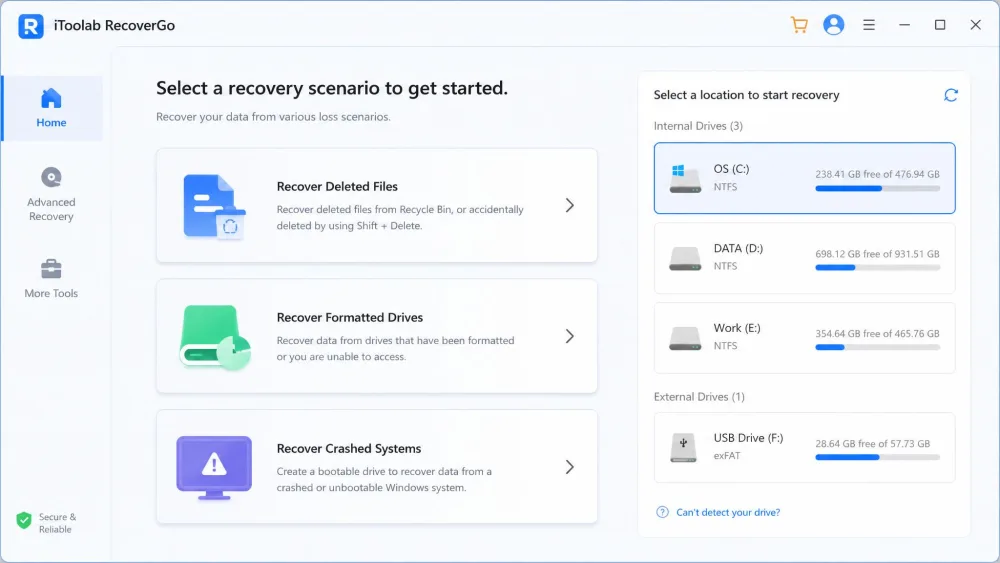
The flow is short and the same idea repeats across editions. On Windows it looks like this:
- Install on a different drive. Install RecoverGo onto a drive other than the one you are recovering from. Installing onto the source drive can overwrite the very files you want back, so this step matters more than it sounds.
- Pick a location. Choose the drive, partition, or removable device to scan.
- Scan. Run the scan and let it index recoverable files. A quick scan is fast, and a deep scan digs further.
- Preview. Browse the results, filter by file type, and confirm the files you need are actually there.
- Recover. Select your files and save them to a safe, separate location.
For the Android edition, add one wrinkle. You enable USB debugging and keep the phone unlocked and connected during the scan, which adds a few setup steps but keeps the process root-free.
Always recover files to a different drive than the one you scanned. Saving recovered data back onto the source drive risks overwriting other deleted files you have not rescued yet.
How Well Does It Actually Recover Data? (The 99% Claim, Tested)
RecoverGo's marketing leans on a headline success rate. The Windows page claims a 99.7% success rate, and the number shifts to "99%" or "highest in the industry" phrasing elsewhere on the vendor's own site. Here is the honest picture from our reading of the evidence.
That figure ships with no published methodology, no sample size, and no lab validation, so it is best treated as a marketing claim rather than a guarantee. Real recovery odds swing widely by drive type, and RecoverGo does not break its claim down that way.
Where RecoverGo does well is the common case. Recovery is fast and accurate for recent deletions on mechanical hard drives and removable media such as USB sticks, SD cards, and cameras, as long as the file-system metadata is still intact and nothing has overwritten the data. Photos, documents, and messages come back cleanly in that scenario.
Where it struggles is modern storage. On SSDs with TRIM enabled, which is the Windows default, deleted data is often gone within seconds and no tool reliably brings it back. Users who hit that wall are the ones who walk away disappointed, because the preview raises hope the drive cannot deliver on.
The 99.7% claim is not a lie so much as a best-case number stripped of its context. On an SSD with TRIM on, your real odds are far lower, and no consumer tool changes that.
So does it recover data? Yes, reliably, in the situations it is actually good at. The 99% headline is not the number to trust. The file system and drive type under it are.
iToolab RecoverGo Pricing and Plans
RecoverGo uses subscription tiers plus a one-time option, and the Windows edition is the clearest to price. Plans cover 2 PCs.
- 1-month plan: $39.99, auto-renewing.
- 1-year plan: $49.99, auto-renewing.
- Lifetime license: $69.99, one-time.
The Android edition is priced separately, roughly $35.95 for one month, $39.95 for a year, and $49.95 for a lifetime license. Those Android figures move around, because the edition is priced differently from Windows and iToolab runs recurring time-limited discounts, so the sticker you see may be lower.
Every paid plan is backed by a 30-day money-back guarantee, though it is conditional and applies to refundable circumstances only, so read the terms before assuming a no-questions refund.
Because the free scan and preview cost nothing, run them before you buy any tier. If the files you need show up in the preview, the lifetime license at $69.99 is usually better value than renewing a monthly plan you will forget to cancel.
Pros and Cons
Pros
- Free scan and preview let you see recoverable files before paying anything
- Genuinely beginner-friendly, point-and-click workflow with no technical setup
- Fast, accurate recovery for recent deletions on HDDs, USB drives, and SD cards
- Android recovery works without root
- One-time lifetime license avoids an ongoing subscription
Cons
- The 99.7% success claim has no published methodology and reads as marketing
- Weak results on TRIM-enabled SSDs, like every consumer recovery tool
- Full recovery is paywalled after the free preview, which can raise false hope
- Sold as separate per-platform editions rather than one license
- Deep scans on large drives can run long
iToolab RecoverGo vs. Alternatives
RecoverGo is not the only Android recovery name on the results page. MobiKin Doctor for Android and Coolmuster Lab.Fone for Android both show up as alternatives, so here is how the feature picture compares. Worth noting: both of those competitor reviews are published by the competitors themselves, so we lean on their feature lists, not their claims of superiority.
| Feature | iToolab RecoverGo | MobiKin Doctor for Android | Coolmuster Lab.Fone for Android |
|---|---|---|---|
| Price (entry) | $39.99/mo, $69.99 lifetime (Windows) | Not verified | Not verified |
| Supported data types | 1,000+ formats (Windows); 11+ (Android) | Photos, videos, messages, contacts | Contacts, SMS, media, docs |
| Root required (Android) | No | No | No |
| Success-rate claim | 99.7% (vendor, unverified) | None stated | None stated |
| Platform support | Windows, plus Android and iOS editions | Windows and Mac | Windows and Mac |
| Free trial | Free scan and preview | Preview before recovery | Free version, limited |
The practical takeaway is that these tools are close in what they cover. RecoverGo's edge is the clean, free preview and the wider file-format count on Windows. If Mac support is a hard requirement, the two alternatives cover macOS where RecoverGo splits things by edition. For a broader field, see our roundup of the best data recovery software.
Is iToolab RecoverGo Worth It? Our Verdict
In our reading and hands-on assessment, RecoverGo behaves exactly as a solid mid-tier tool should. It recovers recent deletions from hard drives and removable media quickly and cleanly, it stays honest and simple for non-technical users, and it stumbles on SSDs the same way its rivals do. The free preview is the feature that makes it easy to recommend, because it removes the guesswork before you spend a cent.
Frequently Asked Questions
Is iToolab RecoverGo legit and safe to use?
Is iToolab RecoverGo free?
Does RecoverGo recover data without root or a backup?
How much does iToolab RecoverGo cost?
Is the 99% recovery claim real?
What is the best iToolab RecoverGo alternative?
Conclusion
iToolab RecoverGo is a straightforward, honest-enough recovery tool that does its best work in the situations most people actually face: an accidental delete, a formatted card, a phone that will not boot. The interface stays out of your way, the free preview tells you the truth before you pay, and the lifetime license is fair value at $69.99. Just judge it by your drive type, not by the 99.7% banner. On a hard drive or SD card with recent losses, it is a reasonable buy. On a TRIM-enabled SSD, run the free scan first and keep your expectations grounded, because the honest answer there is that a backup habit beats any recovery tool.