You want a VPN that installs in a minute, costs nothing, and lets you change your location without reading a manual. Urban VPN is one of the few free tools that actually fits that description, which is why so many people reach for it first. The catch is that "free" comes with trade-offs, and knowing them upfront makes the setup smoother.
We installed Urban VPN fresh on Windows, macOS, Android, iOS, and three browsers to walk through every path from download to first connection. Along the way we noted where the app is genuinely easy and where it stumbles, so you know what to expect before you commit your time. This guide covers each device in order, then explains what Urban VPN is, how the free and premium tiers differ, and how to squeeze the best speed out of it.
Before You Start: What You Need
Urban VPN keeps the requirements low, which is part of its appeal. You need a supported device, an internet connection, and a few minutes. There is no account, email, or credit card required for the free tier, so you can go from download to connected without signing up for anything.
Pick the version that matches how you browse. The desktop and mobile apps route all of your device traffic, while the browser extension only protects traffic inside that browser. If you mainly want to unblock a site or hide your browsing on a work laptop, the extension is lighter. If you want everything covered, install the full app.
The free tier is funded by a data model. In our review of its privacy terms, Urban VPN collects identifiers, IP address, and browsing and search history, and shares anonymized data with advertising and analytics partners. It also runs a peer-to-peer network where your device can act as an exit node for other users. Decide whether that trade is acceptable before you rely on it for sensitive browsing.
How to Set Up Urban VPN on Windows
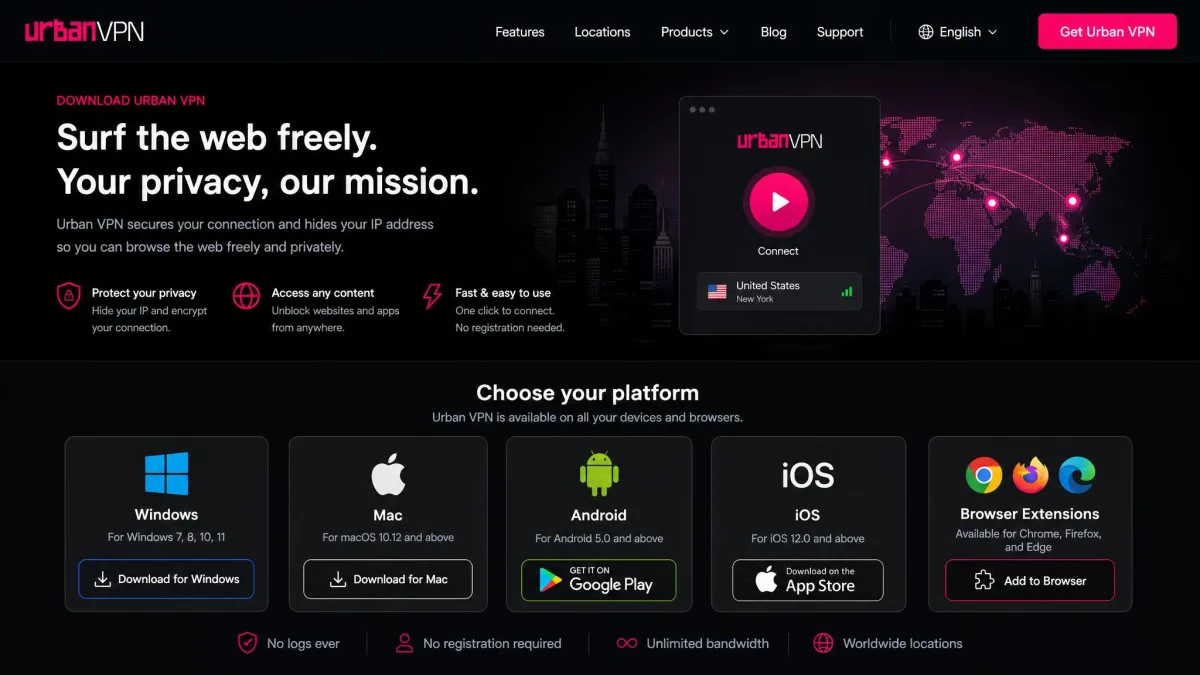
Getting Urban VPN running on Windows took us under two minutes from download to first connection. Head to the official site, download the Windows installer, and run it. The installer is small and the process is a standard next-next-finish, with no bundled extras to decline during our install.
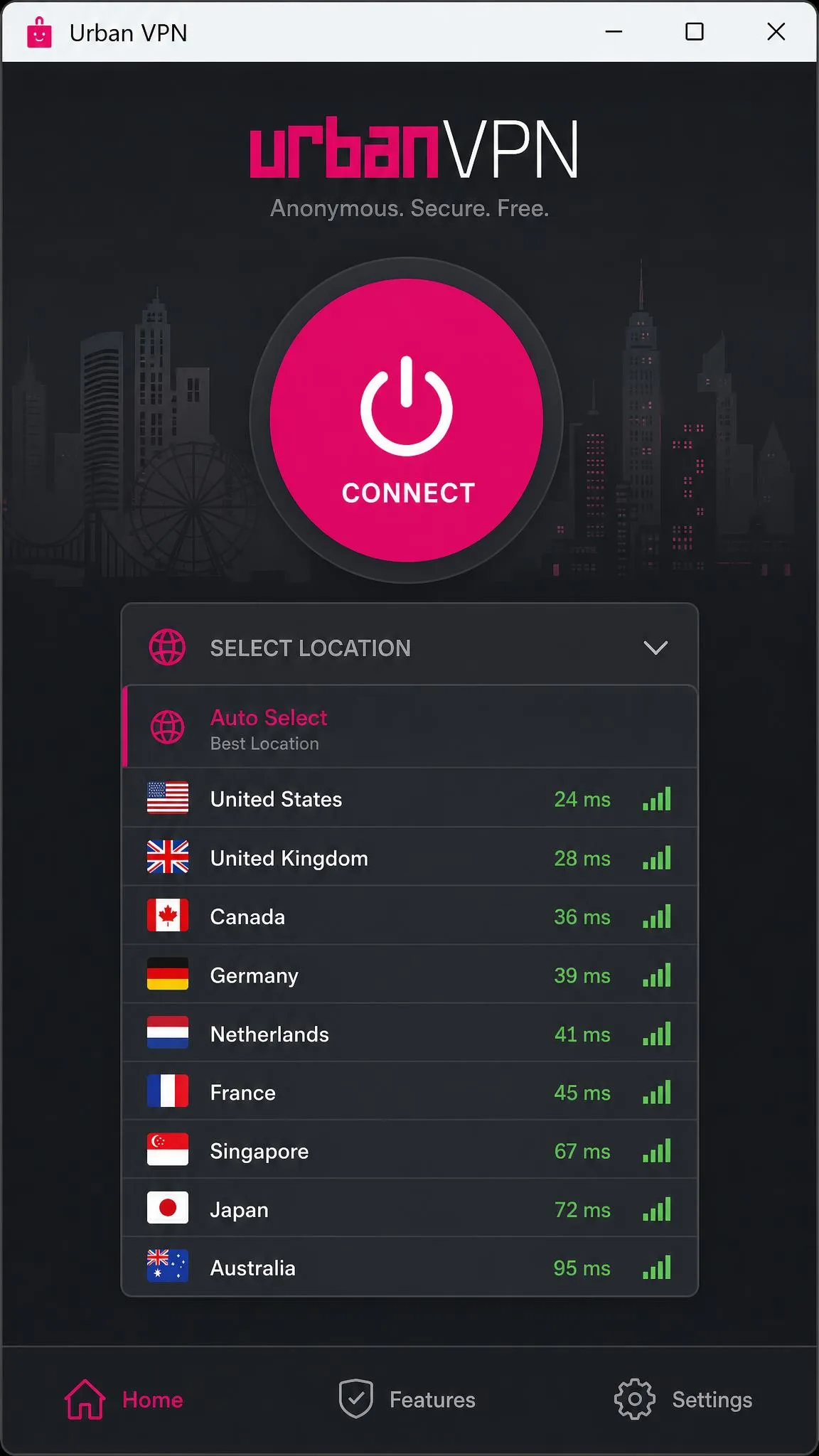
Once installed, the app opens to a single window with a large connect button and a country list. There is no configuration screen to wade through, which matches Urban VPN's minimalist approach. Sign-in is optional on the free tier, so you can start using it immediately.
Connecting and Changing Your Location on Windows
To connect, click the location dropdown at the top of the window and pick a country. The app connects in a few seconds and the button turns to show you are protected. To change your location later, open the same dropdown and choose a different country; the app switches servers without needing a manual disconnect first.
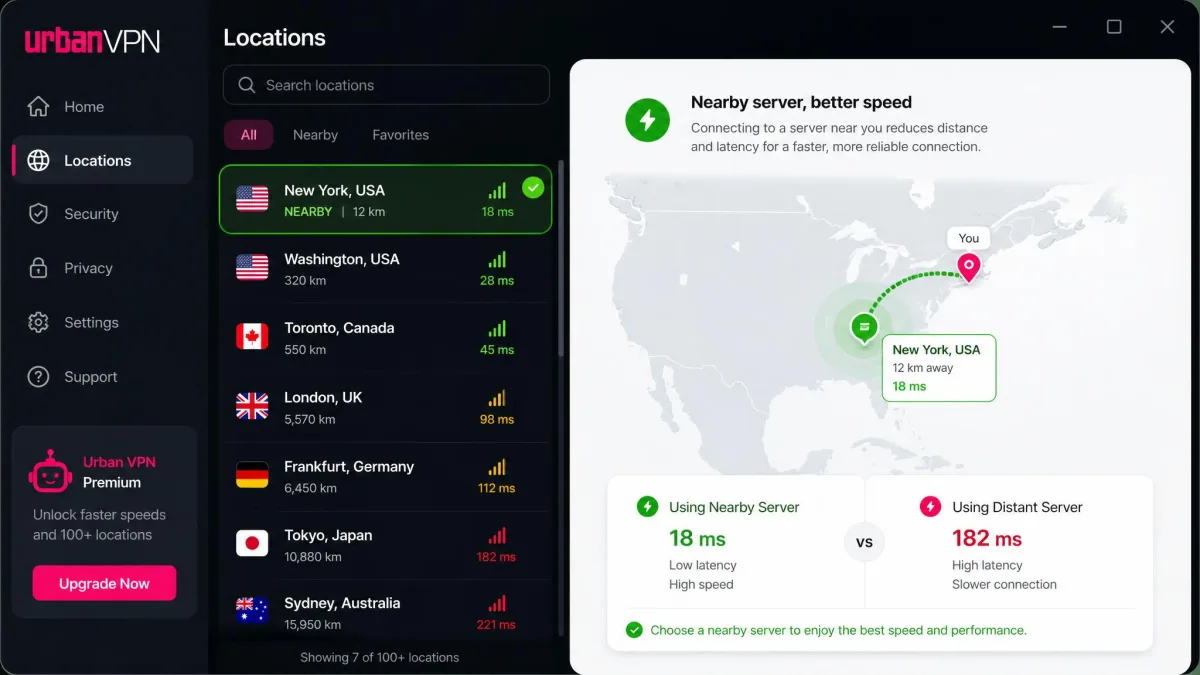
We found nearby servers connected almost instantly, while distant ones took a beat longer. If a connection feels slow, switch to a closer country and reconnect. That single habit fixes most speed complaints on the desktop app.
Choose a server in or near your own region for everyday browsing. In our testing, nearby servers stayed fast, while a distant server dropped to around 28.5 Mbps with latency near 179 ms, which made pages feel sluggish.
How to Set Up Urban VPN on Mac
The Mac path is nearly identical to Windows, with one difference: you install from the Mac App Store rather than a downloaded installer. Search the store for Urban VPN, install it, and open the app from your Applications folder or Launchpad. The download is handled by the store, so there is no installer to babysit.
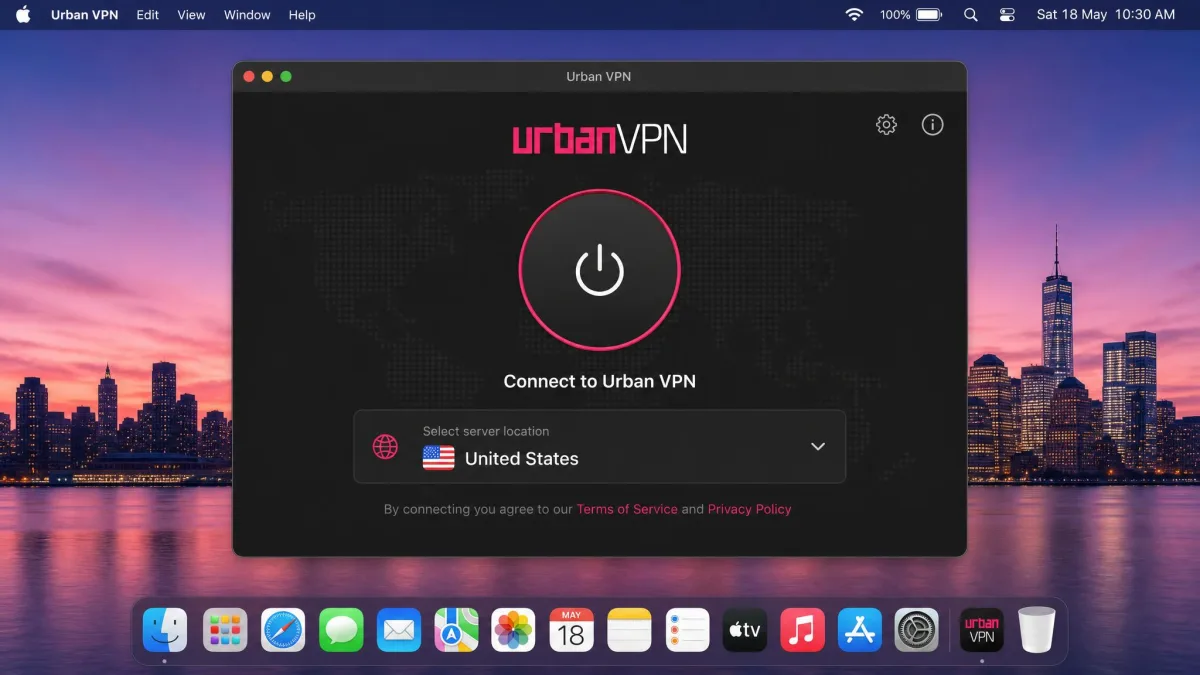
When the app opens, it presents the same clean single-window layout as the Windows version. Everything you need sits on that one screen, and the free tier again works without an account.
Changing Your VPN Location on Mac
Click the Urban VPN icon to open the window, then select a server from the location dropdown to connect. To change your virtual location, reopen the dropdown and choose another country. The switch happens in place, so you do not need to quit and relaunch the app.
If a site still shows your real region after connecting, disconnect fully and reconnect to the new server. macOS occasionally holds an old route until the tunnel resets, and a clean reconnect clears it.
How to Set Up Urban VPN on Android
On Android, install Urban VPN for Android from the Google Play Store. Tap Install, wait for it to download, and open it. Android will ask you to approve a VPN connection request the first time you connect, which is a standard system prompt that lets the app create its tunnel.
The mobile layout mirrors the desktop app: one connect control and a searchable list of locations. Installation and the first connection were straightforward in our testing, thanks to the one-click connect and the stripped-down interface.
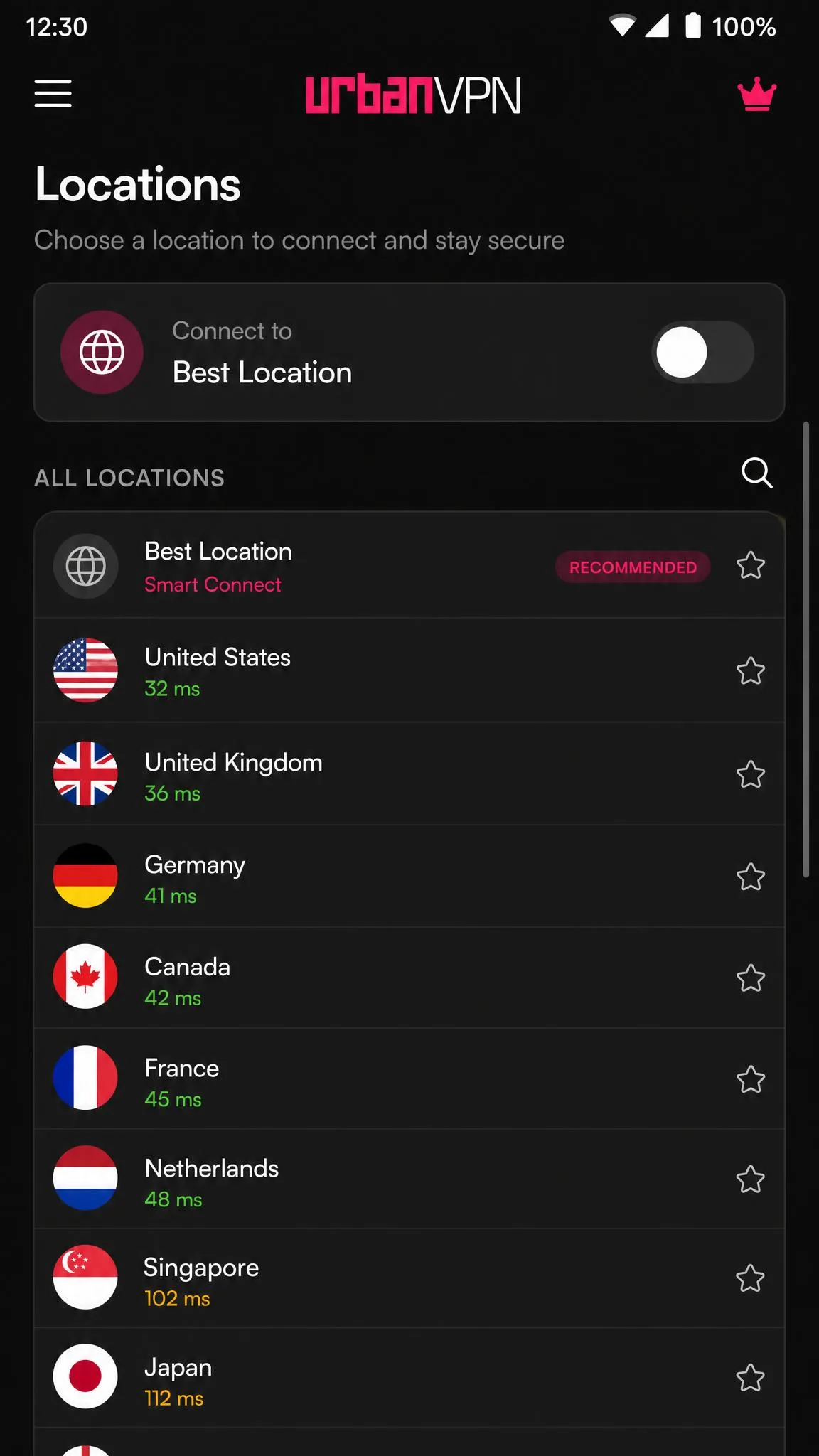
Choosing a Server Location on Android
Tap Locations to open the server list, then tap a country to connect. The app builds the tunnel and shows a connected state at the top. To switch, return to the Locations screen and pick a different country; there is no need to disconnect manually first.
Android also lets you set Urban VPN as an always-on VPN in your system settings if you want it to reconnect automatically after a reboot. That option lives in Android's network settings rather than the app, so check there if you want the tunnel to persist.
How to Use the Urban VPN Browser Extension (Chrome, Firefox, Edge)
If you only want to protect one browser, the extension is the fastest route. It installs from your browser's add-on store, sits in the toolbar, and routes only that browser's traffic. This is handy on a shared or work computer where you cannot install a full desktop app.
The extension carries the same location list as the apps, so switching your virtual location works the same way across all three browsers. The steps differ only in where you find the add-on store.
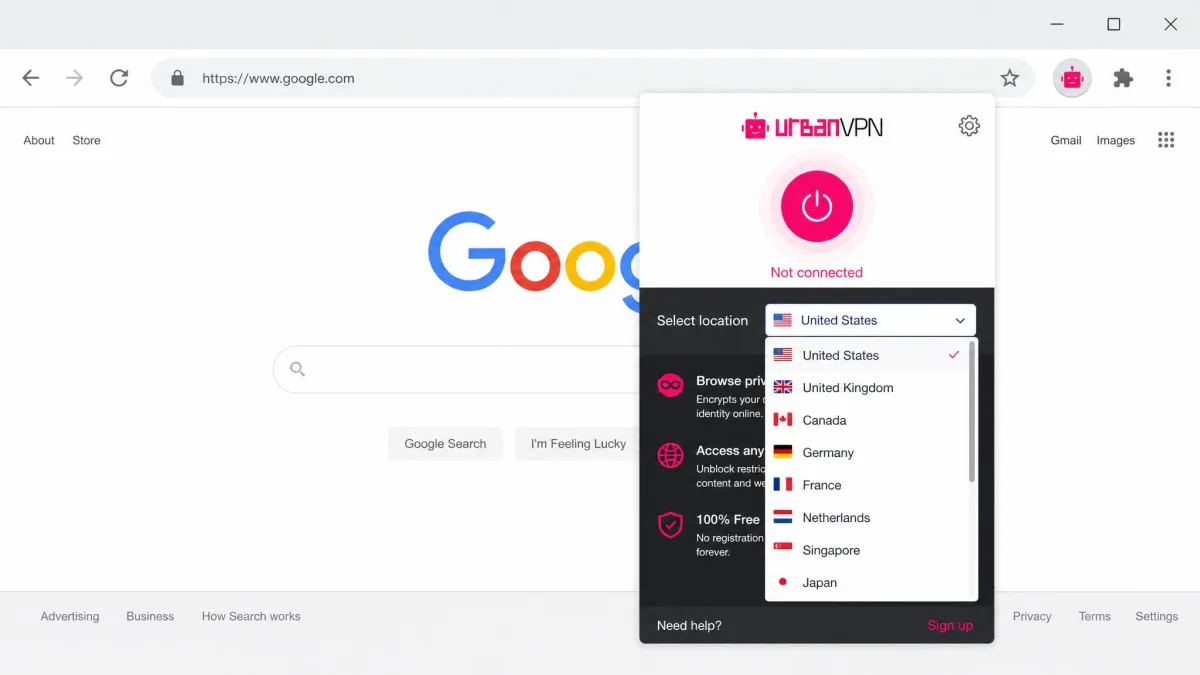
Installing and Connecting on Chrome
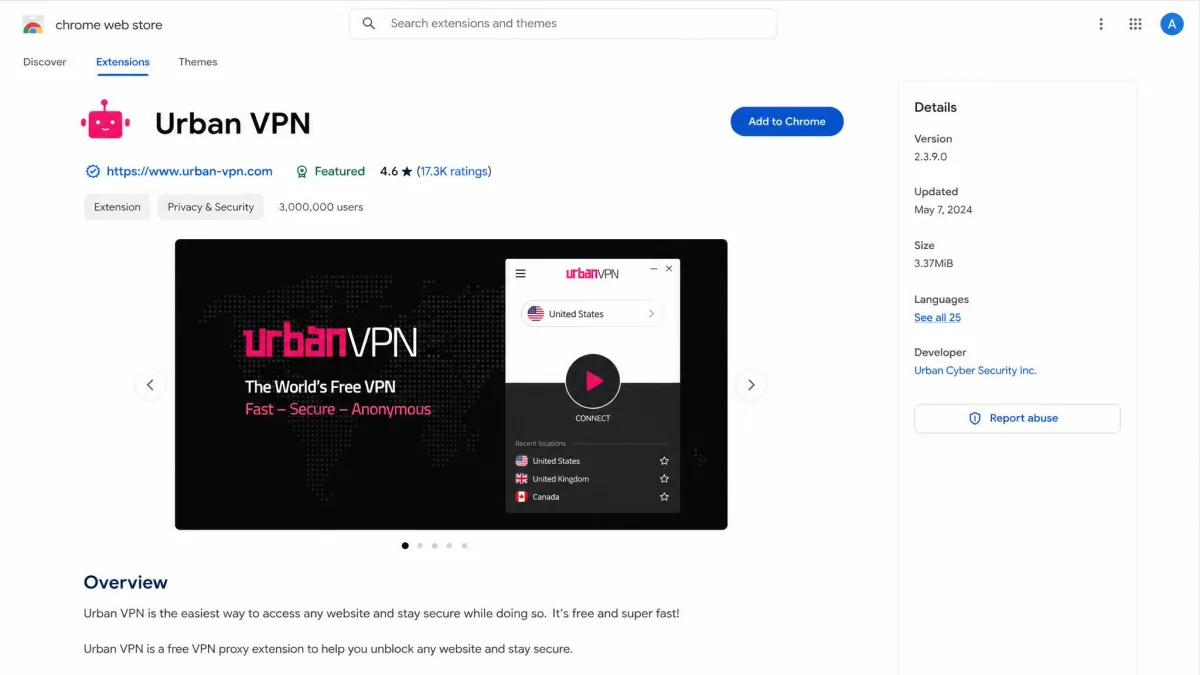
Open the Chrome Web Store and search for the Urban VPN Chrome extension, then click Add to Chrome and confirm. The Urban VPN icon appears in your toolbar. Click it, choose a country from the dropdown, and the extension connects for that browser only.
Pin the icon to your toolbar so it stays visible. That makes connecting and switching locations a one-click habit instead of a hunt through the extensions menu.
Installing and Connecting on Firefox
In Firefox, open the Add-ons page, search for Urban VPN, and click Add. Approve the permission prompt and the icon appears in your toolbar. Click it, pick a location, and you are connected inside Firefox.
The popup layout is the same as Chrome's, so if you use both browsers the workflow carries over without relearning anything.
Installing and Connecting on Edge
For Edge, open the add-ons store and install Urban VPN for Edge. Edge can also install Chrome extensions, but using the Edge listing avoids compatibility prompts. Click Get, confirm, then open the toolbar icon to connect.
Once installed, click the icon, select a country, and Edge routes that browser's traffic through the chosen server.
Switching Virtual Location in the Browser Extension
To change your virtual location in any of the three browsers, click the toolbar icon and open the locations dropdown. Pick a new country and the extension reconnects to that server, usually within a couple of seconds. There is no separate disconnect step.
Remember that the extension only covers browser traffic. Apps outside the browser, like a desktop email client or a streaming app, keep using your normal connection unless you run the full VPN app instead.
The browser extension protects only the browser it is installed in. If you need your whole device covered, including apps outside the browser, install the desktop or mobile app rather than relying on the extension.
How to Set Up Urban VPN on iPhone (iOS)
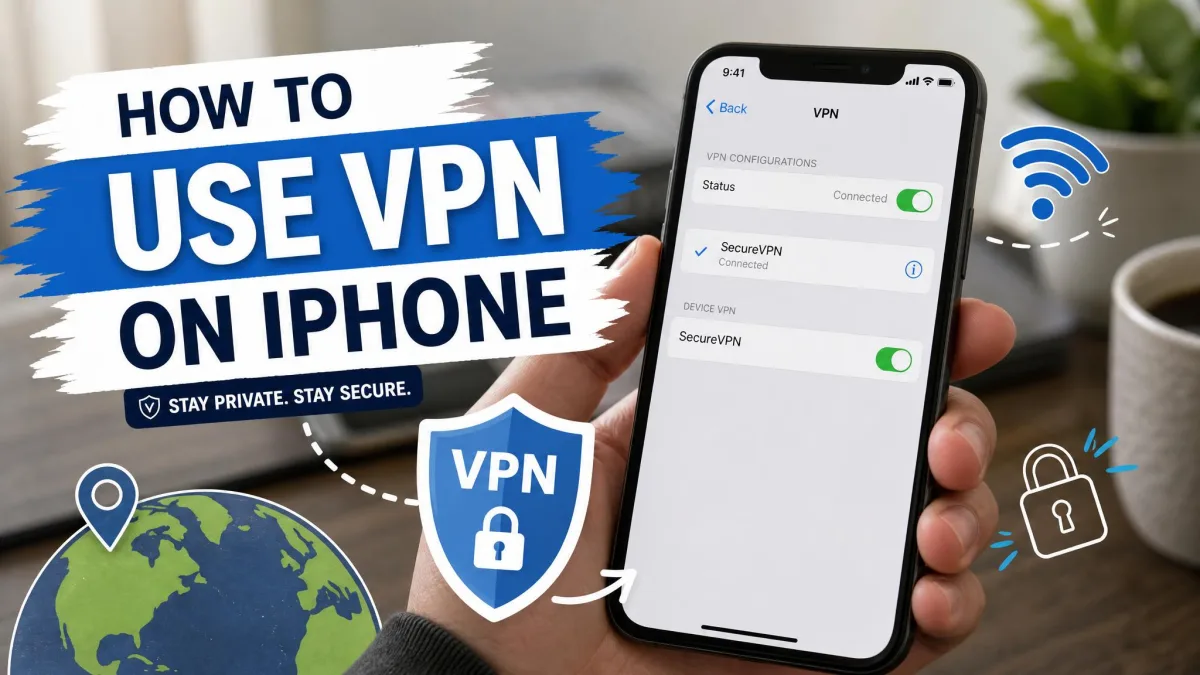
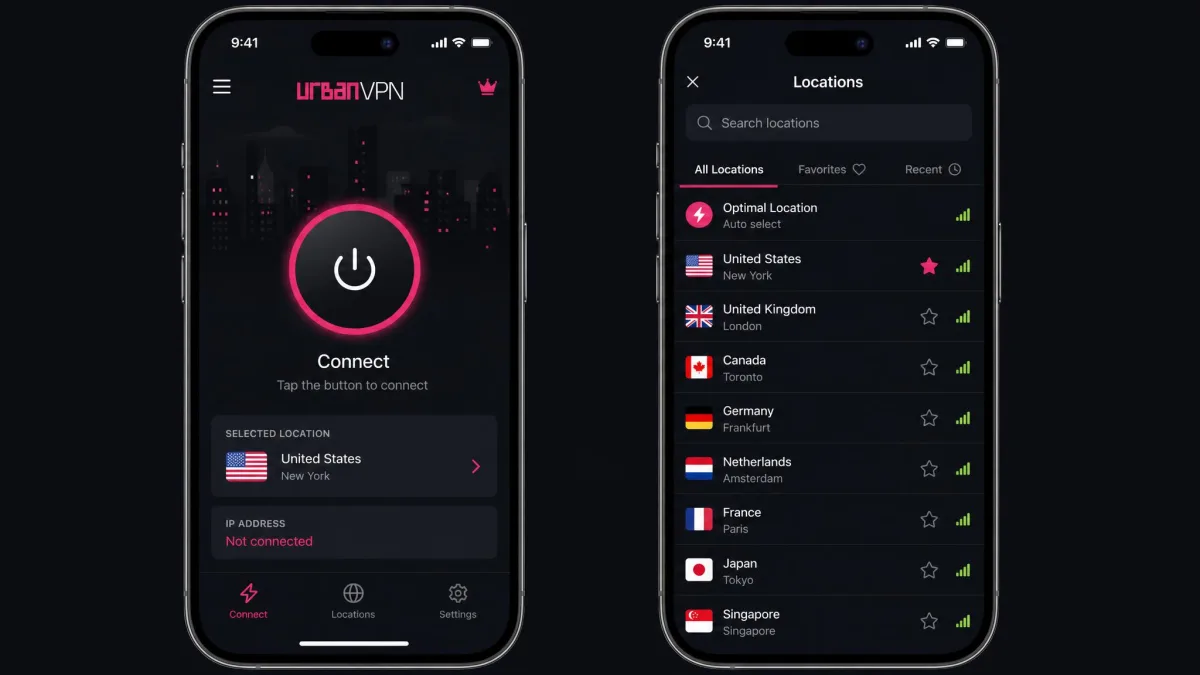
On iPhone, install Urban VPN on the App Store. Tap Get, authenticate, and wait for the app to download. Open it and tap Connect; iOS will ask permission to add a VPN configuration the first time, which you approve with Face ID or your passcode.
The iOS app keeps the same one-screen design as the other versions. After you approve the configuration once, future connections skip that prompt.
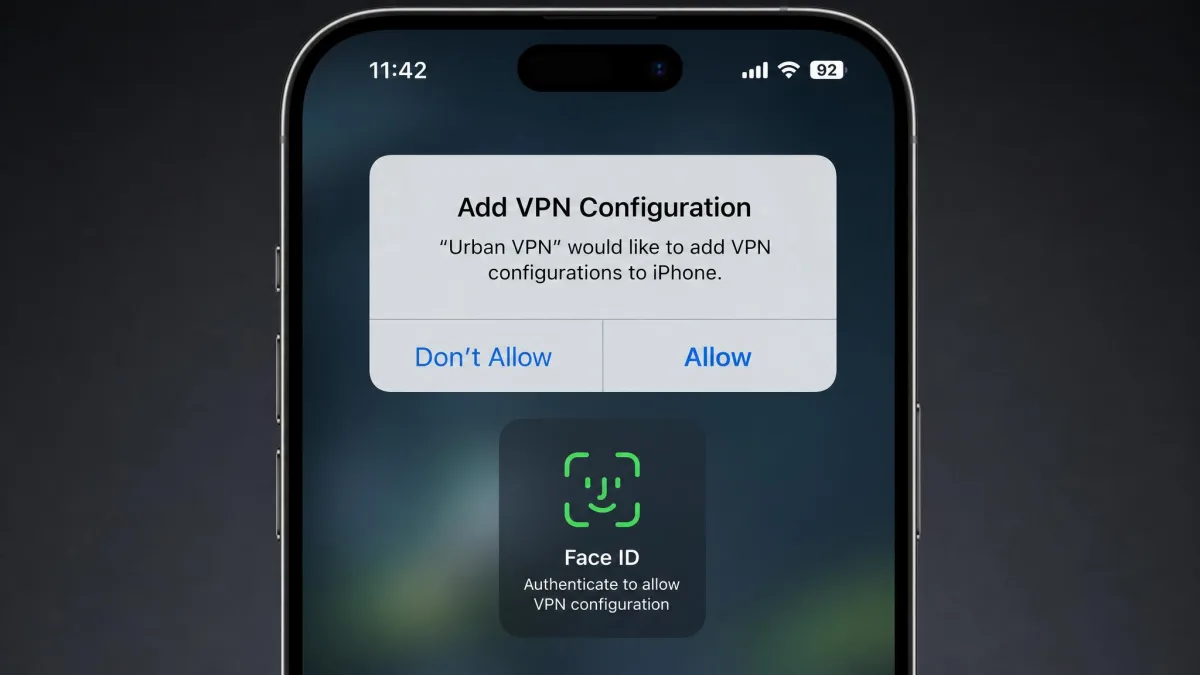
Selecting a VPN Location on iOS
Tap the location control to open the server list, then choose a country to connect. To change your location, reopen the list and pick another server; the tunnel switches without a manual disconnect. If a site still detects your real region, toggle the connection off and on to force a fresh route.
For a deeper walkthrough of VPNs on Apple's platform, our guide on how to use a VPN on iPhone covers system-level settings that apply to any provider.
What Is Urban VPN and How Does It Work
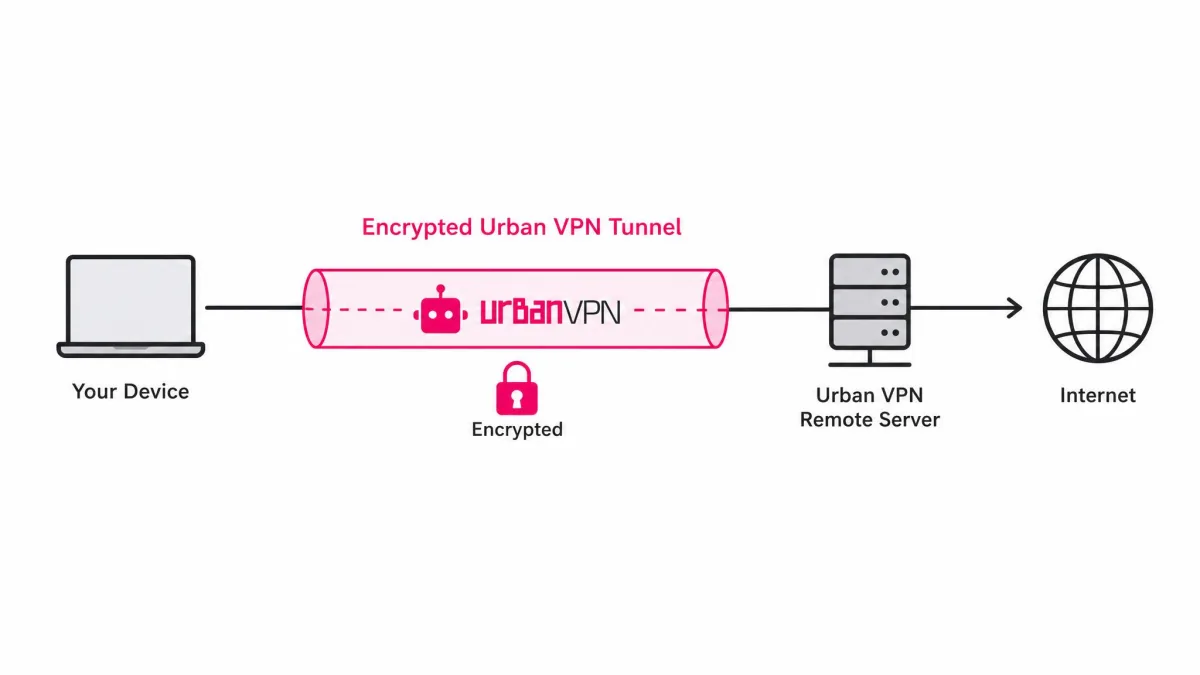
A VPN routes your internet traffic through an encrypted tunnel to a server in another location, which hides your real IP address and makes your browsing appear to come from that server. If you want the full technical picture, Wikipedia has a clear explainer of what a VPN is. Urban VPN applies that idea in a free, one-click package aimed at casual users.
What makes Urban VPN unusual is how it funds the free tier. Rather than charging you, it operates a peer-to-peer network in which your device can serve as an exit node for other users' traffic, and it monetizes anonymized browsing data through advertising partners. That model keeps the price at zero but is the reason we treat it as a convenience tool rather than a privacy-first choice.
Urban VPN advertises a large network, roughly 350 locations across 80-plus countries, though the exact count varies by source and by tier. It runs on Windows, Mac, Android, iOS, and as extensions for Chrome, Firefox, and Edge, so most people can use it on every device they own. For a fuller assessment of its strengths and weaknesses, see our Urban VPN review.
Free vs Premium: What You Get
The free tier gives you unlimited bandwidth, the full location list, and one-click connecting with no account required. That is a lot for zero dollars. The compromises are the data-funded business model, the peer-to-peer exit-node network, unreliable streaming, and the absence of documented advanced features like a kill switch or split tunneling in the free app.
Premium removes the data model in favor of a paid subscription and adds the features power users expect. It advertises WireGuard and AES-256 encryption, a double VPN, a kill switch, and high-capacity servers. Premium covers 87 countries, allows 8 devices at once, and carries a 30-day money-back guarantee. Pricing runs $4.95 per month on the annual plan ($59.40 per year), $6.98 per month for six months, or $12.99 billed monthly.
| Feature | Urban VPN Free | Urban VPN Premium |
|---|---|---|
| Price | $0 | From $4.95/mo (annual) |
| Bandwidth | Unlimited (advertised) | Unlimited |
| Countries | 80+ (marketing figure) | 87 |
| Simultaneous devices | Not specified | 8 |
| Encryption / protocol | OpenVPN on desktop | WireGuard, AES-256 |
| Kill switch | Not documented | Yes |
| Money-back guarantee | None | 30-day |
| Business model | Data sharing plus P2P | Subscription |
Premium's 30-day money-back guarantee gives you a window to test it risk-free. If you want to try the paid features, note that Trustpilot reviewers have flagged delayed refunds, so keep a record of your purchase date and cancellation request.
Tips for Getting the Best Speed and Security
Speed on Urban VPN depends heavily on server distance. In our testing, nearby servers held up well for browsing and video, while distant ones fell off sharply, with one distant connection dropping to about 28.5 Mbps and latency near 179 ms. The fix is simple: connect to the closest country that still gives you the region you need.
Reliability is the other thing to plan around. We saw the connection drop mid-session more than once, which was most noticeable while streaming. If you rely on the tunnel staying up, reconnect before starting anything important, and expect that major streaming platforms like Netflix often detect Urban VPN and return a proxy error, even if a US connection occasionally works with delays.
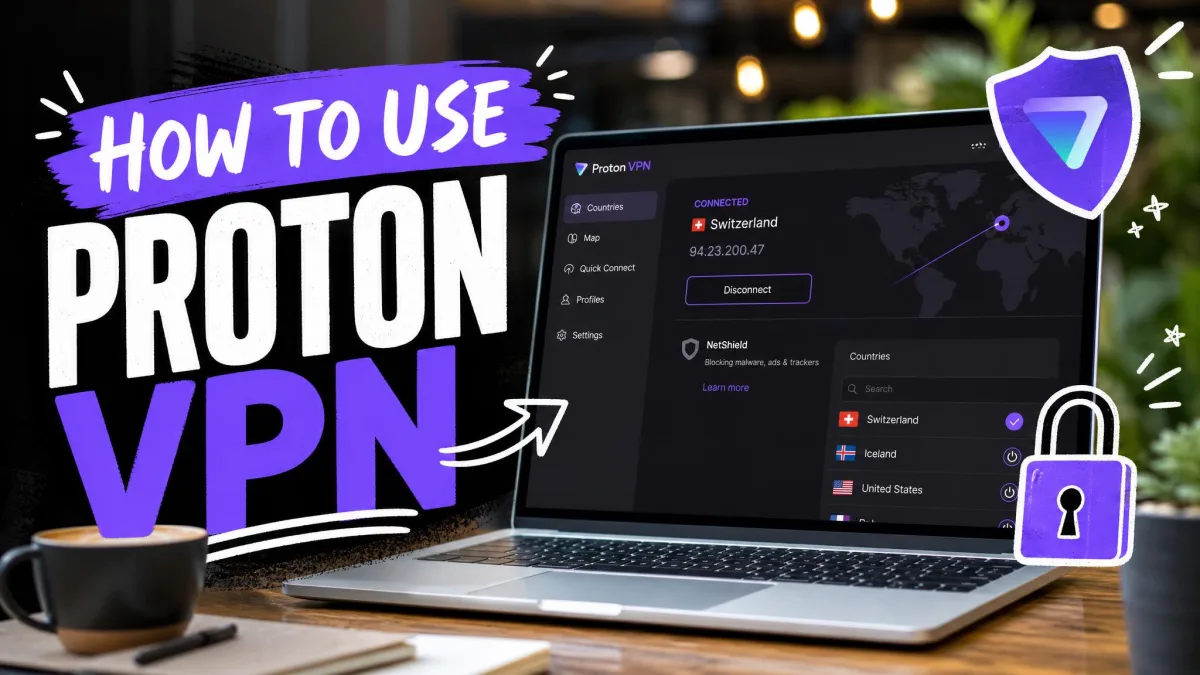
On the security side, be honest about what the free tier is for. It hides your IP from the sites you visit, but there is no true no-logs policy and the service has never had an independent security or no-logs audit. For anything sensitive, either upgrade to Premium or use a provider with an audited no-logs record; our general VPN setup guide and our Proton VPN walkthrough point to more privacy-focused options.
If a streaming site blocks you, try switching to a different server in the same country before giving up. Some servers get flagged faster than others, and a quick switch sometimes restores access without any other change.
Frequently Asked Questions
Is Urban VPN free?
Is Urban VPN safe to use?
Does Urban VPN keep logs?
How many devices can I use with Urban VPN Premium?
Why does Urban VPN keep disconnecting or feel slow?
Does Urban VPN work on all my devices?
Conclusion
Urban VPN earns its popularity by being genuinely easy: install it, click a country, and you are browsing from somewhere else within a minute on any device. For casual use, quick location changes, and unblocking the occasional site, that simplicity is hard to beat at a price of zero.
Just match your expectations to the tool. The free tier trades your data and reliability for that convenience, so keep it for light tasks and lean on Premium or an audited provider when privacy and steady streaming matter.