If you want to secure your traffic on hotel and cafe Wi-Fi in Saint Vincent and the Grenadines, NordVPN, ExpressVPN and Surfshark are the three we would shortlist. All three are polished apps with a 30-day refund window. None lists a Vincentian server in its public directory, so you get privacy while you are there, not a local IP.
Best VPN providers for Saint Vincent and the Grenadines
We ranked these on published features and our hands-on findings. We have not measured speeds from inside the country, so the order is a shortlist, not a local-performance ranking.
Using a VPN while physically in Saint Vincent and the Grenadines differs from getting a Vincentian IP address while abroad. In-country use does not give you a Vincentian exit IP, and no provider below lists a server there.
NordVPN
NordVPN suits travellers who stream a lot. In our experience it streams reliably across many regional services without disruptive buffering or dropped connections, though some catalogues stay locked. It can fail to open Australian Prime Video and US YouTube even when other services work.
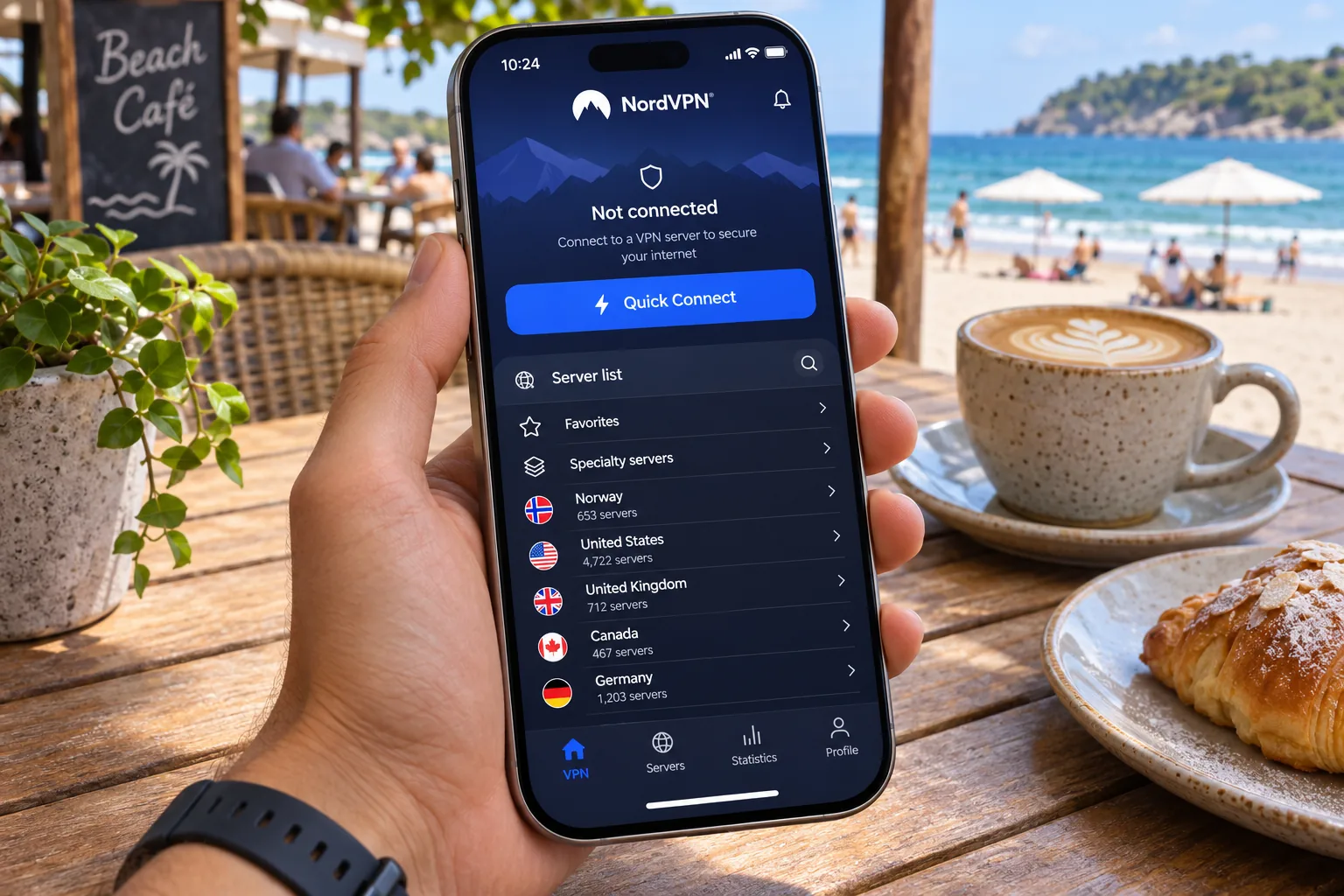
Its support page confirms 10 simultaneous device connections per account, which covers a phone, laptop and tablet with room to spare. The limitation is the mobile app. The interface feels cramped, and long-distance connections can lag behind faster rivals.
ExpressVPN
ExpressVPN suits people who want the easiest setup. It installs and connects without fuss on mainstream desktop and mobile platforms. An account activation code lets you add another device without retyping your password. Its pricing page lists 10 simultaneous devices on the Basic plan, with more on higher tiers.
The limitation is content access. It handles many regional Netflix and free streaming services well, but US Prime Video and YouTube can fail. The desktop map also takes up space without helping you pick a server.
Surfshark
Surfshark suits households with many devices, since paid plans allow unlimited simultaneous connections. Its desktop app makes location search and settings easy to find, with short explanations beside each toggle. It handles everyday browsing, live sport and long video calls capably.
The limitation is the kill switch. It is not enabled by default, so installing the app does not turn it on. Switch it on yourself on day one, but be aware that the macOS kill switch can leak under some test conditions.
How to choose a VPN for privacy and reliable connections
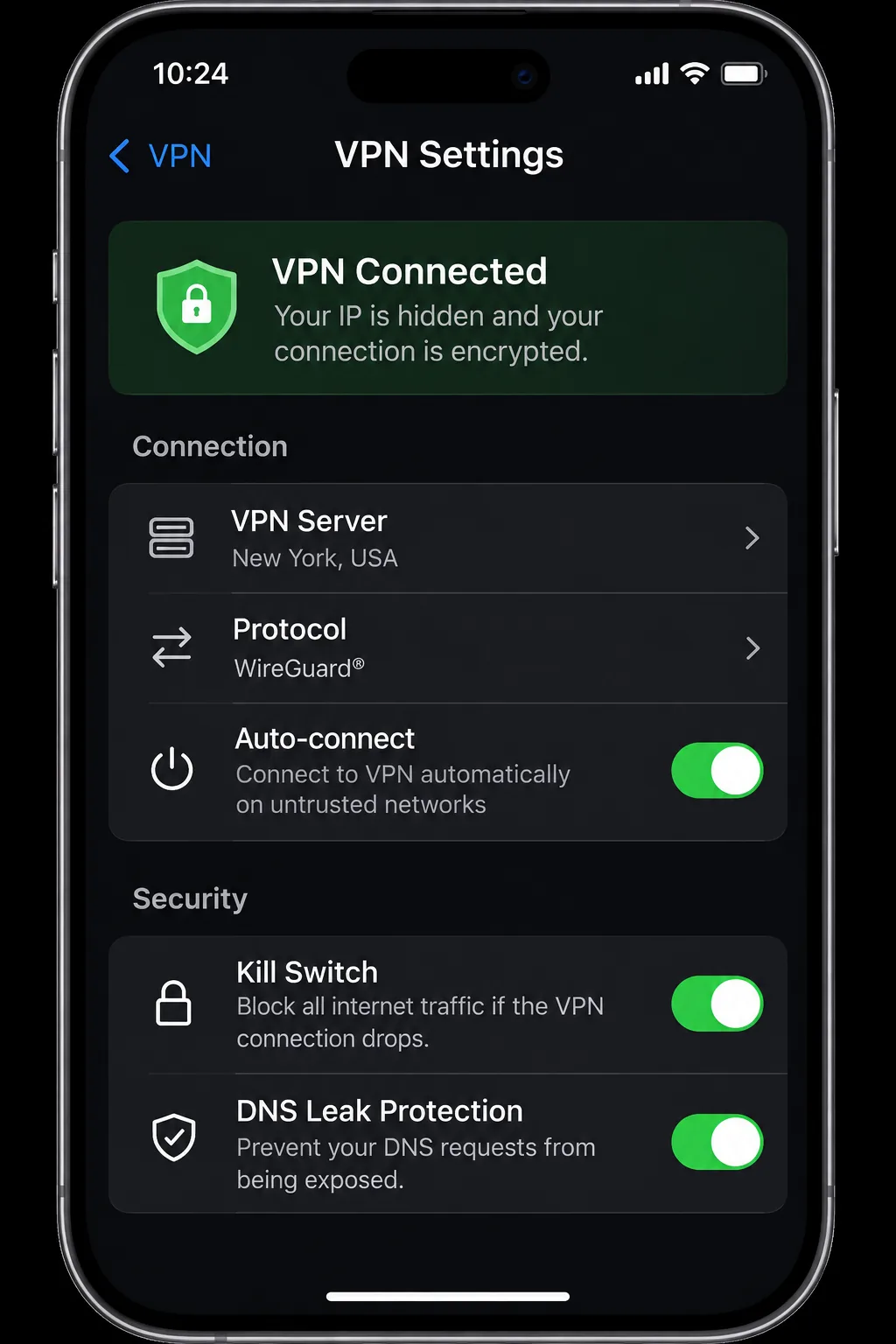
Base your choice on the controls that protect you when the connection drops. Look for a kill switch, split tunneling and an app that runs on your phone's operating system. NordVPN's current iPhone app needs iOS 17.0 or later, while ExpressVPN's needs iOS 15 or above.
Check refund terms as well. Each provider advertises 30 days, and Surfshark offers a 7-day trial on eligible website plans. Prices change by region and promotion, so read the checkout page before you commit.
Using a VPN with your eSIM and public Wi-Fi
Before you travel, check that your phone supports the eSIM. Then confirm that your VPN works over that connection, because you depend on the eSIM and the VPN separately.
A travel eSIM's built-in protection is not a substitute. While Saily lists virtual location and web protection, these are not the same as a dedicated VPN's privacy.
Public Wi-Fi may ask you to sign in through a browser first. An always-blocking kill switch can stop that page loading, so connect to the network, finish the sign-in, then turn the VPN on.
Choosing servers for streaming and local access
Pick a nearby server for speed and a distant one only when you need that country's content. Congestion and virtual hosting also affect results, so a close server is not always the quickest.
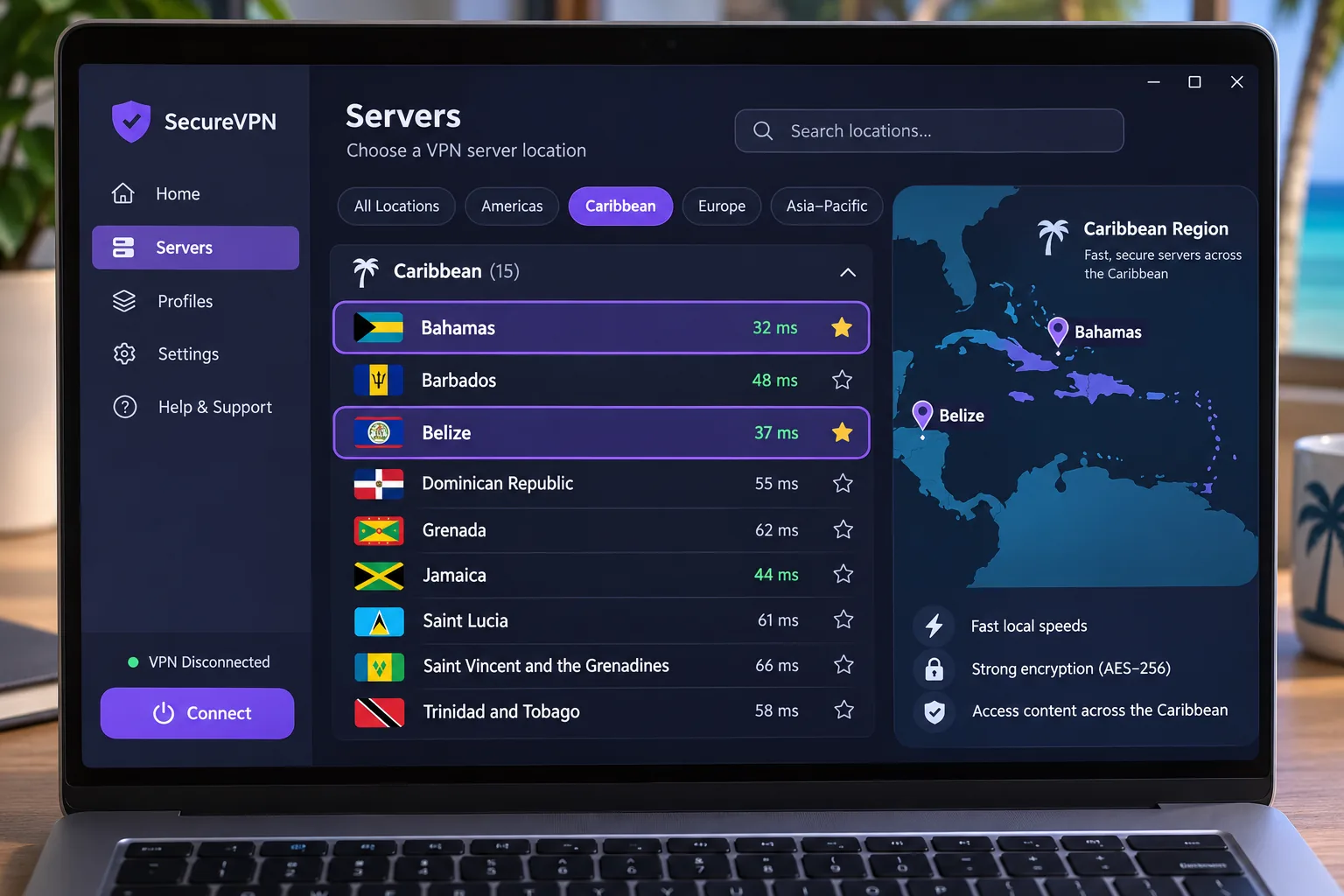
Do not expect a Vincentian address. The absence of a directory listing does not prove that no VPN anywhere offers one, but we could not find a local endpoint at any of these three. Treat streaming access as a test you run, not a promise.
Set up and test your VPN before travelling
Install the app and sign in on every device while you still have home broadband. Open Settings, turn on the kill switch, then connect to a nearby server.
Next, test the connection. Load a page, check that your visible IP address changed, and confirm your streaming apps still open. Do this before you fly, so you can fix problems on a fast network.