
WebWatcher Review: Honest Look at Features, Pricing, and Whether It's Worth It
WebWatcher is a stealth phone and computer monitoring app built by Awareness Technologies, a company that has been making this kind of software since 2002. It records text messages, call logs, browsing history, GPS location, and social media activity from a child's device, then sends everything to a secure online dashboard that only you can see. It runs on more platforms than most rivals, covering Android, iPhone, Windows, Mac, and Chromebook from a single account.
We tested WebWatcher so you can see whether it fits your family before you pay for a full subscription. This is an honest, hands-on look at what the app does well, where it falls short, and whether the price holds up against cheaper competitors like Eyezy, mSpy, and uMobix. The short version is in the verdict box below, and the rest of this review backs it up.
WebWatcher Review at a Glance
See WebWatcher Plans and PricingWhat Is WebWatcher and How Does It Work?
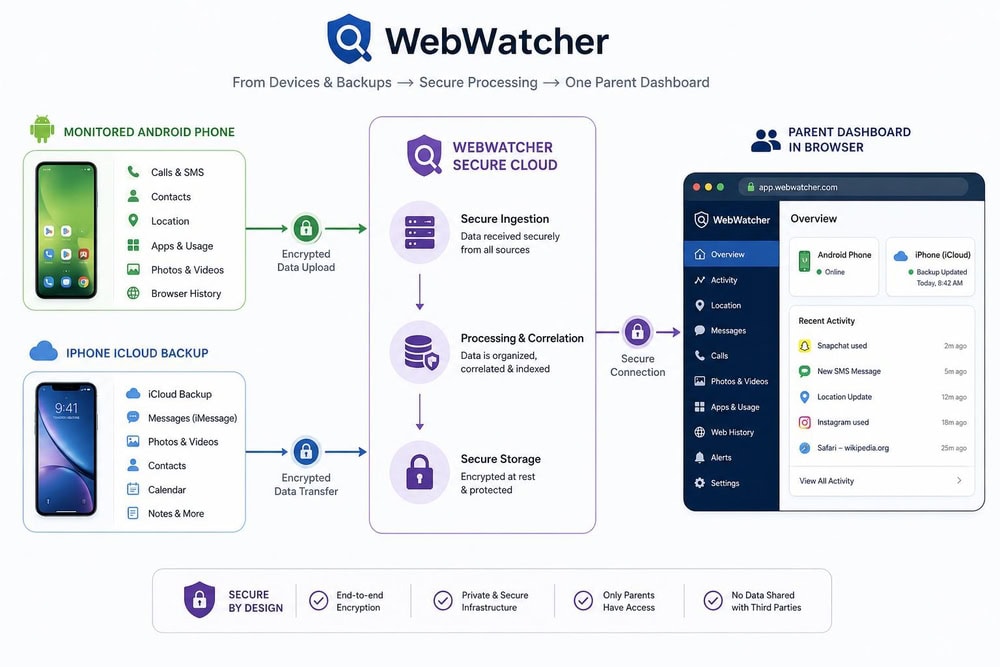
WebWatcher is a parental monitoring app, sometimes described as a spy app, that lets you see what happens on a child's phone or computer without sitting next to them. You install it on the device you want to watch, and from then on it quietly records activity in the background and uploads it to a secure online account you log into from any browser.
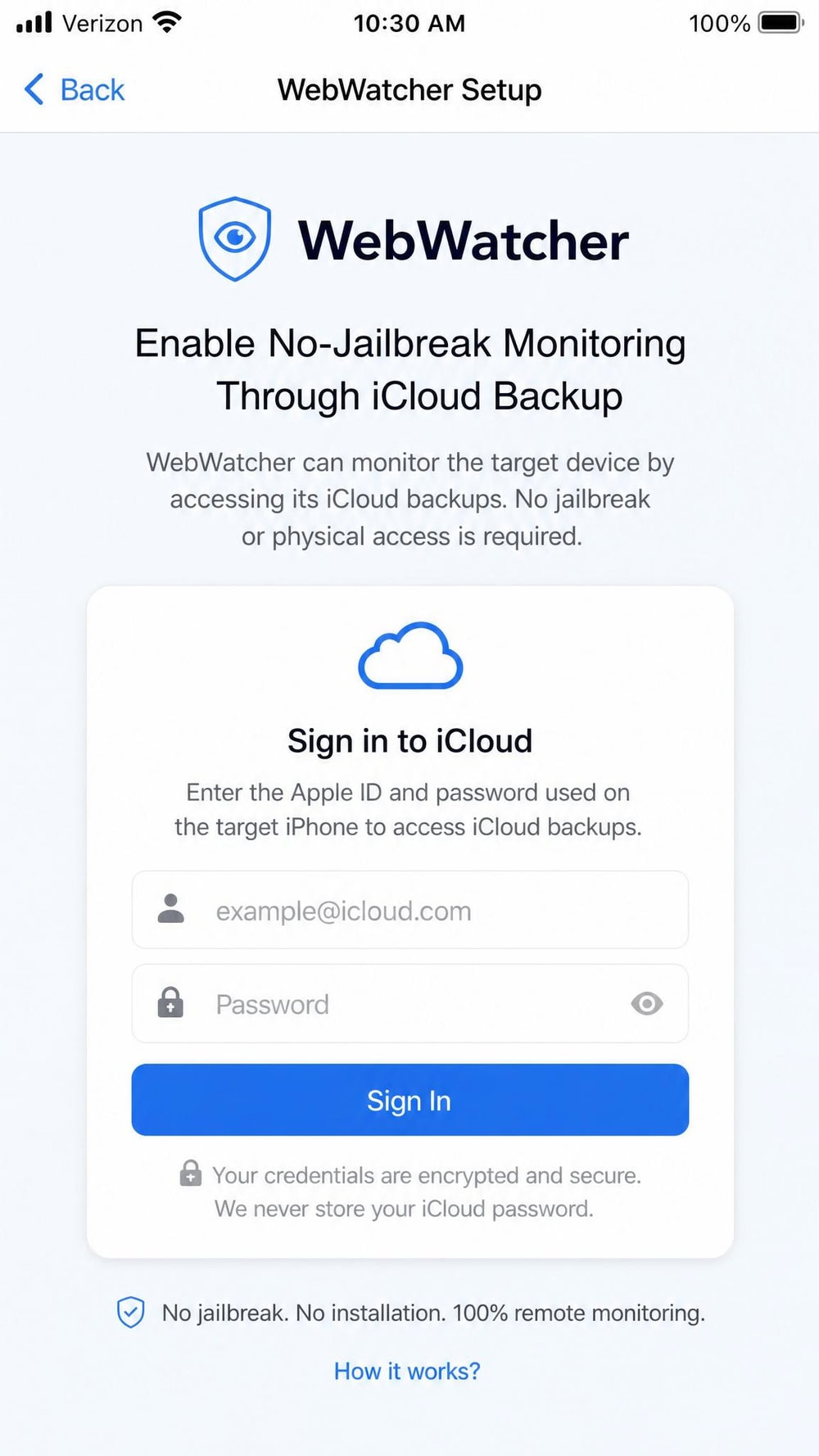
On Android, Windows, Mac, and Chromebook, the monitoring runs close to real time, refreshing as the child uses the device. The iPhone setup works differently. Instead of installing software on the phone, WebWatcher pulls data from the device's iCloud backup using the account credentials, which is why no jailbreak is needed but also why the data tends to update on a daily basis rather than instantly.
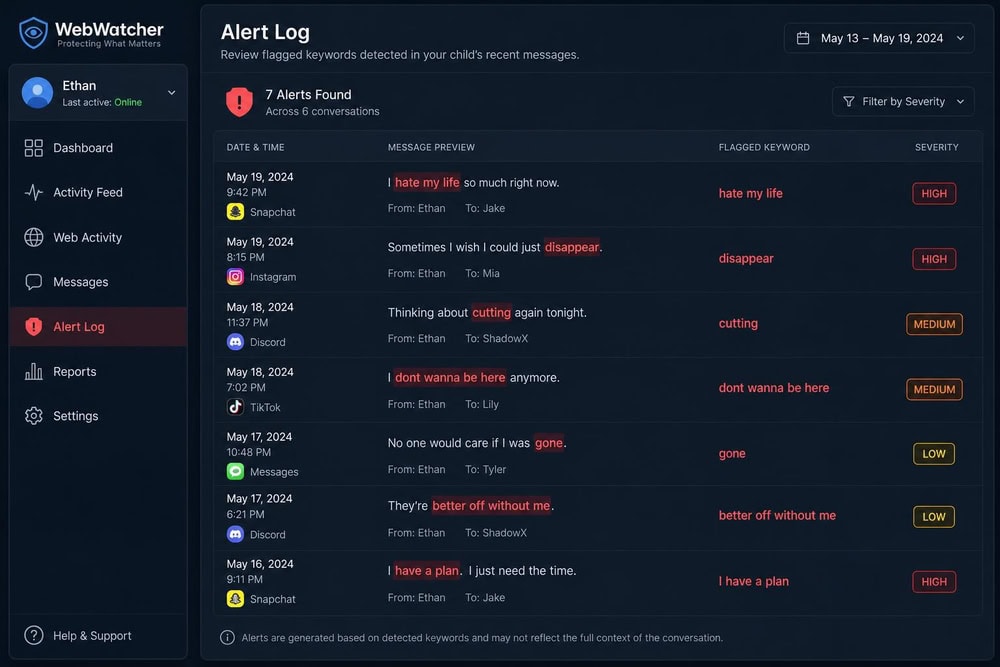
The app is built around quiet, after-the-fact monitoring rather than active control. It is excellent at showing you what was said, searched, and visited, and its Alert Log scans everything it captures to surface risky keywords automatically. If you want a tool that mostly blocks apps or enforces screen-time schedules, this is worth keeping in mind as you read on.
WebWatcher Features
WebWatcher's feature set is broad, covering the major categories parents look for. We walked through each one on our test devices, and the sub-sections below break down what you actually get.
Social Media & Chat Monitoring
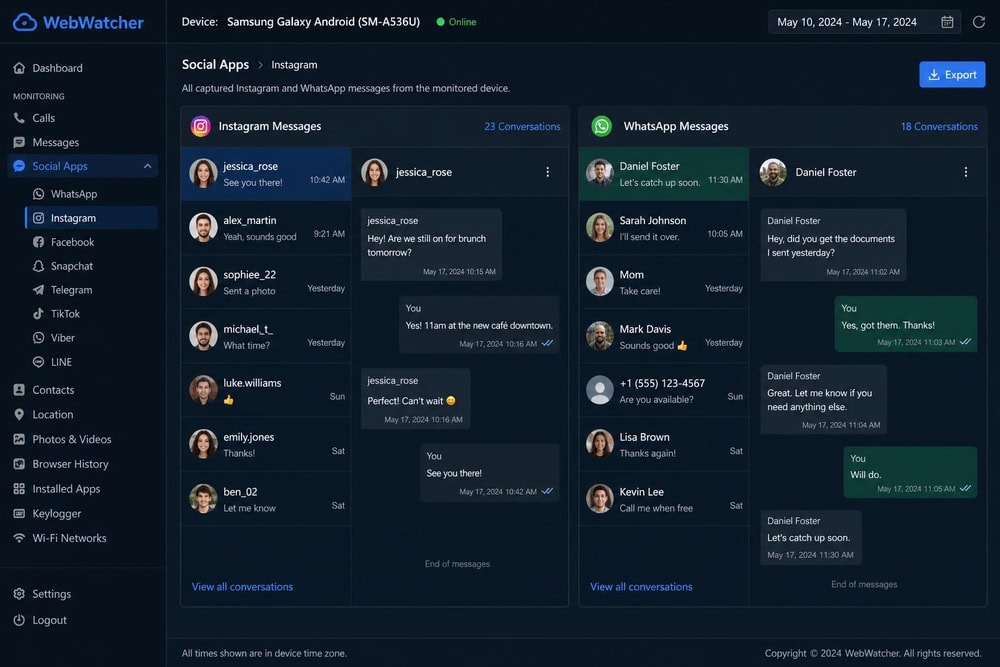
WebWatcher captures activity across the apps kids actually use, including Instagram, Facebook Messenger, WhatsApp, TikTok, Kik, Viber, Snapchat, and Tinder. In testing, it reliably logged messages and chat content on Android, which is where social monitoring is strongest. Coverage does come with limitations that depend on the platform and app version, so do not expect every message from every app in every situation. Snapchat in particular is hit or miss on any monitoring app, and WebWatcher is no exception.
Call & SMS Monitoring
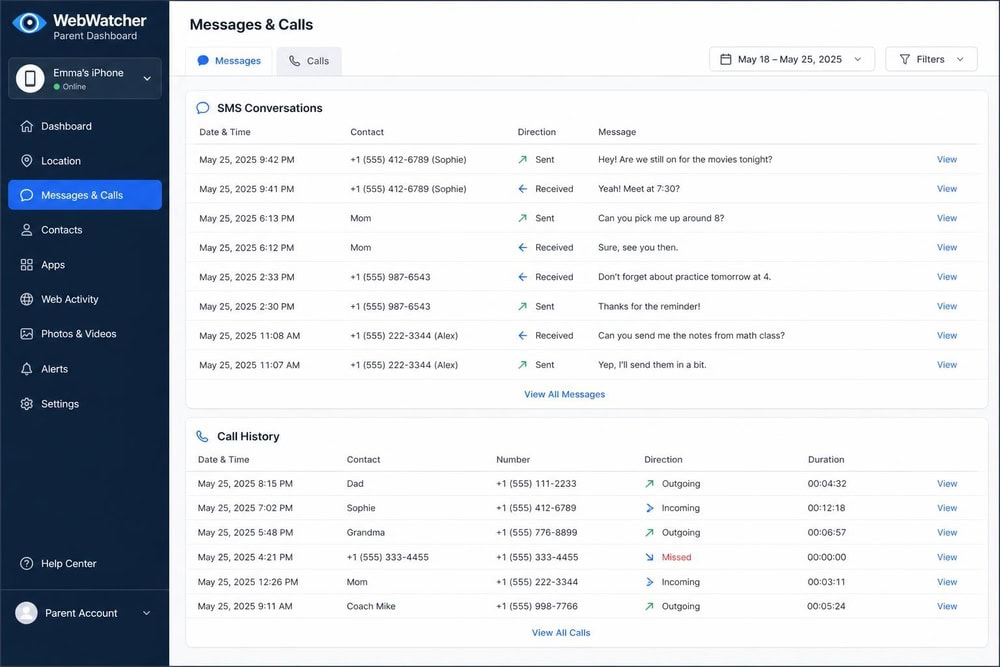
The app logs incoming and outgoing calls along with SMS and MMS messages, and it can surface deleted texts that the child has already removed from the phone. We found the call and message logs to be one of the most dependable parts of the dashboard during testing. For parents whose main worry is who their child is talking to, this is the bread-and-butter feature, and it does the job cleanly.
Browser & Search History
WebWatcher records browsing and search history, giving you a timestamped view of the sites a child visited and the terms they searched. This is one of the clearer reasons parents reach for a monitoring tool, and the app presents the history in a readable, scrollable list rather than a raw data dump. It pairs naturally with the Alert Log, which can flag a worrying search before you would have spotted it yourself.
GPS Location Tracking
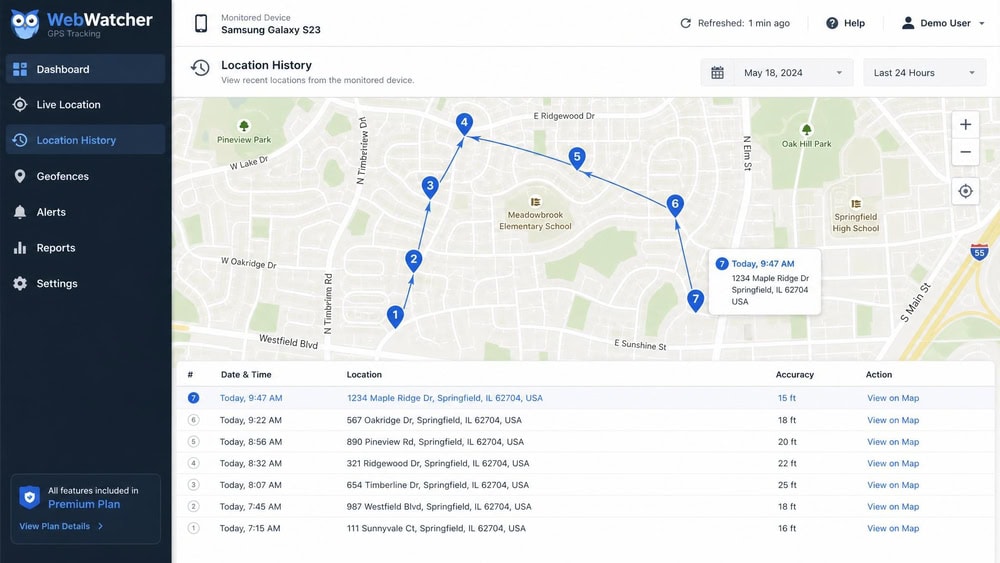
The app tracks GPS location and plots it on a map so you can see where the device has been. On Android, location updates frequently and gives you a useful recent-movement trail. One gap worth knowing about is geofencing. Reviews disagree on whether WebWatcher supports it, so treat geofencing as not a confirmed feature here. If you specifically want automatic alerts when your child arrives at or leaves a location, a rival with confirmed geofencing may serve you better.
Screenshots & Screen Activity
WebWatcher captures screenshots of on-screen activity so you can see what was actually happening, not just which app was open. On Android, the app captures up to 1,000 screenshots per license, which is a generous allowance for most families. Some users report that screenshot quality and the speed of capture can be inconsistent, and we saw a little of that ourselves on a busy device. Even so, screenshots add useful context that pure text logs miss.
Keylogger & Alert Words
On PC and Mac, WebWatcher includes a keylogger that records keystrokes, capturing what was typed even if it was never sent. The standout here is the Alert Log, which uses proprietary filters to flag risky behavior keywords automatically. Rather than scrolling through everything yourself, you let the app raise its hand when something concerning appears. In our testing, the Alert Log caught the trigger words we planted in test messages, and for a busy parent that automatic surfacing is the feature that earns its keep.
Program/App Blocking
This is the area where it matters most to be clear about what WebWatcher is. It is fundamentally a monitoring tool, not a content-control tool. The only blocking it offers is on the desktop: on Windows and macOS, you can block installed programs from running on the monitored computer. That is genuinely useful if your main concern is a child's laptop.
On phones, the picture is different. WebWatcher does not block apps on Android or iOS, so it cannot stop a child from opening an app or cap their time inside it. One lone review claims a single Android button blocks all apps, but every other source we checked contradicts it, so we would not count on it. WebWatcher also has no web filtering or website blocking. It records which sites a child visits but cannot block specific sites or content categories. In place of a filter, it leans on the Alert Log's keyword library to flag a risky search rather than prevent it.
The takeaway is simple. If you want to block apps, enforce screen-time schedules, or filter the web on a phone, a dedicated parental-control app will serve you better. If you mainly want to see what is happening and lock down programs on a Windows or Mac computer, it fits.
Compatibility & Supported Devices
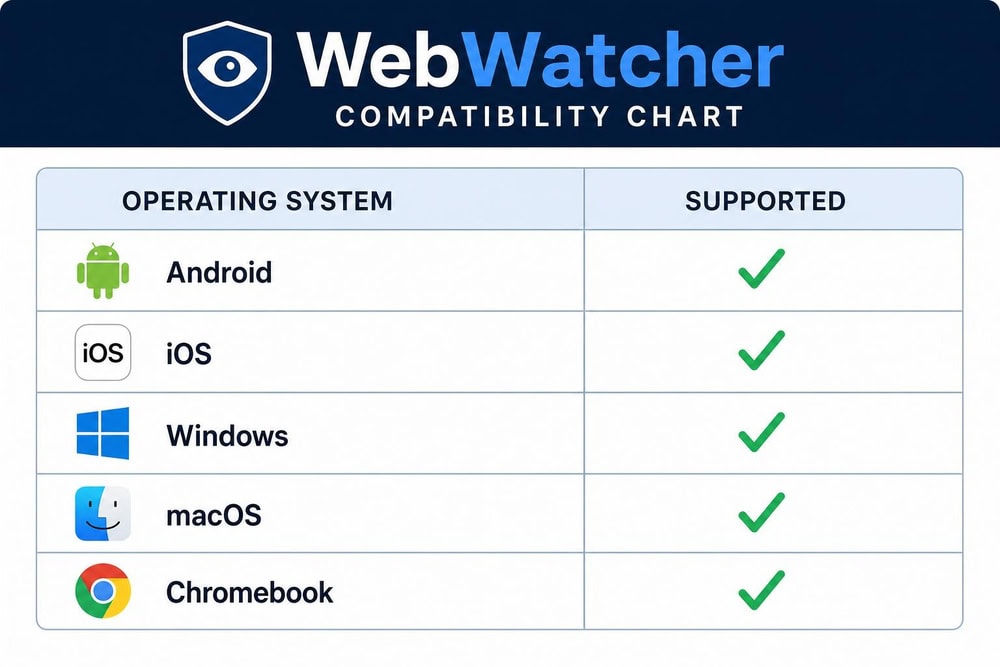
Compatibility is where WebWatcher pulls ahead of most rivals. It runs on all five key operating systems: Android, iOS, Windows PC, macOS, and Chromebook. That Chromebook support in particular is rare among monitoring apps and matters if your child does schoolwork on one.
Version support varies a little by source. WebWatcher's official specs list recent Android versions and modern iOS releases, though some third-party reviews quote narrower ranges, so check your child's specific device against the current requirements. The headline point stands: few competitors match this spread of platforms from a single account.
Installation & Setup
Setup differs by platform, and the gap between Android and iPhone is the single most important thing to understand before buying. The sections below walk through each one.
Setting Up on Android
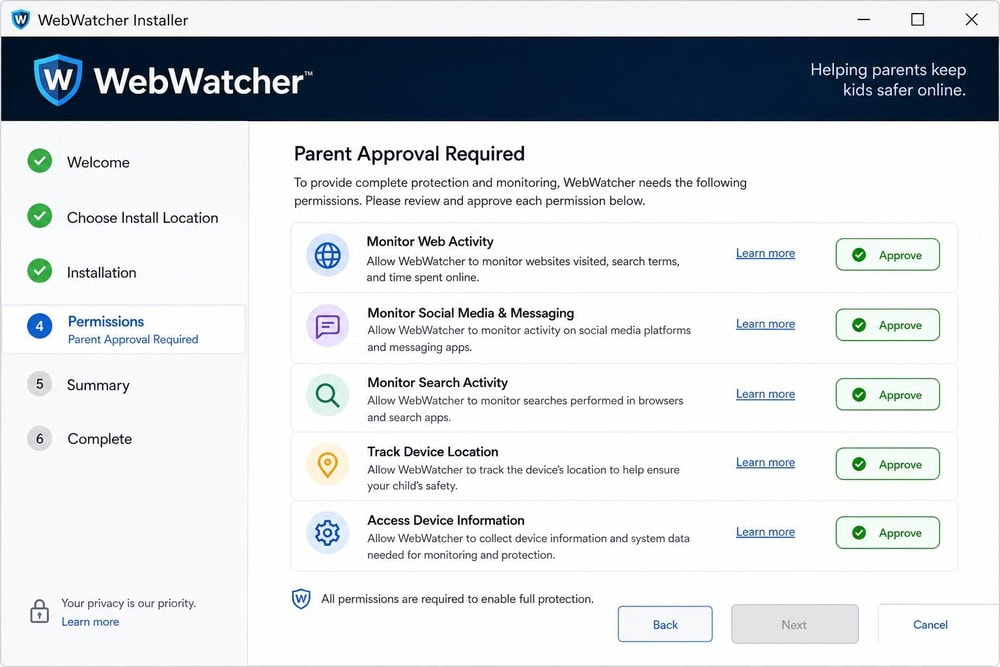
Android offers the fullest experience. After purchase, you download the installer to the target phone, grant the permissions the app requests, and complete a short on-device setup. From there, monitoring runs in the background and you manage everything from the online dashboard. Because the software lives on the device, Android gives you the real-time updates, screenshots, and broadest feature coverage.
Setting Up on iPhone/iPad
The iPhone setup needs No Jailbreak, which is good news. Instead of installing an app on the phone, you connect WebWatcher to the device's iCloud account using the Apple ID credentials and let it pull data from the iCloud backup. That keeps the process simple and avoids tampering with the phone, but it also means the data refreshes on a daily basis rather than in real time, and some features are lighter than on Android. Make sure iCloud backup is switched on for the device, or there will be nothing for WebWatcher to read.
Setting Up on Windows, Mac & Chromebook
On computers, you install WebWatcher directly on the machine you want to monitor and sign in to link it to your account. This is where the keylogger comes into play, recording keystrokes alongside browsing and program activity. Chromebook follows a similar install-on-device approach. As on Android, the on-device install gives you near real-time data rather than the once-a-day cadence of iPhone monitoring.
Ease of Use & Dashboard
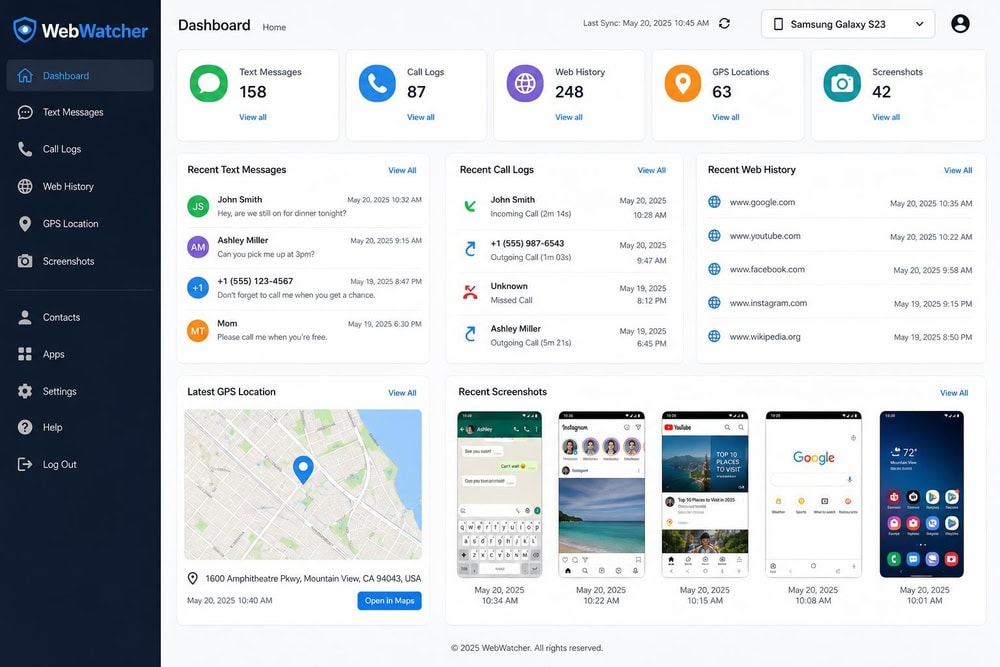
WebWatcher's dashboard is clean and organized by category, so jumping from messages to web history to location takes a click or two. Nothing about it feels cutting-edge, but it is readable and gets out of your way, which is what you want when you are checking in quickly. We never felt lost during testing, and the layout assumes you are a parent rather than a technician.
The Alert Log is what lifts the experience above a plain data feed. Instead of forcing you to read everything, it surfaces the items that matter, so the dashboard works as a summary first and an archive second. That is a meaningful quality-of-life win for anyone who does not have time to scroll through a teenager's entire day.
WebWatcher Pricing & Plans
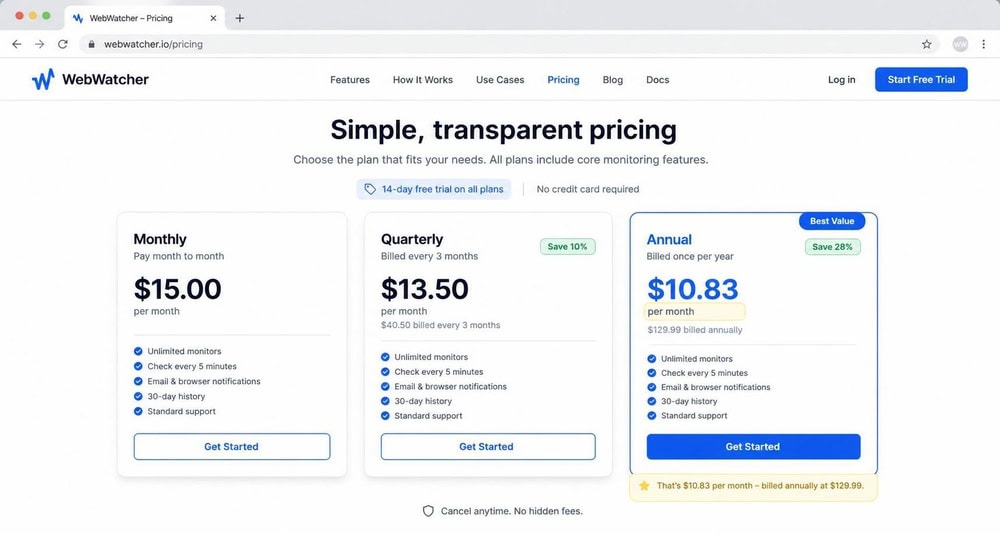
Pricing is where WebWatcher asks you to think hard. The headline marketing figure is $10.83 per month, but that rate only applies if you prepay for a full year. Pay month to month and the price jumps to $39.95 per month for a single device. There is also a $59.95 plan covering three months. The annual plan works out to $129.95 paid upfront, which is the option that produces that attractive per-month number.
It is worth being clear-eyed about the structure. One device per subscription, full payment upfront, and no per-month flexibility unless you accept the much higher monthly rate. There is no genuine free trial. WebWatcher instead offers a "Risk Free" window of 72 hours, and even that is a conditional refund: you only get your money back if the software is not performing as advertised and support cannot resolve a substantial issue within 3 days. That is narrower than a true money-back guarantee, so do not buy expecting to browse and cancel freely.
WebWatcher Pros and Cons
After our hands-on testing, here is the balance sheet. WebWatcher's strengths are real, but so are the reasons some families look elsewhere.
Pros
- Runs on all five major platforms, including rare Chromebook support
- Discreet, stealth monitoring that stays out of the child's way
- Alert Log keyword flagging surfaces risky activity automatically
- No-jailbreak iPhone monitoring through iCloud
- Captures deleted texts, call logs, and up to 1,000 Android screenshots
- One clean dashboard for every monitored device
Cons
- High subscription price compared with cheaper rivals
- No genuine free trial, only a conditional 72-hour refund window
- iPhone data updates daily, not in real time
- Reported inconsistency in screenshot quality and alert speed
- Geofencing is not a confirmed feature
- Antivirus tools such as ESET may flag or remove it
- Kids may notice or attempt to uninstall it on some setups
What Real Users Say (WebWatcher Reviews)
Real-user sentiment on WebWatcher is genuinely mixed, and ratings swing widely depending on where you look. Editorial reviewers tend to land somewhere in the middle, while user scores scatter from very low to very high. Because the spread is so wide, we would not lean on any single star rating as the truth.
The recurring praise is for its breadth of platforms and the quiet way it runs in the background. The recurring complaints, echoed in community threads, center on screenshot quality, how fast alerts arrive, and whether kids can spot or uninstall it, especially on iPhone. PrivacySavvy's editorial score of 6/10 is a fair summary of that mixed picture: useful and capable, but not without rough edges. Read the loudest reviews in both directions with some skepticism and weigh them against your own priorities.
Customer Support
WebWatcher offers support through email and its online channels rather than a 24/7 live phone line. Support also plays a direct role in the refund policy: the conditional refund window hinges on whether support can resolve a substantial issue within 3 days, so the team is effectively your first and last line if something goes wrong early. It is functional rather than premium, and parents who want instant live chat may find it thinner than what some rivals advertise.
WebWatcher Alternatives
WebWatcher is not the only option, and the right pick depends on what you value most: platform breadth, price, real-time tracking, or geofencing. The table below puts it side by side with three popular alternatives so you can see the trade-offs at a glance. If you want to dig deeper, our full reviews of these apps are linked below.
| Feature | WebWatcher | Eyezy | mSpy | uMobix |
|---|---|---|---|---|
| OS compatibility | Android, iOS, Windows, Mac, Chromebook | Android, iOS | Android, iOS | Android, iOS |
| iPhone (jailbreak?) | No jailbreak (iCloud) | No jailbreak on Family Kit/Ultra | No jailbreak (iCloud option) | No jailbreak (iCloud backups) |
| Price (annual, effective/mo) | ~$10.83/mo ($129.95/yr) | ~$7.99/mo | from $11.67/mo | ~$12.49/mo |
| Free trial / refund | No free trial; 72-hr refund window | No standard free trial | No free trial; refund varies | No free trial |
| Screenshots / screen activity | Yes (up to 1,000/license Android) | Yes (keylogger + screen recorder) | Yes (screen recorder) | Yes (screenshots) |
| Alerts / keyword flagging | Alert Log keyword flagging | Magic Alerts keyword alerts | Keyword/alert words | Alerts |
| Geofencing | Not confirmed | Yes | Yes | GPS (real-time absent on iOS) |
| Customer support | Email/online; refund within 3 days | Live chat / priority on Ultra | 24/7 support | Support varies |
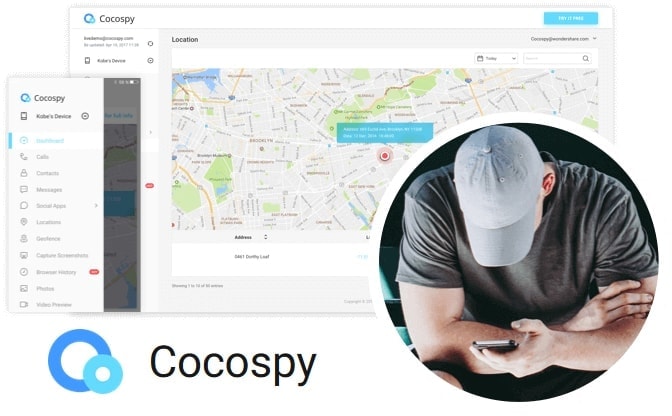
A few quick takeaways. Eyezy undercuts WebWatcher on price and adds confirmed geofencing, though it covers fewer platforms. mSpy offers 24/7 support and strong messenger monitoring at a competitive annual rate. uMobix leans on frequent-refresh Android tracking but thins out on iPhone. If platform breadth is not your top need, one of these often delivers more for less. For other angles, our reviews of Cocospy and FlexiSPY round out the field.
Is WebWatcher Worth It? Our Verdict
So, is WebWatcher worth it? For the right family, yes. If you have children spread across different devices, including a Chromebook, and you want quiet monitoring with smart keyword alerts from a single dashboard, WebWatcher earns its place. Its platform breadth and Alert Log are real differentiators that cheaper apps often cannot match.
For everyone else, the math is harder. The subscription is pricey, there is no free trial to soften the commitment, iPhone monitoring updates only once a day, and geofencing is not a confirmed feature. If you mostly need a single Android phone tracked in real time, or you want geofencing and live updates, a cheaper rival like Eyezy or mSpy will likely give you more for your money.
Check Current WebWatcher PricingWhatever you choose, monitoring works best alongside open conversation. Given how much of a child's daily time spent online now happens on a phone, the conversation matters as much as the software.
Frequently Asked Questions
Does WebWatcher offer a free version or free trial?
No. There is no genuine free trial. WebWatcher offers a conditional "Risk Free" refund window of 72 hours instead, and that refund applies only if the software is not performing as advertised and support cannot resolve a substantial issue within 3 days.
Is WebWatcher legal?
It depends on how you use it and where you live. Monitoring your own minor children or a device you own with proper consent is generally lawful, while covertly monitoring another adult without their knowledge is not. Check the laws in your jurisdiction and stick to the consent principle before installing.
Can I use WebWatcher on multiple devices?
Each subscription covers one device, and payment is taken upfront. To monitor several phones or computers, you need a separate license for each, though you manage them all from the same online dashboard.
Does WebWatcher work on iPhone without jailbreak?
Yes. iPhone monitoring needs No Jailbreak because it works through the device's iCloud backup rather than installed software. The trade-off is that iPhone data updates on a daily basis rather than in real time, and some features are lighter than on Android.
Can kids detect or uninstall WebWatcher? Does antivirus like ESET flag it?
It is possible. Antivirus tools such as ESET have been known to flag or remove WebWatcher as a potential threat, and on some setups a tech-savvy child may notice or attempt to uninstall it, especially on iPhone. No stealth monitoring app is completely undetectable.
Is WebWatcher worth it, or are there better alternatives?
It is worth it if you need broad platform coverage, including Chromebook, and value discreet monitoring with keyword alerts. If price, real-time tracking, or geofencing matter more, cheaper alternatives like Eyezy, mSpy, or uMobix may suit you better.

 mSpy Review
 Eyezy Review
 FlexiSPY Review
 Cocospy Review
 UMobix Review
 HoverWatch Review
 SpyX Review
 Highster Mobile Review