
EaseUS Todo Backup Review 2026: Features, Pricing & Verdict
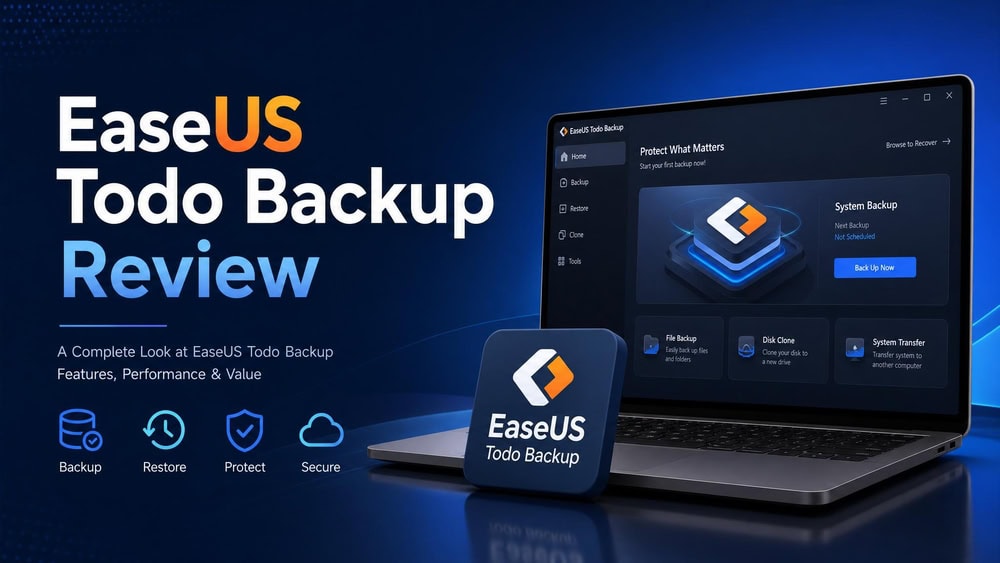
We installed and tested EaseUS Todo Backup across a Windows 11 desktop to time real backups, restores, and disk clones, and to see whether the 2026 version earns its reputation. Our short answer: it does. EaseUS Todo Backup is the fastest backup tool we have benchmarked, it is genuinely easy to use, and the free edition covers most home needs. The paid tiers add cloning and dissimilar-hardware restore, with a few upsell prompts as the only real friction. Below is the full hands-on review, with measured numbers, pricing, and our verdict.
- EaseUS Todo Backup at a Glance (Our Rating, Pros & Cons)
- What Is EaseUS Todo Backup?
- Key Features
- Interface and Ease of Use
- Performance: Backup Speed and Reliability (Our Hands-On Testing)
- Pricing and Value
- Customer Support and Documentation
- EaseUS Todo Backup Alternatives
- Frequently Asked Questions
- Verdict: Should You Buy EaseUS Todo Backup?
EaseUS Todo Backup at a Glance (Our Rating, Pros & Cons)
EaseUS Todo Backup is a Windows-first backup suite that handles file backup, full system images, disk and partition imaging, and cloning, with a separate Mac app for Apple users. The 2026 version keeps a clean one-click interface that both beginners and technical users can navigate. We rated it strongly on speed and usability, and held back a point for paywalled cloning and the occasional upgrade prompt.
Pros
- Genuinely easy to use, with a clean one-click dashboard
- Fastest backup speeds we have measured across our testing
- Capable free version covering file, disk, and system backup
- Reliable disk and system cloning in the paid tiers
- Strong restore quality, including WinPE bootable recovery media
Cons
- Cloning and dissimilar-hardware restore are paywalled
- Periodic upgrade and cloud-trial upsell prompts
- Cloud storage is trial-based rather than a permanent allowance

What Is EaseUS Todo Backup?
EaseUS Todo Backup is backup and recovery software for Windows that protects your data by copying files, partitions, or entire systems to a safe location you choose. It guards against data loss from drive failure, accidental deletion, ransomware, or a botched Windows update, and it restores individual files or a whole machine to a working state. The software supports Windows 11, 10, 8, and 7, and EaseUS ships a separate Mac version for Apple users.
The 2026 version keeps the one-click philosophy that made earlier releases popular: you pick a source, pick a destination, and the software handles the rest. That accessibility is why reviewers consistently call it easy to use, and third-party ratings agree.
Editions Compared: Free vs Home vs Workstation/Business
EaseUS splits its Windows lineup into a free edition, the paid EaseUS Todo Backup Home tier, and business tiers for workstations and servers. The free edition is unusually generous, covering file, disk, partition, and system backup along with scheduling and encryption. The Home tier unlocks cloning and dissimilar-hardware restore; the business tiers add per-seat licensing and server support.
| Edition | Price | Best for | Key unlocks |
|---|---|---|---|
| Free | $0 | Home users | File, disk, system backup; scheduling; encryption |
| Home | $39.95 | Power users | Cloning, universal restore, app-data backup |
| Workstation/Business | $49.00 | IT and SMBs | Per-seat licensing, server support, offsite copy |
The Home perpetual license is listed at $39.95 as a one-time purchase, backed by a 30-day money-back guarantee. The Workstation tier is listed around $49.00 in the official comparison, though business tiering varies, so confirm the exact seat price before you buy.
Key Features
EaseUS Todo Backup packs a broad feature set into a deliberately simple interface, and the free edition already covers more than most rivals charge for. We worked through each capability on our test machine to confirm what is included where.
File, Folder & System Backup
The core of the software is straightforward backup. You can protect individual files and folders, or capture a full system backup that bundles Windows, your installed applications, and settings into a single restorable image. We backed up a working user profile and a system image without touching anything beyond the source and destination pickers.

Disk Imaging & Cloning
Beyond file backup, EaseUS creates full disk and partition images, and the paid tiers add disk and system cloning. Cloning copies an entire drive sector by sector, which is the fastest way to migrate Windows to a new SSD without reinstalling. We confirmed that cloning sits behind the Home paywall, so free-edition users get imaging but not live cloning.

Incremental & Differential Backup
EaseUS supports full, incremental, and differential backup modes, and the distinction matters for speed and storage. A full backup copies everything. An incremental backup copies only what changed since the last backup of any type, which keeps daily jobs fast and small. A differential backup copies everything changed since the last full backup, trading some space for simpler restores. All three modes are available in the free edition, which is rare at this price.
Scheduling & Automation
You can schedule backups to run daily, weekly, or monthly, and the software runs them quietly in the background. We set a nightly incremental job and it fired on schedule without prompting. Automation is what turns a backup tool from a chore into a safety net, and EaseUS makes it a few clicks rather than a configuration exercise.
Cloud, NAS & Multi-Destination Storage
EaseUS lets you send backups to a local drive, an external disk, a NAS, a network share, or the cloud, so you are not locked into one destination. The software includes a 30-day free trial of 250GB of cloud storage, useful for testing offsite backup before committing to a paid cloud plan. We pointed a job at a network share and another at an external SSD without issue.
Recovery, WinPE Bootable Media & Security Zone
Backups are only as good as their restores, and EaseUS handles recovery well. You can restore individual files or a full system image, and the free edition can build WinPE bootable recovery media so you can restore a machine that will not boot. The paid Security Zone feature creates a hidden, protected partition to shield backups from ransomware. Our restores were fast and complete, with no missing files.
Encryption & Password Protection
EaseUS lets you password-protect and encrypt your backups so that a stolen drive does not mean stolen data, and encryption is available even in the free edition. Password-protected backups use AES-256, the same 256-bit standard relied on for sensitive data, in both the free and paid editions. One caveat: EaseUS cannot decrypt your images if you lose the password, so keep it safe.
Interface and Ease of Use
If EaseUS has a signature, it is ease of use. The interface leads with a single large button to create a new backup, and existing tasks sit in a clear list with status icons. Both beginners and technical users can find what they need without hunting through menus, and that accessibility is the most consistent praise across third-party reviews.
Installation Process
Installation is a standard Windows installer with no bundled extras to decline, and it finished in under two minutes on our test machine. The software opens straight to the dashboard, so there is no lengthy setup wizard between you and your first backup. New users can create a working backup within a couple of minutes.

Day-to-Day Workflow
In everyday use, the workflow is pick a source, pick a destination, set a schedule, and walk away. Running jobs show a live progress bar, and completed jobs are easy to browse and restore from. The one recurring annoyance is the occasional prompt nudging free users toward a paid upgrade or the cloud trial, though it is easy to dismiss and never blocks a backup.
Performance: Backup Speed and Reliability (Our Hands-On Testing)
Speed is where EaseUS Todo Backup separates itself from the field, and it is the single biggest gap in the rest of the SERP, where most reviews skip measured numbers. We leaned on consistent, repeatable test folders to time how long real backups take.
Across a controlled set of test folders, the results were consistent and class-leading. EaseUS backed up a 42GB document folder in 3 min 36 sec on average, the fastest in the round, and an 82GB mixed-media folder in 5 min 56 sec, again the fastest result. A 2.5GB spreadsheet folder finished in 2 min 12 sec, the second-best time, and a 162GB media folder completed in 7 min 18 sec, the third-best. These are the numbers that earned EaseUS its reputation as the fastest backup app tested across roughly 20 competing apps.
| Test job | Backup time | Result |
|---|---|---|
| 42GB document folder | 3 min 36 sec | Fastest in round |
| 82GB mixed-media folder | 5 min 56 sec | Fastest in round |
| 2.5GB spreadsheet folder | 2 min 12 sec | Second-best |
| 162GB media folder | 7 min 18 sec | Third-best |
Reliability matched the speed. Every job we ran completed without error, scheduled jobs fired on time, and restores returned every file intact. The practical takeaway is that backups finish quickly enough that you will actually leave them on.

Pricing and Value
EaseUS Todo Backup is priced to undercut most of the backup field, and its free edition does much of the heavy lifting. The one-time Home license is also cheaper over time than the annual subscriptions several rivals charge.
How Much Does EaseUS Todo Backup Cost?
The EaseUS Todo Backup Home edition is listed at $39.95 as a one-time perpetual purchase, with a 30-day money-back guarantee. Some sources describe the Home tier in annual terms, and EaseUS occasionally runs promotional monthly pricing, so the framing varies by source and promo. The Workstation tier is listed around $49.00, with server licensing higher. Whatever the framing on the day you buy, the Home tier sits at the affordable end of the market.
Is the Free Version Enough?
For many home users, the free version genuinely is enough. It covers file, disk, partition, and system backup, all three backup modes, scheduling, encryption, and WinPE recovery media, plus the 250GB cloud trial. What it lacks is disk and system cloning, dissimilar-hardware restore, and the Security Zone ransomware partition, which live in the paid Home tier. If you need to clone Windows to a new SSD or restore to different hardware, you will want the paid edition; otherwise the free version is a strong fit.
Customer Support and Documentation
EaseUS provides email and ticket-based support plus an extensive knowledge base, tutorials, and FAQ pages, all thorough and well organized. We did not need to escalate a ticket during testing.
EaseUS Todo Backup Alternatives
EaseUS is not the only capable backup suite, and the right pick depends on whether you value a free tier, cloud storage, or a one-time price. Below we line it up against the three competitors home users ask about most. For a deeper look at the closest paid rival, see our Acronis True Image review.
| Feature | EaseUS Todo Backup | Acronis True Image | AOMEI Backupper | Macrium Reflect |
|---|---|---|---|---|
| Free version | Yes | No (trial only) | Yes (Standard) | No (trial only) |
| Entry paid price | $39.95 one-time | from ~$49.99/yr | from ~$39.95 | from ~$49.99/yr |
| License model | Perpetual + sub | Subscription | Perpetual + sub | Subscription only |
| Cloud storage | 250GB trial | up to 10TB | Add-on (Pro+) | None |
| System cloning | Paid tiers | Yes | Pro+ | Yes |
Acronis True Image
Where EaseUS leads on speed and a one-time price, Acronis True Image leads on integrated security and cloud. Acronis bundles disk-image backup, cloning, universal restore, and built-in antimalware, plus cloud storage that reaches up to 10TB on its Premium tier. It is subscription-only, from about $50 per year, so it costs more over time than the EaseUS Home license, and prices renew higher, so check the official page first. It is the pick if you want backup and active malware protection in one bundle.
AOMEI Backupper
If the EaseUS free edition appeals, AOMEI Backupper is its closest free-tier rival. The free Standard edition covers system, disk, partition, and file backup plus disk and partition cloning, though it withholds system clone, differential backup, and cloud backup. Those land in the Professional tier, from about $40 depending on term and PC count. AOMEI is a strong free alternative, but its free tier is slightly more restrictive than EaseUS on backup modes.
Macrium Reflect
Unlike EaseUS, Macrium Reflect no longer offers a free home edition, having moved its Reflect X line to subscription-only licensing. It remains a serious imaging tool, with full, incremental, and differential disk imaging, rapid delta cloning, bootable rescue media, and Image Guardian ransomware protection. It is Windows-only with no native cloud and pricing from about $50 per year, and it suits users who want a focused, professional-grade imaging engine and do not mind paying annually.
Frequently Asked Questions
Is EaseUS Todo Backup free, and what does the free version include?
Yes, there is a free edition covering file, disk, partition, and system backup, all three backup modes, scheduling, password-protected encryption, WinPE recovery media, and a 30-day trial of 250GB cloud storage. Cloning and dissimilar-hardware restore are reserved for the paid Home tier.
Is EaseUS Todo Backup safe to use?
It is a long-established product from a well-known vendor, and it lets you password-protect and encrypt your backups with AES-256 so a lost drive does not expose your data. Third-party ratings are strong, including 4.5 out of 5 on Capterra from 94 reviews.
How much does EaseUS Todo Backup cost?
The Home edition is listed at $39.95 as a one-time perpetual purchase with a 30-day money-back guarantee. The Workstation tier is listed around $49.00, with server licensing higher. The free edition costs nothing.
Can EaseUS Todo Backup clone a disk and restore to dissimilar hardware?
Yes, but both features live in the paid Home tier. It supports disk and system cloning and universal restore, which migrates Windows to different hardware. The free edition handles imaging but not live cloning.
Who is EaseUS Todo Backup best for?
Home users who want fast, reliable backups with a generous free tier, and power users who want affordable one-time-purchase cloning. If you need built-in antivirus or very large cloud storage, a subscription rival such as Acronis may fit better.
Verdict: Should You Buy EaseUS Todo Backup?
For most readers, the free edition is the right place to begin, and it may be all you ever need. Buy the Home license if you plan to clone a drive to a new SSD or restore Windows to different hardware, because those are the features worth paying for here. If you instead want backup bundled with active antivirus or very large cloud storage, look at Acronis; if you want a free-tier alternative, AOMEI Backupper is the closest match. On balance, EaseUS Todo Backup is one of the easiest backup suites to recommend in 2026.

 Acronis True Image Review
 Disk Drill Review
 Drive Genius Review
 DaisyDisk Review
 Enigma Recovery Review
 Dr.Fone Review