A computer cleaner removes the junk files, browser caches, leftover installers, and startup clutter that slow a PC down over time. We installed eight cleaners on a Windows 11 desktop, a Windows 10 laptop, and a MacBook, ran full scan-and-clean cycles on each, and kept the seven worth recommending. Ashampoo WinOptimizer is our top pick, Glary Utilities and Advanced SystemCare round out the top three, BleachBit is the best free cleaner, and CleanMyMac is the one to get on a Mac.
Scores on this page weight registry cleaning and value for money heavily, so a few differ from our standalone reviews; every entry links to the full test. Prices are the entry prices we saw in September 2026. The three quick picks below are our top three: a complete paid suite, the easiest suite for beginners, and the most automated one.
The Best Computer Cleaners Compared (At a Glance)
Here is how the seven cleaners compare on the factors that decide most purchases: whether there is a real free tier, which platform it runs on, whether it touches the registry, and what the paid version costs.
| Tool | Buy | Model | Platform | Registry | Price |
|---|---|---|---|---|---|
 |
Check price → | Paid | Windows | Yes | $14one-time |
 |
Check price | Freemium | Windows | Yes | $39.95/yr |
 |
Check price | Freemium | Windows | Yes | $29.99/yr |
 |
Download | Free | Win, Linux | No | $0 |
 |
Download | Free | Windows | No | $0 |
 |
Our review | Freemium | Win, Mac | Yes | $44.95/yr |
 |
Check price | Paid | Mac | n/a | $39.95/yr |
The 7 Best Computer Cleaners
Each entry opens with what stood out in our hands-on testing, then covers the key features and current pricing, and closes with a scorecard you can act on. Where we have published a full review, the link at the top of each entry takes you to the detailed test.
1. Ashampoo WinOptimizer: Best Overall
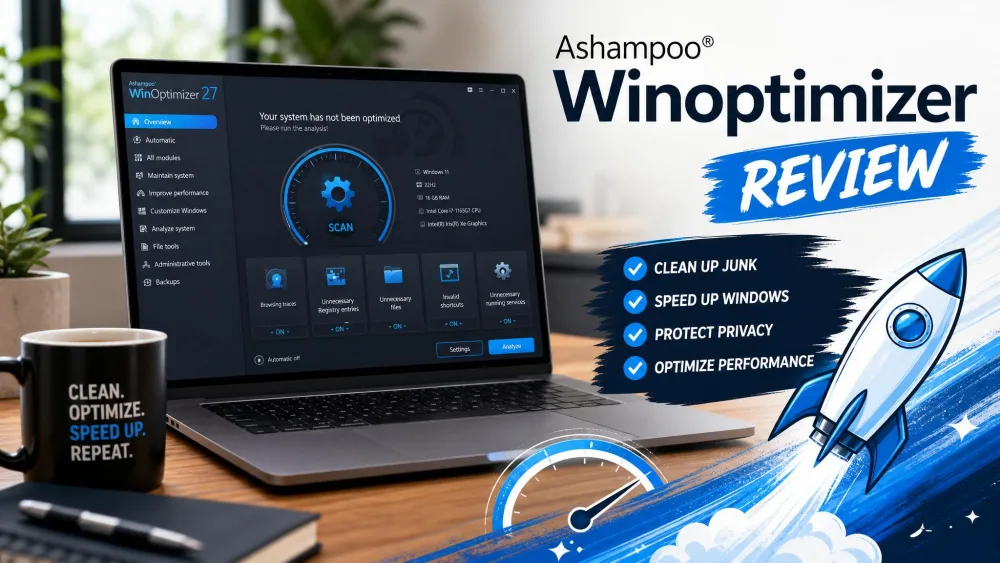
Ashampoo WinOptimizer 29 is the cleaner we would install on most Windows PCs. It covers the whole job, junk files, browser traces, registry entries, startup programs, and privacy leftovers, behind a single 1-Click Optimizer, and it is sold as a one-time license instead of a yearly subscription. That combination of breadth and a pay-once price is why it edges out tools with slightly higher scores.
On our Windows 11 desktop the 1-Click Optimizer grouped drive cleaning, registry optimization, and internet-trace cleanup into one pass and listed everything it had found before removing anything. It created a restore point automatically before touching the registry, so every change could be undone. The only real friction was the mandatory Ashampoo account signup before the trial would run, plus a brief pause while it indexed a folder holding more than 10,000 files. It also dug out installer leftovers that the lighter tools missed.

Key features
The suite bundles roughly 30 modules: the 1-Click Optimizer, a Drive Cleaner, an Internet Cleaner, a Registry Optimizer that sets a restore point first, a privacy manager, a startup tuner, a Live-Tuner that reprioritizes running processes, a crash analyzer, file encryption with secure deletion, and background auto-optimization. It supports Windows 10 and Windows 11. A bundled security element exists but is weak, so keep your antivirus.
Pricing
Ashampoo WinOptimizer is sold as a one-time license from $14, with a $16 upgrade price for owners of an older version, a 30-day free trial that needs no payment details, and a 30-day money-back guarantee. The list price is higher outside promotions, but the $14 entry price held across our checks in July and September 2026. A limited free edition exists, but it is narrow enough that we treat the trial as the real test drive.
Ashampoo WinOptimizer
The most complete cleaner we tested, with a polished one-click front end over a deep toolkit and no subscription to manage. It backs up the registry before it makes changes, and the 30-day trial lets you confirm the gains on your own PC before paying.
Pros
- One-time purchase, no subscription
- Automatic restore point before optimization
- Broad toolkit behind a simple one-click front end
- 30-day trial and 30-day money-back guarantee
Cons
- Windows only
- Mandatory Ashampoo account signup, even for the trial
- Some modules duplicate Disk Cleanup and Storage Sense
Best for: A complete cleaner and tune-up suite without a subscription. Skip if: You want a permanently free tool, or you are on a Mac.
2. Glary Utilities: Best for Beginners
Glary Utilities packs more than 20 tools into one app, and its 1-Click Maintenance is the most beginner-friendly approach we tested. The free version has no time limit, and Glary Utilities Pro adds automatic background maintenance, scheduled cleanups, and automatic program updates for up to three PCs.
We started with the 1-Click Maintenance tab, which found temporary files, broken shortcuts, invalid registry entries, and browser traces under one Scan button on our Windows 11 desktop. Every tool sits behind a plain label in one window, so you never have to guess what does what. The trade-offs are an interface that has barely changed in years, Pro pop-ups in the free version, and an installer that offered an extra Glarysoft utility we unticked before continuing.

Key features
The toolkit covers 1-Click Maintenance, a registry cleaner and repair module, junk and disk cleanup, a duplicate-file finder, a file shredder, a startup manager, privacy and browser-trace cleaning, disk analysis, a software updater, and file recovery. The free release is manual only; scheduling, background maintenance, and real-time optimization are Pro features. It runs on Windows, and reviewers commonly cite Windows 10 and 11 support. One warning from our review: the disk cleanup module can wipe stored system restore points, so check that box before you run it.
Pricing
The free version stays free indefinitely. Glary Utilities Pro lists at $39.95 a year for up to three PCs, and Glarysoft runs a recurring 50%-off promotion on its upgrade page. Pro comes with a 90-day money-back guarantee, the longest in this roundup.
Glary Utilities
A generous, capable free cleanup suite let down by a dated look and Pro nags. The one-click mode makes it the easiest first cleaner to run, and Pro covers three PCs at a fair price, but the cluttered, overlapping modules will frustrate anyone who wants a tidy app.
Pros
- Generous free tier with no time limit
- One-click maintenance handles junk, registry, and startup in one pass
- More than 20 tools in one app
- Lightweight enough for modest hardware
Cons
- Windows only
- Pro upsell pop-ups in the free version
- Dated, cluttered interface
Best for: First-timers who want everything behind one button. Skip if: You want a modern interface or no nag screens.
3. IObit Advanced SystemCare: Best for Automation
IObit Advanced SystemCare 19 is the pick if you want maintenance to run itself. Its AI Mode learns how you use the PC and tunes the cleanup automatically, Pro adds real-time protection and scheduled cleaning, and a single Pro license covers up to three PCs. The free edition is permanent rather than a trial, so you can live with it before paying.
The Care scan on our Windows 11 desktop rolled junk files, invalid shortcuts, registry entries, and privacy traces into one pass behind a single Fix button, and the cleanup is reversible through a built-in restore point. Boot time improved noticeably on the cluttered Windows 10 laptop, though the gains on the already-tidy desktop were modest. The installer pushed IObit's other products and the app keeps nudging toward Pro, which is why it scores 7.5 rather than higher.

Key features
Advanced SystemCare offers AI Mode automatic optimization, a one-click Care scan, deep junk and registry cleaning with a restore point, startup management, automatic RAM release, a Performance Monitor widget, a software updater, and a Safe Folder for ransomware protection. Pro and Ultimate add real-time protection and scheduled cleaning. It runs on Windows 11, 10, 8, and 7; the protection module is no substitute for a dedicated antivirus, and IObit handles Mac through its separate MacBooster product.
Pricing
The free edition costs nothing and never expires. Pro lists at $29.99 a year, and a single license covers up to three PCs; Ultimate adds security tools at $49.99 a year for three PCs or $36.99 for one. IObit discounts these often, sometimes by half, so check the live price at checkout. Every paid edition carries a 60-day money-back guarantee.
IObit Advanced SystemCare
A solid, affordable all-in-one optimizer that earns its keep on cluttered PCs, as long as you can ignore the upsell pop-ups. The automation is the genuine draw, and three PCs on one cheap license is good value, but the performance gains on a healthy machine are small.
Pros
- AI Mode and one-click care make maintenance effortless
- Deep junk and registry clean, reversible via restore point
- Low Pro price covering three PCs
- 60-day money-back guarantee
Cons
- Aggressive upsell and bundled-tool prompts
- Gains are modest on an already-healthy PC
- Protection module is no substitute for antivirus
Best for: Set-and-forget automation across a few PCs. Skip if: You dislike installers and apps that push extras.
4. BleachBit: Best Free
BleachBit is the best free cleaner in this roundup, and it costs nothing. It is free and open source under the GPLv3 license, with no ads, no telemetry, and no paid tier, and version 6.0.0 runs on Windows 10, Windows 11, and Linux. Because the code is open, anyone can check exactly what it does to your files.
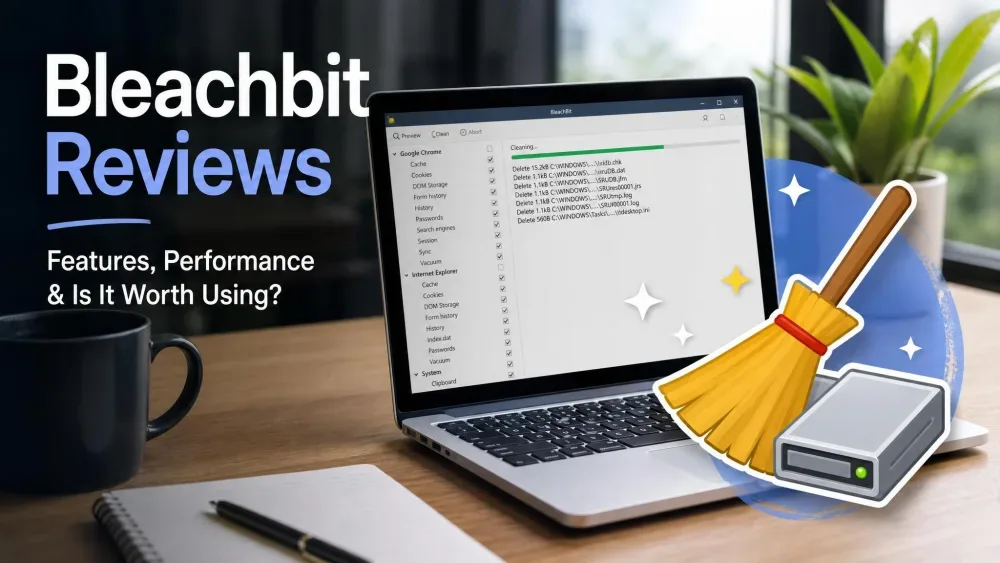
Nothing happened on our test machines until we told it to. BleachBit listed every file it intended to remove, mostly browser caches, system temp folders, and thumbnail data, and let us untick anything we wanted to keep before committing. Nothing is enabled by default, so the first run takes a few minutes of choosing cleaners, and the plain installer offered no bundled extras to decline. The interface is text-heavy and terse, and free-space wiping ran for well over an hour on a 1 TB drive with no way to pause it.

Key features
BleachBit handles junk and temporary file removal, browser cache, history, and cookie cleaning, secure file shredding, and free-space wiping, with app-specific cleaners plus thousands more through the winapp2.ini community list. A portable build runs from a USB stick, and a command-line interface lets you script cleans with Windows Task Scheduler. It deliberately has no registry cleaner and no built-in scheduler. It supports Windows 10, Windows 11, and Linux; macOS support is experimental, so Mac users should skip to CleanMyMac below.
Pricing
BleachBit is free: no paid tier, no premium unlock, no nag screen.
BleachBit
The one to install if you only want the cleaning half of a suite. It previews every deletion, bundles nothing, and costs nothing, but it leaves the registry alone by design, has no scheduler, and trusts you to know what you are doing, which is why it scores below the tools that handle the registry.
Pros
- Completely free and open source, no ads or telemetry
- Previews every deletion before it happens
- Secure shredding and free-space wiping
- Portable build and command-line automation
Cons
- No registry cleaner and no built-in scheduler
- Nothing is enabled by default, so safe choices are on you
- Utilitarian, text-heavy interface
Best for: Free, transparent cleaning with nothing hidden. Skip if: You want scheduled cleaning, registry tools, or a Mac build.
5. Wise Disk Cleaner: Best for Scheduled Cleaning
Wise Disk Cleaner is the free cleaner we recommend to anyone who wants cleanup to happen on its own. Version 11.3.6 is 100% free, including a portable build, and its AutoClean scheduler runs daily, weekly, monthly, at logon, or whenever the PC sits idle. It is also one of the few cleaners here with no paid tier to upsell you toward.
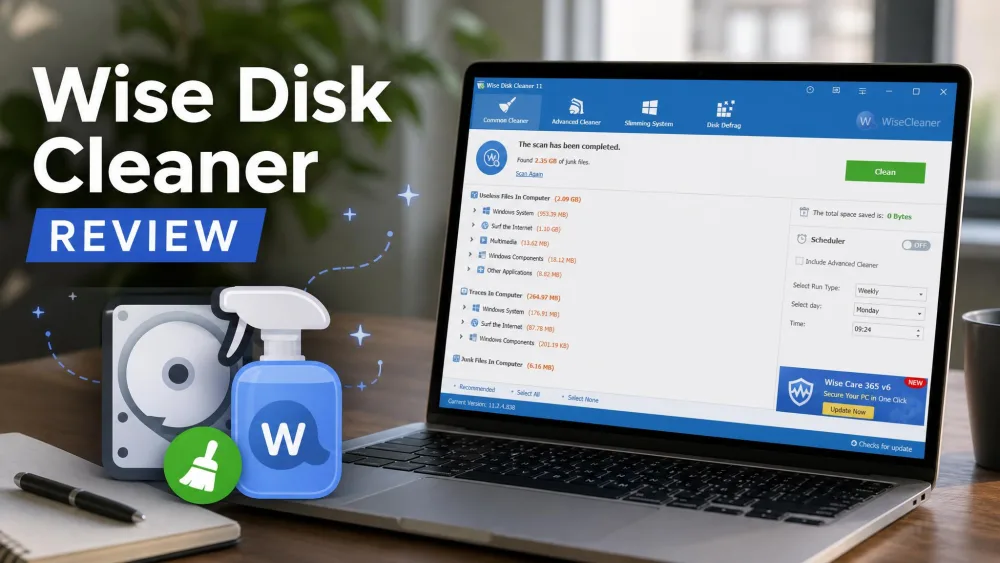
In our full review the Common Cleaner found close to three times more junk than CCleaner on the same PC, and the install was clean, with no bundled software or toolbars. We set AutoClean to run weekly at idle on the Windows 10 laptop and it has been clearing caches quietly ever since. The Advanced Cleaner is aggressive, so review its results before deleting, and the free build shows occasional prompts for other Wise tools.

Key features
Wise Disk Cleaner includes a Common Cleaner for everyday junk, an Advanced Cleaner for deeper leftovers, System Slimming to trim Windows components you do not use, and a Disk Defrag module that handles SSDs safely with TRIM. AutoClean covers the scheduling, and a one-click desktop widget cleans without opening the app. There is no registry cleaner and no real-time monitoring; Wise sells registry cleaning separately, and our Wise Registry Cleaner review covers that tool. It runs on Windows 11, 10, 8.1, 8, and 7 in 32-bit and 64-bit builds, with no Mac or mobile version.
Pricing
Wise Disk Cleaner is free, with no Pro tier for the cleaner itself. If you want registry cleaning, a system monitor, and real-time protection from the same developer, Wise Care 365 Pro costs $29.96 a year for three PCs, but for pure disk cleaning the free tool is all you need.
Wise Disk Cleaner
The free cleaner most Windows users should just install. It finds more junk than CCleaner, schedules itself, installs without bundleware, and skips the riskiest feature in the category on purpose. The only things it will not do are clean the registry or watch your PC in real time.
Pros
- 100% free, including a portable build
- Found close to three times more junk than CCleaner
- AutoClean scheduler with five trigger options
- Clean installer with no bundled software
Cons
- Windows only
- No registry cleaner and no real-time monitoring
- Deep scans can flag files you want to keep
Best for: Free cleaning that runs on a schedule. Skip if: You want registry cleaning or a one-stop tune-up suite.
6. CCleaner: The Familiar Choice
CCleaner is the cleaner most people picture when they hear "PC cleaner", and version 7.08 still cleans well. Its scan sorts temporary files, browser caches, and system leftovers into categories you review before deleting, and the Health Check turns the whole process into one guided pass. It sits at the bottom of our Windows picks because of everything around the cleaning rather than the cleaning itself.
On our Windows 10 laptop the Health Check finished in under a minute and freed several gigabytes on the first run, and the registry cleaner offered to back up the registry before it made changes. What kept it out of the top three was the persistent upsells to Professional, telemetry that stays on until you switch it off, and a subscription that now costs $44.95 a year for one device, which is a lot to pay for what is mostly a polished interface. The 2017 supply-chain incident is also still part of its history, which is why so many readers ask us about CCleaner alternatives.

Key features
CCleaner Free covers Custom Clean, the guided Health Check, a registry cleaner that backs up first, a startup manager, and an uninstaller. Professional adds real-time monitoring, scheduled cleaning, a software updater, and a Performance Optimizer that puts idle background apps to sleep. It runs on Windows 11, 10, 8, and 7, with separate builds for macOS and Android.
Pricing
The free tier is permanent. CCleaner Professional lists at $44.95 a year for one device and Professional Plus at $64.95 a year for up to three devices; both are discounted often and vary by region. Official purchases carry a 30-day money-back guarantee.
CCleaner
A solid, well-tested cleaner that earns a place on most Windows PCs, provided you download only from the official site and treat the Pro upgrade as optional. The free tier does the core job; the subscription, the upsells, and the default telemetry are why it is no longer our first recommendation.
Pros
- Capable free tier for junk and browser cleanup
- Health Check delivers a guided one-click tune-up
- Fast scans that finish in under a minute
- Registry cleaner offers a backup first
Cons
- Aggressive and persistent upsells to Professional
- Telemetry is on by default
- Professional is a $44.95-a-year subscription
Best for: A familiar, well-tested cleaner with a usable free tier. Skip if: Upsells and telemetry bother you, or you want a one-time license.
7. CleanMyMac: Best for Mac
CleanMyMac is the only Mac-native cleaner in this roundup and the one we recommend to Mac owners. MacPaw builds it specifically for macOS, it is Apple-notarized, and version 5 folds cleanup, a malware scan powered by the Moonlock engine, and performance tuning into a single Smart Care pass. If you are weighing other options, our best Mac cleaner software roundup compares eight of them.
Smart Care on our test MacBook rolled system-junk detection, a malware check, and performance suggestions into one screen, and we could expand each result and deselect categories such as user caches before letting it remove anything. Because the app is notarized it installed without any Gatekeeper friction. Much of what it cleans you could do by hand through macOS storage settings, and the subscription-first pricing adds up, but the one-click workflow is the friendliest on this list.

Key features
CleanMyMac handles system junk and deep cleaning, malware detection and removal, performance and memory optimization, a full app uninstaller that removes leftovers, a duplicate and similar-photo finder, cloud and storage cleanup, and a Menu Bar Assistant for at-a-glance monitoring. It requires macOS 11 or later and runs on both Intel and Apple Silicon Macs.
Pricing
The free download only scans and previews; cleaning is gated. The MacPaw Store edition comes with a 7-day free trial with every feature unlocked, then costs about $39.95 a year for one Mac, or roughly $119.95 for a one-time license. Multi-Mac plans and a Plus tier cost more, MacPaw Store purchases carry a 30-day money-back guarantee, and the store shows the exact figure for your region before you pay.
CleanMyMac
Worth it if you value a simple one-click workflow and want help managing storage; skip it if you are comfortable cleaning caches and uninstalling apps yourself. The bundled malware scan is a bonus most cleaners lack, and the 7-day trial proves it on your own Mac.
Pros
- Built specifically for macOS, Apple-notarized
- One-click Smart Care beginners can run safely
- Bundled malware scanning most cleaners lack
- Uninstaller removes the leftovers standard deletion misses
Cons
- Mac only
- Subscription-first pricing adds up
- Much of the cleanup duplicates macOS housekeeping
Best for: Mac owners who want cleanup, malware checks, and tuning in one app. Skip if: You are on Windows, or you are happy clearing caches yourself.
What Is a Computer Cleaner (and What It Actually Does)
A computer cleaner is a utility that scans your drive for files the system no longer needs and removes them in one pass. The core job is junk-file cleanup: temporary files, browser caches, log files, thumbnail databases, and the installer leftovers programs scatter across your drive. Good cleaners group these into categories so you can review a cleanup before you commit to it.
Better cleaners go further. A startup manager stops programs from launching with Windows, a privacy sweep clears browsing traces, a scheduler runs the cleanup without you, and an uninstaller removes the folders and settings a normal uninstall leaves behind. Some add a registry cleaner, the feature to treat with the most caution. The payoff is twofold: you free up disk space, and a machine bogged down by background tasks feels quicker. What a cleaner cannot do is turn old hardware into new hardware, and any tool that promises otherwise is selling, not measuring.
Do You Really Need a PC Cleaner?
Honestly, not everyone does. Windows 11 and Windows 10 ship with Storage Sense and Disk Cleanup, which clear temporary files and the Recycle Bin without any download, and macOS has its own storage recommendations under System Settings. A dedicated cleaner earns its place when you want more control or automation: a preview of what will be deleted, a deeper sweep of app leftovers, a schedule, or a startup manager.
The split matters more than the brand. Wise Disk Cleaner and BleachBit are genuinely free with no paid tier. CCleaner, Glary Utilities, and Advanced SystemCare are freemium, so the free version works but nags. Ashampoo WinOptimizer and CleanMyMac are paid tools with a trial. Paid prices on this page are entry prices; renewals can differ, so confirm at checkout.
If you only want the built-in baseline, our roundup of the best free computer cleaners covers the no-cost picks in more depth, and our guide on how to speed up your computer covers the fixes a cleaner cannot make.
How We Tested and Chose the Best Computer Cleaners
We installed each cleaner on the same three machines, a Windows 11 desktop, a Windows 10 laptop that had not been cleaned in over a year, and a MacBook for the Mac pick, and ran a full scan and cleanup cycle on each. We measured how much junk each tool found, whether its defaults removed anything we wanted to keep, how long a clean took, whether it backed up the registry before touching it, and how hard the installer and the app pushed a paid tier or bundled extras.
Cleaning power weighed most heavily, then safety features such as registry backups and previews, then speed and ease of use, then the value of the free tier against the paid one. Tools that bundled unrelated software or lacked basic safety nets lost points. Registry tools counted for a lot, because they separate a full tune-up suite from a junk cleaner, so BleachBit and Wise Disk Cleaner score below the suites despite cleaning well, and CCleaner lost points for charging $44.95 a year for what is mostly a polished interface. These scores are specific to this roundup and can differ from our standalone reviews.
Are PC Cleaners Safe? (And Which to Avoid)
Reputable cleaners are safe, but the category attracts overstated claims, so caution helps. The riskiest feature is the registry cleaner: removing orphaned entries rarely speeds up a modern PC, and an aggressive cleaner can delete entries a program still needs. Microsoft's long-standing support policy on registry-cleaning utilities says it does not support these tools and cannot guarantee that problems they cause can be fixed without reinstalling Windows.
Avoid any "free scan" tool that finds hundreds of urgent errors and then demands payment to fix them; that pattern is a sales tactic, not a measurement. Before you run any registry cleaner for the first time, confirm it will back up or set a restore point, and download only from the developer's own site, never from a download portal that repackages the installer.
Every cleaner on this page lets you review what it removes, the single best safety feature any of them can offer. Ashampoo, CCleaner, and Advanced SystemCare back up the registry before touching it, and BleachBit and Wise Disk Cleaner avoid the registry entirely. If you want a dedicated tool for that job, our best registry cleaner guide covers which ones are worth trusting.
How to Clean Your Computer Manually (Without Software)
You can recover most of the same space without installing anything. On Windows, open the Start menu, type Disk Cleanup, run it on your system drive, then tick temporary files, thumbnails, and previous Windows installations. To automate it, open Settings, go to System, then Storage, and turn on Storage Sense. Microsoft's own guide to freeing up drive space walks through the options. On a Mac, open System Settings, choose General, then Storage, and work through Apple's recommendations, which cover emptying the Trash automatically, offloading files to iCloud, and reviewing large files.
The built-in tools include no registry cleaner, no scheduler beyond Storage Sense, and no real-time tuning, which is the gap the tools above fill. For routine space recovery, though, they work and they are free.
Conclusion: Which Computer Cleaner Should You Pick?
If you want a single answer, Ashampoo WinOptimizer is the cleaner we would install: the full breadth of cleanup, registry, and startup tools, a restore point before every change, and a one-time license from $14 with a 30-day trial. BleachBit is the one to keep if you only want free, transparent junk cleaning, but it skips the registry and has no scheduler, which is why it ranks below the paid suites.
From there, match the tool to your situation. Glary Utilities is the easiest first suite for a beginner, and Advanced SystemCare is the most automated across a few PCs. Wise Disk Cleaner is the free choice if you want cleaning to run on a schedule, and CCleaner remains a familiar option if you are happy with its free tier. On a Mac, CleanMyMac is the clear choice.