
6 Easy Ways to Find Hidden Text Messages on iPhone
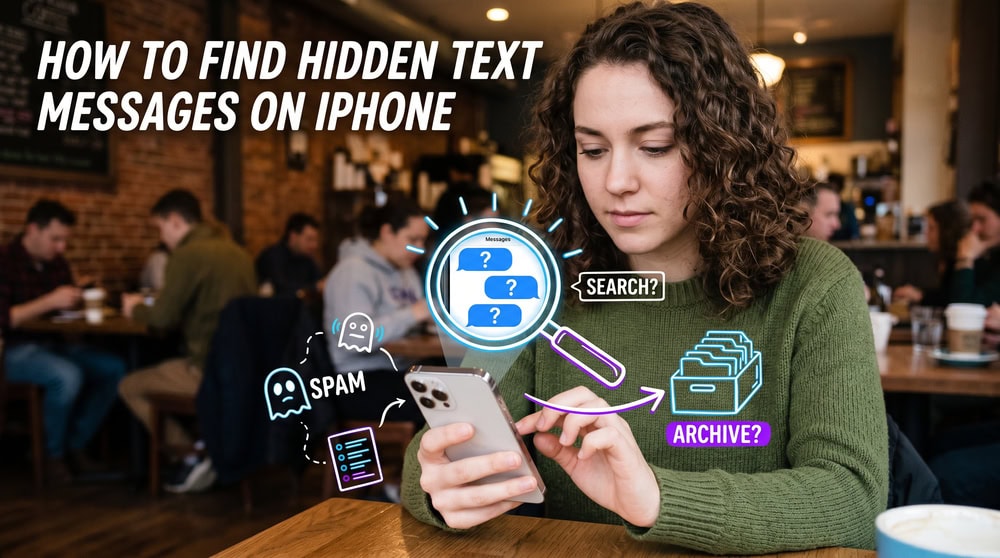
If you can't find certain texts on your iPhone, or you suspect a conversation is being kept out of sight, there are a few places to check. Some messages are filtered by the system, some sit in a deleted folder for a limited time, and some are tucked inside other apps. We've worked through each on iOS 26, and below are five plain, native ways to surface hidden text messages before reaching for anything paid.
- What "Hidden" Text Messages Actually Mean on iPhone
- 1. Use A Surveillance App
- 2. Find Hidden Messages from Unknown Senders
- 3. Check the Recently Deleted Folder
- 4. Find Messages You Hid in Notifications and Focus Filters
- 5. Recover Hidden or Deleted Messages from an iCloud or Computer Backup
- 6. Use a Third-Party Recovery App (When Native Options Fail)
- Is It Legal to Find Someone Else's Hidden Messages?
- Frequently Asked Questions
- Conclusion
What "Hidden" Text Messages Actually Mean on iPhone
"Hidden" rarely means a secret vault. A message you can't see usually falls into one of a few categories: filtered into a separate list because the number isn't in your Contacts, deleted but still in a recoverable folder, muted so its preview never shows, or living inside a third-party app like WhatsApp or Telegram that keeps its own hidden chats.
Knowing which category you're dealing with tells you where to look. The methods below move from the simplest built-in checks to a last-resort recovery option, so you can stop as soon as you find what you need.
1. Use A Spy App
The best way to find hidden text messages on iPhone is to install a spy app. While the other methods discussed below are effective for finding messages in places that are not obvious, the only way to see absolutely everything someone does on a phone, and every message sent or received, is to install a spy app on that phone.
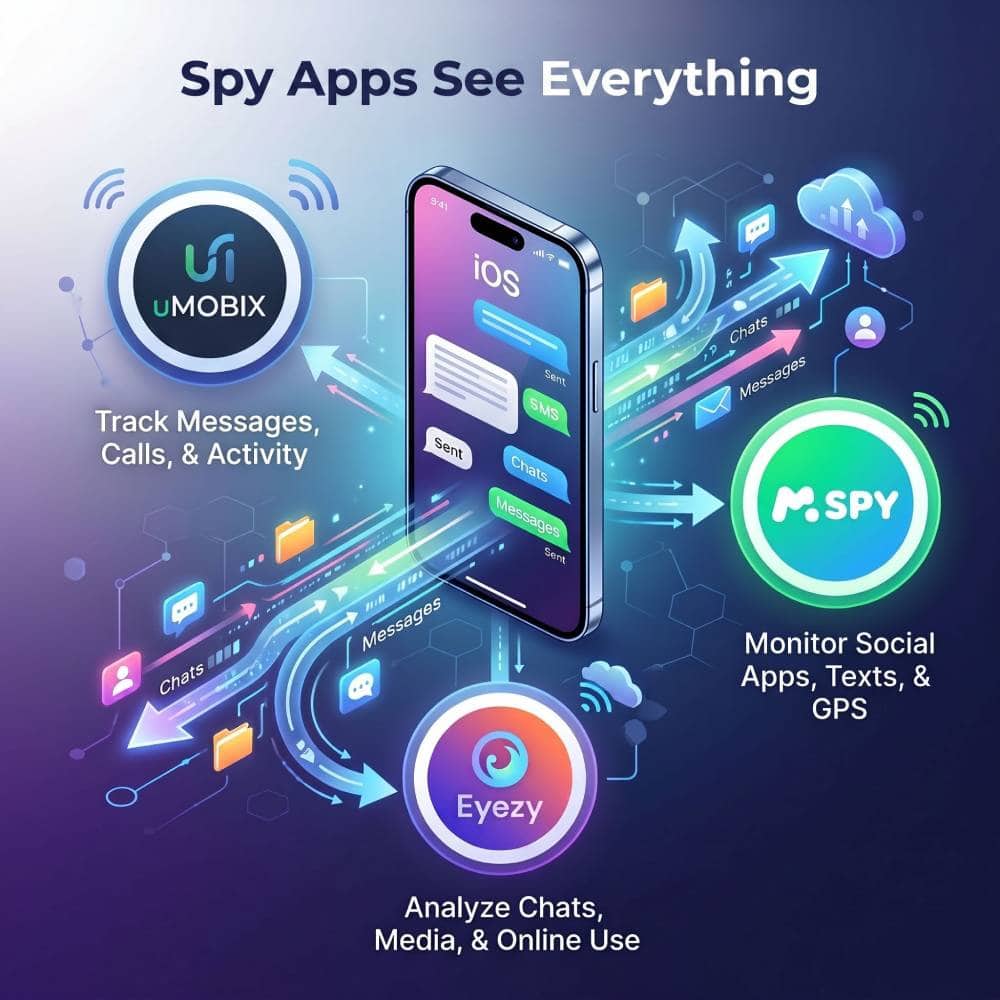
The uMobix app can be installed in 5-10 minutes and is the most robust solution. It will record a copy of every text message, both natively on SMS/iMessage and texts on any social media apps that may be installed. While it is not as user-friendly as our next recommendations, it is the most powerful option and is capable of so much more than finding hidden texts. This app can even turn on the camera or microphone remotely.
See uMobixmSpy is firmly in the middle ground. While it lacks a couple of advanced features like streaming live audio or video, it does support the widest range of devices and iOS versions of any spy app. It is also considerably more straight forward and the tech support is rock solid.
See mSpyEyezy is made to be the streamlined and easy choice. Every step of getting setup is guided and it just works. For someone that is less technical and who just needs something they can install and forget about, Eyezy is it when it comes to tracking text messages.
See Eyezy2. Find Hidden Messages from Unknown Senders
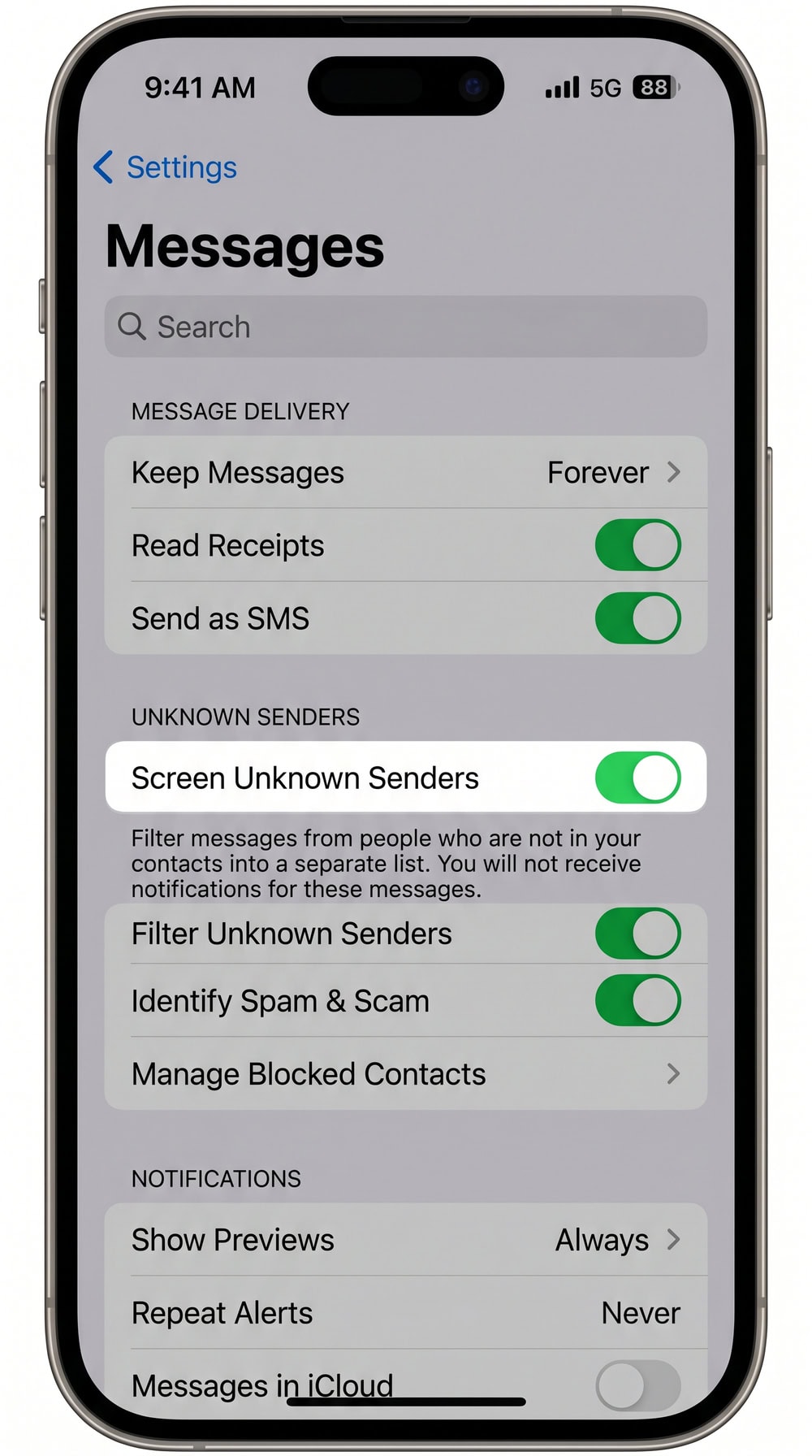
The most common reason a text seems to be missing is that iOS sorted it into a separate list. Any message from a number not in your Contacts can be pulled out of your main list automatically. In iOS 26 the setting is named Screen Unknown Senders; on iOS 18 and earlier it was called Filter Unknown Senders, so older guides still use that label. When it's on, texts from unknown numbers, including a lot of spam, wait in their own tab.
Turn On "Filter Unknown Senders"
To switch the filter on, open Settings > Apps > Messages, scroll to the Unknown Senders section, and turn on Screen Unknown Senders. It is off by default in iOS 26, though it stays on if you had Filter Unknown Senders enabled before upgrading from iOS 18. Apple's walkthrough on how to screen and filter texts from unknown senders confirms each step.
Open the Unknown Senders List
Open Messages and tap the Filters button at the top-left of the conversation list, then tap Unknown Senders. You'll see every conversation iOS set aside from numbers not in your Contacts, where messages people assume are hidden usually turn up. To bring a thread back, open it and tap Mark as Known, which also stops it from being filtered.
3. Check the Recently Deleted Folder
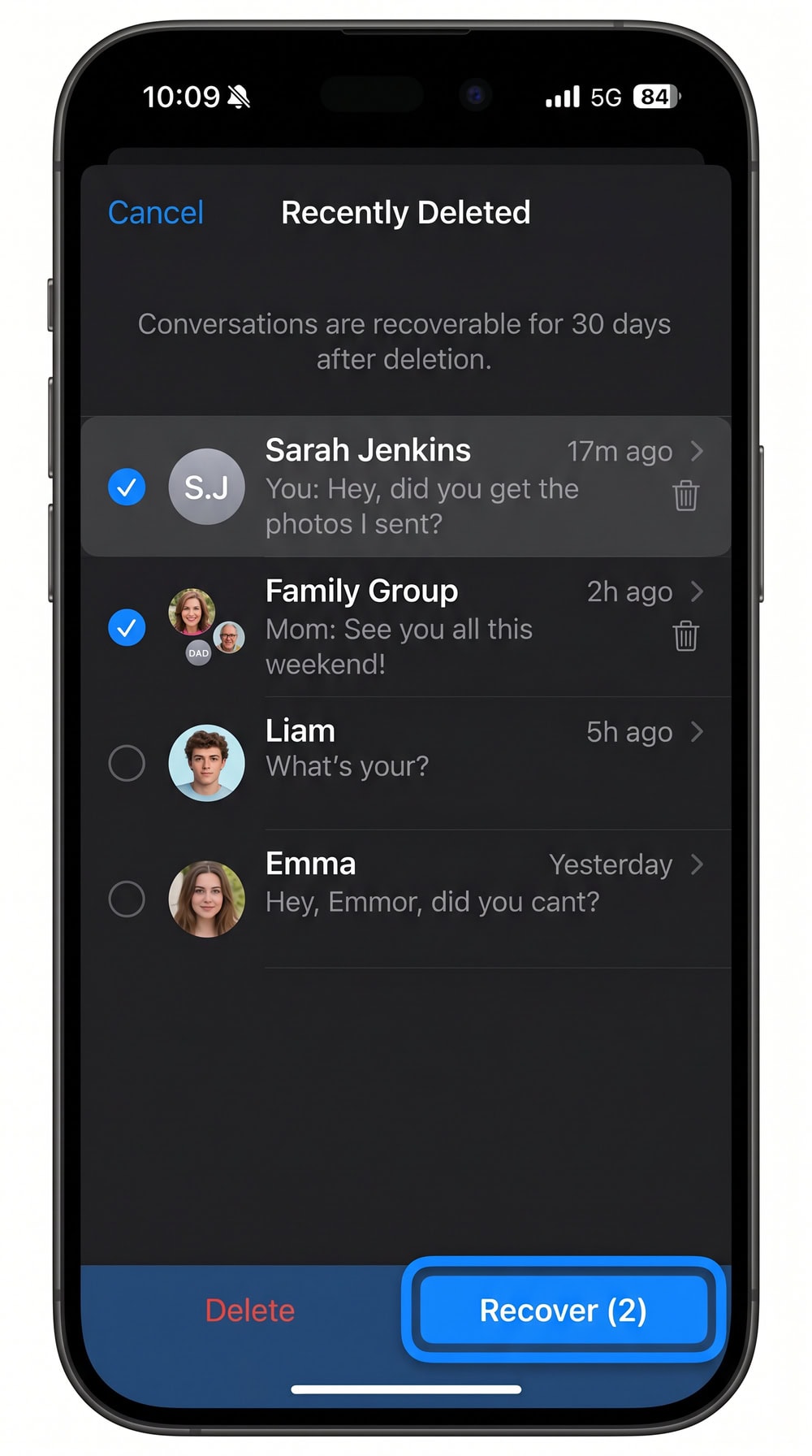
If a message was deleted rather than filtered, it isn't gone right away. The iPhone keeps a deleted conversation in a Recently Deleted folder for a limited time, the fastest way to bring back a recently removed thread. This works on iOS 16, iPadOS 16.1, or later, so any current iPhone supports it.
Recover a Deleted Conversation (Within 30 Days)
Open Messages, tap the Filters button at the top of the conversation list, and tap Recently Deleted. Select the conversations you want back and tap Recover; the thread returns to your main list intact. Apple documents the flow in its guide to recovering recently deleted messages.
The retention window is up to 30 days (Apple notes elsewhere it can be 30 to 40), so treat 30 days as the safe floor. After that, the conversation leaves the folder and can't be recovered through Messages. If Messages in iCloud is on, recovering a thread on one device recovers it everywhere.
4. Find Messages You Hid in Notifications and Focus Filters
Sometimes a message isn't filtered or deleted at all; it just never announced itself. If lock-screen previews are off, or a Focus mode silences Messages, new texts can arrive without any visible alert. The conversation is still in your inbox; it simply didn't surface where you'd notice.
To check previews, open Settings > Notifications > Messages and look at the Show Previews option; turning it on makes new message content visible on the lock screen again. Then review your Focus modes: open Settings > Focus, pick a mode, and check whether Messages or specific people are being silenced. If you share an iPhone, this often explains texts that seem to vanish.
5. Recover Hidden or Deleted Messages from an iCloud or Computer Backup
If the Recently Deleted window has passed, a backup is your next option. A backup made before the messages disappeared may still contain them, and restoring it brings them back. It replaces your current data with the backup's contents, so use it when the quicker checks come up empty.
First, check whether Messages in iCloud is on under Settings > [your name] > iCloud > See All > Messages in iCloud. Apple's overview of Messages in iCloud covers how that sync works.
Restore from an iCloud Backup
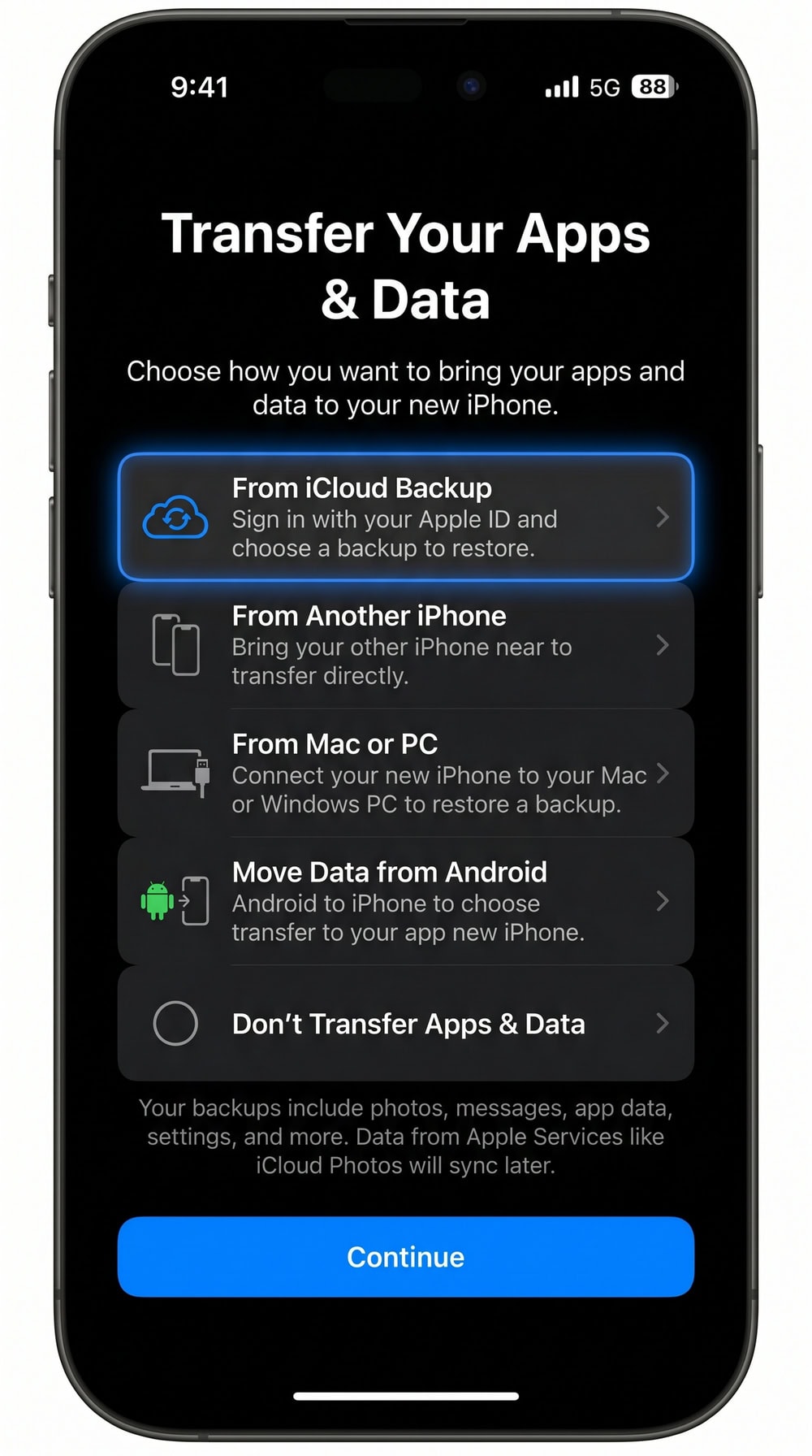
Restoring from an iCloud backup isn't a quick toggle. You must first erase the device using Erase All Content and Settings, because the restore happens during initial setup. When the iPhone restarts into Setup Assistant, work through to the Transfer Your Apps & Data screen, choose From iCloud Backup, sign in, and pick the backup dated before the messages went missing. Stay on Wi-Fi until it finishes. Apple's instructions for how to restore your iPhone from an iCloud backup lay out each prompt.
Restore from a Computer (Finder/iTunes) Backup
If you back up to a Mac or PC, you can restore that computer backup the same way. Connect the iPhone, open Finder on a Mac (or the Apple Devices app or iTunes on a PC), select your device, and choose Restore Backup. Pick the backup made before the messages disappeared and let it finish with the iPhone connected. As with iCloud, this replaces current data, so back up anything you don't want to lose first.
6. Use a Third-Party Recovery App (When Native Options Fail)
When the built-in options come up short, third-party recovery tools are the last resort. Apps such as PhoneRescue, Tenorshare, and Dr.Fone scan a device or its backup file for residual message data the native tools no longer surface. They don't always succeed, since they look for fragments that may not still exist, and most are paid, so we'd reach for them only after the free methods.
If you try one, download it from the developer's official site, and be cautious with any tool that asks for your Apple Account password or full iCloud credentials. They can sometimes recover what native methods can't, but they're not a guaranteed fix.
Finding Hidden Chats in Third-Party Apps (WhatsApp, Messenger, Telegram)
Plenty of hidden messages aren't in the Messages app at all; they're inside other apps, each with its own way of tucking chats away. WhatsApp has Locked Chats behind a biometric lock. Messenger keeps archived chats and a separate Message Requests inbox. Telegram has both archived and secret chats that don't appear in the normal list. If the texts you're after were never SMS or iMessage, open the app and look for its archive, locked, or requests folder.
Is It Legal to Find Someone Else's Hidden Messages?
Everything above assumes you're looking through your own iPhone or a device you're authorized to access. Reading someone else's private messages is a different matter that can carry real legal consequences depending on where you live.
For shared family devices, the safer route is to set things up openly with Apple's Family Sharing and Screen Time controls, rather than checking a phone behind someone's back.
Frequently Asked Questions
Where do hidden text messages go on an iPhone?
Usually one of three places: texts from numbers not in your Contacts land in the Unknown Senders list, deleted threads sit in Recently Deleted for a limited time, and muted texts arrive without a lock-screen alert. Checking all three accounts for most hidden messages.
Can I recover deleted texts after 30 days?
Through the Messages app, no. Recently Deleted keeps removed conversations for up to 30 days (Apple notes it can be 30 to 40), after which they can't be recovered there. Your only remaining option is restoring a backup made before the messages were deleted.
How do I find messages from unknown senders?
Turn on Screen Unknown Senders under Settings > Apps > Messages, then open Messages, tap the Filters button, and tap Unknown Senders. That list holds every conversation from numbers not in your Contacts. Open any thread and tap Mark as Known to move it into your main inbox.
Do I need access to the person's iPhone to find hidden messages?
For every native method here, yes, you need the unlocked iPhone or a backup of it. There's no legitimate way to read another person's iMessages remotely without access, so only check a device you own or are authorized to use.
Is it legal to read someone else's hidden messages?
It depends on your region and relationship to the device owner, but reading another adult's private messages without consent can break privacy and wiretapping laws. Get permission before accessing a phone that isn't yours; for shared family devices, use open tools like Family Sharing.
Conclusion
Most hidden texts on an iPhone aren't truly hidden; they're filtered, deleted, muted, or in another app. Start with the quick, free checks: the Unknown Senders list, Recently Deleted, and your notification and Focus settings. If messages were deleted past the recovery window, restore a backup made before they vanished, with third-party tools as a last resort. Throughout, stick to devices you own or are authorized to use.

 Hidden Texts on Android
 How to Hide Text Messages
 Monitor Child's Text Messages
 See Your Kid's Text Messages