Your iPhone is gone. Maybe it slid out of a coat pocket on the train, maybe it never came back from the restaurant table, and right now you have no idea which.
Apple's Find My can put the device on a map, make it play a sound, lock it behind a message, or erase it entirely. You can do all of that from another Apple device or from a browser on any computer.
Below are seven methods, ordered the way we would actually use them.
Before You Start: What Find My Needs Turned On
Every method here depends on one thing: Find My was already switched on before the iPhone went missing. There is no way to enable it after the fact.
You also need the Apple Account password for that iPhone. Signing in at iCloud.com from a Windows PC or an Android phone works fine when no Apple device is nearby, but a forgotten password turns a two-minute job into an account recovery process at the worst possible moment.
If Find My was never on, skip to the stolen-iPhone section. Your remaining moves are carrier blocking, a police report, and an immediate password change.
Method 1: Track an iPhone With the Find My App
This is the fastest route if you own an iPad, a Mac, or a second iPhone.
Step 1: Open Find My on another Apple device
The app ships on every current iPhone, iPad, and Mac. Apple's own walkthrough covers the small differences if you use Find My on another Apple device.
Step 2: Sign in with the same Apple Account
The account has to match the one on the missing iPhone. A single Apple Account can hold up to 100 personally owned devices, so a family with several iPhones and iPads will see them all in one list.
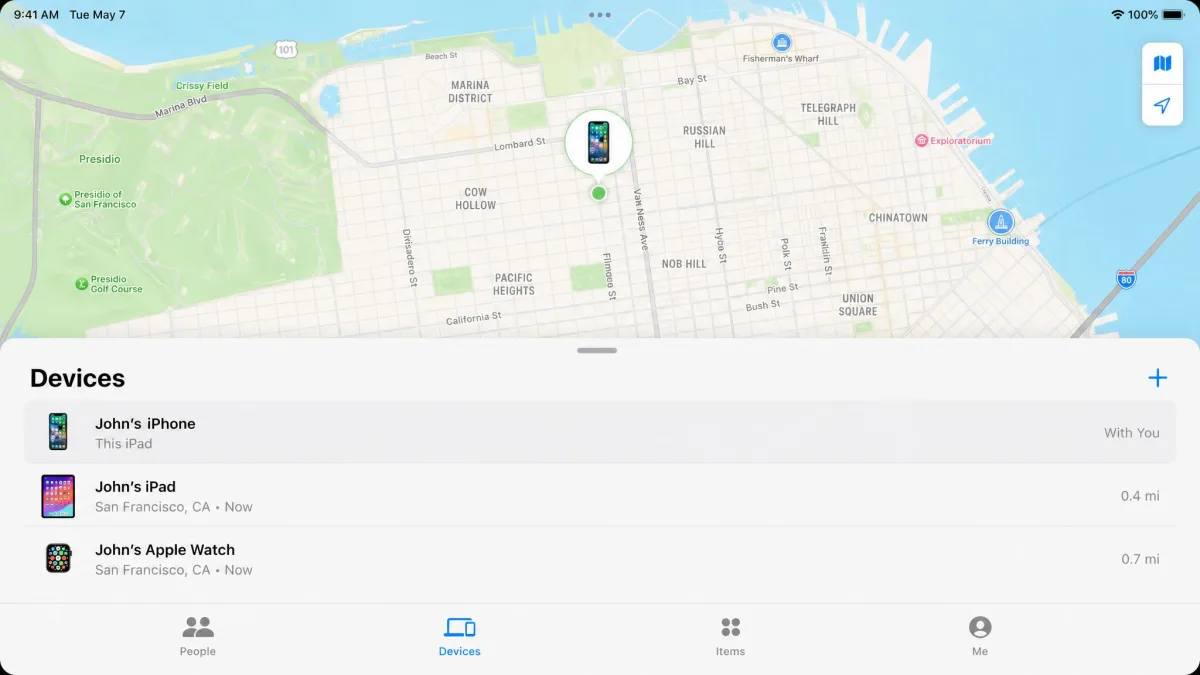
Step 3: Select the iPhone under Devices
Tap the Devices tab, then tap the name of the missing phone. Apple's guide to locate a device in the Find My app walks the same screens.
Step 4: Read the map location and last known location time
A green dot means the phone is online and reporting now. A grey dot means it is offline and you are looking at a last known location, not a live pin.
Read the timestamp before you go anywhere. An offline pin can be hours stale and point at a place the phone has already left.
Map accuracy is approximate rather than building-level. In a dense block or an apartment building, the pin can land on the wrong address by a door or two.
Method 2: Track an iPhone From Any Browser at iCloud.com/find
No Apple device at hand? Open iCloud.com/find in any browser and sign in. Apple calls this Find Devices, and it gives you the same core actions: see the device on a map, Play Sound, Mark As Lost, and Erase iPhone.
Find My still has to have been set up on the missing iPhone first, and you still sign in with the same Apple Account.
Tracking an iPhone from a Windows PC or an Android phone
The browser version runs on a work laptop, a library computer, or a borrowed Android phone, which matters when every Apple device you own went missing in the same bag.
For the other direction, a lost Android device uses Google's Find Hub instead, and none of the Apple steps apply.
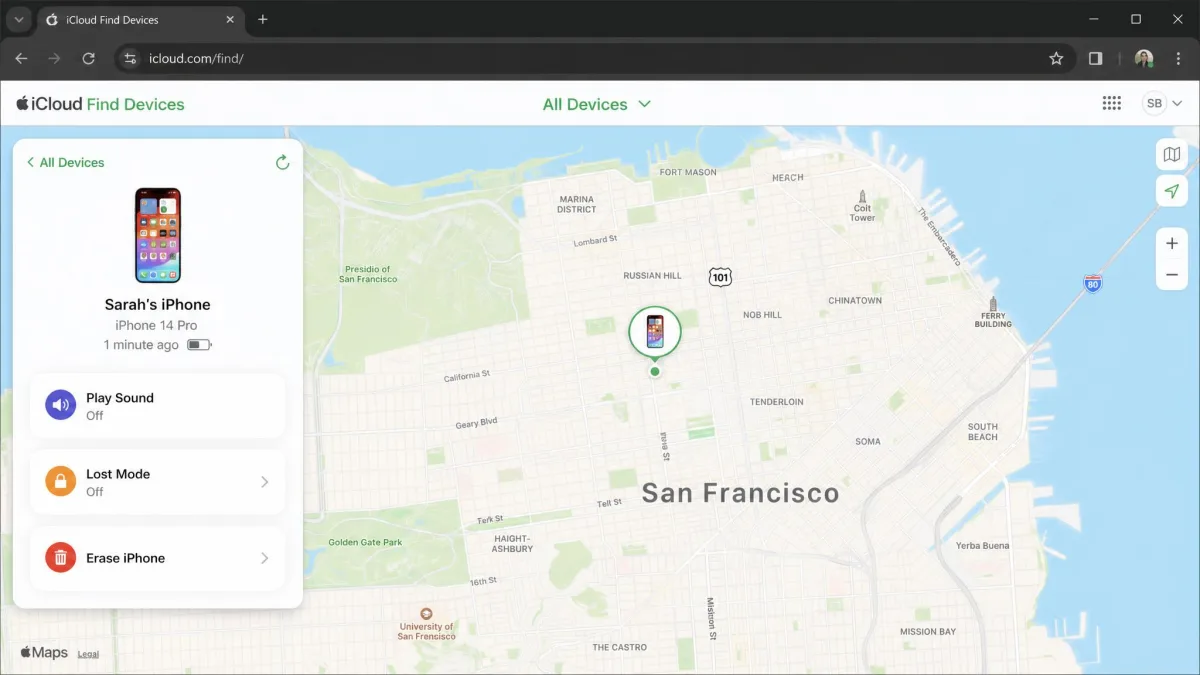
Method 3: Play a Sound to Find a Nearby iPhone
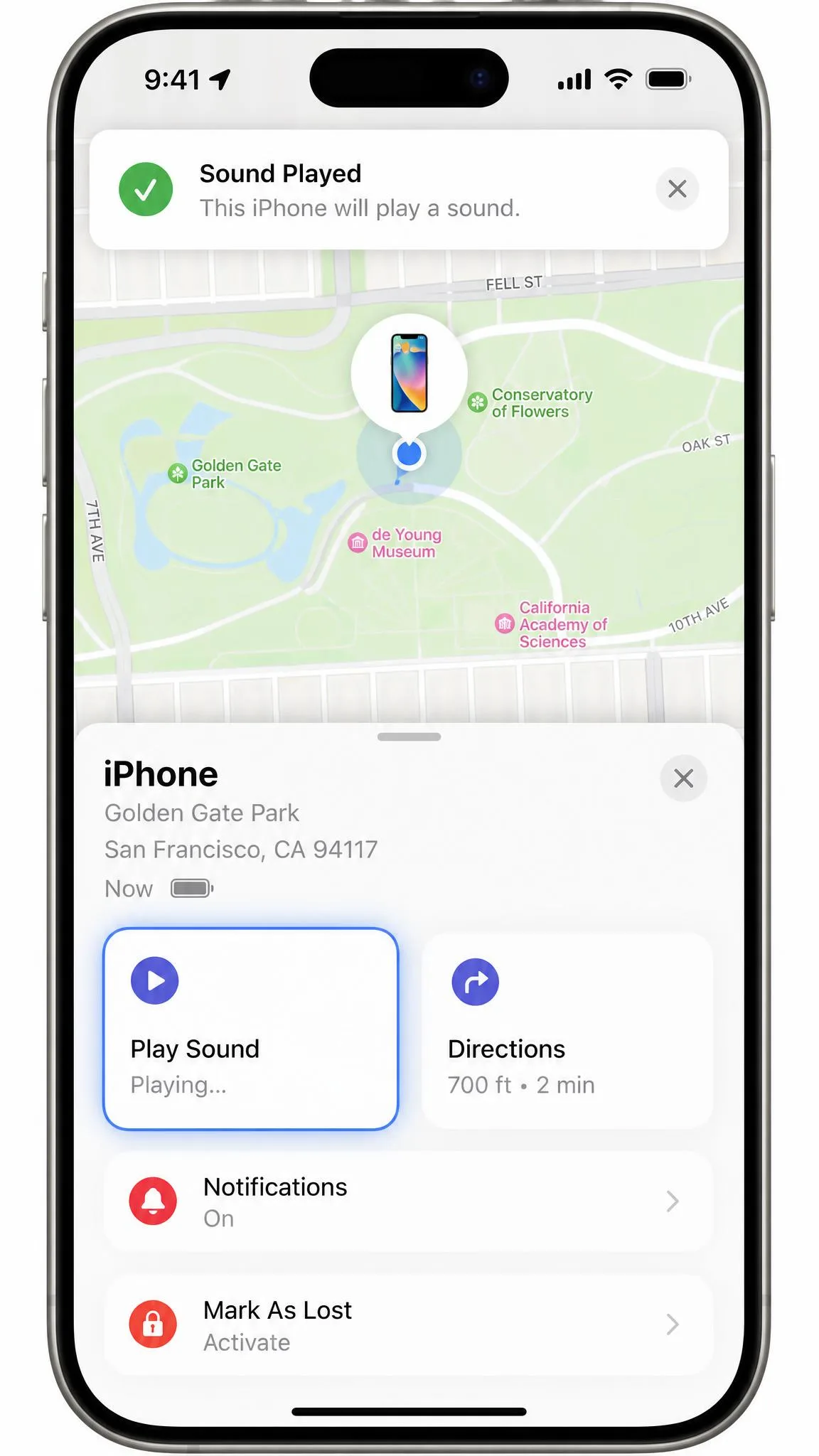
If the map puts the phone in your own house or office, select the device and choose Play Sound. The iPhone pings at full volume even when it is set to silent.
This is the fastest win for a phone lost under a sofa cushion, and it does nothing for a phone left across town.
Using an Apple Watch or HomePod to ping your iPhone
Any Apple device signed into the same account can trigger it. An Apple Watch has a Ping iPhone button in Control Center, and a HomePod will do it on a voice request.
Send a ping before you start tearing the room apart. It takes three seconds, and it settles the question of whether the phone is even in the building.
Method 4: Track an iPhone That Is Offline or Turned Off
A powered-off iPhone is not necessarily invisible. An iPhone 11 or later running iOS 15 or later keeps broadcasting a low-power Bluetooth beacon for up to 24 hours after it shuts down.
Nearby Apple devices pick up that beacon and relay an approximate location back to you. The network behind it is a crowdsourced mesh of Apple hardware, described by Apple as over a billion devices, though that figure is an installed-base estimate that drifts.
When Find My says "No Location Found" instead, the phone has a dead battery, no data connection, or Location Services switched off. The message tells you nothing about where the phone is.
A stale or plainly wrong pin often clears if you refresh the map or toggle Airplane Mode on the device you are searching from.
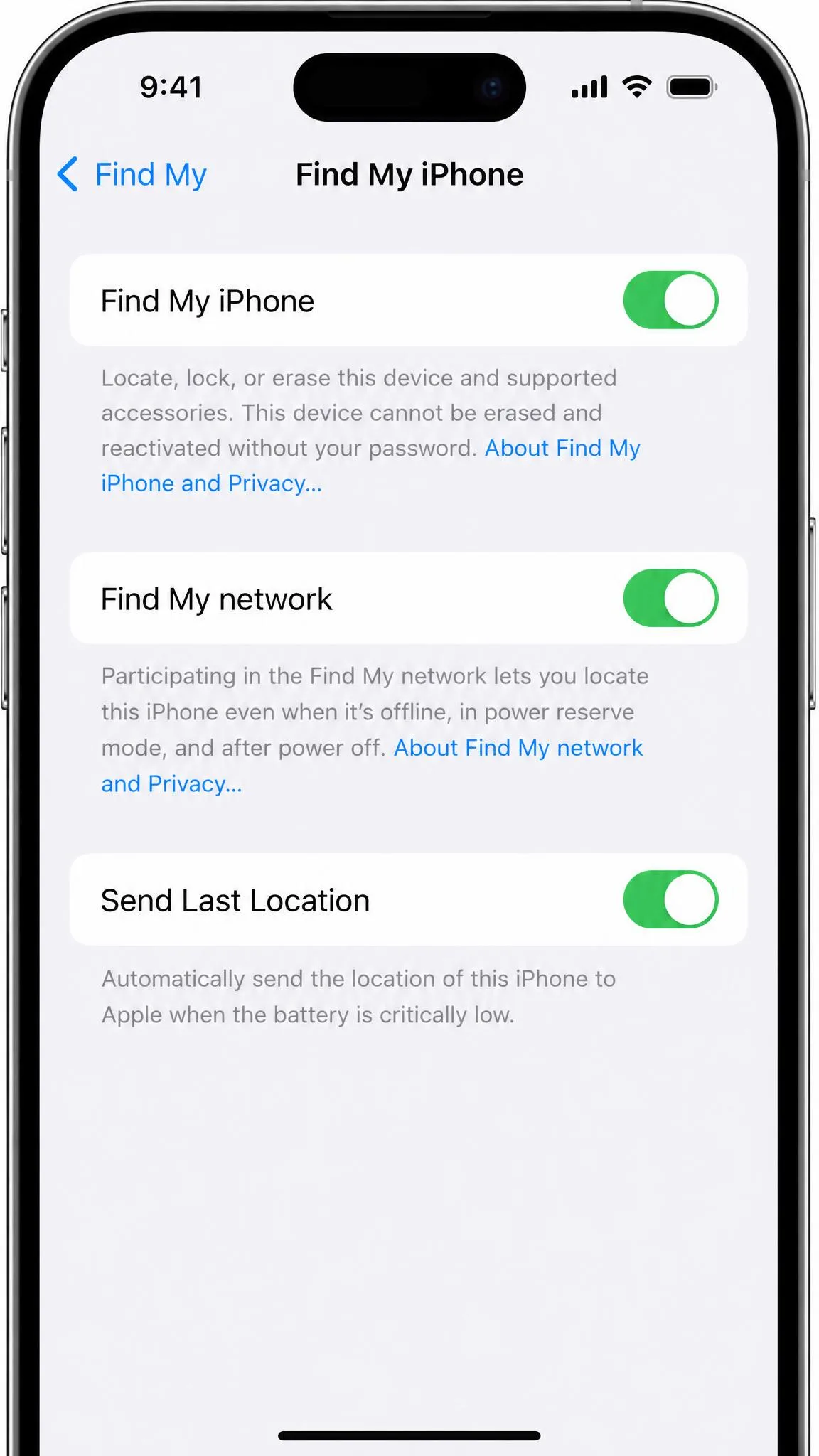
The offline behaviour is the part people get wrong most often. Find My iPhone, Find My network, and Send Last Location are three separate toggles. Turning on only the first loses the offline and powered-off coverage entirely, and nobody notices until the phone is already gone.
Method 5: Mark the iPhone as Lost With Lost Mode
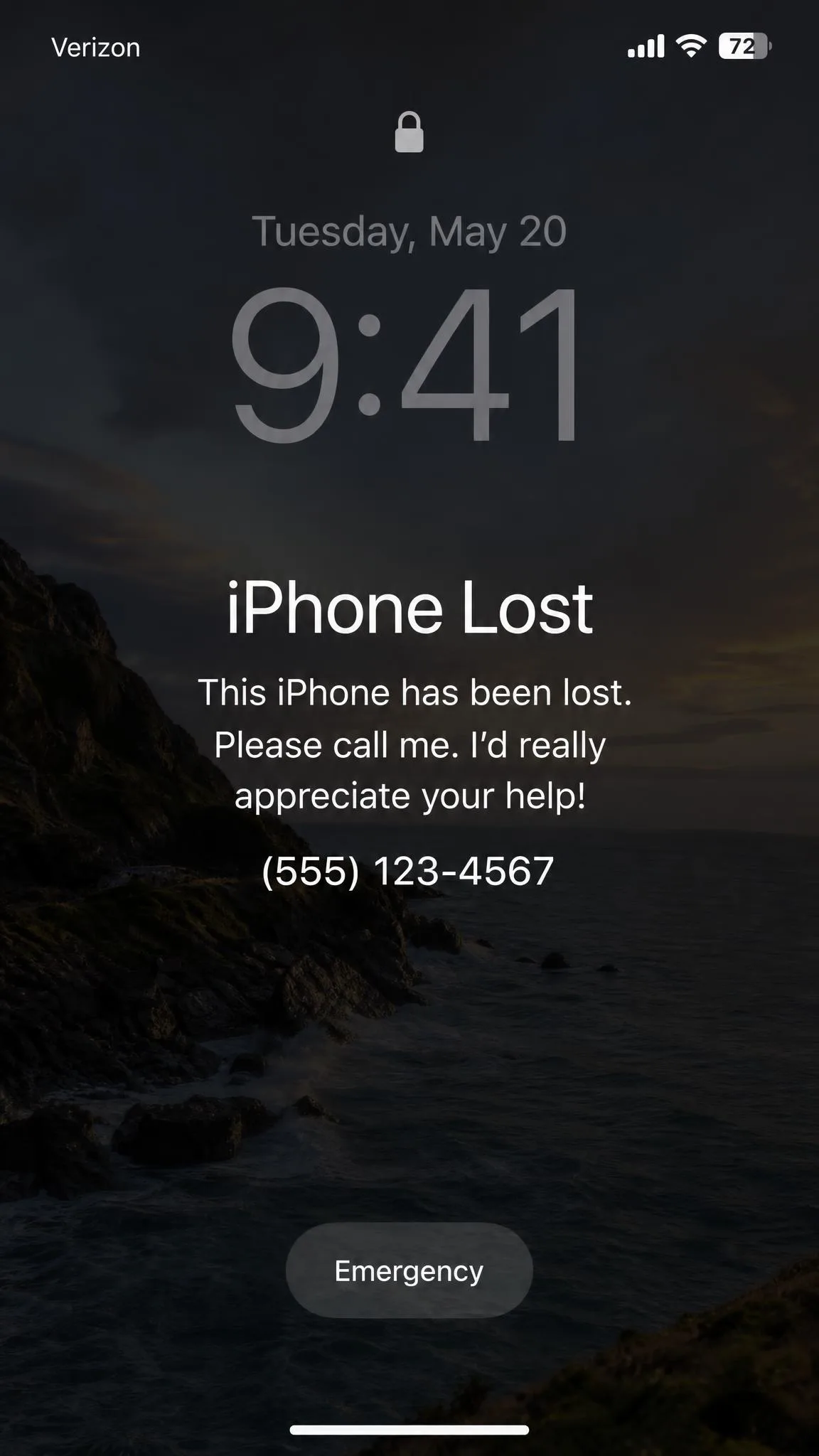
When the phone is somewhere you cannot reach, mark it as lost. Lost Mode locks the iPhone with a passcode, engages Activation Lock, suspends your Apple Pay cards, and keeps tracking running.
Activation Lock is what stops a thief erasing, reactivating, or reselling the handset. It ties the device to your Apple Account until you release it.
Adding a phone number and message to the lock screen
Lost Mode asks for a contact number and a short message, both of which appear on the lock screen. Keep the message plain: a number and a line asking the finder to call.
Getting a notification when the iPhone is found
Turn on Notify When Found and Apple alerts you the moment the iPhone reconnects to Wi-Fi or cellular, or when another Apple device detects it over Bluetooth. You do not have to sit refreshing the map.
A text saying "we found your iPhone" that arrives soon after you enable Lost Mode is almost always a phishing attempt, not a good samaritan. Scammers read the number off your lock-screen message and often quote your exact model and colour to look authentic. Apple does not text or email people to say a device has been recovered. Never enter your Apple Account password on a link from one of those messages.
Method 6: Track a Family Member's iPhone With Family Sharing
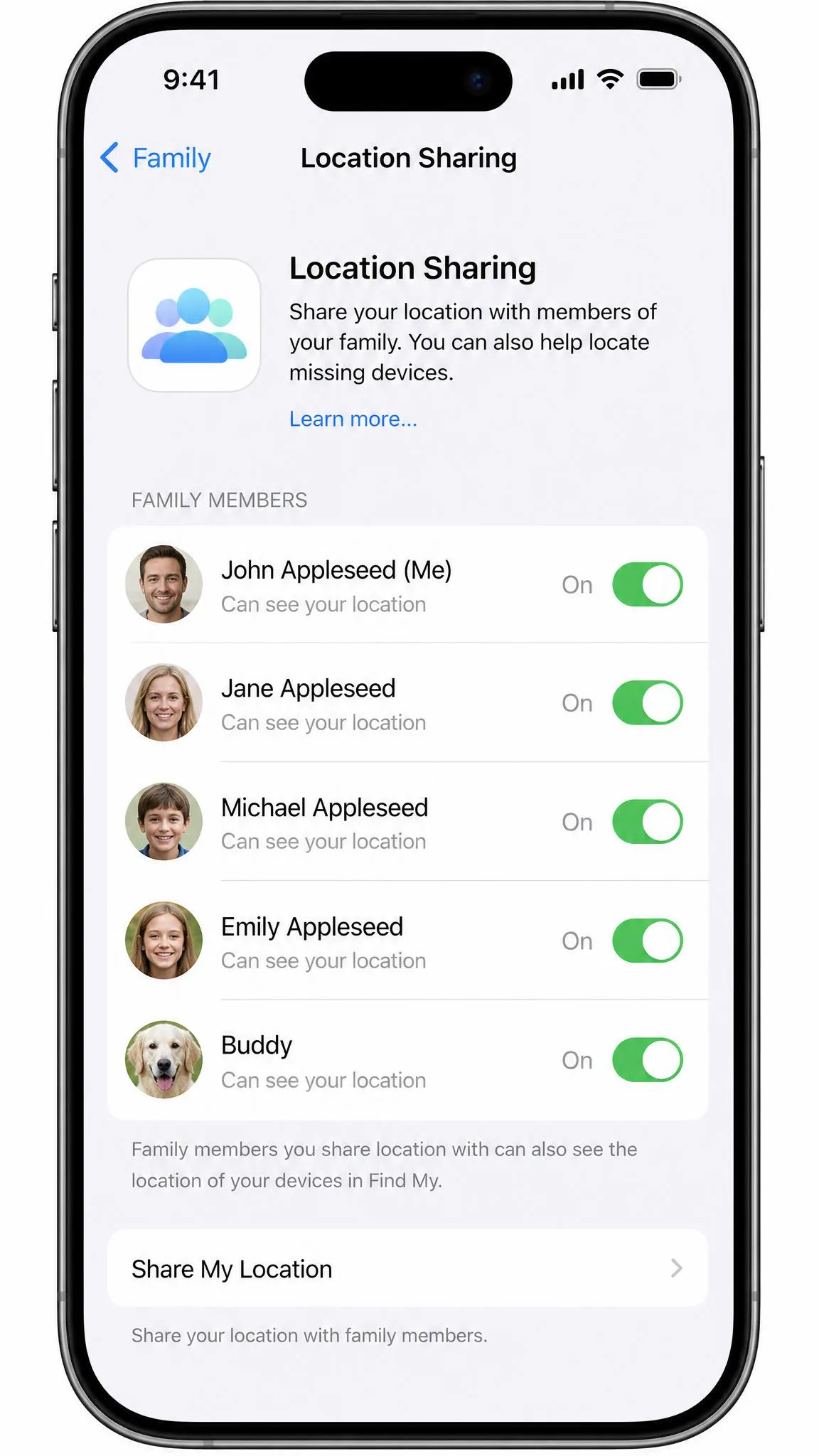
Family Sharing puts everyone's devices in one Find My list, which is how you help a child or a parent locate a phone they cannot find themselves. A group holds an organizer plus five other people.
Once location sharing is on, family members show up in Find My, Messages, and Maps, and you can locate their lost devices from your own iPhone.
Setting up location sharing on a child's iPhone
On the child's iPhone, open Settings, tap Family, tap Location Sharing, then choose who to share with. The organizer's location starts sharing automatically once the setting is enabled.
Set this up while everyone is calm and in the same room. It is a two-minute job in advance and an impossible one during a panic.
Method 7: Third-Party GPS Tracking Apps: When They Actually Help
Apps like Prey Anti-Theft add remote tracking and device controls on top of Apple's tools, which helps most when you are managing a fleet of work phones. They still need installing and configuring before the loss, and for a single personal iPhone they rarely add anything Apple does not already do.
Ignore any app that promises to track a phone from its number alone. Those services need the recipient to tap an approval link, which makes them useless in an actual theft.
Which Tracking Method to Use in Each Situation
| Method | Works when offline | Needs prior setup | Needs an Apple device | Can erase remotely |
|---|---|---|---|---|
| Yes, up to 24 hours after power off on iPhone 11 or later | Yes | Yes | Yes | |
| Yes, shows last known location | Yes | No, any browser | Yes | |
| Only the last known location | Yes, on both devices | Yes for the shared device | Yes, for family devices | |
| Varies, usually no | Yes, app installed first | No | Varies | |
| No location, blocking only | No | No | No, SIM block only |
Lost in the house: play a sound. Left somewhere public: check the map, then mark it as lost. Stolen: mark it as lost, then report it. No Apple device to hand: go straight to the browser.
How to Erase an iPhone Remotely (and What You Lose)
Remote erase wipes the device back to factory settings. Select the iPhone in Find My or at iCloud.com, then choose Erase This Device.
Erasing is irreversible and it also ends live tracking. Once the phone is wiped it stops reporting a location, so this belongs after every other option has failed, not before them. Activation Lock survives the erase, so the handset stays tied to your account either way.
Your data is safe if you had an iCloud backup, and the Lost Mode number and message can still display after the wipe.
What to Do If the iPhone Was Stolen
Apple's guide covers this path in detail, and it is worth reading alongside these steps: see what to do if your iPhone was stolen.
Do not go to the pin yourself. Confronting a thief at a Find My location has led to serious injury and death, and it is the single worst move available to you.
Report it to the police with the serial number and IMEI
File a report and hand over the serial number and IMEI. Police are unlikely to act on a Find My pin alone, but the location data can support their enquiries, and a report number is usually required for any insurance claim.
Contact your carrier to suspend service
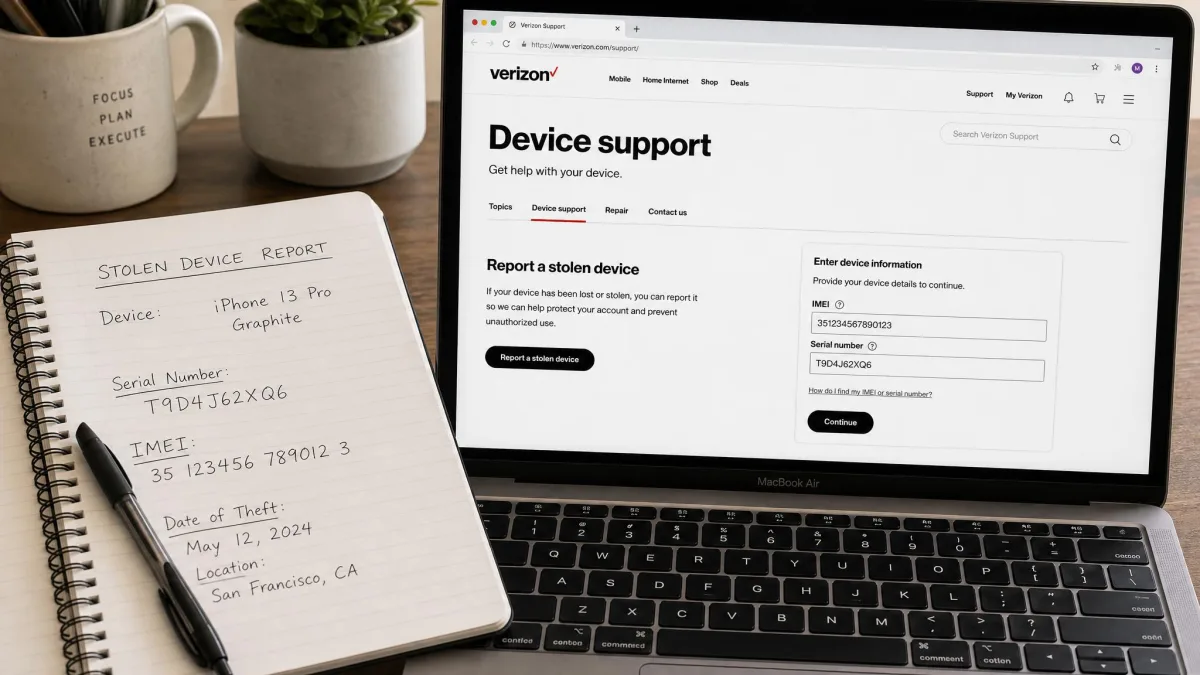
Your carrier will suspend service, block the SIM, and flag the IMEI so the handset cannot be activated on their network. Having the IMEI and serial number written down before you call saves a long hold.
File an AppleCare+ Theft and Loss claim
If you carry AppleCare+ with Theft and Loss, the iPhone deductible is $149 per incident. Apple allows two theft or loss claims in a rolling 12-month period, though terms differ by region and plan.
The claim requires that Find My was enabled when the phone went missing and stays enabled through the process. You will be asked to erase the device and remove it from your account before a replacement ships.
How to Turn On Find My So Tracking Works Next Time
Open Settings, tap your name, tap Find My, then tap Find My iPhone. Switch on Find My iPhone, then switch on Find My network and Send Last Location underneath it. All three matter.
Confirming it worked takes seconds. Hold the side and volume buttons as if you were powering the phone off, and look under the power slider for the text "iPhone Findable After Power Off".
Do the same on every iPad, Mac, and Apple Watch you own. Apple's guide to finding a lost or stolen iPhone is worth bookmarking for the day you need it in a hurry.
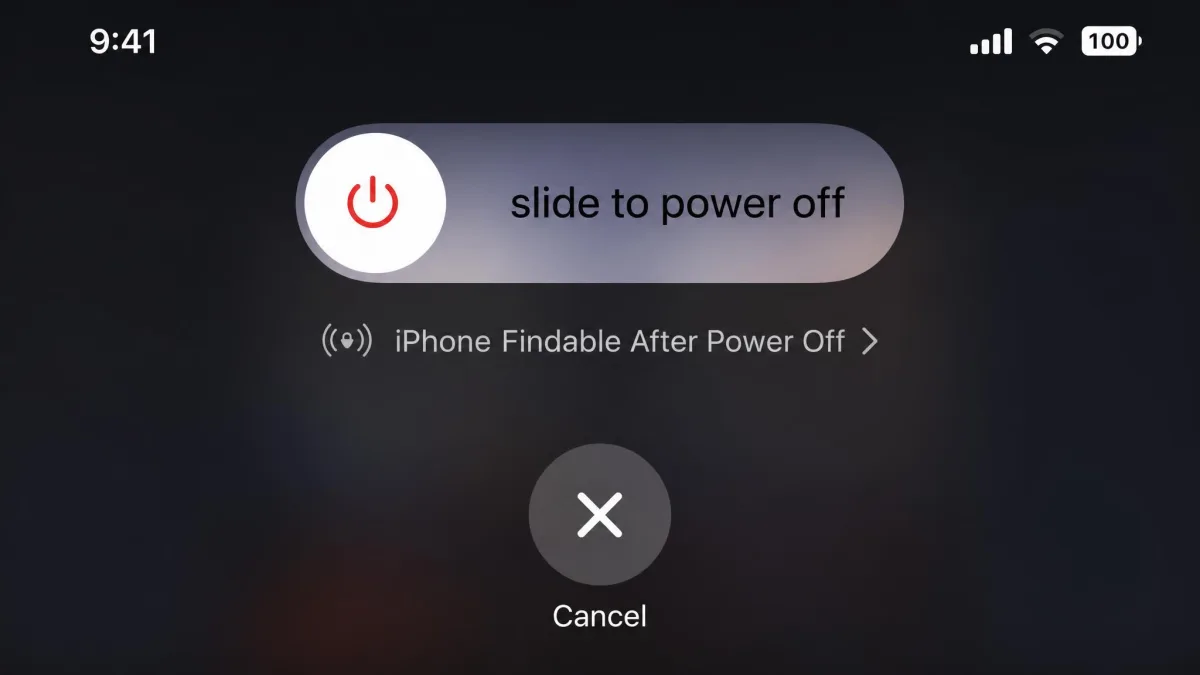
Send Last Location is the one people skip. It pushes the phone's position to Apple automatically when the battery is critically low, which is often the last useful information you get.
Frequently Asked Questions
Can you track an iPhone that is turned off?
Can you track an iPhone without iCloud or an Apple Account?
Can you track an iPhone with just the phone number?
Does Find My work in airplane mode?
What if Find My was never turned on before the phone was lost?
Can someone tell you are tracking their iPhone?
Final Thoughts
Find My locates, locks, and erases an iPhone reliably, but only when all three toggles were on before the phone disappeared. Check yours this week.
If the day comes, work in order: play a sound, read the map, mark it as lost, report it, and treat erasing as the last step rather than the first.